Excel Formula Basics: What Formulas Are and How to Write Them
By Dr. Zubair Khalid, DVM, MS, PhD ·
An Excel formula is an instruction you type into a cell that tells the program to calculate something and show the result. Every formula begins with an equals sign, and most formulas work by pointing at other cells instead of typing numbers directly. Once you understand those two ideas, you can write formulas for totals, averages, percentages and almost anything else.
Quick Answer
- A formula is a calculation rule stored in a cell. It starts with
=and produces a value when you press Enter. - Cell references like
B2andC2point to the contents of those cells. The formula uses whatever value is there right now. - Operators do the math.
+adds,-subtracts,*multiplies,/divides, and^raises to a power. - Functions are named shortcuts such as
SUMandAVERAGEthat take a range likeD2:D6and return one result. - When you copy a formula down a column, relative references adjust to each new row automatically.
What an Excel Formula Means
In plain terms, an Excel formula is a small set of instructions that lives inside a cell. You type it once, and Excel evaluates it every time the sheet recalculates. The cell shows the result, while the formula bar shows the instruction behind it.
The precise definition is narrower. A formula is an expression that begins with the equals sign and evaluates to a single value. That value can be a number, text, a date, a logical TRUE or FALSE, or an error such as #DIV/0!. The expression can contain constants, cell references, operators, and functions. Excel reads the expression, resolves each reference to its current value, applies the operators in the correct order, and writes the outcome into the cell.
This is why people describe a spreadsheet as a live model. Change the number in B2 and every formula that references B2 updates on its own. The formula is the rule, and the cell value is the current answer.
How It Works
A formula has a fixed shape. It starts with =, then an expression, and Excel evaluates that expression from left to right while respecting operator precedence.
$$= \text{operand} \ \text{operator} \ \text{operand}$$
Each piece has a job:
=tells Excel that what follows is a formula, not text. Without it,B2*C2is just a label.- Operands are the things being calculated. They can be numbers, cell references like
B2, or ranges likeD2:D6. - Operators combine operands. The arithmetic operators are
+(add),-(subtract),*(multiply),/(divide), and^(exponent). - Parentheses group parts of the expression so they are evaluated first, exactly as in ordinary math.
- Functions are named operations such as
SUM(D2:D6). The name is followed by parentheses holding the arguments.
Operator precedence follows standard math rules. Exponentiation runs first, then multiplication and division, then addition and subtraction. Comparison operators such as = and > come last. So =2+3*4 returns 14, not 20, because the multiplication happens before the addition. Write =(2+3)*4 if you want 20.
Cell references come in two flavors. A relative reference like B2 shifts when you copy the formula to another cell. An absolute reference like $B$2 stays locked to that exact cell. The dollar sign freezes the row, the column, or both. This matters the moment you fill a formula down a column or across a row.
Ranges use a colon. D2:D6 means every cell from D2 through D6 in a straight block. Functions accept ranges as arguments, which is how a single formula can summarize dozens of cells.
If you want a slower walkthrough of typing your first one, see how to make a formula in Excel step by step.
Worked Example
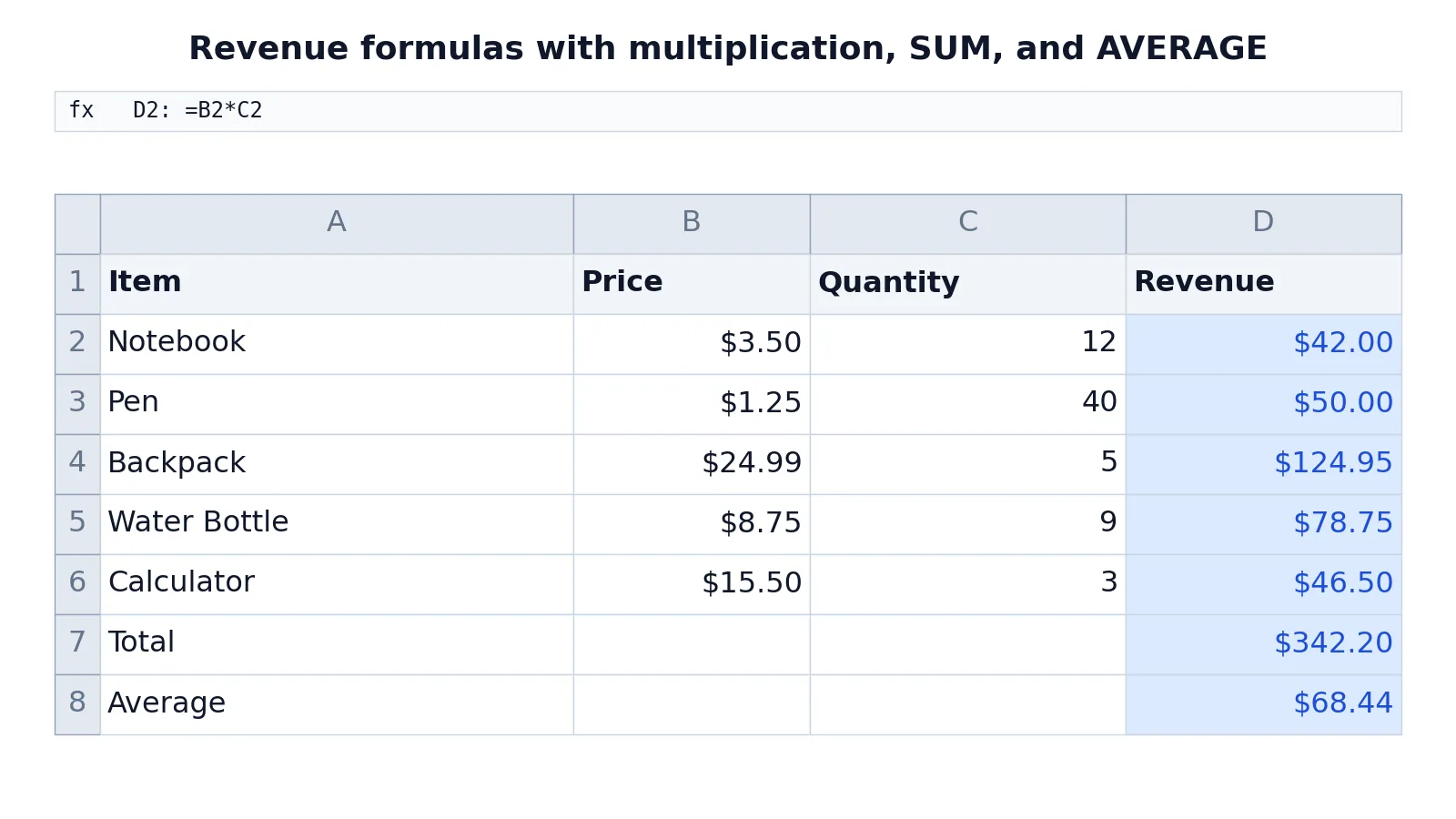
The table below is a small sales sheet. Column A holds the item, column B the price, column C the quantity sold, and column D the revenue. Each revenue cell multiplies price by quantity, and the last two rows summarize the column.
| A | B | C | D | |
|---|---|---|---|---|
| 1 | Item | Price | Quantity | Revenue |
| 2 | Notebook | 3.5 | 12 | =B2*C2 -> displays $42.00 |
| 3 | Pen | 1.25 | 40 | =B3*C3 -> displays $50.00 |
| 4 | Backpack | 24.99 | 5 | =B4*C4 -> displays $124.95 |
| 5 | Water Bottle | 8.75 | 9 | =B5*C5 -> displays $78.75 |
| 6 | Calculator | 15.5 | 3 | =B6*C6 -> displays $46.50 |
| 7 | Total | =SUM(D2:D6) -> displays $342.20 | ||
| 8 | Average | =AVERAGE(D2:D6) -> displays $68.44 |
Read the first revenue formula as a sentence. "Take the value in B2 and multiply it by the value in C2." Excel resolves B2 to 3.5 and C2 to 12, multiplies them, and shows $42.00. The next four rows do the same thing with their own row numbers, which is exactly what happens when you type the formula once in D2 and fill it down to D6.
The total formula =SUM(D2:D6) adds the five revenue values and returns $342.20. The average formula =AVERAGE(D2:D6) divides that same total by the count of numeric cells and returns $68.44. Notice that both summary formulas point at the range, not at the individual cells. If you add a sixth item in row 7, you would extend the range to D2:D7 so the new row is included.
The same pattern scales to any size of table. The multiplication handles one row, and the range functions handle the whole column. For a deeper look at the multiply pattern, see multiplication formula in Excel, and for the addition pattern see how to sum a column in Excel.
How to Interpret It
The number a formula displays is not the formula itself. Click the cell and look at the formula bar to see the actual instruction. This distinction explains most confusion beginners hit. Two cells can show the same value while containing completely different formulas.
Interpret a result by asking what feeds it. A revenue figure of $42.00 depends on the price and quantity in that row. Change either input and the result moves. A total of $342.20 depends on the whole range, so it changes when any row changes or when the range grows.
Watch for the difference between a value and its display. A cell can hold 42 while showing $42.00 because of number formatting. The underlying number is what other formulas use. Formatting changes appearance, not the stored value.
Errors are information. #DIV/0! means a division by zero or an empty cell. #VALUE! usually means a formula is trying to do math on text. #REF! means a reference points to a cell that no longer exists, often after a row was deleted. Read the error as a clue about which input is wrong.
When to Use It (and when not to)
Use formulas whenever a number is derived from other numbers. Totals, averages, percentages, differences, running balances, and unit conversions all belong in formulas. The payoff is that the sheet stays correct when inputs change. You update one number and the dependent results follow.
Use cell references instead of typed constants whenever the input already lives in a cell. Writing =3.5*12 gives you 42 today and a stale answer tomorrow. Writing =B2*C2 keeps the calculation tied to the data.
Do not use a formula when the value is a fixed fact that will never change, such as a tax rate you want to record for reference. Do not use a formula to store text labels or notes. And do not build a formula that hardcodes a number that already exists elsewhere in the sheet, because you now have two places to update and they will drift apart.
If your goal is a reusable named operation, a function is the better tool. See Excel functions: what they are and how to use them for how functions differ from hand-built formulas.
Formula vs Function
These two words get used interchangeably, but they are not the same thing. A formula is the whole expression in the cell. A function is one named piece inside it.
| Formula | Function | |
|---|---|---|
| What it is | The complete expression in a cell | A named built-in operation |
| Example | =B2*C2 | SUM(D2:D6) |
Starts with = | Yes | Only when used alone in a cell |
| Can contain functions | Yes | No, a function is a component |
| Written by you | Always | No, the name and rules are built in |
A formula can contain several functions, plain arithmetic, or both. =SUM(D2:D6)/5 is a formula that uses a function and an operator together.
Common Mistakes
- Leaving off the equals sign. Typing
B2*C2produces text, not a calculation. Start every formula with=. - Typing numbers instead of referencing cells.
=3.5*12works once and then goes stale. Point atB2andC2so the formula tracks the data. - Forgetting absolute references when copying. A reference like
B2shifts as you fill down. Use$B$2when a reference must stay fixed. - Mismatched parentheses. Every opening parenthesis needs a closing one. Excel will refuse the formula or group the wrong parts if they do not balance.
- Summarizing the wrong range.
=SUM(D2:D5)silently omits row 6. Check that the range covers every row you mean to include. - Doing math on text. A number stored as text will not calculate.
#VALUE!is the usual signal that a cell holds text where a number is expected.
Limitations
A formula only knows what you point it at. It cannot infer that a new row belongs in a total unless the range already covers that row or you extend it. Insert a row inside a range and Excel usually adjusts, but add a row just below the last one and the total may ignore it.
Formulas also inherit the quality of their inputs. If a price cell contains text, an empty cell, or a stray space, the calculation returns an error or a wrong number. A formula cannot detect that a value is wrong, only that it cannot be used. And a formula recalculates from the data present, so it will happily produce a precise-looking average from a range that is missing half its rows. The arithmetic is reliable, the inputs are your responsibility.
Frequently Asked Questions
What is an Excel formula in simple terms?
It is a calculation you type into a cell, starting with =, that produces a value. Instead of typing an answer, you describe how to get it. Excel then shows the result and updates it whenever the referenced cells change.
Why does my formula show as text instead of calculating?
The cell is probably formatted as text, or the formula is missing its leading equals sign. Check the formula bar. If the entry starts with =, reformat the cell as General and re-enter the formula. If it does not start with =, add it.
What is the difference between a relative and an absolute cell reference?
A relative reference like B2 changes when you copy the formula to another cell, shifting by the same number of rows and columns. An absolute reference like $B$2 stays locked to that exact cell no matter where you copy it. Use absolute references for constants such as a tax rate.
Can a formula refer to cells on another sheet?
Yes. You write the sheet name, an exclamation mark, then the cell or range, as in Sheet2!B2. If the sheet name contains spaces, wrap it in single quotation marks. The reference behaves the same way as one on the current sheet.
How do I see the formula instead of the result?
Select the cell and read the formula bar at the top of the window. The cell itself shows the value. You can also switch the sheet to show formulas instead of results, which is useful when auditing a model.
References
This article draws on the standard references listed under Further Reading.
Further Reading
- Broman KW, Woo KH (2018). Data Organization in Spreadsheets. The American Statistician
- Ziemann M, Eren Y, El-Osta A (2016). Gene name errors are widespread in the scientific literature. Genome Biology
- Microsoft Support: Excel help and learning
- McCullough B, Heiser DA (2008). On the accuracy of statistical procedures in Microsoft Excel 2007. Computational Statistics & Data Analysis
- Abeysooriya M, Soria M, Kasu MS et al. (2021). Gene name errors: Lessons not learned. PLOS Computational Biology
- Wilson G, Bryan J, Cranston K et al. (2017). Good enough practices in scientific computing. PLOS Computational Biology