Excel Functions: What They Are and How to Use Them
By Dr. Zubair Khalid, DVM, MS, PhD ·
Excel functions are predefined formulas that perform calculations by using specific values, called arguments, in a particular order or structure [1]. They let you do everything from simple addition to conditional logic and lookups without writing the math yourself. This article explains what excel functions are, how their syntax works, the main categories, and how to use them correctly.
Quick Answer
- An Excel function is a predefined formula that takes arguments and returns a result [1].
- Every function follows the same structure: an equal sign, the function name, an opening parenthesis, arguments separated by commas, and a closing parenthesis [1].
- Arguments can be numbers, text, logical values such as TRUE or FALSE, arrays, error values, or cell references [1].
- Functions are grouped by category, including math, statistical, text, logical, and lookup and reference [2].
- You can nest functions inside other functions to build more complex calculations [1].
What Excel Functions Mean
In plain terms, a function is a ready-made calculation you call by name. Instead of typing out a long arithmetic expression, you type =SUM(B2:B11) and Excel adds the range for you.
The precise definition is narrower. Functions are predefined formulas that perform calculations by using specific values, called arguments, in a particular order, or structure [1]. The word "predefined" matters. The calculation logic already exists inside Excel. Your job is to supply the right arguments in the right order, and Excel returns the result.
A function is one element of a formula. A formula can also contain references, operators, and constants [3]. For example, =PI()*A2^2 combines a function, a reference, an operator, and a constant.
How It Works
The structure of a function begins with an equal sign, followed by the function name, an opening parenthesis, the arguments separated by commas, and a closing parenthesis [1]. A generic function looks like this:
$$=\text{FUNCTION}(\text{argument1},\ \text{argument2},\ \dots)$$
Each part has a job:
- Equal sign (=) tells Excel this cell contains a formula, not text.
- Function name identifies which predefined calculation to run, such as SUM or IF.
- Opening and closing parentheses wrap the arguments. Some functions take no arguments, such as
PI()[3]. - Arguments are the inputs. They can be numbers, text, logical values such as TRUE or FALSE, arrays, error values such as #N/A, or cell references [1]. An argument can also be a constant, a formula, or another function [1].
- Commas separate one argument from the next.
You do not need to type function names in all caps. Excel automatically capitalizes the function name once you press Enter [1]. If you misspell a name, such as =SUME(A1:A10) instead of =SUM(A1:A10), Excel returns a #NAME? error [1].
As you type a built-in function, a tooltip appears showing its syntax and arguments. For example, type =ROUND( and the tooltip appears [1]. You can also click a cell and press SHIFT+F3 to launch the Insert Function dialog and browse available functions [1].
Functions are organized by category on the Formulas tab of the Ribbon [1]. The main categories include math and trigonometry, statistical, text, logical, and lookup and reference [2]. Text functions handle strings, such as joining or splitting text [4]. Lookup and reference functions find values in a range, and XLOOKUP is an improved version of VLOOKUP that works in any direction and returns exact matches by default [5].
Worked Example
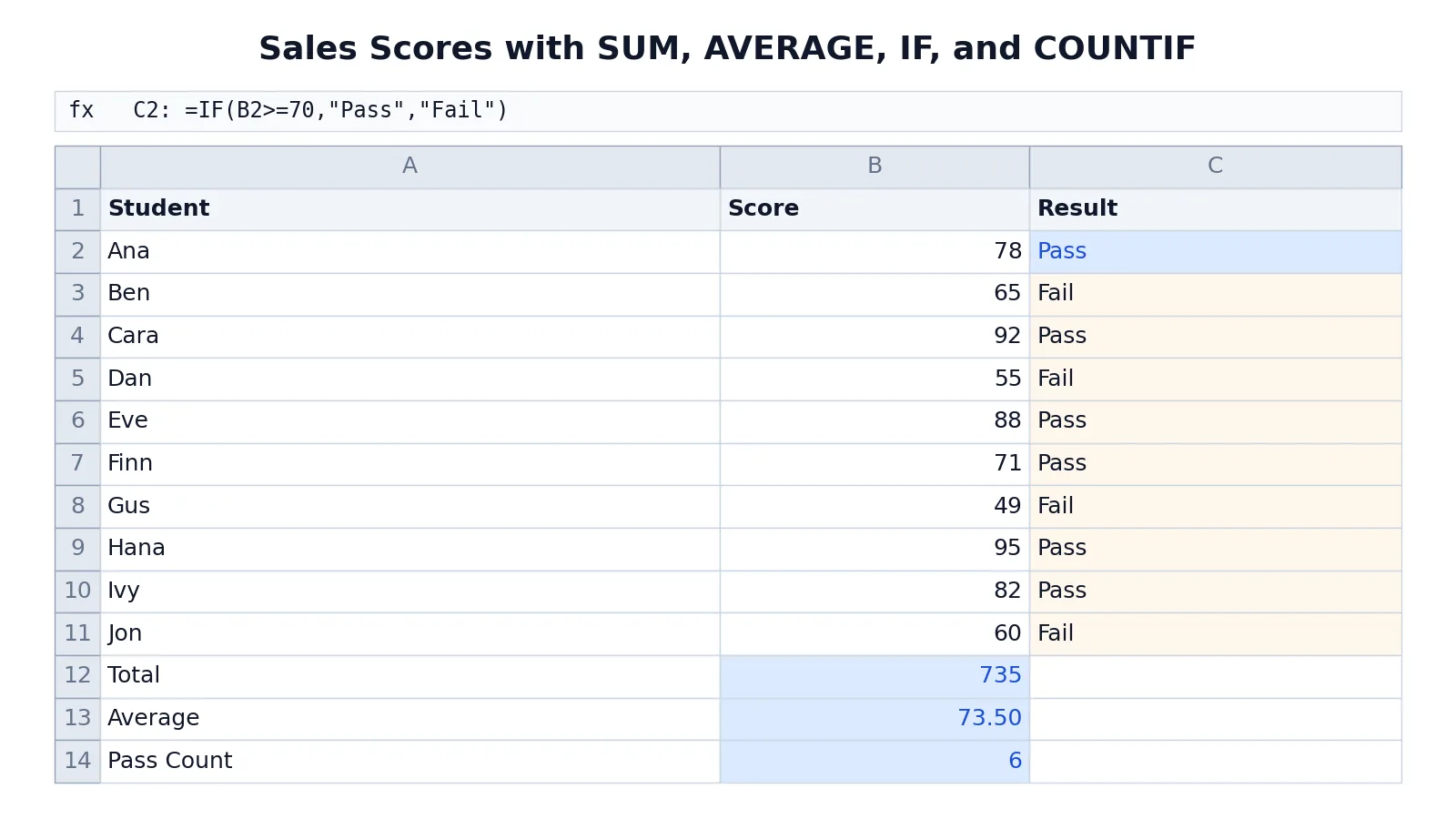
The sheet below scores ten students. Column C uses IF to label each score as Pass or Fail, and three summary formulas sit below the data.
| A | B | C | |
|---|---|---|---|
| 1 | Student | Score | Result |
| 2 | Ana | 78 | =IF(B2>=70,"Pass","Fail") -> displays Pass |
| 3 | Ben | 65 | =IF(B3>=70,"Pass","Fail") -> displays Fail |
| 4 | Cara | 92 | =IF(B4>=70,"Pass","Fail") -> displays Pass |
| 5 | Dan | 55 | =IF(B5>=70,"Pass","Fail") -> displays Fail |
| 6 | Eve | 88 | =IF(B6>=70,"Pass","Fail") -> displays Pass |
| 7 | Finn | 71 | =IF(B7>=70,"Pass","Fail") -> displays Pass |
| 8 | Gus | 49 | =IF(B8>=70,"Pass","Fail") -> displays Fail |
| 9 | Hana | 95 | =IF(B9>=70,"Pass","Fail") -> displays Pass |
| 10 | Ivy | 82 | =IF(B10>=70,"Pass","Fail") -> displays Pass |
| 11 | Jon | 60 | =IF(B11>=70,"Pass","Fail") -> displays Fail |
| 12 | Total | =SUM(B2:B11) -> displays 735 | |
| 13 | Average | =AVERAGE(B2:B11) -> displays 73.50 | |
| 14 | Pass Count | =COUNTIF(C2:C11,"Pass") -> displays 6 |
Four functions are at work here.
IF checks whether a condition is true and returns one value if it is, and another if it is false [6]. Its syntax is IF(logical_test, value_if_true, [value_if_false]) [6]. In cell C2, the logical test is B2>=70. Because Ana scored 78, the test is true and the function returns "Pass". The IF function can evaluate text and values, and it can also evaluate errors [6].
SUM adds the values in a range. It totals the ten scores in B2:B11 and returns 735.
AVERAGE returns the mean of the same range, which is 73.50.
COUNTIF counts the cells in a range that meet a criterion. Here it counts how many results equal "Pass" and returns 6.
If you want more practice with the addition function, see the Excel SUM function guide. For a broader set of formulas to keep on hand, the Excel formulas cheat sheet covers the most common ones.
How to Interpret It
Read a function result as the answer to a specific question you asked through the arguments. =SUM(B2:B11) answers "what is the total of these ten cells?" =COUNTIF(C2:C11,"Pass") answers "how many cells in this range equal Pass?"
The arguments define the scope. Change the range and you change the answer. Change the criterion and you change what counts. This is why reading the formula matters as much as reading the result. A total of 735 is only meaningful if you know it sums B2 through B11 and nothing else.
The IF results in column C are categorical. Each cell returns one of two text values based on a threshold. The summary formulas then aggregate those categories or the underlying numbers. Together they turn ten raw scores into a pass rate, a total, and an average.
When to Use It (and when not to)
Use functions whenever a calculation repeats or follows a standard rule. Summing a column, averaging a range, testing a condition, or looking up a value are all tasks functions handle reliably and consistently. Functions also reduce errors, because the logic lives in one place and you can copy it down a column.
Use functions when the inputs change often. A formula with cell references updates automatically when the underlying values change, while a hard-coded number does not.
Avoid functions when a simpler approach works. If you need a one-time calculation on two numbers, typing the arithmetic directly is faster. Avoid stacking many nested functions when a helper column would be clearer. Deeply nested formulas are hard to read and hard to debug.
Also avoid functions whose results you do not understand. If you cannot explain what each argument does, the output may mislead you.
Excel Functions vs Excel Formulas
People use these terms interchangeably, but they are not the same thing.
| Excel function | Excel formula | |
|---|---|---|
| What it is | A predefined calculation called by name [1] | Any expression that calculates a value |
| Structure | Name plus parentheses and arguments [1] | Functions, references, operators, and constants [3] |
| Example | =SUM(B2:B11) | =PI()*A2^2 [3] |
| Scope | One built-in operation | The whole expression in the cell |
A formula is the broader category. A function is one building block you can place inside a formula. Every function you type is part of a formula, but not every formula contains a function.
Common Mistakes
- Misspelling the function name.
=SUME(A1:A10)returns a #NAME? error [1]. Fix it by typing the correct name, or use the Insert Function dialog to pick from the list. - Forgetting the equal sign. Without it, Excel treats the entry as text. Start every formula with
=. - Mismatched parentheses. Every opening parenthesis needs a closing one. Count them when a formula will not calculate.
- Wrong argument order. Functions expect arguments in a fixed sequence. Check the tooltip that appears as you type [1].
- Using the wrong separator. Arguments are separated by commas [1]. If your system uses a different list separator, adjust accordingly.
- Assuming a function exists in your version. Some functions carry version markers and are not available in earlier versions of Excel [7]. Check before sharing a workbook.
Limitations
Functions only return what their arguments describe. If you point SUM at the wrong range, it returns a confident but wrong total. The function cannot know your intent.
Some functions behave differently across platforms. The calculated results of formulas and some Excel worksheet functions might differ slightly between a Windows PC using x86 or x86-64 architecture and a Windows RT PC using ARM architecture [3]. Version availability is another constraint, since functions introduced in a later release are not available in earlier ones [7].
Nested functions add power but also fragility. A single wrong argument deep inside a nest can break the whole result, and the error message often points to the outer function. Keep nesting shallow and test each layer.
Frequently Asked Questions
What is the difference between a function and a formula in Excel?
A formula is any expression that calculates a value, and it can contain functions, references, operators, and constants [3]. A function is a predefined formula that performs a calculation using arguments in a particular order or structure [1]. In short, a function is one type of component you can use inside a formula.
How do I know which arguments a function needs?
Start typing the function and a tooltip appears with its syntax and arguments. Tooltips appear only for built-in functions [1]. You can also click a cell and press SHIFT+F3 to open the Insert Function dialog and browse the available functions [1].
Why does my formula return a #NAME? error?
A #NAME? error usually means the function name is misspelled. For example, =SUME(A1:A10) instead of =SUM(A1:A10) returns this error [1]. Check the spelling and confirm the function exists in your version of Excel.
Can I use a function inside another function?
Yes. Arguments can be constants, formulas, or other functions [1]. This is called nesting. For example, you can place an AVERAGE inside an IF to return a label based on a mean. Keep nesting shallow so the formula stays readable.
What are the main categories of Excel functions?
Worksheet functions are categorized by their functionality, and you can browse the categories on the Formulas tab or search for a function by a descriptive word in the Insert Function dialog [2]. Common categories include math and trigonometry, statistical, text, logical, and lookup and reference [2]. Text functions work on strings [4], and lookup and reference functions find values in ranges [5].
For related reading, see the Excel INDEX function guide, the Excel FIND function guide, and the Excel IS functions overview.
References
- Using functions and nested functions in Excel formulas | Microsoft Support
- Excel functions (by category) | Microsoft Support
- Overview of formulas in Excel | Microsoft Support
- Text functions (reference) | Microsoft Support
- Lookup and reference functions (reference) | Microsoft Support
- IF function | Microsoft Support
- Excel functions (alphabetical) | Microsoft Support
Further Reading
- Broman KW, Woo KH (2018). Data Organization in Spreadsheets. The American Statistician
- Ziemann M, Eren Y, El-Osta A (2016). Gene name errors are widespread in the scientific literature. Genome Biology