Division Formula in Excel: How to Divide Cells and Columns
By Dr. Zubair Khalid, DVM, MS, PhD ·
A division formula in Excel uses the forward slash / as the division operator, and every formula starts with an equals sign. For example, =A2/B2 divides the value in A2 by the value in B2. This guide covers dividing single cells, filling a division formula down a column, and handling the errors that appear when a divisor is zero or blank.
Quick Answer
- Type
=in a cell, then the dividend, then/, then the divisor.=10/2returns 5. - Use cell references instead of typed numbers so the formula updates when the data changes, such as
=B2/C2[1]. - To divide a whole column by one constant, put the constant in a cell and lock it with
$, for example=A2/$D$1. - Excel has no
DIVIDEfunction. The/operator is the division tool, andQUOTIENTreturns only the whole-number part of a division [2]. - Dividing by zero or by an empty cell returns
#DIV/0!. Wrap the formula inIForIFERRORto control what shows.
The Formula
The division formula has three parts.
$$= \text{dividend} \; / \; \text{divisor}$$
=tells Excel the cell contains a formula, not text or a date [1].- The dividend is the number being divided. It can be a typed number, a cell reference like
B2, or another formula. /is the division operator.- The divisor is the number you divide by. It can also be a typed number, a cell reference, or a formula.
So =B2/C2 means "take the value in B2 and divide it by the value in C2." If B2 holds 1250 and C2 holds 50, the cell displays 25.
If you want only the integer portion and want to discard the remainder, use the QUOTIENT function instead. =QUOTIENT(5,2) returns 2, while =5/2 returns 2.5 [2]. QUOTIENT takes two arguments, the numerator and the denominator, and returns #VALUE! if either argument is nonnumeric [2].
How to Calculate It Step by Step
- Click the cell where you want the result.
- Type
=to start the formula. - Type or click the dividend cell, for example
B2. - Type
/. - Type or click the divisor cell, for example
C2. - Press Enter. The cell shows the quotient.
To divide an entire column by the same number, put that number in one cell, say D1. In the first result cell type =A2/$D$1. The dollar signs lock the reference so it does not shift when you copy the formula down. Then drag the fill handle from the corner of the cell down the column. Each row divides its own value by the same constant [1].
If you are new to building formulas, the same pattern of starting with = and referencing cells applies to every operation, which is covered in this guide to how to make a formula in Excel.
Worked Example
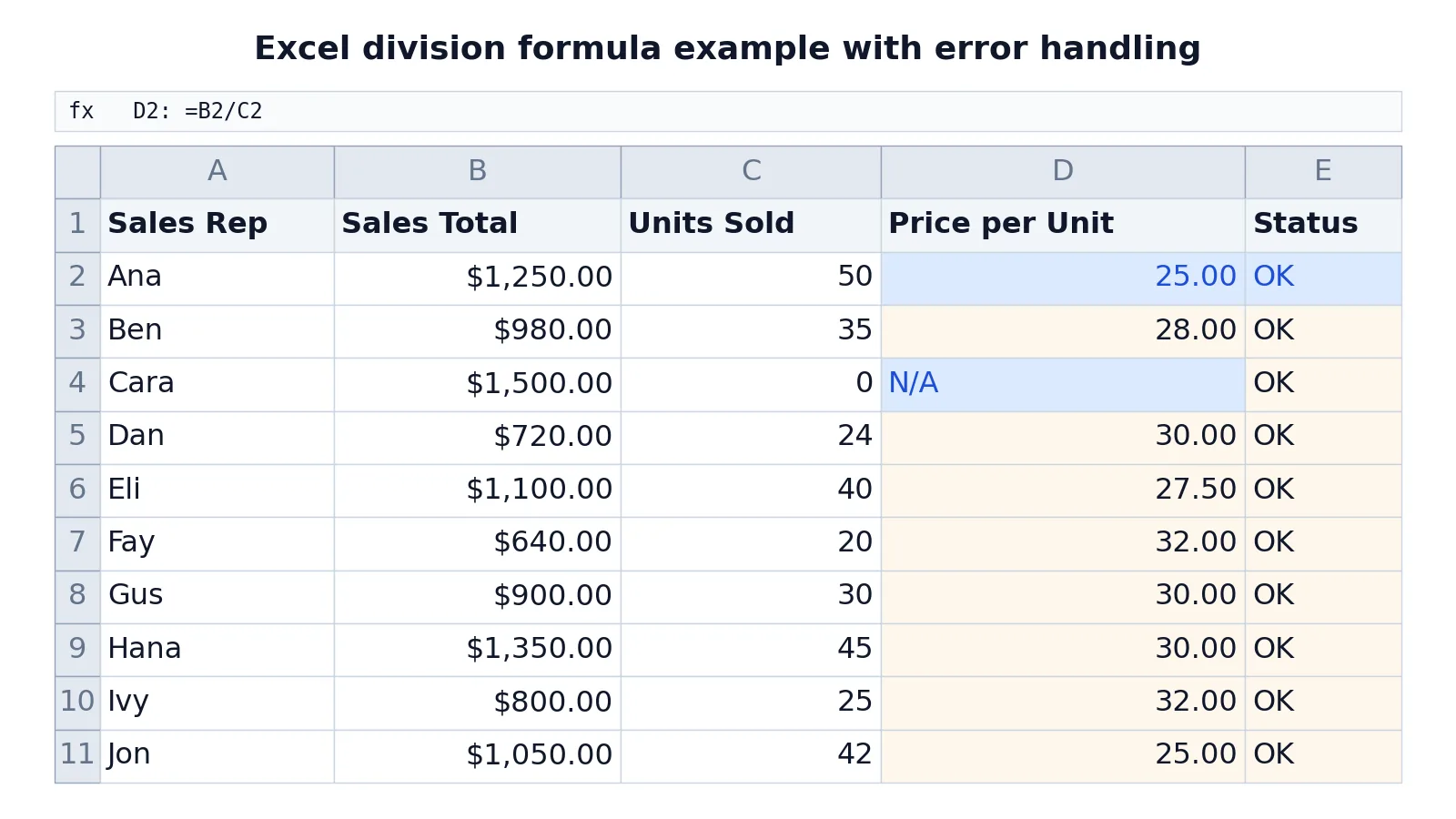
The table below is a sales sheet with one row per sales rep. Column D calculates price per unit by dividing sales total by units sold, and column E checks each result for errors.
| A | B | C | D | E | |
|---|---|---|---|---|---|
| 1 | Sales Rep | Sales Total | Units Sold | Price per Unit | Status |
| 2 | Ana | 1250 | 50 | =B2/C2 -> displays 25.00 | =IF(ISERROR(D2),"Check data","OK") -> displays OK |
| 3 | Ben | 980 | 35 | =B3/C3 -> displays 28.00 | =IF(ISERROR(D3),"Check data","OK") -> displays OK |
| 4 | Cara | 1500 | 0 | =IF(C4=0,"N/A",B4/C4) -> displays N/A | =IF(ISERROR(D4),"Check data","OK") -> displays OK |
| 5 | Dan | 720 | 24 | =B5/C5 -> displays 30.00 | =IF(ISERROR(D5),"Check data","OK") -> displays OK |
| 6 | Eli | 1100 | 40 | =B6/C6 -> displays 27.50 | =IF(ISERROR(D6),"Check data","OK") -> displays OK |
| 7 | Fay | 640 | 20 | =B7/C7 -> displays 32.00 | =IF(ISERROR(D7),"Check data","OK") -> displays OK |
| 8 | Gus | 900 | 30 | =B8/C8 -> displays 30.00 | =IF(ISERROR(D8),"Check data","OK") -> displays OK |
| 9 | Hana | 1350 | 45 | =B9/C9 -> displays 30.00 | =IF(ISERROR(D9),"Check data","OK") -> displays OK |
| 10 | Ivy | 800 | 25 | =B10/C10 -> displays 32.00 | =IF(ISERROR(D10),"Check data","OK") -> displays OK |
| 11 | Jon | 1050 | 42 | =B11/C11 -> displays 25.00 | =IF(ISERROR(D11),"Check data","OK") -> displays OK |
Row 4 is the interesting one. Cara has 1500 in sales but 0 units sold. A plain =B4/C4 would return #DIV/0!. The formula =IF(C4=0,"N/A",B4/C4) tests the divisor first and returns the text N/A instead of an error. The status column then reports OK because N/A is a valid text value, not an error.
How to Interpret the Result
The quotient tells you how much of the dividend falls into each unit of the divisor. In the example, Ana's 1250 in sales across 50 units gives 25.00 per unit. That is a rate, and rates are the most common reason people divide in a spreadsheet.
Read the result together with the divisor. A very high quotient often means the divisor is small, not that the dividend is large. Cara's row shows this directly. A zero divisor makes the rate undefined, which is why Excel refuses to calculate it and returns an error instead.
When you divide a column, check that every row uses the divisor you intended. A single unlocked reference that shifts by one row can silently produce wrong numbers across the whole column.
Doing It in Software
In Excel, the / operator is the standard way to divide, and there is no separate DIVIDE function [2]. For whole-number division, QUOTIENT returns the integer portion and drops the remainder [2]. To suppress errors, combine the division with IF or IFERROR.
In R, the same operator works on vectors, so sales / units divides element by element. In Python with pandas, dividing one Series by another aligns them by index, and dividing by zero produces inf or NaN instead of an error, so you check for those values afterward.
If you also need to combine division with other arithmetic, the same operator rules apply across operations, which is explained in this guide to Excel formula basics. When you need to round a quotient to a set number of decimals, the Excel ROUND function handles that cleanly.
Common Mistakes
- Typing numbers without an equals sign. If you type
7/30, Excel may read it as a date and display 30-Jul. Always start with=[1]. - Dividing by zero or a blank cell. This returns
#DIV/0!. Test the divisor withIF, as in=IF(C4=0,"N/A",B4/C4). - Forgetting to lock a constant reference. When you copy
=A2/D1down a column, D1 becomes D2, D3 and so on. Use=A2/$D$1to keep it fixed [1]. - Expecting a DIVIDE function. There is no such function in Excel. Use
/for normal division andQUOTIENTwhen you want only the integer part [2]. - Assuming QUOTIENT rounds. It does not round.
=QUOTIENT(5,2)returns 2, discarding the remainder rather than rounding up to 3 [2]. - Dividing text. If either side of the operator is text, the formula returns
#VALUE!. Check that both cells hold numbers.
Limitations
Division in Excel cannot produce a meaningful result when the divisor is zero, and the error it returns is a signal, not a value you can average or chart. You have to decide in advance what a zero divisor should mean in your data, whether that is a missing value, a not-applicable label, or a reason to exclude the row.
Floating-point arithmetic also limits precision. Some decimal divisions produce results with tiny rounding differences in the last digits, which can make two values that should be equal compare as unequal. For reporting, round the quotient to the number of decimals your audience expects.
Frequently Asked Questions
What is the division formula in Excel?
The division formula uses the / operator, as in =A2/B2. Start with an equals sign, put the dividend first, then /, then the divisor. Excel returns the quotient in the cell [1].
Is there a DIVIDE function in Excel?
No. Microsoft states there is no DIVIDE function in Excel, and you should use the / operator to divide numeric values [2]. The QUOTIENT function exists but returns only the integer portion of a division [2].
How do I divide a whole column by one number?
Put the number in a single cell, then write the formula with an absolute reference, such as =A2/$D$1. Copy it down the column and every row divides by that same cell [1].
How do I fix the #DIV/0! error?
The error means the divisor is zero or empty. Test the divisor before dividing, for example =IF(C4=0,"N/A",B4/C4), or wrap the whole formula in IFERROR to return a value of your choice.
What is the difference between / and QUOTIENT?
The / operator returns the full result including any decimal, so =5/2 gives 2.5. QUOTIENT returns only the integer portion, so =QUOTIENT(5,2) gives 2 and discards the remainder [2]. Use QUOTIENT when you want whole units and do not care about the fraction.
References
Further Reading
- Broman KW, Woo KH (2018). Data Organization in Spreadsheets. The American Statistician
- Ziemann M, Eren Y, El-Osta A (2016). Gene name errors are widespread in the scientific literature. Genome Biology
- Microsoft Support: Excel help and learning
- McCullough B, Heiser DA (2008). On the accuracy of statistical procedures in Microsoft Excel 2007. Computational Statistics & Data Analysis