How to Sort a Column in Excel (Step by Step)
By Dr. Zubair Khalid, DVM, MS, PhD ·
To sort a column in Excel, click any cell in that column and use Data > Sort A to Z or Sort Z to A. Excel expands the selection to the whole table automatically, so the other columns stay aligned with their rows. If you want more control, open the Sort dialog and pick the exact column and order.
Quick Answer
- Click one cell inside the column you want to sort, then go to Data > Sort A to Z for ascending order or Data > Sort Z to A for descending order.
- Excel detects the surrounding table and sorts the entire rows, so names, scores, and formulas stay together.
- For a specific column or a custom order, use Data > Sort and choose the column in the Sort by list.
- If you select only the column's cells before sorting, Excel asks whether to expand the selection. Choose Expand the selection to keep rows aligned.
- Always check that your formulas reference the right cells after sorting, because relative references move with their rows.
Before You Start
Sorting looks simple, but the result depends on what you select before you click. Excel treats a single cell inside a block of data as part of that block. It finds the edges of the block and sorts all the columns together. That behavior is what keeps your records intact.
The risk appears when you select a range that covers only one column. Excel then has to guess whether you want to sort that column alone or the whole table. If you pick the wrong option, the values in that column get rearranged while every other column stays put, and your rows no longer match.
Two habits prevent almost every problem. First, make sure your data has a single header row and no blank rows or blank columns inside the block. Second, save the file or copy the sheet before a big sort, so you can undo a mistake cleanly with Ctrl+Z.
It also helps to know what kind of data is in the column. Text sorts alphabetically, numbers sort by value, and dates sort chronologically. Excel usually detects the type on its own, but mixed entries such as numbers stored as text can sort in an order you did not expect.
Step by Step
- Click a single cell in the column you want to sort. Do not select the whole column. One cell is enough for Excel to find the surrounding data block.
- Go to the Data tab. The Sort & Filter group holds the sorting commands.
- Click Sort A to Z for ascending order. Excel sorts the smallest number first, or A before Z for text. The rows move together, so each record stays whole.
- Click Sort Z to A for descending order. This puts the largest number first, or Z before A for text.
- For more control, click Sort to open the Sort dialog. In the Sort by list, choose the column you want. In the Order list, choose Smallest to Largest, Largest to Smallest, A to Z, or Z to A.
- Check the header setting. If your column has a header, Excel shows the header name in the Sort by list and keeps the header row in place. If it shows generic names like Column A, turn on My data has headers.
- Click OK. Excel applies the sort and keeps every row aligned.
- Verify the result. Scan the first and last rows to confirm that names still match their values.
If you want to sort only one column and leave the rest untouched, select just that column's cells and click a sort command. Excel shows a Sort Warning that it found data next to the selection. Choose Expand the selection if you want to keep rows aligned. If you want the column sorted in isolation, choose Continue with the current selection.
Worked Example
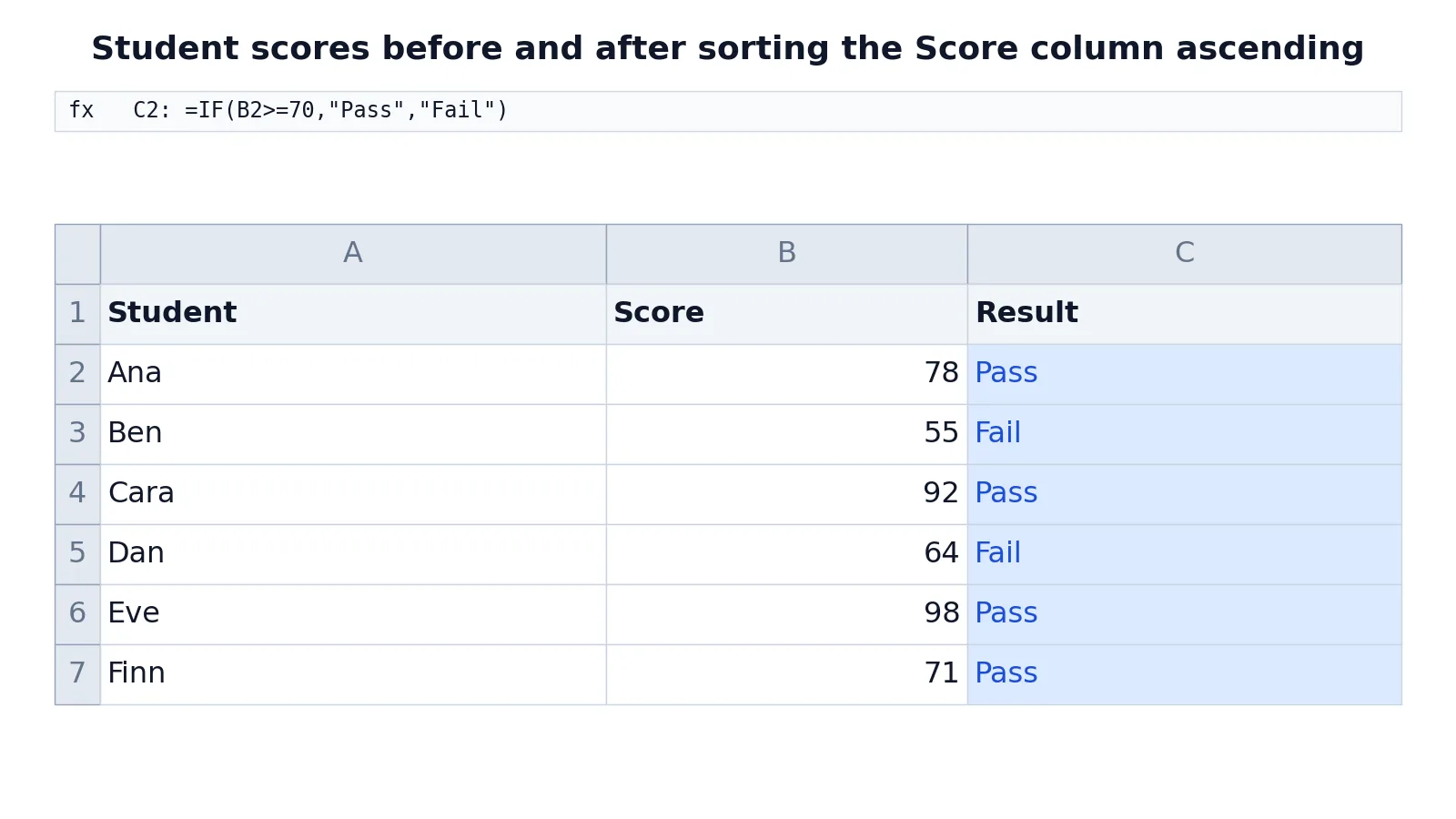
Here is a small grade table. Column A holds student names, column B holds scores, and column C holds a formula that returns Pass or Fail.
| A | B | C | |
|---|---|---|---|
| 1 | Student | Score | Result |
| 2 | Ana | 78 | =IF(B2>=70,"Pass","Fail") -> displays Pass |
| 3 | Ben | 55 | =IF(B3>=70,"Pass","Fail") -> displays Fail |
| 4 | Cara | 92 | =IF(B4>=70,"Pass","Fail") -> displays Pass |
| 5 | Dan | 64 | =IF(B5>=70,"Pass","Fail") -> displays Fail |
| 6 | Eve | 98 | =IF(B6>=70,"Pass","Fail") -> displays Pass |
| 7 | Finn | 71 | =IF(B7>=70,"Pass","Fail") -> displays Pass |
Each formula in column C checks whether the score in the same row is at least 70 and returns Pass or Fail. C2 checks B2, C3 checks B3, and so on down to C7.
Now sort the Score column from smallest to largest. Click any cell in column B, then go to Data > Sort A to Z. Excel expands the selection to the whole table and reorders the rows by score. The scores run from 55 to 98, and each student name stays with the correct score. Ben moves to the top with 55, then Dan with 64, Finn with 71, Ana with 78, Cara with 92, and Eve with 98.
The formulas in column C move with their rows, so the relative references still point at the right score. Ben's row still shows Fail, and Eve's row still shows Pass. That is the behavior you want. If you had sorted only column B without expanding the selection, the scores would have moved while the names and results stayed in place, and the table would be wrong.
Other Ways to Do It
The quick sort buttons and the Sort dialog cover most needs, but Excel offers a few related tools.
Right-click sorting. Right-click a cell in the column and look for the Sort options in the context menu. This is handy when your hands are already on the mouse.
Custom sort orders. In the Sort dialog, the Order list includes Custom List. You can sort by weekday names or month names in their natural order instead of alphabetically.
Sorting by more than one column. The Sort dialog has an Add Level button. Use it when you want a primary sort and a tiebreaker, such as sorting by Score and then by Student name. This is the same idea behind a pivot table in Excel, which groups and orders data for you.
Filtering instead of sorting. If you only want to see certain rows, use filtering in Excel rather than reordering the sheet. Filters hide rows without changing their order.
Sorting text alphabetically. The A to Z button handles this directly. For more detail on text order, see how to alphabetize in Excel.
Sorting dates. Dates sort chronologically when Excel recognizes them as dates. If they are stored as text, the order will be wrong. See how to sort by date in Excel for the fix.
Troubleshooting
The rows no longer match. You probably sorted a single column without expanding the selection. Press Ctrl+Z to undo, then sort again from a single cell inside the table.
The header row moved into the data. Excel treated the header as a value. Open the Sort dialog and turn on My data has headers.
Numbers sort like text. Values such as 10 landing before 2 mean the numbers are stored as text. Convert them to numbers, then sort again.
Blank rows split the table. Excel stops at a blank row when it detects the data block. Remove blank rows inside the table before sorting.
The sort order looks random. Mixed data types in one column cause this. Check for stray spaces, text entries among numbers, or inconsistent date formats.
Formulas point at the wrong cells. Relative references move with their rows during a sort, which is usually correct. Absolute references stay fixed. If a formula breaks, check whether it used $ signs.
Common Mistakes
- Sorting a selected column instead of a cell. Selecting the whole column makes Excel ask about expanding the selection. The fix is to click a single cell inside the table and let Excel detect the block.
- Choosing "Continue with the current selection" by accident. This sorts only the selected column and breaks row alignment. Undo with Ctrl+Z and sort again from one cell.
- Leaving blank rows or columns inside the data. Excel treats the blank as the end of the table. Delete the blanks first.
- Forgetting the header setting. If the header sorts into the data, reopen the Sort dialog and enable My data has headers.
- Sorting numbers stored as text. The order will be wrong. Convert the column to numbers before sorting.
- Not checking the result. Always scan the first and last rows after a sort to confirm that records still line up.
Limitations
Sorting rearranges rows, so any formula that depends on row position can change its meaning. A formula that refers to "the cell above" will now point at a different record. If your sheet relies on positional logic, sort a copy or convert the range to a table first.
Sorting also cannot merge duplicate values or summarize them. It only reorders rows. If you need counts, sums, or grouped totals, use a pivot table or the SUMIF family of functions. For simple totals, see how to sum a column in Excel. And if you need the middle value of a sorted column, see how to calculate median in Excel.
One more limit: sorting is not the same as filtering. Sorting changes the order of every row. Filtering hides rows without moving them. Use the right tool for the job.
Frequently Asked Questions
How do I sort a column in Excel without messing up the other columns?
Click a single cell inside the column, then use Data > Sort A to Z or Sort Z to A. Excel detects the surrounding table and sorts all the columns together, so each row stays intact. Avoid selecting the entire column first, because that triggers a warning and can sort the column in isolation.
How do I sort only one column and leave the rest alone?
Select just the cells in that column, open Data > Sort, and choose the option that continues with the current selection when Excel warns about nearby data. This reorders that column only. Be aware that the other columns will no longer match the sorted values, so use this only when the column stands alone.
Why did my Excel sort scramble my data?
You likely sorted a selected column instead of a cell inside the table, so only that column moved. Press Ctrl+Z to undo, click a single cell in the table, and sort again. Excel will then expand the selection and keep the rows aligned.
How do I sort a column from largest to smallest?
Click a cell in the column and use Data > Sort Z to A. For numbers this puts the largest value first. You can also open the Sort dialog and choose Largest to Smallest in the Order list.
Can I sort by more than one column at once?
Yes. Open Data > Sort, choose the first column in the Sort by list, then click Add Level and choose the next column. Excel sorts by the first level and uses the second as a tiebreaker. This is useful when you want scores sorted and names alphabetical within equal scores.
References
This article draws on the standard references listed under Further Reading.
Further Reading
- Broman KW, Woo KH (2018). Data Organization in Spreadsheets. The American Statistician
- Ziemann M, Eren Y, El-Osta A (2016). Gene name errors are widespread in the scientific literature. Genome Biology
- Microsoft Support: Excel help and learning
- McCullough B, Heiser DA (2008). On the accuracy of statistical procedures in Microsoft Excel 2007. Computational Statistics & Data Analysis
- Abeysooriya M, Soria M, Kasu MS et al. (2021). Gene name errors: Lessons not learned. PLOS Computational Biology
- Wilson G, Bryan J, Cranston K et al. (2017). Good enough practices in scientific computing. PLOS Computational Biology