How to Alphabetize in Excel (Step by Step)
By Dr. Zubair Khalid, DVM, MS, PhD ·
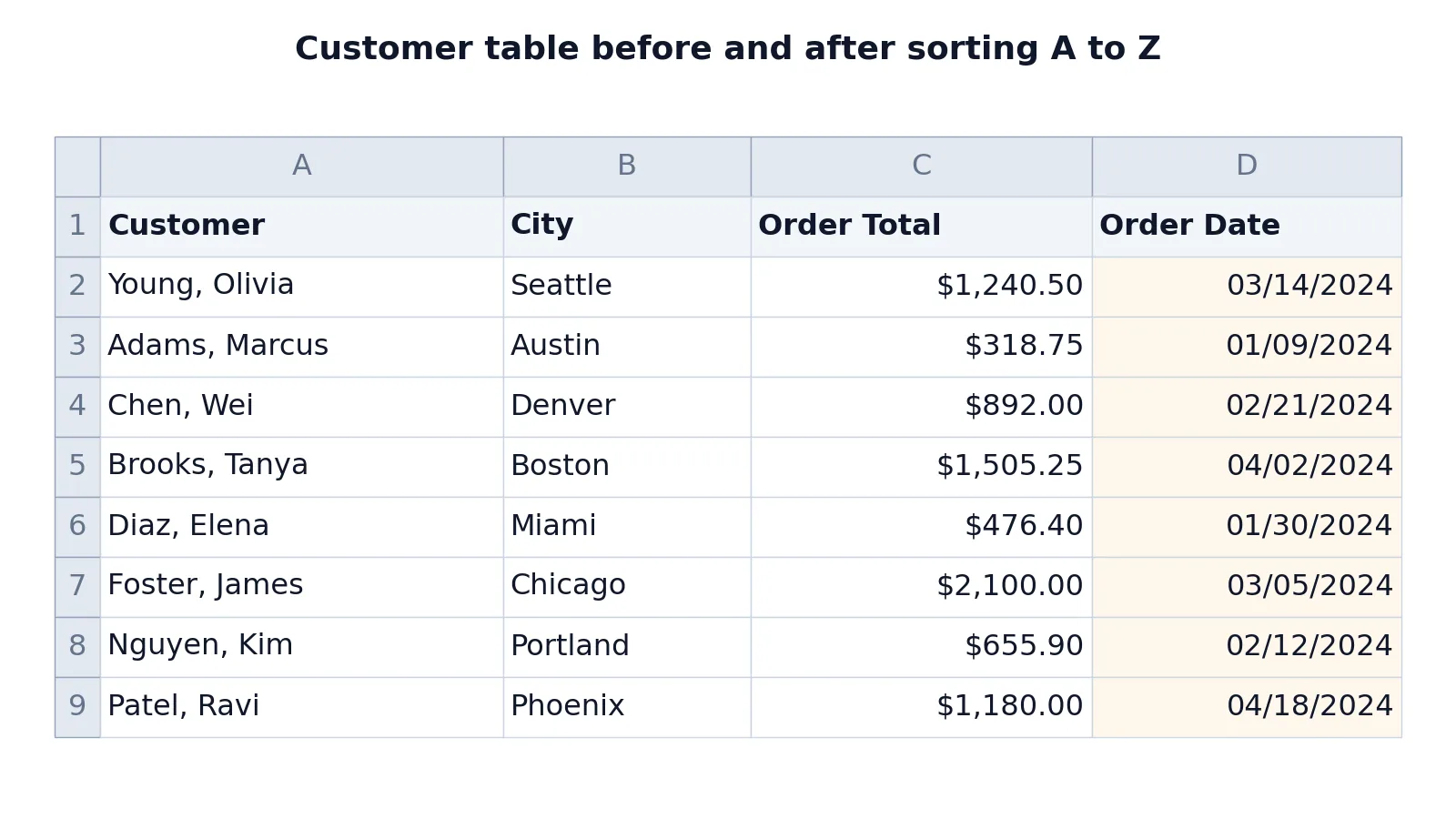
Alphabetizing in Excel takes seconds once you know which command to use. Select a cell inside your list, then go to Data > Sort A to Z, and Excel reorders the rows by the text in that column. If you need more control, the Sort dialog lets you pick the exact column and order.
Quick Answer
- Click any single cell inside the column you want to alphabetize.
- Go to Data > Sort A to Z to sort that column from A to Z.
- Excel expands the selection to the whole table automatically, so the other columns move with it.
- For control over the column and order, use Data > Sort and set Sort by, Sort On, and Order.
- Always check that each row still holds the same record after sorting.
Before You Start
Two things decide whether a sort works cleanly.
First, your data should be a single rectangular block with one header row. If there are blank rows or blank columns inside the block, Excel may treat the data as separate lists and sort only part of it. Remove blank rows first, or select the whole range yourself before sorting.
Second, decide whether the first row is a header. When you click a cell inside a table and use the A-Z button, Excel usually detects the header row and leaves it in place. If it does not, the header text gets sorted into the data. The Sort dialog has a My data has headers checkbox that makes this explicit, so use the dialog when you are unsure.
If your names are stored as "Last, First" in one column, sorting that column alphabetizes by last name. If they are stored as "First Last", it sorts by first name. To control which part you sort on, you can split first and last name into separate columns and sort on the one you want.
Step by Step
- Select a cell in the column you want to alphabetize. For a customer list, click any name cell in the Customer column. Do not select the whole column with the column letter, because that can pull in unrelated data below your table.
- Go to Data > Sort A to Z. Excel reads the surrounding block, assumes the first row is a header, and sorts the rows by the text in the column you clicked. The A-Z button sorts ascending. The Z-A button next to it sorts descending.
- To control the sort, go to Data > Sort. The Sort dialog opens. Set Sort by to the column you want, for example Customer. Set Sort On to Cell Values. Set Order to A to Z. Click OK.
- Confirm that each row stayed together. Check that each customer's City, Order Total, and Order Date are still on the same row as that customer's name. This is the single most important check after any sort.
- Save or undo. If something looks wrong, press Ctrl+Z to undo the sort and try again with the whole range selected.
The Sort dialog is also where you add a second level. Click Add Level, then set a second column and order. That is how you sort by City first and by Customer within each city.
Worked Example
Here is a small customer order table with eight rows. Column A holds the customer name, B the city, C the order total, and D the order date.
| Row | A | B | C | D |
|---|---|---|---|---|
| 1 | Customer | City | Order Total | Order Date |
| 2 | Young, Olivia | Seattle | 1240.5 | =DATE(2024,3,14) -> displays 03/14/2024 |
| 3 | Adams, Marcus | Austin | 318.75 | =DATE(2024,1,9) -> displays 01/09/2024 |
| 4 | Chen, Wei | Denver | 892 | =DATE(2024,2,21) -> displays 02/21/2024 |
| 5 | Brooks, Tanya | Boston | 1505.25 | =DATE(2024,4,2) -> displays 04/02/2024 |
| 6 | Diaz, Elena | Miami | 476.4 | =DATE(2024,1,30) -> displays 01/30/2024 |
| 7 | Foster, James | Chicago | 2100 | =DATE(2024,3,5) -> displays 03/05/2024 |
| 8 | Nguyen, Kim | Portland | 655.9 | =DATE(2024,2,12) -> displays 02/12/2024 |
| 9 | Patel, Ravi | Phoenix | 1180 | =DATE(2024,4,18) -> displays 04/18/2024 |
The date column uses the DATE function, which returns a real date value from a year, month, and day. For example, =DATE(2024,3,14) returns the serial number for March 14, 2024, and Excel displays it as 03/14/2024 under a standard date format.
Now select cell A2 and go to Data > Sort A to Z. Excel sorts the eight rows by the Customer column. The names come out in this order:
| Position | Customer |
|---|---|
| 1 | Adams, Marcus |
| 2 | Brooks, Tanya |
| 3 | Chen, Wei |
| 4 | Diaz, Elena |
| 5 | Foster, James |
| 6 | Nguyen, Kim |
| 7 | Patel, Ravi |
| 8 | Young, Olivia |
Each customer keeps their own city, order total, and order date. Adams, Marcus still shows Austin, 318.75, and 01/09/2024. Young, Olivia still shows Seattle, 1240.5, and 03/14/2024. The header row stays at the top.
If you instead open Data > Sort and set Sort by to Customer, Sort On to Cell Values, and Order to A to Z, you get the same result. The dialog simply shows you what the button did.
Other Ways to Do It
The A-Z button and the Sort dialog cover almost every alphabetizing task. A few related tools are worth knowing.
Sort a single column only. If you truly want to reorder one column and leave the rest untouched, select just that column's cells (not the header) and use the A-Z button. Excel will warn you that it found data next to the selection and ask whether to expand it. Choose Continue with the current selection to sort only that column. Be careful, because this breaks the row alignment on purpose.
Sort by a custom order. In the Sort dialog, the Order dropdown includes Custom List. That is how you sort by weekday names or by a priority order you define yourself.
Filter instead of sort. If you want to view a subset without permanently reordering the sheet, use Filter in Excel and sort inside the filter dropdown. The underlying rows stay where they are until you clear the filter.
Sort by a formula result. If you want to sort by something that is not stored directly, such as the length of a name or a computed rank, add a helper column with a formula and sort on that column. The article on how to make a formula in Excel covers the basics of building one.
Sort numbers and dates. The same A-Z and Z-A buttons sort numbers from smallest to largest and dates from oldest to newest. Excel picks the right comparison based on the data type in the column.
Troubleshooting
The header row got sorted into the data. Undo with Ctrl+Z, then use Data > Sort and tick My data has headers. The header stays put.
Only one column moved. Excel treated the selection as a single column. Undo, click a single cell inside the table, and sort again so Excel expands the range. If you selected the range manually, make sure it covers every column you want to move.
Blank rows split the table. Excel stops expanding at a blank row. Delete the blank rows, or select the full range yourself before sorting.
Names starting with lowercase sort after uppercase. Text sorting is case-insensitive in Excel, so "adams" and "Adams" sort together. If you see odd ordering, check for leading spaces or non-breaking spaces, which sort before letters.
Numbers stored as text sort wrong. "10" sorts before "9" when the values are text. Convert the column to numbers first, then sort.
The sort looks right but the totals are wrong. This usually means the rows were already misaligned before you sorted. Undo, fix the alignment, then sort.
Common Mistakes
- Sorting a single column when you meant to sort the table. The fix is to click one cell inside the table and let Excel expand the range, or select the whole range first.
- Forgetting the header row. Use the Sort dialog and tick My data has headers so the header never moves.
- Leaving blank rows inside the data. Excel stops expanding at the first blank row. Delete blanks before sorting.
- Sorting a column that contains formulas referencing fixed cells. Relative references move with the rows, but absolute references do not. Check the results after sorting.
- Sorting "Last, First" names and expecting first-name order. The comma makes Excel sort by the text before it. Split the names if you need first-name order.
- Assuming the sort is permanent and safe. It is a real change to the sheet. Save a copy first if the order matters to you.
Limitations
Sorting changes the physical order of rows. It does not create a separate sorted view, and it does not remember the original order. If you need the original sequence back, you have to undo the sort or keep a copy of the sheet. This matters when row order carries meaning, such as a log of events or a numbered sequence.
Sorting also does not group or summarize anything. It only reorders. If you want counts, totals, or grouped views, you need a pivot table or formulas. And sorting by a column of formulas can produce surprising results if those formulas depend on row position, because the formulas move with their rows and recalculate against whatever they now reference.
Frequently Asked Questions
How do I alphabetize in Excel without messing up the other columns?
Click a single cell inside your table, then use Data > Sort A to Z. Excel detects the surrounding block and moves entire rows together, so the other columns stay aligned with their record. Avoid selecting just one column's cells unless you want that column sorted on its own.
Why did only one column sort in Excel?
Excel sorts only the selection. If you selected a single column before sorting, only that column moves. Undo the change, click one cell inside the table instead, and sort again. Excel will expand the range to include the neighboring columns.
How do I sort by last name when names are in "Last, First" format?
If the names are already stored as "Last, First", sorting the column alphabetizes by last name automatically, because the last name comes first in the text. If they are stored as "First Last", split the name into two columns and sort on the last-name column.
Can I alphabetize a list that has blank rows in it?
Yes, but Excel stops expanding the sort range at the first blank row. Delete the blank rows first, or manually select the full range including the blanks before you sort. A clean rectangular block with no internal blanks always sorts correctly.
Does sorting in Excel change the original data?
Yes. Sorting reorders the actual rows in the sheet. It is not a view or a filter. If you need the original order later, press Ctrl+Z right after sorting, or work on a copy of the sheet. To view a sorted subset without changing the sheet, use a filter instead.
References
This article draws on the standard references listed under Further Reading.
Further Reading
- Broman KW, Woo KH (2018). Data Organization in Spreadsheets. The American Statistician
- Ziemann M, Eren Y, El-Osta A (2016). Gene name errors are widespread in the scientific literature. Genome Biology
- Microsoft Support: Excel help and learning
- McCullough B, Heiser DA (2008). On the accuracy of statistical procedures in Microsoft Excel 2007. Computational Statistics & Data Analysis
- Abeysooriya M, Soria M, Kasu MS et al. (2021). Gene name errors: Lessons not learned. PLOS Computational Biology
- Wilson G, Bryan J, Cranston K et al. (2017). Good enough practices in scientific computing. PLOS Computational Biology