How to Move Columns in Excel (Drag and Cut)
By Dr. Zubair Khalid, DVM, MS, PhD ·
To move a column in Excel, select the whole column, then either drag its border to a new position while holding SHIFT, or cut the column and use Insert Cut Cells where you want it to land. Both methods shift the surrounding columns automatically, so no data is overwritten. This guide shows how to move columns in Excel with the mouse and with commands, and it covers the mistakes that make a drag go wrong.
Quick Answer
- Drag method: Click the column header to select the column, hold SHIFT, point at the border of the selection until the pointer becomes a move pointer, then drag the column to its new position [1].
- Cut method: Select the column, press Ctrl+X, right-click the column header to the right of where you want it, and choose Insert Cut Cells [1].
- Copy instead of move: Hold SHIFT and CTRL while you drag to copy the column rather than move it [1].
- Nonadjacent columns: You cannot move or copy nonadjacent rows and columns with the mouse [1]. Move them one at a time.
- Undo: If the result is wrong, press Ctrl+Z to restore the previous layout [2].
Before You Start
A few things make the difference between a clean move and a mess.
Select the entire column, not a range of cells. Click the column letter at the top of the sheet. If you select only part of a column and drag, Excel moves that block of cells and leaves the rest behind, which breaks the alignment between columns.
Check for formulas that reference the column you are moving. When you move a column, Excel updates references that point to the moved cells, so most formulas keep working. The risk is with formulas that point to a fixed range or use absolute references in a way that assumes a specific position. Review those before you drag.
Check for merged cells, hidden columns, and filtered rows. Hidden columns can make a drag land in a spot you did not intend, and merged cells inside the selection can block the move. If you need to bring hidden columns back first, see how to unhide columns in Excel.
Save your work or work on a copy. A move is easy to undo with Ctrl+Z right after it happens, but not after you have made many other edits.
Step by Step
Method 1: Drag the column
- Click the column header of the column you want to move. For example, click the letter C to select the whole City column.
- Hold down SHIFT and point to the border of the selected column. The pointer changes to a move pointer [1].
- Keep holding SHIFT and drag the column to the position you want. A gray line shows where it will land.
- Release the mouse button first, then release SHIFT. If you release SHIFT before the mouse button, Excel replaces the data in the destination instead of inserting the column there [1].
Method 2: Cut and insert
- Click the column header to select the column.
- Press Ctrl+X to cut it. Excel shows an animated border around the cut cells [1].
- Right-click the column header to the right of where you want the column to go.
- Choose Insert Cut Cells [1]. The cut column is inserted at that position and the columns to the right shift over.
If you change your mind, press Esc to cancel the moving border before you insert [1].
Method 3: Copy and insert
- Select the column and press Ctrl+C to copy it.
- Right-click the column header to the right of the target position.
- Choose Insert Copied Cells [1].
This leaves the original column in place and adds a duplicate. Use it when you want the same data in two places.
Worked Example
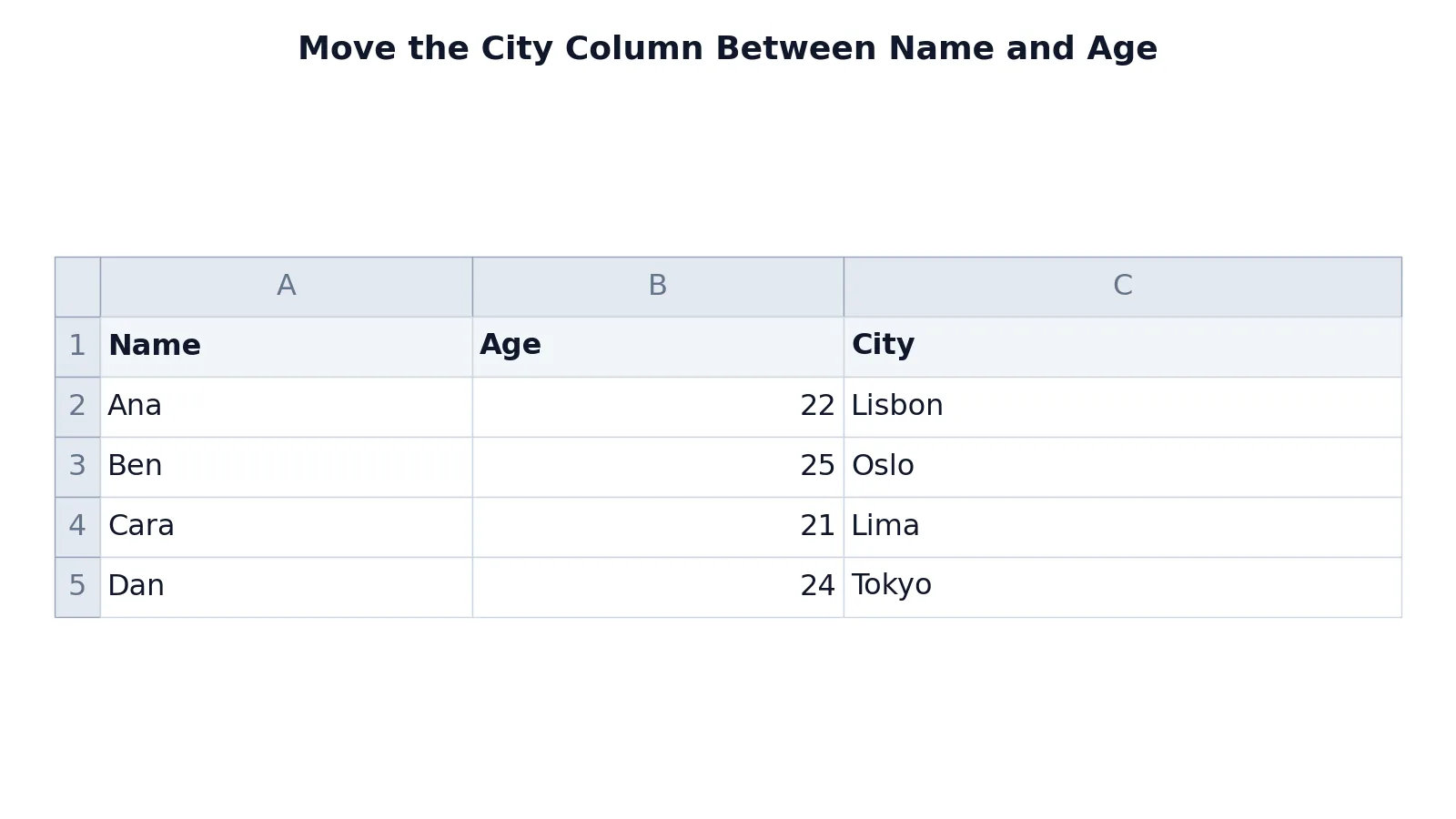
The table below is a small contact list with a Name column, an Age column, and a City column. The goal is to move City so it sits between Name and Age.
| A | B | C | |
|---|---|---|---|
| 1 | Name | Age | City |
| 2 | Ana | 22 | Lisbon |
| 3 | Ben | 25 | Oslo |
| 4 | Cara | 21 | Lima |
| 5 | Dan | 24 | Tokyo |
The steps are:
- Click the column C header to select the City column.
- Hover over the right border of the selected column until the pointer becomes a four-headed arrow, then hold SHIFT and drag it between columns A and B.
- Alternatively, press Ctrl+X to cut the City column.
- Right-click the column B header and select Insert Cut Cells.
After either method, the sheet reads:
| A | B | C | |
|---|---|---|---|
| 1 | Name | City | Age |
| 2 | Ana | Lisbon | 22 |
| 3 | Ben | Oslo | 25 |
| 4 | Cara | Lima | 21 |
| 5 | Dan | Tokyo | 24 |
The City column moved from position C to position B, and Age shifted from B to C. No cell values changed. The header row still reads Name, City, Age, and each person's city now sits next to their name.
If you later want to reorder the rows by one of these columns, the same logic applies to rows. See how to sort a column in Excel for the row-level version of this task.
Other Ways to Do It
Home tab commands. Select the column, then on the Home tab, in the Clipboard group, select Cut [1]. Right-click the column header to the right of the target position and choose Insert Cut Cells [1]. This is the same operation as the keyboard shortcut, just reached through the ribbon.
Move to another sheet or workbook. Cut or copy the column, switch to the other worksheet tab or workbook, and select the upper-left cell of the paste area [1]. The column lands there.
Insert a blank column first. If you only need space and not a reorder, right-click the column header to the right of where you want the new column and select Insert Columns [2]. To add several at once, select the same number of columns to the right of the target position, right-click, and select Insert Columns [2]. Then move your data into the new space.
Delete instead of move. If a column is in the wrong place and you do not need it, select it, right-click, and choose Delete, for example Entire column [2]. The columns to the right shift left automatically [2]. Press Ctrl+Z right after if you change your mind [2].
Troubleshooting
The pointer never becomes a move pointer. You are probably pointing at the middle of the selection instead of its border. Move the pointer to the edge of the selected column until the cursor changes shape, then drag [1].
The drag moves cells instead of the whole column. You selected a range of cells rather than the column header. Click the column letter to select the entire column and try again.
The column lands one position off. Watch the gray insertion line during the drag. It shows exactly where the column will be placed. Release when the line sits on the boundary you want.
Nothing happens when you drag. Some views and protected sheets block drag-and-drop. Use the cut and insert method instead, which works through the right-click menu [1].
The moving border will not go away. Press Esc to cancel it [1].
The move broke a formula. Undo with Ctrl+Z, then check which cells the formula references. Moving a column updates references to the moved cells, but a formula built around a fixed position can still return a different result.
Common Mistakes
- Dragging a partial selection. Selecting cells instead of the column header moves only that block. Fix: click the column letter so the whole column is selected before you drag.
- Releasing the modifier keys too early. If you release CTRL before the mouse button, Excel moves the column instead of copying it, and if you release SHIFT first, the data in the destination is replaced instead of shifted [1]. Fix: release the mouse button first, then the modifier keys.
- Trying to drag nonadjacent columns. Excel does not support moving or copying nonadjacent rows and columns with the mouse [1]. Fix: move each column separately, or cut and insert them one at a time.
- Forgetting the moving border. After a cut, the animated border stays active until you insert or press Esc [1]. Fix: press Esc if you decide not to move the column, or the next paste may land somewhere unexpected.
- Moving a column that other sheets depend on. A move inside one sheet can change what a cross-sheet formula returns. Fix: check dependent formulas before the move and test the result after.
- Assuming the move is permanent. It is not. Fix: press Ctrl+Z immediately if the layout is wrong [2].
Limitations
Dragging works well for a handful of columns but gets awkward on wide sheets. You cannot move or copy nonadjacent rows and columns with the mouse [1], so reordering several scattered columns means repeating the operation. On sheets with hidden columns, the drag target can be hard to see, and merged cells inside the selection can prevent the move from completing.
A move also changes the physical position of data, which matters if anything outside the sheet depends on that position. Formulas that reference the moved cells are updated, but external links, pivot table source ranges, and charts built on a fixed range may need to be checked after the move. If you only need a different display order and not a different physical order, sorting or a custom view may be the safer choice.
Frequently Asked Questions
How do you move a column in Excel without overwriting data?
Use cut and insert. Select the column, press Ctrl+X, right-click the column header to the right of where you want it, and choose Insert Cut Cells [1]. Excel inserts the column and shifts the existing columns over, so nothing is overwritten. Dragging with SHIFT does the same thing.
How do I drag a column in Excel?
Click the column header to select the whole column, hold SHIFT, and point at the border of the selection until the pointer becomes a move pointer [1]. Then drag the column to the new position and release the mouse button before you release SHIFT [1].
Why can't I drag columns in Excel?
The most common cause is pointing at the middle of the selection instead of its border, so the move pointer never appears [1]. Another cause is selecting cells rather than the column header. If drag-and-drop is blocked in your view, use Ctrl+X and Insert Cut Cells instead [1].
Can I move more than one column at a time?
Yes, if the columns are adjacent. Select the block of columns by dragging across their headers, then drag or cut the whole block. You cannot move or copy nonadjacent rows and columns with the mouse [1], so scattered columns have to be moved one at a time.
Does moving a column break formulas?
Usually not. Excel updates references that point to the moved cells, so most formulas keep returning the same values. Problems come from formulas that assume a fixed position, from cross-sheet references, and from charts or pivot tables built on a fixed range. Undo with Ctrl+Z and check those references if a result looks wrong.
References
- Move or copy cells, rows, and columns | Microsoft Support
- Insert or delete rows and columns in Excel | Microsoft Support
Further Reading
- Broman KW, Woo KH (2018). Data Organization in Spreadsheets. The American Statistician
- Ziemann M, Eren Y, El-Osta A (2016). Gene name errors are widespread in the scientific literature. Genome Biology
- Microsoft Support: Excel help and learning
- McCullough B, Heiser DA (2008). On the accuracy of statistical procedures in Microsoft Excel 2007. Computational Statistics & Data Analysis