How to Sort by Date in Excel (Step by Step)
By Dr. Zubair Khalid, DVM, MS, PhD ·
To sort by date in Excel, select your data, go to the Data tab, and use Sort Ascending for oldest to newest or Sort Descending for newest to oldest. The sort only works correctly when every date in the column is stored as a real date serial number, not as text. This guide shows the exact steps, a worked example, and how to fix the text-date problem that breaks most date sorts.
Quick Answer
- Select the whole range or table, including the header row, before you sort.
- Go to Data > Sort Ascending for earliest to latest, or Data > Sort Descending for latest to earliest [1].
- For multi-level control, open Data > Sort and set Sort by to your date column, Sort On to Values, and Order to Oldest to Newest or Newest to Oldest [1].
- If the sort looks wrong, the dates are probably stored as text. Excel sorts text alphabetically, so "03/15/2024" can land before "12/30/2023" [1].
- Convert text dates to real dates first, then sort again.
Before You Start
Two things decide whether your date sort works.
First, check that the dates are real dates. Excel stores a valid date as a serial number and displays it in a date format. If Excel cannot recognize a value as a date or time, it stores that value as text instead [1]. Text dates sort character by character, so the order looks random even though the sort ran without an error.
A quick visual check: real dates right-align in a cell by default, and text dates left-align. That is not a guarantee, but it is a fast signal.
Second, decide what you are sorting. If your dates sit in a column next to names, order IDs, or amounts, you almost always want to sort the entire range so each row stays together. Sorting a single column on its own moves the dates but leaves the other columns untouched, which scrambles your records.
If your data is formatted as an Excel Table, sorting behaves more predictably because Excel treats the table as one unit. If it is a plain range, select all the columns you want to move together.
Step by Step
- Select your data. Click any cell inside the range, or select the full range including the header row. If you select only the date column, only that column will be reordered.
- Open the Data tab. The sort buttons live on the Data tab in the ribbon.
- Choose a one-click sort. Click Sort Ascending to sort A to Z, smallest to largest, or earliest to latest date. Click Sort Descending to sort Z to A, largest to smallest, or latest to earliest date [1].
- Or open the full Sort dialog. Click Sort to open the Custom Sort dialog box. Under Column, in the Sort by box, select the first column you want to sort [1].
- Set the sort options. Choose Sort On: Values and pick Oldest to Newest or Newest to Oldest in the Order list.
- Add a second level if you need one. You can sort by one column first and then by another. For example, sort by Department to group employees, then by name to alphabetize within each department [1].
- Click OK and check the result. Scan the top and bottom of the date column. The first row should hold the earliest date for an ascending sort.
If the order still looks wrong, jump to the Troubleshooting section. The cause is nearly always text dates.
Worked Example
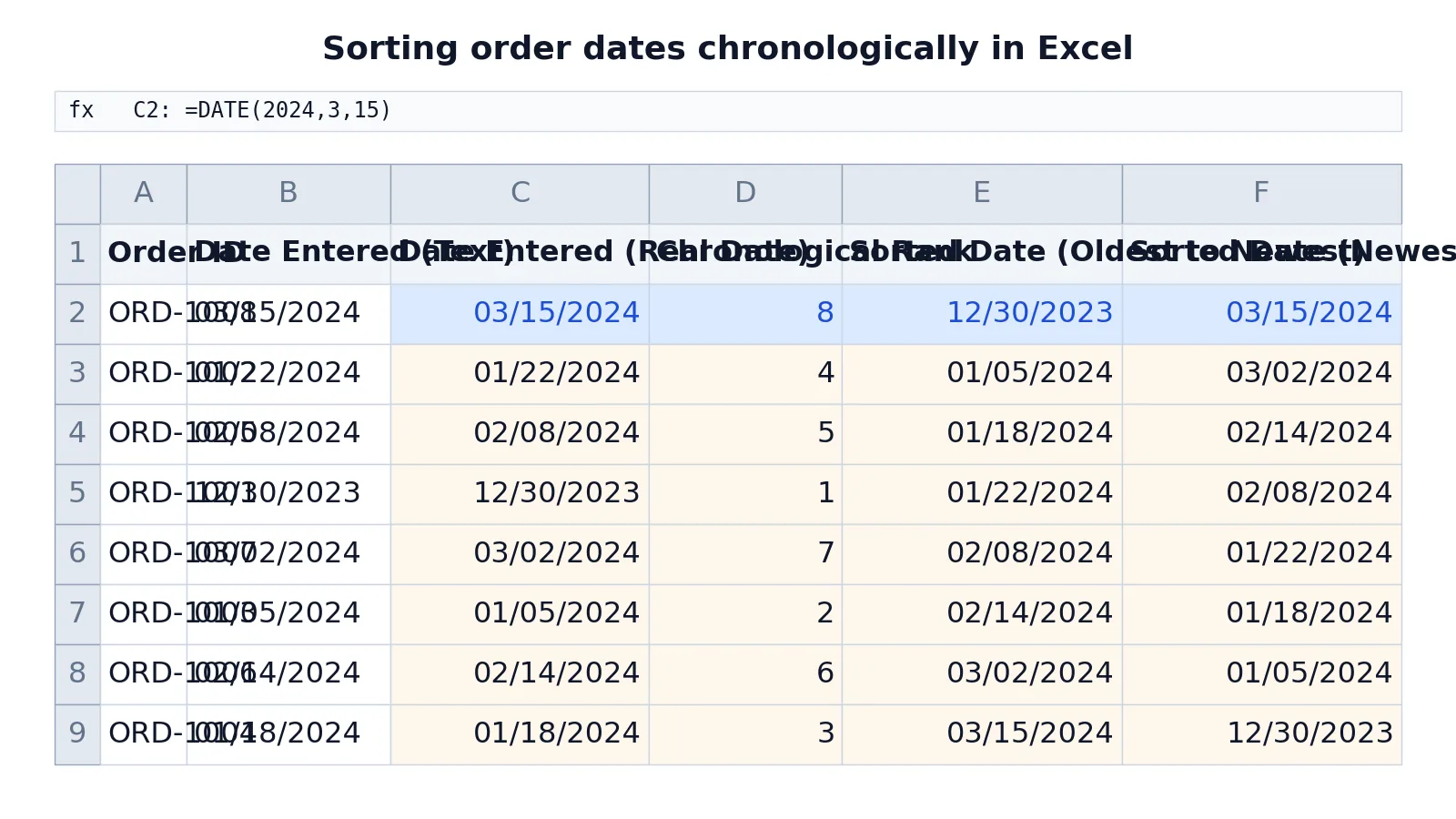
This example uses a small order log with eight orders. Column B holds dates typed as text, column C holds the same dates built with the DATE function, and columns E and F reproduce the dates in both chronological directions.
| Row | A | B | C | D | E | F |
|---|---|---|---|---|---|---|
| 1 | Order ID | Date Entered (Text) | Date Entered (Real Date) | Chronological Rank | Sorted Date (Oldest to Newest) | Sorted Date (Newest to Oldest) |
| 2 | ORD-1008 | 03/15/2024 | =DATE(2024,3,15) -> displays 03/15/2024 | =RANK(C2,$C$2:$C$9,1) -> displays 8 | =SMALL($C$2:$C$9,ROW()-1) -> displays 12/30/2023 | =LARGE($C$2:$C$9,ROW()-1) -> displays 03/15/2024 |
| 3 | ORD-1002 | 01/22/2024 | =DATE(2024,1,22) -> displays 01/22/2024 | =RANK(C3,$C$2:$C$9,1) -> displays 4 | =SMALL($C$2:$C$9,ROW()-1) -> displays 01/05/2024 | =LARGE($C$2:$C$9,ROW()-1) -> displays 03/02/2024 |
| 4 | ORD-1005 | 02/08/2024 | =DATE(2024,2,8) -> displays 02/08/2024 | =RANK(C4,$C$2:$C$9,1) -> displays 5 | =SMALL($C$2:$C$9,ROW()-1) -> displays 01/18/2024 | =LARGE($C$2:$C$9,ROW()-1) -> displays 02/14/2024 |
| 5 | ORD-1001 | 12/30/2023 | =DATE(2023,12,30) -> displays 12/30/2023 | =RANK(C5,$C$2:$C$9,1) -> displays 1 | =SMALL($C$2:$C$9,ROW()-1) -> displays 01/22/2024 | =LARGE($C$2:$C$9,ROW()-1) -> displays 02/08/2024 |
| 6 | ORD-1007 | 03/02/2024 | =DATE(2024,3,2) -> displays 03/02/2024 | =RANK(C6,$C$2:$C$9,1) -> displays 7 | =SMALL($C$2:$C$9,ROW()-1) -> displays 02/08/2024 | =LARGE($C$2:$C$9,ROW()-1) -> displays 01/22/2024 |
| 7 | ORD-1003 | 01/05/2024 | =DATE(2024,1,5) -> displays 01/05/2024 | =RANK(C7,$C$2:$C$9,1) -> displays 2 | =SMALL($C$2:$C$9,ROW()-1) -> displays 02/14/2024 | =LARGE($C$2:$C$9,ROW()-1) -> displays 01/18/2024 |
| 8 | ORD-1006 | 02/14/2024 | =DATE(2024,2,14) -> displays 02/14/2024 | =RANK(C8,$C$2:$C$9,1) -> displays 6 | =SMALL($C$2:$C$9,ROW()-1) -> displays 03/02/2024 | =LARGE($C$2:$C$9,ROW()-1) -> displays 01/05/2024 |
| 9 | ORD-1004 | 01/18/2024 | =DATE(2024,1,18) -> displays 01/18/2024 | =RANK(C9,$C$2:$C$9,1) -> displays 3 | =SMALL($C$2:$C$9,ROW()-1) -> displays 03/15/2024 | =LARGE($C$2:$C$9,ROW()-1) -> displays 12/30/2023 |
The four key formulas work like this.
=DATE(2024,3,15) builds a real date from a year, month, and day. Excel then treats that cell as a number it can compare.
=RANK(C2,$C$2:$C$9,1) returns the position of each date inside the range, where 1 is the oldest. The oldest date, 12/30/2023, ranks 1, and the newest, 03/15/2024, ranks 8.
=SMALL($C$2:$C$9,ROW()-1) pulls the nth smallest date. In row 2, ROW()-1 equals 1, so it returns the smallest date, 12/30/2023. In row 9 it returns the largest, 03/15/2024.
=LARGE($C$2:$C$9,ROW()-1) does the same in reverse, starting with 03/15/2024 and ending with 12/30/2023.
The general idea is simple. Ascending order pulls the smallest values first.
$$x_1 \le x_2 \le x_3 \le \dots \le x_n$$
Descending order pulls the largest first.
$$x_1 \ge x_2 \ge x_3 \ge \dots \ge x_n$$
To do the same thing through the interface, select A1:F9, then go to Data > Sort. In the Sort dialog, choose Sort by: Date Entered (Real Date), Sort On: Values, Order: Oldest to Newest, then click OK. To sort newest to oldest, repeat Data > Sort and choose Order: Newest to Oldest.
Other Ways to Do It
Sort a single column. If the dates are the only data you care about, click a cell in the column and use Sort Ascending or Sort Descending. This is the fastest route and the one most people mean when they ask how to sort dates in Excel. If you have other columns attached, read how to sort a column in Excel first so you do not split your records.
Filter instead of sort. AutoFilter gives you sort options in the dropdown for each column, which is handy when you are already filtering. See how to filter in Excel for the full workflow.
Sort by a formula result. When you cannot reorder the source data, use SMALL or LARGE in a helper column and sort on that. This is the approach in the worked example above.
Sort alphabetically for comparison. If you are sorting names or categories alongside dates, how to alphabetize in Excel covers the same dialog with text order instead of date order.
Build dates correctly in the first place. If your dates come from separate year, month, and day columns, how to add days to a date in Excel shows how date arithmetic behaves once the values are real dates.
Troubleshooting
The sort ran but the order is wrong. The column contains text dates. Excel sorts text alphanumerically, so "01/05/2024" and "12/30/2023" compare as strings, not as points in time [1]. Convert the text to real dates, then sort again.
Only one column moved. You sorted a single column instead of the full range. Press Ctrl+Z to undo, select the whole range, and sort again.
The header row got sorted into the data. Excel did not detect your header. In the Sort dialog, turn on the option that says the data has headers, then re-run the sort.
Dates show as numbers like 45366. The cell format changed to General or Number. The underlying value is still a valid date. Reapply a date format to the cells.
The sort order ignores the year. Your dates may be stored as month and day only, or the format is hiding the year. Check the actual cell value, not just what is displayed.
Blank cells land at the bottom. That is normal. Excel places empty cells last in both ascending and descending sorts.
Common Mistakes
- Sorting dates stored as text. The sort completes without an error but the order is alphabetical. Fix it by converting the text to real dates before sorting [1].
- Selecting only the date column. This reorders dates while leaving every other column in place, which destroys the link between each date and its row. Fix it by selecting the full range or using a table.
- Forgetting the header row. Excel may treat the header as data and sort it into the middle of your records. Fix it by including the header in the selection and confirming the header setting in the Sort dialog.
- Sorting a copy and assuming the original changed. Sorting affects the cells you selected, not a duplicate elsewhere. Fix it by checking which sheet and range you actually sorted.
- Mixing date and text values in one column. Even a few text entries break the whole sort. Fix it by converting every value in the column to a real date.
- Sorting by day of the week when you meant by date. If you want to sort by the day of the week regardless of the date, you have to convert the dates to text with the
TEXTfunction, and the sort then runs on alphanumeric data [1]. Fix it by keeping a real date column for chronological sorting and a separate text column for weekday sorting.
Limitations
Sorting reorders your existing rows. It does not create a permanent ranking, and it does not preserve the original order once you save. If you need both the original sequence and a chronological view, keep a copy of the source data or use helper columns with SMALL, LARGE, or RANK so the original rows stay untouched.
Date sorting also depends entirely on the values being real dates. Excel cannot sort text dates chronologically, and it cannot sort a column that mixes real dates with text [1]. Two-digit years, regional date formats, and dates imported from other systems are common sources of text values, so verify the column before you trust the result.
Frequently Asked Questions
Why is my date sort not working in Excel?
The dates are almost certainly stored as text. Excel sorts text alphabetically, so a date like 03/15/2024 can appear before 12/30/2023. Check whether the values right-align like numbers or left-align like text, then convert them to real dates and sort again [1].
How do I sort dates from oldest to newest?
Select your range including the header, go to the Data tab, and click Sort Ascending. For more control, open Data > Sort, set Sort by to your date column, Sort On to Values, and Order to Oldest to Newest [1].
How do I sort dates from newest to oldest?
Use Sort Descending on the Data tab, or open Data > Sort and choose Order: Newest to Oldest. Both produce the same result. The difference is that the Sort dialog lets you add a second sort level [1].
Can I sort by date without moving the rest of my data?
Yes, but only if you accept that the other columns stay fixed while the dates move, which breaks the row relationships. If you need the dates reordered while the original data stays in place, use SMALL or LARGE in a separate column and sort that column instead.
How do I sort dates that are stored as text?
Convert them to real dates first. Once every value in the column is a genuine date serial number, the normal sort commands work. If even one value stays as text, the column will not sort chronologically [1].
References
Further Reading
- Broman KW, Woo KH (2018). Data Organization in Spreadsheets. The American Statistician
- Ziemann M, Eren Y, El-Osta A (2016). Gene name errors are widespread in the scientific literature. Genome Biology
- Microsoft Support: Excel help and learning
- McCullough B, Heiser DA (2008). On the accuracy of statistical procedures in Microsoft Excel 2007. Computational Statistics & Data Analysis
- Abeysooriya M, Soria M, Kasu MS et al. (2021). Gene name errors: Lessons not learned. PLOS Computational Biology