How to Find Percentage in Excel (Step by Step)
By Dr. Zubair Khalid, DVM, MS, PhD ·
Excel how to find percentage comes down to one idea: divide the part by the total, then format the result as a percentage. Percent change uses a second pattern, $(new - old) / old$. Both are simple formulas, and the formatting step is what makes the answer readable.
Quick Answer
- Part of a total: divide the part by the total, as in
=B2/SUM($B$2:$B$7)[1]. - Percent change: subtract the old value from the new value, then divide by the old value, as in
=(B3-B2)/B2[1]. - Excel stores percentages as decimals, so 0.192616 displays as 19.26% once you apply Percentage format, which shows two decimal places by default [2].
- Apply the format with Home > Number Format dropdown > Percentage, then use Increase Decimal to control the decimal places [1][2].
- Formatting a plain number like 10 as a percentage shows 1000.00%, so calculate the decimal first, then format [2].
Before You Start
You need two things in place before the formulas behave the way you expect.
First, know which number is the part and which is the total. In a share-of-total calculation, the part sits in one cell and the total is the sum of a range. If you type the total as a fixed number instead of a formula, the calculation breaks the moment your data changes. Use SUM so the total updates itself, the same way you would when you sum a column in Excel.
Second, understand how Excel treats percentages. A percentage is a decimal under the hood. The value 0.1 is 10%, and 1 is 100%. When you apply Percentage format to a cell, Excel multiplies the stored number by 100 for display only [2]. That is why the order matters: calculate the decimal, then format. If you type 10 into a cell and format it as a percentage, you see 1000.00%, which is almost never what you wanted [2].
If you are new to writing formulas at all, the mechanics are the same as any other calculation. A formula starts with = and can reference cells, ranges and functions. Our guide on how to make a formula in Excel covers that foundation.
Step by Step
- Enter your labels and values. Put the category names in one column and the numbers in the next. Leave the columns to the right empty for your results.
- Write the part-of-total formula. In the first result cell, divide the part by the total range. For a share of total, that looks like
=B2/SUM($B$2:$B$7). The dollar signs lock the total range so it does not shift when you fill the formula down.
- Fill the formula down. Drag the fill handle or copy the cell down the column. Each row now divides its own value by the same locked total.
- Write the percent change formula. In the first cell of the change column, use
=(B3-B2)/B2. This takes the newer value minus the older value, then divides by the older value [1].
- Fill the change formula down. Copy it to the remaining rows. Each row compares itself to the row above.
- Apply Percentage format to the results. Select the range of result cells, then go to Home > Number Format dropdown > Percentage [1][2].
- Adjust decimal places. With the range still selected, click Home > Increase Decimal to show more decimal places, or Decrease Decimal to show fewer [1].
The order in steps 6 and 7 matters. Format first, then adjust decimals, because Increase Decimal acts on the formatted display.
Worked Example
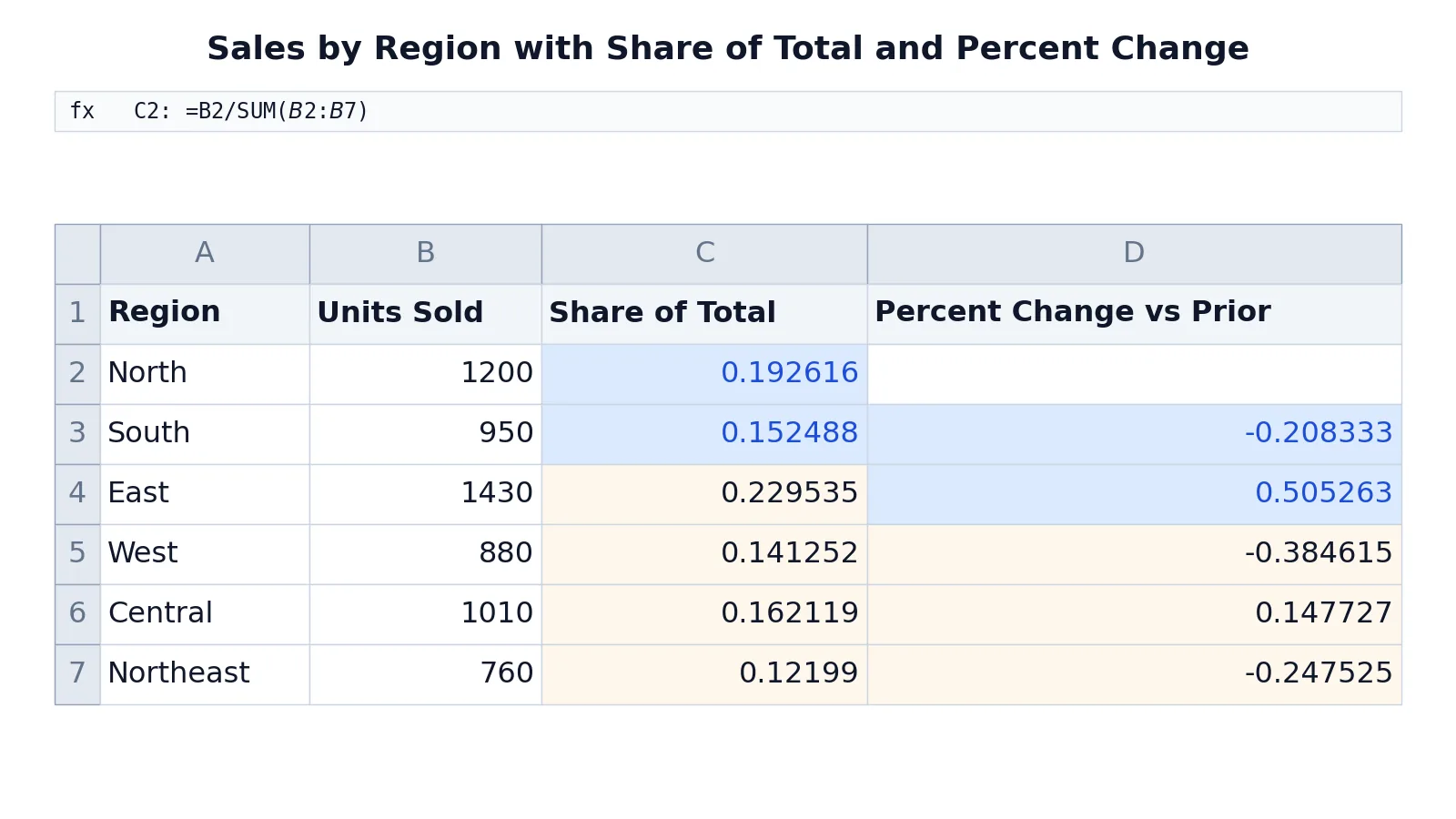
This sheet tracks units sold by region, with each region's share of total units and its percent change from the prior region.
| A | B | C | D | |
|---|---|---|---|---|
| 1 | Region | Units Sold | Share of Total | Percent Change vs Prior |
| 2 | North | 1200 | =B2/SUM($B$2:$B$7) -> displays 0.192616 | |
| 3 | South | 950 | =B3/SUM($B$2:$B$7) -> displays 0.152488 | =(B3-B2)/B2 -> displays -0.208333 |
| 4 | East | 1430 | =B4/SUM($B$2:$B$7) -> displays 0.229535 | =(B4-B3)/B3 -> displays 0.505263 |
| 5 | West | 880 | =B5/SUM($B$2:$B$7) -> displays 0.141252 | =(B5-B4)/B4 -> displays -0.384615 |
| 6 | Central | 1010 | =B6/SUM($B$2:$B$7) -> displays 0.162119 | =(B6-B5)/B5 -> displays 0.147727 |
| 7 | Northeast | 760 | =B7/SUM($B$2:$B$7) -> displays 0.12199 | =(B7-B6)/B6 -> displays -0.247525 |
The share column answers "what fraction of all units did this region sell?" The change column answers "how much did this region grow or shrink compared to the one before it?"
To finish the sheet, select C2:C7 and click Home > Percent Style (the % button), which shows whole percentages. Then click Home > Increase Decimal once to show one decimal place. Repeat both steps for D3:D7.
After formatting, North's share reads 19.3%, South's change reads -20.8%, and East's change reads 50.5%. The negative values are meaningful. They show a decline, and Excel keeps the minus sign in front of the percentage.
Notice that the change column starts at row 3. There is no prior region for North, so D2 stays empty. That is normal for a percent change column built on a sequence.
Other Ways to Do It
Type the percentage directly. If you already know the rate, you can enter it with a percent sign, such as 8.9%, and Excel stores it as 0.089. The Microsoft example for sales tax uses =800*0.089 to find 8.9% of 800 [1]. Both forms work, and the percent sign is easier to read.
Find the total when you know the part and the rate. If a sale price of $15 represents 75% of the original price, =15/0.75 returns $20.00, the original price [1]. This is the reverse of the part-of-total formula.
Use the Percentage format button on the ribbon. The Number Format dropdown on the Home tab is the fastest route. It applies the format to whatever cells you have selected [2].
Check your work with a calculator. When you want to confirm a share or a percent change without opening a spreadsheet, the Percentage & Percent Change Calculator gives you the same arithmetic instantly.
Compare with related formulas. Percent change is the same math behind a percentage increase formula, and the reverse direction is covered in decrease by percentage formula. If you want the underlying arithmetic without Excel, see how to calculate a percentage.
Troubleshooting
The result shows 1000.00% instead of 10%. You formatted a whole number instead of a decimal. Excel multiplies existing numbers by 100 when you apply Percentage format [2]. Fix it by making sure the cell contains a calculated decimal, such as =10/100, before you format it.
The result shows a decimal like 0.192616 and no percent sign. The formula is correct but the format is not applied. Select the cells and apply Percentage format from the Home tab [1].
The total changes when you fill the formula down. Your total range is not locked. Add dollar signs so the reference reads $B$2:$B$7 instead of B2:B7.
Percent change gives a strange result. Check the order of the subtraction. The formula must be new minus old, divided by old. Reversing the subtraction flips the sign of every answer [1].
The percent change cell shows a division error. The old value is zero or blank. Division by zero is undefined, so Excel returns an error. Leave that row blank or handle it separately.
Too many decimal places. Use Decrease Decimal on the Home tab to trim the display. The stored value does not change, only what you see [1].
Common Mistakes
- Formatting before calculating. Applying Percentage format to a raw count turns 1200 into 120000.00%. Fix: build the division formula first, then format the result [2].
- Forgetting to lock the total range. Without dollar signs, the total shifts as you fill down and every row divides by the wrong number. Fix: use
$B$2:$B$7for the total. - Subtracting in the wrong order.
=(old-new)/oldgives the opposite sign from=(new-old)/old. Fix: always put the newer value first [1]. - Dividing by the wrong base. Percent change divides by the old value, not the new one. Fix: the denominator is the value you started from.
- Mixing percentages and decimals in one column. A column holding both 0.15 and 15 will display as 15% and 1500%. Fix: keep every value in decimal form and let the format handle the display [2].
- Hardcoding the total. Typing a fixed total means the sheet goes stale when data changes. Fix: use
SUMover the range.
Limitations
Percentage formatting changes only what you see, not what Excel stores. The underlying value stays a decimal, so a cell displaying 19.3% actually holds roughly 0.192616. If you copy that cell into another calculation, the decimal is what travels, not the rounded display. Rounding for presentation and rounding for calculation can therefore give slightly different totals.
Percentages also hide the size of the base. A 50% increase on 10 units and a 50% increase on 10,000 units look identical in a percentage column but mean very different things. When the base matters, show the raw counts next to the percentages. And when a base is zero or missing, percent change is undefined, so those rows need separate handling.
Frequently Asked Questions
What is the basic formula to find a percentage in Excel?
Divide the part by the total, as in =B2/SUM($B$2:$B$7). The result is a decimal, and you apply Percentage format to display it with a percent sign [1][2]. This one pattern covers every share-of-total question.
How do I calculate percent change between two numbers?
Use =(new - old) / old. For example, =(B3-B2)/B2 compares South's units to North's and returns -0.208333, which displays as -20.8% after formatting [1]. The negative sign means the value decreased.
Why does my percentage show as 1000%?
You applied Percentage format to a whole number. Excel multiplies existing numbers by 100 when the format is applied, so 10 becomes 1000.00% [2]. Calculate the decimal first, then format.
How do I show more or fewer decimal places?
Select the cells and use Increase Decimal or Decrease Decimal on the Home tab [1]. Each click adds or removes one decimal place in the display. The stored value is untouched.
Can I type a percentage directly into a cell?
Yes. Typing 8.9% stores 0.089, and Excel displays it as 8.9%. You can then use that cell in a formula, such as =800*0.089 to find 8.9% of 800 [1]. The percent sign is simply a faster way to enter the decimal.
References
Further Reading
- Broman KW, Woo KH (2018). Data Organization in Spreadsheets. The American Statistician
- Ziemann M, Eren Y, El-Osta A (2016). Gene name errors are widespread in the scientific literature. Genome Biology
- Microsoft Support: Excel help and learning
- McCullough B, Heiser DA (2008). On the accuracy of statistical procedures in Microsoft Excel 2007. Computational Statistics & Data Analysis