Decrease by Percentage Formula in Excel (Step by Step)
By Dr. Zubair Khalid, DVM, MS, PhD ·
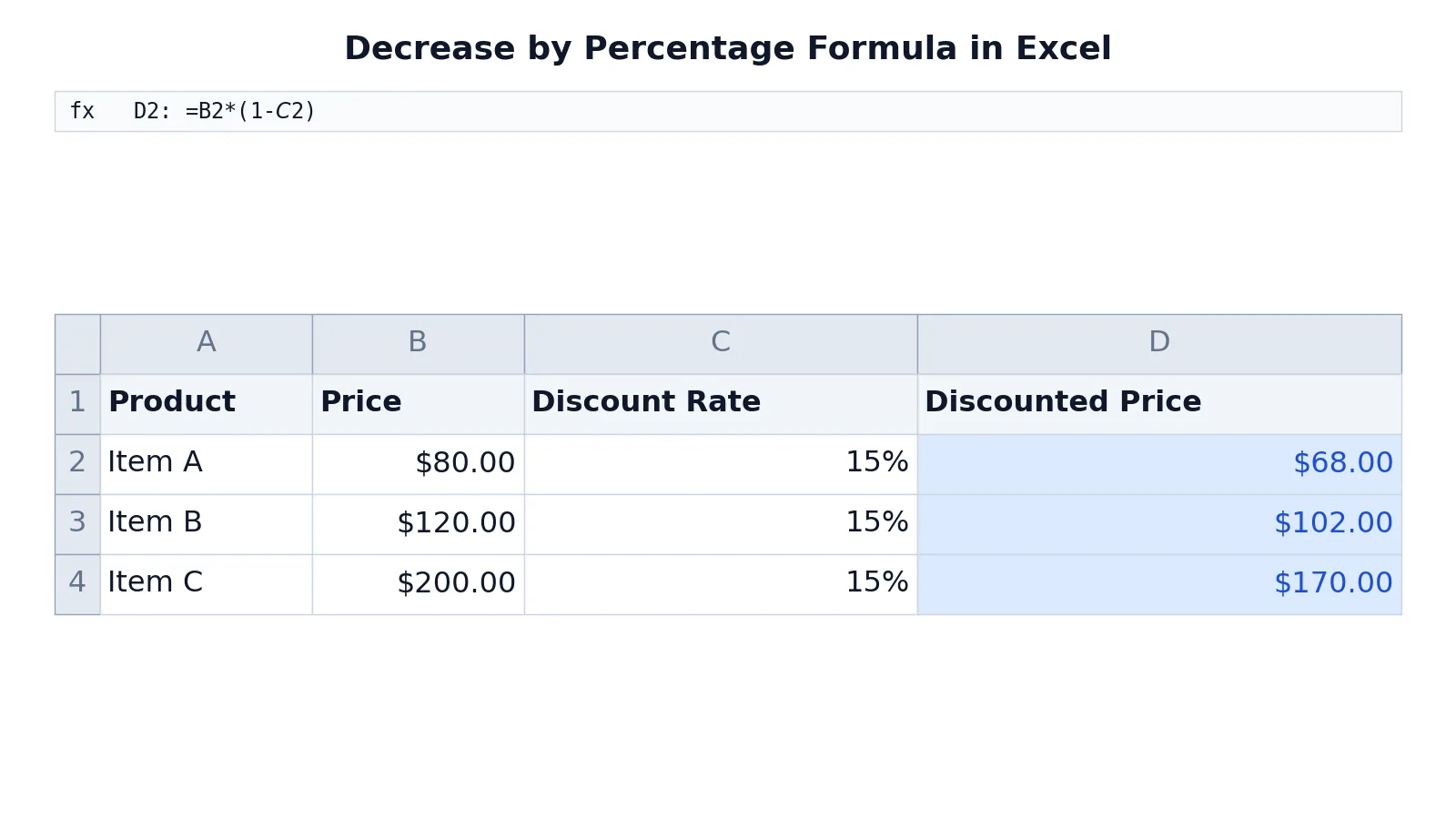
To decrease a value by a percentage in Excel, multiply the original value by (1 minus the rate). If a price of 80 is reduced by 15%, the formula =B2*(1-$C$2) returns 68. The same decrease by percentage formula copies down a column when you lock the rate with an absolute reference.
Quick Answer
- The core formula is
=value*(1-rate), whererateis the percentage as a decimal or a percent-formatted cell. - For a 15% reduction,
1-15%equals0.85, so you multiply by 0.85 [1]. - Write the rate once in its own cell, then reference it with dollar signs, for example
$C$2, so it stays fixed when you fill down. - Enter the formula in the first data row, then drag the fill handle down the column to apply it to every row.
- Format the result column as Currency or Number. Formatting a plain number as Percentage multiplies it by 100, so 0.85 would display as 85.00% [2].
The Formula
The general form of the decrease by percentage formula is:
$$New\ Value = Original\ Value \times (1 - Rate)$$
Each part does one job:
- $Original\ Value$ is the starting number, such as a price, budget, or headcount.
- $Rate$ is the percentage you are removing, written as 15% or 0.15.
- $(1 - Rate)$ is the remaining fraction. For a 15% cut it is 0.85, meaning you keep 85% of the original.
- The multiplication scales the original value down to that remaining fraction.
Microsoft describes the same idea as subtracting a percentage from an amount, and notes that to subtract 15% you use =1-15% as the multiplier [1]. If you want to go the other way, the percentage increase formula in Excel uses (1+Rate) instead.
How to Calculate It Step by Step
- Put your original values in one column, for example B2:B4.
- Put the reduction rate in a single cell, for example C2. Type
15%or0.15. Excel treats both as the same number. - Click the first result cell, for example D2.
- Type
=B2*(1-$C$2)and press Enter. The dollar signs lock column C and row 2. - Check the first result against a manual estimate. For 80 at 15%, you expect 68.
- Select the cell with the formula, then drag the fill handle down to the last row of data. Each row now uses its own price with the same locked rate.
- Format the result column. Go to Home > Number and choose Currency or Number, or use Increase Decimal or Decrease Decimal to control the digits shown [3].
If you would rather not type the rate into a cell, you can hard-code it as =B2*(1-15%). That works, but you have to edit every formula when the rate changes. A single rate cell is easier to maintain.
Worked Example
The table below is a small pricing sheet with three products, a fixed 15% discount rate, and a discounted price column.
| A | B | C | D | |
|---|---|---|---|---|
| 1 | Product | Price | Discount Rate | Discounted Price |
| 2 | Item A | 80 | 0.15 | =B2*(1-$C$2) -> displays $68.00 |
| 3 | Item B | 120 | 0.15 | =B3*(1-$C$2) -> displays $102.00 |
| 4 | Item C | 200 | 0.15 | =B4*(1-$C$2) -> displays $170.00 |
The formula in D2 calculates the discounted price for Item A by multiplying the original price by 1 minus the discount rate. D3 does the same for Item B, and D4 for Item C, both pointing at the absolute reference $C$2 so the rate never shifts.
You can verify each result by hand. 80 times 0.85 is 68. 120 times 0.85 is 102. 200 times 0.85 is 170. The pattern holds because the rate is constant and only the price changes.
How to Interpret the Result
The output is the value after the reduction, not the amount removed. In the example, $68.00 is what the customer pays, and the $12.00 difference is the discount itself.
If you need the discount amount, subtract the result from the original: =B2-D2. That gives 12 for Item A. This is a plain subtraction, and the same logic is covered in the Excel subtraction formula guide.
A result lower than the original always means a decrease. If the number comes out higher, your rate cell probably holds a negative value, or you typed 1+ instead of 1-.
To express the change as a percentage, divide the difference by the original. Microsoft shows this pattern with =(new-original)/original, which returns a negative percentage for a decrease [4].
Doing It in Software (Excel, R or Python, only functions you are sure exist)
Excel is the natural home for this task because the formula fills down a column in one gesture. The steps above cover the whole workflow.
In R, the arithmetic is vectorized, so one expression handles a whole column:
price <- c(80, 120, 200)
rate <- 0.15
price * (1 - rate)  # returns 68, 102, 170
In Python, the same calculation works on a list or a pandas column:
prices = [80, 120, 200]
rate = 0.15
[p * (1 - rate) for p in prices]  # returns [68.0, 102.0, 170.0]
Both languages follow the same order of operations as Excel. Parentheses around 1 - rate matter in every one of them. If you want to check a single value quickly without opening a spreadsheet, the Percentage & Percent Change Calculator handles the arithmetic.
Common Mistakes
- Subtracting the rate instead of multiplying by (1 minus the rate).
=B2-C2removes 0.15 from 80 and gives 79.85, which is wrong. Use=B2*(1-C2). - Forgetting the absolute reference. If you write
=B2*(1-C2)and fill down, the rate reference slides to C3, C4, and beyond, usually landing on empty cells. Lock it as$C$2. - Mixing up the rate and the result. A cell showing 0.15 is the rate. A cell showing 68 is the discounted price. Label your columns so the two never get confused.
- Applying Percentage format to a raw number. If a cell holds 0.85 and you format it as a percentage, Excel shows 85.00%, which is correct. If a cell holds 85 and you format it as a percentage, Excel shows 8500.00% [2].
- Rounding too early. If you round the rate to 0.2 before multiplying, every result drifts. Keep full precision and round only the final display.
- Dragging the formula sideways. Filling right shifts the price reference into the rate column. Fill down, or lock the column letter if you must copy across.
Limitations
This method assumes a single flat rate applied to every row. Real pricing often uses tiered discounts, per-customer rates, or rates that change over time. In those cases you need a lookup, such as a rate table joined by product or customer, and the simple (1-rate) pattern no longer covers it.
The formula also gives no protection against bad inputs. A rate of 1 or higher produces zero or a negative result, and Excel will not warn you. A rate entered as a whole number, such as 15 instead of 15%, returns 80*(1-15) = -1120 without any warning. Validate the rate cell before you trust a whole column of results.
Frequently Asked Questions
What is the decrease by percentage formula in Excel?
It is =value*(1-rate). The value is the original number, and the rate is the percentage you are removing. For a 15% reduction, the multiplier is 0.85, so 80 becomes 68. The formula works the same whether the rate sits in a cell or is typed directly into the formula.
How do I apply the formula down an entire column?
Enter the formula in the first data row with the rate locked as an absolute reference, for example $C$2. Then select that cell and drag the fill handle down to the last row. Each row picks up its own value from column B while the rate stays fixed.
Why does my result show a percentage instead of a number?
The result cell is probably formatted as Percentage. Excel multiplies a number by 100 for display when you apply that format, so 0.85 appears as 85.00% [2]. Change the format to Currency or Number under Home > Number to show the actual discounted value.
Can I decrease by different percentages in each row?
Yes. Put a separate rate in each row of the rate column and drop the dollar signs, so the formula reads =B2*(1-C2). When you fill down, both the value and the rate move together. This is the right approach when each product or customer has its own discount.
How do I show the discount amount as well as the new price?
Add a second column with =B2-D2, which subtracts the discounted price from the original. For Item A that returns 12. You can then divide that difference by the original price to express the reduction as a percentage, following the change formula Microsoft documents [4].
References
- Multiply by a percentage in Excel | Microsoft Support
- Format numbers as percentages in Excel | Microsoft Support
- Round a number to the decimal places I want in Excel | Microsoft Support
- Calculate percentages | Microsoft Support
Further Reading
- Broman KW, Woo KH (2018). Data Organization in Spreadsheets. The American Statistician
- Ziemann M, Eren Y, El-Osta A (2016). Gene name errors are widespread in the scientific literature. Genome Biology