EXP Function in Excel: Formula, Examples and Uses
By Dr. Zubair Khalid, DVM, MS, PhD ·
The EXP function in Excel returns the value of the mathematical constant $e$ raised to a power you supply. It is the standard way to do exponential Excel calculations, such as compound growth, decay curves and continuous compounding. If you need $e^x$ for any value of $x$, =EXP(x) gives it directly.
Quick Answer
=EXP(number)returns $e$ raised to the power ofnumber, where $e \approx 2.71828$.- The argument is the exponent, not the base. You never type $e$ yourself.
=EXP(0)returns 1,=EXP(1)returns 2.71828, and=EXP(2)returns 7.38906.- Use it for continuous growth and decay, compound interest with continuous compounding, and any model written as $y = e^{x}$.
- For a power with a base you choose, use the
^operator instead, such as=2^3for 8.
Syntax
The function takes a single argument.
| Argument | Required? | Meaning |
|---|---|---|
| number | Required | The exponent applied to the base $e$. Can be a number, a cell reference, or a formula that returns a number. |
The formula is:
$$y = e^{x}$$
where $x$ is the number argument. Excel writes this as =EXP(x).
Parentheses matter in formulas because they control which values the function receives [1]. In =EXP(A2), the parentheses enclose the single argument A2. If you nest another function inside, such as =EXP(SUM(A2:A5)), the inner parentheses close before the outer ones.
How It Works
The constant $e$ is the base of natural logarithms, roughly 2.718281828. Raising it to a power produces exponential growth when the exponent is positive and exponential decay when the exponent is negative.
EXP is the inverse of the natural logarithm function LN. If =EXP(x) returns a value, then =LN(value) returns $x$ again. This pairing is useful when you fit exponential models and need to move between the two scales.
The argument can be any real number. Positive values give results above 1, zero gives exactly 1, and negative values give results between 0 and 1. Excel stores the result as a floating point number, so very large exponents can exceed what the format displays even when the underlying value is valid.
Worked Example
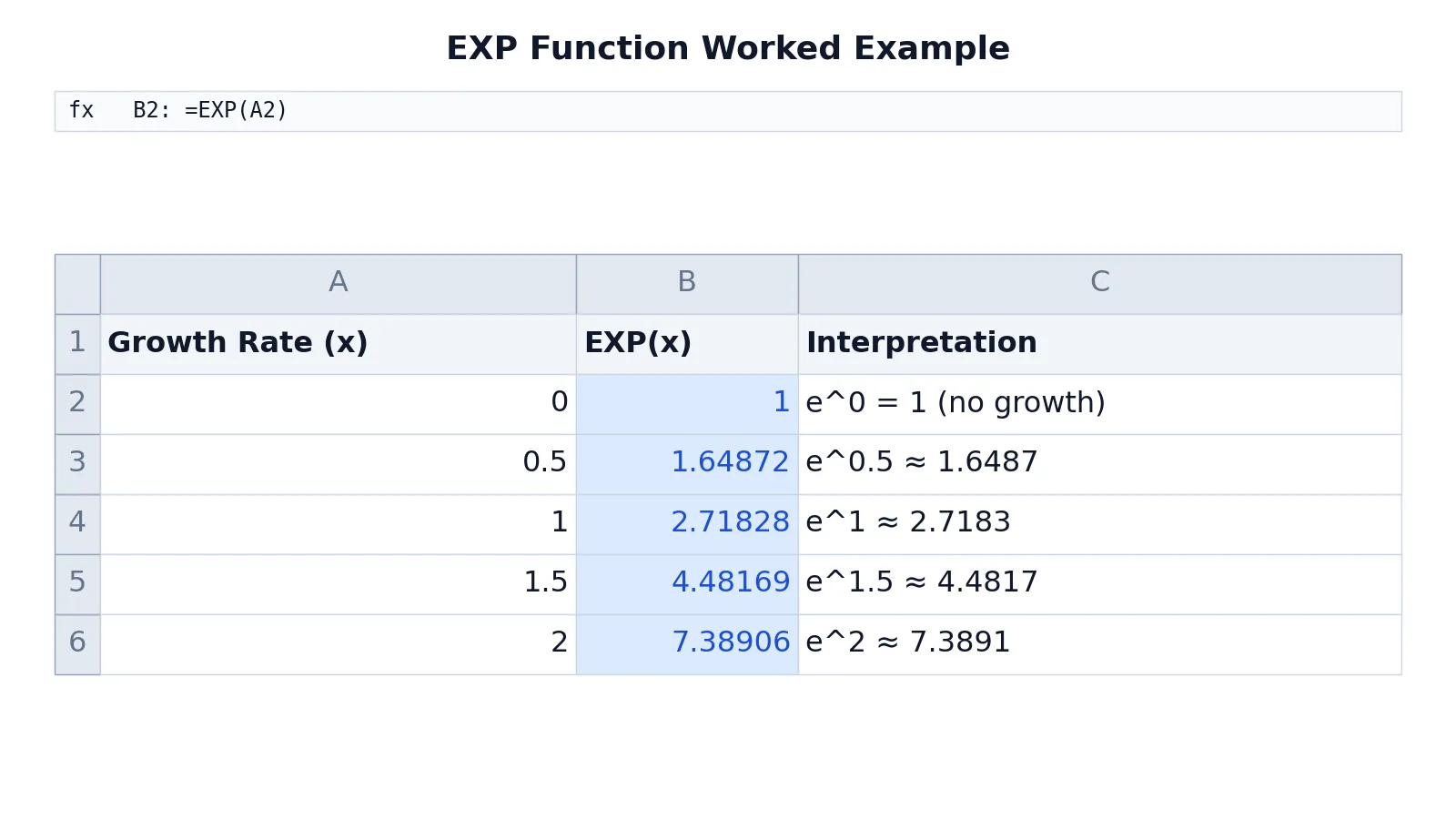
The table below models a growth rate in column A and the exponential value in column B. Each formula in column B raises $e$ to the rate in the same row of column A.
| A | B | C | |
|---|---|---|---|
| 1 | Growth Rate (x) | EXP(x) | Interpretation |
| 2 | 0 | =EXP(A2) -> displays 1 | e^0 = 1 (no growth) |
| 3 | 0.5 | =EXP(A3) -> displays 1.64872 | e^0.5 ≈ 1.6487 |
| 4 | 1 | =EXP(A4) -> displays 2.71828 | e^1 ≈ 2.7183 |
| 5 | 1.5 | =EXP(A5) -> displays 4.48169 | e^1.5 ≈ 4.4817 |
| 6 | 2 | =EXP(A6) -> displays 7.38906 | e^2 ≈ 7.3891 |
The steps are:
- B2 returns $e$ raised to the power of the growth rate in A2.
- B3 returns $e$ raised to the power of the growth rate in A3.
- B4 returns $e$ raised to the power of the growth rate in A4.
- B5 returns $e$ raised to the power of the growth rate in A5.
- B6 returns $e$ raised to the power of the growth rate in A6.
Notice how the output climbs faster than the input. Going from a rate of 1 to a rate of 2 does not double the result from 2.71828 to 5.43656. It gives 7.38906, because the exponent compounds the base. That curvature is the signature of exponential growth and the reason a straight-line trend line fits this kind of data poorly.
More Examples
Continuous compounding. If a balance grows at a continuous rate $r$ for time $t$, the multiplier is $e^{rt}$. With a rate of 0.05 in A2 and 10 years in B2, =EXP(A2*B2) returns about 1.64872, so a starting balance is multiplied by that factor.
Decay. Radioactive decay and cooling follow $e^{-kt}$. With k in A2 and time in B2, =EXP(-A2*B2) returns a value below 1 that shrinks toward zero as time grows.
Combining with other functions. To sum exponential values across a range, wrap EXP inside a total. =SUM(EXP(A2:A6)) adds the results for each rate. If you need conditional totals, the SUMIF and SUMIFS syntax guide shows how to restrict which rows are included. For counting rows that meet a condition, see the COUNTIF function guide.
Working with dates. Growth measured over calendar periods often pairs EXP with date arithmetic. The DATEDIF function guide explains how to get the elapsed time in days, months or years before you feed it into the exponent.
Modeling distributions. The exponential distribution uses $e^{-\lambda x}$ in its density. The exponential distribution article covers the formula and how it relates to the function here.
Looking up values. If your rates live in a separate table, you can pull the right one before applying EXP. The XMATCH function guide covers flexible lookups, and the INDIRECT function guide shows how to build references from text.
Errors and How to Fix Them
| Error | Cause | Fix |
|---|---|---|
#VALUE! | The argument is text that Excel cannot read as a number. | Check the cell for stray spaces or labels, or convert the text to a number. |
#NAME? | The function name is misspelled, such as =EXPP(A2). | Type =EXP( and let Excel suggest the name. |
#NUM! | The exponent is so large that the result overflows. | Reduce the exponent or rescale the units so the value stays in range. |
#REF! | The referenced cell was deleted. | Rebuild the reference or point to a valid cell. |
| Wrong result | The argument is the base instead of the exponent. | Remember EXP takes the exponent. The base is always $e$. |
Common Mistakes
- Typing the base. Writing
=EXP(2, 3)to mean $2^3$ fails because EXP takes one argument. Use=2^3for a chosen base. - Confusing EXP with a power operator.
=EXP(2)is about 7.38906, while=2^2is 4. They answer different questions. - Forgetting the sign on decay. A decay model needs a negative exponent, such as
=EXP(-A2*B2). Dropping the minus sign turns decay into growth. - Mixing up EXP and LN. EXP raises $e$ to a power. LN returns the power that produced a value. Using the wrong one reverses your transformation.
- Feeding text from a lookup. If a lookup returns a number stored as text, EXP may throw
#VALUE!. Convert it first with=VALUE(...)or multiply by 1. - Ignoring the display format. A cell can show 2.72 while holding more decimals. Widen the column or increase decimal places before you copy values elsewhere.
Limitations
EXP handles one exponent at a time and returns a single value. It does not fit a model for you, choose a growth rate, or tell you whether an exponential curve is the right description of your data. You supply the exponent, so the quality of the result depends entirely on the quality of that input.
The function also cannot represent values beyond the floating point range. Extremely large exponents overflow to #NUM!, and very large negative exponents underflow toward zero, which can hide real differences between tiny values. When you work near those edges, rescale your units or work in log space with LN.
Frequently Asked Questions
What does the EXP function do in Excel?
It returns $e$ raised to the power you give it, where $e$ is about 2.71828. You pass the exponent as the single argument, and Excel returns the result. It is the direct way to compute exponential values without typing the constant.
What is the difference between EXP and the power operator?
The power operator ^ lets you choose both the base and the exponent, so =3^2 returns 9. EXP fixes the base at $e$ and only takes the exponent, so =EXP(2) returns about 7.38906. Use EXP when the base is $e$, and ^ when it is not.
How do I calculate continuous compound interest in Excel?
Multiply the rate by the time, then pass that product to EXP. If the rate is in A2 and the years in B2, =EXP(A2*B2) gives the growth multiplier. Multiply your starting balance by that multiplier to get the ending balance.
Can EXP return a negative number?
No. $e$ raised to any real power is always positive. The result approaches zero as the exponent becomes very negative, but it never crosses into negative values. If you need a negative output, apply the sign outside the function.
Why does my EXP formula show #VALUE!?
The argument is usually text that Excel cannot convert to a number. Check the source cell for spaces, labels or numbers stored as text. Cleaning the input or wrapping it in =VALUE(...) normally resolves it.
References
Further Reading
- Broman KW, Woo KH (2018). Data Organization in Spreadsheets. The American Statistician
- Ziemann M, Eren Y, El-Osta A (2016). Gene name errors are widespread in the scientific literature. Genome Biology
- Microsoft Support: Excel help and learning
- McCullough B, Heiser DA (2008). On the accuracy of statistical procedures in Microsoft Excel 2007. Computational Statistics & Data Analysis
- Abeysooriya M, Soria M, Kasu MS et al. (2021). Gene name errors: Lessons not learned. PLOS Computational Biology
Related Articles
- Exponential Distribution: Definition, Formula and Examples
- Excel SUBTOTAL Function: Syntax, Formulas and Examples
- Excel SUMIF and SUMIFS: Syntax and Examples
- COUNTIF Function in Excel: Syntax and Examples
- XMATCH Function in Excel: Syntax and Examples
- P-Value Formula and Interpretation: A Researcher
- Residual Sum of Squares: Formula and Example