How to Calculate Months Between Two Dates in Excel
By Dr. Zubair Khalid, DVM, MS, PhD ·
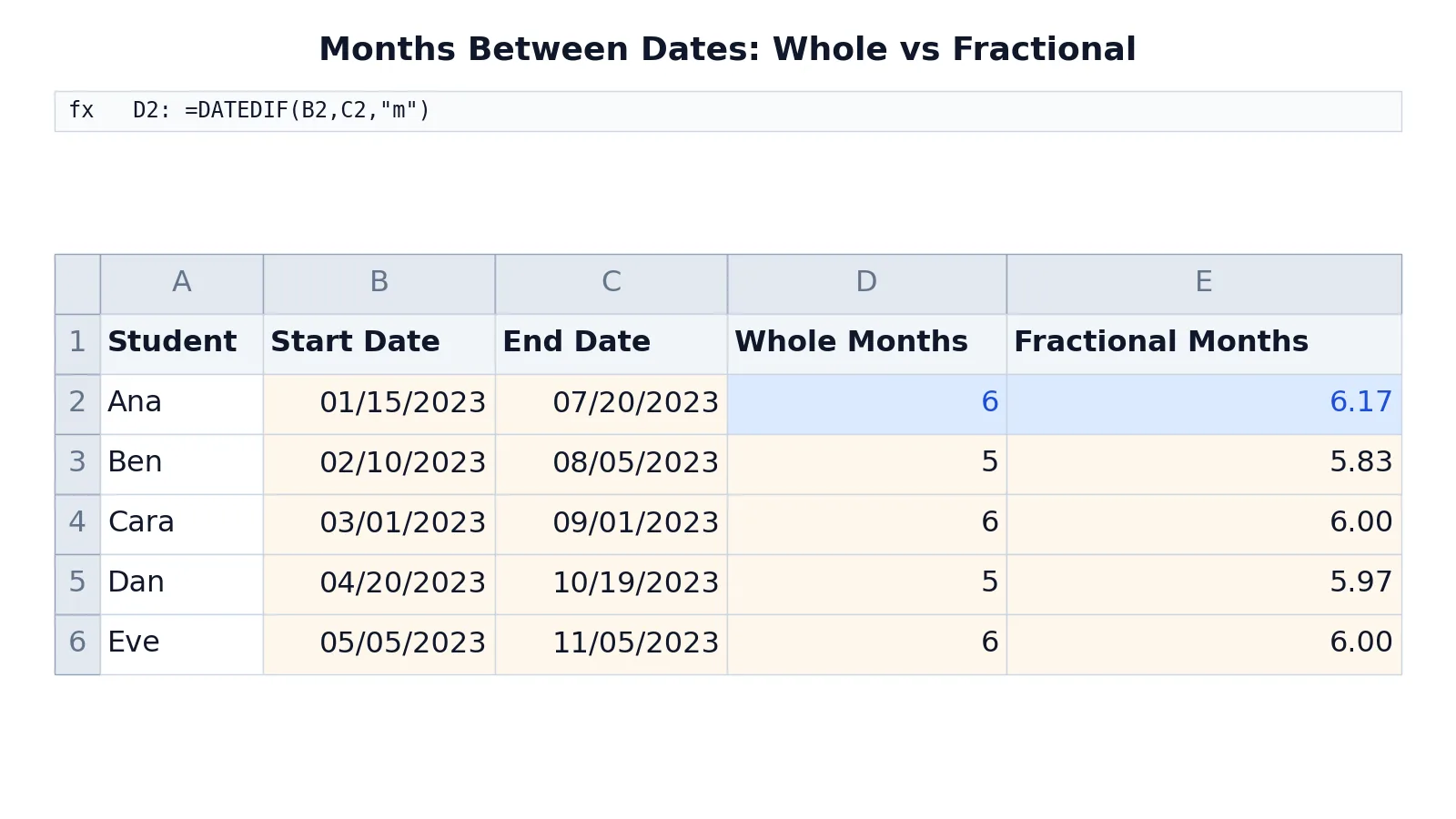
If you need to know how many months between two dates, Excel gives you two clean answers. DATEDIF counts complete calendar months, so it ignores leftover days. YEARFRAC multiplied by 12 gives the exact fractional month count, including the partial month.
The choice between them depends on what you are measuring. A billing cycle, a subscription length or an age in months usually wants whole months. A project duration or an average time-to-close usually wants the fractional figure.
Quick Answer
- Whole months:
=DATEDIF(start_date, end_date, "m")returns complete months only. - Fractional months:
=YEARFRAC(start_date, end_date) * 12returns months plus a decimal. DATEDIFcounts a month only when the day-of-month has been reached, so 01/15/2023 to 07/20/2023 is 6 months, not 6.17.YEARFRACuses a day-count basis, and the default basis (US 30/360) treats a year as 360 days.- Both formulas need real date values, not text that looks like a date.
The Formula
The whole-month formula is:
$$\text{Whole months} = \text{DATEDIF}(\text{start\_date},\ \text{end\_date},\ "m")$$
Each part does one job:
start_dateis the earlier date. If it is later than the end date,DATEDIFreturns an error.end_dateis the later date."m"is the unit code. It tells Excel to count complete months. The quotes are required because the unit is text.
The fractional-month formula is:
$$\text{Fractional months} = \text{YEARFRAC}(\text{start\_date},\ \text{end\_date}) \times 12$$
YEARFRACreturns the fraction of a year between the two dates.- Multiplying by 12 converts that fraction into months.
- With no third argument,
YEARFRACuses the US (NASD) 30/360 basis, which treats each month as 30 days and each year as 360 days.
If you want a rounded whole number from the fractional result, wrap it in ROUND or ROUNDUP. =ROUND(YEARFRAC(B2,C2)*12,0) gives the nearest whole month.
How to Calculate It Step by Step
- Put your start date in one cell and your end date in another. Enter them as dates, for example
1/15/2023, not as text. If Excel left-aligns the entry, it stored text, and the formulas will fail. - Click the cell where you want the whole-month count.
- Type
=DATEDIF(and then select the start date cell. - Type a comma, select the end date cell, then type a comma.
- Type
"m"and close the parenthesis. The full formula looks like=DATEDIF(B2,C2,"m"). - Press Enter. The cell shows the number of complete months.
- For the fractional count, use a second cell and type
=YEARFRAC(B2,C2)*12. - Press Enter. Format the cell to two decimal places if you want a cleaner display.
If you are still getting comfortable with date entries and formats, the guide to Excel date formulas for adding, subtracting and formatting dates covers the basics before you build a month count.
Worked Example
The table below tracks five students with a start date and an end date. Column D holds the whole-month formula and column E holds the fractional-month formula.
| A | B | C | D | E | |
|---|---|---|---|---|---|
| 1 | Student | Start Date | End Date | Whole Months | Fractional Months |
| 2 | Ana | =DATE(2023,1,15) -> displays 01/15/2023 | =DATE(2023,7,20) -> displays 07/20/2023 | =DATEDIF(B2,C2,"m") -> displays 6 | =YEARFRAC(B2,C2)*12 -> displays 6.17 |
| 3 | Ben | =DATE(2023,2,10) -> displays 02/10/2023 | =DATE(2023,8,5) -> displays 08/05/2023 | =DATEDIF(B3,C3,"m") -> displays 5 | =YEARFRAC(B3,C3)*12 -> displays 5.83 |
| 4 | Cara | =DATE(2023,3,1) -> displays 03/01/2023 | =DATE(2023,9,1) -> displays 09/01/2023 | =DATEDIF(B4,C4,"m") -> displays 6 | =YEARFRAC(B4,C4)*12 -> displays 6.00 |
| 5 | Dan | =DATE(2023,4,20) -> displays 04/20/2023 | =DATE(2023,10,19) -> displays 10/19/2023 | =DATEDIF(B5,C5,"m") -> displays 5 | =YEARFRAC(B5,C5)*12 -> displays 5.97 |
| 6 | Eve | =DATE(2023,5,5) -> displays 05/05/2023 | =DATE(2023,11,5) -> displays 11/05/2023 | =DATEDIF(B6,C6,"m") -> displays 6 | =YEARFRAC(B6,C6)*12 -> displays 6.00 |
Look at Ana. Her dates run from January 15 to July 20, which is six full months plus five days. DATEDIF returns 6 because the seventh month is not complete. YEARFRAC returns 6.17 because it counts the extra days as part of a month.
Ben shows the opposite pattern. February 10 to August 5 is five complete months plus 26 days. DATEDIF returns 5, while YEARFRAC returns 5.83.
Cara and Eve both land exactly on the same day of the month, so both formulas agree at 6 and 6.00. Dan is one day short of a sixth full month, so DATEDIF returns 5 and YEARFRAC returns 5.97.
How to Interpret the Result
A DATEDIF result of 6 means six complete months have passed. The leftover days are dropped. If you are counting completed billing periods or full months of service, this is the number you want.
A YEARFRAC result of 6.17 means six months and roughly five days, expressed as a decimal. This is the number to use when you average durations, calculate a rate per month, or measure elapsed time where partial months matter.
The gap between the two columns is the partial month. For Ana it is 0.17 months, for Ben it is 0.83 months. If that gap is large, the two methods will give noticeably different answers, so pick the one that matches your question before you build a report.
One more point on interpretation. DATEDIF is not symmetric. Swapping the dates produces a #NUM! error, so always keep the earlier date first. If your data may have reversed dates, wrap the formula in IF to handle that case.
Doing It in Software (Excel, R or Python, only functions you are sure exist)
Excel has both functions built in. DATEDIF is a legacy function that still works in current versions, though Excel does not show it in the function autocomplete list. You can type it manually and it will calculate.
R does not have a single month-difference function, but you can compute the interval and convert it. The lubridate package provides interval and %/% for whole units.
library(lubridate)
start <- as.Date("2023-01-15")
end <- as.Date("2023-07-20")
interval(start, end) %/% months(1)   # returns 6
Python's dateutil package has a relativedelta object that reports whole months and leftover days directly.
from dateutil.relativedelta import relativedelta
from datetime import date
start = date(2023, 1, 15)
end = date(2023, 7, 20)
delta = relativedelta(end, start)
print(delta.months, delta.days)   # prints 6 5
For fractional months in Python, divide the day difference by the average length of a month.
days = (end - start).days
print(days / 30.4375)   # prints 6.11088295687885
That last figure differs from Excel's YEARFRAC because the two use different day-count conventions. Excel's default basis treats a year as 360 days, while the Python line above uses the average Gregorian month length. Neither is wrong, but you should not mix them in the same report.
If you also need to pull the month number out of a date for grouping, the method in how to convert month to number in Excel pairs well with these formulas.
Common Mistakes
- Using text dates. If a date is stored as text,
DATEDIFreturns#VALUE!andYEARFRACreturns#VALUE!. Fix it by re-entering the date or converting the column with Text to Columns. - Reversing the dates.
DATEDIFreturns#NUM!when the start date is later than the end date. Fix it by sorting the columns or usingMINandMAXto order the pair. - Expecting
DATEDIFto round up. It always rounds down to complete months. If you need the next whole month, useROUNDUPon theYEARFRACresult. - Forgetting the quotes around
"m". Without quotes, Excel treatsmas a named range and returns#NAME?. The unit code must be text. - Assuming
YEARFRACuses real month lengths. The default basis treats every month as 30 days. If you need actual calendar months, pass a different basis argument or useDATEDIFplus a day fraction. - Mixing the two methods in one column. A report that uses
DATEDIFfor some rows andYEARFRACfor others will not add up. Pick one method per column.
Limitations
DATEDIF counts whole months only, so it cannot tell you that two durations of 5.1 months and 5.9 months are different. Both return 5. If your analysis depends on that difference, you need the fractional figure.
YEARFRAC depends on a day-count basis, and the default is a financial convention, not a calendar truth. Two dates that span the same number of calendar days can return slightly different fractions depending on the basis you choose. For most business reporting this is fine, but for scientific or legal work you should state which basis you used.
Neither function handles time of day. If your dates include timestamps, the time portion is ignored, so a difference of 23 hours and 59 minutes will not register as a day.
Frequently Asked Questions
What is the formula for how many months between two dates in Excel?
Use =DATEDIF(A2,B2,"m") for complete months, where A2 is the start date and B2 is the end date. Use =YEARFRAC(A2,B2)*12 if you want the partial month included as a decimal. Both formulas require real date values in the two cells.
Why does DATEDIF not appear in Excel's function list?
DATEDIF is a legacy function kept for compatibility with older spreadsheets. Excel does not list it in the autocomplete dropdown, but it still calculates correctly when you type it in full. You can use it in any current version without enabling anything.
How do I round the fractional month count to a whole number?
Wrap the YEARFRAC formula in ROUND or ROUNDUP. =ROUND(YEARFRAC(A2,B2)*12,0) gives the nearest whole month, while =ROUNDUP(YEARFRAC(A2,B2)*12,0) always rounds up. Choose based on whether you want the closest figure or the next full month.
Can I count months between two dates across different years?
Yes. DATEDIF and YEARFRAC both work across year boundaries without any adjustment. A start date of November 10, 2022 and an end date of March 10, 2023 returns 4 with DATEDIF, because four complete months have passed.
Why do DATEDIF and YEARFRAC give different answers?
They measure different things. DATEDIF counts only complete months and drops the leftover days. YEARFRAC converts the whole interval into a fraction of a year, so partial months appear as decimals. The difference between the two results is the size of the partial month.
If you need to count days inside a single month for a related calculation, the approach in how to get the number of days in a month in Excel handles that case. For age in months, the technique in how to calculate age in Excel builds on the same DATEDIF logic.
References
This article draws on the standard references listed under Further Reading.
Further Reading
- Broman KW, Woo KH (2018). Data Organization in Spreadsheets. The American Statistician
- Ziemann M, Eren Y, El-Osta A (2016). Gene name errors are widespread in the scientific literature. Genome Biology
- Microsoft Support: Excel help and learning
- McCullough B, Heiser DA (2008). On the accuracy of statistical procedures in Microsoft Excel 2007. Computational Statistics & Data Analysis
- Abeysooriya M, Soria M, Kasu MS et al. (2021). Gene name errors: Lessons not learned. PLOS Computational Biology
- Wilson G, Bryan J, Cranston K et al. (2017). Good enough practices in scientific computing. PLOS Computational Biology