Excel Date Formulas: How to Add, Subtract and Format Dates
By Dr. Zubair Khalid, DVM, MS, PhD ·
Excel stores every date as a serial number, so a date formula in Excel is really arithmetic on numbers. You add days with =A2+B2, subtract one date from another to get a duration, and wrap the result in a function such as DATE or TEXT when you need a specific output. This article shows the formulas, the formatting steps and the traps that make dates look wrong.
Quick Answer
- Excel keeps dates as sequential serial numbers, where January 1, 1900 is serial number 1 [1].
- Add or subtract days by adding or subtracting a number from a date cell, for example
=A2+B2[2]. - Use
=EDATE(start_date, months)to add or subtract whole months from a date [2]. - Subtract an earlier date from a later date to get the number of days between them [3].
- Format the result with Home > Number Format > Short Date so a serial number displays as a date [2].
The Formula
The core date arithmetic in Excel is simple addition and subtraction on serial numbers:
$$ \text{Result} = \text{Start Date} + \text{Days} $$
$$ \text{Duration} = \text{End Date} - \text{Start Date} $$
Each symbol means the following.
- Start Date is a cell holding a date value, or a date built with
DATE(year, month, day). - Days is a positive number to move forward or a negative number to move backward [2].
- End Date is the later date in the pair.
- Duration is the difference, returned as a plain number of days.
When you need a date rather than a number, DATE builds one from parts. The syntax is DATE(year, month, day), and it returns the serial number of that date [1]. When you need a text label, TEXT(value, format_code) converts the date to a string in the pattern you choose.
How to Calculate It Step by Step
- Enter a start date in a cell. You can type it directly or build it with
=DATE(2025,1,15). - Add the number of days you want in a separate cell, or type the number straight into the formula.
- Write the addition formula, for example
=B2+30, to get a due date 30 days later [2]. - Write the subtraction formula, for example
=C2-B2, to get the duration in days [3]. - Select the date cells and apply Home > Number Format > Short Date so they display as dates [2].
- Select the duration cells and apply Home > Number Format > General so they show as whole numbers.
If you want to add or subtract months instead of days, use =EDATE(A1,-5) to go back five months from the date in A1 [2].
Worked Example
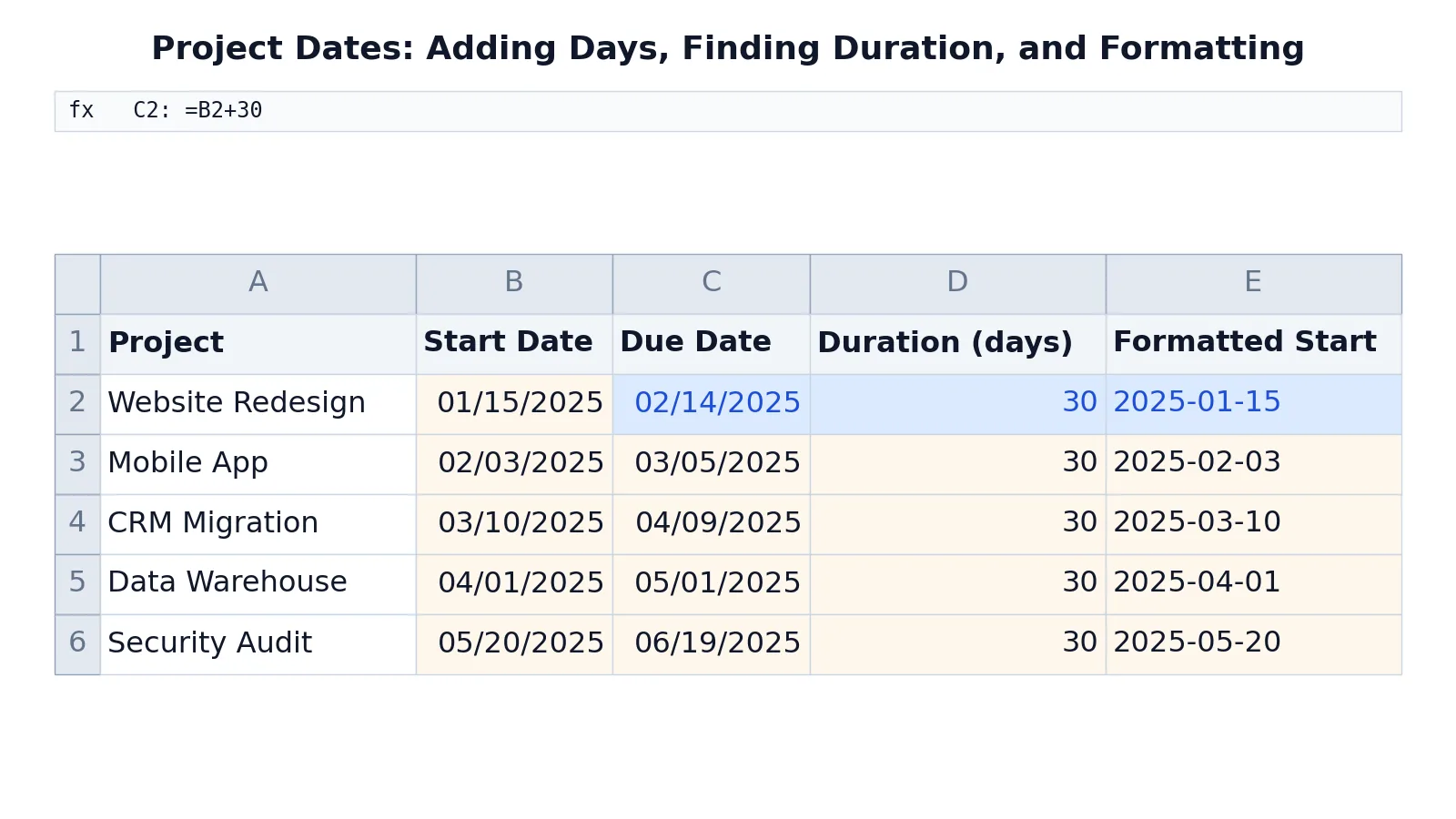
The table below tracks five projects with a start date, a due date 30 days later, the duration in days and a formatted start date.
| A | B | C | D | E | |
|---|---|---|---|---|---|
| 1 | Project | Start Date | Due Date | Duration (days) | Formatted Start |
| 2 | Website Redesign | =DATE(2025,1,15) -> displays 01/15/2025 | =B2+30 -> displays 02/14/2025 | =C2-B2 -> displays 30 | =TEXT(B2,"yyyy-mm-dd") -> displays 2025-01-15 |
| 3 | Mobile App | =DATE(2025,2,3) -> displays 02/03/2025 | =B3+30 -> displays 03/05/2025 | =C3-B3 -> displays 30 | =TEXT(B3,"yyyy-mm-dd") -> displays 2025-02-03 |
| 4 | CRM Migration | =DATE(2025,3,10) -> displays 03/10/2025 | =B4+30 -> displays 04/09/2025 | =C4-B4 -> displays 30 | =TEXT(B4,"yyyy-mm-dd") -> displays 2025-03-10 |
| 5 | Data Warehouse | =DATE(2025,4,1) -> displays 04/01/2025 | =B5+30 -> displays 05/01/2025 | =C5-B5 -> displays 30 | =TEXT(B5,"yyyy-mm-dd") -> displays 2025-04-01 |
| 6 | Security Audit | =DATE(2025,5,20) -> displays 05/20/2025 | =B6+30 -> displays 06/19/2025 | =C6-B6 -> displays 30 | =TEXT(B6,"yyyy-mm-dd") -> displays 2025-05-20 |
Three formulas carry the work. In C2, =B2+30 adds 30 days to the start date to produce the due date. In D2, =C2-B2 subtracts the start date from the due date to return the duration in days. In E2, =TEXT(B2,"yyyy-mm-dd") converts the start date into a text string in year-month-day order.
To set the display, select B2:B6 and C2:C6, then go to Home > Number Format > Short Date. Select D2:D6, then go to Home > Number Format > General to show durations as whole numbers [2].
How to Interpret the Result
The due date column returns a serial number that Excel displays as a date. If you see a five-digit number such as 45672 instead of a date, the cell is formatted as General or Number, and changing the format fixes it [1].
The duration column returns a plain count of days. A result of 30 means the two dates are 30 days apart, and the value is a number you can average, sum or compare. It is not a date, so applying a date format to it would be misleading.
The formatted start column returns text, not a date. You can read it and sort it alphabetically because the year comes first, but you cannot do date arithmetic on it. Keep the underlying date in its own cell if you still need to calculate with it.
Doing It in Software
In Excel, the functions you need are DATE, EDATE, TEXT, TODAY, DAY, MONTH and YEAR. DATE returns the serial number of a particular date, EDATE returns the serial number of the date a given number of months before or after a start date, and TODAY returns the serial number of the current date [3]. DAY, MONTH and YEAR pull the parts out of a date, which is useful when you need to rebuild a date from text [1].
If your dates arrive as text in a format like YYYYMMDD, you can rebuild them with string functions. The pattern is =DATE(LEFT(C2,4),MID(C2,5,2),RIGHT(C2,2)), which takes the first four characters as the year, the next two as the month and the last two as the day [1].
In R, the base function as.Date() converts text to a date and format() controls the output string. In Python, pandas.to_datetime() parses dates and pandas.DateOffset(days=30) shifts them. Both languages handle the same arithmetic, but neither stores dates as serial numbers the way Excel does.
Common Mistakes
- Leaving the result formatted as a number. A date formula returns a serial number, so a cell showing 45672 is not broken. Fix it with Home > Number Format > Short Date [2].
- Typing a date inside a formula without quotes.
=EDATE(4/15/2013,-5)is read as division. Enter the date in quotation marks or point to a cell that holds it, as in=EDATE(A1,-5)[2]. - Using EDATE when you meant days.
EDATEmoves by whole months, not days. For a 30-day shift, use plain addition such as=B2+30[2]. - Subtracting dates in the wrong order.
=C2-B2gives a positive duration when C2 is later. Reversing the operands returns a negative number. - Formatting a duration as a date. A duration of 30 is a count, not a point in time. Keep it in Number format.
- Doing arithmetic on TEXT output.
TEXTreturns a string, so SUM ignores that column and other arithmetic depends on Excel converting the text back, which is unreliable.
Limitations
Excel's date system has a floor. Serial number 1 is January 1, 1900, so dates before that are not supported in the standard system, and the workbook's date system setting changes how early dates behave [1]. Very large day counts also push past the last supported date, December 31, 9999 (serial number 2958465), and a result beyond it returns an error.
Formatting is separate from the value, and that separation causes most confusion. Two cells can hold the same serial number and look completely different, and a cell that looks like a date may actually hold text. Sorting, filtering and arithmetic all depend on the underlying value, so check the value, not the display, when a result looks wrong.
Frequently Asked Questions
What is the formula to add days to a date in Excel?
Add the number of days to the cell that holds the date, for example =A2+B2 where B2 contains the day count. A positive number moves the date forward and a negative number moves it backward [2]. Format the result as a date so it displays correctly.
How do I subtract two dates to get the number of days?
Subtract the earlier date from the later one, for example =C2-B2. Excel returns the difference as a plain number of days [3]. If the result is negative, the operands are in the wrong order.
Why does my date formula show a number instead of a date?
The cell is formatted as General or Number, so Excel shows the underlying serial number. Select the cell, then go to Home > Number Format > Short Date to display it as a date [2]. The value itself was always correct.
How do I add or subtract months instead of days?
Use the EDATE function. The syntax is =EDATE(start_date, months), and a negative month value subtracts [2]. For example, =EDATE(A1,-5) returns the date five months before the date in A1.
How do I convert a date to a specific text format?
Use TEXT with a format code, for example =TEXT(B2,"yyyy-mm-dd"). This returns a text string in the pattern you specify. Remember that the result is text, so it will not work in date arithmetic.
If you are building out a spreadsheet from scratch, the same arithmetic patterns appear in Excel formula basics and how to make a formula in Excel. For related date work, see how to add days to a date in Excel, how to calculate months between two dates in Excel and the DATEDIF Excel function.
References
- DATE function | Microsoft Support
- Add or subtract dates | Microsoft Support
- Date and time functions (reference) | Microsoft Support
Further Reading
- Broman KW, Woo KH (2018). Data Organization in Spreadsheets. The American Statistician
- Ziemann M, Eren Y, El-Osta A (2016). Gene name errors are widespread in the scientific literature. Genome Biology
- Microsoft Support: Excel help and learning