How to Calculate Age in Excel (Step by Step)
By Dr. Zubair Khalid, DVM, MS, PhD ·
Quick Answer
The most reliable excel formula to calculate age in completed years is =DATEDIF(B2,TODAY(),"Y"), where B2 holds the birth date. It counts full years only, so the age increases on the birthday, not on January 1. If you prefer a formula that avoids DATEDIF, use =INT(YEARFRAC(B2,TODAY(),1)) or =YEAR(TODAY())-YEAR(B2).
=DATEDIF(B2,TODAY(),"Y")returns completed years [1]=INT(YEARFRAC(B2,TODAY(),1))returns the same whole number of years [2]=YEAR(TODAY())-YEAR(B2)returns the year difference, which can be one year too high before the birthday [3]- DATEDIF needs a start date and an end date, and the start date must not be later than the end date [1]
- Format the result cell as General or Number, not as a date [4]
Before You Start
Excel stores every date as a sequential serial number, so a date is really a number you can subtract and compare [1]. January 1, 1900 is serial number 1, and January 1, 2008 is serial number 39448 because it falls 39,447 days later [1]. That is why age formulas work at all.
Two things decide whether your formula returns a clean number.
First, the birth date must be a real date, not text that looks like a date. If you type a date and Excel left-aligns it in the cell, it is probably text. Dates entered with the DATE function, such as DATE(1990,5,15), are always valid [2]. Problems can occur if dates are entered as text [2].
Second, the cell holding the formula should be formatted as General or Number. If it shows a date instead of a number, the cell format is the cause [4].
You also need a reference point for "today." The TODAY function returns the serial number of the current date and takes no arguments [5]. It updates every time the workbook recalculates, so the age stays current. If TODAY does not refresh, open the File tab, click Options, and in the Formulas category under Calculation options make sure Automatic is selected [5].
If you are new to writing formulas, the basics of cell references and operators are covered in How to Make a Formula in Excel.
Step by Step
- Put the birth dates in a column, for example B2:B6. Enter them as real dates, or build them with
DATE(year,month,day)[2]. - Put a reference date in a single cell, for example E2. Use
=TODAY()for a live age, or a fixed date such as=DATE(2025,1,1)when you need a snapshot. - Click the first result cell, for example C2.
- Type
=DATEDIF(B2,$E$2,"Y")and press Enter. The"Y"unit returns the number of complete years between the two dates [6]. - Copy the formula down the column. The dollar signs in
$E$2lock the reference date so every row compares against the same cell. - Check the result cell format. If it shows a date, press Ctrl+1, click Number, and set Decimal places to 0 [6].
- Optionally add a second column with
=INT(YEARFRAC(B2,$E$2,1))and compare the two answers.
The DATEDIF function exists to support older workbooks from Lotus 1-2-3, and it may calculate incorrect results under certain scenarios [1]. That is a reason to keep a second method on hand for spot checks.
Worked Example
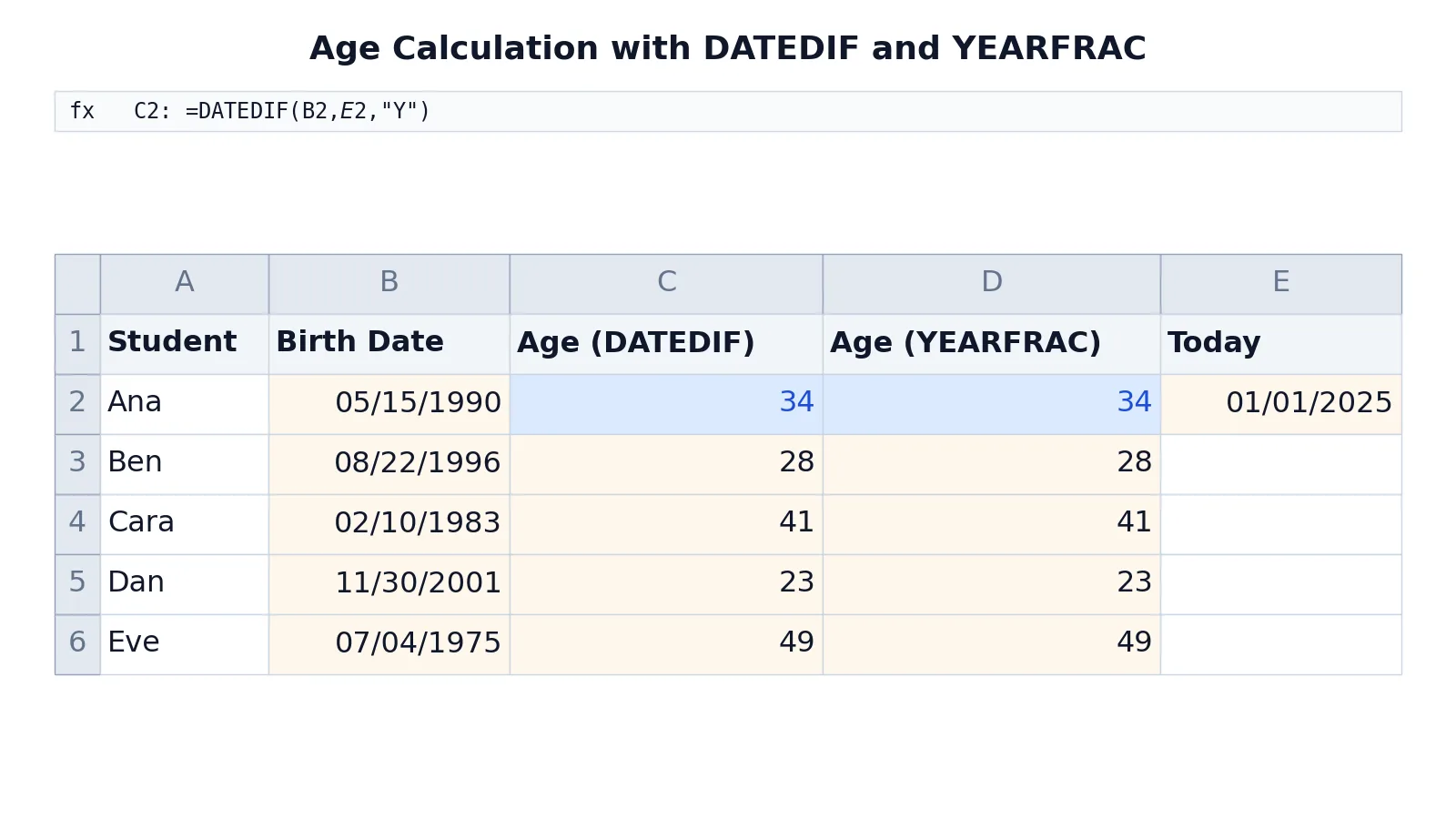
The sheet below tracks five students. Column B holds each birth date, column E2 holds the reference date, and columns C and D compute age two different ways.
| A | B | C | D | E | |
|---|---|---|---|---|---|
| 1 | Student | Birth Date | Age (DATEDIF) | Age (YEARFRAC) | Today |
| 2 | Ana | =DATE(1990,5,15) -> displays 05/15/1990 | =DATEDIF(B2,$E$2,"Y") -> displays 34 | =INT(YEARFRAC(B2,$E$2,1)) -> displays 34 | =DATE(2025,1,1) -> displays 01/01/2025 |
| 3 | Ben | =DATE(1996,8,22) -> displays 08/22/1996 | =DATEDIF(B3,$E$2,"Y") -> displays 28 | =INT(YEARFRAC(B3,$E$2,1)) -> displays 28 | |
| 4 | Cara | =DATE(1983,2,10) -> displays 02/10/1983 | =DATEDIF(B4,$E$2,"Y") -> displays 41 | =INT(YEARFRAC(B4,$E$2,1)) -> displays 41 | |
| 5 | Dan | =DATE(2001,11,30) -> displays 11/30/2001 | =DATEDIF(B5,$E$2,"Y") -> displays 23 | =INT(YEARFRAC(B5,$E$2,1)) -> displays 23 | |
| 6 | Eve | =DATE(1975,7,4) -> displays 07/04/1975 | =DATEDIF(B6,$E$2,"Y") -> displays 49 | =INT(YEARFRAC(B6,$E$2,1)) -> displays 49 |
Column C uses DATEDIF to count complete years between the birth date and the reference date. Column D uses YEARFRAC, which returns the fraction of a year represented by the whole days between two dates, and INT rounds that fraction down to full years [2]. Both columns agree on all five rows, which is what you want to see before you trust a column of ages.
Note what the numbers mean. Dan was born on November 30, 2001, and the reference date is January 1, 2025, so he has not yet reached his birthday that year and the formula returns 23, not 24. That is the correct behavior for completed years.
If you want to check a single birth date by hand, the Chronological Age Calculator returns years, months and days without opening a spreadsheet.
Other Ways to Do It
YEARFRAC with INT. =INT(YEARFRAC(B2,TODAY(),1)) returns the same whole years as DATEDIF in the example above. YEARFRAC takes a start date, an end date, and an optional basis argument that sets the day count basis [2]. The basis value 1 is the actual/actual basis, which counts real days in the year. YEARFRAC can return an incorrect result when you use the US (NASD) 30/360 basis and the start date is the last day in February [2], so stick with basis 1 for ages.
YEAR difference. =YEAR(TODAY())-YEAR(B2) subtracts one year number from another [3]. It is short and easy to read, but it overstates age before the birthday. Someone born in December 1990 would show as 35 on January 1, 2025 even though they are still 34. Use it only when you want the calendar year difference.
Months and days. DATEDIF supports other units. "M" returns full months, "YM" returns the months left after whole years are removed, and "MD" returns days left after whole months are removed [1]. Microsoft does not recommend the "MD" argument because of known limitations [1]. To show age as years, months and days, combine "Y" and "YM" with a leftover day count such as =$E$2-EDATE(B2,DATEDIF(B2,$E$2,"M")), and join them with text. Do not use "YD" for the days part, because it counts days since the last birthday and so repeats the months already counted.
Total months. =(YEAR(NOW())-YEAR(A3))*12+MONTH(NOW())-MONTH(A3) returns the number of months between a date and the current date [4]. This is useful for infants, where age in months is more informative than age in years.
Days. =DAYS(end_date,start_date) returns the number of days between two dates, and both arguments can be dates, cell references, or another date and time function such as TODAY [4].
For date-based grouping once you have ages or dates in place, see How to Calculate Quarter of Year in Excel and How to Sort by Date in Excel.
Troubleshooting
The result shows a date instead of a number. The cell format is set to Date. Press Ctrl+1, click Number, and set Decimal places to 0 [6].
You get #NUM!. The start date is later than the end date [1]. Check that the birth date cell really holds an earlier date and that you have not swapped the arguments.
You get #VALUE! from YEARFRAC. One of the dates is not a valid date, which usually means it was entered as text [2].
The age never changes. TODAY is not recalculating. Open the File tab, click Options, and in the Formulas category under Calculation options make sure Automatic is selected [5].
The formula works in one row but not the next. You probably locked the wrong reference. $E$2 keeps the reference date fixed while the birth date cell moves down with each row.
The age is one year too high. You are using the YEAR difference method before the person's birthday. Switch to DATEDIF with "Y" or YEARFRAC with INT.
Common Mistakes
- Using
=YEAR(TODAY())-YEAR(B2)for a precise age. It ignores the month and day, so it overstates age for anyone whose birthday has not yet occurred this year. Fix it with=DATEDIF(B2,TODAY(),"Y"). - Leaving the result cell formatted as a date. The formula is right but the display is wrong. Press Ctrl+1, click Number, and set Decimal places to 0 [6].
- Forgetting the dollar signs on the reference date. Without
$E$2, the reference cell shifts as you copy the formula down and later rows compare against the wrong date. - Storing birth dates as text. Text dates break DATEDIF and YEARFRAC. Enter dates with the DATE function or as real dates, since problems can occur if dates are entered as text [2].
- Using the
"MD"unit in DATEDIF. Microsoft does not recommend it because of known limitations [1]. Compute the remaining days with=end-EDATE(start,DATEDIF(start,end,"M"))instead. - Using YEARFRAC with the wrong basis. Basis 0, the US 30/360 basis, can return an incorrect result when the start date is the last day in February [2]. Use basis 1 for ages.
Limitations
DATEDIF is a legacy function kept for compatibility with older workbooks, and Microsoft states that it may calculate incorrect results under certain scenarios [1]. It also does not appear in the function autocomplete list, so you have to type the name correctly from memory. Treat it as a practical tool and cross-check important results with YEARFRAC.
Age in whole years also throws away information. A person who turned 34 yesterday and a person who turns 35 tomorrow both show as 34, which matters in clinical, legal and eligibility contexts where months and days count. If you need that precision, build a second column for months and days, or use a dedicated age calculator. Finally, any formula built on TODAY changes every day, so a saved workbook will not reproduce last month's numbers unless you replace TODAY with a fixed date.
Frequently Asked Questions
What is the best excel formula to calculate age in years?
=DATEDIF(B2,TODAY(),"Y") is the standard choice because it returns completed years and updates automatically. It counts full years only, so the result changes on the birthday. If you want to avoid DATEDIF, =INT(YEARFRAC(B2,TODAY(),1)) gives the same answer.
Why does my age formula show a date instead of a number?
The formula is returning a number but the cell is formatted as a date. Press Ctrl+1, click Number, and set Decimal places to 0 [6]. This is the most common reason a correct age formula looks wrong.
Why does DATEDIF give #NUM!?
The start date is greater than the end date [1]. In an age formula that means the birth date cell holds a later date than the reference cell, or the two arguments are in the wrong order. Check both cells and swap them if needed.
Can I calculate age in years, months and days together?
Yes. Use DATEDIF with the "Y" and "YM" units for years and months, compute the leftover days with =$E$2-EDATE(B2,DATEDIF(B2,$E$2,"M")), and join the results with text. Avoid the "MD" unit, since Microsoft does not recommend it because of known limitations [1]. The "YM" unit returns months after whole years are removed, and "YD" returns days after whole years are removed [1].
Does the age formula update automatically?
It does if you use TODAY, which returns the current date and takes no arguments [5]. The value refreshes whenever the workbook recalculates. If it does not update, open the File tab, click Options, and in the Formulas category under Calculation options make sure Automatic is selected [5].
References
- DATEDIF function | Microsoft Support
- YEARFRAC function | Microsoft Support
- YEAR function | Microsoft Support
- Calculate age | Microsoft Support
- TODAY function | Microsoft Support
- Calculate the difference between two dates | Microsoft Support
Further Reading
- Date and time functions (reference) | Microsoft Support
- Broman KW, Woo KH (2018). Data Organization in Spreadsheets. The American Statistician
- Ziemann M, Eren Y, El-Osta A (2016). Gene name errors are widespread in the scientific literature. Genome Biology