How to Split First and Last Name in Excel (Step by Step)
By Dr. Zubair Khalid, DVM, MS, PhD ·
If you want to know how to split first and last name in Excel, you have three practical options. Text to Columns is the fastest for a one-time cleanup, formulas keep the split live when names change, and Flash Fill handles messy lists where the pattern is not perfectly consistent. This guide walks through each method with the exact clicks and formulas.
Quick Answer
- Text to Columns is the fastest one-time split. Select the name column, go to Data > Text to Columns, choose Delimited, check Space, and set the destination [1].
- Formulas keep the split dynamic. First name:
=LEFT(A2,FIND(" ",A2)-1). Last name:=RIGHT(A2,LEN(A2)-FIND(" ",A2))[2]. - Flash Fill works when the pattern is inconsistent. Type the first result, then press Ctrl+E or use Data > Flash Fill [3].
- TEXTSPLIT is the formula version of Text to Columns and works in Excel for Microsoft 365 and Excel 2024 [4].
- Middle names break the simple split. With "Maria Ana Lopez", the last name formula returns "Ana Lopez", so check your data first.
Before You Start
Look at your name column and answer two questions.
First, does every row contain exactly one space? If yes, the simple methods work. If some rows have middle names or suffixes, the last name will not land where you expect. Microsoft notes that when a list contains a middle name, the last name begins after the second space, not the first [2].
Second, do you need the result to update automatically? Text to Columns writes static values. If a name changes later, the split does not follow. Formulas recalculate, so they stay correct.
Make a copy of the sheet before you split anything. Text to Columns overwrites the destination cells once you accept its replace prompt, and it is easy to point it at the wrong column.
Step by Step
Method 1: Text to Columns
- Select column A (Full Name) including the header.
- Go to Data > Text to Columns [1].
- Choose Delimited, click Next.
- Check Space as the delimiter, click Next. The Data preview window shows how the split will look [1].
- Set the destination to
$B$1, click Finish.
Excel splits the names into columns B and C. If you leave the destination as the default, Excel overwrites column A and you lose the original names.
Method 2: Formulas
Put these in row 2 and fill down.
First name:
$$=\text{LEFT}(A2,\text{FIND}(" ",A2)-1)$$
Last name:
$$=\text{RIGHT}(A2,\text{LEN}(A2)-\text{FIND}(" ",A2))$$
FIND(" ",A2) returns the position of the first space. Subtracting 1 gives the number of characters in the first name, so LEFT grabs everything before the space. For the last name, LEN(A2) minus the space position gives the number of characters after the space, and RIGHT takes them [2].
Method 3: Flash Fill
- In B2, type the first name from A2 and press Enter.
- In B3, start typing the next first name. Excel shows a preview of the rest of the column [3].
- Press Enter to accept, or go to Data > Flash Fill to run it manually [3].
Repeat in column C for last names. Flash Fill is a good fit when your list has inconsistent formats, because it copies the pattern you demonstrate instead of a fixed rule.
Method 4: TEXTSPLIT
In the cell to the right of your data, enter:
=TEXTSPLIT(A2," ") // splits at each space into adjacent columnsTEXTSPLIT works the same as the Text-to-Columns wizard but in formula form, and it spills results across columns or down rows [4]. It is available in Excel for Microsoft 365 and Excel 2024 [4].
Worked Example
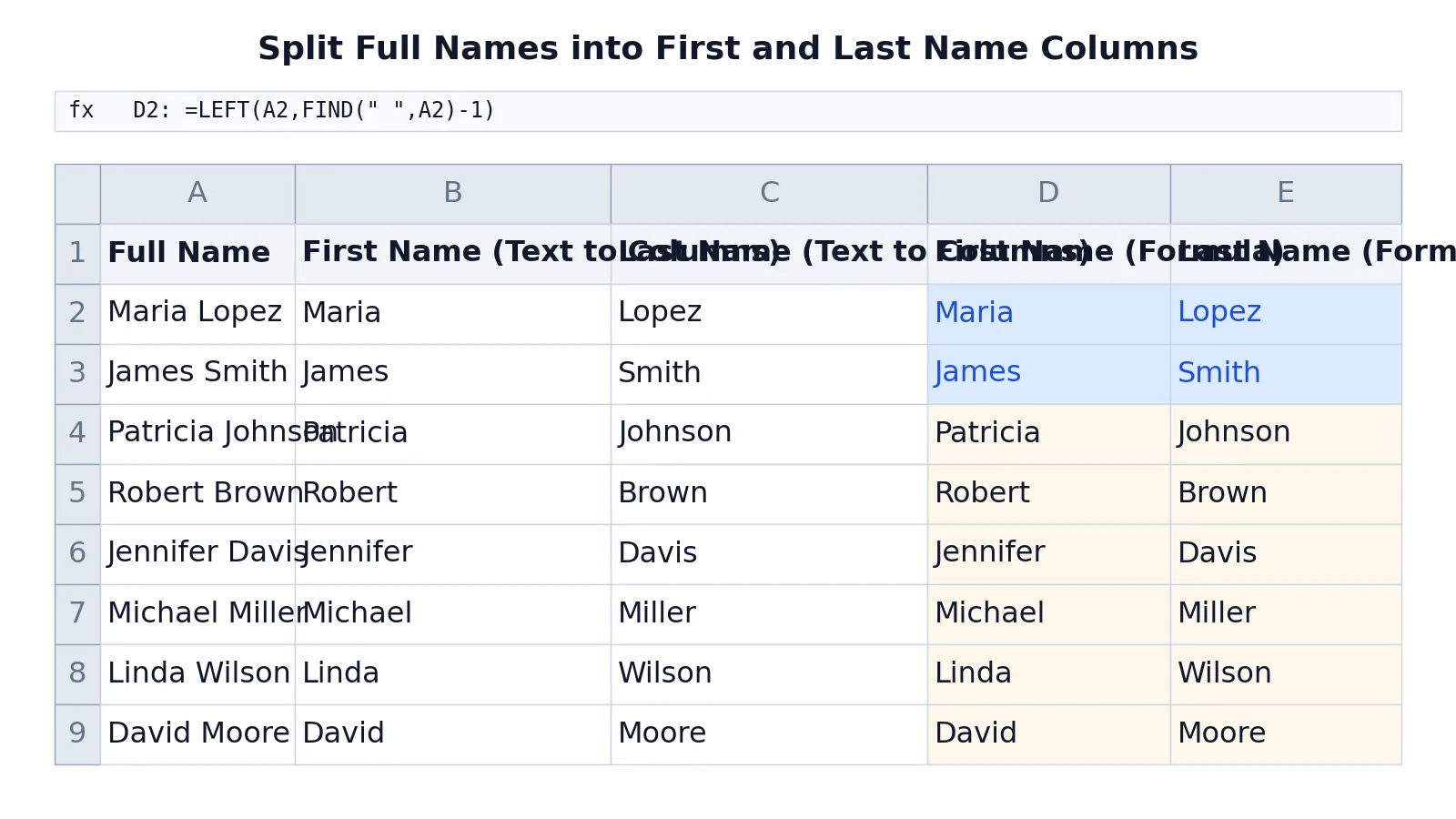
The table below uses a small sales rep list with full names in column A. Columns B and C hold the Text to Columns results. Columns D and E hold the formula results, which produce the same output dynamically.
| Row | A | B | C | D | E |
|---|---|---|---|---|---|
| 1 | Full Name | First Name (Text to Columns) | Last Name (Text to Columns) | First Name (Formula) | Last Name (Formula) |
| 2 | Maria Lopez | Maria | Lopez | =LEFT(A2,FIND(" ",A2)-1) -> Maria | =RIGHT(A2,LEN(A2)-FIND(" ",A2)) -> Lopez |
| 3 | James Smith | James | Smith | =LEFT(A3,FIND(" ",A3)-1) -> James | =RIGHT(A3,LEN(A3)-FIND(" ",A3)) -> Smith |
| 4 | Patricia Johnson | Patricia | Johnson | =LEFT(A4,FIND(" ",A4)-1) -> Patricia | =RIGHT(A4,LEN(A4)-FIND(" ",A4)) -> Johnson |
| 5 | Robert Brown | Robert | Brown | =LEFT(A5,FIND(" ",A5)-1) -> Robert | =RIGHT(A5,LEN(A5)-FIND(" ",A5)) -> Brown |
| 6 | Jennifer Davis | Jennifer | Davis | =LEFT(A6,FIND(" ",A6)-1) -> Jennifer | =RIGHT(A6,LEN(A6)-FIND(" ",A6)) -> Davis |
| 7 | Michael Miller | Michael | Miller | =LEFT(A7,FIND(" ",A7)-1) -> Michael | =RIGHT(A7,LEN(A7)-FIND(" ",A7)) -> Miller |
| 8 | Linda Wilson | Linda | Wilson | =LEFT(A8,FIND(" ",A8)-1) -> Linda | =RIGHT(A8,LEN(A8)-FIND(" ",A8)) -> Wilson |
| 9 | David Moore | David | Moore | =LEFT(A9,FIND(" ",A9)-1) -> David | =RIGHT(A9,LEN(A9)-FIND(" ",A9)) -> Moore |
The key steps:
- Extract the first name by taking all characters to the left of the first space.
- Extract the last name by taking all characters to the right of the first space.
- Fill the
LEFT/FINDformula down to row 3 and beyond. - Fill the
RIGHT/LEN/FINDformula down the same way.
Once the split is done, you may want to alphabetize in Excel by last name or remove duplicates in Excel to clean the list.
Other Ways to Do It
Power Query is the best option for repeatable cleanup. Select the name column, then go to Data > From Table/Range, and in the Power Query Editor choose Split Column > By Delimiter [5]. Keep the default "Each occurrence of the delimiter" option and click OK. Power Query names the new columns after the original column, for example "Full Name.1" and "Full Name.2", which you can rename to "First Name" and "Last Name" [5]. When you select Home > Close & Load, the transformed data returns to the worksheet [5]. The advantage is that the query reruns on new data without repeating the manual steps.
TEXTSPLIT with multiple delimiters handles names separated by commas or other characters. If there is more than one delimiter, use an array constant, for example =TEXTSPLIT(A1,{",","."}) [4].
MID and SEARCH handle middle names. Microsoft's example uses nested SEARCH functions to find the second space, then MID to pull the middle portion [2]. This is more work than the simple split but it is the correct approach when every row has three name parts.
Troubleshooting
The last name includes the middle name. Your data has more than one space. Either split on the second space with nested SEARCH, or use Flash Fill and type the correct last name for the first few rows so Excel learns the pattern.
#VALUE! from the formula. FIND returns an error when the space is not present. That happens with single-word entries or names with a non-breaking space. Check for rows with no space and handle them separately.
Extra spaces around names. Leading or trailing spaces shift every position. Clean the column first with =TRIM(A2), then run the split on the trimmed values.
Text to Columns overwrote my data. You left the destination at the default. Undo with Ctrl+Z, then repeat the wizard and set the destination to an empty column.
Flash Fill does nothing. It may be turned off. Go to File > Options > Advanced > Editing options and check the Automatically Flash Fill box, or run it manually from Data > Flash Fill [3].
Common Mistakes
- Splitting in place. Text to Columns writes over the destination. Always point it at an empty column so the original names survive. Fix: undo and set the destination explicitly.
- Assuming one space per name. Middle names, suffixes and double-barreled surnames all break the simple split. Fix: scan the column for rows with two or more spaces before you start.
- Using formulas on a column with trailing spaces.
FINDcounts every character, including invisible ones. Fix: wrap the source inTRIMfirst. - Forgetting to fill down. A formula in row 2 alone leaves the rest of the column empty. Fix: double-click the fill handle or drag it to the last row.
- Pasting formulas as values too early. If you convert to static values before checking the output, errors become permanent. Fix: verify the results first, then paste as values if you need to remove the formulas.
- Ignoring case and accent differences.
FINDis case-sensitive, so a name with an unexpected capital letter can still split correctly, but searches for specific text may not match. Fix: useSEARCHwhen you need a case-insensitive match [2].
Limitations
Text to Columns and the basic LEFT/RIGHT formulas assume a clean, consistent structure. They cannot tell the difference between a middle name and a two-part last name, so "Maria Ana Lopez" and "Maria de la Cruz" both produce a last name field that contains more than the surname. Any list with mixed formats needs a manual review pass or a more advanced formula.
Excel also cannot split a single cell into two cells the way Word tables can, because every cell sits at a fixed row and column intersection [6]. Splitting always means writing the parts into adjacent cells, which is why the destination setting matters so much. If you need to reorganize the sheet afterward, how to split a cell in Excel covers what is and is not possible.
Frequently Asked Questions
How do I split first and last names in Excel without a formula?
Use Text to Columns. Select the column, go to Data > Text to Columns, choose Delimited, check Space as the delimiter, set the destination, and click Finish [1]. It takes about ten seconds and produces static values you can edit freely.
How do you separate names in Excel when there is a middle name?
The simple last-name formula returns the middle and last name together. To isolate the surname, find the second space with nested SEARCH functions and use MID to extract the text after it [2]. Alternatively, use Flash Fill and type the correct last name for the first few rows so Excel copies your pattern [3].
Why does my formula return #VALUE!?
FIND returns #VALUE! when the character you are looking for does not exist in the cell. A row with a single-word name has no space, so the formula fails. Filter those rows out or wrap the formula in IFERROR to handle them separately.
Can I split names automatically when new rows are added?
Yes, if you use formulas or Power Query. Formulas recalculate as soon as a new name is entered, and a Power Query connection refreshes when you select Refresh. Text to Columns and Flash Fill produce static values, so they do not update on their own.
Does TEXTSPLIT work in older versions of Excel?
No. TEXTSPLIT is available in Excel for Microsoft 365 and Excel 2024 [4]. In Excel 2019 and Excel 2016, use Text to Columns or the LEFT, RIGHT, LEN and FIND formulas instead. Those functions work in every modern version.
Once the names are separated, you can filter in Excel to review specific entries, sort a column in Excel to group by surname, or find and search in Excel to locate rows that still need cleanup.
References
- Split text into different columns with the Convert Text to Columns Wizard | Microsoft Support
- Split text into different columns with functions | Microsoft Support
- Using Flash Fill in Excel | Microsoft Support
- TEXTSPLIT function | Microsoft Support
- Split data into multiple columns | Microsoft Support
- Split a cell in Excel | Microsoft Support
Further Reading
- Broman KW, Woo KH (2018). Data Organization in Spreadsheets. The American Statistician
- Ziemann M, Eren Y, El-Osta A (2016). Gene name errors are widespread in the scientific literature. Genome Biology