Excel Name Box: What It Is and How to Use It
By Dr. Zubair Khalid, DVM, MS, PhD ·
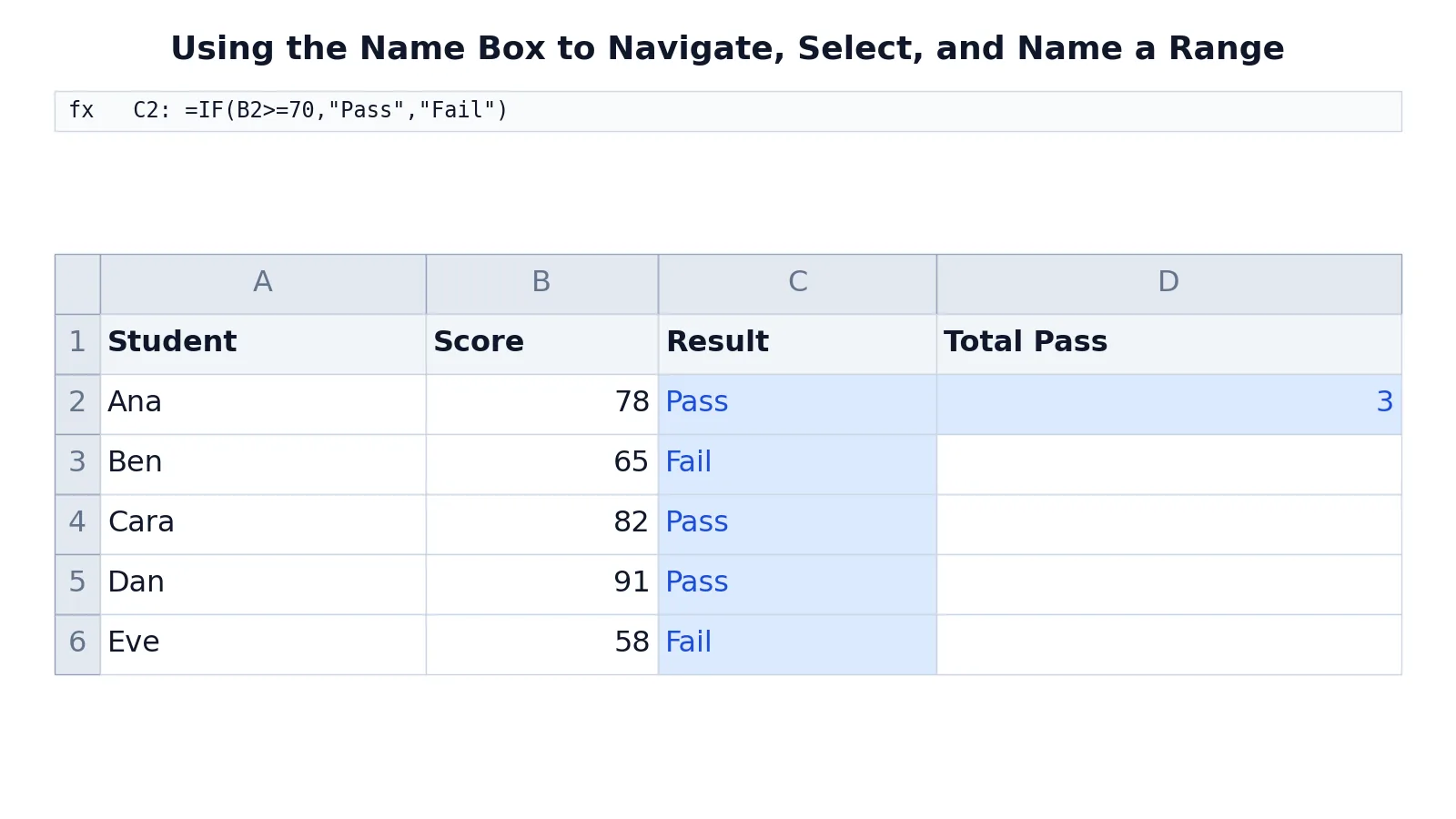
The Excel Name Box is the small box on the left side of the formula bar, above the column letters. It shows the address of the active cell, and you can type into it to jump somewhere else, select a range, or create a name for that range. Most people ignore it for years, then wonder how anyone navigates a large workbook without scrolling.
Quick Answer
- The Excel Name Box displays the address of the active cell, such as
C6, or the name of a selected named range. - Type a cell address and press Enter to jump straight to it.
- Type a range address and press Enter to select the whole range at once.
- Type a new label while a range is selected to define a name for that range [1].
- Once a name exists, you can use it inside formulas in place of the cell references [1].
What the Excel Name Box Means
In plain terms, the Name Box is a text field that accepts a reference and acts on it. Whatever you type, Excel resolves it to a location in the workbook and moves the selection there. It also reports back, showing you the address of whatever is currently selected.
The precise definition is narrower. The Name Box is the reference input control bound to the active selection of the active worksheet. It holds either a single cell reference, a range reference, or a defined name. A defined name is a stored identifier that maps to a cell, a range, a constant, or a formula, and Excel resolves that identifier wherever a reference is expected [1].
That last part matters for analysis. A name is not a label sitting on top of a cell. It is an entry in the workbook's name table, and formulas that use it read the underlying reference at calculation time.
How It Works
The Name Box has no formula of its own. It is an input control. The mechanism worth understanding is what happens when you type a name into it and press Enter.
When you select a range and type a name, Excel stores a mapping:
$$ \text{Name} \rightarrow \text{Reference} $$
For example, if you select B2:B6 and type Sales, Excel records that Sales resolves to B2:B6. From then on, any formula that contains Sales reads those five cells.
Each piece works like this:
- Name is the identifier you type. It must not look like a cell reference, so
Salesworks andB2does not. - Reference is what the name points to. It can be a single cell, a rectangular range, or a formula.
- Resolution is the step where Excel swaps the name for its reference during calculation.
You can also build names automatically from labels already in your sheet. Select the range including its row or column labels, then use the Create Names from Selection dialog box and designate where the labels sit by selecting the Top row, Left column, Bottom row, or Right column check box [1]. Excel then names the cells based on those labels.
To review or clean up names later, go to Formulas > Name Manager on the ribbon. There you can create, edit, delete, and find all the names used in the workbook [1]. Names also work with dynamic array formulas, so results can spill across multiple cells while the formula stays readable [1].
Worked Example
Take a small gradebook with student names in column A, scores in column B, and a pass or fail result in column C.
| A | B | C | D | |
|---|---|---|---|---|
| 1 | Student | Score | Result | Total Pass |
| 2 | Ana | 78 | =IF(B2>=70,"Pass","Fail") -> displays Pass | =COUNTIF(C2:C6,"Pass") -> displays 3 |
| 3 | Ben | 65 | =IF(B3>=70,"Pass","Fail") -> displays Fail | |
| 4 | Cara | 82 | =IF(B4>=70,"Pass","Fail") -> displays Pass | |
| 5 | Dan | 91 | =IF(B5>=70,"Pass","Fail") -> displays Pass | |
| 6 | Eve | 58 | =IF(B6>=70,"Pass","Fail") -> displays Fail |
The result column checks each score against the 70 point threshold. C2 checks if Ana's score is 70 or more and returns Pass or Fail. C3 does the same for Ben, C4 for Cara, C5 for Dan, and C6 for Eve. D2 counts how many students passed, and it returns 3.
Now run the Name Box through the same sheet:
- Click the Name Box, type
C6, and press Enter to jump to cellC6. - Click the Name Box, type
B2:B6, and press Enter to select the rangeB2:B6. - With
B2:B6selected, click the Name Box, typeSales, and press Enter to define the nameSalesforB2:B6. - Select an empty cell such as
D4, type=SUM(Sales), and press Enter to compute the total of theSalesrange.
Step 3 is the one that changes how the workbook behaves. After it, Sales is a permanent entry in the name table, and step 4 shows the payoff: the formula reads =SUM(Sales) instead of =SUM(B2:B6). The total is the same either way, but the intent is visible. Anyone opening the file can see that the formula sums a range called Sales without hunting for which cells that means.
How to Interpret It
Read the Name Box as a status indicator first. When you click any cell, the box tells you exactly where you are. When you select a block of cells, it shows the active cell, usually the cell where the selection started, such as B2, and the selection is highlighted on the sheet.
When the box shows a name instead of an address, that tells you the selection is a defined name. Clicking that name in the box selects the entire named range, which is a fast way to check what a name actually covers.
The interpretation that saves the most time is this: if a formula contains a word that is not a function and not a cell address, it is probably a defined name. You can confirm it in Name Manager [1].
When to Use It (and when not to)
Use the Name Box when you need to move somewhere specific in a large sheet. Typing C6 beats scrolling through hundreds of rows. Use it to select a range you already know the boundaries of, such as B2:B6, without dragging the mouse.
Use it to define names for ranges you reference repeatedly. A name like Sales or Scores makes formulas shorter and easier to audit, and names can be combined with dynamic array formulas so results spill across multiple cells while the formula stays readable [1]. You can also use names to define reusable formulas with LET or LAMBDA, which cuts repetition across a workbook [1].
Skip it when the range is small and adjacent to what you are doing. Clicking two cells is faster than typing an address. Skip it when you are building a one-off formula you will delete in a minute. Names are worth the setup only when the reference will be reused or shared.
Name Box vs Formula Bar
These two sit next to each other and get confused constantly. They do different jobs.
| Name Box | Formula Bar | |
|---|---|---|
| Position | Left of the formula bar | Right of the Name Box |
| Shows | Address or name of the active selection | Contents of the active cell |
| Accepts input | A cell reference, range, or new name | Cell values, text, and formulas |
| Main use | Jump, select, define names | Read and edit what is in a cell |
| Changes the sheet | Only when you define a name | Whenever you commit an edit |
The practical difference: the Name Box tells you where you are, and the formula bar tells you what is there.
Common Mistakes
- Typing a name that looks like a cell reference.
B2is already a valid address, so Excel rejects it as a name. Use something descriptive likeScoresorQ1Sales. - Forgetting to press Enter. The Name Box does nothing until you commit the entry. If you click away, the action is cancelled.
- Assuming a name updates when you insert rows. Names point at references, and inserting rows inside a named range extends it, but inserting rows directly below its last row does not. Check Name Manager after structural edits [1].
- Deleting a name that formulas depend on. Removing a name in Name Manager leaves the formulas that used it broken. Fix the formulas first, then delete the name [1].
- Using spaces in a name. Spaces are not allowed in defined names. Use an underscore or capitalize each word, such as
Total_SalesorTotalSales. - Naming a single cell you will never reuse. A name for
D2that appears in one formula adds clutter without saving anything.
Limitations
The Name Box only works on the active workbook and the active sheet's selection. It cannot search for a value, find text, or locate a cell by its contents. If you need to find a value, use Find instead.
Names are also workbook scoped by default, which means a name defined in one file does not travel to another. Copying a sheet into a new workbook can leave formulas pointing at names that no longer exist. And because names resolve silently at calculation time, a name pointing at the wrong range produces a wrong number with no warning. That is the real risk. A formula reading =SUM(Sales) looks correct even when Sales covers the wrong cells, so audit your names in Name Manager whenever results look off [1].
Frequently Asked Questions
What is the Excel Name Box used for?
It does three things. It shows the address of the active cell, it jumps to any cell or range you type into it, and it defines a name for a selected range [1]. Navigation is the everyday use, and naming is the one that pays off over time.
How do I name a cell or range in Excel?
Select the range you want to name, click the Name Box, type the name, and press Enter [1]. The name is then available anywhere in that workbook, including inside formulas. You can review or change it later under Formulas > Name Manager [1].
Why does Excel reject the name I type in the Name Box?
The most common reason is that the name looks like a cell reference, such as B2 or R1C1. Names also cannot contain spaces or start with a number. Pick something descriptive that does not resemble an address.
Can I use a name in a formula instead of cell references?
Yes. Type the first letter of the name where you want it in the formula and select it from the list that appears, or go to Formulas > Use in Formula and pick the name you want [1]. The formula then reads the underlying range at calculation time.
Does the Name Box work the same in every version of Excel?
The core behavior of showing the active address and accepting typed references is consistent across modern desktop versions. Menu locations for related features such as Name Manager can differ between platforms and releases, so check the ribbon on your own build if a path does not match.
If you are still getting comfortable with what goes inside formulas, start with an overview of Excel functions before you build names around them. When you are ready to move data between formats, see how Excel filename extensions affect what a workbook can store.
References
Further Reading
- Broman KW, Woo KH (2018). Data Organization in Spreadsheets. The American Statistician
- Ziemann M, Eren Y, El-Osta A (2016). Gene name errors are widespread in the scientific literature. Genome Biology
- Microsoft Support: Excel help and learning
- McCullough B, Heiser DA (2008). On the accuracy of statistical procedures in Microsoft Excel 2007. Computational Statistics & Data Analysis
- Abeysooriya M, Soria M, Kasu MS et al. (2021). Gene name errors: Lessons not learned. PLOS Computational Biology