How to Concatenate in Excel: CONCAT and & Examples
By Dr. Zubair Khalid, DVM, MS, PhD ·
To concatenate in Excel means to join text from two or more cells into one string. You can do it with the & operator, the CONCAT function, or the older CONCATENATE function. All three return the same result for simple joins, so the choice comes down to version support and how many items you need to combine.
Quick Answer
- Use
&for the shortest formula:=A2&" "&B2joins two cells with a space between them [1]. - Use
CONCATwhen you want to join a whole range, such as=CONCAT(A2:A10). It accepts ranges and up to 253 text arguments [2]. - Use
CONCATENATEonly for backward compatibility. Microsoft recommendsCONCATinstead becauseCONCATENATEmay not be available in future versions of Excel [3]. - None of these functions adds a separator for you. Type the delimiter yourself, such as
" "for a space or", "for a comma and space [2]. - If you need a delimiter between every item and want empty cells skipped, use
TEXTJOINinstead [4].
Syntax
The & operator takes no arguments. You place it between the items you want to join, and each text literal goes inside double quotation marks.
$$=A2\ \&\ "\ "\ \&\ B2$$
CONCAT and CONCATENATE take a list of items separated by commas.
| Argument | Required? | Meaning |
|---|---|---|
text1 | Required | The first item to join. A string, number, or cell reference [3]. |
text2, ... | Optional | Additional items to join. CONCAT allows up to 253 text arguments, and each can be a string or a range of cells [2]. CONCATENATE allows up to 255 items, up to a total of 8,192 characters [3]. |
CONCAT accepts full column and row references, so =CONCAT(A:A) joins everything in column A [2]. CONCATENATE does not accept ranges in the same way, which is one reason Microsoft points users to CONCAT [5].
How It Works
Concatenation converts each item to text and glues the pieces together in the order you list them. Numbers do not need quotation marks, so =CONCATENATE("Total: ", 42) returns Total: 42 [3]. Text literals do need quotation marks, and a space inside quotes is a real character, not padding.
The order of arguments is the order of the output. =A2&" "&B2 puts the first name first. =B2&", "&A2 puts the last name first and adds a comma, which is how you build a "Last, First" format [6].
Because no separator is inserted automatically, forgetting one is the most common cause of run-together text. Microsoft documents two ways to add a space: include " " as its own argument, or add a trailing space inside the text argument, as in "Hello " [3].
Dates and times need extra care. A date stored as a serial number will not display as a readable date when you join it directly. Wrap it in the TEXT function with a format code, then join the result with & [7]. The Excel TEXT function guide covers the format codes in detail.
Worked Example
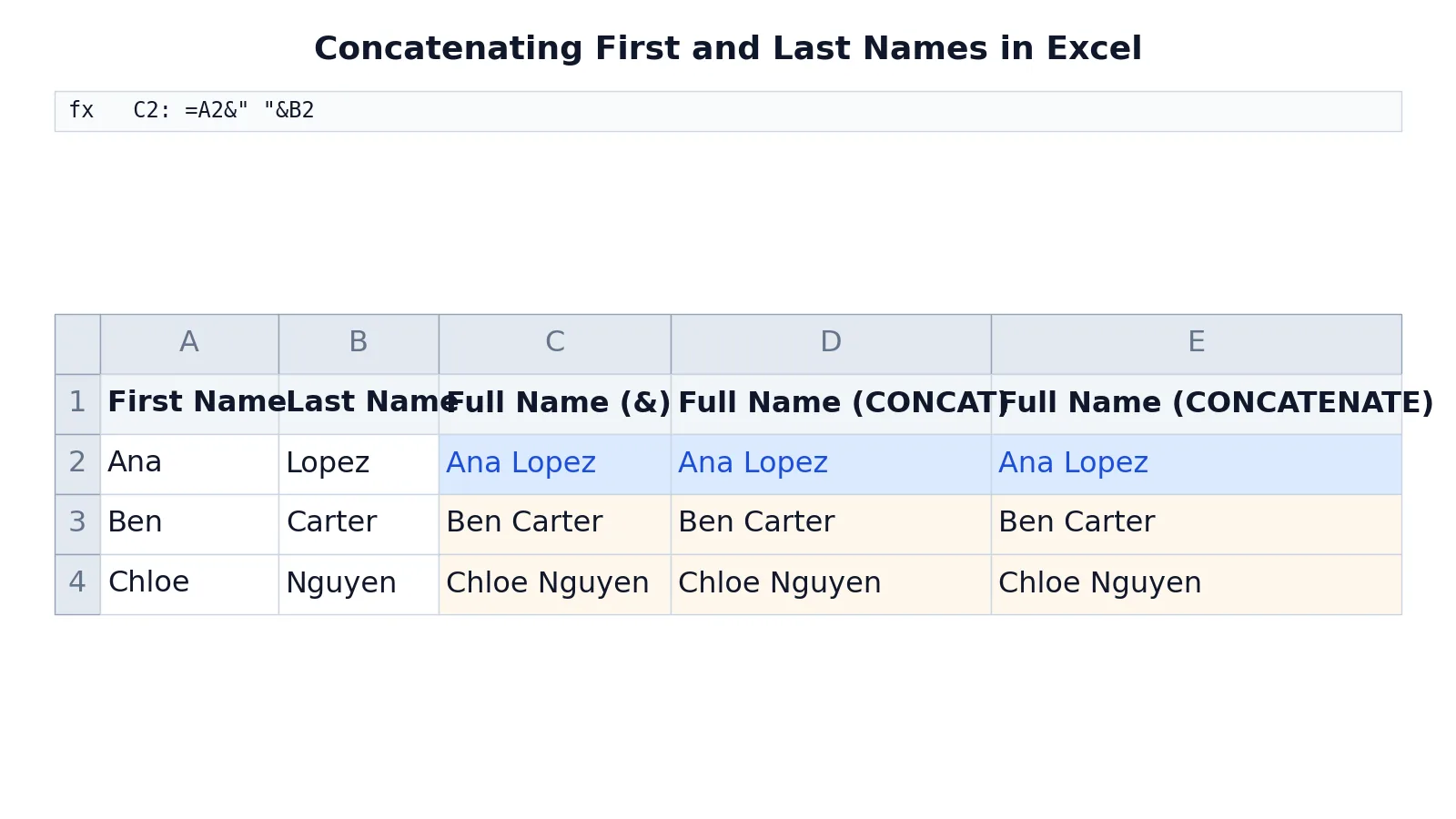
The sheet below holds a small contact list with first names in column A and last names in column B. Columns C, D and E build the full name three different ways.
| Row | A | B | C | D | E |
|---|---|---|---|---|---|
| 1 | First Name | Last Name | Full Name (&) | Full Name (CONCAT) | Full Name (CONCATENATE) |
| 2 | Ana | Lopez | =A2&" "&B2 -> displays Ana Lopez | =CONCAT(A2," ",B2) -> displays Ana Lopez | =CONCATENATE(A2," ",B2) -> displays Ana Lopez |
| 3 | Ben | Carter | =A3&" "&B3 -> displays Ben Carter | =CONCAT(A3," ",B3) -> displays Ben Carter | =CONCATENATE(A3," ",B3) -> displays Ben Carter |
| 4 | Chloe | Nguyen | =A4&" "&B4 -> displays Chloe Nguyen | =CONCAT(A4," ",B4) -> displays Chloe Nguyen | =CONCATENATE(A4," ",B4) -> displays Chloe Nguyen |
All three formulas produce identical output for row 2. The & version is the shortest to type. The CONCAT version is the one Microsoft recommends going forward [3]. The CONCATENATE version still works in Excel 2016 and later, but it exists for compatibility with earlier versions [2].
To build this yourself, select the cell where you want the combined text, type =, select the first cell, type &, then type a space inside quotation marks, type & again, and select the next cell [1]. Press Enter to confirm the formula.
More Examples
Join three fields with commas. With city in A2, state in B2 and ZIP in C2:
$$=A2\ \&\ ",\ "\ \&\ B2\ \&\ "\ "\ \&\ C2$$
This returns something like Austin, TX 78701. Every separator is typed explicitly.
Reverse the name order. =B2&", "&A2 returns Lopez, Ana [6]. This is the standard format for mailing labels and sorted lists.
Join a range with CONCAT. =CONCAT(A2:A10) joins every value in the range in order, with no separator [2]. If the range contains blanks, they contribute nothing to the output, but the surrounding values still run together.
Add a label to a number. =CONCAT("Revenue: $", B2) returns a text string with the label attached. The number is converted to text as part of the join [3].
Combine text with a date. =A2&" due "&TEXT(B2,"mmmm d, yyyy") produces a readable sentence instead of a raw serial number [7]. Without TEXT, the date appears as a number.
Use TEXTJOIN when you need delimiters everywhere. TEXTJOIN takes a delimiter as its first argument and an ignore_empty flag as its second, so =TEXTJOIN(", ",TRUE,A2:A10) joins a range with commas and skips blanks [4]. If your data has gaps, this saves you from cleaning the output afterward.
Errors and How to Fix Them
#VALUE! appears when one of the referenced cells already contains an error, such as #VALUE!. The error propagates into the joined string. Microsoft's documented fix is to test the cell first, for example =IF(ISERROR(E2),CONCATENATE(D2," ",0," ",F2)), which substitutes a 0 for the bad value [5]. CONCAT also returns #VALUE! if the resulting string exceeds 32,767 characters, the cell limit [2].
#NAME? usually means the function name is misspelled or the function is not available in your version. Check the spelling and confirm your Excel version supports CONCAT, which requires Excel 2019 or a Microsoft 365 subscription on Windows or Mac [2].
Missing quotation marks around text. If you type =CONCATENATE(Hello, " ", World) without quotes, Excel treats Hello and World as names and returns #NAME? [3].
A missing comma between arguments. Microsoft notes that =CONCATENATE("Hello ""World") displays as Hello"World with an extra quote mark, because the comma between the text arguments was omitted [3]. Check that every item is separated properly.
Run-together text. If the output reads AnaLopez instead of Ana Lopez, you left out the space argument. Add " " between the cell references [3].
Common Mistakes
- Forgetting the separator.
=A2&B2joins with nothing between. Fix it with=A2&" "&B2or add a trailing space inside a quoted string [3]. - Using CONCATENATE in new workbooks. It still runs, but Microsoft recommends
CONCATbecauseCONCATENATEmay not be available in future versions [3]. Switch new formulas toCONCAT. - Expecting CONCAT to add spaces.
CONCAThas no delimiter argument at all [2]. If you need one, type it or useTEXTJOIN[4]. - Joining a date without TEXT. The raw serial number appears instead of a date. Wrap the date in
TEXTwith a format code first [7]. - Joining a cell that holds an error. The error travels into your result. Guard the reference with
ISERRORor clean the source cell [5]. - Assuming CONCATENATE accepts ranges. It does not handle ranges the way
CONCATdoes, which is one reason Microsoft callsCONCATthe more robust function [5].
Limitations
Concatenation produces static text. Once you join values, the result is a string, not a live reference to the parts. If a source cell changes, the formula recalculates, but if you copy and paste the result as values, the link is gone. Joined text also loses number formatting, so a currency value becomes a plain number unless you wrap it in TEXT [7].
The output is capped by Excel's cell limit of 32,767 characters. CONCAT returns #VALUE! when the result exceeds that limit [2]. CONCATENATE has its own ceiling of 8,192 characters across up to 255 items [3]. Neither function removes duplicate separators or trims stray spaces, so messy source data produces messy output. For delimiter control and blank handling, TEXTJOIN is the better tool [4].
Frequently Asked Questions
What is the difference between CONCAT and CONCATENATE in Excel?
Both join text items into one string. CONCAT is the newer function and accepts ranges and up to 253 text arguments [2]. CONCATENATE is kept for backward compatibility, accepts up to 255 items and 8,192 characters, and may not be available in future versions of Excel [3]. Microsoft recommends CONCAT for new formulas.
Can I concatenate a whole column in Excel?
Yes, with CONCAT. A formula like =CONCAT(A:A) joins everything in column A because CONCAT allows full column and row references [2]. Be aware that there is no separator between values, so the output runs together unless you build the string differently.
How do I add a space between concatenated values?
Type the space as its own quoted argument. =A2&" "&B2 and =CONCAT(A2," ",B2) both return a full name with a space in the middle [1]. You can also add a trailing space inside a text argument, as in "Hello " [3].
Why does my concatenated date show as a number?
Excel stores dates as serial numbers, so joining a date cell directly returns the number. Use the TEXT function with a format code, such as TEXT(B2,"mmmm d, yyyy"), to convert the date to readable text before joining it [7].
Should I use TEXTJOIN instead of CONCAT?
Use TEXTJOIN when you need the same delimiter between every item or when you want empty cells skipped. It takes a delimiter and an ignore_empty flag as its first two arguments [4]. Use CONCAT or & when the separators vary or you are joining just two or three items.
If you work across database engines too, the SQL CONCAT function guide shows how the same idea works in SQL. For conditional logic around your joins, see IF AND statements in Excel and Excel IF OR combinations.
References
- Combine text from two or more cells into one cell in Microsoft Excel | Microsoft Support
- CONCAT function | Microsoft Support
- CONCATENATE function | Microsoft Support
- TEXTJOIN function | Microsoft Support
- How to correct a #VALUE! error in the CONCATENATE function | Microsoft Support
- Combine first and last names | Microsoft Support
- Combine text with a date or time | Microsoft Support
Further Reading
- Broman KW, Woo KH (2018). Data Organization in Spreadsheets. The American Statistician
- Ziemann M, Eren Y, El-Osta A (2016). Gene name errors are widespread in the scientific literature. Genome Biology