Excel IF OR: How to Combine IF and OR Functions
By Dr. Zubair Khalid, DVM, MS, PhD ·
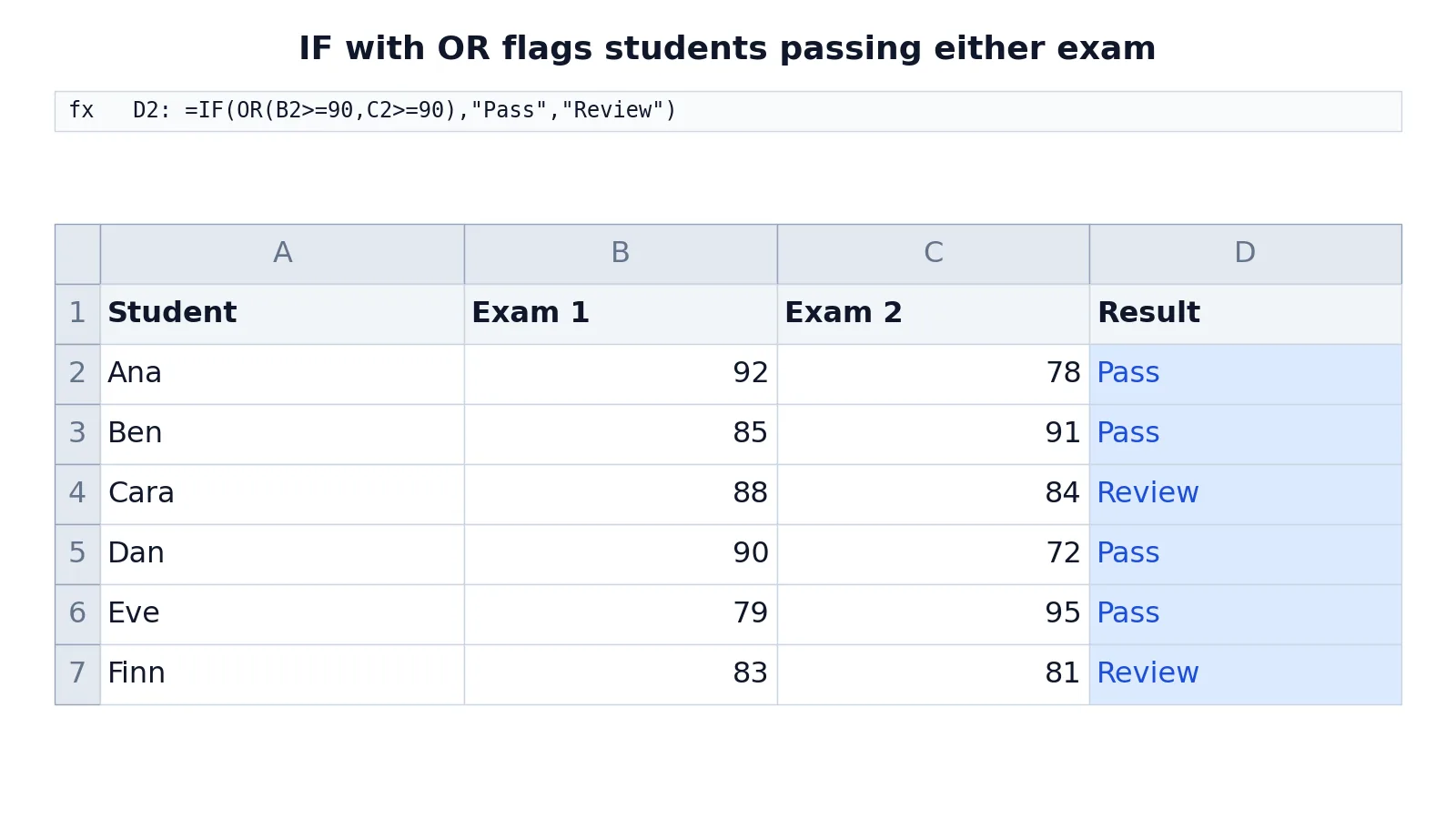
Excel IF OR is the pattern you use when a formula should return one result if any of several conditions is true. You wrap the conditions inside OR, then hand that result to IF. The formula reads as "if this or that is true, do X, otherwise do Y."
Quick Answer
- The pattern is
=IF(OR(condition1, condition2), value_if_true, value_if_false). ORreturns TRUE when at least one condition is true, and FALSE only when every condition is false.ORaccepts up to 255 conditions in modern Excel, and each condition must evaluate to TRUE or FALSE.- Text results need double quotes, as in
"Pass". Numbers and cell references do not. - If you need every condition to be true, use
IFwithANDinstead.
Before You Start
You need a version of Excel that supports OR as a worksheet function. Every current desktop and web version does, and the same pattern works in Google Sheets if you move between the two.
Three things are worth settling before you type the formula.
First, decide what "any" means in your data. If a student passes when either exam score reaches 90, that is an OR test. If a student passes only when both scores reach 90, that is an AND test. Mixing these up is the most common source of wrong answers.
Second, check that your conditions compare like with like. Comparing a number to text, or a date stored as text to a real date, gives results you did not intend. The Excel IS functions such as ISNUMBER and ISBLANK help you test what a cell actually contains.
Third, plan the two outcomes. IF needs a value for true and a value for false. If you leave the false branch out, Excel returns FALSE, which usually looks like a bug to the reader.
If you are new to the IF function on its own, start with how to use the IF function in Excel and come back here once the basic form is familiar.
Step by Step
- Click the cell where the result should appear.
- Type
=IF(to open the function. - Type
OR(to start the condition list. - Enter the first condition, such as
B2>=90. - Type a comma and enter the second condition, such as
C2>=90. - Close the OR with
). - Type a comma, then the value to return when the test is true, such as
"Pass". - Type a comma, then the value to return when the test is false, such as
"Review". - Close the IF with
)and press Enter.
The finished formula looks like this.
=IF(OR(B2>=90,C2>=90),"Pass","Review")Excel evaluates the inner OR first. If either comparison is true, OR returns TRUE and IF returns "Pass". If both comparisons are false, OR returns FALSE and IF returns "Review".
You can add more conditions by separating them with commas inside OR. Three, four or ten conditions all follow the same shape. The logic stays the same: one true condition is enough.
Worked Example
The table below tracks six students with two exam scores each. A student passes when Exam 1 or Exam 2 is at least 90.
| A | B | C | D | |
|---|---|---|---|---|
| 1 | Student | Exam 1 | Exam 2 | Result |
| 2 | Ana | 92 | 78 | =IF(OR(B2>=90,C2>=90),"Pass","Review") -> displays Pass |
| 3 | Ben | 85 | 91 | =IF(OR(B3>=90,C3>=90),"Pass","Review") -> displays Pass |
| 4 | Cara | 88 | 84 | =IF(OR(B4>=90,C4>=90),"Pass","Review") -> displays Review |
| 5 | Dan | 90 | 72 | =IF(OR(B5>=90,C5>=90),"Pass","Review") -> displays Pass |
| 6 | Eve | 79 | 95 | =IF(OR(B6>=90,C6>=90),"Pass","Review") -> displays Pass |
| 7 | Finn | 83 | 81 | =IF(OR(B7>=90,C7>=90),"Pass","Review") -> displays Review |
Each Result cell uses IF(OR(...)) to return Pass when Exam 1 or Exam 2 is at least 90, otherwise Review.
Read the rows one at a time.
Ana scores 92 on Exam 1, so the first condition is true and the formula returns Pass even though her second score is 78.
Ben scores 85 on Exam 1 and 91 on Exam 2. The first condition is false, the second is true, and the result is Pass.
Cara scores 88 and 84. Both conditions are false, so the result is Review.
Dan scores exactly 90 on Exam 1. Because the test uses >=, the boundary value counts and the result is Pass.
Eve scores 79 and 95. The second condition carries the row, and the result is Pass.
Finn scores 83 and 81. Neither reaches 90, so the result is Review.
Notice that the formula is identical in every row apart from the row number. You write it once in D2 and fill it down.
Other Ways to Do It
IF with OR is one option among several, and the right one depends on how many outcomes you need.
If you have more than two outcomes, nested IF statements let you chain tests. The IFS function is cleaner for that job because it reads top to bottom without deep nesting.
If every condition must be true, use IF with AND. The article on IF AND statements in Excel covers that pattern and shows how it differs from OR.
If you want to see the TRUE and FALSE values themselves, you can write =OR(B2>=90,C2>=90) on its own. That returns a Boolean, which is useful when you are debugging a formula. The guide to Boolean formulas in Excel explains how AND, OR and NOT behave on their own.
If you work across both platforms, the same logic applies in Google Sheets, with the same function names and argument order.
Troubleshooting
The formula returns FALSE instead of your false-branch text. You left out the third argument. IF needs both outcomes spelled out.
The formula returns #VALUE!. One of your conditions is not a logical test. Check for text compared to a number, or a stray character in a cell you expected to be numeric.
The formula returns #NAME?. The function name is misspelled, or you used a comma where your regional settings expect a different separator. Excel's argument separator follows your system's list separator setting.
Every row returns the same answer. You probably wrote absolute references by accident, or you copied the formula without adjusting the row numbers. Check that the cell references change as you fill down.
The result looks right but the count is wrong. Look for boundary values. A score of exactly 90 passes with >= and fails with >. Decide which you want before you fill the column.
Common Mistakes
- Using AND when you mean OR. If a row should pass when any single condition is met,
ANDwill fail it. SwapANDforORand recheck the boundary rows. - Forgetting the quotes around text results.
"Pass"is text.Passwithout quotes is treated as a name and returns an error. Add the double quotes. - Leaving out the false branch.
=IF(OR(B2>=90,C2>=90),"Pass")returns FALSE for everyone who fails. Add the third argument. - Mismatched parentheses. Each
ORneeds its own closing parenthesis before the comma that follows it. Count the opening and closing brackets if Excel refuses the formula. - Comparing text to numbers. A score stored as text will not compare correctly to 90. Convert the column to numbers first.
- Hardcoding values that should be references. Writing
90in every row is fine if the threshold never changes. If it might, put the threshold in its own cell and reference it.
Limitations
OR gives you a single TRUE or FALSE. It does not tell you which condition was true, so a Pass result cannot show whether the first exam, the second exam or both carried the row. If you need that detail, add a separate helper column for each test.
OR also stops at the first true condition in terms of the outcome. That is fine for a pass or fail flag, but it is a poor fit for scoring, weighting or ranking, where each condition contributes something different. For those jobs you want arithmetic on the comparisons, not a logical gate.
One more limit is readability. A formula with six or seven conditions inside OR becomes hard to audit, and a small typo in one comparison is easy to miss. When the condition list grows past three or four items, consider splitting the tests into helper columns and combining the results in a final formula.
Frequently Asked Questions
Can I use more than two conditions with IF and OR?
Yes. Separate each condition with a comma inside OR, as in =IF(OR(A2>10,B2>10,C2>10),"Yes","No"). Excel accepts up to 255 conditions in a single OR. The result is TRUE as soon as any one of them is true.
What is the difference between IF OR and IF AND?
OR returns TRUE when at least one condition is true. AND returns TRUE only when every condition is true. Use OR for "any of these" rules and AND for "all of these" rules. The two can be combined in one formula when a rule has both kinds of requirement.
Why does my IF OR formula return TRUE or FALSE instead of my text?
You have probably left out the third argument of IF, so rows that fail the test return FALSE. The full form is =IF(OR(...),value_if_true,value_if_false). Without the value_if_false argument, IF returns FALSE when the test fails. Add both outcomes in quotes if they are words.
Does IF OR work in Google Sheets?
Yes. Google Sheets uses the same IF and OR functions with the same argument order and the same comma separators in most locales. A formula copied from Excel usually works unchanged, though you should check the separator if your spreadsheet uses a different regional setting.
Can I count how many conditions are true instead of testing any of them?
Yes, but not with OR. OR collapses everything into one TRUE or FALSE. To count true conditions, add the comparisons directly, as in =(B2>=90)+(C2>=90), which returns 0, 1 or 2. That gives you the number of exams passed rather than a single flag.
References
This article draws on the standard references listed under Further Reading.
Further Reading
- Broman KW, Woo KH (2018). Data Organization in Spreadsheets. The American Statistician
- Ziemann M, Eren Y, El-Osta A (2016). Gene name errors are widespread in the scientific literature. Genome Biology
- Microsoft Support: Excel help and learning
- McCullough B, Heiser DA (2008). On the accuracy of statistical procedures in Microsoft Excel 2007. Computational Statistics & Data Analysis
- Abeysooriya M, Soria M, Kasu MS et al. (2021). Gene name errors: Lessons not learned. PLOS Computational Biology
- Wilson G, Bryan J, Cranston K et al. (2017). Good enough practices in scientific computing. PLOS Computational Biology