Excel TEXT Function: Syntax, Format Codes and Examples
By Dr. Zubair Khalid, DVM, MS, PhD ·
The Excel TEXT function converts a number or date into a text string that follows a format code you supply. It is the standard way to control how a value looks when it is joined to other text, such as building labels, report lines or file names. This article covers the syntax, the format codes that matter most, worked examples and the errors that trip people up.
Quick Answer
- TEXT takes two arguments: the value to convert and a format code in quotes, as in
=TEXT(B2,"$#,##0.00")[1]. - It returns text, not a number, so the result cannot be used in later arithmetic without converting it back [1].
- Date codes such as
yyyy-mm-ddand number codes such as$#,##0.00are the two most common uses. - The format code must be wrapped in double quotation marks, otherwise Excel returns an error.
- Keep the original value in one cell and put the TEXT result in another, then reference the original in any further formulas [1].
Syntax
The function has two arguments, both required.
| Argument | Required? | Meaning |
|---|---|---|
| value | Yes | The numeric value you want to convert into text. This can be a number, a date, a cell reference or a formula that returns a number [1]. |
| format_text | Yes | A text string in quotation marks that defines how the value should appear. It uses the same format codes as Excel's number formatting [1]. |
The general form is:
$$\text{TEXT}(value,\ format\_text)$$
A typical call looks like =TEXT(A2,"yyyy-mm-dd"). The first argument points at the value, and the second describes the output pattern.
How It Works
TEXT reads the numeric value in the first argument, applies the pattern in the second argument, and returns the result as a text string. Excel stores dates as serial numbers, so a date like 01/15/2024 is really a number underneath. The format code tells TEXT how to render that number as readable characters [1].
Because the output is text, it behaves like any other string. You can join it with the ampersand operator, feed it into functions such as RIGHT or FIND, or place it in a label. What it will not do is participate in math. If you add a TEXT result to another number, Excel may coerce it back, but the result is fragile and easy to break [1].
This is why Microsoft recommends keeping the original value in one cell and the formatted text in another. When you build further formulas, reference the original value, not the TEXT output [1].
Format codes fall into a few families. Date and time codes use letters such as yyyy, mm, dd, hh and ss. Number codes use symbols such as 0, #, , and .. Currency and percentage codes add a symbol or scale the value. You can combine them, and you can add literal text inside the code by wrapping it in quotation marks within the format string.
Worked Example
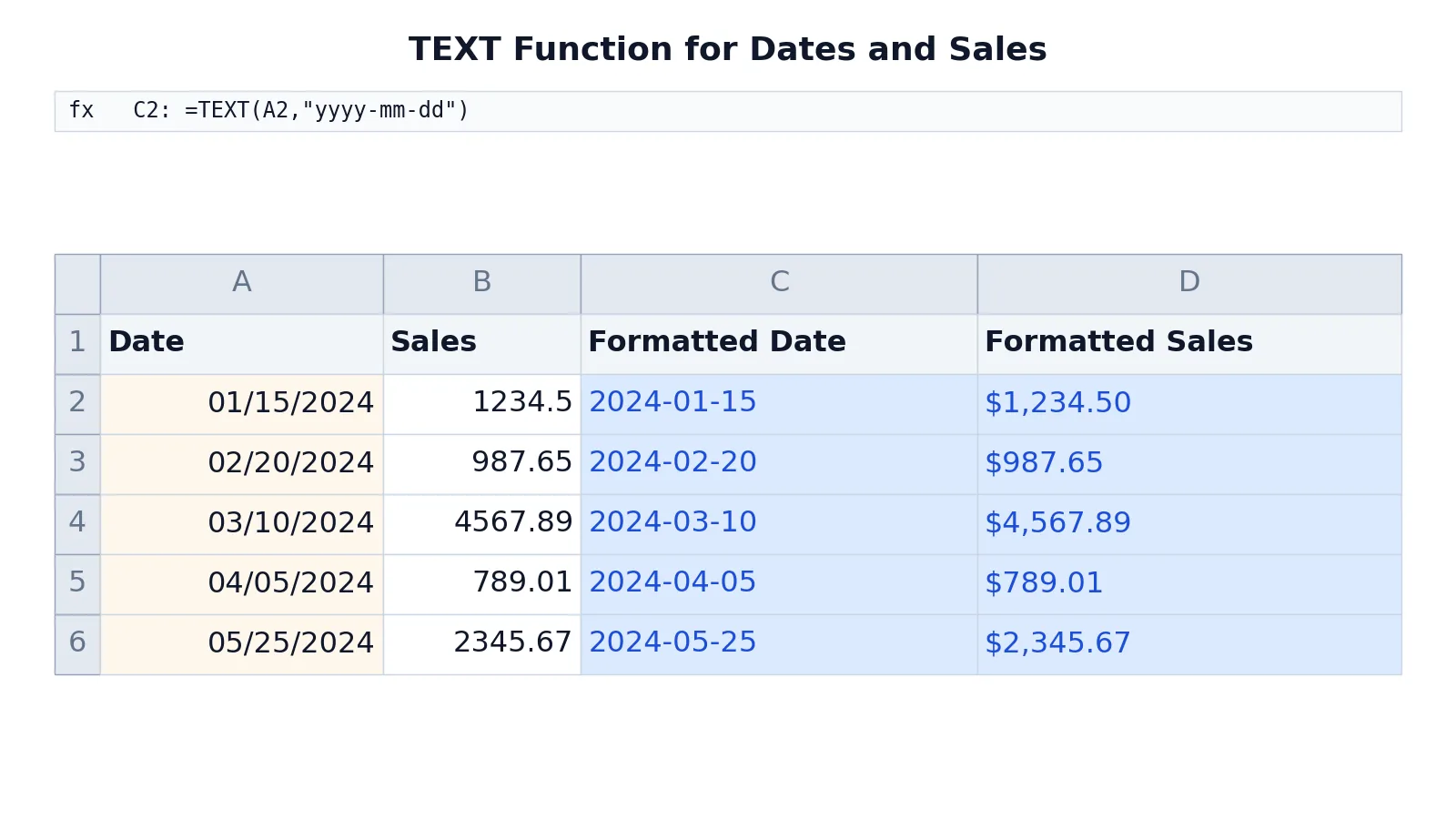
The table below shows a small sales log with dates in column A and sales figures in column B. Column C converts each date to yyyy-mm-dd, and column D converts each sales figure to a dollar amount with two decimals.
| A | B | C | D | |
|---|---|---|---|---|
| 1 | Date | Sales | Formatted Date | Formatted Sales |
| 2 | =DATE(2024,1,15) -> displays 01/15/2024 | 1234.5 | =TEXT(A2,"yyyy-mm-dd") -> displays 2024-01-15 | =TEXT(B2,"$#,##0.00") -> displays $1,234.50 |
| 3 | =DATE(2024,2,20) -> displays 02/20/2024 | 987.65 | =TEXT(A3,"yyyy-mm-dd") -> displays 2024-02-20 | =TEXT(B3,"$#,##0.00") -> displays $987.65 |
| 4 | =DATE(2024,3,10) -> displays 03/10/2024 | 4567.89 | =TEXT(A4,"yyyy-mm-dd") -> displays 2024-03-10 | =TEXT(B4,"$#,##0.00") -> displays $4,567.89 |
| 5 | =DATE(2024,4,5) -> displays 04/05/2024 | 789.01 | =TEXT(A5,"yyyy-mm-dd") -> displays 2024-04-05 | =TEXT(B5,"$#,##0.00") -> displays $789.01 |
| 6 | =DATE(2024,5,25) -> displays 05/25/2024 | 2345.67 | =TEXT(A6,"yyyy-mm-dd") -> displays 2024-05-25 | =TEXT(B6,"$#,##0.00") -> displays $2,345.67 |
The steps are the same in every row. In C2, TEXT takes the date in A2 and renders it as 2024-01-15. In D2, TEXT takes the sales value in B2 and renders it as $1,234.50, adding the dollar sign, the thousands separator and two decimal places. The pattern repeats down to row 6, where C6 returns 2024-05-25 and D6 returns $2,345.67.
Notice that the values in column A display as 01/15/2024 in the sheet, but the TEXT formula ignores that display and applies its own code. The format code in the formula wins.
More Examples
Joining text and a date. If you concatenate a date without TEXT, Excel drops the date formatting. The formula =A2&" "&B2 returns the raw serial number for the date. Wrapping the date in TEXT fixes it: =A2&" "&TEXT(B2,"mm/dd/yy") returns the date in the format you chose [1].
Zero-padded numbers. =TEXT(7,"000") returns 007. This is useful for building identifiers such as invoice numbers or employee codes where the width must stay constant.
Percentages. =TEXT(0.256,"0.0%") returns 25.6%. The code multiplies by 100 and appends the percent sign.
Thousands separators. =TEXT(1234567,"#,##0") returns 1,234,567. Use this when you want a readable figure inside a sentence.
Day names. =TEXT(A2,"dddd") returns the full weekday name for the date in A2, such as Monday. =TEXT(A2,"ddd") returns the short form, such as Mon.
Changing case. TEXT does not change letter case. To convert a string to uppercase, lowercase or title case, use the UPPER, LOWER and PROPER functions instead. For example, =UPPER("hello") returns HELLO [1].
Errors and How to Fix Them
The value comes back unchanged. When the first argument is text that Excel cannot interpret as a number, TEXT returns that text as it is and ignores the format code. Check that the cell you reference actually holds a numeric value or a real date, not a label typed as text.
A literal format code. If you write =TEXT(A2,yyyy-mm-dd) without quotes, Excel tries to read the code as a name or formula and returns an error. Wrap the code in double quotation marks.
Wrong-looking dates. If =TEXT(A2,"mm/dd/yy") returns something unexpected, the value in A2 may already be text rather than a date serial number. Confirm the source cell is a true date.
Numbers that will not add up. If a SUM over a column returns 0, the column may contain TEXT results rather than numbers. Point the SUM at the original values instead [1].
Common Mistakes
- Doing math on TEXT output. TEXT returns text, so arithmetic on it is unreliable. Keep the original number in its own cell and reference that cell in calculations [1].
- Forgetting the quotation marks. The format code must be a quoted string.
=TEXT(A2,"0.00")works,=TEXT(A2,0.00)does not. - Using TEXT when cell formatting would do. If you only need the value to look different on screen, apply a number format to the cell. Use TEXT when the formatted result must become part of a text string.
- Assuming TEXT can spell out numbers. Converting 123 into "one hundred twenty-three" is not possible with TEXT. That requires VBA code [1].
- Overwriting the source value. Replacing the original number with its TEXT result destroys the underlying data. Keep both columns.
- Mixing date codes and number codes. A code such as
yyyyapplied to a plain number returns a meaningless date. Match the code family to the value type.
Limitations
TEXT cannot convert a number into its English words. Microsoft states that this needs Visual Basic for Applications code, not a format code [1]. It also cannot change letter case, which is the job of UPPER, LOWER and PROPER [1].
The bigger limitation is that TEXT produces text. Once a value becomes text, sorting, summing and lookups that expect numbers can behave differently. The formatted string may look identical to a number on screen while failing a numeric comparison. This is why Microsoft advises keeping the original value in one cell and the TEXT result in another, and referencing the original in any later formula [1]. If you need to look up formatted values, functions such as MATCH and INDEX work on the text as stored, so the match must be exact.
Frequently Asked Questions
What is the difference between the TEXT function and cell formatting?
Cell formatting changes only how a value appears in the sheet. The underlying value stays numeric. TEXT converts the value into an actual text string, which you can then join with other text. Use cell formatting for display and TEXT when the formatted result must be part of a string [1].
Why does my concatenated date lose its format?
When you join a date to text with the ampersand, Excel uses the date's serial number and the formatting disappears. Wrapping the date in TEXT restores it, as in =A2&" "&TEXT(B2,"mm/dd/yy") [1].
Can TEXT convert 123 into "one hundred twenty-three"?
No. The TEXT function cannot spell out numbers in words. Microsoft points to a VBA method for that task [1].
Can TEXT change text to uppercase or lowercase?
No. TEXT formats numbers and dates. For case changes, use UPPER, LOWER or PROPER. For example, =UPPER("hello") returns HELLO [1].
Why does my SUM return zero after using TEXT?
The cells you are summing probably contain text produced by TEXT, not numbers. Sum the original numeric column instead, and keep the TEXT results in a separate column [1].
References
Further Reading
- Broman KW, Woo KH (2018). Data Organization in Spreadsheets. The American Statistician
- Ziemann M, Eren Y, El-Osta A (2016). Gene name errors are widespread in the scientific literature. Genome Biology
- Microsoft Support: Excel help and learning
- McCullough B, Heiser DA (2008). On the accuracy of statistical procedures in Microsoft Excel 2007. Computational Statistics & Data Analysis
- Abeysooriya M, Soria M, Kasu MS et al. (2021). Gene name errors: Lessons not learned. PLOS Computational Biology