How to Use HLOOKUP in Excel (With Examples)
By Dr. Zubair Khalid, DVM, MS, PhD ·
If you need to find a value in the top row of a table and pull back something from a row below it, HLOOKUP does exactly that. This guide shows you how to use HLOOKUP in Excel, what each argument does, and where the function trips people up. The H stands for "Horizontal," because the search runs across a row instead of down a column [1].
Quick Answer
- HLOOKUP searches for a value in the top row of a table or array, then returns a value in the same column from a row you specify [1].
- The syntax is
HLOOKUP(lookup_value, table_array, row_index_num, [range_lookup])[1]. lookup_valueis the value to find in the first row. It can be a value, a reference, or a text string [1].row_index_numcounts rows down from the top oftable_array, starting at 1 for the top row itself.- Set
range_lookupto FALSE for an exact match. Set it to TRUE or leave it blank for an approximate match, which requires the first row to be sorted in ascending order [1].
Syntax
| Argument | Required? | Meaning |
|---|---|---|
lookup_value | Required | The value to be found in the first row of the table. It can be a value, a reference, or a text string [1]. |
table_array | Required | The table of information in which data is looked up. Use a reference to a range or a range name [1]. |
row_index_num | Required | The row number within table_array from which the matching value is returned. Row 1 is the top row. |
range_lookup | Optional | TRUE or omitted finds an approximate match. FALSE finds an exact match [1]. |
The formula in full:
$$=\text{HLOOKUP}(\text{lookup\_value},\ \text{table\_array},\ \text{row\_index\_num},\ [\text{range\_lookup}])$$
How It Works
HLOOKUP reads the first row of table_array from left to right, looking for lookup_value. When it finds a match, it stays in that column and returns the cell in row row_index_num of table_array, where row 1 is the top row itself. The value it lands on is what the formula returns [1].
Two details matter more than anything else.
First, the values in the first row of table_array can be text, numbers, or logical values [1]. Uppercase and lowercase text are treated as equivalent, so "Mar" and "MAR" match the same cell [1].
Second, range_lookup changes the search behavior. If range_lookup is TRUE, the values in the first row must be placed in ascending order, such as -2, -1, 0, 1, 2 or A to Z, or HLOOKUP may not give the correct value [1]. If range_lookup is FALSE, the table does not need to be sorted [1]. For most day-to-day lookups, FALSE is the safer choice because it returns a result only when the value genuinely exists.
If you are comparing horizontal and vertical lookups, the same logic applies in both directions. The companion function that searches a column instead of a row is covered in this guide to VLOOKUP in Excel. For a broader comparison of the options, see Excel lookup functions: VLOOKUP, XLOOKUP and INDEX-MATCH.
Worked Example
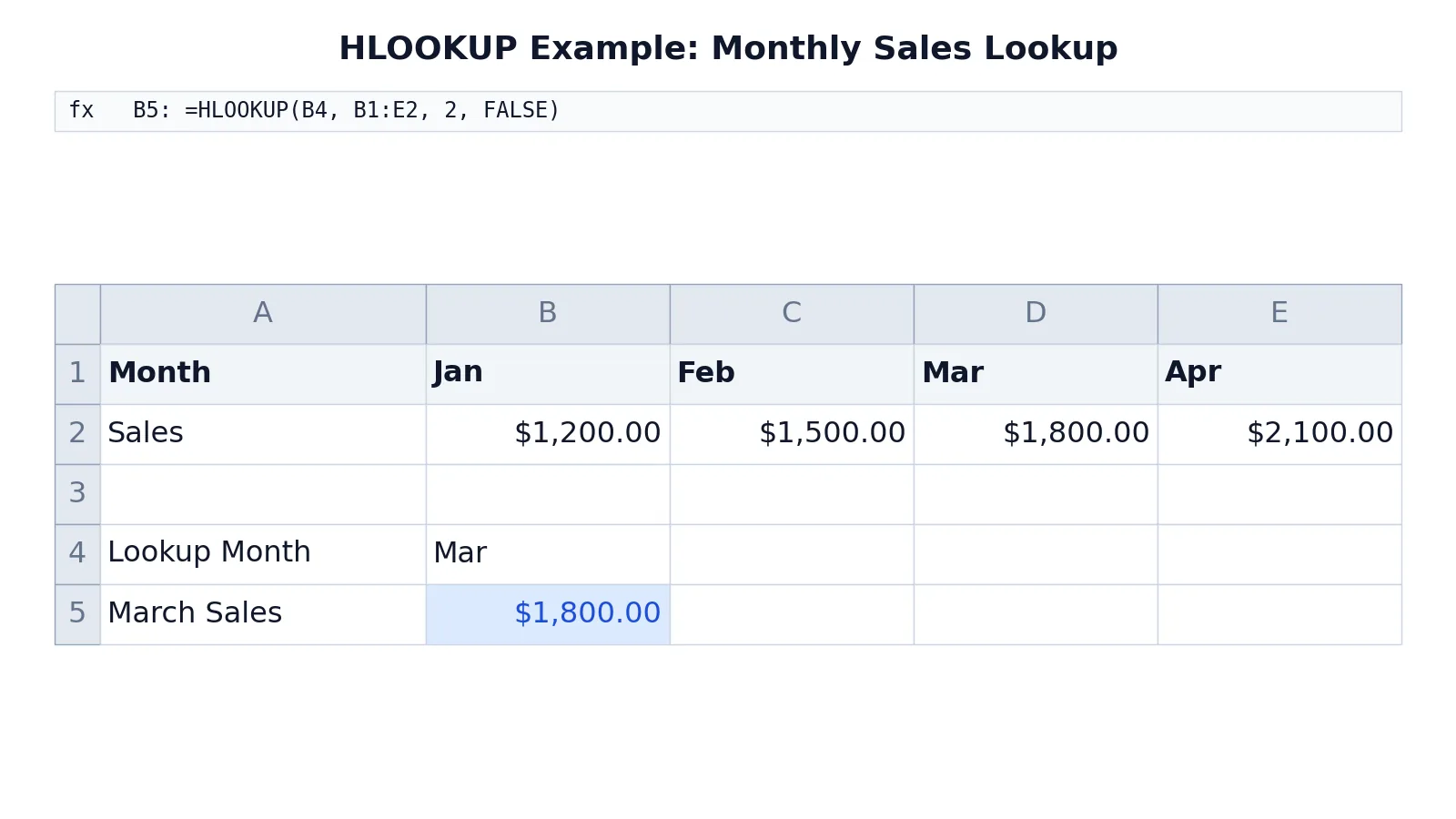
Suppose you track monthly sales in a horizontal layout, with months across row 1 and the sales figures in row 2. You want to pull the sales figure for March.
| A | B | C | D | E | |
|---|---|---|---|---|---|
| 1 | Month | Jan | Feb | Mar | Apr |
| 2 | Sales | 1200 | 1500 | 1800 | 2100 |
| 3 | |||||
| 4 | Lookup Month | Mar | |||
| 5 | March Sales | =HLOOKUP(B4, B1:E2, 2, FALSE) |
The formula in B5 returns $1,800.00.
Here is what happens step by step. HLOOKUP searches the top row of the range B1:E2, which is B1:E1, for the value in B4, which is "Mar." It finds "Mar" in column D. Because row_index_num is 2, it returns the second row of the range in that column, which is D2. That cell holds 1800, so the formula displays $1,800.00.
The range_lookup argument is FALSE, so the match must be exact. If you typed "March" into B4 instead of "Mar," the formula would return a #N/A error because no cell in the top row contains that text [2].
More Examples
Exact match with a cell reference. The example above uses a reference for lookup_value, which is the most flexible approach. Change B4 and the result updates automatically.
Approximate match on sorted numbers. If your top row holds numeric thresholds sorted in ascending order, you can use TRUE for range_lookup. Microsoft's own example looks for the value 11000 in a row, does not find it, and returns the next largest value less than 11000, which is 10543 [3]. This behavior is useful for tiered pricing or tax brackets, but it only works correctly when the row is sorted ascending [1].
Exact match on text. Text lookups work the same way. HLOOKUP looks up a category name in the top row and returns the value from a specified row in the same column [3]. Case does not matter, so "north" and "North" are equivalent [1].
Combining with other functions. If you need to find both a row and a column position, pairing INDEX with MATCH gives you more control. The Excel INDEX function and the Excel MATCH function are the usual building blocks for that pattern.
When to reach for XLOOKUP instead. Microsoft recommends XLOOKUP as an improved version of HLOOKUP that works in any direction and returns exact matches by default [1]. You can also use XLOOKUP to replace HLOOKUP entirely [4]. If your version of Excel supports it, the comparison in XLOOKUP vs VLOOKUP: differences and when to use each is worth reading before you commit to HLOOKUP for a new workbook.
Errors and How to Fix Them
#N/A. This error generally means a formula cannot find what it was asked to look for [2]. The most common cause with HLOOKUP is that the lookup value does not exist in the source data [2]. Check the spelling and the exact text of the value in the top row. You can also wrap the formula in an error handler such as IFERROR, for example =IFERROR(HLOOKUP(B4, B1:E2, 2, FALSE), 0), which returns 0 instead of an error [2].
#REF!. This appears when row_index_num points outside table_array. If your range has two rows and you ask for row 3, there is nothing to return. Count the rows in your range and set row_index_num accordingly.
#VALUE!. This usually means row_index_num is not a number, or range_lookup was given something other than TRUE or FALSE.
Wrong value returned with no error. This is the dangerous one. If range_lookup is TRUE and the first row is not sorted ascending, HLOOKUP may return an incorrect value without warning [1]. Switch to FALSE unless you specifically need approximate matching on sorted data.
Common Mistakes
- Leaving
range_lookupblank when you want an exact match. Omitting the argument makes it TRUE, which triggers approximate matching [1]. Always type FALSE explicitly when you need an exact match. - Using an unsorted first row with approximate matching. If
range_lookupis TRUE, the values in the first row must be in ascending order or the result may be wrong [1]. Sort the row left to right before relying on it. - Counting
row_index_numfrom the worksheet instead of from the range. The count starts at 1 for the top row oftable_array, not for row 1 of the sheet. If your range starts at row 5, the value in worksheet row 5 isrow_index_num1. - Forgetting that the lookup row must be the top row of the range. HLOOKUP only searches the first row of
table_array[1]. If your labels sit in a different row, extend the range upward or restructure the table. - Assuming case matters. Uppercase and lowercase text are equivalent, so a lookup for "mar" matches "Mar" [1]. If you need case-sensitive matching, HLOOKUP cannot do it on its own.
- Ignoring XLOOKUP. Microsoft positions XLOOKUP as the improved replacement that returns exact matches by default [1]. For new work, it is often the better starting point.
Limitations
HLOOKUP only searches the top row of the range you give it, so it cannot look left, look up, or search a row in the middle of a table [1]. It also cannot return values from more than one row at a time, and it has no built-in way to handle a missing value gracefully, which is why IFERROR is such a common companion [2].
Approximate matching is the biggest source of silent errors. When range_lookup is TRUE, an unsorted first row can produce a wrong answer with no warning at all [1]. Exact matching avoids that risk but returns #N/A whenever the value is absent [2]. If your data changes shape often, or you need to search in more than one direction, XLOOKUP is designed for exactly those cases [4]. For a wider view of what is available, the Excel functions overview and the Excel formulas cheat sheet cover the surrounding toolkit.
Frequently Asked Questions
What is the difference between HLOOKUP and VLOOKUP?
HLOOKUP searches the top row of a table and returns a value from a row you specify. VLOOKUP searches a column to the left of the data you want to find and returns a value from a column you specify [1]. Use HLOOKUP when your comparison values run across the top of the table, and VLOOKUP when they run down the left side [1].
Does HLOOKUP need the table sorted?
Only when range_lookup is TRUE. In that case the values in the first row must be in ascending order, or HLOOKUP may not give the correct value [1]. If range_lookup is FALSE, the table does not need to be sorted [1].
Why does my HLOOKUP return #N/A?
The #N/A error generally means the formula cannot find what it was asked to look for, and the most common cause is that the lookup value does not exist in the source data [2]. Check the exact text or number in the top row, then consider wrapping the formula in IFERROR to handle missing values cleanly [2].
Is HLOOKUP case sensitive?
No. Uppercase and lowercase text are equivalent in HLOOKUP, so "mar" and "Mar" match the same cell [1]. If you need case-sensitive matching, you will need a different approach.
Should I use HLOOKUP or XLOOKUP?
Microsoft describes XLOOKUP as an improved version of HLOOKUP that works in any direction and returns exact matches by default [1]. XLOOKUP can replace HLOOKUP entirely [4]. HLOOKUP remains useful for compatibility with older workbooks and for simple horizontal lookups where exact matching is all you need.
References
- HLOOKUP function | Microsoft Support
- How to correct a #N/A error | Microsoft Support
- Look up values in a list of data in Excel | Microsoft Support
- XLOOKUP function | Microsoft Support
Further Reading
- Lookup and reference functions (reference) | Microsoft Support
- LOOKUP function | Microsoft Support
- Broman KW, Woo KH (2018). Data Organization in Spreadsheets. The American Statistician
- Ziemann M, Eren Y, El-Osta A (2016). Gene name errors are widespread in the scientific literature. Genome Biology