Excel IS Functions: ISNUMBER, ISBLANK and More
By Dr. Zubair Khalid, DVM, MS, PhD ·
Excel IS functions are a family of logical functions that check what a cell contains and return TRUE or FALSE. Each one answers a single yes-or-no question, such as whether a value is a number, whether a cell is empty, or whether a formula produced an error. Because the result is a logical value, the excel IS functions are most useful when you nest them inside IF to control what happens next.
Quick Answer
- The IS functions check a value and return TRUE or FALSE depending on the outcome [1].
- ISNUMBER returns TRUE for numeric values, ISBLANK returns TRUE only for a reference to an empty cell, and ISTEXT returns TRUE for text [1].
- The value arguments of the IS functions are not converted.
ISNUMBER("19")returns FALSE because the text "19" stays text [1]. - Combine an IS function with IF to branch on the result, for example
=IF(ISERROR(A1), "An error occurred.", A1 * 2)[1]. - IS functions are useful for testing the outcome of a calculation and locating errors in formulas [1].
Syntax
Every IS function takes one value argument and returns a logical value. The table below lists the most common ones.
| Function | Argument | Required? | Meaning |
|---|---|---|---|
| ISNUMBER | value | Yes | Returns TRUE if value is a number |
| ISBLANK | value | Yes | Returns TRUE if value is a reference to an empty cell |
| ISTEXT | value | Yes | Returns TRUE if value is text |
| ISNONTEXT | value | Yes | Returns TRUE if value is not text |
| ISLOGICAL | value | Yes | Returns TRUE if value is a logical value |
| ISERROR | value | Yes | Returns TRUE if value is any error value |
| ISERR | value | Yes | Returns TRUE for any error except #N/A |
| ISNA | value | Yes | Returns TRUE if value is the #N/A error |
| ISEVEN | number | Yes | Returns TRUE if number is even |
| ISODD | number | Yes | Returns TRUE if number is odd |
The general structure follows the standard function pattern: an equal sign, the function name, an opening parenthesis, the argument, and a closing parenthesis [2]. Arguments can be numbers, text, logical values, arrays, error values, or cell references [2].
How It Works
An IS function does not change the value it inspects. It only reports on it. That single design choice explains most of the behavior you will see.
The most important consequence is that IS functions do not coerce types. In most functions where a number is required, the text value "19" is converted to the number 19. Inside ISNUMBER("19"), that conversion does not happen, so the function returns FALSE [1]. This makes IS functions reliable for checking what a cell actually holds, because the answer reflects the stored type and not a converted one.
The second consequence is that IS functions pair naturally with IF. The IF function returns one value if a condition is true and another if it is false, using the syntax IF(logical_test, value_if_true, [value_if_false]) [3]. An IS function supplies the logical_test. You can also test several conditions at once by wrapping IS functions in AND, which returns TRUE only if all its arguments evaluate to TRUE [4], or in OR, which returns TRUE if any argument evaluates to TRUE [5].
A typical pattern looks like this:
$$=IF(ISNUMBER(B2),\ B2*1.1,\ "Check this score")$$
Here the multiplication runs only when B2 holds a real number. When B2 holds text, the formula returns a message instead of an error.
Worked Example
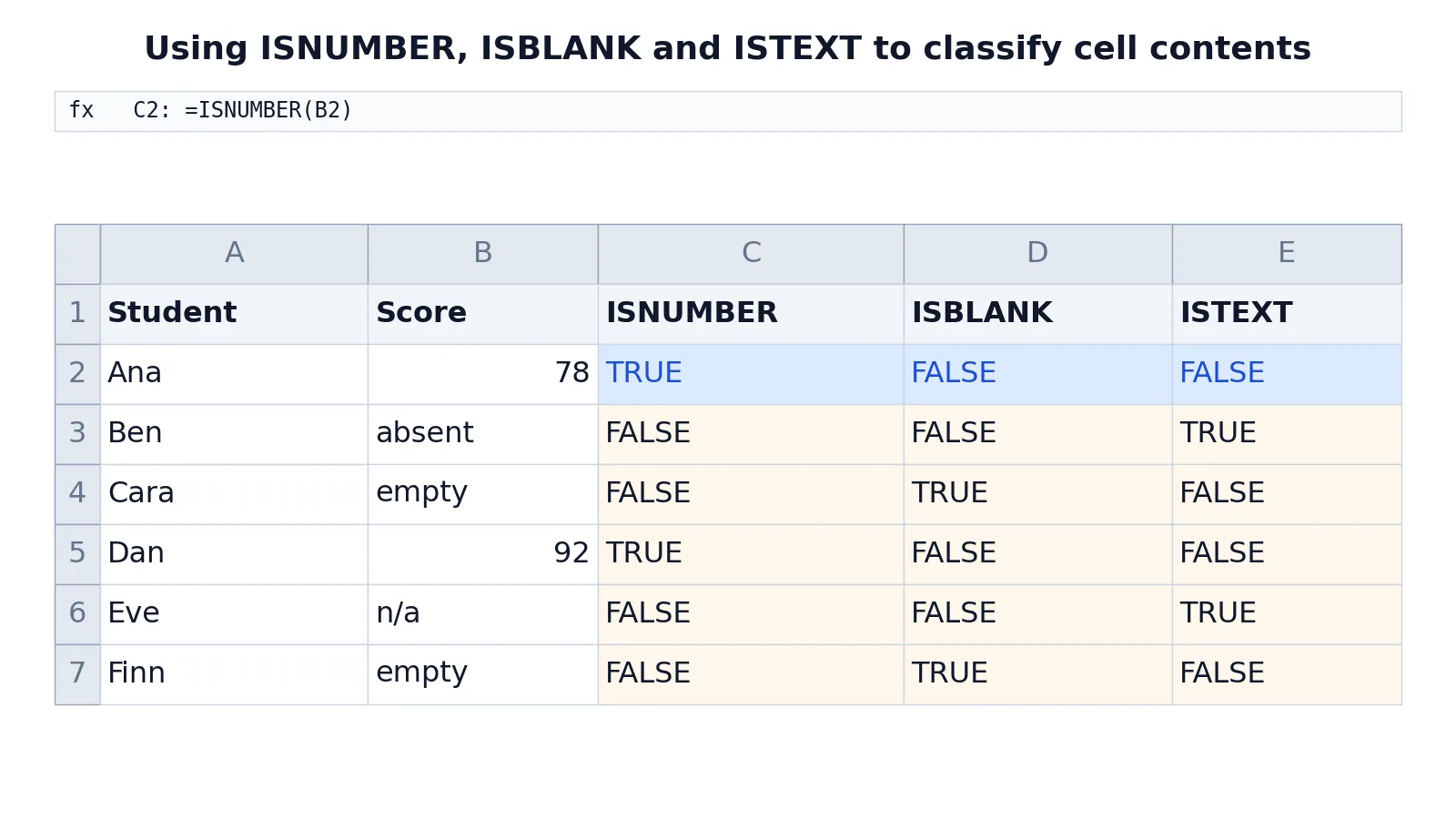
The sheet below tracks student scores. Column B holds each score, and columns C, D and E test that score with three different IS functions.
| A | B | C | D | E | |
|---|---|---|---|---|---|
| 1 | Student | Score | ISNUMBER | ISBLANK | ISTEXT |
| 2 | Ana | 78 | =ISNUMBER(B2) -> TRUE | =ISBLANK(B2) -> FALSE | =ISTEXT(B2) -> FALSE |
| 3 | Ben | absent | =ISNUMBER(B3) -> FALSE | =ISBLANK(B3) -> FALSE | =ISTEXT(B3) -> TRUE |
| 4 | Cara | =ISNUMBER(B4) -> FALSE | =ISBLANK(B4) -> TRUE | =ISTEXT(B4) -> FALSE | |
| 5 | Dan | 92 | =ISNUMBER(B5) -> TRUE | =ISBLANK(B5) -> FALSE | =ISTEXT(B5) -> FALSE |
| 6 | Eve | n/a | =ISNUMBER(B6) -> FALSE | =ISBLANK(B6) -> FALSE | =ISTEXT(B6) -> TRUE |
| 7 | Finn | =ISNUMBER(B7) -> FALSE | =ISBLANK(B7) -> TRUE | =ISTEXT(B7) -> FALSE |
Three tests run on the score in B2:
- Test whether the score in B2 is a number.
=ISNUMBER(B2)returns TRUE. - Test whether the score in B2 is blank.
=ISBLANK(B2)returns FALSE. - Test whether the score in B2 is text.
=ISTEXT(B2)returns FALSE.
Read the rows together and the three functions divide the column into clean categories. Ana and Dan have numeric scores, so ISNUMBER is TRUE for them. Ben and Eve have text entries, so ISTEXT is TRUE. Cara and Finn have nothing in the score cell, so ISBLANK is TRUE.
Notice that Ben's "absent" and Eve's "n/a" are not blank. A cell holding text is not empty, so ISBLANK returns FALSE for both. This is the distinction that trips people up most often, and the worked example shows it directly.
More Examples
Flag missing scores for follow-up. Wrap ISBLANK in IF to produce a readable status.
$$=IF(ISBLANK(B4),\ "No score submitted",\ "Recorded")$$
For Cara and Finn this returns "No score submitted". For everyone else it returns "Recorded".
Separate real numbers from text labels. A formula like =IF(ISNUMBER(B3), "Numeric", "Text or blank") sorts each row into two buckets. Ben's "absent" lands in the second bucket.
Guard a calculation against errors. The pattern =IF(ISERROR(A1), "An error occurred.", A1 * 2) performs a different action when the source cell holds an error [1]. This keeps a summary column readable when upstream data is incomplete.
Test two conditions at once. Combine IS functions with AND to require both to be true [4]:
$$=IF(AND(ISNUMBER(B2),\ ISNUMBER(B5)),\ "Both numeric",\ "Check the data")$$
Accept either of two conditions. Use OR when one passing test is enough [5]:
$$=IF(OR(ISBLANK(B4),\ ISTEXT(B4)),\ "Needs review",\ "OK")$$
Check whether a value is even or odd. ISEVEN and ISODD take a number and return a logical value, which is handy for alternating row logic or pairing checks.
If you are new to how functions are structured and nested, the Excel functions overview covers the building blocks these formulas rely on.
Errors and How to Fix Them
A #NAME? error appears. This means Excel did not recognize the function name. Check the spelling, since a misspelled name such as =SUME(A1:A10) instead of =SUM(A1:A10) returns a #NAME? error [2]. You do not need to type function names in all caps, because Excel capitalizes them for you once you press Enter [2].
ISNUMBER returns FALSE for a number you can see. The value is probably stored as text. Numbers typed with a leading apostrophe, imported from a text file, or wrapped in quotation marks stay text, and the IS functions do not convert them [1]. Convert the column to numbers or use a function that performs the conversion.
ISBLANK returns FALSE for a cell that looks empty. A formula that returns an empty string, such as ="", leaves the cell non-blank. ISBLANK checks for a reference to an empty cell, so a formula result of "" is not blank [1]. Test with =ISBLANK(B4) only on genuinely empty cells, or test the formula result separately.
The IF branch never fires. Check the order of the arguments. IF returns the value_if_true result when the logical test is TRUE and the value_if_false result when it is FALSE [3]. Swapping them silently reverses your logic.
Nested formulas become hard to read. Build the inner IS function first, confirm it returns the TRUE or FALSE you expect, then wrap it in IF. This isolates which part is wrong.
Common Mistakes
- Assuming ISNUMBER converts text numbers. It does not.
ISNUMBER("19")returns FALSE because the value argument is not converted [1]. Fix it by storing the value as a real number. - Treating text like "n/a" or "absent" as blank. ISBLANK returns FALSE for any cell containing text [1]. Use ISTEXT to catch those entries, or test for both with OR [5].
- Using ISBLANK on a formula that returns an empty string. The cell is not empty, so ISBLANK returns FALSE [1]. Test the underlying condition instead.
- Forgetting that IF needs three arguments in the right order. The logical test comes first, then the true result, then the false result [3]. Reversing the last two flips your output.
- Testing many conditions with nested IFs when AND or OR would do. AND returns TRUE only if all arguments are TRUE, and OR returns TRUE if any argument is TRUE [4][5]. Either one keeps the formula shorter.
- Ignoring the #NAME? error. It almost always means a typo in the function name [2]. Fix the spelling and the formula recalculates.
Limitations
IS functions report on a single value at a time. They tell you what a cell contains, not whether that content is correct, complete, or useful. A cell holding "n/a" passes ISTEXT and fails ISNUMBER, but the function has no opinion about whether "n/a" is an acceptable entry for your dataset. You still have to define the rule.
The no-conversion rule is a strength and a limitation at once. It gives you a truthful answer about the stored type, but it also means IS functions will not rescue messy data. If a column mixes real numbers with text versions of numbers, ISNUMBER will split them into two groups and you will need a separate cleaning step. IS functions also cannot look inside a cell to check formatting, and they cannot tell you why a value is the type it is. They are diagnostic tools, and the diagnosis is only as useful as the action you take afterward.
Frequently Asked Questions
What is the difference between ISBLANK and ISNUMBER?
ISBLANK returns TRUE only when the value argument is a reference to an empty cell [1]. ISNUMBER returns TRUE when the value is a number. A cell holding the text "absent" fails both tests, which is why many analysts pair them with ISTEXT to cover all three cases.
Why does ISNUMBER return FALSE for a number stored as text?
The value arguments of the IS functions are not converted [1]. When a number is stored as text, ISNUMBER sees text and returns FALSE. Convert the cell to a numeric format, or use a function that performs the conversion before the test.
Can I use IS functions with IF?
Yes, and that is their most common use. An IS function supplies the logical_test argument of IF, and IF returns one value when the test is TRUE and another when it is FALSE [3]. The pattern =IF(ISERROR(A1), "An error occurred.", A1 * 2) is a standard example [1].
How do I test more than one condition at once?
Wrap the IS functions in AND or OR. AND returns TRUE only if all its arguments evaluate to TRUE [4]. OR returns TRUE if any of its arguments evaluate to TRUE [5]. Both work as the logical_test inside IF.
Does ISBLANK detect a cell with a formula that returns nothing?
No. A formula that returns an empty string leaves the cell non-blank, so ISBLANK returns FALSE [1]. To catch that case, test the formula's own condition or compare its result to an empty string directly.
References
- IS functions | Microsoft Support
- Using functions and nested functions in Excel formulas | Microsoft Support
- IF function | Microsoft Support
- AND function | Microsoft Support
- OR function | Microsoft Support
Further Reading
- Broman KW, Woo KH (2018). Data Organization in Spreadsheets. The American Statistician
- Ziemann M, Eren Y, El-Osta A (2016). Gene name errors are widespread in the scientific literature. Genome Biology