VBA For Loop: Syntax and Examples in Excel
By Dr. Zubair Khalid, DVM, MS, PhD ·
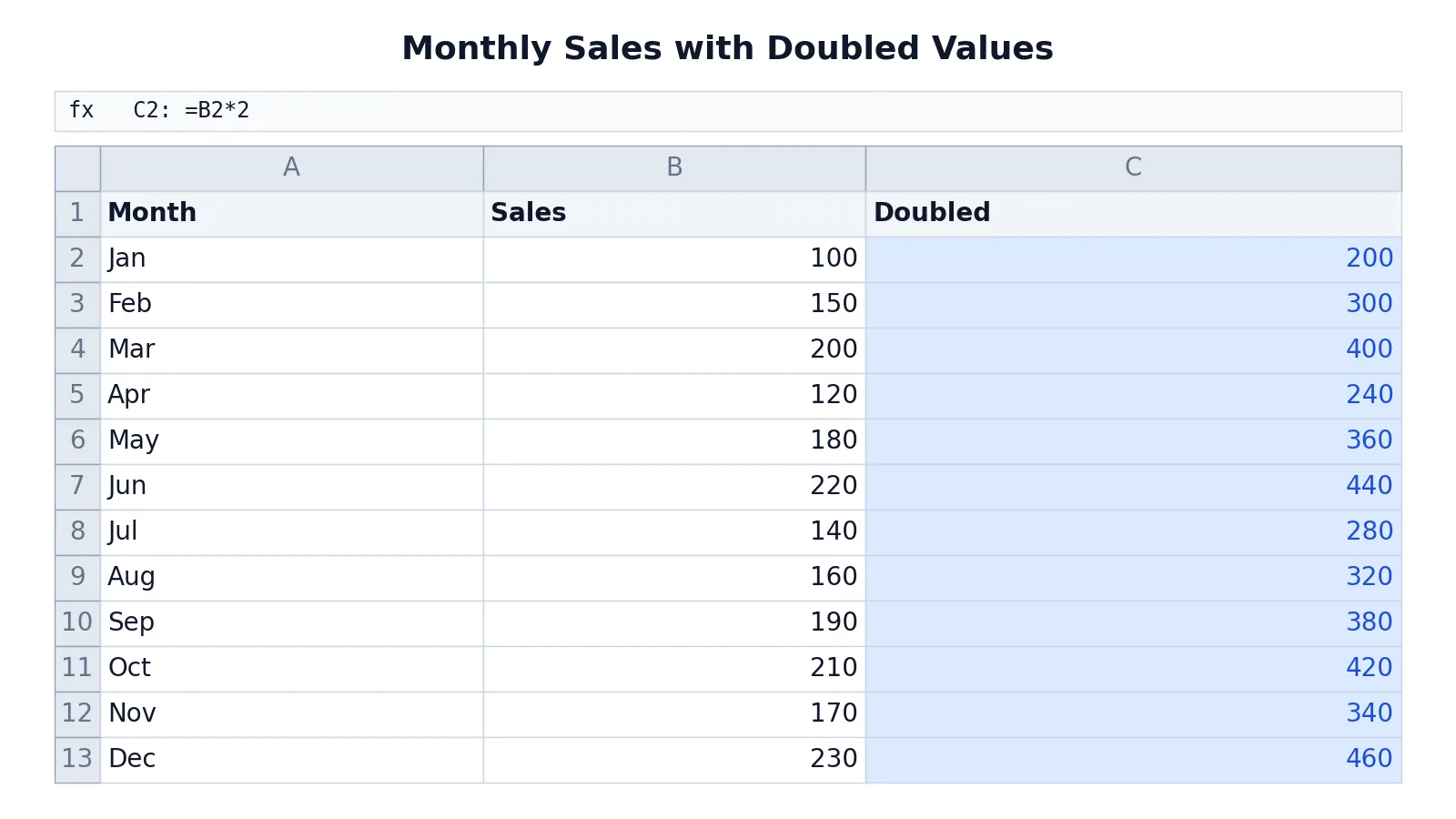
A for loop in VBA repeats a block of statements a set number of times. In Excel you use it most often to walk through a range of cells and apply the same action to each one. The two forms are For...Next, which counts from a start value to an end value, and For Each...Next, which visits every item in a collection such as a range.
Quick Answer
For...Nextcounts with a counter variable:For i = 1 To 10runs ten times, andNext icloses the loop [1].For Each...Nextvisits each object in a collection, such as every cell inRange("B2:B13")[2].- The counter changes automatically after each pass. The
Stepvalue is added to it, and the default step is 1 [1]. - Use
Exit Forto leave a loop early, often after anIf...Thentest [1]. - Loops can be nested, but each loop needs its own counter variable name [1].
Before You Start
You write VBA in the Visual Basic Editor, which opens with Alt+F11 in Excel. Code lives inside a module. In the Project Explorer, right-click your workbook, choose Insert, then Module, and type your procedure there. A procedure starts with Sub and ends with End Sub.
Two habits save time. First, declare your variables with Dim so the counter has a known type. Second, remember that a loop over cells is usually slower than a single worksheet formula, so use loops when you need logic that formulas cannot express, such as writing to several sheets or stopping when a condition is met.
If you are still building up your formula skills, the same doubling logic can be done without code using IF AND statements in Excel or a plain multiplication formula. Loops become worth the effort when the action repeats many times or depends on conditions.
Step by Step
- Open the Visual Basic Editor with Alt+F11 and insert a module.
- Start the procedure with
Sub DoubleSales()and end it withEnd Sub. - Declare the counter.
Dim i As Longgives you a whole number that handles large row counts. - Open the loop with
For i = 2 To 13. This sets the first and last values of the counter. - Write the repeated action inside the loop. Reference cells with
Cells(i, "B")so the row number follows the counter. - Close the loop with
Next i. The counter increases by 1 after each pass unless you setStep[1]. - Run the procedure with F5, or from the Run menu.
The counting loop looks like this.
Sub DoubleSales()
    Dim i As Long
    For i = 2 To 13
        Cells(i, "C").Value = Cells(i, "B").Value * 2
    Next i
End Sub
The For Each version reads more naturally when you only care about the cells themselves.
Sub DoubleSalesEach()
    Dim c As Range
    For Each c In Range("B2:B13")
        c.Offset(0, 1).Value = c.Value * 2
    Next c
End Sub
Both procedures produce the same result. The counting version is easier when you need the row number for other references. The For Each version is easier when you only need the cell value [2].
Worked Example
The table below holds monthly sales for one year. Column C doubles each value in column B, and the VBA loop writes those results into C2 through C13.
| A | B | C | |
|---|---|---|---|
| 1 | Month | Sales | Doubled |
| 2 | Jan | 100 | =B2*2 -> displays 200 |
| 3 | Feb | 150 | =B3*2 -> displays 300 |
| 4 | Mar | 200 | =B4*2 -> displays 400 |
| 5 | Apr | 120 | =B5*2 -> displays 240 |
| 6 | May | 180 | =B6*2 -> displays 360 |
| 7 | Jun | 220 | =B7*2 -> displays 440 |
| 8 | Jul | 140 | =B8*2 -> displays 280 |
| 9 | Aug | 160 | =B9*2 -> displays 320 |
| 10 | Sep | 190 | =B10*2 -> displays 380 |
| 11 | Oct | 210 | =B11*2 -> displays 420 |
| 12 | Nov | 170 | =B12*2 -> displays 340 |
| 13 | Dec | 230 | =B13*2 -> displays 460 |
The loop starts at row 2 because row 1 holds headers. On the first pass, i equals 2, so the code reads B2 (100) and writes 200 into C2. On the last pass, i equals 13, so it reads B13 (230) and writes 460 into C13. Twelve passes cover the twelve months.
The general pattern for a counting loop is:
$$ \text{counter} = \text{start},\ \text{start} + \text{step},\ \text{start} + 2\cdot\text{step},\ \dots,\ \text{end} $$
If you set Step 2, the counter moves 2, 4, 6 and so on. A negative step counts down, which is useful when you delete rows, because deleting from the bottom up keeps the remaining row numbers valid.
Other Ways to Do It
A worksheet formula is often the simplest alternative. Typing =B2*2 in C2 and filling down to C13 gives the same numbers with no code. For conditional totals, Excel SUMIF and SUMIFS handle sums by criteria without a loop.
If you want to count how many entries meet a condition, the COUNT function in Excel covers numeric counts, and the IFS function handles multiple conditions in one formula.
For lookups inside a loop, you can call VLOOKUP from VBA with Application.WorksheetFunction.VLookup. If you are coming from another language, the structure of a Python for loop is worth comparing, since Python uses indentation where VBA uses Next.
Troubleshooting
The loop never runs. Check the start and end values against the step. For i = 10 To 1 with the default step of 1 does nothing, because the counter starts above the end value. Use Step -1 to count down [1].
The code runs but writes to the wrong cells. Confirm the row and column arguments in Cells. Cells(i, "B") means row i, column B. Mixing up the order is a common source of off-by-one errors.
You get a "Next without For" error. Every For needs a matching Next. If a Next statement appears before its For, VBA raises an error [1].
The macro is slow on a large range. Turn off screen updating while the loop runs, then turn it back on after Next. Reading the whole range into an array and looping over the array is faster still.
Common Mistakes
- Changing the counter inside the loop. Assigning a new value to
iin the body makes the code hard to read and debug [1]. LetNextupdate it. - Forgetting
Next. An unclosed loop stops the procedure from compiling. AddNext iat the end of the block. - Using the same counter name in nested loops. Each nested loop needs a unique counter variable, or the inner loop overwrites the outer one [1].
- Hard-coding the last row. Writing
To 13breaks when new months are added. UseCells(Rows.Count, "B").End(xlUp).Rowto find the last used row. - Looping when a formula would do. A loop over thousands of cells is slower than one filled-down formula. Use code only when the logic needs it.
- Leaving
Exit Forout of a search. When you find the value you want, exit the loop instead of continuing through the rest of the range [1].
Limitations
A For...Next loop cannot change its own end value mid-run in a clean way. If the range grows while the loop is running, the counter still stops at the original end value. For dynamic ranges, recalculate the last row before the loop starts.
For Each...Next visits cells in the order Excel stores them, which for a multi-area range may not match what you see on screen. It also gives you no index number, so if you need the row position for a lookup or a message, the counting loop is the better choice. Neither loop type handles errors on its own. If a cell holds text where you expect a number, the multiplication fails and the procedure stops unless you add error handling.
Frequently Asked Questions
What is the basic syntax of a for loop in VBA?
The counting form is For counter = start To end followed by your statements and closed with Next counter. The collection form is For Each element In group closed with Next element. Both repeat the statements inside the block until the counter or collection is exhausted [1][2].
How do I loop through a range of cells?
Use For Each c In Range("B2:B13") and refer to c.Value inside the loop. If you need the row number, use a counting loop instead and reference Cells(i, "B"). Both approaches visit every cell in the range once [2].
How do I exit a for loop early?
Place Exit For inside the loop, usually after an If...Then test. Control jumps to the statement right after Next. You can place any number of Exit For statements anywhere in the loop [1].
Can I count backwards with a for loop?
Yes. Set a negative step, as in For i = 13 To 2 Step -1. The counter decreases by 1 each pass. This pattern is standard when deleting rows, because working from the bottom keeps the remaining row numbers correct [1].
What is the difference between For Next and For Each in VBA?
For...Next uses a numeric counter and gives you the index, which is useful for row references. For Each...Next walks through the objects in a collection and gives you each object directly, which reads more cleanly when you only need the value [1][2].
References
Further Reading
- Broman KW, Woo KH (2018). Data Organization in Spreadsheets. The American Statistician
- Ziemann M, Eren Y, El-Osta A (2016). Gene name errors are widespread in the scientific literature. Genome Biology
- Microsoft Support: Excel help and learning
- McCullough B, Heiser DA (2008). On the accuracy of statistical procedures in Microsoft Excel 2007. Computational Statistics & Data Analysis