How to Count Characters in Excel (LEN and LENB)
By Dr. Zubair Khalid, DVM, MS, PhD ·
To count characters in Excel, use the LEN function. It returns the number of characters in a text string, including letters, digits, punctuation, and spaces. For a whole range, wrap it in SUMPRODUCT to get a combined total.
Quick Answer
=LEN(A1)returns the character count of the text in cell A1.- Spaces count as characters. So do punctuation marks and digits.
LENreturns 0 for an empty cell and 0 for a cell containing an empty string.- To total characters across a range, use
=SUMPRODUCT(LEN(A1:A10)). LENBcounts bytes instead of characters and is only meaningful for double-byte character sets.
Syntax
LEN takes one argument. LENB takes the same argument but returns a byte count.
| Argument | Required? | Meaning |
|---|---|---|
| text | Required | The text string whose characters you want to count. Can be a literal string in quotes, a cell reference, or an expression that returns text. |
The function signature is:
$$ \text{LEN(text)} $$
$$ \text{LENB(text)} $$
LEN counts each character as one, regardless of how the character is stored. LENB counts the bytes used by the underlying character encoding. For single-byte character sets, LEN and LENB return the same number. For double-byte character sets, LENB can return a larger number than LEN.
How It Works
LEN walks through the text string and counts every character it finds. There is no option to exclude spaces, punctuation, or anything else. If a character is in the cell, it is counted.
A few behaviors are worth knowing because they trip people up:
- Leading, trailing, and repeated spaces all count.
"abc "returns 4, not 3. - Numbers stored as numbers still work.
=LEN(12345)returns 5 because Excel converts the number to text before counting. - Dates and times are stored as numbers, so
=LEN(A1)on a date cell counts the digits of the underlying serial number, not the displayed date. If you need the displayed length, wrap the value inTEXTfirst, as covered in the Excel TEXT function guide. - An empty cell returns 0. A cell with a formula that returns
""also returns 0. - Error values propagate. If the referenced cell contains
#N/A,LENreturns#N/A.
LENB behaves the same way but reports bytes. In a double-byte language environment, a character such as a Japanese kanji may occupy 2 bytes, so LENB returns 2 where LEN returns 1. If you work only with single-byte characters, the two functions agree and you can use either.
Worked Example
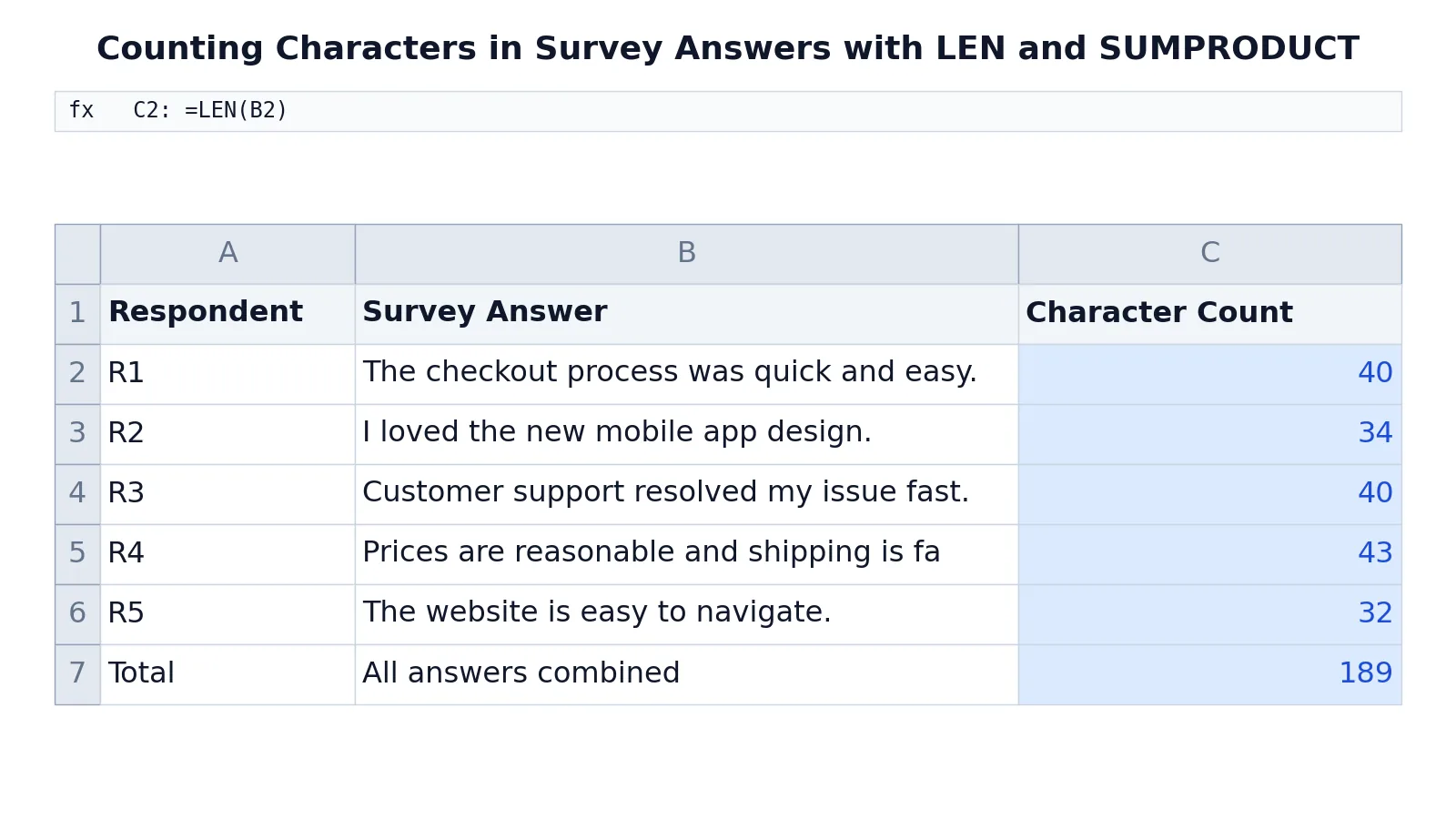
The table below holds five open-ended survey answers from a customer feedback study. Column C counts the characters in each answer, and row 7 totals them.
| A | B | C | |
|---|---|---|---|
| 1 | Respondent | Survey Answer | Character Count |
| 2 | R1 | The checkout process was quick and easy. | =LEN(B2) -> displays 40 |
| 3 | R2 | I loved the new mobile app design. | =LEN(B3) -> displays 34 |
| 4 | R3 | Customer support resolved my issue fast. | =LEN(B4) -> displays 40 |
| 5 | R4 | Prices are reasonable and shipping is fast. | =LEN(B5) -> displays 43 |
| 6 | R5 | The website is easy to navigate. | =LEN(B6) -> displays 32 |
| 7 | Total | All answers combined | =SUMPRODUCT(LEN(B2:B6)) -> displays 189 |
Each formula in column C counts characters in the first survey answer, then the second, and so on down to the fifth. The counts are 40, 34, 40, 43, and 32.
The total in C7 uses SUMPRODUCT around LEN. LEN(B2:B6) produces an array of five counts, and SUMPRODUCT adds them: 40 + 34 + 40 + 43 + 32 = 189. This is the standard way to count characters in Excel across a range without adding a helper column.
Note that the counts include spaces and the final period in each sentence. "The checkout process was quick and easy." has 39 visible characters plus the trailing period, which brings it to 40.
More Examples
Count characters in a single cell. The most common case.
=LEN(B2) -> 40Count characters across a range. Use SUMPRODUCT to avoid a helper column.
=SUMPRODUCT(LEN(B2:B6)) -> 189Count characters excluding spaces. Subtract the count of spaces, which you get by removing them with SUBSTITUTE.
=LEN(B2)-LEN(SUBSTITUTE(B2," ","")) -> 6For the first answer, this returns 6 because there are six spaces in "The checkout process was quick and easy."
Count characters in a literal string. Useful for testing.
=LEN("Excel") -> 5Count characters after trimming extra spaces. TRIM removes leading and trailing spaces and collapses internal runs of spaces to one.
=LEN(TRIM(B2)) -> 40Count characters in a range with a condition. Combine LEN with SUMPRODUCT and a logical test to total only the rows you want.
=SUMPRODUCT(LEN(B2:B6)*(LEN(B2:B6)>35)) -> 123This adds only the answers longer than 35 characters: 40 + 40 + 43 = 123.
Count digits or letters only. Strip the characters you do not want, then measure the difference.
=LEN(B2)-LEN(SUBSTITUTE(SUBSTITUTE(B2,".","")," ","")) -> 33This removes spaces and periods from the first answer, leaving 33 characters.
If your goal is counting cells rather than characters, the COUNT function guide and the COUNTIF function guide cover that ground. For counting only cells that hold text, see how to count cells with text in Excel.
Errors and How to Fix Them
#VALUE! from a range. =LEN(B2:B6) entered in a single cell returns #VALUE! in older Excel versions because LEN expects one text value. Wrap it in SUMPRODUCT to force array evaluation.
#NAME? usually means the function name is misspelled, such as LENG or LENN. Check the spelling.
#N/A or another error carried through. If the referenced cell contains an error, LEN returns that same error. Clean the source data first, or wrap the reference in IFERROR.
Unexpectedly large counts. A cell that looks short may contain trailing spaces, line breaks, or non-printing characters. Use TRIM and CLEAN before counting.
Counts that do not match what you see. If the cell holds a number or date, LEN counts the stored value, not the formatted display. Convert with TEXT first.
Common Mistakes
- Forgetting that spaces count. A trailing space adds 1 to every count. Fix it by trimming the source with
TRIMbefore measuring. - Using
LENon a range in a single cell. This returns#VALUE!in older versions. Fix it withSUMPRODUCT(LEN(range)). - Expecting
LENto ignore punctuation. It counts every character. Fix it by subtracting the characters you want to exclude withSUBSTITUTE. - Confusing
LENwithLENB. They differ only for double-byte characters. Fix it by checking your language environment and usingLENunless you specifically need bytes. - Counting a date cell directly.
LENsees the serial number, not the formatted date. Fix it with=LEN(TEXT(A1,"mm/dd/yyyy"))or whichever format you need. - Assuming an empty cell returns an error. It returns 0. If you need to distinguish blank from empty text, test with
ISBLANKseparately.
Limitations
LEN counts characters, not words. A 40-character sentence and a 40-character single word return the same number. If you need word counts, you have to split the text and count the pieces, which is a different formula.
LEN also cannot tell you which characters are present. It gives a total only. To count specific characters, such as how many times the letter "e" appears, you need SUBSTITUTE arithmetic or a different approach. And LENB depends on the system's double-byte character set setting, so the same formula can return different byte counts on different machines. For portable workbooks, prefer LEN.
Frequently Asked Questions
Does LEN count spaces in Excel?
Yes. Every space, including leading and trailing spaces, counts as one character. If a cell contains "abc " with a trailing space, LEN returns 4. To exclude spaces, subtract the space count with LEN(A1)-LEN(SUBSTITUTE(A1," ","")).
How do I count characters in a whole column or range?
Use =SUMPRODUCT(LEN(A1:A10)). LEN produces an array of counts for each cell, and SUMPRODUCT adds them. This avoids a helper column and works in all modern Excel versions.
What is the difference between LEN and LENB?
LEN counts characters. LENB counts bytes. For single-byte character sets they return the same value. For double-byte character sets, such as Japanese or Chinese text, LENB can return a larger number because some characters occupy 2 bytes.
Why does LEN return a different number than I expect?
The most common causes are hidden spaces, line breaks, or non-printing characters. Another cause is a number or date cell, where LEN counts the stored value rather than the displayed text. Use TRIM and CLEAN on the source, or convert with TEXT, then count again.
Can I count characters in multiple cells without a helper column?
Yes. =SUMPRODUCT(LEN(B2:B6)) totals characters across a range in one formula. If you also want per-cell counts, add a helper column with =LEN(B2) and fill it down, then sum that column with SUM.
References
This article draws on the standard references listed under Further Reading.
Further Reading
- Broman KW, Woo KH (2018). Data Organization in Spreadsheets. The American Statistician
- Ziemann M, Eren Y, El-Osta A (2016). Gene name errors are widespread in the scientific literature. Genome Biology
- Microsoft Support: Excel help and learning
- McCullough B, Heiser DA (2008). On the accuracy of statistical procedures in Microsoft Excel 2007. Computational Statistics & Data Analysis
- Abeysooriya M, Soria M, Kasu MS et al. (2021). Gene name errors: Lessons not learned. PLOS Computational Biology
- Wilson G, Bryan J, Cranston K et al. (2017). Good enough practices in scientific computing. PLOS Computational Biology