How to Count Cells With Text in Excel (Step by Step)
By Dr. Zubair Khalid, DVM, MS, PhD ·
To count cells with text in Excel, use the COUNTIF function with an asterisk wildcard: =COUNTIF(range,"*"). This counts cells that contain any text and ignores numbers, blank cells and error values. It is the fastest way to get a text-only count without sorting or filtering your data first.
Quick Answer
- The core formula is
=COUNTIF(A2:A12,"*"), whereA2:A12is the range you want to check. - The asterisk
*is a wildcard that matches any sequence of text characters, so any cell holding text is counted [1]. - Numbers, dates, logical values, blank cells and error values are not counted by this formula.
- COUNTA counts all non-empty cells, so it includes numbers and errors. Use it only when you want everything that is not blank [2].
- COUNT counts only numeric cells, which is the opposite of what you need here [3].
Before You Start
Know what "text" means in Excel before you write the formula. A cell is treated as text when its content is characters that Excel does not read as a number, date, time or logical value. Names, labels, categories and free-form notes are text. A number typed into a cell is a number even if it looks like a label.
The wildcard approach depends on this distinction. COUNTIF with "*" matches cells whose content is text. It does not match cells holding numbers, and it does not match empty cells. Error values such as #N/A or #DIV/0! are also excluded, which is usually what you want when you are counting real text entries [1].
One thing to check first: cells that look like text but are actually numbers. A student ID of 00123 may be stored as a number, and a phone number may be stored as text. If your count looks wrong, inspect a few cells to see how Excel is treating them. If you need to change the type, see how to convert text to number in Excel.
Step by Step
- Click the cell where you want the result to appear. A cell below or beside your data works well.
- Type
=COUNTIF(to start the formula. - Select the range that holds your text, for example
A2:A12. You can drag with the mouse or type the range directly. - Type a comma, then type
"*"including the double quotation marks. The asterisk is the wildcard that matches text. - Close the parenthesis and press Enter. The cell shows the number of text entries in the range.
The finished formula looks like this:
=COUNTIF(A2:A12,"*")If you prefer to build the formula from the ribbon, you can find the counting functions under the Formulas tab. Microsoft lists COUNTA, COUNT, COUNTBLANK and COUNTIF there, and COUNTIF is the one that counts cells meeting a specified criterion [1]. For a single condition, COUNTIF is enough. If you need more than one condition, Excel provides COUNTIFS instead [1].
Worked Example
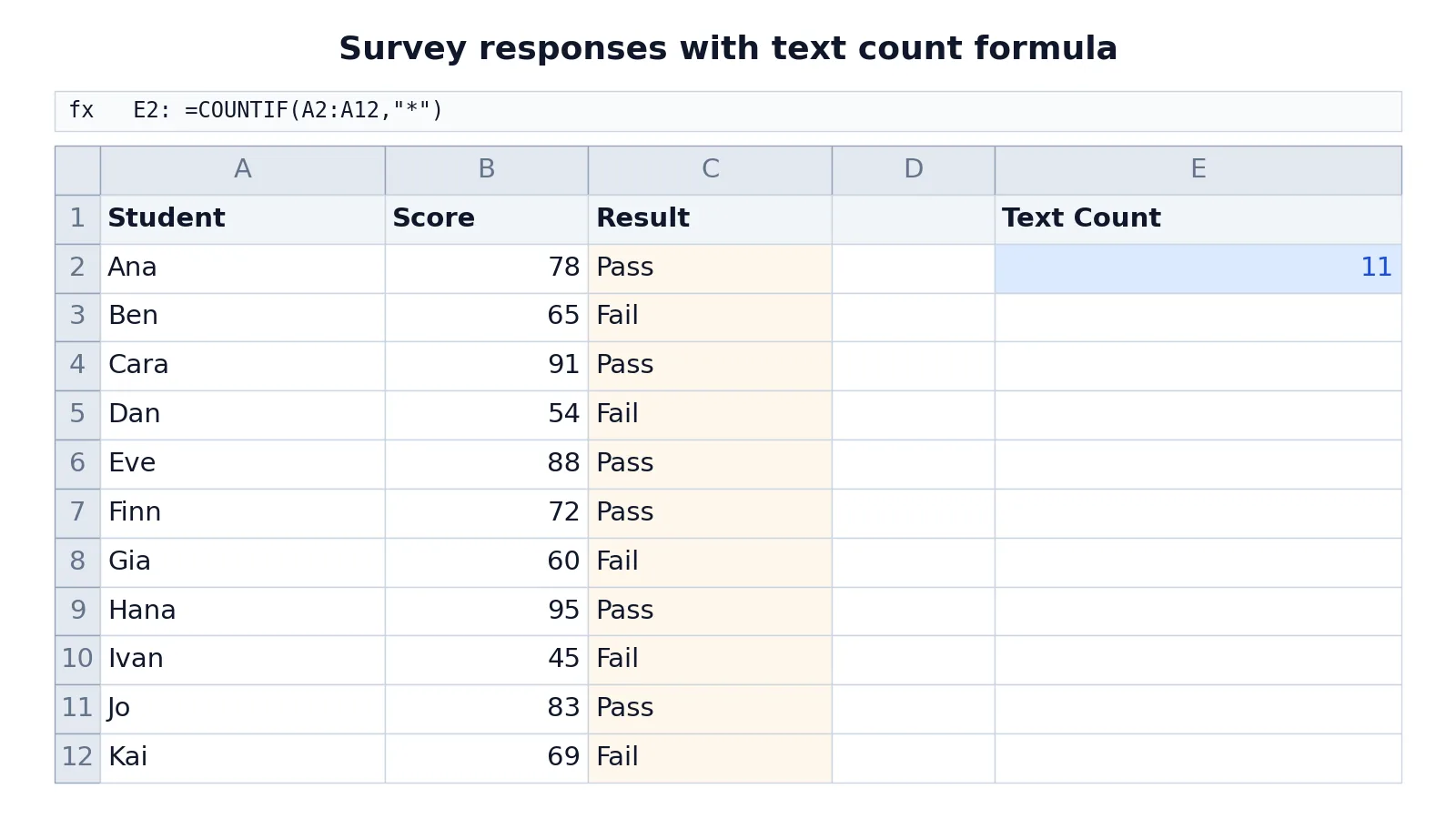
The table below is a small class gradebook. Column A holds student names, column B holds numeric scores, and column C holds a pass or fail result produced by an IF formula. Cell E2 holds the text count.
| Row | A | B | C | E |
|---|---|---|---|---|
| 1 | Student | Score | Result | Text Count |
| 2 | Ana | 78 | =IF(B2>=70,"Pass","Fail") -> Pass | =COUNTIF(A2:A12,"*") -> 11 |
| 3 | Ben | 65 | =IF(B3>=70,"Pass","Fail") -> Fail | |
| 4 | Cara | 91 | =IF(B4>=70,"Pass","Fail") -> Pass | |
| 5 | Dan | 54 | =IF(B5>=70,"Pass","Fail") -> Fail | |
| 6 | Eve | 88 | =IF(B6>=70,"Pass","Fail") -> Pass | |
| 7 | Finn | 72 | =IF(B7>=70,"Pass","Fail") -> Pass | |
| 8 | Gia | 60 | =IF(B8>=70,"Pass","Fail") -> Fail | |
| 9 | Hana | 95 | =IF(B9>=70,"Pass","Fail") -> Pass | |
| 10 | Ivan | 45 | =IF(B10>=70,"Pass","Fail") -> Fail | |
| 11 | Jo | 83 | =IF(B11>=70,"Pass","Fail") -> Pass | |
| 12 | Kai | 69 | =IF(B12>=70,"Pass","Fail") -> Fail |
The formula in E2 is =COUNTIF(A2:A12,"*") and it returns 11. Every student name in A2:A12 is text, so all eleven cells are counted. The scores in column B are numbers and are ignored. The results in column C are also text, but they sit outside the range, so they do not affect the count. If you pointed the same formula at C2:C12, it would return 11 as well, because each IF formula returns the text "Pass" or "Fail".
This example shows why the range matters. The wildcard counts text wherever you point it, so choose the range that matches the question you are asking.
Other Ways to Do It
COUNTIF with "*" is the standard method, but a few alternatives exist for specific situations.
COUNTA for all non-empty cells. =COUNTA(A2:A12) counts every cell that is not empty, including numbers, text, logical values and error values [2]. Use it when you want a total of filled cells and do not care about the type. It is not a text-only count.
COUNT for numbers only. =COUNT(A2:A12) counts cells that contain numbers and ignores text, blanks and errors [3]. It is the mirror image of what you need for text.
SUMPRODUCT with ISTEXT. =SUMPRODUCT(--ISTEXT(A2:A12)) tests each cell and counts the ones that are text. This can be useful when you want an explicit type test instead of a wildcard match.
COUNTIFS for extra conditions. If you want to count text cells that also meet another rule, use COUNTIFS, which applies criteria across multiple ranges [4]. For example, you could count text entries in one column that pair with a value above a threshold in another. For more on matching specific strings, see COUNTIF cell contains text in Excel.
Troubleshooting
The count is higher than expected. Some cells you thought were numbers are stored as text. This often happens with IDs, ZIP codes and imported data. Check a few cells and convert them if needed.
The count is lower than expected. Some cells you thought were text are stored as numbers or dates. A date is a number in Excel, so it will not be counted by the wildcard formula.
The formula returns 0. The range may be wrong, or the cells may be empty. Confirm that the range reference points at the column you mean.
The formula shows as text. If the cell displays the formula instead of a result, the cell is formatted as text. Reformat it as General and re-enter the formula.
Errors are being ignored when you want them counted. The wildcard formula skips error values. If you need to include them, COUNTA is the better choice [2].
Common Mistakes
- Using COUNTA and expecting a text-only count. COUNTA counts every non-empty cell, including numbers and errors. Fix: use
COUNTIF(range,"*")when you want text only [2]. - Forgetting the quotation marks around the asterisk.
=COUNTIF(A2:A12,)is not valid. Fix: write""with the quotes. - Pointing the formula at the wrong range. A count of 11 in one column may be 0 in another. Fix: check the range reference before trusting the result.
- Assuming dates are text. Dates are stored as numbers, so they are excluded. Fix: if you need to count dates, use COUNT or COUNTIF with a date criterion [3].
- Leaving stray spaces in cells. A cell holding only a space is still text and will be counted. Fix: clean the data or use TRIM before counting.
- Mixing text and numbers in one column. The count reflects only the text entries, which can look inconsistent. Fix: standardize the column type first.
Limitations
The wildcard formula counts cells, not words. A cell containing a full sentence counts as one, the same as a cell containing a single letter. If you need word counts, you need a different approach based on LEN and SUBSTITUTE [5]. For character-level counting, see how to count characters in Excel.
The method also cannot tell you which text was counted. It returns a number, not a list. If you need to see the matching entries, filter the column or use a helper column with ISTEXT. And because the formula treats any text as a match, it cannot distinguish between meaningful labels and accidental text such as a stray space or a note typed into the wrong cell. Cleaning the range first gives a more trustworthy count.
Frequently Asked Questions
How do I count cells with text in Excel and ignore numbers?
Use =COUNTIF(range,"*"). The asterisk wildcard matches text and skips numbers, blanks and errors. This is the simplest formula for a text-only count [1].
What is the difference between COUNT, COUNTA and COUNTIF?
COUNT counts numeric cells only [3]. COUNTA counts all non-empty cells, including text, numbers and errors [2]. COUNTIF counts cells that meet a criterion you specify, such as text matched by "*" [1].
Why does my COUNTIF formula return 0 when I can see text?
Check the range reference first. If the range is correct, the cells may be formatted or stored as numbers, or they may contain only spaces. A cell with a single space is text and would be counted, so a 0 usually points to a range problem or numeric content.
Can I count text cells that contain a specific word?
Yes. Use =COUNTIF(range,"word") to count cells containing that word anywhere in the text. For exact matches, drop the wildcards and use =COUNTIF(range,"word"). More patterns are covered in COUNTIF cell contains text in Excel.
Does COUNTIF with an asterisk count error values?
No. Error values such as #N/A are not text, so the wildcard formula skips them. If you need to include errors in your total, use COUNTA instead [2].
References
- Ways to count cells in a range of data in Excel | Microsoft Support
- Count nonblank cells in Excel | Microsoft Support
- COUNT function | Microsoft Support
- COUNTIFS function | Microsoft Support
- Ways to count values in a worksheet | Microsoft Support
Further Reading
- Broman KW, Woo KH (2018). Data Organization in Spreadsheets. The American Statistician
- Ziemann M, Eren Y, El-Osta A (2016). Gene name errors are widespread in the scientific literature. Genome Biology