How to Count Unique Values in Excel (Step by Step)
By Dr. Zubair Khalid, DVM, MS, PhD ·
Counting unique values in Excel means finding how many different entries appear in a range, so a value repeated three times counts once. The classic formula is =SUMPRODUCT(1/COUNTIF(range,range)), and you can extend it with COUNTIFS to count unique values in Excel that meet a condition. This guide walks through both, plus the mistakes that break them.
Quick Answer
- All unique values in a range:
=SUMPRODUCT(1/COUNTIF(B2:B13,B2:B13))counts each distinct entry once. - Unique values with one criterion:
=SUMPRODUCT((C2:C13="East")/COUNTIFS(B2:B13,B2:B13,C2:C13,C2:C13))counts distinct entries only where the region is East. - How it works: each value's frequency is divided into 1, so a value appearing 4 times contributes 4 × ¼ = 1.
- Blank cells break it. A blank in the range makes COUNTIF return 0 and the division returns a
#DIV/0!error. - Newer Excel versions also offer
=COUNTA(UNIQUE(B2:B13)), which is shorter but not available in older releases.
Before You Start
Two things decide which formula you need.
First, what counts as "unique." In everyday use, people say "unique values" when they mean distinct values: the number of different entries in a list, regardless of how often each appears. Excel's own UNIQUE function returns the list of distinct entries, and counting that list gives the distinct count. This article uses "unique" and "distinct" the same way, which matches how most searchers use the phrase.
Second, your Excel version. SUMPRODUCT and COUNTIF work in every version of Excel, including Excel 2016 and earlier, and in Excel for the web. UNIQUE and COUNTA together only work in Excel 365 and Excel 2021 and later. If you share workbooks with people on older versions, the SUMPRODUCT approach is the safer choice.
One more check before you write anything: confirm the range has no blank cells and no error values. Both cause the SUMPRODUCT formula to fail, and the fix is covered in Troubleshooting below.
Step by Step
- Pick the range that holds the values you want to count. In the example below, customer IDs sit in
B2:B13. Use a fixed range, not a whole column, so the formula stays fast.
- Count all distinct values. Enter this in an empty cell:
=SUMPRODUCT(1/COUNTIF(B2:B13,B2:B13))COUNTIF(B2:B13,B2:B13) returns an array of frequencies, one per cell. Dividing 1 by each frequency and summing gives the number of distinct values.
- Add a criterion. To count distinct values that also meet a condition, use COUNTIFS inside SUMPRODUCT:
=SUMPRODUCT((C2:C13="East")/COUNTIFS(B2:B13,B2:B13,C2:C13,C2:C13))The (C2:C13="East") part produces 1 for matching rows and 0 for the rest. COUNTIFS counts how many times each customer-and-region pair appears, so each distinct pair contributes exactly 1.
- Check the result against a manual count. Sort the column, or use a filter, and count the different entries by eye for a small range. If the formula and your manual count disagree, look for blanks or trailing spaces.
- If you have Excel 365 or Excel 2021, you can use the shorter form instead:
=COUNTA(UNIQUE(B2:B13))UNIQUE returns the distinct entries as a spilled array, and COUNTA counts how many there are. To see the actual list rather than just the count, enter =UNIQUE(B2:B13) on its own.
- Press Enter, not Ctrl+Shift+Enter. SUMPRODUCT handles arrays natively in modern Excel, so a normal Enter is enough. If you are on a very old version and get a wrong result, try confirming with Ctrl+Shift+Enter.
Worked Example
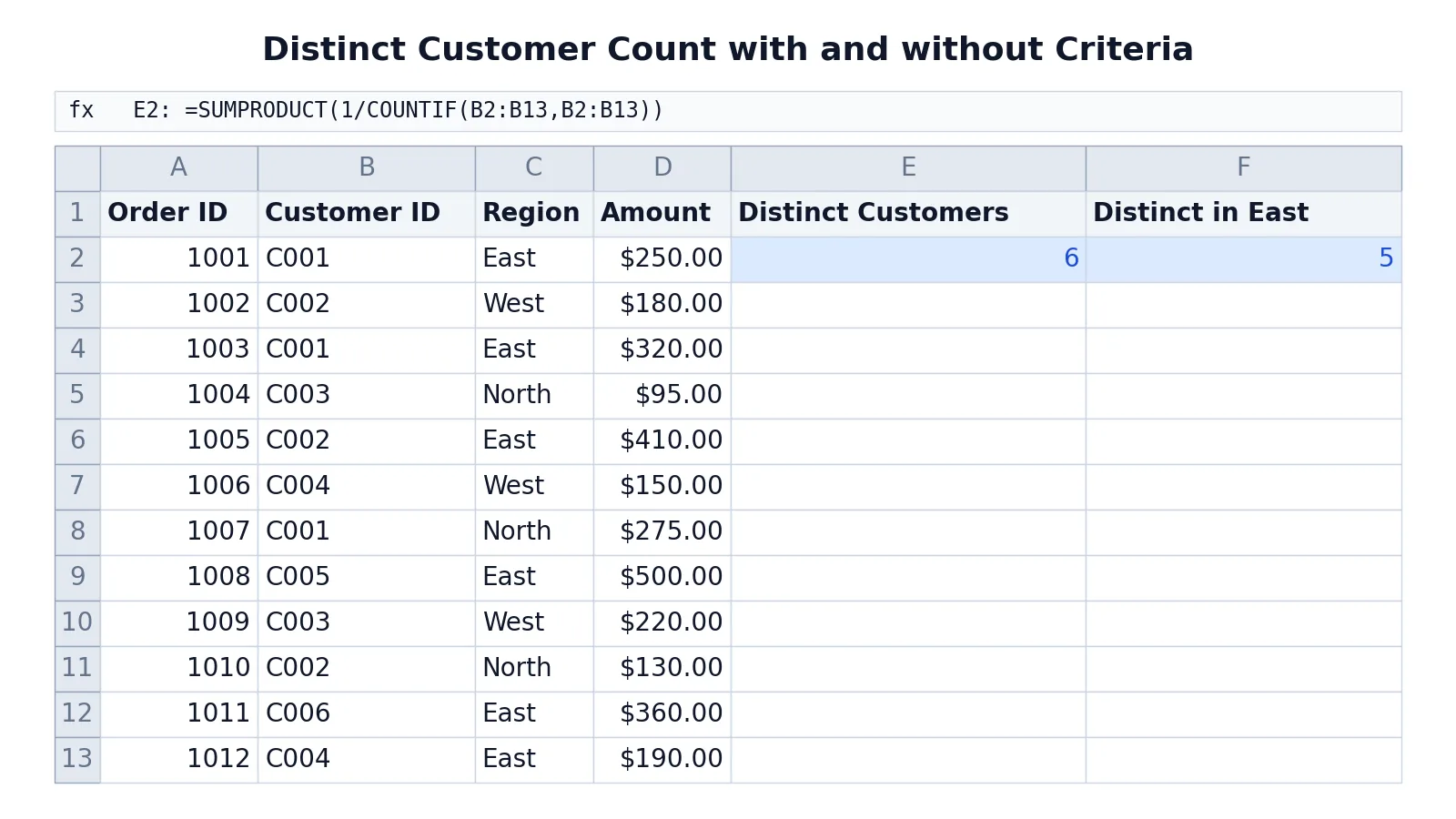
The sheet below holds 12 orders. Column A is the order ID, column B the customer ID, column C the region, and column D the amount. Two formulas count distinct customers: one across all orders, one limited to the East region.
| A | B | C | D | E | F | |
|---|---|---|---|---|---|---|
| 1 | Order ID | Customer ID | Region | Amount | Distinct Customers | Distinct in East |
| 2 | 1001 | C001 | East | 250 | =SUMPRODUCT(1/COUNTIF(B2:B13,B2:B13)) -> displays 6 | =SUMPRODUCT((C2:C13="East")/COUNTIFS(B2:B13,B2:B13,C2:C13,C2:C13)) -> displays 5 |
| 3 | 1002 | C002 | West | 180 | ||
| 4 | 1003 | C001 | East | 320 | ||
| 5 | 1004 | C003 | North | 95 | ||
| 6 | 1005 | C002 | East | 410 | ||
| 7 | 1006 | C004 | West | 150 | ||
| 8 | 1007 | C001 | North | 275 | ||
| 9 | 1008 | C005 | East | 500 | ||
| 10 | 1009 | C003 | West | 220 | ||
| 11 | 1010 | C002 | North | 130 | ||
| 12 | 1011 | C006 | East | 360 | ||
| 13 | 1012 | C004 | East | 190 |
The formula in E2 counts distinct customer IDs in B2:B13 by dividing 1 by each ID's frequency and summing. It returns 6, because the 12 orders come from six different customers: C001, C002, C003, C004, C005 and C006.
The formula in F2 counts distinct customer IDs only for East region orders, using COUNTIFS inside SUMPRODUCT. It returns 5. Five customers placed East orders: C001, C002, C005, C006 and C004. C003 appears in the list but only ordered from North and West, so it is excluded.
Notice that the two answers differ even though the range is the same. The criterion changes which rows contribute, and COUNTIFS keeps the pairing consistent so a customer counted in one region is not double-counted.
Other Ways to Do It
Remove Duplicates plus ROWS. Copy the column to a new location, then use Data > Remove Duplicates to leave only distinct entries. =ROWS(range) on the cleaned column gives the count. This is destructive, so work on a copy. The steps are the same ones covered in how to remove duplicates in Excel.
PivotTable. Drag the field into the Rows area and read the number of row labels. A PivotTable also gives you a per-category breakdown, which is often more useful than a single number. If you are new to PivotTables, how to filter in Excel covers the filtering side of the same workflow.
Advanced Filter with Unique Records Only. Data > Advanced Filter can copy unique records to another location, which you can then count.
COUNTIF for a single value. To check how many times one specific value appears, =COUNTIF(B2:B13,"C001") returns its frequency. That is a count, not a distinct count, but it is the building block the SUMPRODUCT formula relies on. For text-specific counting patterns, see how to count cells with text in Excel.
Dynamic arrays. In Excel 365 and Excel 2021, =COUNTA(UNIQUE(B2:B13)) is the shortest correct answer. To leave out blank cells, use =COUNTA(UNIQUE(FILTER(B2:B13,B2:B13<>""))).
Troubleshooting
#DIV/0! error. A blank cell in the range makes COUNTIF return 0, and 1/0 fails. Either fill the blanks or restrict the range to the populated rows.
The count is one too high. UNIQUE can return a blank entry if the range contains an empty cell, and COUNTA counts it. Use =COUNTA(UNIQUE(FILTER(range,range<>""))) instead, or clean the blanks first.
The count is too high. Trailing spaces make "C001" and "C001 " look like one value to a human, but COUNTIF treats them as different, which inflates the count. Leading spaces and non-printing characters do the same. TRIM and CLEAN fix most of these.
The formula returns 1 for everything. You probably entered it as a single-cell reference instead of a range. COUNTIF needs the same range in both arguments.
Slow recalculation. SUMPRODUCT with COUNTIF over tens of thousands of rows is heavy. Limit the range to the used rows, or switch to a PivotTable.
Wrong result after copying. Relative references shift when you copy the formula down or across. Lock the ranges with $ if you plan to fill.
Common Mistakes
- Using COUNTIF alone and expecting a distinct count.
=COUNTIF(B2:B13,B2:B13)returns frequencies, not a distinct total. Wrap it in SUMPRODUCT with 1 divided by the result. - Leaving blanks in the range. This produces
#DIV/0!. Trim the range to the populated rows or fill the blanks. - Forgetting that COUNTIF is not case-sensitive. "c001" and "C001" count as the same value. If case matters, you need a different approach entirely.
- Mixing up unique and distinct. A value that appears once is unique in the strict sense. Most business questions want distinct values, which is what these formulas return.
- Counting distinct values when you meant distinct combinations. Two columns need COUNTIFS with both ranges, as in the East example. A single COUNTIF on one column ignores the second.
- Assuming UNIQUE exists everywhere. It does not work in Excel 2016 or earlier, and workbooks using it show errors for those users. Test before sharing.
Limitations
These formulas count values, not meaning. "C001" and "C001 " are different strings to Excel, so dirty data inflates the count. They also ignore case, so "abc" and "ABC" collapse into one value. Neither behavior is adjustable inside COUNTIF.
The SUMPRODUCT approach also scales poorly. On large ranges it recalculates slowly because it evaluates COUNTIF for every cell. For repeated reporting, a PivotTable or Power Query is usually the better tool. And none of these methods tell you which values are distinct or how often each appears. For that you need UNIQUE on its own, a PivotTable, or the duplicate-detection techniques in how to find duplicates in Excel. Once you have the count, the natural next step is usually aggregating the numbers behind it, which how to sum a column in Excel covers.
Frequently Asked Questions
What is the difference between unique and distinct values in Excel?
A distinct value is any value that appears at least once, counted once no matter how many times it repeats. A unique value, strictly speaking, appears exactly once. In practice most people asking to count unique values want the distinct count, which is what SUMPRODUCT(1/COUNTIF(...)) returns.
How do I count unique values with multiple criteria?
Multiply the criteria tests together, and give COUNTIFS the value range plus every criteria range. For two conditions the pattern is =SUMPRODUCT((crit1="A")*(crit2="B")/COUNTIFS(values,values,crit1,crit1,crit2,crit2)). Every range must be the same size.
Why does my unique count formula return #DIV/0!?
A blank cell in the range makes COUNTIF return 0 for that position, and dividing 1 by 0 fails. Restrict the range to populated rows, or replace blanks with a value that will not collide with your data.
Can I count unique values ignoring blanks?
Yes. Use =SUMPRODUCT((B2:B13<>"")/COUNTIF(B2:B13,B2:B13&"")). The &"" keeps COUNTIF from returning 0 for empty cells, and the <>"" test excludes them from the total.
Does COUNTIF count unique values on its own?
No. COUNTIF returns how many times each value appears, which is a frequency, not a distinct count. You have to divide 1 by those frequencies and sum them, which is what SUMPRODUCT does.
References
This article draws on the standard references listed under Further Reading.
Further Reading
- Broman KW, Woo KH (2018). Data Organization in Spreadsheets. The American Statistician
- Ziemann M, Eren Y, El-Osta A (2016). Gene name errors are widespread in the scientific literature. Genome Biology
- Microsoft Support: Excel help and learning
- McCullough B, Heiser DA (2008). On the accuracy of statistical procedures in Microsoft Excel 2007. Computational Statistics & Data Analysis
- Abeysooriya M, Soria M, Kasu MS et al. (2021). Gene name errors: Lessons not learned. PLOS Computational Biology
- Wilson G, Bryan J, Cranston K et al. (2017). Good enough practices in scientific computing. PLOS Computational Biology