COUNTIF Function in Excel: Syntax and Examples
By Dr. Zubair Khalid, DVM, MS, PhD ·
The COUNTIF function in Excel counts the cells in a range that meet a single condition you specify. You give it a range to inspect and a criterion to test, and it returns how many cells match. It handles both text criteria like "Yes" and numeric criteria like ">=4" [1].
Quick Answer
- COUNTIF takes exactly two arguments: a range and a criterion. The syntax is
=COUNTIF(range, criteria). - Text criteria go in quotes, for example
=COUNTIF(C2:C11,"Yes"). Matching is not case sensitive. - Number criteria combine an operator and a value inside quotes, for example
=COUNTIF(B2:B11,">=4")[1]. - COUNTIF tests one condition only. For two or more conditions across ranges, use COUNTIFS [2].
- A criterion can be a cell reference, so
=COUNTIF(B2:B11,">"&D1)counts values above whatever sits in D1.
Syntax
The function has two arguments, both required.
| Argument | Required? | Meaning |
|---|---|---|
range | Yes | The cells COUNTIF examines. It can be a column, a row, or a rectangular block. |
criteria | Yes | The condition a cell must meet to be counted. It can be a number, text, a comparison, or a cell reference. |
The full form is:
$$=\text{COUNTIF}(\text{range},\ \text{criteria})$$
How It Works
COUNTIF walks through every cell in range and tests it against criteria. Each cell that passes adds 1 to the running total. Cells that fail are skipped. The result is a single number.
The criterion is where most of the thinking goes. Excel reads it in one of two ways.
If the criterion is a plain value, COUNTIF looks for equality. "Yes" counts cells equal to Yes. 100 counts cells equal to 100. For dates, "12/31/2010" counts cells equal to that date, and the equal sign is optional, so "=12/31/2010" works too [3].
If the criterion starts with a comparison operator, COUNTIF applies that operator. The operator and the value both live inside the quotes: ">9000", "<20000", ">=4", "<=22500". Microsoft's own examples use this pattern to count invoice values below and above a threshold [1].
Text matching is not case sensitive, so "yes" and "Yes" return the same count. Wildcards work in text criteria. A question mark matches one character and an asterisk matches any run of characters. To find a literal question mark or asterisk, put a tilde in front of it.
You can also point the criterion at another cell. Join the operator to the reference with an ampersand:
$$=\text{COUNTIF}(B2:B11,\ ">"\ \&\ D1)$$
This keeps the threshold editable without rewriting the formula.
Worked Example
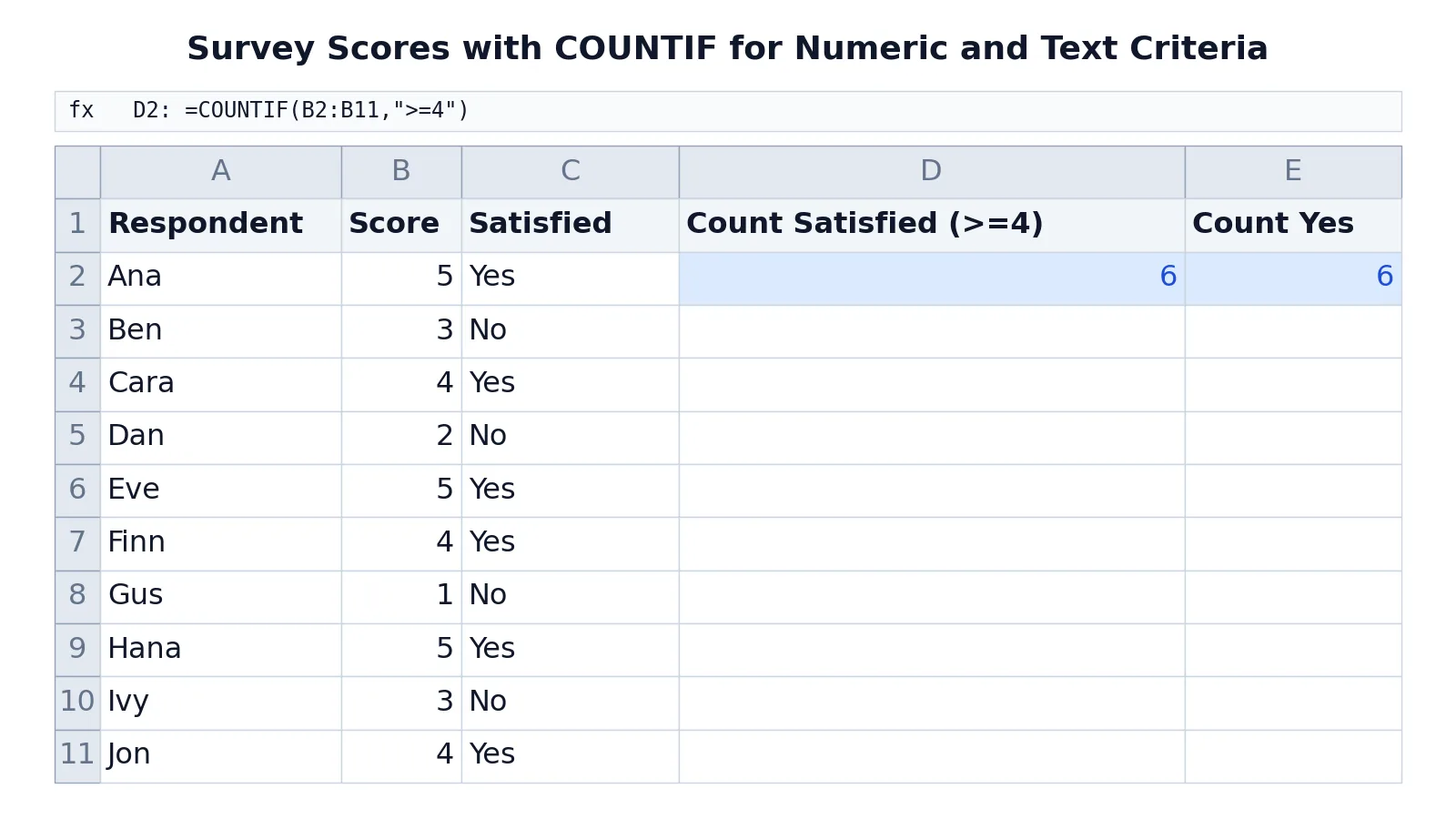
The table below is a short survey. Each respondent gave a satisfaction score from 1 to 5 and answered Yes or No to a follow-up question. Two COUNTIF formulas sit in column D and column E.
| A | B | C | D | E | |
|---|---|---|---|---|---|
| 1 | Respondent | Score | Satisfied | Count Satisfied (>=4) | Count Yes |
| 2 | Ana | 5 | Yes | =COUNTIF(B2:B11,">=4") -> displays 6 | =COUNTIF(C2:C11,"Yes") -> displays 6 |
| 3 | Ben | 3 | No | ||
| 4 | Cara | 4 | Yes | ||
| 5 | Dan | 2 | No | ||
| 6 | Eve | 5 | Yes | ||
| 7 | Finn | 4 | Yes | ||
| 8 | Gus | 1 | No | ||
| 9 | Hana | 5 | Yes | ||
| 10 | Ivy | 3 | No | ||
| 11 | Jon | 4 | Yes |
The formula in D2 counts scores of 4 or more in B2:B11 using the numeric criterion ">=4". It returns 6. The scores that qualify are Ana's 5, Cara's 4, Eve's 5, Finn's 4, Hana's 5, and Jon's 4.
The formula in E2 counts cells equal to "Yes" in C2:C11 using a text criterion. It returns 6. The Yes answers come from Ana, Cara, Eve, Finn, Hana, and Jon.
Both formulas return the same number here, but they answer different questions. One measures the score threshold, the other measures the stated answer. If a respondent scored 5 but answered No, the two counts would diverge.
More Examples
Count values below a threshold. To count invoices under 20,000 in B2:B7, use =COUNTIF(B2:B7,"<20000"). Microsoft's example returns 4 for that range [1].
Count values at or above a threshold. =COUNTIF(B2:B7,">=20000") returns 2 on the same data [1].
Count dates after a point in time. =COUNTIF(B14:B17,">3/1/2010") counts dates later than March 1, 2010 and returns 3 in Microsoft's example [3].
Count a specific date. =COUNTIF(B14:B17,"12/31/2010") returns 1, and the equal sign is not required [3].
Count a repeated name. If a column holds Buchanan, Dodsworth, Dodsworth, and Dodsworth, then =COUNTIF(A2:A5,"Dodsworth") returns 3 [2].
Count with a cell reference. Put the cutoff in D1 and write =COUNTIF(B2:B11,">"&D1). Change D1 and the count updates.
Count partial text. =COUNTIF(A2:A100,"North") counts any cell containing the word North anywhere in the string.
If you need to count cells that are not empty, the pattern changes slightly and is covered in COUNTIF Not Blank in Excel. For counting cells that contain a specific substring, see COUNTIF Cell Contains Text in Excel.
Errors and How to Fix Them
#VALUE! from a closed workbook. COUNTIF formulas that refer to a cell or range in a closed workbook return a #VALUE! error. This is a known issue that also affects SUMIF, SUMIFS, and COUNTBLANK. Open the linked workbook and press F9 to refresh the formula [4].
#VALUE! from a long string. A criterion string longer than 255 characters triggers the same error. Shorten the string, or split it with the ampersand operator, as in =COUNTIF(B2:B12,"long string"&"another long string") [4].
Wrong count from a text number. If a cell holds the text "100" instead of the number 100, a numeric criterion may not match it. Check the cell alignment, since text values usually sit left and numbers sit right.
Zero when you expect a match. Extra spaces are the usual cause. "Yes " with a trailing space is not equal to "Yes". Clean the source data or use a wildcard pattern.
Common Mistakes
- Forgetting the quotes around a comparison.
=COUNTIF(B2:B11,>=4)is invalid. Write=COUNTIF(B2:B11,">=4")so the operator and value stay inside the quotes. - Putting the operator outside the quotes.
=COUNTIF(B2:B11,">="&4)works, but=COUNTIF(B2:B11,">"=4)does not. Keep the operator inside the string and join any reference with&. - Expecting COUNTIF to handle two conditions. COUNTIF tests one criterion. For a range such as greater than 9000 and less than 22500, use COUNTIFS, which accepts up to 127 range and criteria pairs [2][5].
- Assuming case sensitivity. COUNTIF treats
"yes"and"Yes"as the same. If case matters, you need a different approach. - Mismatched range sizes. The range must be a single block. A range that does not line up with the data you mean to test gives a count that looks plausible but is wrong.
- Hardcoding a threshold. Putting the cutoff inside the formula means editing the formula every time it changes. Reference a cell instead.
Limitations
COUNTIF handles one condition. The moment your question involves two or more tests, such as sales above a value made by a specific person, COUNTIF cannot express it. COUNTIFS is the direct replacement, and it accepts multiple range and criteria pairs [2][5]. You can also combine IF and COUNT with an array formula, where IF tests the condition and COUNT tallies the passing cells [5].
COUNTIF also cannot return the matching values themselves, only how many there are. It gives you a number, not a list. And because text matching ignores case and treats wildcards as patterns, a criterion like "a" will match far more than you may intend. When the count looks surprising, inspect the actual cell contents before trusting the result.
Frequently Asked Questions
What is the difference between COUNT and COUNTIF?
COUNT returns the number of cells in a range that contain numbers, with no condition attached. COUNTIF returns the number of cells that meet a criterion you supply. If you only need a headcount of numeric entries, COUNT is enough. If you need to filter by a value, threshold, or text pattern, use COUNTIF. The COUNT function in Excel covers the simpler case.
Can COUNTIF count cells between two numbers?
Not in a single COUNTIF. You need COUNTIFS with two criteria on the same range, for example =COUNTIFS(B2:B7,">=9000",B2:B7,"<=22500"), which returns 4 in Microsoft's example [3]. SUMPRODUCT can produce the same result [3].
Is COUNTIF case sensitive?
No. COUNTIF matches text without regard to case, so "Yes", "yes", and "YES" all count the same cells. If you need a case sensitive count, COUNTIF is the wrong tool.
How do I count cells that contain specific text?
Wrap the text in asterisks. =COUNTIF(A2:A100,"North") counts every cell containing North anywhere in the string. A question mark matches a single character instead of a run of them. The full pattern set is covered in COUNTIF Cell Contains Text in Excel.
Can I use a cell reference as the criterion?
Yes. Join the operator to the reference with an ampersand, as in =COUNTIF(B2:B11,">"&D1). The formula reads whatever value sits in D1, so you can change the threshold without touching the formula. This is the cleanest way to build a small dashboard where the cutoff is a user input.
If your conditions involve sums instead of counts, Excel SUMIF and SUMIFS follows the same range and criteria logic.
References
- Count numbers greater than or less than a number | Microsoft Support
- Count how often a value occurs in Excel | Microsoft Support
- Count numbers or dates based on a condition in Excel | Microsoft Support
- How to correct a #VALUE! error in the COUNTIF/COUNTIFS function | Microsoft Support
- Ways to count values in a worksheet | Microsoft Support
Further Reading
- Broman KW, Woo KH (2018). Data Organization in Spreadsheets. The American Statistician
- Ziemann M, Eren Y, El-Osta A (2016). Gene name errors are widespread in the scientific literature. Genome Biology