How to Unfreeze Panes in Excel (Step by Step)
By Dr. Zubair Khalid, DVM, MS, PhD ·
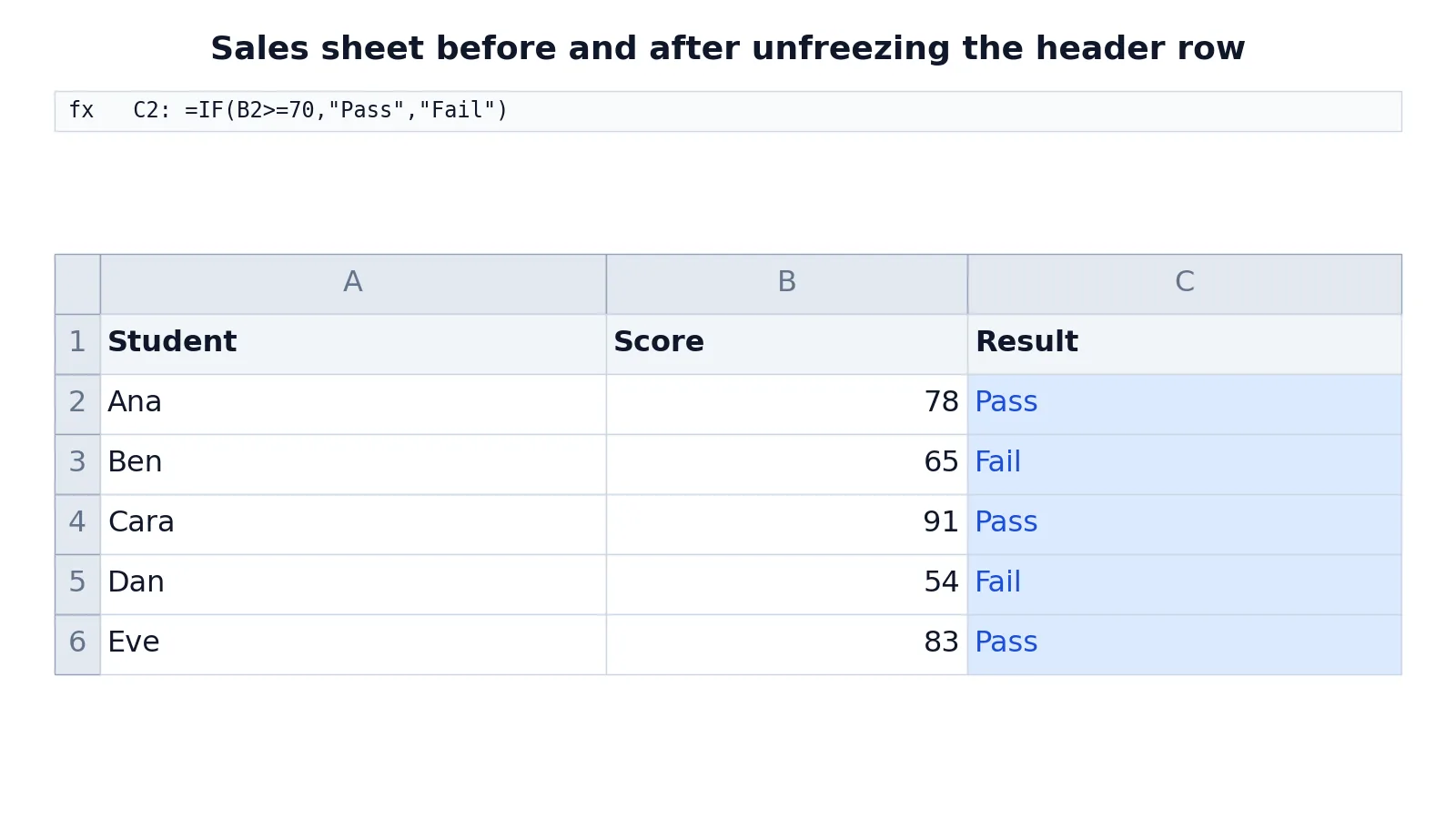
Frozen rows and columns stay visible while the rest of your sheet scrolls, and removing them takes only a few clicks. To learn how to unfreeze panes in Excel, go to the View tab, open the Freeze Panes menu, and choose Unfreeze Panes [1]. The command removes every frozen row and column in the active worksheet at once, so the entire sheet scrolls normally again.
Quick Answer
- Click any cell in the worksheet. The position does not matter for unfreezing.
- Go to View > Freeze Panes > Unfreeze Panes [1].
- All frozen rows and columns in that sheet are released at once. You cannot unfreeze just one of them.
- The command affects only the active worksheet. Repeat it on each sheet that has frozen panes.
- If the option is grayed out, switch to Normal view on the View tab, because Freeze Panes is unavailable in Page Layout and Page Break Preview [2].
Before You Start
Unfreezing is safe. It changes only how the sheet scrolls, not the data, the formulas, or the formatting. Nothing is deleted and no cell values change.
Two things are worth knowing before you start.
First, freezing is a per-worksheet setting. If you froze row 1 on three different sheets, you have to unfreeze three times, once per sheet. Excel does not offer a single command that clears frozen panes across a whole workbook.
Second, the Unfreeze Panes command clears everything at once. If you froze the top row and the first two columns and you only want to release the columns, you cannot do that directly. You unfreeze everything, then freeze again using the setup you actually want. The steps for that are in How to Freeze Rows and Columns in Excel (Step by Step).
One quick way to confirm panes are frozen before you change anything: scroll down a few rows. If the header row stays pinned at the top while the data moves, panes are frozen. A slightly thicker line under the last frozen row or to the right of the last frozen column is another visual clue [2].
Step by Step
- Open the workbook and click the sheet tab for the worksheet with the frozen rows or columns. Unfreezing applies to the active sheet only.
- Click any single cell. You do not need to select the frozen rows or the rows below them. The command works from any selection.
- Go to the View tab on the ribbon. If you do not see a View tab, you may be using Excel Starter, where not all features are supported [1].
- Click Freeze Panes. This opens a small menu with three entries. When panes are frozen, the first entry reads Unfreeze Panes, followed by Freeze Top Row and Freeze First Column.
- Click Unfreeze Panes [1]. The menu closes and the thicker border line disappears.
- Scroll down and to the right to confirm the whole sheet now moves. The header row should slide off the top of the window like any other row.
- Switch to the next sheet and repeat if that sheet also has frozen panes.
On Excel for iOS, the path is slightly different. Tap View > Freeze Panes, then clear all the selected options to unfreeze [3]. On an iPhone, tap the ellipses button to bring up the ribbon, then go to Home > View and scroll down to Freeze Panes [3]. On Excel for Mac, the unfreeze command sits on the View tab as well [2].
Worked Example
Suppose you track student scores in a small gradebook. Column A holds the student name, column B the score, and column C a formula that labels each result. Row 1 holds the headers, and you froze it so the headers stayed visible while you scrolled through the class list.
| A | B | C | |
|---|---|---|---|
| 1 | Student | Score | Result |
| 2 | Ana | 78 | =IF(B2>=70,"Pass","Fail") -> displays Pass |
| 3 | Ben | 65 | =IF(B3>=70,"Pass","Fail") -> displays Fail |
| 4 | Cara | 91 | =IF(B4>=70,"Pass","Fail") -> displays Pass |
| 5 | Dan | 54 | =IF(B5>=70,"Pass","Fail") -> displays Fail |
| 6 | Eve | 83 | =IF(B6>=70,"Pass","Fail") -> displays Pass |
The formula in C2 tests whether the score in B2 is at least 70. If it is, the cell returns Pass. If it is not, it returns Fail. The same test is copied down the column, so C3 checks Ben's 65 and returns Fail, C4 checks Cara's 91 and returns Pass, C5 checks Dan's 54 and returns Fail, and C6 checks Eve's 83 and returns Pass.
In general terms, the test is:
$$ \text{Result} = \begin{cases} \text{Pass} & \text{if Score} \ge 70 \\ \text{Fail} & \text{if Score} < 70 \end{cases} $$
Here is the interface sequence for freezing and then unfreezing that header row.
- Select row 2 by clicking the row 2 header, because Freeze Panes locks the rows above the selection.
- Go to View > Freeze Panes > Freeze Panes.
- Scroll down to confirm row 1 stays visible.
- Go to View > Freeze Panes > Unfreeze Panes.
- Scroll down to confirm the whole sheet now scrolls normally.
The formulas in column C are untouched by any of this. Freezing and unfreezing change the view, never the values.
Other Ways to Do It
The View tab route is the standard one, and it is the only path documented across the desktop and mobile versions [1][3][2]. There is no separate "unfreeze" button on the Home tab, and no dialog box to open.
If you work with several sheets that all have frozen panes, grouping the sheet tabs does not help. Freeze Panes and Unfreeze Panes act only on the active sheet even when tabs are grouped, so you either repeat the command on each sheet or use a short VBA macro that loops through the sheets.
If you are hiding and showing rows instead of freezing them, that is a different feature with a different menu. See How to Unhide Rows in Excel (Step by Step) and How to Unhide Columns in Excel (Step by Step).
Troubleshooting
The Unfreeze Panes option is grayed out. Switch to Normal view. Freeze Panes is not available in Page Layout view or Page Break Preview, and the buttons are grayed out there [2]. On the View tab, click Normal, then try again.
You unfroze the sheet but rows still will not scroll. Check whether the rows are hidden rather than frozen. A hidden row is skipped entirely when you scroll, which looks similar at a glance. Select the rows on either side of the gap, right-click a row header, and choose Unhide.
You unfroze one sheet but another still has frozen panes. This is expected. Freezing is stored per worksheet, so each sheet needs its own unfreeze step.
The sheet is protected. If the workbook author protected the worksheet and did not allow view changes, the Freeze Panes controls may be unavailable. You will need the password to unprotect the sheet first. Locking cells and protecting sheets is covered in How to Lock Cells in Excel (Step by Step).
You are on Excel for the web. The View tab and the Freeze Panes menu are available there, and the unfreeze entry works the same way [1].
Common Mistakes
- Unfreezing the wrong sheet. The command only touches the active sheet. Fix: check the sheet tab before you click, and repeat on every sheet that needs it.
- Expecting to release one frozen row at a time. Unfreeze Panes clears all frozen rows and columns in the sheet together. Fix: unfreeze everything, then re-freeze the smaller range you want.
- Looking for the command on the Home tab. It lives on the View tab, under Freeze Panes [1]. Fix: go to View first.
- Giving up when the menu is grayed out. The usual cause is Page Layout or Page Break Preview view. Fix: click Normal on the View tab, then retry [2].
- Confusing frozen panes with split panes. Split divides the window into separate scrollable panes of the same worksheet, and it is a different command on the same View tab [1]. Fix: if you see two independent scroll areas, look for the Split button instead.
- Assuming the data changed. Unfreezing never edits values or formulas. Fix: if numbers look wrong, the cause is elsewhere, such as a formula referencing the wrong cell.
Limitations
Unfreeze Panes works on one worksheet at a time, even when sheet tabs are grouped. There is no workbook-wide switch, and no keyboard shortcut documented for the command, so on a large workbook with many frozen sheets you will repeat the steps on each sheet or use a macro.
The command is also all-or-nothing within a sheet. Excel does not let you release the frozen columns while keeping the frozen rows, or the reverse. You always clear the full freeze state and rebuild it. That matters when you are adjusting a layout you spent time on, because you have to remember the exact cell you originally selected. Freeze Panes locks the rows above and the columns left of the selected cell, so the anchor cell is the one below and to the right of everything you want pinned [1].
Finally, unfreezing does not fix scrolling problems caused by hidden rows, hidden columns, or a protected sheet. Those are separate settings with separate fixes.
Frequently Asked Questions
How do I unfreeze panes in Excel?
Click any cell, go to the View tab, open the Freeze Panes menu, and choose Unfreeze Panes [1]. Every frozen row and column in the active sheet is released at once. Scroll down to confirm the whole sheet moves normally.
Why is Unfreeze Panes grayed out?
The most common reason is that the sheet is in Page Layout view or Page Break Preview. Freeze Panes is unavailable in those views, and the buttons appear grayed out [2]. Click Normal on the View tab and the command becomes available again.
Does unfreezing panes delete my data?
No. Freezing and unfreezing change only how the sheet scrolls. Cell values, formulas, formatting, and comments are untouched. If something looks different after unfreezing, the cause is a separate edit or a hidden row or column.
Can I unfreeze only the top row and keep the frozen columns?
Not directly. Unfreeze Panes clears all frozen rows and columns in the sheet together. To keep the columns, unfreeze everything, then select the cell below the rows you want pinned and to the right of the columns you want pinned, and choose Freeze Panes again [1].
How do I unfreeze panes on Excel for Mac or iPhone?
On Mac, use the View tab and choose the unfreeze option there [2]. On iPhone, tap the ellipses button to open the ribbon, go to Home > View, scroll down to Freeze Panes, and clear the selected options [3]. On iPad, tap View > Freeze Panes and clear the options [3].
Do I have to unfreeze each sheet separately?
Yes. Frozen panes are stored per worksheet, so the command affects only the active sheet, even when several sheet tabs are grouped. To clear many sheets at once, use a short VBA macro that activates each sheet and sets ActiveWindow.FreezePanes = False.
References
- Freeze panes to lock rows and columns | Microsoft Support
- Freeze panes to lock the first row or column in Excel for Mac | Microsoft Support
- Freeze panes to lock the first row or column in Excel for iOS | Microsoft Support
Further Reading
- Broman KW, Woo KH (2018). Data Organization in Spreadsheets. The American Statistician
- Ziemann M, Eren Y, El-Osta A (2016). Gene name errors are widespread in the scientific literature. Genome Biology
- Microsoft Support: Excel help and learning