How to Round to the Nearest Thousandth in Excel
By Dr. Zubair Khalid, DVM, MS, PhD ·
To round to the nearest thousandth in Excel, use the ROUND function with 3 as the second argument. The formula =ROUND(A1,3) keeps three digits after the decimal point. If you actually want the nearest thousand (a whole-number place value), use =ROUND(A1,-3) instead, because a negative num_digits rounds to the left of the decimal point.
Quick Answer
- Round to the nearest thousandth with
=ROUND(number,3). Three decimal places means thousandths. - Round to the nearest thousand with
=ROUND(number,-3). The negative sign moves the rounding position three places left of the decimal. - The number argument can be a cell reference, a literal value, or another formula.
- ROUND changes the stored value, so downstream calculations use the rounded number.
- If you only want to change how a number looks, use cell formatting instead of ROUND.
Before You Start
Two different requests sound almost identical, so decide which one you have before you type a formula.
"Round to the nearest thousandth" means three decimal places. The thousandth place is the third digit after the decimal point, so 3.14159 becomes 3.142. This is the more common request in measurement and scientific work.
"Round to the nearest thousand" means the thousands place, which sits three places to the left of the decimal point. Here 3.14159 becomes 0, and 4,780 becomes 5,000. The same ROUND function handles both. Only the num_digits argument changes.
The syntax is:
$$=ROUND(number, num\_digits)$$
The num_digits argument tells Excel where to cut. Positive values round to the right of the decimal point, zero rounds to a whole number, and negative values round to the left. For a full walkthrough of the function, see the Excel ROUND function guide.
One practical point before you build anything. ROUND returns a new value. It does not change the original cell. If you need the original number preserved, put the formula in a separate column.
Step by Step
- Put your raw numbers in a column, for example B2 through B6. Leave the column to the right free for results.
- Click the first empty cell in that results column, such as C2.
- Type
=ROUND(B2,3)and press Enter. Excel returns the value in B2 rounded to three decimal places. - Drag the fill handle down from C2 to copy the formula to the remaining rows. Excel adjusts the cell reference for each row automatically.
- For the nearest thousand, use a separate column and type
=ROUND(B2,-3). Copy it down the same way. - Check a couple of results by hand. If the fourth decimal digit is 5 or higher, the third digit goes up by one. Otherwise it stays.
That last check matters because rounding direction is the part people get wrong when they estimate results mentally.
Worked Example
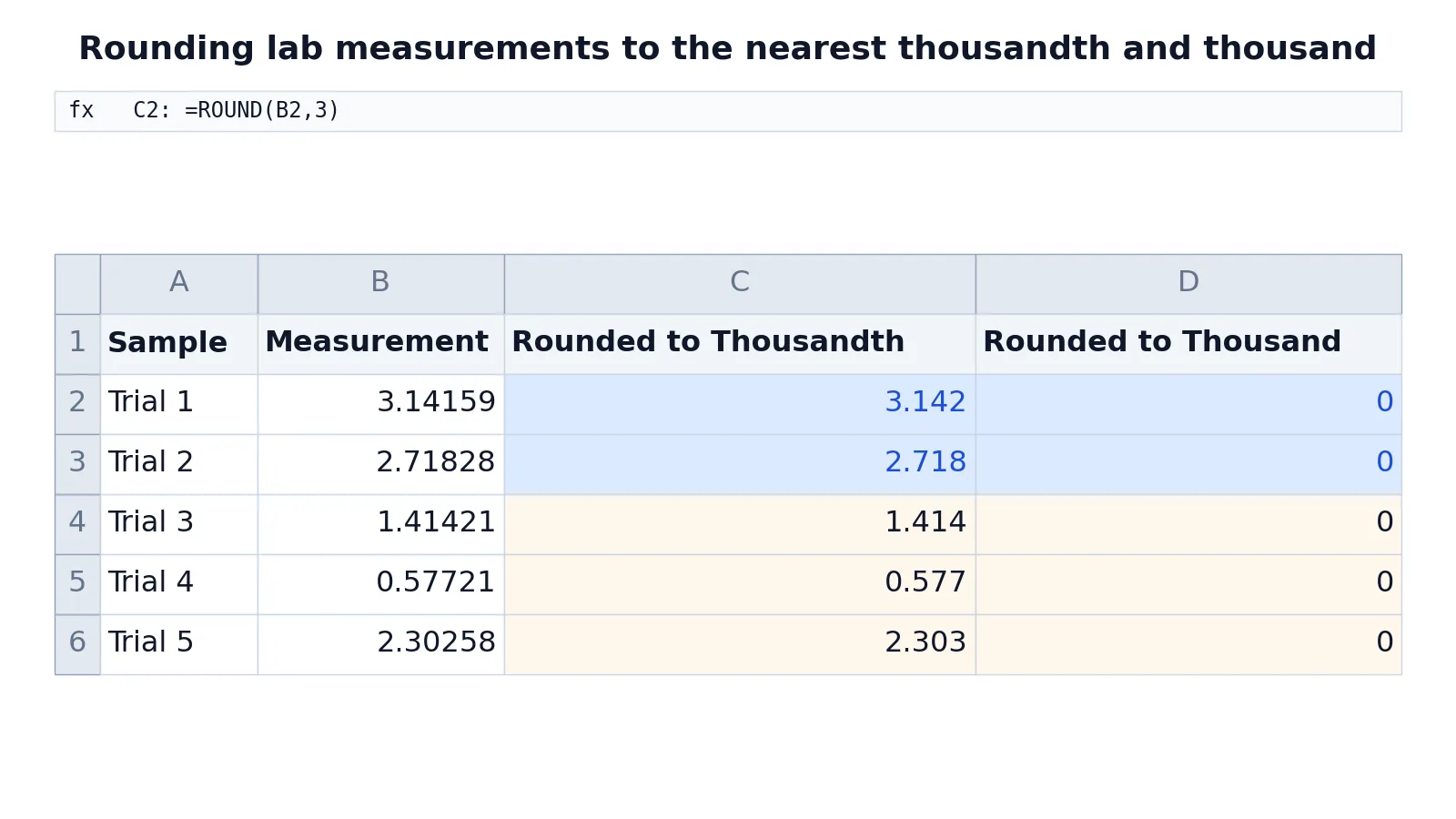
The table below uses five measurements from a calibration log. Column B holds the raw readings, column C rounds each one to the nearest thousandth, and column D rounds each one to the nearest thousand.
| Row | A | B | C | D |
|---|---|---|---|---|
| 1 | Sample | Measurement | Rounded to Thousandth | Rounded to Thousand |
| 2 | Trial 1 | 3.14159 | =ROUND(B2,3) -> displays 3.142 | =ROUND(B2,-3) -> displays 0 |
| 3 | Trial 2 | 2.71828 | =ROUND(B3,3) -> displays 2.718 | =ROUND(B3,-3) -> displays 0 |
| 4 | Trial 3 | 1.41421 | =ROUND(B4,3) -> displays 1.414 | =ROUND(B4,-3) -> displays 0 |
| 5 | Trial 4 | 0.57721 | =ROUND(B5,3) -> displays 0.577 | =ROUND(B5,-3) -> displays 0 |
| 6 | Trial 5 | 2.30258 | =ROUND(B6,3) -> displays 2.303 | =ROUND(B6,-3) -> displays 0 |
Read the two columns together and the difference is obvious. In C2, the fourth decimal digit of 3.14159 is 5, so the third digit moves from 1 to 2 and the result is 3.142. In C3, 2.71828 has a fourth digit of 2, so the third digit stays and the result is 2.718. In C6, 2.30258 has a fourth digit of 5, so 2.302 becomes 2.303.
Column D shows why the negative argument surprises people. Every measurement in this dataset is smaller than 500, so rounding to the nearest thousand gives 0 in all five rows. That is correct behavior, not an error. If your values are in the thousands, the same formula returns a meaningful multiple of 1,000.
Other Ways to Do It
ROUND is the standard tool, but Excel has related functions for specific cases.
ROUNDUP always rounds away from zero. =ROUNDUP(3.14159,3) returns 3.142, and =ROUNDUP(2.71828,3) returns 2.719 because it pushes the last digit up even when the next digit is small. Use it when you need a ceiling on a value.
ROUNDDOWN always rounds toward zero. =ROUNDDOWN(2.71828,3) returns 2.718, and =ROUNDDOWN(2.30258,3) returns 2.302. Use it when you need a floor.
MROUND rounds to the nearest multiple of a number you specify. =MROUND(A1,0.001) rounds to the nearest thousandth by treating 0.001 as the step size. This is useful when your rounding unit is not a decimal place, such as rounding to the nearest 0.005.
Cell formatting changes only the display. Right-click a cell, choose Format Cells, pick Number, and set the decimal places to 3. The underlying value keeps every digit. This is the right choice for reports where you want clean visuals but exact values in the calculations.
If your rounding is one step in a longer pipeline, functions like OFFSET can help you pull values from shifting ranges before you round them.
Troubleshooting
The formula shows a long decimal anyway. Check that you typed a comma and not a period between the arguments. In some regional settings the separator is a semicolon. Excel will usually flag the error, but a wrong separator can produce unexpected results.
The result looks like 3.142 but the cell shows 3.14. The formula is correct and the display is truncated. Widen the column or increase the displayed decimal places in Format Cells.
Rounding to the nearest thousand gives 0 for everything. Your values are below 500. That is the mathematically correct answer. Confirm you wanted the thousands place and not the thousandths place.
The total does not match the sum of the rounded values. This is normal. Rounding each number first and then adding gives a different result from adding first and rounding once. Decide which order your report requires and apply it consistently.
A formula returns #VALUE!. One of the arguments is text rather than a number. Check the source cell for stray spaces or a number stored as text.
Common Mistakes
- Confusing thousandth with thousand. The thousandth is three decimal places and uses 3. The thousand is a whole-number place value and uses -3. Mixing them up is the single most common error. Fix it by reading the request as "decimal places" or "place value" before you write the formula.
- Using ROUND when you meant formatting. ROUND changes the value. If you only need a cleaner display, use Format Cells so the underlying number stays exact.
- Rounding too early in a calculation chain. Rounding intermediate results and then continuing to calculate compounds the error. Round once, at the end, unless a rule requires otherwise.
- Assuming ROUND always rounds 5 up. Excel rounds half away from zero, so 2.5 becomes 3 and -2.5 becomes -3. Other software may use banker's rounding, which sends 2.5 to 2. Do not assume two tools agree.
- Forgetting that ROUND returns a new value. The original cell is untouched. If you need the rounded number in place, copy the results and paste them as values over the source.
- Ignoring floating-point representation. Excel stores numbers in binary, so a value that looks like an exact decimal may sit slightly above or below it. This can shift a result at the boundary. Independent testing of Excel's statistical procedures has documented accuracy issues of this kind in earlier versions [1].
Limitations
ROUND handles the arithmetic, but it cannot fix a number that was already wrong before it reached your sheet. If a measurement was recorded to two decimal places, rounding it to three does not create precision. You get a longer number with the same underlying uncertainty. Report the precision your data actually supports.
The other limit is scale. Rounding to the nearest thousandth is fine for values like 3.14159, but it is meaningless for large counts. Rounding 1,234,567 to three decimal places returns the same number, because there are no decimal digits to cut. Match the num_digits argument to the magnitude of your data, and check a few results by hand before you trust a whole column.
Frequently Asked Questions
What is the formula to round to the nearest thousandth in Excel?
Use =ROUND(A1,3). The 3 tells Excel to keep three digits after the decimal point, which is the thousandth place. For example, 3.14159 returns 3.142 and 2.71828 returns 2.718.
How do I round to the nearest thousand instead of the thousandth?
Use a negative num_digits argument: =ROUND(A1,-3). The -3 moves the rounding position three places to the left of the decimal point, so 4,780 returns 5,000. Any value below 500 returns 0.
Does ROUND change the original number in the cell?
No. ROUND returns a new value in the cell where you write the formula. The source cell keeps its full precision. To replace the original, copy the rounded results and paste them as values over the source column.
What is the difference between ROUND and changing the number format?
ROUND changes the stored value, so later calculations use the rounded number. Number formatting changes only what you see on screen. The cell still holds every digit. Use formatting for presentation and ROUND for calculation.
Why does my rounded total not match the sum of the rounded values?
Because rounding each value first and then summing gives a different result from summing first and rounding once. The gap is called rounding error and it grows with the number of values. Pick one order, apply it everywhere in the report, and state which one you used.
References
Further Reading
- Broman KW, Woo KH (2018). Data Organization in Spreadsheets. The American Statistician
- Ziemann M, Eren Y, El-Osta A (2016). Gene name errors are widespread in the scientific literature. Genome Biology
- Microsoft Support: Excel help and learning
- Abeysooriya M, Soria M, Kasu MS et al. (2021). Gene name errors: Lessons not learned. PLOS Computational Biology
- Wilson G, Bryan J, Cranston K et al. (2017). Good enough practices in scientific computing. PLOS Computational Biology