How to Unlock an Excel Spreadsheet (Step by Step)
By Dr. Zubair Khalid, DVM, MS, PhD ·
If you need to edit cells that are greyed out or blocked, you have to remove the protection that is applied to the sheet. This guide shows you how to unlock an Excel spreadsheet on Windows and Mac, how to tell the difference between sheet protection and workbook protection, and what to do when you do not know the password.
Quick Answer
- Sheet protection is removed with Review > Unprotect Sheet. If a password was set, Excel asks for it [1].
- Workbook structure protection is removed with Review > Protect Workbook, which toggles the setting off [2].
- On Mac, the same command appears as Review > Unprotect Sheet [3].
- A password-protected file that will not open at all is a different problem. That is file-level encryption, not sheet protection [4].
- If you do not know the password, there is no supported way to recover it. Microsoft states it cannot retrieve forgotten passwords [4].
Before You Start
Excel has three separate layers of protection, and they behave differently. Knowing which one you are facing saves time.
| Layer | What it blocks | How to remove it |
|---|---|---|
| Worksheet protection | Editing locked cells, and sometimes formatting, sorting, or inserting rows | Review > Unprotect Sheet [1] |
| Workbook protection | Adding, deleting, renaming, moving, copying, or hiding sheets | Review > Protect Workbook [2] |
| File encryption | Opening the file at all | Requires the password [4] |
Worksheet protection is not a security feature. Microsoft describes it as a way to stop users from modifying locked cells, not as a way to secure data [5]. That distinction matters later when you deal with a forgotten password.
If the whole file refuses to open and shows a password prompt before any content appears, you are dealing with file encryption, not a locked sheet [4]. The steps below will not help in that case.
One more thing to check first. If only some cells are editable and others are not, the sheet is protected and specific ranges were unlocked before protection was applied [1]. Removing protection makes everything editable again.
Step by Step
- Open the workbook and click the tab of the sheet you want to edit.
- Go to the Review tab on the ribbon.
- In the Protect group, click Unprotect Sheet. When a sheet is protected, the Protect Sheet button changes to Unprotect Sheet [1].
- If a password was set, type it in the Unprotect Sheet dialog box and click OK [1]. If no password was set, the sheet unprotects immediately.
- Test the sheet by clicking a cell that was previously locked and typing a value.
- If you also cannot add, rename, or delete sheet tabs, remove workbook protection. Click Review > Protect Workbook, enter the password if prompted, and click OK [2].
- Save the file.
On Excel for Mac, the path is the same. Click the Review tab, then click Unprotect Sheet, and enter the password if one is required [3].
If you want to keep some cells locked while making others editable, do not leave the sheet unprotected. Instead, select the cells you want people to change, open Format Cells with Ctrl+1, go to the Protection tab, and clear the Locked checkbox. Then protect the sheet again [1]. This is the standard way to build a form where only input cells are open. Our guide on how to lock cells in Excel walks through that setup in detail.
Worked Example
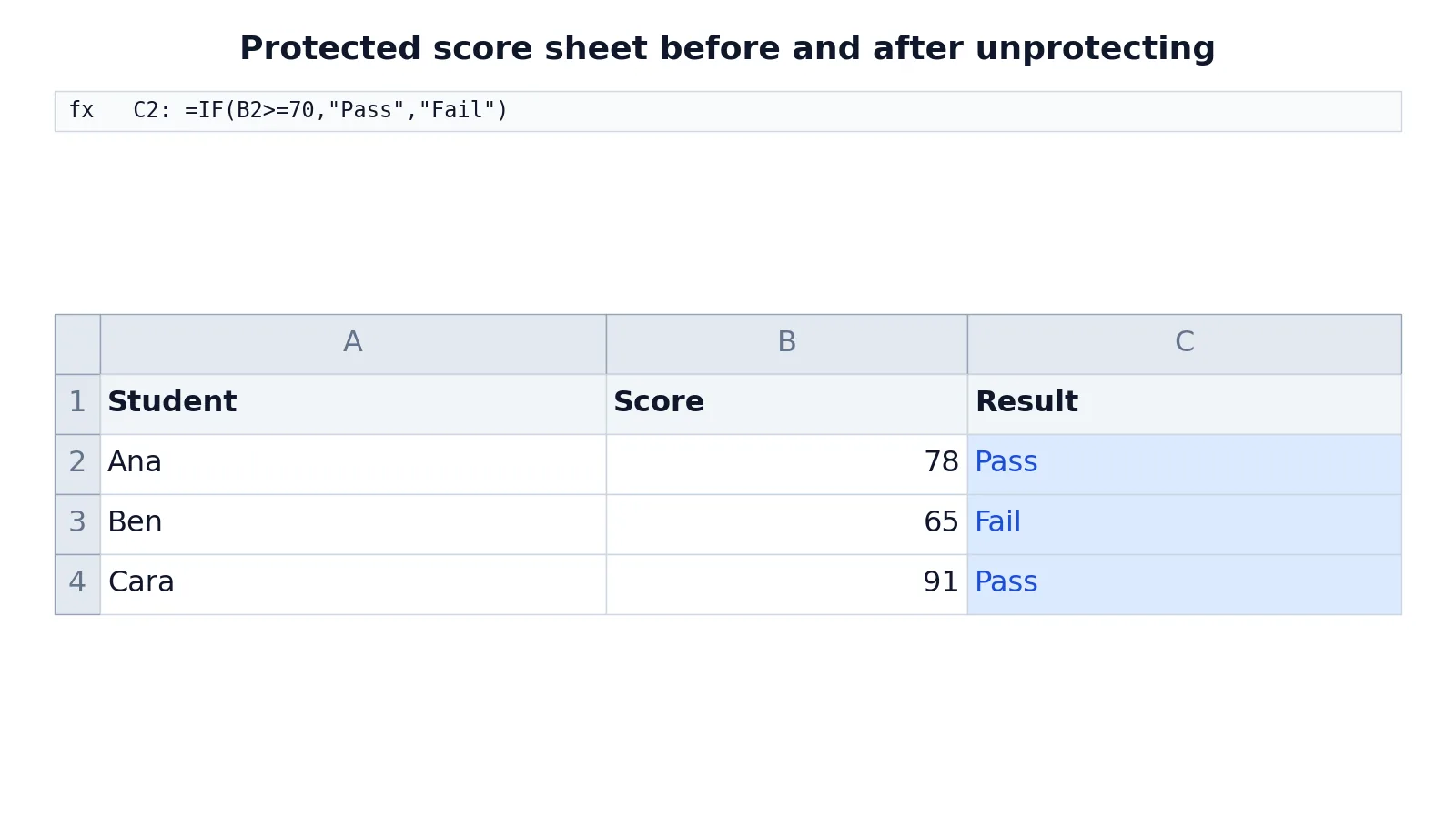
Suppose you have a small grade sheet with three students. Column C holds a formula that checks each score against a pass mark of 70.
| A | B | C | |
|---|---|---|---|
| 1 | Student | Score | Result |
| 2 | Ana | 78 | =IF(B2>=70,"Pass","Fail") -> displays Pass |
| 3 | Ben | 65 | =IF(B3>=70,"Pass","Fail") -> displays Fail |
| 4 | Cara | 91 | =IF(B4>=70,"Pass","Fail") -> displays Pass |
The formula in each Result cell is:
$$=IF(B2>=70,"Pass","Fail")$$
C2 checks whether Ana's score meets the pass mark and returns Pass or Fail. C3 does the same for Ben, and C4 for Cara.
Now imagine the sheet is protected with a password. You can still read the values, but you cannot edit the formulas or change the scores. The moment you try to type in B2, Excel blocks the edit.
To fix it, follow the interface steps:
- Go to Review > Unprotect Sheet.
- Enter the password in the Unprotect Sheet dialog box.
- Click OK.
After that, B2, B3, and B4 accept new numbers, and the Result formulas recalculate. If you change Ben's score from 65 to 72, C3 switches from Fail to Pass. If you want to rebuild formulas like these from scratch, see how to make a formula in Excel.
Other Ways to Do It
The Review tab is the standard route, but a few other situations come up.
Unprotecting every sheet at once. If a workbook has many protected sheets, you can unprotect them one by one, or run a short VBA macro that loops through the sheets. The macro still needs the correct password for each sheet.
Removing workbook structure protection. This is separate from sheet protection. If the Insert, Delete, and Rename options are greyed out when you right-click a sheet tab, the workbook structure is protected [2]. Use Review > Protect Workbook to turn it off.
Checking protection status quickly. If you are unsure whether a sheet is protected, look at the Review tab. The button label tells you. It reads Protect Sheet when the sheet is open and Unprotect Sheet when it is locked [1].
File-level passwords. If the file will not open, go to File > Info > Protect Workbook and look for the encryption option. Removing file encryption requires the original password [4].
Troubleshooting
The Unprotect Sheet button is greyed out. This usually means several sheets are grouped, or the workbook is a legacy shared workbook or opened read-only. Ungroup the sheets, and check whether the file opened in Protected View, which appears as a yellow bar at the top.
Excel keeps asking for a password you do not have. There is no built-in recovery. Microsoft states plainly that it cannot retrieve forgotten passwords [4]. For worksheet protection, third-party tools exist, but they are not supported by Microsoft and results vary.
You can edit some cells but not others. The sheet is protected and specific ranges were unlocked before protection was applied [1]. Unprotect the sheet to make everything editable, or adjust the unlocked ranges.
You cannot add or delete sheet tabs. That is workbook structure protection, not sheet protection. Use Review > Protect Workbook [2].
The password prompt appears when opening the file. That is file encryption, not sheet protection. The two are unrelated, and unprotecting a sheet will not remove a file password [4].
Changes disappear after you save and reopen. Someone may have re-applied protection, or the file is stored on a shared drive with a template that restores protection on open.
Common Mistakes
- Confusing sheet protection with file encryption. They are different features with different fixes. Sheet protection blocks cell edits [5]. File encryption blocks opening the file [4]. Check which one you actually have before searching for a workaround.
- Assuming protection equals security. Microsoft states that worksheet protection is not intended as a security feature [5]. It stops accidental edits, not a determined user.
- Unprotecting and forgetting to re-protect. If the sheet was protected for a reason, turning protection off leaves it open for everyone. Re-apply it when you are done.
- Leaving the Locked checkbox on for input cells. If you protect a sheet without first unlocking the cells people need to type in, they still cannot edit anything [1]. Unlock the input range first.
- Using a password you will not remember. Microsoft cannot recover forgotten passwords [4]. Write it down somewhere safe before you apply it.
- Trying to fix workbook protection with sheet commands. Greyed-out sheet tabs need Review > Protect Workbook, not Unprotect Sheet [2].
Limitations
Unprotecting a sheet only removes the restriction on editing. It does not recover data, undo changes made while the sheet was locked, or restore formulas that were overwritten. If someone edited a cell before protection was applied, unprotecting will not tell you what changed.
Worksheet protection is also weak by design. It prevents accidental edits and casual changes, but it is not a security boundary [5]. Anyone with the right tools and enough determination can bypass it. For genuinely sensitive data, use file encryption with a strong password, and remember that Microsoft cannot retrieve a lost password [4]. Also note that worksheet protection is not available in some government cloud environments, so behavior can differ depending on where your workbook is hosted [5].
Frequently Asked Questions
How do I unlock an Excel spreadsheet without a password?
If no password was set when the sheet was protected, click Review > Unprotect Sheet and the sheet unlocks immediately [1]. If a password was set, Excel prompts for it, and there is no supported way to skip that prompt. Microsoft cannot recover forgotten passwords [4].
What is the difference between protecting a sheet and protecting a workbook?
Sheet protection locks cells so they cannot be edited [5]. Workbook protection locks the structure, which stops people from adding, deleting, renaming, moving, or hiding sheets [2]. You may need to remove both if a workbook has both applied.
Why is the Unprotect Sheet option greyed out?
A common reason is that several sheet tabs are selected as a group, which disables the command. It can also happen if the workbook is a legacy shared workbook, read-only, or opened in Protected View. Close and reopen the file normally, then check the Review tab again.
Can I unlock only part of a protected sheet?
Yes. Unprotect the sheet, select the cells you want people to edit, open Format Cells with Ctrl+1, go to the Protection tab, and clear Locked. Then protect the sheet again [1]. Only the cells you unlocked will accept input.
Does unprotecting a sheet remove a password from the file?
No. Sheet protection and file encryption are separate. Removing sheet protection does not remove a password that is required to open the file [4]. If the file asks for a password before it opens, you are dealing with encryption, and you need that password.
Will unprotecting a sheet let me see hidden rows or columns?
Not directly. Unprotecting removes the edit restriction, but hidden rows and columns stay hidden until you unhide them. See how to unhide rows in Excel and how to unhide columns in Excel for those steps. If you need to locate specific content afterward, how to find and search in Excel covers the search tools.
References
- Lock or unlock specific areas of a protected worksheet | Microsoft Support
- Protect a workbook | Microsoft Support
- Protect a worksheet in Mac | Microsoft Support
- Protect an Excel file | Microsoft Support
- Protect a worksheet | Microsoft Support
Further Reading
- Broman KW, Woo KH (2018). Data Organization in Spreadsheets. The American Statistician
- Ziemann M, Eren Y, El-Osta A (2016). Gene name errors are widespread in the scientific literature. Genome Biology