How to Add a Checkbox in Excel (Step by Step)
By Dr. Zubair Khalid, DVM, MS, PhD ·
If you want to know how to add a checkbox in Excel, the fastest route is the Form Control checkbox on the Developer tab. You draw the box, link it to a cell, and Excel writes TRUE or FALSE into that cell. Those values then feed any formula you already use.
Quick Answer
- Turn on the Developer tab first: File > Options > Customize Ribbon, then check Developer.
- Insert the control from Developer > Insert > Checkbox (Form Control).
- Draw the checkbox over the cell where you want it to sit.
- Right-click the checkbox, open Format Control > Control, and set the Cell link to a cell.
- Clicking the box toggles TRUE and FALSE in the linked cell, which formulas can read.
Before You Start
You need a blank area of the sheet and a column you can dedicate to TRUE/FALSE values. The linked cell should be empty, because Excel overwrites whatever is in it when you click the checkbox.
The Developer tab is hidden by default. To show it, go to File > Options > Customize Ribbon and check the Developer box in the right-hand list. If you cannot change Excel options because the file is locked or managed by someone else, ask the file owner to enable the tab.
One decision matters before you draw anything. A Form Control checkbox is the one most people want. It links to a cell and returns TRUE or FALSE. An ActiveX checkbox is a different object with its own properties and event code, and it behaves differently in shared files. This article covers the Form Control version.
If you plan to build a checklist, set up the sheet first. Put task names in one column, leave the next column empty for the linked TRUE/FALSE values, and leave a third column for status formulas. That layout keeps the checkboxes and the data in the same rows.
Step by Step
- Open the file and go to File > Options > Customize Ribbon. Check Developer in the list of main tabs, then click OK.
- On the Developer tab, click Insert. Under Form Controls, choose Checkbox.
- Click in the cell where you want the checkbox, or drag to size it. Excel places the box and a text label next to it.
- Delete the default label text if you do not want it, or type your own label. The label is separate from the linked cell value.
- Repeat for each row that needs a checkbox. You can copy and paste an existing checkbox to save time, then reposition it.
- Right-click the first checkbox and choose Format Control.
- Go to the Control tab. In the Cell link box, type or select the cell that should hold the TRUE/FALSE result, for example B2.
- Click OK. Click the checkbox to test it. The linked cell should switch between TRUE and FALSE.
- Repeat steps 6 to 8 for every checkbox, pointing each one at its own row in the same column.
- Build your formulas in the next column so they read the linked cells.
Once the links are in place, the checkbox is just a switch. All the analysis happens in the cells. If you are new to writing those formulas, the basics are covered in how to make a formula in Excel.
Worked Example
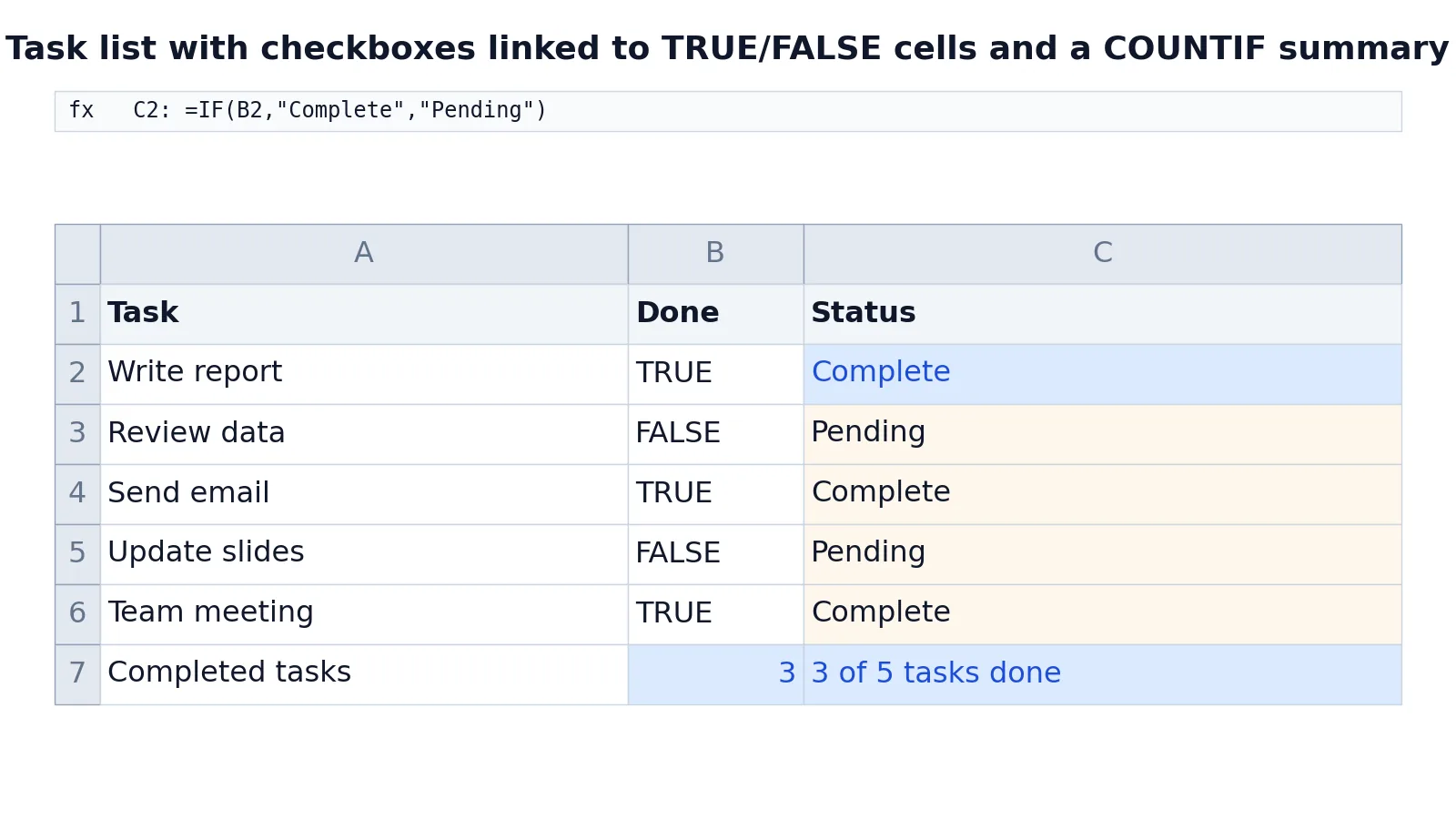
This example tracks five tasks. Column A holds the task name, column B holds the linked TRUE/FALSE value from each checkbox, and column C holds a status formula.
| Row | A | B | C |
|---|---|---|---|
| 1 | Task | Done | Status |
| 2 | Write report | TRUE | =IF(B2,"Complete","Pending") -> displays Complete |
| 3 | Review data | FALSE | =IF(B3,"Complete","Pending") -> displays Pending |
| 4 | Send email | TRUE | =IF(B4,"Complete","Pending") -> displays Complete |
| 5 | Update slides | FALSE | =IF(B5,"Complete","Pending") -> displays Pending |
| 6 | Team meeting | TRUE | =IF(B6,"Complete","Pending") -> displays Complete |
| 7 | Completed tasks | =COUNTIF(B2:B6,TRUE) -> displays 3 | =B7&" of 5 tasks done" -> displays 3 of 5 tasks done |
The status formula in C2 is:
$$=IF(B2,"Complete","Pending")$$
Because B2 is TRUE, it returns Complete. The same formula copied down returns Pending wherever the linked cell is FALSE.
The count in B7 is:
$$=COUNTIF(B2:B6,TRUE)$$
It returns 3, the number of checked boxes in the range. The summary in C7 joins that number to text:
$$=B7\&\text{" of 5 tasks done"}$$
It returns 3 of 5 tasks done. Change any checkbox and every dependent cell updates immediately.
Other Ways to Do It
The Form Control route is the standard one. Two alternatives are worth knowing.
The first is an ActiveX checkbox, also found under Developer > Insert. It looks similar but exposes properties you can read and write from VBA code. Use it when you need programmatic control over the control itself. For plain task tracking, the Form Control version is simpler and travels better between machines.
The second is conditional formatting with a symbol. You can type a character such as a check mark into a cell and use conditional formatting to color it. This is not a real checkbox. It has no linked TRUE/FALSE value, so formulas cannot count it directly. It works for visual marking only.
If your goal is to let people pick from a fixed list instead of ticking a box, a dropdown is often the better control. See how to create a drop down list in Excel for that approach.
For developers building worksheet automation, Excel exposes a programmatic way to add a checkbox control to a worksheet. The AddCheckBox method takes the control collection plus left, top, width, height, and name arguments, and it adds the control to the end of the collection [1]. The control resizes automatically when its range is resized [1]. That path is for code, not for manual spreadsheet work.
Troubleshooting
The checkbox does not move with the cell. Right-click it, choose Format Control, and on the Properties tab pick the option that moves and sizes the control with cells. Otherwise the box stays put when you sort or insert rows.
Clicking the box does nothing. The link may be missing. Open Format Control > Control and confirm a cell is set in the Cell link box.
The linked cell shows a number instead of TRUE or FALSE. The link is pointing at a cell that already had content, or the checkbox is an ActiveX control with different settings. Clear the cell and relink it.
The checkbox selects instead of toggling. You are in design mode or you clicked the label rather than the box. Press Escape and click directly on the square.
Copying a checkbox duplicates the link. When you paste a checkbox, the copy often points at the same cell as the original. Right-click the copy and reset its Cell link to the correct row.
Formulas return the wrong count. Check the range in your COUNTIF. If it covers cells that are not linked to checkboxes, blank cells are ignored but stray TRUE values are counted.
Common Mistakes
- Linking every checkbox to one cell. Each checkbox needs its own linked cell. Point them all at B2 and only the last click survives.
- Putting the checkbox on top of the linked cell. The box covers the value you are trying to read. Place the control over the cell and link it to a different column, or link it to the cell underneath and keep the box small.
- Typing TRUE by hand instead of clicking. Manual text is fine for testing, but it breaks the moment someone clicks the box. Let the control write the value.
- Using COUNTIF on the wrong range. Count only the linked cells. A range that includes headers or blank rows gives a misleading total.
- Forgetting the Developer tab on a new machine. The tab is per-installation, not per-file. You may need to enable it again.
- Mixing Form Control and ActiveX boxes in one sheet. They behave differently and confuse anyone maintaining the file. Pick one type and stay with it.
Limitations
Form Control checkboxes are floating objects, not cell content. They sit above the grid, so they do not sort, filter, or copy with the rows the way cell values do. If you sort a table, the boxes stay where they are while the data moves, and the links point at the wrong rows. Anchor them carefully or avoid sorting sheets that carry checkboxes.
The linked cell holds only TRUE or FALSE. There is no third state, so you cannot represent "not applicable" or "in progress" with a single checkbox. For three or more states, use a dropdown or a text column. Checkboxes also do not travel well through some export formats. If you save to CSV, the linked values export but the checkbox objects do not, so the file loses its interactive layer.
Frequently Asked Questions
How do I insert a checkbox in Excel without the Developer tab?
You can add the Developer tab from File > Options > Customize Ribbon by checking Developer in the main tabs list. Form Control checkboxes are only available on that tab. In Microsoft 365, Insert > Checkbox also adds in-cell checkboxes that store TRUE or FALSE in the cell itself, with no Developer tab needed. Once the tab is visible, the Insert menu holds the checkbox.
How do I link a checkbox to a cell?
Right-click the checkbox and choose Format Control. On the Control tab, enter the target cell in the Cell link box and click OK. Clicking the box then writes TRUE or FALSE into that cell.
Why does my checkbox show TRUE and FALSE instead of a check mark?
The check mark is the visual state of the control. The linked cell stores the underlying value, which is TRUE when checked and FALSE when unchecked. That is by design, and it is what lets formulas read the state.
Can I count how many checkboxes are checked?
Yes. Use COUNTIF over the linked cells with TRUE as the criterion, as in =COUNTIF(B2:B6,TRUE). The result is the number of checked boxes in that range. To count unchecked boxes, use FALSE as the criterion.
Can I add a checkbox with VBA or Office Scripts?
Yes. In VBA, ActiveSheet.CheckBoxes.Add(Left, Top, Width, Height) adds a Form Control checkbox. In a document-level Visual Studio Tools for Office project, the AddCheckBox method adds a checkbox control to a worksheet at a given position and size, with a name you supply [1]. The control is appended to the end of the control collection and resizes with its range [1]. This is a code path for automation, not a replacement for the manual Insert menu.
References
Further Reading
- Broman KW, Woo KH (2018). Data Organization in Spreadsheets. The American Statistician
- Ziemann M, Eren Y, El-Osta A (2016). Gene name errors are widespread in the scientific literature. Genome Biology
- Microsoft Support: Excel help and learning
- McCullough B, Heiser DA (2008). On the accuracy of statistical procedures in Microsoft Excel 2007. Computational Statistics & Data Analysis
- Abeysooriya M, Soria M, Kasu MS et al. (2021). Gene name errors: Lessons not learned. PLOS Computational Biology