Greater Than or Equal To in Excel: Operators and Examples
By Dr. Zubair Khalid, DVM, MS, PhD ·
The greater than or equal to operator in Excel is written >=. It compares two values and returns the logical value TRUE or FALSE [1]. You can use greater than equal to in Excel inside IF formulas, COUNTIF criteria, SUMIF ranges and conditional formatting rules.
Quick Answer
- The operator is
>=, typed as a greater-than sign followed by an equals sign with no space between them. - A formula like
=B2>=60returns TRUE when B2 is 60 or higher, and FALSE when it is lower [1]. - Inside IF, the syntax is
=IF(B2>=70,"Pass","Fail"), which returns one text value or the other. - In COUNTIF and SUMIF, the operator goes inside quotes as part of the criteria text, for example
">=60". - Comparison operators return logical values only, so
>=never produces a number on its own.
Before You Start
You need to know three things before writing your first >= formula.
First, Excel treats comparison operators as a separate operator type from arithmetic, text concatenation and reference operators [1]. A comparison does not calculate a new number. It tests a condition and reports TRUE or FALSE [1].
Second, the two characters must be adjacent. > = with a space is not a valid operator, and => is not the same thing. Excel expects >= in that exact order.
Third, numbers and text behave differently. Numbers compare by value, so 60 equals 60 and 60 is greater than 59. Text compares alphabetically and is not case sensitive, so "apple" and "Apple" are treated as equal in a comparison. Dates are stored as numbers, so >= works on dates the same way it works on scores or prices.
If you want to test the opposite condition, the does not equal operator in Excel uses <> and follows the same rules.
Step by Step
- Click the cell where you want the result. A blank cell away from your data keeps the sheet readable.
- Type
=to start the formula. - Type the cell reference or value on the left side of the comparison, for example
B2. - Type
>=immediately after it, with no space. - Type the cell reference or value on the right side, for example
60. - Press Enter. The cell shows TRUE or FALSE.
The finished formula looks like this.
=B2>=60To turn that TRUE or FALSE into readable output, wrap it in IF. The IF AND statement pattern extends this further when you need two conditions to hold at once.
=IF(B2>=70,"Pass","Fail")When the operator sits inside a criteria string for COUNTIF, SUMIF or SUMIFS, it must be wrapped in double quotes. Excel reads the quotes as "this is a condition, not a value."
=COUNTIF(B2:B9,">=60")The SUMIF and SUMIFS functions use the same quoted criteria style when you want to add values that meet a threshold.
Worked Example
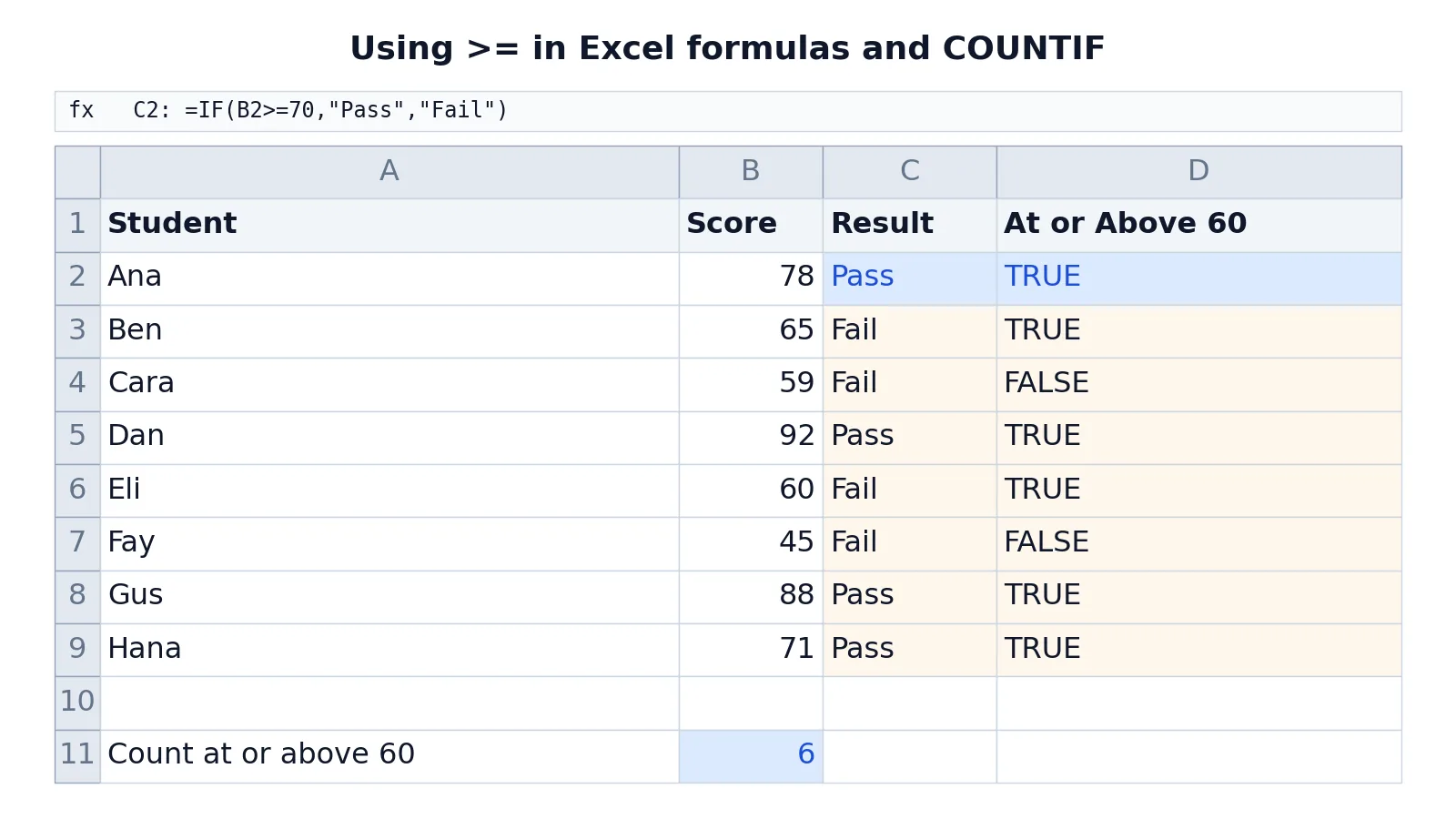
The table below tracks eight students and their scores. Column C uses >= inside IF to assign Pass or Fail at a threshold of 70. Column D uses >= directly to test a threshold of 60. Cell B11 counts how many scores reach 60.
| A | B | C | D | |
|---|---|---|---|---|
| 1 | Student | Score | Result | At or Above 60 |
| 2 | Ana | 78 | =IF(B2>=70,"Pass","Fail") -> Pass | =B2>=60 -> TRUE |
| 3 | Ben | 65 | =IF(B3>=70,"Pass","Fail") -> Fail | =B3>=60 -> TRUE |
| 4 | Cara | 59 | =IF(B4>=70,"Pass","Fail") -> Fail | =B4>=60 -> FALSE |
| 5 | Dan | 92 | =IF(B5>=70,"Pass","Fail") -> Pass | =B5>=60 -> TRUE |
| 6 | Eli | 60 | =IF(B6>=70,"Pass","Fail") -> Fail | =B6>=60 -> TRUE |
| 7 | Fay | 45 | =IF(B7>=70,"Pass","Fail") -> Fail | =B7>=60 -> FALSE |
| 8 | Gus | 88 | =IF(B8>=70,"Pass","Fail") -> Pass | =B8>=60 -> TRUE |
| 9 | Hana | 71 | =IF(B9>=70,"Pass","Fail") -> Pass | =B9>=60 -> TRUE |
| 11 | Count at or above 60 | =COUNTIF(B2:B9,">=60") -> 6 |
Three results are worth reading closely.
Cell C2 returns Pass because 78 is greater than or equal to 70. The threshold itself would also pass, which is the whole point of the "or equal to" part.
Cell D6 returns TRUE because Eli scored exactly 60. A plain > would have returned FALSE here. This is the single most common place where people pick the wrong operator.
Cell B11 returns 6 because six of the eight scores are 60 or higher. Ana, Ben, Dan, Eli, Gus and Hana all qualify. Cara at 59 and Fay at 45 do not.
The same logic works on dates. If A2 holds a due date, =A2>=DATE(2025,1,1) returns TRUE for anything on or after January 1, 2025.
Other Ways to Do It
Conditional formatting uses >= without any formula wrapper. Select your range, open the conditional formatting rules, choose the rule type that highlights cells meeting a condition, and enter the threshold. Excel writes the comparison for you. The rule highlights every cell at or above the value you set, and the boundary value is included.
The MATCH function accepts >= style logic through its match type argument, which is useful when you need the position of the first value that meets a threshold in a sorted list.
For a quick visual check without formulas, the MAX function tells you the highest value in a range, which pairs well with a >= test when you want to confirm your threshold is realistic.
If you work in both Excel and code, the Python comparison operators guide covers how >= behaves in Python, where the syntax is identical but the surrounding rules differ.
Troubleshooting
The formula shows as text instead of calculating. The cell is probably formatted as Text. Change the format to General and re-enter the formula.
You get TRUE when you expect FALSE. One side of the comparison is text, such as a number stored as text. Excel ranks every text value above every number, so ="5">=60 returns TRUE instead of an error. Check for stray spaces or numbers stored as text.
Excel will not accept the COUNTIF formula. The criteria is missing its quotes. Excel needs ">=60" as a text string, not >=60 as a bare expression.
The comparison gives the wrong answer for text. Text comparisons are alphabetical, not numeric. "10" sorts before "9" as text because "1" comes before "9" character by character.
Dates do not compare correctly. Confirm the cells are real dates and not text that looks like a date. Real dates are stored as numbers and compare cleanly.
Common Mistakes
- Using
>when you mean>=. A score of exactly 60 fails a>60test. Add the equals sign when the boundary value should pass. - Writing
=>instead of>=. Excel does not recognize=>as a comparison operator. The order matters. - Leaving a space between the two characters.
> =breaks the formula. Keep them adjacent. - Forgetting quotes in COUNTIF and SUMIF. The criteria must be a quoted string like
">=60"so Excel reads it as a condition. - Comparing numbers stored as text. A number formatted as text will not compare correctly against a real number. Convert it first.
- Mixing absolute and relative references carelessly. When you copy a
>=formula down a column, lock any fixed threshold cell with dollar signs if it should not shift.
Limitations
The >= operator returns only TRUE or FALSE [1]. It cannot tell you how far above or below a value sits, and it cannot rank or sort results by itself. If you need the size of the gap, subtract the two values in a separate cell.
Comparison operators also do not handle multiple conditions on their own. A single >= tests one relationship between two values. For two or more conditions you need functions like AND, OR or COUNTIFS, which combine several comparisons into one result.
Text comparisons can mislead. Because Excel compares text alphabetically and ignores case, ="apple">="Apple" returns TRUE, which surprises people expecting a case-sensitive test. If case matters, use the EXACT function instead.
Frequently Asked Questions
How do I type greater than or equal to in Excel?
Type >= as two adjacent characters, a greater-than sign then an equals sign. Put it between the two values you want to compare, as in =A1>=B1. Excel returns TRUE when the left value is larger or the two are equal, and FALSE otherwise.
What is the difference between > and >= in Excel?
The > operator returns TRUE only when the left value is strictly larger. The >= operator also returns TRUE when the two values are equal. If your threshold value should be included in the result, use >=.
Can I use >= in conditional formatting?
Yes. Conditional formatting rules accept >= as a cell value condition. Select the range, create a new rule based on a cell value, choose "greater than or equal to" from the comparison list, and enter your threshold. Every cell at or above that value gets the formatting.
Why does my COUNTIF with >= return zero?
COUNTIF expects the condition as a text string, so write =COUNTIF(A1:A10,">=50") with the quotes included. Without the quotes Excel rejects the formula outright, so a result of 0 usually means no cell meets the condition or the values are numbers stored as text.
Does >= work with dates and text in Excel?
Yes. Dates are stored as numbers, so >= compares them by date order. Text compares alphabetically and is not case sensitive, so "Beta" is treated as greater than "alpha" because of letter order, not capitalization.
References
Further Reading
- Broman KW, Woo KH (2018). Data Organization in Spreadsheets. The American Statistician
- Ziemann M, Eren Y, El-Osta A (2016). Gene name errors are widespread in the scientific literature. Genome Biology
- Microsoft Support: Excel help and learning
- McCullough B, Heiser DA (2008). On the accuracy of statistical procedures in Microsoft Excel 2007. Computational Statistics & Data Analysis
- Abeysooriya M, Soria M, Kasu MS et al. (2021). Gene name errors: Lessons not learned. PLOS Computational Biology