Excel PMT Function: Formula, Arguments and Examples
By Dr. Zubair Khalid, DVM, MS, PhD ·
The Excel PMT function calculates the payment for a loan based on constant payments and a constant interest rate [1]. You give it a rate, a number of periods, and a present value, and it returns the payment amount. This article explains every argument and shows the pmt excel formula in action on a real loan.
Quick Answer
- PMT returns the constant periodic payment for a loan or annuity with a fixed interest rate [1].
- The syntax is
=PMT(rate, nper, pv, [fv], [type]). Only the first three arguments are required [1]. - Rate and nper must use the same time unit. For monthly payments on a 6% annual loan, use
6%/12andyears*12[1]. - The result includes principal and interest but no taxes, reserve payments, or fees [1].
- Money you pay out comes back as a negative number, so enter the loan amount as a negative pv or wrap the formula in
-to flip the sign.
Syntax
The PMT function syntax has the following arguments [1]:
| Argument | Required? | Meaning |
|---|---|---|
| rate | Required | The interest rate for the loan, per period [1] |
| nper | Required | The total number of payments for the loan [1] |
| pv | Required | The present value, or the total amount that a series of future payments is worth now, also known as the principal [1] |
| fv | Optional | The future value, or a cash balance you want to attain after the last payment is made. If omitted, it is assumed to be 0 [1] |
| type | Optional | The number 0 or 1, indicating when payments are due [1] |
The full formula looks like this:
$$PMT = \frac{rate \cdot pv}{1 - (1 + rate)^{-nper}}$$
That expression assumes fv is 0 and payments are due at the end of each period. Excel handles the general case internally, including the fv and type arguments.
How It Works
PMT solves for the payment that pays off a present value over a fixed number of periods at a fixed rate. Each payment covers the interest that accrued during the period plus a slice of principal. Because the balance shrinks over time, the interest portion shrinks too, and the principal portion grows. The payment itself stays the same.
The unit consistency rule matters more than anything else here. If you make monthly payments on a four-year loan at an annual interest rate of 12 percent, use 12%/12 for rate and 4*12 for nper. If you make annual payments on the same loan, use 12 percent for rate and 4 for nper [1].
Signs follow cash flow direction. A loan you receive is money coming in, so pv is positive from your view and negative from the lender's. If you enter the loan amount as a positive number, PMT returns a negative payment. Enter -B1 as pv, or put a minus sign in front of the whole formula, to see the payment as a positive number.
The type argument controls timing. Use 0 or omit it for payments due at the end of each period. Use 1 for payments due at the start, which is typical for leases and some annuities.
Worked Example
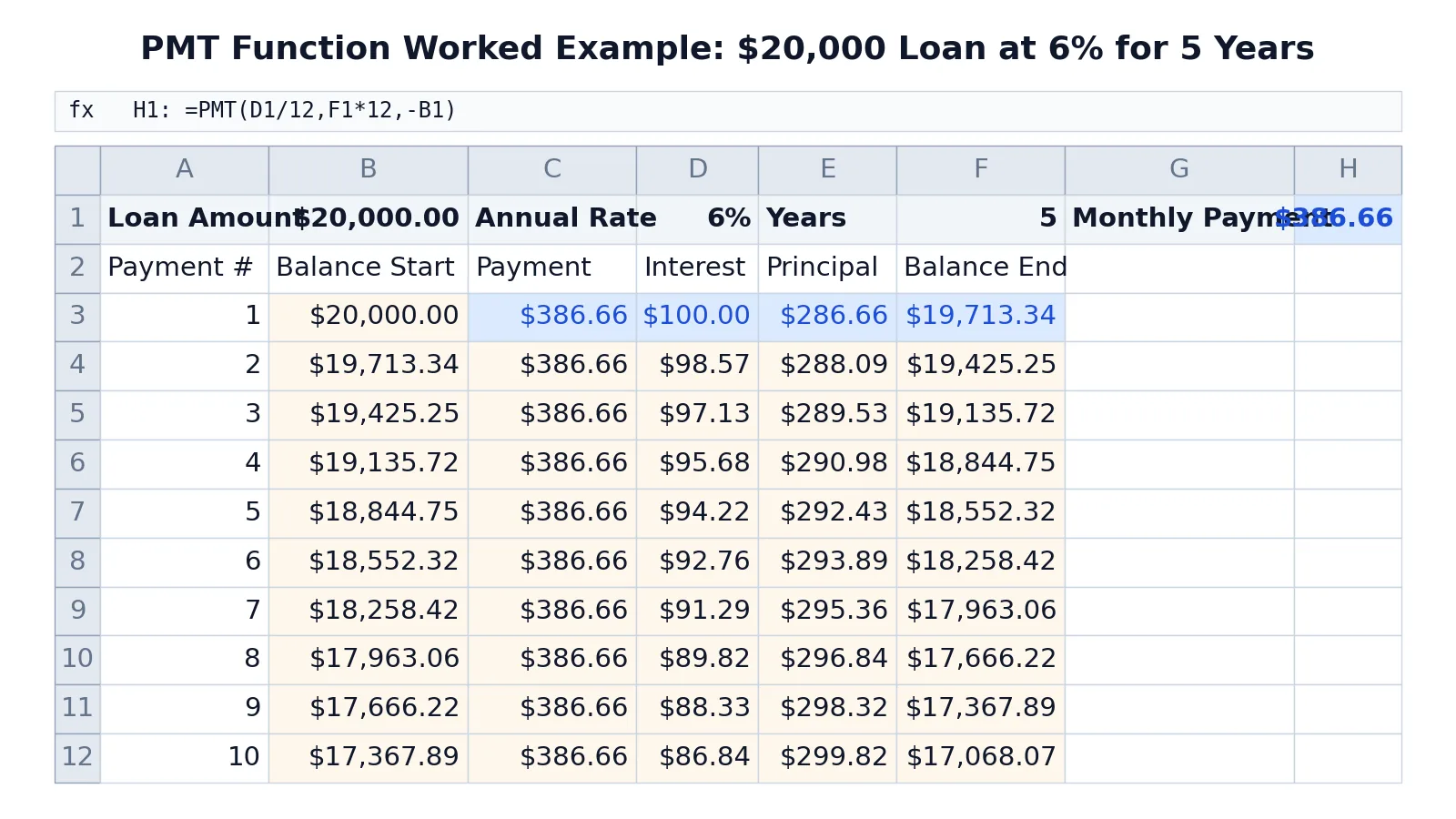
The sheet below models a $20,000 loan at a 6% annual rate over 5 years, with a monthly amortization table for the first ten payments.
| A | B | C | D | E | F | G | H | |
|---|---|---|---|---|---|---|---|---|
| 1 | Loan Amount | 20000 | Annual Rate | 0.06 | Years | 5 | Monthly Payment | =PMT(D1/12,F1*12,-B1) -> displays $386.66 |
| 2 | Payment # | Balance Start | Payment | Interest | Principal | Balance End | ||
| 3 | 1 | =B1 -> displays $20,000.00 | =$H$1 -> displays $386.66 | =B3*$D$1/12 -> displays $100.00 | =C3-D3 -> displays $286.66 | =B3-E3 -> displays $19,713.34 | ||
| 4 | 2 | =F3 -> displays $19,713.34 | =$H$1 -> displays $386.66 | =B4*$D$1/12 -> displays $98.57 | =C4-D4 -> displays $288.09 | =B4-E4 -> displays $19,425.25 | ||
| 5 | 3 | =F4 -> displays $19,425.25 | =$H$1 -> displays $386.66 | =B5*$D$1/12 -> displays $97.13 | =C5-D5 -> displays $289.53 | =B5-E5 -> displays $19,135.72 | ||
| 6 | 4 | =F5 -> displays $19,135.72 | =$H$1 -> displays $386.66 | =B6*$D$1/12 -> displays $95.68 | =C6-D6 -> displays $290.98 | =B6-E6 -> displays $18,844.75 | ||
| 7 | 5 | =F6 -> displays $18,844.75 | =$H$1 -> displays $386.66 | =B7*$D$1/12 -> displays $94.22 | =C7-D7 -> displays $292.43 | =B7-E7 -> displays $18,552.32 | ||
| 8 | 6 | =F7 -> displays $18,552.32 | =$H$1 -> displays $386.66 | =B8*$D$1/12 -> displays $92.76 | =C8-D8 -> displays $293.89 | =B8-E8 -> displays $18,258.42 | ||
| 9 | 7 | =F8 -> displays $18,258.42 | =$H$1 -> displays $386.66 | =B9*$D$1/12 -> displays $91.29 | =C9-D9 -> displays $295.36 | =B9-E9 -> displays $17,963.06 | ||
| 10 | 8 | =F9 -> displays $17,963.06 | =$H$1 -> displays $386.66 | =B10*$D$1/12 -> displays $89.82 | =C10-D10 -> displays $296.84 | =B10-E10 -> displays $17,666.22 | ||
| 11 | 9 | =F10 -> displays $17,666.22 | =$H$1 -> displays $386.66 | =B11*$D$1/12 -> displays $88.33 | =C11-D11 -> displays $298.32 | =B11-E11 -> displays $17,367.89 | ||
| 12 | 10 | =F11 -> displays $17,367.89 | =$H$1 -> displays $386.66 | =B12*$D$1/12 -> displays $86.84 | =C12-D12 -> displays $299.82 | =B12-E12 -> displays $17,068.07 |
The PMT result in H1 is $386.66. The first payment splits into $100.00 of interest and $286.66 of principal, leaving a balance of $19,713.34. By the tenth payment, interest has fallen to $86.84 and principal has risen to $299.82. That shift is the whole point of an amortization schedule, and it is why the total interest you pay (about $3,199) is far less than the first month's interest times the number of payments ($6,000).
To find the total amount paid over the duration of the loan, multiply the returned PMT value by nper [1]. Here that is $386.66 times 60, or $23,199.60, against a $20,000 principal.
More Examples
Annual payments instead of monthly. For the same $20,000 loan at 6% over 5 years with one payment per year, use =PMT(0.06,5,-20000). The rate stays annual and nper counts years, so the units match.
Payments due at the start of each period. Add the type argument: =PMT(0.06/12,5*12,-20000,0,1). The payment is slightly lower because each payment reduces the balance one period earlier.
A savings goal with a future value. If you want a balance of $10,000 after 5 years while saving monthly at 4%, use =PMT(0.04/12,5*12,0,10000). Here pv is 0 and fv carries the target. The result is negative because it represents money you deposit.
Working backward from a target payment. Microsoft's own example starts with a $19,000 car at a 2.9% interest rate over three years and a target payment of $350 per month, then uses the PV function to find the loan amount and subtract it from the purchase price. The down payment required would be $6,946.48 [2]. PMT and PV are two sides of the same calculation, and the PV function documentation notes that the monthly payments on a $10,000, four-year car loan at 12 percent are $263.33 [2].
Combining PMT with other functions. Once you have the payment, you can build a full schedule with basic arithmetic, or use functions like SUM to total the interest column. If you need to round the payment to cents before feeding it into a schedule, ROUND keeps the table internally consistent. For a broader set of building blocks, see the Excel formulas cheat sheet.
Errors and How to Fix Them
#NUM! appears when the calculation has no real solution, often because rate or nper is set up in a way that breaks the math. Check that nper is greater than zero and that rate is not a value that makes the denominator collapse.
#VALUE! appears when an argument is text instead of a number. Check for cells formatted as text, stray spaces, or a percent sign typed into a cell that should hold a decimal.
A payment that is wildly wrong almost always means mismatched units. If you pass an annual rate with a monthly nper, the payment will be far too large. Divide the annual rate by 12 and multiply the years by 12 [1].
A payment with the wrong sign means the cash flow direction is reversed. Enter pv as a negative number to get a positive payment, or the other way around.
Common Mistakes
- Mixing annual and monthly units. Fix it by dividing rate by 12 and multiplying nper by 12 for monthly payments [1].
- Forgetting the sign on pv. A positive pv returns a negative payment. Enter
-pvor negate the whole formula. - Typing 6 instead of 0.06 or 6%. Excel reads 6 as 600%. Enter the rate as a decimal or with a percent sign.
- Assuming the payment covers everything. The payment returned by PMT includes principal and interest but no taxes, reserve payments, or fees sometimes associated with loans [1].
- Using PMT for a variable-rate loan. PMT assumes a constant interest rate, so it cannot model a rate that changes over the term.
- Confusing type 0 and type 1. Type 0 pays at period end, type 1 at period start. Picking the wrong one shifts every payment slightly.
Limitations
PMT assumes a constant interest rate and constant payments for the entire term [1]. Real loans often have variable rates, introductory periods, or balloon payments, and PMT cannot represent any of those without splitting the loan into separate segments and running PMT on each one.
The function also ignores everything outside principal and interest. Taxes, insurance escrows, origination fees, and prepayment penalties are not part of the result [1]. If you are comparing loan offers, add those costs separately or the comparison will mislead you. PMT also gives no information about the balance at any point in the term, so you need a full amortization table to see how the loan pays down.
Frequently Asked Questions
What does the PMT function do in Excel?
PMT calculates the payment for a loan based on constant payments and a constant interest rate [1]. It returns one number, the periodic payment, which you can then use to build an amortization schedule or compare loan options.
Why does my PMT result come back negative?
Excel treats money paid out as negative and money received as positive. A loan amount entered as a positive pv produces a negative payment. Enter the loan as a negative number, or put a minus sign in front of the formula, to display the payment as positive.
What is the difference between type 0 and type 1 in PMT?
Type 0 means payments are due at the end of each period. Type 1 means payments are due at the beginning. Type 1 produces a slightly smaller payment because each payment reduces the balance one period sooner.
How do I calculate a monthly payment from an annual interest rate?
Divide the annual rate by 12 for the rate argument and multiply the number of years by 12 for nper. For a 6% annual rate over 5 years, use =PMT(0.06/12,5*12,-20000) [1].
Can PMT handle a loan with a balloon payment?
Yes, through the fv argument. Set fv to the balloon amount you still owe after the last payment. If fv is omitted, it is assumed to be 0, which means the loan is fully paid off [1].
References
Further Reading
- Using Excel formulas to figure out payments and savings | Microsoft Support
- Broman KW, Woo KH (2018). Data Organization in Spreadsheets. The American Statistician
- Ziemann M, Eren Y, El-Osta A (2016). Gene name errors are widespread in the scientific literature. Genome Biology
- Microsoft Support: Excel help and learning