How to Fix Common R Installation Errors on Windows for Bioinformatics
By Dr. Zubair Khalid, DVM, MS, PhD ·

The single most common R installation error on Windows for bioinformatics work is a package build failure caused by missing or mismatched Rtools. The pattern looks like this. You run install.packages("limma") or another analysis package, R prints a wall of compiler output, and the install ends with something like ERROR: compilation failed for package. R itself installed fine. What is missing is the compiler toolchain that R needs to build the parts of packages written in C, C++, or Fortran.
The first thing to check, before touching anything else, is whether R and your build tools agree about versions. Open R or RStudio and run two commands:
R.version.string
pkgbuild::has_rtools()
If R.version.string reports R 4.4.1 and pkgbuild::has_rtools() returns FALSE, or returns a result that names a different Rtools generation, you have found the fault. The fix and the rest of the diagnostic sequence are laid out below. This article covers the causes behind every frequent R installation error on Windows for bioinformatics, ordered from most to least common, with the mechanism behind each failure and a fix you can apply in minutes.
Why R and Bioconductor sit at the center of bioinformatics on Windows
R is a statistical programming language that has become the standard environment for transcriptomic data analysis. Bioconductor, a collection of open source and open development packages for R, supplies the tools bioinformaticians use for microarray and sequencing workflows, including quality control, background correction, normalization, and summarization of probe level data, followed by differential expression testing and gene coexpression network construction [1]. Published protocols describe exactly this pipeline, using Bioconductor inside R to dissect publicly available microarray datasets step by step [1].
That workflow has a practical consequence for installation. The packages that matter most in bioinformatics, such as the preprocessing and network analysis tools described in those protocols, often contain compiled code. Compiled code is why a Windows install of R behaves differently from a bare statistical install and why Rtools, the Windows compiler bundle, matters so much. Most of the errors in this article trace back to that one structural fact.
What actually gets installed on Windows, and why each piece can fail
A working Windows bioinformatics setup has four layers. Understanding them makes every error message in this article easier to interpret.
- R itself. The interpreter, installed from CRAN (Comprehensive R Archive Network), the official repository for R and its packages. The installer places it by default in
C:\Program Files\R\R-4.x.x. - Rtools. A separate installer from CRAN that bundles the MinGW-w64 compiler toolchain, make, and other build utilities. R does not include these. Without the correct Rtools version, R can only install precompiled binary packages.
- RStudio or another front end. A desktop application that calls the R executable. RStudio is not R, and it can fail to find or hold the wrong R even when R itself is fine.
- Package libraries. Directories on disk where packages live. R checks
.libPaths()to find them. A package install can succeed and still be invisible if it landed in a library path you are not using.
Bioconductor packages install through the BiocManager package, which itself comes from CRAN. Bioconductor releases are pinned to specific R versions, which introduces a version-matching constraint that plain CRAN packages do not have.
The five-minute diagnostic sequence
Run these steps in order. Most readers find their fault by step 4.
- Confirm R launches. Open RGui or RStudio. If neither launches, skip to the installer and front-end fixes below.
- Record the exact R version.
R.version.string- Check where packages will go.
.libPaths()Note whether the first entry points to a OneDrive-synced folder, a path with accented characters, or C:/Program Files.
- Check the build toolchain.
pkgbuild::has_rtools()
Sys.getenv("RTOOLS44_HOME")
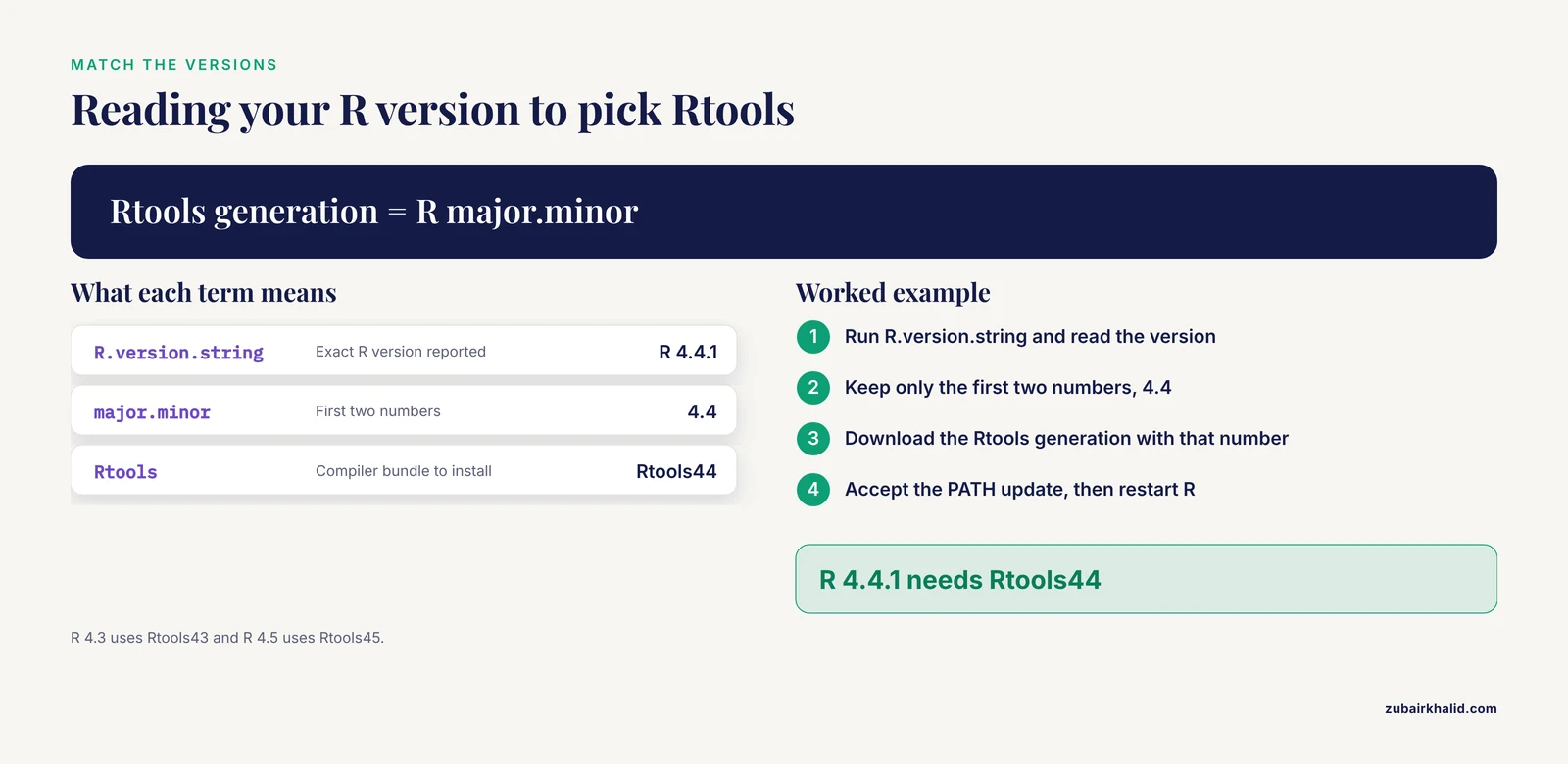
If you run R 4.3, check RTOOLS43_HOME instead. The Rtools generation must match the first two components of your R version.
- Test a CRAN install that ships as a precompiled Windows binary.
install.packages("jsonlite")
library(jsonlite)- Test a Bioconductor install.
if (!requireNamespace("BiocManager", quietly = TRUE))
    install.packages("BiocManager")
BiocManager::install("limma")
Wherever this sequence stalls, find the matching symptom in the table below.
Troubleshooting table
| Symptom | Likely cause | How to confirm | Fix |
|---|---|---|---|
| Installer closes at once or the wizard never appears | Corrupted download or blocked executable | Compare file size with the CRAN listing, check antivirus quarantine | Re-download, run the installer as administrator |
| Installer says R is running, or refuses to overwrite | An Rgui, RStudio, or Rterm process holds the install directory | Close every R window, check Task Manager for Rgui.exe, rsession.exe, Rterm.exe | End the processes, then rerun the installer |
Package install shows compile output and fails with make not found or sh.exe was not found | Rtools missing | pkgbuild::has_rtools() returns FALSE | Install the Rtools version matching your R version |
| Compilation fails after Rtools is installed | Rtools and R version mismatch, or PATH not updated | Sys.getenv("RTOOLS44_HOME") is empty, or versions differ | Install the matching Rtools and rerun its PATH update step |
ERROR: dependency 'X' is not available | A prerequisite package failed or is absent | Read the first error in the log, not the last | Install the named dependency first, or force binary install |
package 'X' is not available for this version of R | Package requires a newer R or was archived | R.version.string, search CRAN archive | Upgrade R, or install an archived source version |
| Bioconductor warning that the Bioc version cannot be used with your R | R is too old for the current Bioconductor release | BiocManager::version() | Upgrade R, or let BiocManager pick the matching older Bioc release |
LoadLibrary failure: %1 is not a valid Win32 application | 32-bit R trying to load a 64-bit DLL, or a corrupted binary | Check whether you launched 32-bit R | Use the 64-bit R executable, reinstall the package |
cannot open file ... Permission denied during install | Library path in a protected folder, usually Program Files | Inspect .libPaths() | Use a user library, or run R as administrator once to create it |
unable to access index for repository or SSL errors | Proxy, firewall, or stale mirror | Try the default CRAN mirror directly | Set a reachable mirror and proxy environment variables |
| RStudio console is blank or shows an old R | RStudio points at the wrong or missing R executable | Help menu, About, or Tools, Global Options | Point RStudio at the correct R-4.x.x folder, reinstall RStudio if the option is grayed out |
Installs hang or vanish in Documents or OneDrive folders | Library redirected to a synced folder | Inspect .libPaths() | Set an explicit local library path |
| Non-ASCII character errors in paths or package names | Windows username contains accents or symbols | Check C:\Users\<name> | Install R and libraries to a plain ASCII path |
Fixes in detail, from most to least common
Fix 1, Rtools is missing or the wrong version
This is the dominant r installation error windows bioinformatics users hit. The mechanism is simple. Many Bioconductor and CRAN packages ship C or C++ source that must be compiled on your machine. On Linux and macOS a compiler is usually present. On Windows it never is. Rtools supplies it.
The failure looks dramatic, a long scroll of compiler warnings ending in non-zero exit status, but the trigger is usually one line near the top: make not found, sh.exe was not found in your PATH, or ERROR: cannot run make.
To fix it:
- Read your exact version with
R.version.string. - Download the matching Rtools from CRAN. R 4.4 and 4.5 use Rtools44 and Rtools45 respectively, R 4.3 uses Rtools43. If your R minor version does not match any Rtools listing on the CRAN Rtools page, your R is either very old or a development build, and upgrading R is the cleaner path.
- Run the Rtools installer. When it offers to update the system PATH, accept. This is the step most people skip.
- Restart R completely. Environment variables are read once at launch.
- Verify:
pkgbuild::has_rtools()A caution on this step. Editing the system PATH by hand can break other software if you delete existing entries. Always use the Rtools installer's own PATH option rather than typing entries manually, and never remove existing values when appending.
One subtlety deserves mention. Older setups recommended adding Rtools to the PATH ahead of Git's bundled Unix tools, because sh.exe from Git can shadow the Rtools shell and break builds. If you have Git for Windows on the PATH and builds still fail, this conflict is the reason. Renaming or reordering resolves it.
Fix 2, dependencies fail and the log lies about the real error
The message ERROR: dependency 'DESeq2' is not available rarely describes the real problem. The real problem is whatever happened when the dependency itself was installed earlier, possibly weeks ago. R installs packages in a chain, and a single failure anywhere upstream propagates forward.
The fix is to stop reading the last lines of the install log. Read the first error. Then install the named dependency on its own:
install.packages("Matrix")If that single install succeeds, retry the original. If it fails, you have isolated the true fault, and it will almost always be one of the other items in this article.
For Bioconductor, BiocManager::install() resolves dependencies automatically, which is one reason the protocols that use Bioconductor for microarray preprocessing and differential expression emphasize installing through BiocManager rather than by hand [1].
Fix 3, package not available for this version of R
package 'X' is not available (as a binary of R 4.x) has two distinct mechanisms.
First, the package may genuinely require a newer R. CRAN packages declare minimum R versions, and Bioconductor releases are tightly coupled to R versions. Second, the package may have been archived, removed at the maintainer's request, or never released for Windows as a binary.
Confirm with:
R.version.string
available.packages("https://cran.r-project.org/src/contrib")["limma", "Depends"]
If the package requires a newer R, the durable fix is to upgrade R and then reinstall your library. Installing a random old source tarball from an archive to dodge the version requirement creates a fragile setup that breaks again at the next update, which matters when reproducibility of an analysis pipeline is the goal.
Fix 4, Bioconductor version mismatch warnings
Bioconductor publishes two simultaneous release tracks, a stable release and a development branch, and each stable release supports a defined window of R versions. When R and Bioconductor drift apart, BiocManager::install() prints a warning and can behave unpredictably.
Diagnose with:
BiocManager::version()
BiocManager::valid()
valid() reports whether your installed packages match the current Bioconductor version. The fix is either to upgrade R to the version the current Bioconductor release expects, or to pin the older Bioconductor release that matches your R by passing its version to BiocManager::install(). For routine analysis, match the current release rather than pinning, because published Bioconductor protocols are written against current releases [1].
Fix 5, LoadLibrary failure and 32-bit versus 64-bit problems
The error LoadLibrary failure: %1 is not a valid Win32 application means Windows was asked to load a DLL built for the wrong CPU architecture. R for Windows ships both 32-bit and 64-bit executables in older distributions, and it remains possible to launch the 32-bit one from a shortcut. A 64-bit package DLL cannot load into 32-bit R.
The fix is to always launch the 64-bit executable, Rgui.exe in the bin\x64 folder, and to confirm RStudio is configured for the 64-bit R. If you see this error in a fresh 64-bit session, the package binary itself may be corrupted by a partial download. Delete the package folder from your library directory and reinstall.
Fix 6, permission denied and Program Files
Writing to C:\Program Files\R\R-4.x.x\library requires administrator rights. R installs into a user library automatically for exactly this reason, usually under AppData\Local\R\win-library\4.x. Problems appear when that user library was never created, when a corporate policy blocks it, or when an install attempt targets the system library directly.
Confirm the situation:
.libPaths()The fix is to create and register a user library in a location you own:
dir.create("C:/R/library", recursive = TRUE)
.libPaths(c("C:/R/library", .libPaths()))
To make the change permanent, add the same .libPaths() line to your Rprofile.site file, located in the etc folder of your R installation, or set the R_LIBS_USER environment variable in Windows. A caution here. Running R permanently as administrator to dodge this error works but is poor practice, because every package you install then inherits elevated rights and can interfere with the system library.
Fix 7, paths with spaces, OneDrive redirection, and non-ASCII usernames
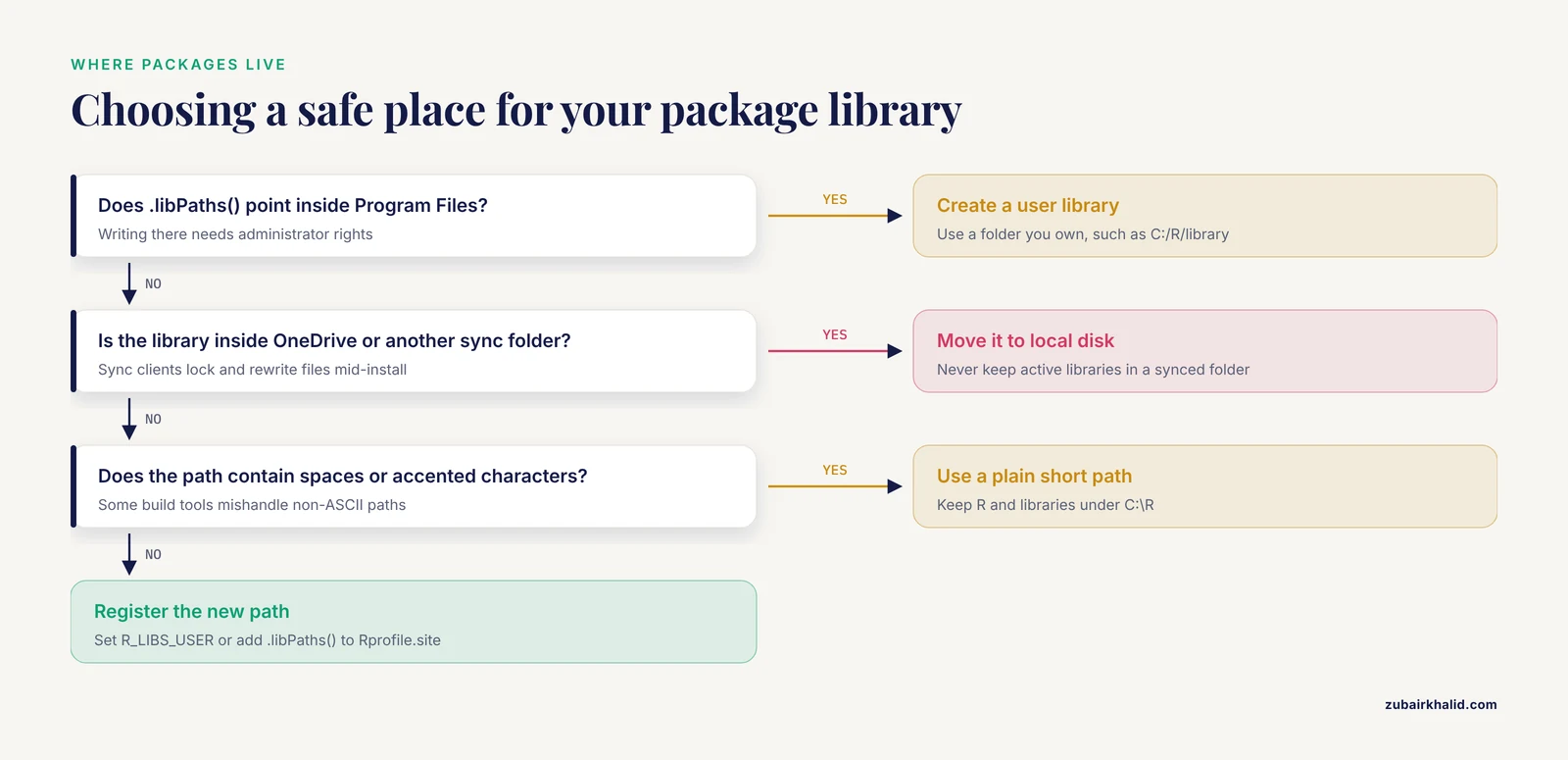
Windows routinely redirects Documents to a OneDrive-synced folder, and older R versions placed user package libraries under Documents\R\win-library. Sync clients then lock, rename, or partially download files while R is writing, producing install failures that look random and never reproduce on a second machine. A Windows username containing accented characters or symbols causes a related class of failures, because some build tools mishandle non-ASCII paths.
The fix in both cases is the same. Move the package library to a short, plain, local path such as C:\R\library, set it through R_LIBS_USER or .libPaths(), and keep R itself in a simple folder such as C:\R\R-4.x.x rather than a path containing spaces or non-ASCII characters. Never place active package libraries inside a OneDrive, Dropbox, or Google Drive folder.
Fix 8, proxy, firewall, and SSL download failures
Corporate networks and some university VPNs intercept HTTPS traffic. R then reports unable to access index for repository or certificate errors during install.packages(). The mechanism is that R cannot reach or trust the mirror.
The fix depends on the network. On an ordinary home connection, simply switching mirrors resolves it:
chooseCRANmirror()Behind a proxy, set the proxy before installing:
Sys.setenv(http_proxy = "http://proxy.example.com:8080")
Sys.setenv(https_proxy = "http://proxy.example.com:8080")
To persist these across sessions, put the same lines, in the standard NAME=value form, into Renviron.site inside the etc folder of your R installation. Ask your network administrator for the correct proxy address rather than guessing, because a wrong proxy value produces the same error with a different cause.
Fix 9, RStudio cannot find R or launches the wrong version
RStudio is a front end, and it remembers which R executable to launch. After an R upgrade, RStudio may keep pointing at the old folder, which produces a console that reports an ancient version, packages that seem to vanish, or a blank console if the old folder was deleted.
The fix is in RStudio. Open Tools, then Global Options, then R General, and select the R version you want. If the field is locked or RStudio cannot start at all, reinstalling RStudio after R usually clears the stale setting. During RStudio's own install, keep the default option to preserve your settings.
Fix 10, antivirus and Controlled Folder Access
Windows Defender's Controlled Folder Access blocks untrusted applications from writing to protected folders, which include Documents. R package installs then fail with permission errors even though your account owns the folder. Third-party antivirus suites cause parallel failures by quarantining installer executables or delaying file writes until the install times out.
Confirm by checking the antivirus quarantine and the Windows Security protection history for blocked entries naming Rgui.exe, Rterm.exe, or msys components. The fix is to add R and Rtools directories to the antivirus exclusion list, or to move the package library outside protected folders as described in Fix 7. A caution here. Add exclusions narrowly, for the R and Rtools folders only, rather than disabling protection wholesale.
A working end-to-end Bioconductor install on Windows
The sequence below produces a complete, working environment for the microarray analysis workflow that published Bioconductor protocols describe, from data import through quality control, background correction, normalization, probe summarization, differential expression testing, and coexpression network construction [1].
- Install the current 64-bit R from CRAN to a simple path such as
C:\R\R-4.x.x. - Install the Rtools generation matching your R version, accepting the PATH update.
- Restart Windows. This guarantees every environment variable is read fresh.
- Install BiocManager from CRAN:
install.packages("BiocManager")- Install the Bioconductor packages your analysis needs:
BiocManager::install(c("limma", "affy", "WGCNA"))BiocManager chooses the release matching your R version and resolves dependencies in the correct order [1].
- Verify the environment:
BiocManager::version()
BiocManager::valid()
library(limma)- Run a real task to confirm the compiled code loads:
sessionInfo()If all six steps complete without error, the environment is ready for the quality control, normalization, and differential expression protocols that Bioconductor supports [1]. Keep the sessionInfo() output with every analysis you publish, because it records the exact package versions used, which is the foundation of reproducible transcriptomic work.
Common Mistakes and Limitations
These are the errors seen repeatedly in real support threads, stated plainly.
- Reinstalling R over and over. R is rarely the fault. Reinstalling R without fixing Rtools or the library path reproduces the same error, because the mechanism was never in the interpreter.
- Installing Rtools but not restarting R. Environment variables on Windows are read at process launch. Rtools installed correctly still appears missing until every R process, including RStudio, is closed and reopened.
- Reading the last line of the install log. R prints errors in sequence, and the final
non-zero exit statusline is a summary, not a diagnosis. The first error in the log names the real cause. - Mixing library directories across R versions. Packages compiled under R 4.3 live in a
4.3library and are not guaranteed to load under R 4.4. Copying the old library folder forward is the most common cause of intermittentDLLerrors after an upgrade. Reinstall instead. - Keeping the package library in a synced folder. OneDrive and similar clients rewrite files asynchronously and corrupt in-progress installs. Active libraries belong on a local disk.
- Assuming RStudio is R. Upgrading RStudio does not upgrade R, and installing R does not install RStudio. Confusing the two wastes time on fixes aimed at the wrong layer.
- Pinning old package versions to dodge errors. An archived package version installed by hand may load today and fail with the next dependency update. Prefer upgrading R and reinstalling current releases.
- A limitation of this article. Version numbers, file paths, and exact error strings shift between R, Rtools, and Bioconductor releases. The mechanisms described here are stable, but always confirm the currently recommended Rtools and Bioconductor versions on their official CRAN and Bioconductor pages for the R version you are running.
Prevention practices
A few habits prevent nearly every error in this article from recurring.
- Match versions deliberately. Check the R version and the corresponding Rtools generation on CRAN before any install. Upgrade R and Rtools together, never one alone.
- Keep R and libraries off protected and synced paths. A custom location such as
C:\Rfor the program andC:\R\libraryfor packages eliminates the permission, OneDrive, and non-ASCII path classes of failure at once. - Record your setup. Save the output of
sessionInfo()after every successful install. When an analysis needs to be reproduced months later, this record tells you exactly which R, Bioconductor, and package versions were used [1]. - Install through the official channels. CRAN for R, Rtools, and CRAN packages. BiocManager for Bioconductor. Third-party mirrors and copied DLLs introduce failures this article cannot diagnose.
- Restart after installers run. Any installer that modifies the PATH, including Rtools, is followed by a full restart of R and ideally of Windows.
- Update the whole stack at once, on your schedule. Pick a low-stakes week, upgrade R, Rtools, RStudio, and reinstall your libraries, and verify with
BiocManager::valid(). This converts unpredictable mid-project failures into a planned maintenance task.
Frequently Asked Questions
Do I need Rtools if I only use Bioconductor packages?
Usually yes. Many Bioconductor packages include compiled C or C++ code that must be built on your machine, and some are not published as prebuilt Windows binaries for every release. Install the Rtools generation that matches your R version before installing Bioconductor packages.
Why did my packages disappear after I upgraded R?
R uses a separate package library for each minor version, so R 4.4 does not read libraries installed under R 4.3. Run .libPaths() to confirm, then reinstall your packages under the new version with BiocManager or install.packages rather than copying the old folder.
Should I install R in Program Files or somewhere else?
Either works if you install and update packages in a user library you own. A custom path such as C:\R avoids permission prompts, path spaces, OneDrive redirection, and non-ASCII username problems in one move.
Can I use RStudio without installing R first?
No. RStudio is a front end that drives an R executable, and it cannot run without R installed. Install R first, then RStudio, and point RStudio at the new R under Tools, Global Options if it does not find it automatically.
How do I know which Rtools version I need?
Match the first two numbers of your R version to the Rtools generation listed on the CRAN Rtools page. R 4.4 uses Rtools44, for example. Run R.version.string in R to see your exact version, then download the matching Rtools installer.
Why does BiocManager warn that its version cannot be used with my R?
Each Bioconductor release supports a specific range of R versions, and your R is outside the supported range for the release BiocManager selected. Upgrade R to the version the current Bioconductor release expects, or explicitly install the older Bioconductor release that matches your R.
Is a 32-bit versus 64-bit mismatch still a real problem?
Yes, less often than before but still real. The signature error is LoadLibrary failure: %1 is not a valid Win32 application. Always launch the 64-bit R executable and keep every package install in 64-bit sessions so the DLL architectures match.
How do I move my package library to another drive?
Create the folder with dir.create("C:/R/library", recursive = TRUE), add it to the front of the search path with .libPaths(), and make the change permanent by setting the R_LIBS_USER environment variable in Windows or the corresponding line in your Rprofile.site file. Then reinstall your packages into the new location.