Common Git Pitfalls in JupyterLab and How to Fix Them
By Dr. Zubair Khalid, DVM, MS, PhD ·
The most common cause of jupyterlab git problems is an environment mismatch. The Git sidebar in JupyterLab is a graphical front end (the jupyterlab-git extension) that drives the standard git command line running inside the environment where the Jupyter server was started. If that environment lacks the extension, lacks the git executable, or points at a different directory than you expect, every Git operation fails in ways that look mysterious but have mechanical causes. The first thing to check takes thirty seconds: open a terminal in JupyterLab (Launcher, then Terminal) and run git, version. If that prints a version, Git itself is available and your problem is configuration. If it prints "command not found", the environment running the server has no Git binary, and almost every other symptom you are seeing traces back to that one fact.
This article covers the causes behind the failures scientists hit most often, the mechanism behind each one, and the fix. It is written for researchers using Git through JupyterLab on a laptop, a lab server, or a hosted JupyterHub, and it assumes GitHub as the remote host, though the same fixes apply to GitLab and Bitbucket.
How JupyterLab Talks to Git
Understanding the plumbing prevents most confusion later. The jupyterlab-git extension is a JupyterLab plugin that renders the Git panel, the diff viewer, and the commit interface in the left sidebar and main area. When you click "Stage" or "Commit", the extension sends a request to the Jupyter server, which executes real git commands as subprocesses. The jupyterlab-git project documents that it depends on a working Git installation and passes operations through to it.
Three consequences follow from this design, and they explain most jupyterlab git problems:
- The Git panel uses the server environment, not the notebook kernel environment. Installing Git into a conda environment that you only use as a kernel does nothing for the Git panel if the server itself was launched from a different environment.
- The panel operates on the directory the Jupyter server session has open. If your session root is your home directory and your repository lives two levels down, the panel may show nothing or operate on the wrong repository.
- Every classic Git behavior still applies underneath. Detached HEAD states, rejected pushes, merge conflicts, and stale lock files are Git behaviors, not JupyterLab bugs. The panel simply surfaces them, sometimes with less explanatory text than the command line gives.
Because the front end and the command line share the same underlying repository, the fastest general diagnostic is always the same: open the built-in terminal, cd into the repository, and run git status. The error text you get there is far more informative than anything the panel shows, and it tells you which section of this article applies.
Troubleshooting Table
The table below is the core of this guide. Work from your symptom down to the mechanism and the fix. Each row is expanded into a full section afterward.
| Symptom | Likely cause | How to confirm | Fix |
|---|---|---|---|
| , - | , - | , - | , - |
| Git tab missing from the left sidebar | jupyterlab-git not installed in the server environment | jupyter labextension list shows no jupyterlab-git entry | pip install jupyterlab-git, restart JupyterLab |
| "git: command not found" in terminal | Git binary absent from the server environment | which git returns nothing | conda install git or your system package manager, in the server environment |
| Panel shows no repository | Session directory is outside the repo | git status says "not a git repository" | Open the repo folder in JupyterLab, or cd into it before using Git |
| Push rejected, "non-fast-forward" | Remote has commits you lack | git status reports your branch is behind | git pull, resolve, then push |
| Authentication failed on push | Password authentication no longer accepted for HTTPS | Push prompts for a password, then fails | Use a personal access token or SSH keys |
| Merge conflict text inside a notebook | Two branches edited the same notebook | git status lists the file as "both modified" | Resolve with nbdime, clear outputs, commit |
| Push fails and mentions file size | A file exceeds the hosting limit | Remote error names the oversized file | Remove it from history, keep large data out of Git |
| Diffs are walls of random numbers | Notebook outputs and metadata stored in JSON | git diff shows long arrays of floats | Strip outputs before committing (nbstripout or manual clear) |
.ipynb_checkpoints/ appears in changes | Jupyter checkpoint folders not ignored | git status lists the folder as untracked | Add it to .gitignore |
| "index.lock" error on any Git operation | A crashed Git process left a lock file | .git/index.lock exists while no Git process runs | Confirm nothing is running, then delete the lock file |
| "HEAD detached" warning in the panel | You checked out a commit or tag, not a branch | git status says HEAD detached | git switch -c newbranch or git switch main |
| Credential prompts loop forever | No credential helper configured on a remote server | Push prompts for username and password repeatedly | Configure a credential helper or switch to SSH |
Pitfall 1: Missing Extension or Missing Git Binary
This is the most frequent starting point, and the fix order matters. Two separate components must exist in the same environment:
- The Jupyter server environment needs the jupyterlab-git Python package, which registers the frontend extension.
- The same environment (or the system path visible to it) needs the git executable, because the extension shells out to it.
To check both, run these commands in a JupyterLab terminal, in the environment from which the server was launched:
git --version
jupyter labextension list
jupyter server extension list
If git, version fails, install Git into that environment. On a conda-based setup, conda install git from the conda-forge channel is the cleanest route because it keeps the binary inside the environment. On a system you administer, the distribution package manager also works. If the extension list shows nothing for jupyterlab-git, install it with pip install jupyterlab-git into the same environment, then fully restart the Jupyter server (stop the process, not just the browser tab, because server-side extensions load at startup).
A note on server extension lists: JupyterLab 4 uses the jupyter server extension list command, while JupyterLab 3 used jupyter serverextension list (two words in the older form) and required a rebuild step after installs. Version mismatches between the extension and JupyterLab itself produce subtle breakage, so keep both current by upgrading them together in one environment.
A related trap catches people on shared servers. You pip-install jupyterlab-git inside your notebook kernel's conda environment, activated from within the notebook with %pip install. The kernel environment is not the server environment. The server keeps running from whatever environment launched it, so nothing changes until the server itself is restarted from an environment containing the extension. When in doubt, ask which environment the process listening on port 8888 (or your configured port) was started from, and install there.
Pitfall 2: The Repository Is Not Where the Session Is
The second most common cause is a path problem, not a Git problem. Git operations always run relative to the current working directory, and Git discovers a repository by walking upward from that directory until it finds a .git folder. If you launch JupyterLab in your home directory but the repository lives in ~/projects/rnaseq-pipeline, the Git panel may show an empty state, or worse, it may operate on a different repository you forgot you initialized in your home folder.
Confirm what is happening in a terminal:
pwd
git status
ls -a
pwd shows where you are. git status either reports a clean repository, lists changes, or prints fatal: not a git repository, which tells you unambiguously that no .git directory exists at or above your current location. ls -a reveals hidden entries, including .git, and is the honest way to check whether the folder you are sitting in is actually the repo root.
The fixes follow from the diagnosis:
- If you initialized a repository in your home directory by accident, remove the misplaced
.gitfolder (deleting.gitdeletes history and configuration for that repository only, not your files) and initialize at the project root instead withgit init. - If the repo lives elsewhere, open that folder directly in JupyterLab (File, then Open from Path, or launch the server with the project directory as its root). The Git panel tracks the session's open directory.
- A recurring variant: the repository root contains the data and notebooks you care about, but you initialized the repo one level too deep, inside a subfolder.
git rev-parsecommands can confirm the repository root, or simply look for the.gitfolder withls -ain each parent directory.
Initializing at the wrong level has a sneaky consequence worth naming. If you run git init inside ~/projects when you meant to track only ~/projects/rnaseq-pipeline, every project in ~/projects is now inside one repository. Untrack cleanly by deleting the wrong .git folder and initializing in the correct directory.
Pitfall 3: Authentication Failures on Clone and Push
The third tier of jupyterlab git problems is authentication. The single biggest change here is that GitHub removed password authentication for Git operations over HTTPS in 2021, a change GitHub announced and documented in its own guides. Any workflow that relies on typing your GitHub account password at a push prompt is dead, and prompts that loop after you enter the password are the signature of this failure.
You have two supported paths, and for researchers the choice usually depends on where JupyterLab runs.
Personal access tokens over HTTPS
A personal access token (PAT) is a long random string that GitHub accepts in place of a password. Generate one on GitHub under your account settings, give it the minimum scopes needed (repository read and write for typical research use), and set an expiration date you will remember. Then use it once at a push prompt in place of the password.
To avoid retyping it, configure a credential helper from inside your repository:
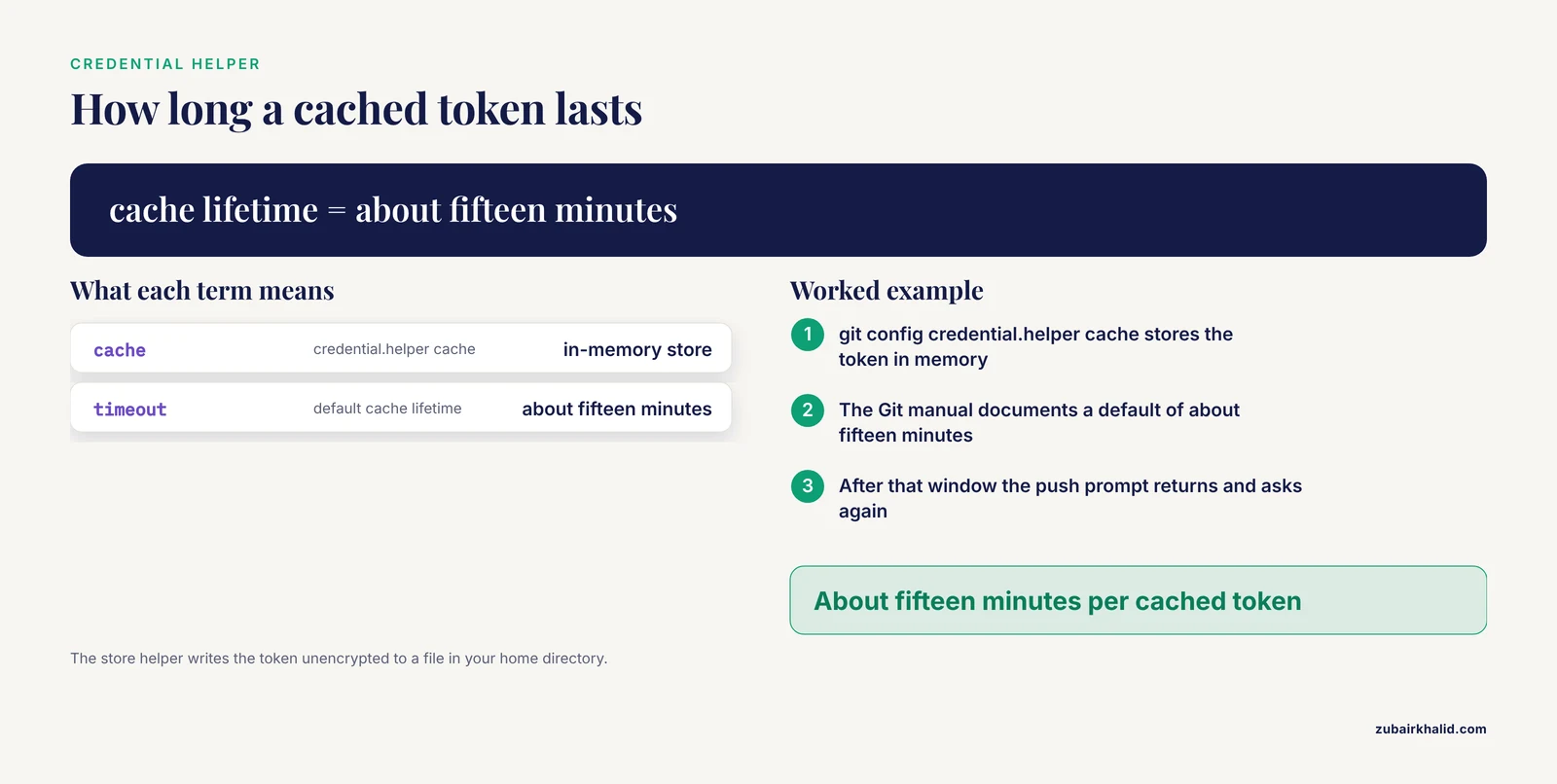
git config credential.helper cacheThis caches credentials in memory, by default for about fifteen minutes, as documented in the Git manual for the cache helper. For longer persistence, the store helper writes credentials to a plain file on disk.
Safety note: the store helper saves your token unencrypted in a file in your home directory. On a shared server or a machine other people can access, prefer the memory cache, an SSH key, or your institution's supported credential manager. Never paste a token into a notebook cell, and never commit one. Tokens that land in a pushed commit should be treated as compromised and revoked, because hosting providers scan for leaked credentials and any clone of the repository retains the secret.
SSH keys
SSH authentication uses a key pair stored on the machine running JupyterLab. Generate one and print the public half:
ssh-keygen -t ed25519
cat ~/.ssh/id_ed25519.pub
Add the public key to your GitHub account, then clone using the SSH URL form ([email protected]:owner/repo.git) rather than the HTTPS form. SSH keys shine on persistent lab servers, where you configure them once and never see a credential prompt again. On ephemeral environments (containers that are destroyed between sessions), keys vanish with the container, so tokens or host-mounted key directories are more practical.
Two more failure modes live in this section:
- Prompt loops on JupyterHub and remote servers. If a push prompts for username and password, accepts them, and prompts again, the server has no credential helper and no way to store what you typed. Configure a helper (above) or switch the remote to SSH with
git remote set-url origin [email protected]:owner/repo.git. - Fine-grained token permissions. Modern GitHub tokens can be scoped to specific repositories and specific permission levels. A clone that succeeds but a push that returns a permissions error usually means the token lacks write access to that repository, not that Git is broken.
Pitfall 4: Rejected Pushes and Diverged Branches
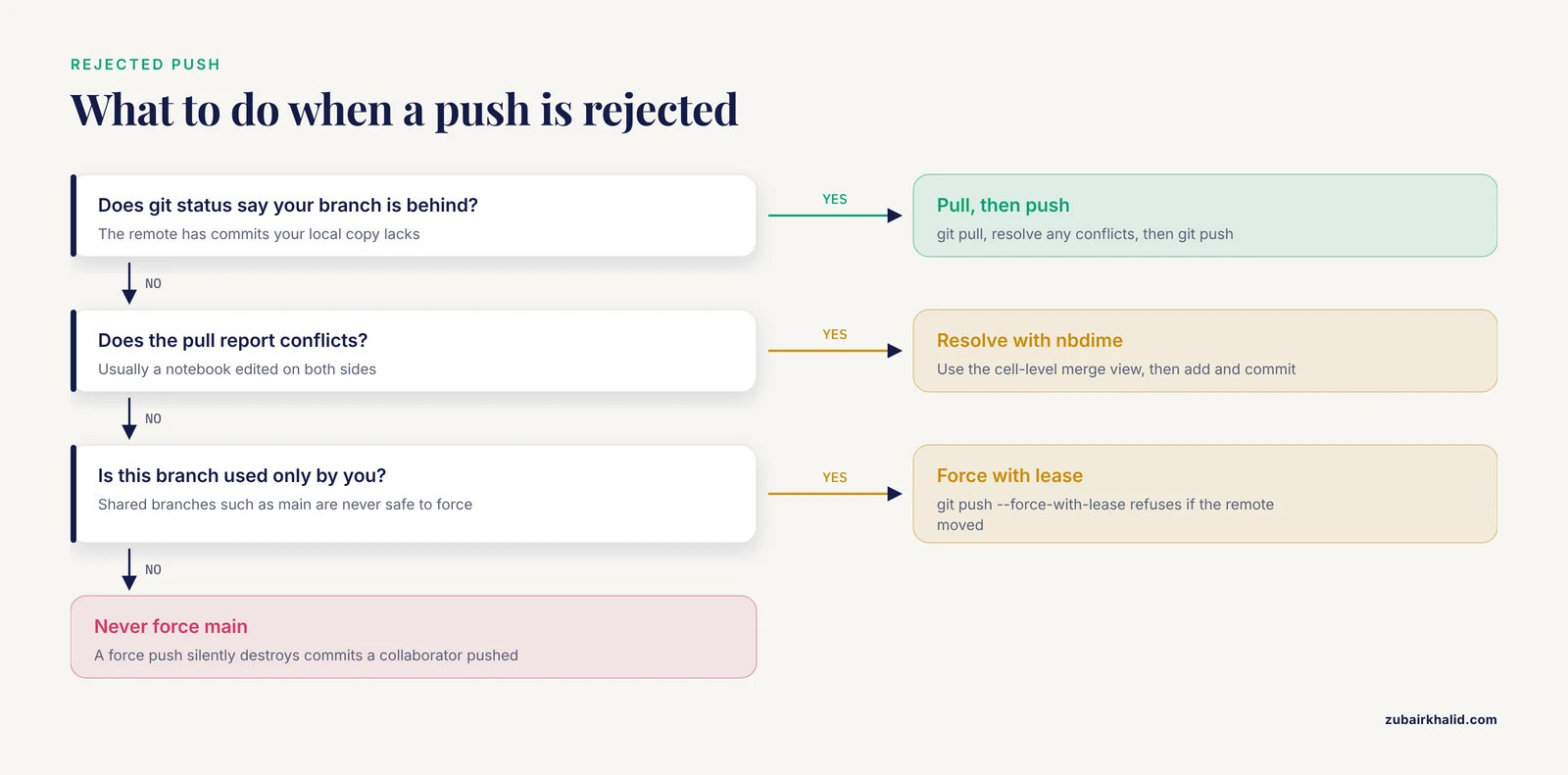
The error reads something like "rejected, fetch first" or "non-fast-forward". The mechanism is simple: the remote branch received commits (from a collaborator, from you on another machine, or from a GitHub web edit) that your local copy does not have. Git refuses your push because applying it would discard that history.
Confirm and fix:
git status
git pull
git push
If the pull merges cleanly, the push succeeds. If it reports conflicts, see the notebook conflict section below. Many scientists prefer a linear history for analysis work, and git pull -r (rebase instead of merge) replays your local commits on top of the fetched ones.
The tempting escape hatch is the force push (git push -f), which overwrites the remote branch with your local version.
Safety note: a force push silently destroys any commits on the remote branch that your local copy lacks. On a shared branch such as main, this can erase a collaborator's work with no warning to them. Reserve force pushes for branches that only you use, and prefer git push, force-with-lease, which refuses the push if the remote moved since your last fetch. Neither form should ever be your default response to a rejected push.
The prevention habit that eliminates most of these failures costs nothing: pull before you start a work session and push when you finish it. The longer a local clone drifts from the remote, the more painful the reconciliation.
Pitfall 5: Merge Conflicts in Notebooks
Notebooks make Git conflicts worse than they need to be, and understanding why points to the fix. A .ipynb file is JSON. Cell sources, outputs, execution counts, and metadata all live in one machine-generated structure. When Git merges two versions of a notebook, it inserts conflict markers into that JSON text, which usually renders as a notebook that will not open, or opens showing raw JSON garbage. To compound it, two notebooks that differ only in outputs produce enormous diffs even though the actual code change is one line.
The standard tools for this are from the nbdime project, which was built specifically for notebook-aware diffing and merging:
pip install nbdime
nbdime config-git-enable
The config-git-enable command wires nbdime into your Git configuration so that git diff and git merge on notebooks use notebook-aware comparisons. During a conflict, nbdime presents cell-level side-by-side views, and nbdiff-web opens a browser view that is far easier to read than terminal output. Once wired in, the ordinary conflict resolution flow works: run git status to list conflicted files, edit or use the nbdime merge view to choose the content you want, then git add the resolved file and commit.
A practical rule that prevents most notebook conflicts from ever forming: only one person edits a given notebook at a time. For analyses built by multiple people, split notebooks by responsibility (one for preprocessing, one for modeling, one for figures) instead of collaborating inside a single file. Also strip outputs before committing, which shrinks both conflicts and diffs, covered in the next section.
If you are mid-conflict and need out, you can abort the merge entirely with git merge, abort and return to the pre-merge state. Your uncommitted work is preserved by that command, but anything you had staged before the merge can be affected, so check git status before deciding.
Pitfall 6: Large Files and Data in the Repository
Version control systems are designed for text that changes in small increments, not for 2 GB BAM files or a folder of FASTQs. Hosting providers enforce limits: GitHub's documentation specifies a warning for files above roughly 50 MB and a hard block on files above 100 MB. The signature of this pitfall is a push that fails with an error naming the file and its size.
The failure usually has a deeper cause than one bad file. Repositories accumulate every version of every committed file in history, so a 90 MB file committed once, deleted, and recommitted still lives in the history twice. Cloning becomes slow for everyone, and the push that finally crosses the size limit refuses to complete.
The fix has two parts.
Get the repository healthy again. If the oversized file was committed but not yet pushed, the cleanest fix is to remove it from the staging area or the last commit, add it to .gitignore, and move it out of the repository directory:
git rm -r --cached data_large
echo "data/" >> .gitignore
The -cached flag removes the file from Git's tracking while leaving it on disk, which is what you want for data you intend to keep locally. If the file is already woven into pushed history, rewriting history is required (the git-filter-repo tool is the current standard, and GitHub publishes guidance for this case). History rewriting rewrites every commit identifier, so it demands coordination with collaborators and a forced push.
Keep data out of Git permanently. This is the central hygiene rule for git for scientists: version the code and notebooks, and manage data with tools built for it. The established options are Git LFS (Git's large-file extension, supported by GitHub but subject to storage and bandwidth quotas) and data versioning tools such as DVC or DataLad, which store file content in external storage while recording pointers in Git. A defensible default layout for a computational project puts raw data, intermediate results, and large figures outside the repository or behind such a tool, with scripts that document exactly how to regenerate them.
Safety note: removing files from history with filter tools rewrites commit hashes and invalidates clones held by collaborators. Announce it, agree on a moment, and have everyone re-clone afterward.
Pitfall 7: Secrets Committed to the Repository
Notebooks encourage inline configuration, which makes them a common place for API keys, database passwords, and cloud credentials to leak. The mechanism that makes this pitfall severe is history retention: deleting a secret in a later commit does nothing, because every previous commit still contains it, and anyone with repository access can read old commits. If the repository was ever pushed, assume the secret is exposed.
The response sequence, in order:
- Revoke and replace the credential first. Rotate the key at the provider. Do this before touching the repository, because the credential must be treated as compromised the moment it was pushed.
- Purge it from history. The git-filter-repo tool, or the BFG Repo-Cleaner, removes the secret from all commits. This requires a force push and re-cloning by collaborators (same coordination caveat as above).
- Prevent recurrence. Move secrets to environment variables, a
.envfile excluded by.gitignore, or your institution's secrets manager. Add the secret-bearing filenames to.gitignorebefore the next commit, not after.
GitHub's own documentation covers removing sensitive data from a repository and explains how leaked tokens are detected and revoked. For biology researchers hitting NCBI, ENA, or cloud APIs with credentials in notebooks, this pitfall is among the most costly to remediate, and prevention is trivially cheap by comparison.
Pitfall 8: Detached HEAD, Lost Commits, and Undoing Things
The Git panel occasionally shows a "HEAD detached" state, and it frightens people who have never seen it on the command line. The mechanism: HEAD is Git's pointer to your current position in history. It normally points at a branch tip, but checking out a specific commit, a tag, or an older version of a file detaches it, meaning new commits are built on no branch and can appear to vanish when you switch away.
The fix is to either return to a branch or anchor your position:
git switch mainreturns you to the main branch. If you made commits while detached and want to keep them:
git switch -c rescued-workcreates a branch at your current position and moves you onto it, preserving the commits.
For genuinely lost work, git reflog is the recovery tool. It records every position HEAD has occupied, including commits that are no longer on any branch, and it is the reason Git data loss is rarer than people fear. Find the commit identifier in the reflog output, then create a branch at it.
Safety note: the commands that destroy work permanently are git reset, hard, which discards uncommitted changes without recourse, and git clean -fd, which deletes untracked files. Both are occasionally the right tool. Run git stash first, which parks uncommitted changes in a recoverable stack, or commit to a temporary branch. Undoing a commit that is already local but unpushed is safe and common: git reset, soft HEAD~1 undoes the commit and returns its changes to the staging area, so nothing is lost.
A gentle reframe that helps scientists: Git almost never deletes committed content. It moves pointers. The commit is still in the object database, reachable through the reflog, until garbage collection eventually prunes truly unreferenced objects. Panic is rarely warranted, and a quick git status plus git log -5 tells you where you are.
Pitfall 9: Checkpoint Folders and Output Noise
Two notebook-specific annoyances generate constant small friction.
First, JupyterLab autosaves to .ipynb_checkpoints/ directories. These are session artifacts, not work products, and they should never be tracked. Add them to .gitignore at the repository root:
.ipynb_checkpoints/
__pycache__/
*.pyc
.DS_Store
If they were already tracked, untrack them while keeping them on disk:
git rm -r --cached .ipynb_checkpointsSecond, notebook outputs bloat diffs and commits. Every plot, dataframe preview, and stdout dump is serialized into the JSON. This bloats repository size, produces unreadable diffs, and can even leak data (a dataframe preview showing patient-level rows is a genuine disclosure risk). The options, in increasing automation:
- Clear outputs manually before committing: in JupyterLab, the Edit menu's "Clear All Outputs" action, then save.
- Use nbstripout, a tool that strips outputs automatically at commit time via Git's clean filter, configured once with
nbstripout, installinside the repository. - Set a team policy: outputs stripped, figures exported to files and committed separately. Reviewers then read code without JSON noise, and reproducibility is enforced by the pipeline rather than by saved outputs.
For reproducibility-minded groups, a related refinement: record the kernel and package versions (an environment.yml or requirements.txt at the repo root) rather than relying on saved outputs as evidence of results. Outputs are a snapshot, not a rerunnable one.
Pitfall 10: Stale Lock Files
Occasionally every Git operation, in the panel and the terminal alike, fails with an error mentioning index.lock. The mechanism: Git creates a lock file in .git/ before modifying the index, to prevent two processes from corrupting it simultaneously. If a Git process is killed mid-operation (a crashed server, a killed terminal, a suspended job), the lock file survives with no process behind it.
Confirm before acting:
ls -a .git
ps aux | grep git
If .git/index.lock exists and no Git process is running, it is stale and safe to delete:
rm .git/index.lockSafety note: delete the lock file only after confirming no Git process is active. Deleting it while a Git operation is genuinely running can corrupt the index. On shared servers, check with other users or your administrator first, because a colleague's long-running operation could be the lock's legitimate owner.
Pitfall 11: Line Ending Warnings
On Windows, Git warns about "CRLF will be replaced by LF" and diffs sometimes show every line as changed. The mechanism: Windows ends text lines with two characters (CRLF), Unix systems with one (LF), and Git's core.autocrlf setting controls translation between them. When collaborators on different operating systems commit to the same repository without a shared policy, files flip line endings back and forth, producing phantom diffs and spurious conflicts.
The durable fix is a .gitattributes file committed at the repository root, which pins the policy for everyone rather than leaving it to each machine's local config:
* text=auto
*.py text
*.ipynb text
*.csv text
*.RData binary
This is the approach the Git documentation recommends for teams. It ends the per-machine lottery, and after committing it, renormalize once so existing files conform.
Pitfall 12: Hosted and Ephemeral Environments
The rarest but most disorienting problems occur on JupyterHub deployments, MyBinder sessions, and containerized environments, and they share one mechanism: the filesystem and credentials are not persistent.
On an ephemeral container, commits exist only in the container's filesystem. If the session ends before you push, the commits are gone with it. On a shared JupyterHub, credentials configured in one session may persist (if the home directory is mounted) or vanish (if it is not), which explains authentication that works one week and fails the next.
The fixes are structural:
- Push early and often. On any ephemeral environment, an unpushed commit does not exist. Treat pushing as part of finishing a work session, not an afterthought.
- Persist what matters. Keep repositories on a mounted volume that survives sessions, and store tokens or SSH keys in that persistent location rather than in the container image.
- Bake Git into the image. If you administer the deployment, include
gitand jupyterlab-git in the image build so every spawn starts functional. MyBinder and repo2docker-based services can install these from a configuration file in the repository itself, which also makes the environment reproducible for anyone who launches it. - Ask your administrator about the credential policy. Institutions handle server-side GitHub credentials differently (shared deploy keys, per-user volume mounts, proxy authentication). The workable answer depends on your deployment, and your sysadmin or IT group knows which applies.
This is also where the limits section of this article applies most directly: individual server setups vary enough that a specific persistent symptom on your deployment may need a person with access to the configuration.
A Diagnostic Sequence You Can Follow
When something breaks and you cannot classify it yet, run this sequence in order. Each step either fixes a common cause or produces information for the next one.
- Open a terminal in JupyterLab and run
git, version. Failure here means install Git in the server environment (Pitfall 1). - Run
jupyter labextension list. No jupyterlab-git entry means install the extension and restart the server (Pitfall 1). cdto the directory containing your work and runpwd, thenls -a, thengit status. This establishes which repository, if any, you are operating on (Pitfall 2).- Read the exact error text from
git statusor the failed operation. Match it against the troubleshooting table above. - If the failure involves the network (clone, fetch, push), test authentication deliberately:
git remote -vshows the remote URL, and its form (HTTPS versus SSH) tells you which credential path is in play (Pitfall 3). - If the failure involves history (rejections, conflicts, detached HEAD), run
git log -5andgit statustogether. Between them you know your recent commits and your working tree state, which resolves most history questions (Pitfalls 4, 5, 8). - If everything fails with the same lock error, check for a stale
index.lock(Pitfall 10). - If the symptom appeared after an environment or server change, suspect the environment first. Reinstall the extension and Git into the launch environment, restart fully, and retest before debugging anything subtler.
This sequence resolves the large majority of jupyterlab git problems without searching, because most failures live in steps 1 through 4.
Prevention Practices for Git for Scientists
Fixing failures is cheaper than preventing them, but not by much, and prevention compounds. These practices, drawn from how version control is used in reproducible research, eliminate most of the pitfalls above before they occur.
Separate code from data. Repositories hold text that changes in small increments. Data, model checkpoints, and large figures belong in data storage, in a data versioning tool such as DVC or DataLad, or in .gitignore with a documented regeneration path. This single policy prevents the large-file pitfall and keeps clones fast.
Write a .gitignore before your first commit. Start every repository with entries for .ipynb_checkpoints/, data directories, secret-bearing files, and system artifacts. Retrofitting ignores after files are tracked is the awkward two-step shown earlier. Starting clean is one command.
Strip notebook outputs automatically. Configure nbstripout once per repository. Diffs become readable, conflicts shrink, repository size stays bounded, and no patient-level preview rows ever reach a remote host.
Commit small and often, with messages that say why. "Fix off-by-one in primer coordinate handling" is worth far more to a reviewer, a collaborator, and future-you than "update". Small commits also make conflicts rare and reversions precise.
Branch per analysis or experiment. Branching costs one command (git switch -c analysis-tiering) and isolates exploratory work from the stable pipeline. When the analysis works, merge it in. When it does not, the branch is discardable. This habit also keeps main in a state you could show a reviewer at any time.
Pull before work, push after. The two-command bookkeeping habit (git pull at the start, git push at the end) prevents nearly all divergence between machines and collaborators, which is the root of most rejected pushes.
For GitHub for researchers specifically: use a README that states what the project does, how to set up the environment, and how to reproduce the key figures. Pin dependencies in requirements.txt or environment.yml. Tag a release (for example git tag v1.0 followed by git push, tags) at milestones such as a submitted manuscript, and consider archiving the repository so it receives a persistent identifier. These steps turn a repository from a backup into a citable record, which is the actual point of version control in research.
Protect the main branch. On collaborative repositories, enable branch protection so direct pushes to main are blocked in favor of reviewed merges. The mechanism is hosting-side, not Git-side, but it prevents the accidental force push and the "I broke main at 6 pm on Friday" scenario in one setting.
Common Mistakes and Limitations
These are the errors that recur even among people who use Git daily, plus the honest limits of general advice.
- Treating the Git panel as a separate system. The jupyterlab-git extension executes the same Git you would run in a terminal. Debugging in the terminal, where error messages are complete, is always legitimate and usually faster. The panel is a convenience layer, not a different engine.
- Installing into the wrong environment. Kernel environments and the server environment are distinct. Extensions and the Git binary must live where the server runs. This single misunderstanding produces a disproportionate share of support requests.
- Committing before checking
git status. Stage and commit with a glance at status first. Half of accidental deletions, unintended staging, and "why is this file in here" moments come from acting on assumptions about the working tree. - Believing the web upload is version control. Uploading files through the GitHub web interface creates commits, but it bypasses history discipline, produces diverged local clones, and cannot handle notebooks sensibly. If you need a file on GitHub, commit and push it properly.
- Force pushing as a reflex. Every force push on a shared branch is a bet that nobody pushed since your last fetch. Use
-force-with-lease, or better, ask why the push was rejected. - Storing credentials in notebooks because it is convenient. The convenience lasts until the first push. Environment variables and excluded
.envfiles are equally convenient and safe. - Assuming GitHub limits are optional. The file size limits are enforced by the host, not by Git itself. A repository that works locally can still refuse to push, which is why the data-outside-Git policy matters before the first large file is added.
One limitation applies throughout: server configurations, institutional proxies, and managed JupyterHub deployments vary widely, and a persistent failure on an administered system may require your local administrator rather than any command in this article.
Frequently Asked Questions
Why is the Git tab missing from my JupyterLab sidebar?
The jupyterlab-git extension is not installed in the environment running the Jupyter server. Install it with pip install jupyterlab-git in that environment and fully restart the server, because server-side extensions load only at startup.
Git works in my terminal but fails in the JupyterLab Git panel. Why?
The panel and the terminal are usually running in different environments or different directories. Verify the extension and Git binary exist in the server environment, and confirm the panel is pointed at a directory inside your repository.
How do I fix a push that was rejected?
Run git pull to bring in the commits you are missing, resolve any conflicts, then push again. Reserve force pushes for branches only you use, and prefer -force-with-lease when you must force.
How do I resolve a merge conflict in a Jupyter notebook?
Install nbdime, enable its Git integration with nbdime config-git-enable, and resolve the conflict in its cell-level merge view rather than in raw JSON. Then clear outputs, add the file, and commit.
Should I commit .ipynb_checkpoints folders?
No. They are autosave artifacts that Jupyter regenerates constantly. Add .ipynb_checkpoints/ to .gitignore, and if they were already tracked, untrack them with git rm -r, cached.
How do I stop notebook outputs from flooding my Git diffs?
Clear outputs before committing, or install nbstripout once per repository so outputs are stripped automatically at commit time. Export figures as separate files and commit those instead of relying on embedded outputs.
What is the safe way to handle GitHub credentials when pushing from JupyterLab?
Use a personal access token with an expiration date, or an SSH key on persistent machines. Configure a credential helper with a memory cache rather than plaintext storage on shared servers, and never commit tokens to the repository.
Can I recover commits I think I deleted?
Usually yes. Run git reflog to list every position HEAD has occupied, find the commit identifier, and create a branch at it with git switch -c rescue <identifier>. Truly unreferenced objects are only pruned by garbage collection long after the fact.