How to Use Git Worktrees for Parallel Research Branches
By Dr. Zubair Khalid, DVM, MS, PhD ·
Parallel research is mostly a directory problem. You want to fix a quality control script while a 12 hour alignment keeps running, answer a reviewer with the exact code version that produced the submitted figures, and let a student try a risky idea without touching the stable pipeline. On a single checkout of a single branch, those requests queue behind each other. Git worktrees remove the queue.
By the end of this guide you will know how to use Git worktrees for parallel research branches: you will create a linked working directory for any branch, run independent analyses side by side from one repository, freeze a tagged snapshot for a submission, merge a finished branch back, and clean up without losing work. You need Git 2.5 or newer, a terminal, and an existing repository. Check the version with git, version. No server is required, and every branch you create pushes to GitHub like any other branch.
Version control is now expected in computational research, and journals increasingly ask for code availability statements, yet many researchers learn only the single directory workflow [1]. Worktrees are the missing piece for the way research actually happens, with several questions open at once.
What a Worktree Is and What Stays Shared
Git for scientists usually starts with four ideas: a repository, which holds the full history of commits, a commit, which is a recorded snapshot with an author, a message, and a hash, a branch, which is a movable label on one line of commits, and a remote, which is a hosted copy such as origin on GitHub [1]. Around those sit three more terms you need here. The working tree is the directory of files you actually edit. HEAD is the pointer to the commit or branch your working tree is built from. The staging area, also called the index, is where git add places changes that the next commit will capture.
A worktree is a second working tree attached to the same repository. The original checkout is the main worktree. Each linked worktree has its own files on disk, its own HEAD, and its own staging area. Branches, tags, commit history, remotes, configuration, and the stash (a shared shelf for uncommitted changes created with git stash) stay common to all worktrees, because every worktree reads and writes the same object database, the store of commits and file snapshots under .git. A linked worktree contains a .git file rather than a .git directory, and that file points back to the shared store in the main checkout.
Three practical consequences follow:
- A commit made in one worktree is immediately visible to the others as history, but the files in the other worktrees do not change until you merge or check out.
- You cannot check out the same branch in two worktrees at once. Git blocks it.
- Untracked files, meaning files Git does not manage such as downloaded references or result tables, belong to one worktree only and never appear in the others.
Why Parallel Branches Need Parallel Working Directories
Research computing rarely runs one thread of work at a time. The common collisions look like this:
- A long job is running, and a reviewer email arrives that needs code changes right now.
- A pipeline needs maintenance, but a real analysis must keep using the released version.
- A student or collaborator wants to experiment without destabilizing the main line of work.
- A submission needs the exact code state that produced the figures, preserved untouched.
Shared platforms reduce part of this burden by standardizing the analysis itself. NeuroStage, for example, bundles MRI data organization with the Brain Imaging Data Structure (BIDS), preprocessing, and quality control into a single web based service so that infrastructure is not scattered across a lab [2]. The scripts you write around such a service still change daily, and worktrees give that code the same kind of isolation the platform gives the data.
Community pipelines show the same need. EasyAmplicon is a cross platform amplicon analysis pipeline maintained on GitHub and run inside RStudio, and it can process dozens of samples on an ordinary laptop within about 3 hours [3]. Running the released version for a real analysis while testing the next release in a second directory is exactly the split that worktrees provide.
The pattern scales up to automated research as well. A controlled benchmark of multi agent systems for automated machine learning research used a testbed with Git worktree isolation and found a trade off: a parallel subagent design acted as a resilient, high throughput search engine under fixed computational budgets, while a team of experts design was operationally more fragile but achieved deeper theoretical alignment when given extended compute. In other words, giving each parallel worker its own worktree is already the standard way to keep independent code states from colliding, whether the worker is a person, a script, or an agent.
Git Worktrees for Researchers: Step by Step
The examples use a repository called rnaseq-pilot that lives in /home/you/projects and contains a scripts directory. Commit hashes and dates in the outputs are representative, so yours will differ. Run every command from inside any worktree of the repository.
Step 1. Confirm your Git version
git --versiongit version 2.47.1Any release from Git 2.5 onward includes the git worktree command. Older installs need an upgrade before continuing.
Step 2. List the worktrees you already have
cd /home/you/projects/rnaseq-pilot
git worktree list
/home/you/projects/rnaseq-pilot 3f9c2ab [main]One line per worktree shows the path, the commit, and the branch. Right now there is only the main worktree. You can run every command in this guide from any worktree, because they all share the repository.
Step 3. Open a new branch in its own directory
git worktree add -b qc-recheck ../rnaseq-pilot-qc mainPreparing worktree (new branch 'qc-recheck')
HEAD is now at 3f9c2ab Add MultiQC summary stepEach parameter matters:
-b qc-recheckcreates the branch at the same moment as the directory.../rnaseq-pilot-qcis the directory Git creates. A sibling directory keeps projects together and makes the current checkout obvious at a glance.mainis the start point. The new branch begins at the commit thatmainpoints to, whilemainitself stays checked out in the original directory.
Confirm the result:
git worktree list/home/you/projects/rnaseq-pilot 3f9c2ab [main]
/home/you/projects/rnaseq-pilot-qc 3f9c2ab [qc-recheck]Step 4. Check out an existing branch in a second directory
When a collaborator pushes a branch, fetch it and give it a directory of its own:
git fetch origin
git worktree add -b reviewer-fixes ../rnaseq-pilot-review origin/reviewer-fixes
Preparing worktree (new branch 'reviewer-fixes')
HEAD is now at 9c41b02 Fix barcode mismatch handlingThis creates a local branch reviewer-fixes that starts at the remote branch, so you can commit on it and push later. If a local branch already exists and is not checked out anywhere, the shorter form works and Git reports that it is checking the branch out rather than creating it:
git worktree add ../rnaseq-pilot-review reviewer-fixesIf the branch is already checked out in another worktree, Git refuses with the error shown in the mistakes section below.
Step 5. Freeze a tagged snapshot for a submission
A tag is a permanent name for one commit. Tag the exact state that produced submitted results, then open it in its own directory:
git tag v1.0.0-submission
git worktree add ../rnaseq-pilot-v1 v1.0.0-submission
Preparing worktree (detached HEAD v1.0.0-submission)
HEAD is now at 8d1e4f7 Freeze differential expression tablesThe phrase detached HEAD means HEAD points straight at a commit instead of at a branch. Nothing is broken. Treat this worktree as read only and run long jobs here, because the code cannot drift under a running job. If a fix is genuinely needed, create a branch inside it first:
git switch -c submission-hotfixStep 6. Work in both directories at once
Terminal one, in the main worktree, start the long job:
cd /home/you/projects/rnaseq-pilot
Rscript scripts/run_de_analysis.R
Terminal two, in the QC worktree, check where you are before editing:
cd /home/you/projects/rnaseq-pilot-qc
git status -sb
## qc-recheckEdit scripts/qc_report.R, then commit:
git add scripts/qc_report.R
git commit -m "Add per-sample duplication QC plots"
[qc-recheck 5b7a3d1] Add per-sample duplication QC plots
1 file changed, 24 insertions(+)The commit lands on qc-recheck alone. The running job in the main worktree never sees a half edited file, and you never needed git stash.
Step 7. Verify independence
git worktree list/home/you/projects/rnaseq-pilot 3f9c2ab [main]
/home/you/projects/rnaseq-pilot-qc 5b7a3d1 [qc-recheck]
/home/you/projects/rnaseq-pilot-review 9c41b02 [reviewer-fixes]
/home/you/projects/rnaseq-pilot-v1 8d1e4f7 (detached HEAD)Then confirm each worktree sits at the commit you expect:
cd ../rnaseq-pilot-qc
git log -1
commit 5b7a3d1 (HEAD -> qc-recheck)
Author: You <[email protected]>
Date: Wed Nov 11 10:14:22 2026 -0500
Add per-sample duplication QC plotsStep 8. Merge the finished branch back
cd /home/you/projects/rnaseq-pilot
git merge qc-recheck
Updating 3f9c2ab..5b7a3d1
Fast-forward
scripts/qc_report.R | 24 ++++++++++++++++++
1 file changed, 24 insertions(+)A fast forward means main had no commits of its own and slid forward to include the QC work. If both branches moved, Git creates a merge commit and lists any conflicted files, which you resolve, git add, and commit as usual.
Step 9. Retire the worktree cleanly
git worktree remove ../rnaseq-pilot-qc
git worktree remove ../rnaseq-pilot-v1
git branch -d qc-recheck
git worktree list
git worktree remove deletes the directory and its administrative record. It refuses when the worktree holds modified or untracked files, which protects uncommitted work, so commit or move what you need first. git branch -d deletes the branch label and only succeeds when the commits are merged or pushed. Git also refuses to remove the main worktree this way and reports that the path is a main working tree. The final git worktree list should show the main worktree alone.
Command reference
| Command | What it does | When researchers use it |
|---|---|---|
git worktree list | Shows every worktree with path, commit, and branch | Auditing which analyses are open before committing |
git worktree add -b NAME PATH START | Creates a branch and a directory together | Starting a new question without disturbing a running analysis |
git worktree add PATH BRANCH | Checks out an existing branch in a new directory | Reviewing a collaborator's branch in isolation |
git worktree add PATH TAG | Opens a detached snapshot at a tag | Freezing the code state behind a submission |
git worktree lock PATH | Protects a worktree's records from pruning | Worktrees on external drives or cluster scratch that go offline |
git worktree unlock PATH | Releases that protection | When the storage is back and the worktree is active again |
git worktree move PATH NEWPATH | Relocates a worktree on the same filesystem | Reorganizing directories without breaking the links |
git worktree remove PATH | Deletes a worktree cleanly | Closing out a finished question |
git worktree prune | Drops records for directories that no longer exist | Recovery after a manual deletion |
git worktree repair | Relinks worktrees after a manual move | Fixing paths you rearranged by hand |
Managing Data, Environments, and Outputs Across Worktrees
What to keep out of the repository
Raw reads, large reference files, and any identifiable patient data do not belong in version control. Surgical data science guidance is blunt on this point: identifiable patient data must never enter a version controlled repository, and a .gitignore file, a list of patterns Git ignores, is the standard guard against accidental commits [1]. A typical entry for a bioinformatics repository looks like this:
data/
results/
*.fastq.gz
*.bam
.Rhistory
Ignored files stay local to whichever worktree created them, which is the behavior you want for outputs and the behavior you must plan around for inputs.
Reference data and symlinks
Because each worktree is a full checkout, large files are not shared between worktrees. Keep shared references in one directory outside the repositories and link to them:
mkdir -p /data/ref
ln -s /data/ref/hg38.fa reference/hg38.fa
With reference/ in .gitignore, every worktree can link to the same file and disk use stays flat. Use absolute link targets, as in the example, so the links keep working no matter which worktree they are created from.
Conda, R, and per directory environments
Conda environments created from an environment.yml file live in a central environments folder, so you create one and activate it by name inside any worktree:
conda env create -f environment.yml
conda activate rnaseq-pilot
If a tool insists on a local ./env directory, each worktree needs its own copy and its own disk budget. R users face the same choice with renv, which builds a project library inside the project directory, so run renv::restore() once in each new worktree. Pipelines that live in RStudio, such as EasyAmplicon, work well with one RStudio project opened per worktree, which keeps a running analysis and a pipeline update in clearly separated sessions [3].
Outputs and provenance
Write results to an ignored results/ directory inside each worktree, or to shared scratch outside all worktrees when several worktrees must read the same intermediates. Tag the commit that produced each key figure:
git tag fig3-finalAny worktree can later reconstruct that exact code state:
git worktree add ../fig3-check fig3-finalWorktrees on a compute cluster
Keep one worktree in cluster scratch and lock it so pruning never touches its records while the volume is unmounted:
git worktree lock ../scratch/rnaseq-runMove code between your laptop and the cluster with git push and git pull, not by copying directories, so the two sides never fork into untracked copies. If a path on the same filesystem must change, git worktree move updates the record, and across filesystems it is cleaner to remove the worktree and add it again at the new path.
Practical Tips That Save Hours
- Name directories after the question, not the branch.
../de-nak-24htells you what is inside at a glance, while../branch2does not. The directory name is your cue for which checkout you are in. - Keep one question per worktree. Small worktrees that finish fast merge cleanly and get removed, which keeps the board readable with
git worktree list. - Run long jobs in a tagged snapshot worktree. A detached checkout at a tag cannot drift under a running job, which removes an entire class of silent errors.
- Lock worktrees that live on removable or offline storage. Locking prevents
git worktree prunefrom discarding the administrative records of a worktree that is temporarily invisible. - Look before you commit.
git status -sbshows the branch, andgit worktree listshows the whole board. Make both part of the commit reflex. - Add aliases by editing
~/.gitconfigdirectly:
[alias]
    wt = worktree list
    wta = worktree add
After that, git wt prints the board from anywhere inside the repository.
- Give each worktree its own terminal tab or tmux window. tmux is a terminal multiplexer that keeps sessions running after you disconnect, named to match each directory, so the long job and the editing session never share a window.
- Push every branch to GitHub as offsite backup. A pull request, a proposed set of commits that collaborators review before merging, then becomes the natural review point for each parallel question [1].
Common Mistakes and Limitations
- Expecting untracked files to follow you. A reference genome or a results table sitting untracked in one worktree is invisible in the others. Either track the file, ignore it and symlink to shared storage, or copy it deliberately.
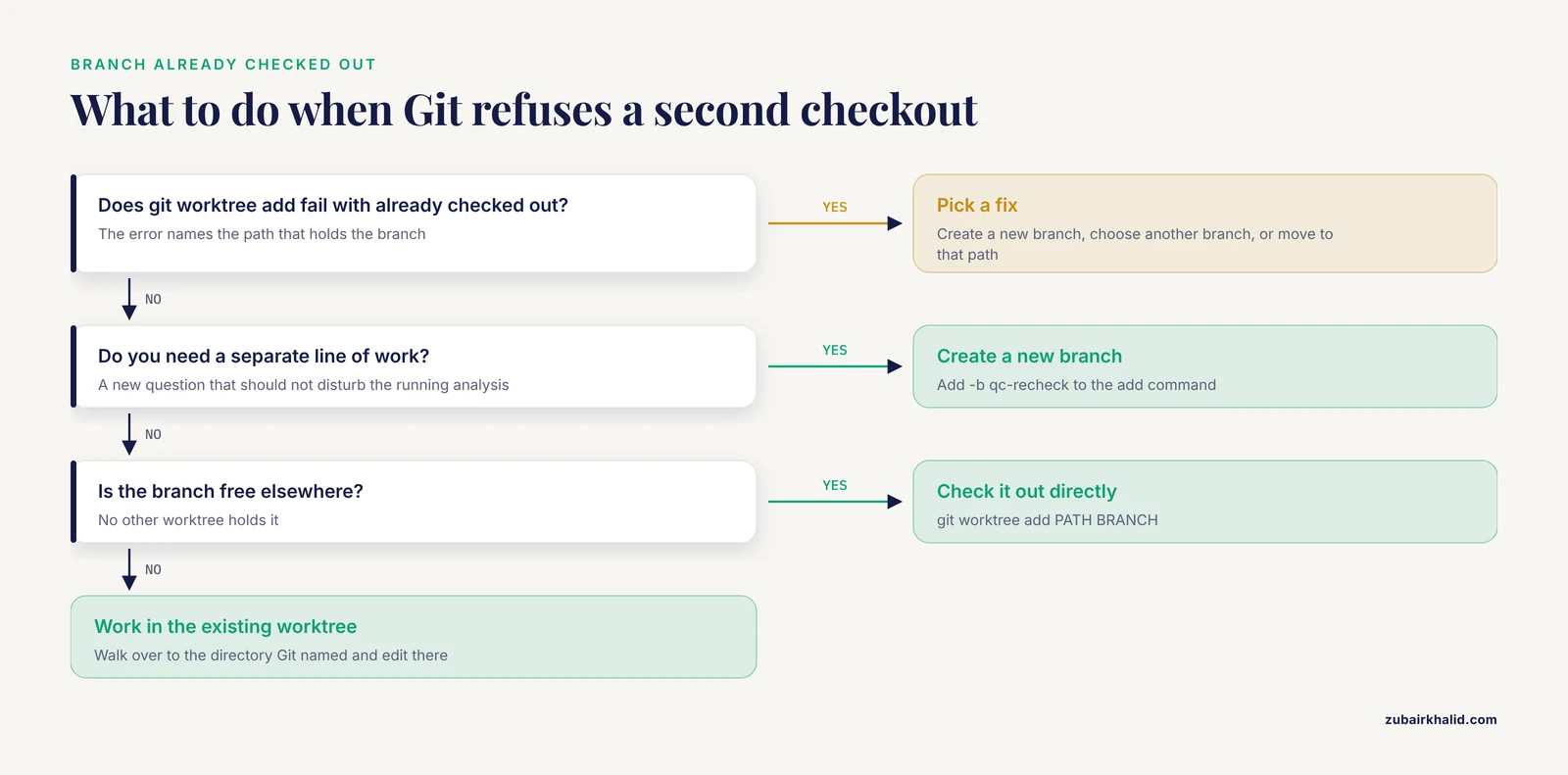
- Checking out a branch that is already in use. This is the most common first week error:
git worktree add ../rnaseq-pilot-main2 mainfatal: 'main' is already checked out at '/home/you/projects/rnaseq-pilot'The fixes are to create a new branch with -b, to check out a different branch, or to walk over to the existing worktree and work there.
- Cleaning up with
rm -rf. Deleting the directory by hand leaves a stale record, andgit worktree listkeeps showing a path that no longer exists. Rungit worktree pruneto clear it. If you moved a directory by hand instead,git worktree repairrelinks it. - Removing a worktree with uncommitted work. Git refuses the removal and reports that the directory contains modified or untracked files. That refusal is a safety net. If you delete the directory manually anyway, uncommitted work is gone for good, so commit or stash first.
- Committing in the wrong worktree. Distinctive directory names prevent most of this, and the shared stash makes recovery easy:
git reset HEAD~1
git stash
cd ../rnaseq-pilot-qc
git stash pop
git add scripts/qc_report.R
git commit -m "Add per-sample duplication QC plots"
git reset HEAD~1 moves the branch back one commit and leaves the changes unstaged, git stash shelves them, and git stash pop brings them back in the correct worktree.
- Forgetting submodules. A submodule is a repository nested inside your repository, and its checked out contents live inside each worktree. After creating a worktree in a repository that uses submodules, run:
git submodule init
git submodule update- Assuming every tool is worktree aware. Some editors and notebook tools assume one checkout per repository. Opening each worktree as its own project, the RStudio pattern included, avoids most confusion, and per directory environments need to be rebuilt per worktree as described above.
- Letting a secret or a patient record into any worktree. All worktrees share one history, so a commit containing protected data is instantly in every worktree and in every push. Keep data out of the repository and lean on
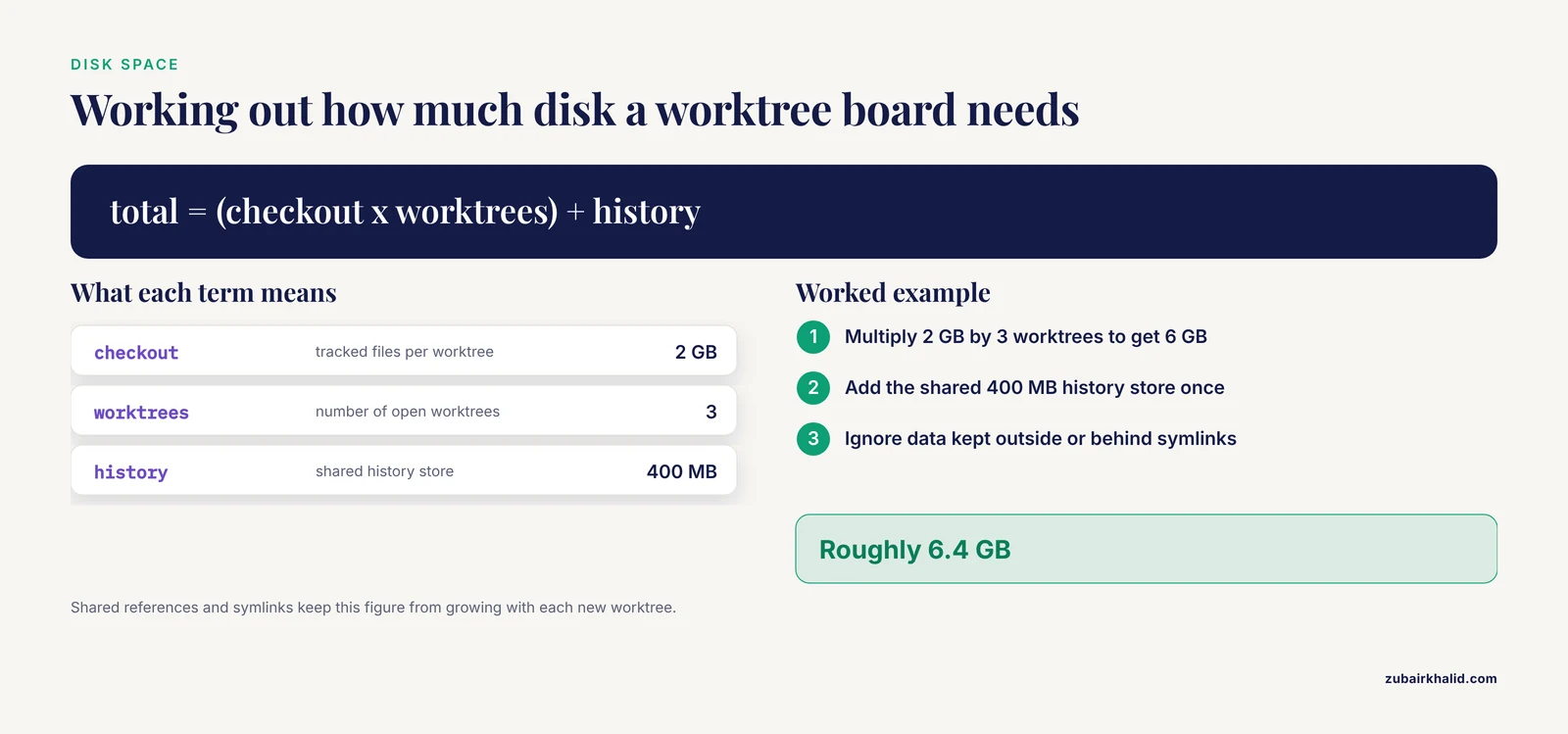
.gitignore[1]. - Ignoring disk arithmetic. History is stored once, but working files are stored per worktree. A checkout with 2 GB of tracked files opened in three worktrees plus a shared history store of about 400 MB needs roughly 6.4 GB before you count ignored data, which is why shared references and symlinks matter.
- Expecting worktrees to merge for you. Worktrees isolate work, they do not reconcile it. Combining two parallel branches still requires a merge, and conflicting edits to the same lines still require you to resolve them.
Verifying the Setup and Next Steps
A healthy setup passes four checks:
git worktree listshows exactly the directories you created, each on the branch you intended.git statusinside each worktree reports a clean tree or precisely the changes you meant to have.git log -1in each worktree shows the commit you expect at HEAD.- A commit in one worktree changes no files in another until you merge or check out. That is the test of real independence.
From there, push each branch and set its upstream, the default remote target for future pushes:
git push -u origin qc-recheckGitHub gives researchers a shared home for these branches, one pull request per parallel question, and a review trail that satisfies code availability expectations at journals [1]. Protect the main branch on the hosting service, tag every release that produces figures, and the worktree board scales from two directories to a small fleet of parallel questions. That is the same isolation pattern used in benchmark testbeds for automated research agents, and it works just as well for the human driven kind.
Frequently Asked Questions
Do Git worktrees share the same repository history?
Yes. All worktrees read one shared object database, so commits, branches, tags, remotes, configuration, and the stash are common, while each worktree keeps its own HEAD, staging area, and untracked files.
Can I check out the same branch in two worktrees?
No. Git blocks a second checkout of a branch that is already checked out and prints an error naming the path that holds it. Create a new branch with -b, check out a different branch, or work in the existing worktree.
How is a worktree different from a second clone?
A clone copies the entire repository, history and settings, to a new location with its own remotes. A worktree is a second directory inside the same repository that shares history and configuration, which keeps disk use lower and keeps every branch visible to git worktree list.
How much disk space do worktrees use?
History is stored once and working files are stored per worktree. Plan for the size of your checkout times the number of worktrees, and keep large data and outputs outside the worktrees or behind symlinks so they do not multiply.
Do conda or R environments follow me into a new worktree?
No. Environments created inside a directory stay with that directory. Named conda environments installed in the central environments folder can be activated in any worktree, and renv users run renv::restore() once per new worktree.
How do I delete a worktree safely?
Commit or move anything you need, then run git worktree remove with the path. Delete the finished branch with git branch -d if you no longer want it, and run git worktree prune if a record lingers after a manual deletion.
Can I use worktrees with GitHub and pull requests?
Yes. Branches created in any worktree push to GitHub like any other branch, and each branch can carry its own pull request. Many researchers keep one worktree per open pull request.
Are worktrees useful for automated or AI-assisted pipelines?
Yes. Any workflow that needs several stable code states at once benefits, including scheduled runs, agent based exploration, and reproducibility checks against a tagged release.
Sources
- Version Control for Surgical Data Science: A Primer on Git and GitHub.
- Democratizing data sharing and processing of routine MRI data acquired for neuroimaging research.
- EasyAmplicon: An easy-to-use, open-source, reproducible, and community-based pipeline for amplicon data analysis in microbiome research.