Essential Git Configuration for Scientists
By Dr. Zubair Khalid, DVM, MS, PhD ·

By the end of this guide you will have a Git installation that records your identity correctly on every commit, creates new repositories on a branch that matches GitHub, handles Windows and Mac line endings without corrupting scripts, authenticates to GitHub without repeated password prompts, and carries a small set of aliases that make daily work faster. You will also know how to verify each setting, where each setting lives, and how to fix the exact errors that trip up most new users.
Git is a distributed version control system, a tool that records the full history of changes to a set of files. A repository is a folder whose hidden .git directory stores every recorded version. A commit is one recorded snapshot together with metadata about who made it and when. Configuration tells Git who you are, how it should behave, and how it should talk to remote services such as GitHub, the hosting platform most researchers use for code and collaboration.
You need the following on hand:
- Git 2.28 or newer. Run
git, versionto check. Older versions work for most steps, but the default branch setting needs 2.28 and SSH commit signing needs 2.34. - A terminal. macOS and Linux have one built in. On Windows, the Git for Windows installer provides Git Bash, which runs every command below unchanged.
- A text editor you are comfortable with, such as nano or VS Code.
- A GitHub account, if you plan to push to GitHub.
The walkthrough below is git config for researchers in the order you actually need it. Every setting used here is described in the official Git documentation at git-scm.com, and the Pro Git book (2nd edition, Scott Chacon and Ben Straub), free to read at git-scm.com/book, covers the same material in book form.
Why Configuration Matters in Research Code
Git configuration is not cosmetic. Every commit records the name and email of its author, and that metadata is how collaborators, reviewers, and platforms such as GitHub attribute work. A misconfigured identity produces commits attributed to the wrong person or to nobody, and fixing them after they have been shared requires rewriting history. Configuration also decides how Git behaves on the details that quietly break multi-person projects: line endings that differ between a Windows laptop and a Linux cluster, pulls that create surprise merge commits, and credentials that are either demanded on every push or stored in a plaintext file on a shared server.
For scientists the stakes are specific. Code in a repository is part of the provenance of a result, alongside the lab notebook and the raw data. GitHub attributes commits to profiles by email address, shows verification badges for signed commits, and enforces repository rules that assume a sane local setup. A one-time investment of about fifteen minutes, plus a short checklist for each new machine, removes an entire category of friction from daily work.
Git Config for Researchers, Step by Step
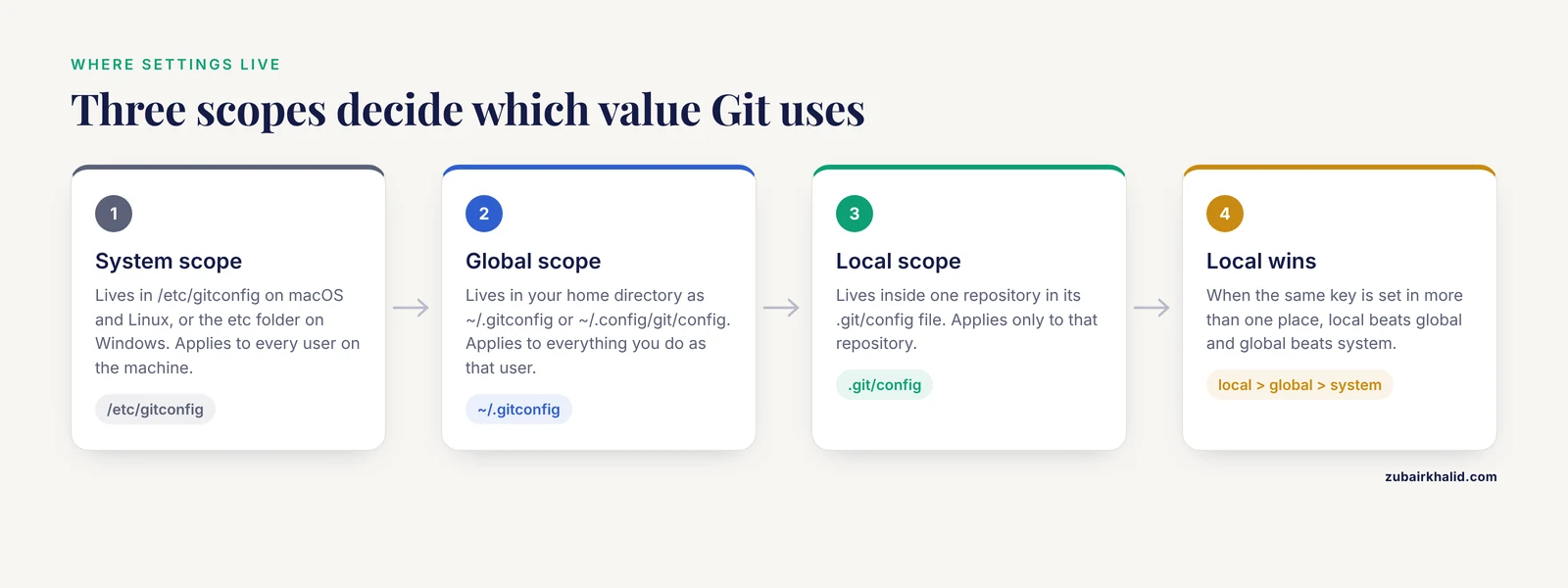
Git reads settings from three scopes. System configuration lives in /etc/gitconfig on macOS and Linux (or the etc folder inside the Git installation on Windows) and applies to every user on the machine, which matters on shared servers. Global configuration lives in your home directory, in ~/.gitconfig or ~/.config/git/config, and applies to everything you do as that user. Local configuration lives inside a repository, in its .git/config file, and applies only to that repository. When the same key is set in more than one place, local wins over global, and global wins over system. The steps below use the global scope flag (a flag is a command-line option that modifies a command's behavior), which writes to your home directory file and is what you want on your own laptop and your own cluster account.
Step 1: Confirm Git is installed
Open a terminal and check the version.
git --versionExpected output:
git version 2.47.1Any version from 2.28 onward supports everything in this guide except SSH commit signing, which needs 2.34 or newer. On macOS, Git arrives with the Xcode command line tools, and the first run of this command prompts an install if they are missing. On Linux, use the distribution package manager. If your version is older than 2.28, install a current build before continuing, because several defaults changed in recent years and old advice copied from forums no longer applies.
Step 2: Set the identity Git records on every commit
Every commit stores an author name and email. Set them once at the global scope.
git config --global user.name "Ada Lovelace"
git config --global user.email "[email protected]"
Config commands print nothing when they succeed. Silence is the expected output.
Use the name you publish under and an email that is verified on your GitHub account, because GitHub links commits to a profile by matching that email. If you would rather not expose your institutional address in public commit history, open GitHub, go to Settings, then Emails, enable "Keep my email addresses private", and copy the noreply address GitHub shows, which has the form [email protected]. Set that address as user.email instead. Decide now, because changing the email after months of commits means rewriting history to keep attribution consistent.
Check what Git will use:
git config user.name
git config user.email
Expected output, one value per command:
Ada Lovelace
[email protected]
If you commit without an identity, Git refuses and prints a message that begins "Please tell me who you are". The exact text and the fix appear in the errors section below. On a shared analysis account used by several people, do not set a personal identity at the global scope. Set a per-repository identity as shown in Step 9 instead, so each person's commits carry their own email.
Step 3: Set the default branch name for new repositories
git config --global init.defaultBranch mainGit 2.28 introduced this setting. Without it, git init creates a repository on a branch called master and prints a longer hint that suggests configuring a name you actually want:
hint: Using 'master' as the name for the initial branch. This default branch name
hint: is subject to change. To configure the initial branch name to use in all
hint: of your new repositories, which will suppress this warning, call:
hint:
hint: 	git config --global init.defaultBranch <name>
GitHub creates new repositories on a branch called main. If your local repository starts on master while the remote expects main, the first push becomes an avoidable puzzle. Verify the setting:
git config --get init.defaultBranchExpected output:
mainThis affects only repositories you create after setting it. Existing repositories keep their current branch name, and renaming a branch (git branch -m old new) is a separate task to coordinate with collaborators.
Step 4: Choose the editor Git opens for commit messages
When you commit without the -m flag, Git opens an editor for the commit message. Without configuration, Git checks several environment settings and falls back to vi on most Unix systems, an editor that has stranded generations of new users (to leave vi, press Esc, type :wq, then press Enter). Set something you know:
git config --global core.editor "nano"For VS Code, use the wait flag so Git pauses until you close the message file:
git config --global core.editor "code --wait"The commit message editor shows placeholder lines starting with #, which Git strips from the saved message. Put the summary on the first line, keep it under about 50 characters, and leave a blank line before details.
Step 5: Make line endings consistent across operating systems
A line ending is the invisible character, or pair of characters, that marks the end of a line. macOS and Linux end lines with LF, Windows ends them with CRLF. When a repository mixes both, diffs (the line-by-line comparisons Git shows between versions) mark whole files as changed, and shell scripts copied to a cluster fail with a bad interpreter error. The core.autocrlf setting controls conversion:
- true, typical on Windows: converts LF to CRLF on checkout (the act of materializing files from the repository into your working folder) and CRLF to LF on commit.
- input, typical on macOS and Linux: converts CRLF to LF on commit and never converts on checkout.
- false: no conversion at all.
Set it for your platform:
git config --global core.autocrlf input   # macOS and Linux
git config --global core.autocrlf true    # Windows
Leave only the line for your platform, not both.
Personal settings are not enough, because every collaborator must remember them. The durable fix is a .gitattributes file, a file committed to the repository that tells Git how to treat paths. A useful starter for analysis code:
* text=auto
*.sh text eol=lf
*.py text eol=lf
*.R text eol=lf
*.csv text
*.png binary
*.pdf binary
*.gz binary
The first line lets Git auto-detect text files, the eol=lf rules force LF for scripts regardless of platform, and binary marks files Git must never touch. After adding this file, renormalize so existing files are stored with consistent endings:
git add --renormalize .
git commit -m "Normalize line endings"
The renormalize command needs Git 2.16 or newer. Expect a warning such as "warning: LF will be replaced by CRLF in analysis.py" on Windows after changing these settings. It is informational, not a failure, and it disappears once the repository and all clients agree on the rules.
Step 6: Tell Git how to reconcile divergent branches on pull
If your local branch and the remote branch both have new commits, a pull must reconcile them. Since Git 2.27, pulling without a configured strategy prints:
warning: Pulling without specifying how to reconcile divergent branches is
discouraged. You can squelch this message by running one of the following
commands sometime before your next pull:

  git config pull.rebase false  # merge (the default strategy)
  git config pull.rebase true   # rebase
  git config pull.ff only       # fast-forward only
Pick one at the global scope:
git config --global pull.rebase trueRebase replays your unpushed local commits on top of the fetched commits, which keeps history linear and readable in papers and reviews. The tradeoff is that rebasing rewrites your local commits, so their identifiers change. That is harmless while the commits are unpushed, which is the normal situation when pulling. Teams that never want implicit merge commits can choose pull.ff only instead, where a fast-forward means Git only moves your branch pointer to the fetched commits and refuses anything that would need a merge.
Step 7: Configure credentials for GitHub
A remote is another copy of the repository, such as one hosted on GitHub. Pushing and pulling over HTTPS needs a credential helper, a small program Git calls to save and retrieve credentials, because GitHub stopped accepting account passwords for Git operations in August 2021. Pushing over SSH needs a key pair instead. Pick one path and set it up once.
HTTPS with a credential helper:
On Windows, Git for Windows ships with Git Credential Manager enabled, which stores tokens in the Windows credential store and opens a browser window the first time you authenticate. On macOS, use the built-in keychain helper:
git config --global credential.helper osxkeychainOn a Linux server without a desktop keyring, a memory cache avoids writing anything to disk, at the cost of re-entering credentials after the timeout:
git config --global credential.helper "cache --timeout=3600"That caches credentials in memory for 3600 seconds. The first push then prompts for a username and password, and the password is a personal access token (PAT), a long random string created at github.com/settings/tokens that you can scope to repository access and revoke at any time.
Avoid the store helper, which writes credentials unencrypted to ~/.git-credentials in your home directory. On a shared server that file is readable by anyone with administrator access, and plaintext tokens in home directories are a common finding in security reviews.
SSH keys:
An SSH key pair is two cryptographic files, a private key that never leaves your machine and a public key you upload to GitHub. Create one:
ssh-keygen -t ed25519 -C "[email protected]"Press Enter to accept the default location, and add a passphrase when prompted. Load it into the agent:
eval "$(ssh-agent -s)"
ssh-add ~/.ssh/id_ed25519
Print the public key, copy the single line it prints, and add it on GitHub under Settings, then SSH and GPG keys, then New SSH key:
cat ~/.ssh/id_ed25519.pubTest the connection:
ssh -T [email protected]Expected output:
Hi adalovelace! You've successfully authenticated, but GitHub does not provide shell access.The first connection asks you to confirm the GitHub host key fingerprint, which you can compare against the fingerprints GitHub publishes in its documentation. SSH remotes use the form [email protected]:OWNER/REPO.git, and you can switch an existing repository over with:
git remote set-url origin [email protected]:lab/repo.gitStep 8: Add aliases and safety settings
An alias is a shorthand for a longer Git command, stored in the alias section of your global configuration:
git config --global alias.st "status -sb"
git config --global alias.lg "log --oneline --graph --decorate --all"
git config --global alias.undo "reset --soft HEAD~1"
git st prints a compact status with the branch line, git lg prints a one-line graph of all branches, and git undo moves the branch pointer back one commit while keeping your changes staged, which rescues a commit you want to redo. Sample output from git st:
## main...origin/main
 M analysis/plots.R
?? notes.md
Three settings prevent recurring annoyance:
git config --global rerere.enabled true
git config --global fetch.prune true
git config --global core.excludesfile ~/.gitignore_global
rerere stands for reuse recorded resolution. When you resolve a merge conflict, Git remembers the resolution and reapplies it automatically if the same conflict appears again, which helps with long-lived analysis branches. fetch.prune removes remote-tracking branches that were deleted on the remote, so your branch list stays honest. core.excludesfile points to a personal ignore file for junk that should never be tracked on any machine:
.DS_Store
Thumbs.db
*.swp
.ipynb_checkpoints/
Create that file at ~/.gitignore_global. A .gitignore file inside a repository lists patterns Git should not track and is shared with collaborators, while the global excludes file stays personal. Project-specific patterns belong in the repository file, and editor or operating system junk belongs here.
Step 9: Override settings for a single repository
Run a config command inside a repository without the global flag and the value is written to that repository's .git/config, where it wins over global settings. The common case is a different email for a core facility or collaboration:
cd ~/projects/core-facility-analysis
git config user.email "[email protected]"
Confirm which file is supplying the value:
git config --show-origin --get user.emailExpected output:
file:/home/ada/projects/core-facility-analysis/.git/config [email protected]Use this for any setting that should differ per project, such as a signing key or a different default branch. Resist the urge to set a shared identity globally and then "remember" to override it, because one forgotten override misattributes commits.
Step 10 (optional): Sign commits with your SSH key
A signed commit carries a cryptographic signature made with your key, which lets others confirm the commit really came from you. Since Git 2.34 you can sign with the same ed25519 key you use for SSH, with no extra tools:
git config --global gpg.format ssh
git config --global user.signingkey ~/.ssh/id_ed25519.pub
git config --global commit.gpgsign true
With commit.gpgsign enabled, every commit you make is signed automatically. Upload the same public key on GitHub as a Signing Key (the key type dropdown appears when adding a key) and GitHub shows a Verified badge on your commits. If you prefer to sign occasionally, leave the last setting off and pass the signing flag per commit (git commit -S). Signing is increasingly expected for code that supports publications, and it costs nothing once configured.
Configuration Reference Table
The settings below cover the needs of most researchers. All of them accept the global scope flag, and all can be overridden per repository as in Step 9.
| Setting | What it controls | Typical value for researchers | Notes |
|---|---|---|---|
| user.name | Name written into every commit | Your published name | Visible to anyone who can read the repository |
| user.email | Email written into every commit | Verified GitHub email or noreply address | GitHub uses it to attribute commits to your profile |
| init.defaultBranch | First branch in new repositories | main | Matches the GitHub default, needs Git 2.28 or newer |
| core.editor | Editor for commit messages | nano, or VS Code with the wait flag | Prevents the vi fallback |
| core.autocrlf | Line ending conversion | input on macOS and Linux, true on Windows | Pair with a committed .gitattributes file |
| pull.rebase | Behavior when branches diverge on pull | true | false keeps merge commits, only allows fast-forwards |
| credential.helper | Storage for HTTPS credentials | keychain on macOS, Git Credential Manager on Windows, cache on Linux | Never the plaintext store helper on shared machines |
| core.excludesfile | Personal ignore patterns | ~/.gitignore_global | For editor and operating system junk files |
| rerere.enabled | Replays recorded conflict resolutions | true | Saves repeated work on long-lived branches |
| fetch.prune | Removes deleted remote branches on fetch | true | Keeps branch listings accurate |
| commit.template | Pre-filled commit message file | ~/.gitmessage | Encourages structured messages in teams |
| commit.gpgsign with gpg.format ssh | Automatic commit signing | true, signing key set to your SSH public key | Needs Git 2.34 or newer, Verified badge on GitHub |
How to Verify Everything Works
List what you have set at the global scope:
git config --global --listExpected output for this guide:
user.name=Ada Lovelace
[email protected]
init.defaultbranch=main
core.editor=nano
core.autocrlf=input
pull.rebase=true
rerere.enabled=true
fetch.prune=true
alias.st=status -sb
alias.lg=log --oneline --graph --decorate --all
alias.undo=reset --soft HEAD~1
Git treats key names case-insensitively, so init.defaultbranch and init.defaultBranch name the same setting. To see every active value together with the file each one came from, add the show-origin option:
git config --list --show-originRepresentative output:
file:/etc/gitconfig	core.autocrlf=input
file:/home/ada/.gitconfig	user.name=Ada Lovelace
file:/home/ada/.gitconfig	[email protected]
file:.git/config	[email protected]
Then run an end-to-end test in a scratch repository:
cd ~/projects
git init config-test
cd config-test
git commit --allow-empty -m "identity test"
git log -1 --format="author %an <%ae>%ncommitter %cn <%ce>"
Expected output:
author Ada Lovelace <[email protected]>
committer Ada Lovelace <[email protected]>
The, allow-empty flag lets Git create a commit with no file changes, which is all an identity check needs. Remove the scratch repository when finished:
cd ..
rm -rf config-test
That deletes only the test directory you just created.
Finally, look at the file itself:
git config --edit --globalA completed setup looks like this:
[user]
	name = Ada Lovelace
	email = [email protected]
[init]
	defaultBranch = main
[core]
	editor = nano
	autocrlf = input
	excludesfile = ~/.gitignore_global
[pull]
	rebase = true
[fetch]
	prune = true
[rerere]
	enabled = true
[alias]
	st = status -sb
	lg = log --oneline --graph --decorate --all
	undo = reset --soft HEAD~1
Tabs or spaces both work in this file. If anything looks wrong, edit it here, save, and re-run the list command to confirm.
Common Errors and Their Exact Fixes
"Please tell me who you are"
Author identity unknown

*** Please tell me who you are.

Run

  git config --global user.email "[email protected]"
  git config --global user.name "Your Name"

to set your account's default identity.
Omit --global to set the identity only in this repository.

fatal: unable to auto-detect email address (got 'ada@lab-desktop.(none)')
Cause: no user.name or user.email is set, and Git refuses to guess an identity for a commit. Fix: run the two identity commands from Step 2 and commit again. The (none) in the last line means Git could not even construct a hostname-based guess, which is normal on machines with unusual network setups.
fatal: not in a git directory
fatal: not in a git directoryCause: you ran a config command without a scope flag outside any repository, so Git looked for a local configuration file that does not exist. Fix: change into the repository directory first, or add the global flag if you meant to change your user-level settings. This error right after cloning (copying a repository together with its full history) usually means the terminal is sitting in the parent folder, one level above the folder the clone created.
fatal: detected dubious ownership in repository
fatal: detected dubious ownership in repository at '/scratch/shared/project'
To add an exception for this directory, call:

	git config --global --add safe.directory /scratch/shared/project
Cause: the repository folder belongs to a different user account than the one running Git, common on shared clusters where a service account or administrator created the checkout. Git refuses to trust files it does not own. Fix: run the suggested command as your own user, once per directory. Git deliberately ignores safe.directory values stored inside the affected repository, so the exception must go in your global or system configuration. Recent Git versions also accept a wildcard value that trusts every directory, which removes the protection entirely and is not recommended on shared systems.
Support for password authentication was removed
remote: Support for password authentication was removed on August 13, 2021.
Please use a personal access token instead.
fatal: Authentication failed for 'https://github.com/lab/repo.git/'
Cause: you typed your GitHub account password at an HTTPS prompt, and GitHub no longer accepts it. Fix: use a personal access token as the password (Step 7 explains how to create one), or switch the remote to SSH. With a credential helper configured, you enter the token once and Git reuses it.
push declined due to email privacy restrictions
! [remote rejected] main -> main (push declined due to email privacy restrictions)
error: failed to push some refs to 'github.com:lab/repo.git'
Cause: your GitHub account blocks pushes that would expose your private email address, and your commits carry your real institutional email. Fix: set user.email to the noreply address from Step 2, then rewrite the unpushed commits so they carry the new address (the amend command in the next section shows how). If your institutional email is already public by policy, you can instead disable the blocking option in your GitHub email settings.
/bin/bash^M: bad interpreter
bash: ./run_pipeline.sh: /bin/bash^M: bad interpreter: No such file or directoryCause: the script has Windows CRLF line endings, and the shell reads the carriage return as part of the interpreter path. The ^M is the visible form of the carriage return character. Fix: add the .gitattributes rules from Step 5 so scripts are always stored with LF, convert the file in place with dos2unix run_pipeline.sh (or save it with LF endings in your editor), and commit the conversion.
error: insufficient permission for adding an object to repository database
error: insufficient permission for adding an object to repository database .git/objectsCause: some files under .git belong to another account, almost always because a Git command was once run with sudo in a repository owned by your user. Git can read the existing objects but cannot write new ones. Fix: never run Git with sudo in your own repositories. Find the misplaced files with a command such as find .git -user root and restore ownership with chown, which needs administrator rights on managed systems, so ask your local administrator if you do not have them.
Common Mistakes and Limitations
These are the mistakes that cost researchers the most time, in rough order of frequency.
- Configuring identity too late. The first commit either fails with the identity error above or succeeds with an email you did not intend to publish. Before your first push, check the author line of the latest commit:
git log -1 --format="author %an <%ae>"For an unpushed commit with the wrong identity, correct user.name and user.email, then run:
git commit --amend --reset-author --no-editThat rewrites the most recent commit with your current identity. Once commits have been pushed and pulled by others, changing them requires history rewriting tools that invalidate every existing clone, so treat pushed history as fixed.
- Plaintext credentials. The store credential helper writes tokens unencrypted to ~/.git-credentials, and tokens pasted into notebooks, shell scripts, or config files end up committed. If a token reaches a pushed repository, revoke it immediately in your GitHub settings and treat it as compromised, then remove it from history with a rewrite tool such as git filter-repo. Prevention is cheaper: credential helpers that use the operating system keychain, and a habit of keeping secrets in environment variables or a secrets manager rather than in the repository.
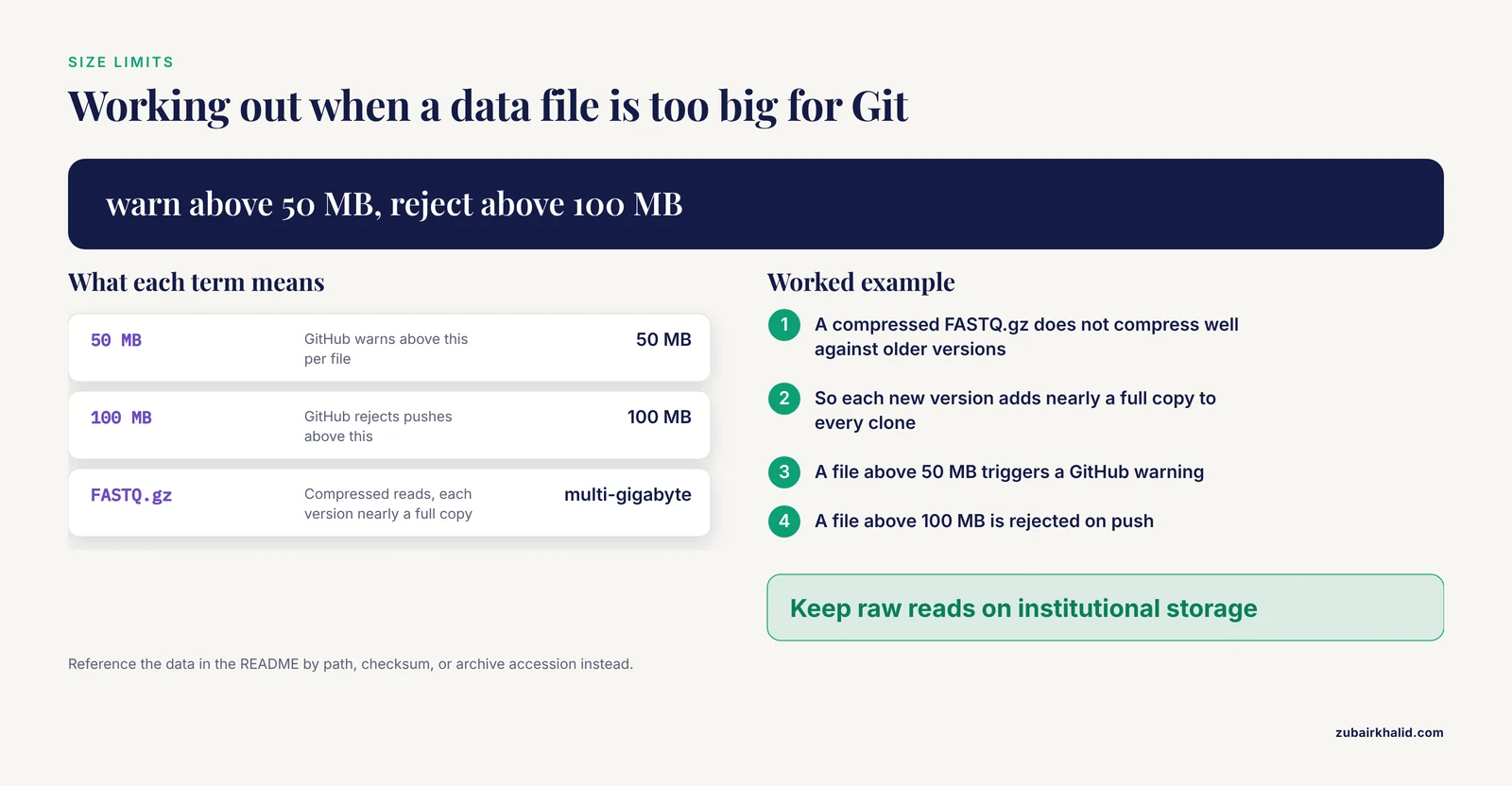
- Committing large data files. Git stores every version of every tracked file, and its storage relies on compressing similar text files against each other, so compressed scientific formats such as FASTQ.gz defeat it and each new version adds nearly a full copy to every clone. GitHub warns above 50 MB per file and rejects pushes containing files above 100 MB, per GitHub's documentation on large files. Keep raw reads, alignments, and multi-gigabyte outputs on institutional storage, and reference them in the README by path, checksum, or archive accession. Git LFS, an extension that stores large file contents on separate storage while Git tracks small pointer files, is worth adopting only where your institution supports the server side.
- Assuming configuration follows you. Global configuration is per user and per machine. A new laptop, a new cluster account, or a container image starts with nothing. Keep your ~/.gitconfig in a personal dotfiles repository (a small repository where people keep their configuration files) and copy it to each new environment, then run the verification steps once.
- Editing the wrong scope. A command typed without a scope flag inside the wrong directory writes to that repository's local file, and a system-scope edit on a shared server changes behavior for every account. When a setting behaves oddly, find its origin with the show-origin listing from the verification section before changing anything.
- Treating commit metadata as experimental provenance. Commits record author and committer timestamps, the two can differ, rebases rewrite both, and cluster clocks drift. Git proves what changed and who changed it, not when an experiment ran. Keep time-critical records in an electronic lab notebook or a laboratory information management system, and use the commit history for code provenance.
- Copying old advice from forums. Snippets that disable the dubious ownership check globally, turn off line ending handling, or hardcode credentials predate current Git behavior and create the problems described in this guide. Prefer the official Git documentation at git-scm.com and GitHub's documentation at docs.github.com.
- One limitation to state plainly: institutions differ in how they manage shared servers, data handling, and identity. Confirm anything that affects other people, especially system-scope settings and credential storage on shared machines, with your local IT or data governance office before you change it.
Tips for Research Teams on GitHub
Standardize the setup once. Keep a reviewed ~/.gitconfig template in a lab infrastructure repository. New members copy it, change only the two identity lines, and run the verification steps. Never put tokens or keys in that template.
Encourage structured commit messages with a template file:
git config --global commit.template ~/.gitmessageWith a ~/.gitmessage like this, every commit made without the -m flag opens with these prompts:
Summary line, under 50 characters

What changed, why, and which samples or datasets are affected
On Git 2.37 or newer, remove the first-push friction for new branches:
git config --global push.autoSetupRemote trueWithout it, the first push of a new branch fails with "fatal: The current branch feature-x has no upstream branch" and asks for the upstream flag (the upstream is the remote branch your local branch tracks). With it, git push sets the tracking relationship automatically.
Give every project a .gitignore on day one. A bioinformatics starter, adjusted per project:
data/raw/
*.fastq.gz
*.fq.gz
*.bam
*.bam.bai
*.csi
scratch/
results/
The principle: generated files stay out, and code, small metadata, notebooks, and parameter files stay in. When a result must be reproducible, the pipeline that regenerates it belongs in the repository, not the result itself.
Use the collaboration features GitHub provides for researchers. Protected branches can require a review before anything reaches main, which catches pipeline bugs before they touch published analysis. A CODEOWNERS file requests review from specific people whenever designated paths change, useful when one person owns the preprocessing code and another owns the statistics. Mentioning an issue number such as #42 in a commit message links that commit to the discussion automatically. These are repository settings on GitHub rather than Git configuration, but they assume the clean local setup this guide produces, and they are what turn a personal repository into a shared, reviewable record.
Sensible next steps: create your first real repository with git init and push it to GitHub, add branch protection on main once collaborators join, and schedule a backup of your dotfiles repository alongside your institutional storage.
Frequently Asked Questions
What is the difference between global and local Git configuration?
Global configuration lives in your home directory and applies to every repository you work on as that user. Local configuration lives inside a repository, in its .git/config file, and applies only to that repository, and it wins whenever the same key is set in both places. System configuration sits beneath both and is normally managed by administrators.
Should I use my university email or a GitHub noreply email in Git?
Either works, and the choice is about privacy. GitHub links commits to your profile by matching the email in your Git identity, so use an address verified on your account. If you do not want your institutional address visible in public commit history, enable the private email option in your GitHub settings and set the noreply address GitHub provides as your user.email.
Why does Git keep asking for my password when I push to GitHub?
Because no credential helper is configured, or because you are entering your account password, which GitHub no longer accepts for Git operations. Configure a credential helper such as Git Credential Manager on Windows or the keychain helper on macOS, or switch the remote to SSH with a key pair. You should type a credential once, never on every push.
What line ending settings should I use on Windows versus Mac or Linux?
Set core.autocrlf to true on Windows and to input on macOS and Linux. Better still, commit a .gitattributes file to each repository so the rules travel with the code and every operating system behaves identically regardless of personal settings. Mixed endings are what cause whole-file diffs and the bad interpreter error in shell scripts.
Can I fix the author name or email on a commit I already made?
Yes, for the most recent commit, correct your identity settings and then amend the commit with the reset-author option, which is safe as long as the commit has not been pushed. Older commits need history rewriting tools, which change the identifier of every later commit and force every collaborator to reset their copies. Treat pushed history as fixed and get the identity right before the first push.
How do I use Git safely on a shared server or compute cluster?
Set your identity at the global scope inside your own home directory, use an in-memory credential cache or SSH keys rather than any plaintext storage, and protect your SSH key with a passphrase. If the dubious ownership error appears on directories owned by a service account, add only those specific paths as safe.directory exceptions in your global configuration. Ask before changing anything at the system scope, because it affects every account on the machine.
What should I never commit to a research repository?
Never commit credentials, API keys, tokens, or identifiable participant data, and keep raw sequencing reads, large alignment files, and other multi-gigabyte outputs out of Git. GitHub warns above 50 MB per file and rejects files above 100 MB, and large compressed files bloat every clone. List generated data in .gitignore and keep it on institutional storage, referenced by path or accession.
How do I see where a configuration value is coming from?
Run the list command with the show-origin option, which prints every active setting together with the file it came from. To check one value, run git config followed by the key name, such as user.email, and Git prints the winning value after applying the scope order of local, global, system. The verification section above shows representative output for both.