Ensembl Location Tab Explained
By Dr. Zubair Khalid, DVM, MS, PhD ·
The Location tab in the Ensembl genome browser is the view you use when you want to see what is happening across a stretch of genomic sequence rather than inside a single gene. By the end of this guide you will be able to open any region by coordinates, read the tracks in the Region in detail view, zoom and pan efficiently, export sequence and annotation, construct shareable URLs, query the same data programmatically through the REST API, and avoid the coordinate-system errors that trip up most new users.
You need a modern web browser and, for the programmatic sections, either curl or Python 3 with the requests library. No account is required to browse or export data from Ensembl. The examples below use the human genome (GRCh38 assembly) at www.ensembl.org, but the same interface and URL patterns apply to every species hosted by Ensembl and its sister projects [1] [2].
What the Location Tab Is (and How It Fits into Ensembl)
Ensembl organizes its web interface around a set of top-level tabs that change depending on what you are looking at. When you search for a gene such as BRCA2, you land on the Gene tab, which shows gene-centric information: transcripts, protein domains, phenotype associations, and external references. When you click on the Location tab from a gene page, or when you search directly for coordinates, Ensembl switches to a region-centric view that displays everything mapped to that stretch of the genome: genes, variants, regulatory features, repeats, comparative alignments, and any custom data you have uploaded [1] [3].
The distinction matters in practice. The Gene tab answers "what is this gene and what do we know about it?" The Location tab answers "what is in this 50 kilobase window on chromosome 13?" If you are annotating a variant, designing primers, or checking what overlaps a ChIP-seq peak, you want the Location tab. If you want to read about a gene's function or browse its transcripts, you want the Gene tab.
Ensembl has been developed and maintained by the European Bioinformatics Institute (EMBL-EBI) and the Wellcome Sanger Institute since 1999. The underlying data model and web mechanics were described in detail by Stalker and colleagues, who explain how the browser serves pre-computed genomic annotations and renders them as layered graphical tracks [1]. A companion resource, Ensembl Genomes, extends the same interface to bacteria, plants, fungi, protists, and metazoa outside the chordate lineage [2].
Ensembl Location Tab Step by Step
This walkthrough takes you from an empty browser to a fully annotated region with exported sequence. Each step includes the exact action, what you should see, and what can go wrong.
Step 1: Open a Region by Coordinates
Go to https://www.ensembl.org. In the search box at the top of the page, type a coordinate string in the format chromosome:start-end. For example, to open a 100 kilobase region on human chromosome 1:
1:1000000-1100000Press Enter. Ensembl navigates to the Location tab and displays the Region in detail view for that interval. The URL in your browser address bar will look like:
https://www.ensembl.org/Homo_sapiens/Location/View?r=1:1000000-1100000The r parameter encodes the region. Its format is always chromosome:start-end with no spaces, no commas, and no chr prefix. Ensembl does not use the chr prefix that UCSC and NCBI use, so typing chr1:1000000-1100000 will either fail or trigger a species-lookup error.
You can also search by gene name (BRCA2), variant identifier (rs699), cytogenetic band (7q21), or Ensembl stable identifier (ENSG00000139618). Ensembl resolves all of these to a genomic location and opens the appropriate tab.
Step 2: Read the Region in Detail View
The Region in detail view is the main graphical display of the Location tab. It renders genomic annotations as horizontal tracks stacked vertically. From top to bottom, the default tracks typically include:
- Chromosome shows the position of your region on the full chromosome as a highlighted band.
- Contigs shows the assembly components (scaffolds or clones) that make up this region of the reference genome.
- Genes shows gene models from the Ensembl annotation pipeline. Exons are drawn as filled blocks, introns as lines with chevrons indicating direction. Genes on the forward strand point right, genes on the reverse strand point left.
- Sequence variants shows SNPs and small indels from dbSNP and other sources, plotted as vertical ticks colored by consequence type.
- Regulatory features shows promoters, enhancers, and other cis-regulatory elements from Ensembl's regulatory build (available for human and a few other species).
- Alignments shows syntenic regions from related species, displayed as colored blocks connected across tracks.
Each track has a label on the left. Clicking on any feature within a track opens a pop-up window with details: for a gene, you get the stable ID, biotype, and links to the Gene tab. For a variant, you get the allele, consequence, and links to the Variation tab. For a regulatory feature, you get the cell type and evidence.
Step 3: Zoom and Pan
Above the Region in detail view, a navigation bar shows the current chromosome, start coordinate, and end coordinate in three separate text boxes. You can type new values directly and press Enter to jump. To the right of the text boxes, buttons let you zoom in, zoom out, pan left, and pan right.
Keyboard shortcuts work when the browser window has focus:
+or=zooms in-zooms out- Left and right arrow keys pan by one screen width
Shiftplus left or right arrow pans by a smaller step
As you zoom in past approximately 10 kilobases, Ensembl begins to render the DNA sequence as a colored track at the bottom of the display, with each base pair drawn as a letter (A, C, G, T). At maximum zoom, individual bases are visible and you can read the sequence directly from the graphical view. This basepair-level rendering is one of the most useful features of the Location tab for primer design and variant validation.
Step 4: View the Sequence
Click "Sequence" in the left-hand menu or in the sub-tab bar. The Sequence view displays the nucleotide sequence of the current region in a formatted block, with annotations overlaid:
- Coding exons are highlighted and the translated amino acid sequence is shown in single-letter code below the DNA.
- Untranslated regions (UTRs) are shown in a different shade.
- Introns are shown as lowercase letters.
- Variants are marked with their alternative alleles.
You can change the display options (for example, show or hide translation, change line width) using the "Configure this page" link. The sequence is always displayed in the orientation of the reference chromosome (forward strand), regardless of the strand of any gene in the region.
Step 5: Configure Tracks
Click "Configure this page" in the left-hand menu. A panel opens with a list of available track categories. Each category can be expanded to show individual tracks with on/off toggles and rendering options (compact, expanded, collapsed, or as text labels only).
Useful tracks to enable for many workflows:
- CpG islands (under "Simple features"): useful for promoter analysis.
- Repeats (under "Repeats"): shows repetitive elements annotated by RepeatMasker.
- Constrained elements (under "Comparative genomics"): shows evolutionarily conserved regions from the Ensembl comparative genomics pipeline.
- eQTLs (under "Expression"): shows variants associated with gene expression changes.
Click the checkmark at the top of the panel to save your configuration. The page reloads with your selected tracks. Ensembl stores your configuration in a browser cookie, so it persists across sessions on the same computer but is not tied to your IP address or account.
Step 6: Export Data
Click "Export data" in the left-hand menu. A form opens with options for:
- Format: FASTA (sequence only), GFF3 (annotation), BED (annotation in UCSC format), or tab-delimited text.
- Scope: the current region, a specified region, or the whole chromosome.
- Features: which track types to include in the export.
Select FASTA and click "Go". Ensembl returns a plain-text FASTA file with a header line like:
>1:1000000-1100000followed by the DNA sequence in 60-character lines. For GFF3 export, the output includes gene, transcript, exon, and CDS features with coordinates in GFF3 column format.
Alternatively, you can construct an export URL directly by appending ;export=fasta to the Location view URL:
https://www.ensembl.org/Homo_sapiens/Location/View?r=1:1000000-1100000;export=fastaThis returns the FASTA file without requiring you to navigate through the export form.
Reading the Region in Detail View: A Worked Example
Let us open the BRCA2 gene region and read the tracks. Type BRCA2 in the search box and press Enter. Ensembl opens the Gene tab. Click the "Location" tab at the top of the page. The URL changes to something like:
https://www.ensembl.org/Homo_sapiens/Location/View?r=13:32315474-32400249The Region in detail view shows BRCA2 as a long gene spanning approximately 85 kilobases on the reverse strand of chromosome 13. The gene track shows the gene model with exons as blocks and introns as lines with left-pointing chevrons (indicating reverse-strand transcription). The variant track shows hundreds of known SNPs distributed across the gene. The regulatory track shows promoter-associated features near the transcription start site at the right end of the gene (since BRCA2 is on the reverse strand, its 5' end is at the higher coordinate).
Clicking on any exon opens a pop-up with the exon ID, coordinates, and phase. Clicking on the gene model itself opens a pop-up with the gene summary and a link to the Gene tab.
The Ensembl URL Structure for Location Views
Every Location view has a stable, shareable URL. Understanding the URL parameters lets you construct links directly, share them with colleagues, and bookmark specific views.
The base URL pattern is:
https://www.ensembl.org/{species}/Location/View?r={chromosome}:{start}-{end}The table below summarizes the URL components:
| Component | Example | Purpose |
|---|---|---|
| Species | Homo_sapiens | Latin binomial with underscore. Case-sensitive. |
| Action | Location/View | Fixed. Specifies the Location tab. |
r parameter | 13:32315474-32400249 | Region. Format: chromosome:start-end. |
export parameter | ;export=fasta | Optional. Triggers data export. |
db parameter | ;db=core | Optional. Specifies database (core, variation, funcgen). |
For the GRCh37 archive (the previous human reference assembly), use the dedicated archive site:
https://grch37.ensembl.org/Homo_sapiens/Location/View?r=13:32315474-32400249Coordinates differ between GRCh37 and GRCh38 for many regions because the assembly was updated. If you have coordinates from a paper or dataset that used GRCh37, you must query the archive site or lift the coordinates to GRCh38 using Ensembl's assembly converter tool.
To share a view with a colleague, copy the URL from your browser address bar. The URL captures the region but not your track configuration. To share a view with specific tracks enabled, use the "Bookmark or share" link in the left-hand menu, which generates a URL that includes your configuration as a compressed parameter.
Coordinate Systems: Ensembl vs UCSC vs BED
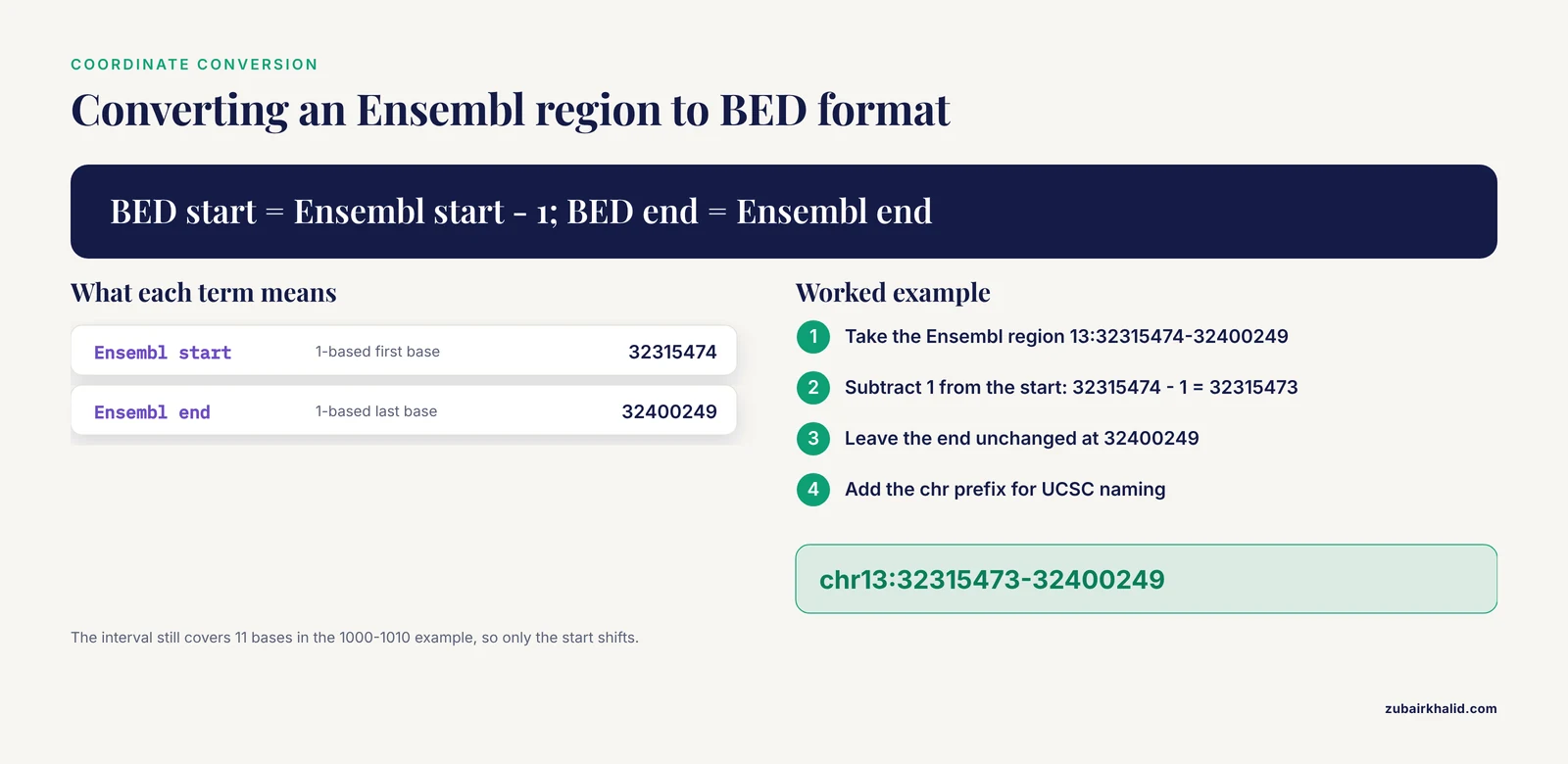
Coordinate systems are the single most common source of error when working across genome browsers. Ensembl uses 1-based, fully closed coordinates in its web interface and REST API. This means position 1 is the first base of the chromosome, and a region from 1000 to 1010 includes both base 1000 and base 1010 (11 bases total).
UCSC and BED format use 0-based, half-open coordinates. In BED format, a feature at chromStart 999 and chromEnd 1010 covers bases 1000 through 1010 in 1-based terms (11 bases). The start is 0-based and the end is 1-based, which is why the format is called "half-open."
GFF, GTF, and VCF formats use 1-based coordinates, matching Ensembl's convention.
The table below summarizes the conventions:
| Format or browser | Start coordinate | End coordinate | Bases in interval 1000-1010 (1-based) |
|---|---|---|---|
| Ensembl web and REST | 1-based | 1-based (inclusive) | 11 |
| UCSC Genome Browser | 0-based | 1-based (inclusive) | 11 |
| BED file | 0-based | 0-based (exclusive) | 11 |
| GFF3 / GTF | 1-based | 1-based (inclusive) | 11 |
| VCF | 1-based | 1-based | 11 |
To convert a 1-based Ensembl interval to a BED interval, subtract 1 from the start coordinate and leave the end coordinate unchanged. To convert a BED interval to 1-based coordinates, add 1 to the start coordinate. The end coordinate in BED format is already the 1-based end plus 1, so no adjustment is needed for the end.
For example, the Ensembl region 13:32315474-32400249 corresponds to the BED interval chr13:32315473-32400249 (using UCSC chromosome naming with the chr prefix).
Furey's comparison of genome browsers provides additional context on how UCSC, Ensembl, and the NCBI MapViewer differ in their data models and coordinate conventions [4].
Ensembl Location Tab Tips for Faster Work
These tips assume you are already comfortable opening a region and reading tracks. Each one saves clicks or avoids a common delay.
Construct URLs directly instead of using the search box. If you know the coordinates, type the full URL into your browser address bar. This is faster than loading the Ensembl home page and typing into the search box, and it works from scripts and bookmarks.
Use the chromosome overview to orient yourself. If you zoomed in too far and lost context, click "Region overview" in the left-hand menu. This shows the full chromosome with your region highlighted, giving you a sense of where you are.
Right-click on any feature to get a context menu. Ensembl supports right-click menus on tracks and features. Right-clicking on a gene gives you options to view the gene, export its sequence, or open it in a pop-up.
Use the "Jump to" dropdown in the left-hand menu to switch species. If you are working with mouse and human orthologs, you can jump between species while keeping the same relative position (Ensembl maps the location through whole-genome alignments).
Enable the basepair track for primer design. Zoom to a region of 100 bases or fewer and the sequence track appears automatically. You can copy the sequence directly from the display for oligo design.
Use the REST API for bulk operations. If you need sequences or annotations for hundreds of regions, the REST API is faster than clicking through the web interface. The next section shows how.
Check the assembly before comparing coordinates. Always verify that the assembly shown in the top banner of the Ensembl page matches the assembly your data uses. Ensembl displays the assembly name (for example, GRCh38) prominently on every page.
Common Mistakes and Limitations
These are the errors that cause the most wasted time and incorrect results when using the Ensembl Location tab.
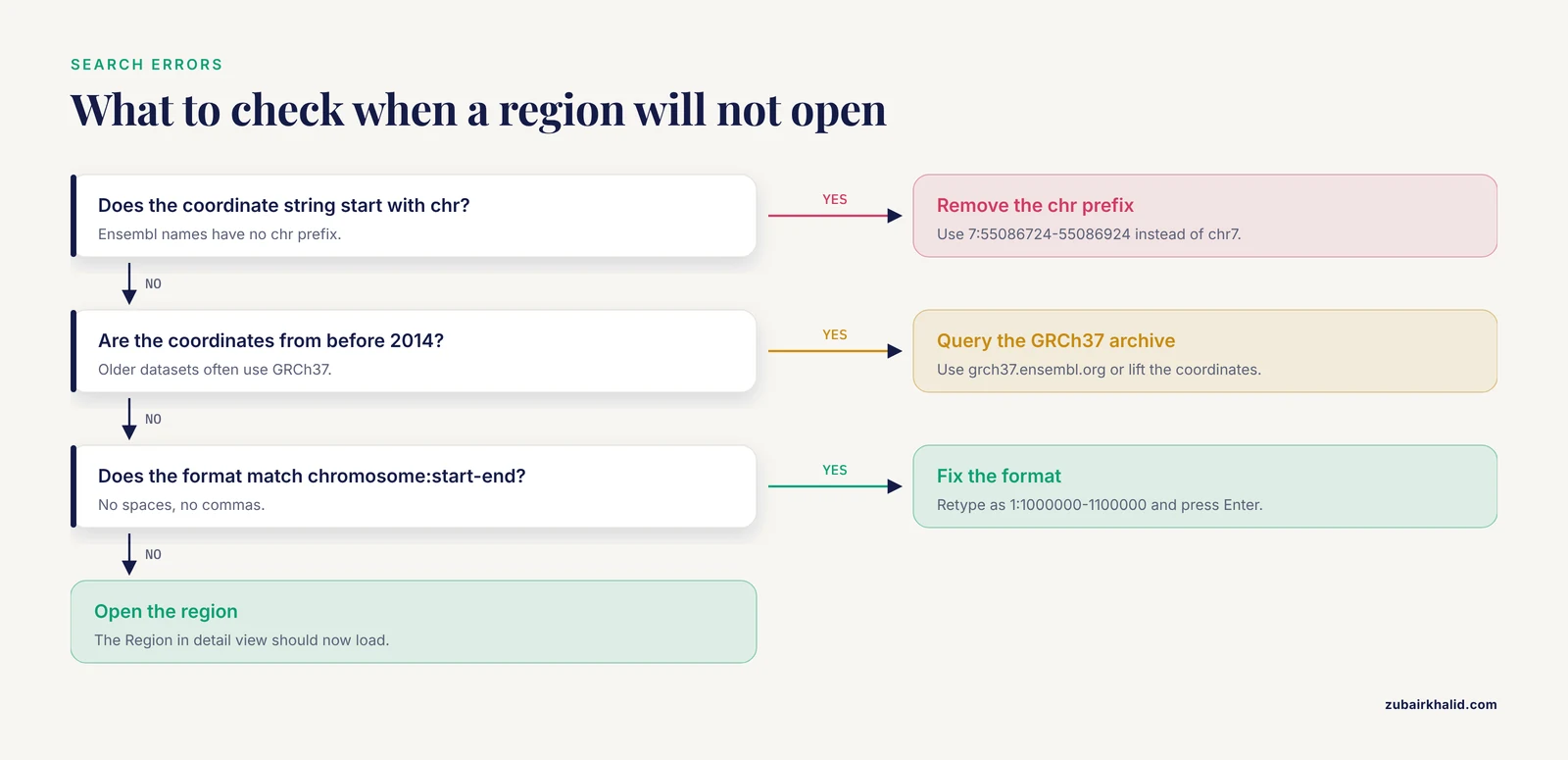
Using the chr prefix in the search box or URL. Ensembl chromosome names do not include the chr prefix. Typing chr7:55086724-55086924 produces an error or returns no results. Use 7:55086724-55086924 instead. This is the opposite of UCSC, which requires the chr prefix.
Confusing GRCh37 and GRCh38 coordinates. The human reference assembly was updated from GRCh37 to GRCh38 in 2013. Coordinates for the same base pair differ between assemblies because the reference sequence changed. If you have coordinates from a dataset generated before 2014, check which assembly it used. Query grch37.ensembl.org for GRCh37 coordinates and www.ensembl.org for GRCh38. Ensembl provides an assembly converter tool under the "Tools" menu to lift coordinates between assemblies.
Assuming the Location tab shows only genes. The default view shows a subset of available tracks. Many users do not realize that regulatory features, repeats, constrained elements, and external data are available through "Configure this page." Always check the configuration panel when you need more information than the default tracks show.
Exporting the wrong strand. The FASTA export from the Location tab always returns the forward strand of the reference chromosome. If your gene is on the reverse strand, the exported sequence is the reverse complement of the mRNA sequence. You need to reverse-complement it yourself or use the REST API with a strand parameter.
Ignoring the coordinate system when converting between tools. A one-base offset from BED-to-Ensembl conversion shifts your entire analysis. Always verify by checking a known feature: look up a gene in Ensembl, note its coordinates, export the same region as BED, and compare the start positions.
Expecting the Location tab to show real-time data. Ensembl releases data in discrete releases (currently over 100 for vertebrates). The data you see reflects the most recent release, not live database updates. If a paper cites a specific Ensembl release, you can access that release through the Ensembl archives.
Not realizing that the Location tab is species-specific. The URL contains the species name. If you bookmark a human location and then switch to mouse, the URL changes. Make sure you are on the correct species before interpreting coordinates.
Assuming Ensembl covers every species. Ensembl focuses on chordates at www.ensembl.org and covers non-vertebrate species at ensemblgenomes.org [2]. Some species, particularly those studied by specific national or regional projects, are hosted elsewhere. The Swedish Reference Genome Portal, for example, provides JBrowse2-based browsing for non-model eukaryotes studied in Sweden, complementing rather than duplicating Ensembl's coverage [5].
Programmatic Access to Location Data
The Ensembl REST API provides programmatic access to the same data shown in the Location tab. The API is free, requires no authentication for reasonable use, and returns JSON or plain text.
Retrieving Gene Coordinates
To get the coordinates of a gene by its Ensembl stable ID, use the lookup endpoint:
curl -H "Content-Type: application/json" \
  "https://rest.ensembl.org/lookup/id/ENSG00000139618?expand=1"
The expand=1 parameter includes transcript objects within the gene. The response is a JSON object:
{
  "source": "ensembl_havana",
  "object_type": "Gene",
  "logic_name": "ensembl_havana_gene",
  "species": "homo_sapiens",
  "assembly_name": "GRCh38",
  "biotype": "protein_coding",
  "strand": -1,
  "version": 14,
  "id": "ENSG00000139618",
  "start": 32315474,
  "end": 32400249,
  "seq_region_name": "13",
  "display_name": "BRCA2",
  "transcripts": [ ... ]
}
The start and end fields give the 1-based coordinates on the chromosome named in seq_region_name. The strand field is -1 for reverse strand and 1 for forward strand.
Retrieving Sequence for a Region
To get the DNA sequence for a region, use the sequence/region endpoint:
curl -H "Content-Type: text/plain" \
  "https://rest.ensembl.org/sequence/region/human/13:32315474-32400249:1"
The region format is chromosome:start-end:strand where strand is 1 for forward or -1 for reverse. The response is a JSON object containing the sequence string:
{
  "seq": "ACGT...",
  "id": "chromosome:GRCh38:13:32315474:32400249:1",
  "molecule": "dna"
}
To get FASTA output instead, set the Content-Type header to text/x-fasta:
curl -H "Content-Type: text/x-fasta" \
  "https://rest.ensembl.org/sequence/region/human/13:32315474-32400249:1"
This returns:
>13:32315474:32400249:1
ACGTACGTACGT...
Converting Between Coordinate Systems
The REST API does not provide a direct coordinate conversion endpoint. For assembly conversion (GRCh37 to GRCh38), use the Ensembl Assembly Converter tool available through the web interface, or use the map endpoint to project coordinates between a transcript and the genome:
curl -H "Content-Type: application/json" \
  "https://rest.ensembl.org/map/cds/ENST00000381657/100-200"
This maps CDS coordinates 100 through 200 of transcript ENST00000381657 to genomic coordinates. The response includes the genomic start, end, and strand for each mapped segment.
Rate Limits
The Ensembl REST API limits unauthenticated requests to a rate that supports interactive use but prevents bulk downloads. For large-scale data retrieval, use the Ensembl FTP site (ftp.ensembl.org) to download full datasets, or use the BioMart web tool for structured queries across multiple genes or regions [6].
Frequently Asked Questions
What is the difference between the Gene tab and the Location tab in Ensembl?
The Gene tab shows information about a specific gene: its transcripts, protein domains, phenotype links, and external references. The Location tab shows everything mapped to a genomic region: all genes in the window, variants, regulatory features, repeats, and comparative alignments. Use the Gene tab when you want to read about one gene. Use the Location tab when you want to see what overlaps a stretch of sequence.
How do I jump to specific coordinates in Ensembl?
Type the coordinates in the search box using the format chromosome:start-end, for example 13:32315474-32400249. Press Enter. Alternatively, construct the URL directly: https://www.ensembl.org/Homo_sapiens/Location/View?r=13:32315474-32400249. Do not use the chr prefix.
Why do Ensembl coordinates differ from UCSC by one base pair?
Ensembl uses 1-based coordinates where the first base of a chromosome is position 1. UCSC and BED format use 0-based coordinates where the first base is position 0. A feature that starts at position 1000 in Ensembl starts at position 999 in BED format. The end coordinate is also treated differently: BED uses a half-open interval where the end position is excluded, while Ensembl includes the end position.
Can I share a link to a specific region in Ensembl?
Yes. Every Location view has a stable URL that encodes the species, chromosome, and coordinates. Copy the URL from your browser address bar and share it. The URL captures the region but not your track configuration. To share a view with specific tracks, use the "Bookmark or share" link in the left-hand menu.
How do I export a DNA sequence from the Ensembl Location tab?
Click "Export data" in the left-hand menu, select FASTA as the format, and click "Go". Alternatively, append ;export=fasta to the Location view URL. The exported sequence is always the forward strand of the reference chromosome. If your gene is on the reverse strand, you need to reverse-complement the sequence.
What genome assembly does Ensembl use for human?
Ensembl currently uses GRCh38 for the human genome at www.ensembl.org. The previous assembly, GRCh37, is available at grch37.ensembl.org. Coordinates differ between the two assemblies because the reference sequence was updated. Always check the assembly name displayed at the top of the Ensembl page before comparing coordinates with other sources.
Can I upload my own data to display in the Location view?
Yes. Click "Configure this page" in the left-hand menu and look for the option to add your own data. Ensembl supports uploading BED, GFF, GTF, VCF, and BAM files. Uploaded data appears as a custom track alongside the built-in annotations. The data is stored temporarily on Ensembl's servers and is not visible to other users unless you share the URL.
Does Ensembl work for non-human species?
Yes. Ensembl hosts genome browsers for hundreds of vertebrate species at www.ensembl.org and for bacteria, plants, fungi, protists, and metazoa at ensemblgenomes.org. The Location tab interface is the same across species. Use the species dropdown in the top navigation bar to switch between organisms.
Sources
- The Ensembl Web site: mechanics of a genome browser.
- Ensembl Genomes 2013: scaling up access to genome-wide data
- Genome browsing with Ensembl: a practical overview.
- Comparison of human (and other) genome browsers
- The Swedish Reference Genome Portal: A Hub for Non-Human Eukaryotic Genomic Data Visualisation, Discovery, and Reuse
- Disease and Phenotype Data at Ensembl