apt vs. conda vs. mamba: Which Package Manager Should You Use?
By Dr. Zubair Khalid, DVM, MS, PhD ·
apt installs operating system software for everyone on a Linux machine, conda installs isolated scientific software stacks for you alone, and mamba does exactly what conda does with a much faster dependency solver. The rule of thumb is simple: use apt for system tools and compilers, use conda (or mamba, which you should prefer in practice) for bioinformatics software, and keep the two from installing the same libraries over each other. Almost every bioinformatics decision reduces to that division of labor.
This article explains how each manager works on its own terms, compares them on the criteria that actually decide real choices, walks through worked scenarios, and lists the mistakes that cost people the most time. The comparison assumes Debian or Ubuntu Linux, which is the most common base for bioinformatics workstations and container images [1], but the same logic applies to other distributions with their own native package managers.
What a Package Manager Actually Does
A package manager is software that installs, updates, and removes other software, and that resolves dependencies automatically. A dependency is a library or program that the tool you want needs in order to run. If you install an aligner that requires a specific version of the zlib compression library, the package manager figures that out, downloads the right files, and places them where the operating system or the environment expects to find them.
Three concepts separate the tools in this comparison:
- Scope. apt works at the level of the whole operating system. conda and mamba work at the level of self-contained environments.
- Privilege. apt needs administrator rights, called root or sudo access, because it writes to system directories such as /usr/bin. conda and mamba write only to directories you own.
- Solver. The solver is the piece of software that computes a mutually compatible set of package versions. apt uses a solver tuned for system packages, conda historically used a Python-based solver that slowed down on large requests, and mamba uses a fast C++ solver built on the same dependency data.
Understanding these three axes (scope, privilege, and solver) explains almost every practical difference between the three tools.
apt: The System Package Manager
How apt works
apt (Advanced Package Tool) is the package manager for Debian, Ubuntu, and their derivatives. It installs precompiled .deb packages from curated repositories maintained by the distribution. A typical session on a fresh Ubuntu workstation looks like this:
sudo apt update
sudo apt install samtools
sudo apt install build-essential
The first command refreshes the local index of available packages. The second installs samtools, a standard toolkit for manipulating sequence alignment files, together with its system dependencies. The third installs the GNU compiler toolchain, which you need to compile software from source.
apt installs into system-wide locations such as /usr/bin and /usr/lib. Everything it installs is shared by every user on the machine, which is why it demands administrator privileges. The package versions available are whatever the distribution ships. Ubuntu repositories are built for stability, so a given Ubuntu release tends to carry one fixed version of each tool, updated mainly for security fixes rather than new features.
When to use apt
Use apt when you want a tool to behave like part of the operating system. The clearest cases are:
- Compilers, interpreters, and build essentials (gcc, g++, make, python3, git)
- Core Unix utilities you will use constantly (rsync, curl, wget, htop)
- System libraries that compiled software links against
- Long-lived services such as database servers or web servers on a shared machine
apt is also the right tool when a single well-established program is all you need on a personal workstation. Installing a local copy of BLAST on a standalone Linux workstation is a classic example of this pattern, and the procedure has been documented for workstation and intranet use for two decades [2]. If the distribution repository carries the version you need, apt gives you a one-command install, automatic security updates, and no environment management to think about.
The limits of apt for bioinformatics
Three limitations make apt a poor primary tool for bioinformatics work:
- Version staleness. Bioinformatics methods change fast. An aligner or variant caller from the Ubuntu repository may be years behind the current release, and newer methods often are not packaged at all.
- One version per tool. apt installs one version of each package system-wide. If pipeline A needs version 1.x of a tool and pipeline B needs version 2.x, apt cannot satisfy both at once.
- Root requirement. On shared servers and high-performance computing (HPC) clusters, ordinary users cannot run sudo at all. This single fact excludes apt as an installation path on most cluster systems.
None of this makes apt useless. It makes apt the wrong layer. The difference between apt and conda in bioinformatics is mostly a difference about which layer of the software stack each one manages.
conda: Language-Agnostic Environments for Science
How conda works
conda is a cross-platform package and environment manager. Unlike language-specific tools such as pip (Python) or cargo (Rust), conda installs packages for any language, including compiled C and C++ binaries, which matters because most bioinformatics software is written in those languages. Unlike apt, conda does not need root. It installs into a directory in your home folder, usually something like ~/miniconda3, and manages isolated environments.
An environment is a self-contained directory holding a specific set of packages and their versions. Environments solve the version conflict problem directly: pipeline A can live in an environment with samtools 1.x while pipeline B lives in a separate environment with samtools 2.x, and switching between them is a one-line command.
Bioinformatics conda packages come largely from Bioconda, a community channel dedicated to life sciences software, alongside the general-purpose conda-forge channel. A channel is a hosted repository of conda packages. A typical environment creation looks like this:
conda create -n rnaseq -c conda-forge -c bioconda \
  samtools star fastqc multiqc
conda activate rnaseq
This creates an environment named rnaseq containing an RNA-seq toolchain, resolves all their dependencies, and activates it so your shell uses that environment's programs first. Publishing authors increasingly support this workflow directly. The NanoPack2 suite for long-read sequencing data quality control, for example, is explicitly documented as installable with the conda dependency manager, alongside standalone compiled binaries that require no installation at all [3].
Why conda became the default in bioinformatics
conda won its place in bioinformatics for four reasons:
- No root needed. It works on clusters where you only own your home directory.
- Compiled software, not just Python. It handles C, C++, Fortran, and R dependencies that pure Python tooling cannot manage.
- Bioconda's coverage. Thousands of bioinformatics tools have conda recipes, so a single command often replaces an afternoon of fighting configure scripts.
- Environment files. An environment.yml file lists the channels and exact package versions for an environment, which makes the stack reproducible on another machine.
That fourth point deserves emphasis. A reproducible environment file is the cheapest form of computational reproducibility available to a bench-adjacent researcher. You export it with conda env export > environment.yml, commit it next to your analysis code, and anyone can rebuild your exact software stack with conda env create -f environment.yml.
The problem with conda: slow solving
Classical conda had one well-known weakness. Its dependency solver, the algorithm that picks a compatible set of package versions, was written in Python and became painfully slow when you asked for many packages at once. Requests touching the Bioconda channel, which contains thousands of interdependent tools, could spend tens of minutes in what analysts call "solving," with no visible progress. This pain point is precisely what mamba was built to eliminate.
mamba: The Fast Drop-In Replacement
How mamba works
mamba is a reimplementation of the conda interface in C++ that uses a much faster dependency solver. The underlying solver library, called libmamba, resolves the same package metadata from the same channels but does so dramatically faster and with better progress reporting. Commands match conda one for one:
mamba create -n rnaseq -c conda-forge -c bioconda \
  samtools star fastqc multiqc
mamba activate rnaseq
If you know conda, you know mamba. The environment files, the channel system, the package format, and the activate/deactivate model are identical, because mamba operates on the same packaging ecosystem. You can even run mamba install inside an existing conda environment.
The distinction between mamba and micromamba is worth a sentence. mamba is a drop-in replacement executable that assumes an existing conda installation. micromamba is a fully standalone, single-file version of the same tool that requires no conda or Python base installation at all, which makes it the natural choice for container images, continuous integration systems, and cluster bootstrap scripts.
The convergence of conda and mamba
The distinction between the two tools has narrowed in recent years. The conda project itself adopted the libmamba solver as its default, so a current conda installation resolves dependencies nearly as fast as mamba does. That means the practical answer to "apt vs. conda vs. mamba" is often "conda and mamba are the same ecosystem, so pick whichever frontend your team standardizes on, and prefer micromamba in containers and scripts." The comparison that actually changes behavior is still apt versus conda-family tools.
When to use mamba
Default to mamba (or micromamba) whenever you are creating or rebuilding conda environments. It gives you the same result as conda in a fraction of the time, and time spent watching a solver is time not spent analyzing data. The one habit to keep: create environments with an explicit list of packages in one command rather than installing packages one at a time, because the solver produces better, more minimal solutions when it sees the full request at once.
Side-by-Side Comparison
The table below is the core of the decision. Read it top to bottom for architecture, then use the criteria section afterward for the subtleties.
| Criterion | apt | conda | mamba / micromamba |
|---|---|---|---|
| What it manages | Operating system packages (.deb) | Cross-language packages in isolated environments | Same as conda, faster solver |
| Ecosystem | Debian and Ubuntu repositories | conda-forge, bioconda, and other channels | Identical channels as conda |
| Scope | Whole machine, all users | Per-user, per-project environments | Per-user, per-project environments |
| Root access required | Yes | No | No (micromamba needs no conda base either) |
| Languages covered | Anything packaged for the distro | Python, R, C/C++, Perl, Java, Rust, and more | Same |
| Bioinformatics coverage | Small, stable, often outdated subset | Very large via Bioconda | Very large via Bioconda |
| Multiple versions of one tool | No | Yes, one per environment | Yes, one per environment |
| Dependency solver speed | Fast for system packages | Fast in recent releases (libmamba default) | Fast, the original design goal |
| Cross-platform | Linux (Debian family) only | Linux, macOS, Windows (via WSL) | Linux, macOS, Windows (via WSL) |
| Reproducibility artifact | System image or provisioning script | environment.yml or lock file | Same |
| Typical role in bioinformatics | System foundation and core utilities | Primary tool installation method | Faster frontend for the same job |
The Criteria That Decide Real Choices
Root access and cluster reality
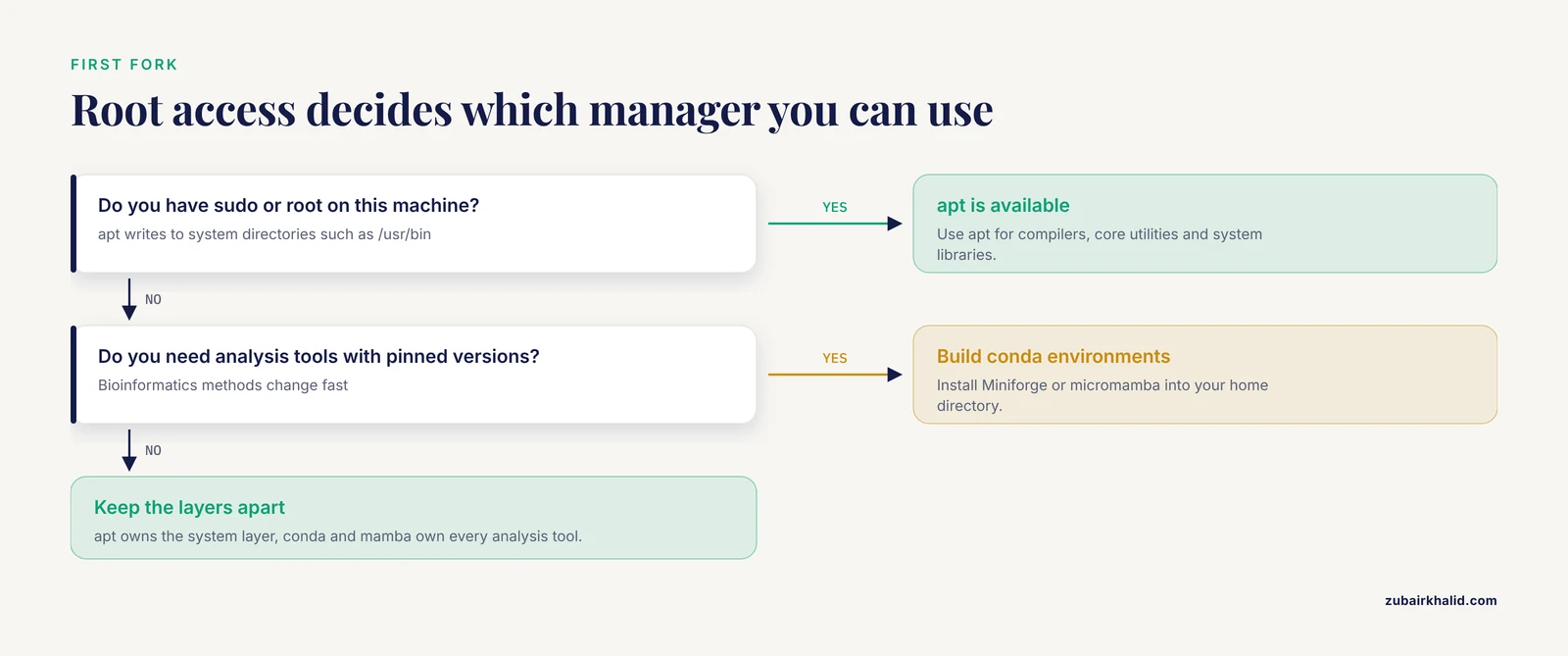
The single most decisive criterion is whether you have administrator rights. On your own laptop or lab workstation, you do, and apt is available. On an HPC cluster, where most serious bioinformatics compute happens, you almost certainly do not. Cluster users cannot modify system directories, cannot run apt, and therefore live in the conda world by necessity. Any "apt vs conda" discussion that ignores privilege is missing the first fork in the road. Linux for bioinformatics in practice means Ubuntu or Debian on the workstation, a module system plus conda on the cluster, and containers bridging the two.
Dependency resolution across languages
Bioinformatics pipelines mix languages freely. A typical workflow might chain a Python preprocessing script, a C++ aligner, a Perl utility, and an R plotting step. No single language-specific manager covers that span. apt covers compiled software but suffers the staleness and single-version limits described above. conda and mamba are the only mainstream options that resolve a mixed-language dependency tree into one isolated environment, which is why the Bioconda channel became the de facto distribution channel for the field.
Reproducibility and the container question
Reproducibility has layers, and package managers sit underneath the top layer. An environment.yml pins your package versions and gets you most of the way. Full reproducibility, where the operating system layer is fixed too, generally means containers. Docker images bundle the operating system, the libraries, and the software into a single immutable artifact, and this approach is now standard infrastructure in bioinformatics [4].
The relationship between the two approaches is complementary rather than competitive. The Dugong project, for example, is a Docker image based on Ubuntu Linux that packages more than 3500 bioinformatics tools with their libraries and dependencies specifically to support reproducible and replicable analyses across laboratories [1]. Project-specific platforms follow the same pattern: the COMBAT-TB Workbench for Mycobacterium tuberculosis whole-genome sequencing analysis combines its web interface and Galaxy workflow engine into a single easy-to-install application using Docker container technology [5]. In all of these cases, conda-family tooling lives inside the container as the installation mechanism, and the container freezes the result. The pragmatic pattern is micromamba inside a Dockerfile, an environment.yml as the specification, and the built image as the shipped artifact.
Validation in regulated settings
Some analysis environments face requirements beyond reproducibility. In regulated pharmaceutical contexts, such as Good Manufacturing Practices (GMP) environments for analytical ultracentrifugation, software must satisfy demands covering documentation, data handling consistency, process control, audit trails, and automation, and validated analysis software is a formal regulatory deliverable [6]. Environments assembled ad hoc from mutable channels do not meet that bar. The lesson generalizes: the more an analysis must be defended to an external reviewer or regulator, the more you should favor frozen, fully specified artifacts (locked environment files, then containers) over live package manager installs, and the more you should document which package manager, which channels, and which versions produced your results.
Speed and daily friction
Solver speed changed the practical experience of conda. The historical workflow of waiting many minutes for a Bioconda solve, or abandoning an environment creation entirely, pushed many analysts toward mamba when it appeared. With libmamba solving now default in conda itself, the remaining speed differences are modest, but mamba's progress reporting and error messages remain friendlier. Neither conda nor mamba competes with apt on raw install speed for simple system packages, because apt's dependency trees are smaller and prebuilt for the distribution.
Mixing the two safely
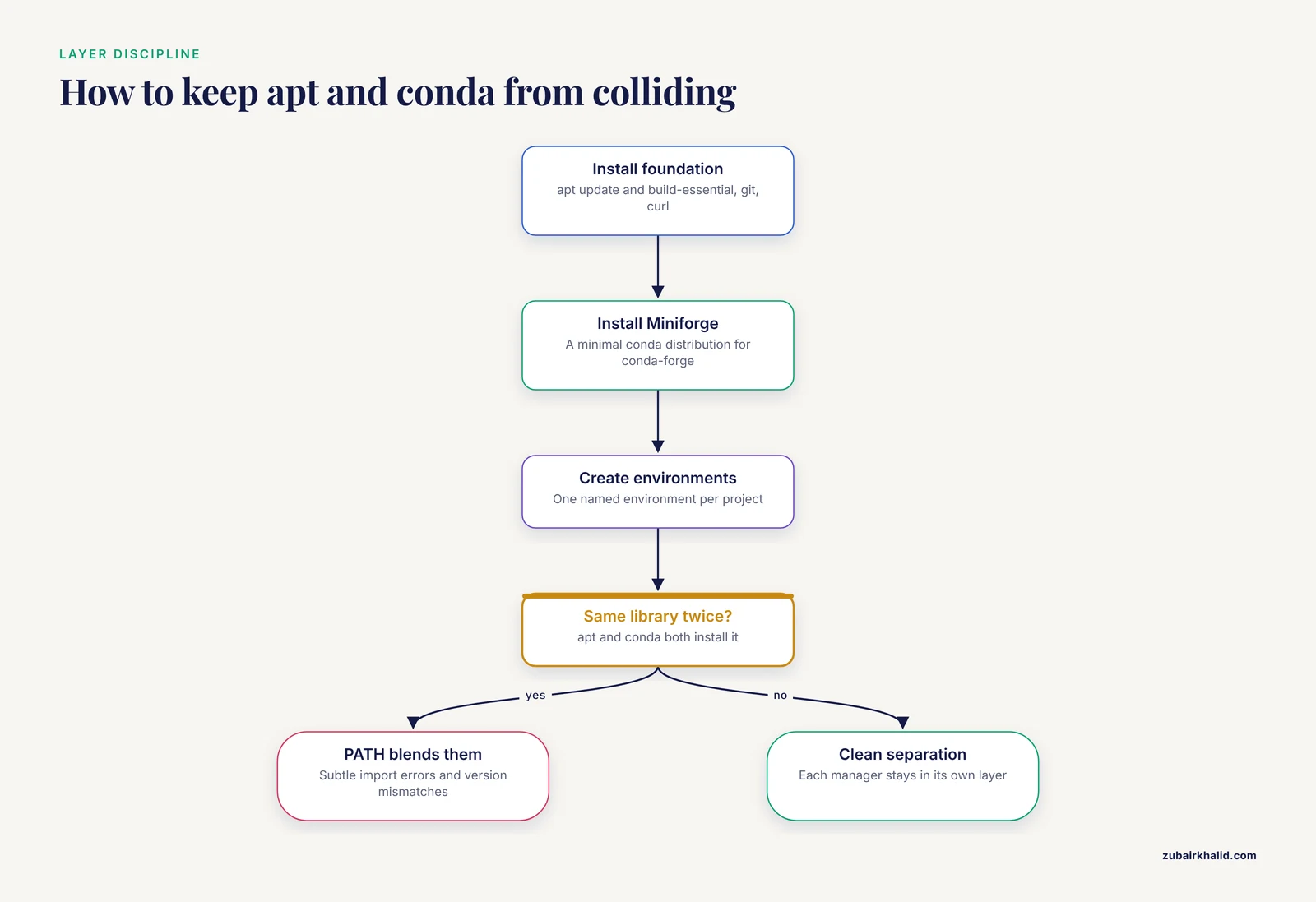
You will use both apt and conda on the same machine, and that is fine, as long as each manages its own layer. The failure mode is overlap. If apt installs Python and its system libraries, and conda environments then shadow those libraries on the PATH (the ordered list of directories your shell searches for executables), you get subtle, maddening import errors and version mismatches. The workable division:
- apt owns the operating system, compilers, and core utilities.
- conda/mamba owns every analysis tool and every language interpreter you actually run analyses with.
- Never use
sudo pip, and never install analysis packages with apt when a Bioconda package exists.
Worked Scenarios
Scenario 1: Setting up a new Ubuntu analysis workstation
You receive a fresh Ubuntu machine for a small lab's sequence analysis. Start with apt for the foundation:
sudo apt update
sudo apt install build-essential git curl wget rsync
Then install Miniforge (a minimal conda distribution preconfigured for conda-forge) and create project environments with mamba. Install long-lived, version-insensitive tools such as a local BLAST either from apt if the repository version suffices or from conda if you need current behavior, following the long-established pattern of local BLAST installation on workstations for high-throughput use [2]. Everything analysis-specific goes in named environments, and each project directory gets an environment.yml.
Scenario 2: You only have a home directory on an HPC cluster
apt is off the table because you lack root. Install Miniforge or micromamba into your home directory, build one environment per project, and keep the environments under your quota. For containers on clusters that ban Docker, use Apptainer (formerly Singularity) with images built from the same environment.yml files, or use the modules your cluster provides for heavy shared tools. The environment files you developed on your workstation transfer directly.
Scenario 3: You need to ship a pipeline to a collaborator
Write an environment.yml listing every tool with its version. Better, build a container from it. The container route is well supported by community infrastructure, including bioinformatics-focused registries that curate Docker images with domain-specific metadata so collaborators can find and reuse the right image [4]. Your collaborator should be able to run your pipeline with one pull or one mamba env create -f environment.yml, never by reading your install notes and hoping.
Scenario 4: A teaching lab with student accounts
Students need the same software stack on lab machines they may share. Do not install course tools with apt, because version drift between semesters creates confusing support load. Instead, install conda once per machine (or per user), and give students a single environment.yml per course that they create with one command on day one. Tools that ship as standalone static binaries, such as several of the NanoPack2 utilities built against musl for broad compatibility [3], are also worth considering in teaching settings precisely because they skip installation entirely.
Common Mistakes and Limitations
- Installing analysis tools with apt because it feels familiar. The version you get is whatever Ubuntu froze at release. Six months later your methods section reports a tool version that no longer matches the paper you are trying to reproduce.
- Installing packages one at a time in an existing conda environment. Each incremental install triggers a new solve that can degrade the environment into an inconsistent state. Create environments from a single explicit package list, and add packages by editing the file and recreating.
- Mixing pip into conda environments casually. Installing Python packages with pip inside a conda environment can override conda-managed libraries with incompatible builds. Exhaust the conda channels first, and only then use pip for the remainder, ideally inside a fresh environment.
- Forgetting which environment is active. Analyses silently run with the wrong tool version because the prompt lacks environment context. Configure your shell to show the active environment name, and check
which samtoolswhen results look strange. - Treating environment.yml as full reproducibility. It pins the conda layer, not the operating system, system libraries, or the container base image. For work that must be defensible to a reviewer, auditor, or regulator, freeze the whole stack in a container and record its digest [6].
- Sudo pip on top of system Python. This corrupts the interpreter apt manages and can break system tooling. If a tutorial tells you to run
sudo pip install, stop and build a conda environment instead. - Assuming apt and conda conflict inherently. They do not. They conflict only when both install overlapping libraries and the PATH blends them. Keep apt for the system layer and the overlap problem mostly disappears.
- One giant environment for everything. A single environment holding every tool you have ever used becomes unsolvable as the collection grows. One environment per project, or per pipeline, keeps solves fast and conflicts rare.
- Deleting an environment to "fix" it without a record. If the environment was not exported before you destroyed it, you have lost the specification. Export environment.yml files at creation time and commit them to version control immediately.
- Skipping verification after installation. Run each tool once with its version or help flag (for example
samtools, version) inside a fresh shell before building a pipeline on top of it, so a missing shared library or wrong version surfaces now rather than mid-analysis.
One honest limitation of all three tools: they install software, they do not validate it. A successful install tells you the tool runs, not that your parameters, references, or interpretation are correct, and those require domain expertise applied case by case.
Frequently Asked Questions
Can I use apt and conda on the same machine?
Yes, and most bioinformaticians do. Give apt the operating system layer (compilers, core utilities, system libraries) and give conda every analysis tool inside named environments. Problems arise only when both install the same libraries and your PATH blends them, so avoid installing scientific software with apt when a conda package exists.
Do I need administrator rights to use conda?
No. conda installs entirely inside a directory you own, typically in your home folder, which is exactly why it dominates on shared servers and HPC clusters where sudo access is unavailable. apt, by contrast, requires administrator rights for every install.
Is mamba a replacement for conda or a different tool?
mamba is a faster frontend for the same conda packaging ecosystem, not a separate ecosystem. It reads the same channels, uses the same environment files, and produces the same environments. Because conda itself now defaults to the libmamba solver, current versions of the two tools behave similarly, and micromamba (the standalone variant) is the usual choice in containers and scripts.
Which package manager should I use for a single tool like BLAST?
If the version in the Ubuntu repository meets your needs and you have root, apt is a clean one-command option for a local workstation install, a pattern documented since early protocols for workstation and intranet BLAST use. If you need a current version, another operating system, or isolation from your system Python, install it in a conda environment instead.
Does conda work on macOS or Windows?
Yes. conda and mamba run natively on Linux and macOS, and on Windows they run through the Windows Subsystem for Linux, which is also how many Linux-only bioinformatics tools are used on Windows machines. apt runs only on Debian-family Linux distributions.
How do environment.yml files fit into reproducibility?
An environment.yml records the channels and exact package versions of a conda environment, so anyone can rebuild your software stack with a single conda env create -f environment.yml or mamba env create command. It captures the software layer but not the operating system underneath it, which is why fully reproducible pipelines typically wrap the environment in a container image.
Sources
- Dugong: a Docker image, based on Ubuntu Linux, focused on reproducibility and replicability for bioinformatics analyses.
- Installing, maintaining, and using a local copy of BLAST for intranet and workstation use.
- NanoPack2: population-scale evaluation of long-read sequencing data.
- BioShaDock: a community driven bioinformatics shared Docker-based tools registry.
- The COMBAT-TB Workbench: Making Powerful Mycobacterium tuberculosis Bioinformatics Accessible.
- Moving analytical ultracentrifugation software to a good manufacturing practices (GMP) environment.