How to Create and Extract zip Archives for Bioinformatics Data
By Dr. Zubair Khalid, DVM, MS, PhD ·

The difference between zip and tar in one sentence: tar bundles many files into a single uncompressed stream that Unix tools can pipe and stream directly, while zip bundles and compresses files individually into an archive that any operating system can open natively and read file by file. The rule of thumb that follows from that difference: on Linux servers and HPC clusters, where most Linux for bioinformatics work happens, reach for tar paired with gzip, xz, or zstd. Reach for zip when the archive has to open with a double-click on Windows or macOS, or when collaborators need to pull a single table out of a large archive without downloading and unpacking everything.
Both tools are decades old, extremely stable, and available on every major platform. Neither is wrong. The mistakes in real bioinformatics workflows come from using the wrong one for the job, from compressing data that is already compressed, and from archives that silently lose file permissions or symlinks. This article walks through how each format actually works, gives exact commands you can run today, compares the two on the criteria that decide real choices, and closes with worked scenarios and the mistakes that cost people the most time.
One framing note before the commands. Compression is not a solved side detail in this field. Structural biology, for example, moved beyond generic gzip entirely by designing domain-specific compressed formats. The BinaryCIF serialization of crystallographic data files reduces file sizes by more than a factor of two compared with gzip-compressed CIF files, and by about a factor of four for the largest structures, while staying schema-compatible with PDBx/mmCIF [1]. That example is worth keeping in mind throughout this article: the container format (zip or tar) and the compression method inside it are separate decisions, and for many bioinformatics file types the best compression decision is to not compress again at all.
Zip vs Tar for Bioinformatics: The Core Differences
The table below is the core of the zip vs tar bioinformatics decision. Each row is explained in the sections that follow.
| Criterion | tar (+ gzip, xz, or zstd) | zip |
|---|---|---|
| What the format stores | One continuous stream of file contents with headers, no central index | Each file compressed separately, plus a central directory at the end |
| Compression built in | No. tar archives alone, compression comes from a paired program | Yes, Deflate by default in nearly every implementation |
| Random access to a single file | No. The stream must be decompressed up to the file you want | Yes. Tools can jump to a member via the central directory |
| Streams well through pipes | Yes. This is the format's core design | Poorly. The central directory sits at the end of the file |
| Preserves Unix permissions, owners, symlinks | Yes, fully | Only partially, and behavior varies by tool |
| Opens natively on Windows and macOS | Not by double-click on older Windows | Yes, everywhere |
| Parallel compression | Easy with pigz or zstd | Mostly single-threaded in standard tools |
| Typical bioinformatics use | Sequencing runs, project snapshots, pipeline outputs, HPC scratch cleanup | Journal supplementary files, sharing with collaborators, small code-plus-figures bundles |
| Integrity checking | gzip and xz carry CRC checks, testable with tar -tzf | CRC-32 per member, testable with unzip -t |
If you remember nothing else: tar is a packing format that relies on a separate compressor, and zip is a self-contained archive-and-compress format built for random access and cross-platform portability. Almost every practical "zip or tar bioinformatics" question reduces to which of those two properties you need more.
How tar Works
tar stands for tape archive, a name that dates to magnetic tape backups. The format is simple. tar reads each input file, prepends a small header block recording the filename, permissions, ownership, timestamps, and size, then writes the file's bytes, padding to a fixed block size. The output is one flat stream. There is no index, no per-file compression, and no random access. To read a file that sits halfway through the archive, a program must decompress and skip everything before it.
That sounds like a weakness, but it is the property that makes tar the default on Linux systems. A stream can start producing output before the input is finished, can flow through a pipe, and can be decompressed in one pass with tools like gzip and zcat. Whole bioinformatics pipelines are built on this behavior.
Creating tar archives
The essential linux commands bioinformatics users need for tar fit in four lines.
# Bundle a directory without compression
tar -cvf project.tar project/

# Bundle and compress with gzip (the most common form)
tar -czf project.tar.gz project/

# Bundle and compress with bzip2
tar -cjf project.tar.bz2 project/

# Bundle and compress with xz
tar -cJf project.tar.xz project/
The flags break down as follows. -c creates an archive, -v verbosely lists files as they are processed (drop it in scripts), and -f names the output file and must be followed immediately by the filename. The compression flag is a separate letter: -z for gzip, -j for bzip2, -J for xz.
For zstd, a modern compressor that is typically much faster than gzip at comparable ratios, GNU tar accepts a compressor program through the -I flag:
tar -c -I zstd -f project.tar.zst project/Two habits worth building immediately. First, always compress a directory, not a loose list of files, so that extracting on another machine recreates a clean folder instead of scattering files into the current directory. Second, name the archive after the compression you actually used. An uncompressed tarball named project.tar.gz will fail with a confusing error the first time someone tries to gunzip it.
Extracting tar archives
# Extract a gzip-compressed archive into the current directory
tar -xzf project.tar.gz

# Extract into a specific directory
tar -xzf project.tar.gz -C /data/analysis/

# List contents without extracting
tar -tzf project.tar.gz

# Extract a single file from the archive
tar -xzf project.tar.gz project/results/counts.csv
-x extracts, -t lists, and -C changes the target directory. Note that listing and extracting share the compression flag, so tar -tzf tests both the gzip layer and the tar structure in one pass. That makes it the cheapest integrity check for a downloaded archive.
Modern GNU tar and bsdtar (the default on macOS and many BSD systems) usually detect compression automatically, so tar -xf project.tar.gz also works. Explicit flags are still the safer habit on heterogeneous clusters where the installed tar may be minimal.
Why tar pairs so well with bioinformatics pipelines
The streaming property deserves a concrete example. A compressed archive on a remote server can be unpacked locally without ever writing the archive to disk:
ssh user@cluster "tar -czf - run_0417/" | tar -xzf -The remote tar writes its stream to standard output, ssh carries it across, and the local tar reads it from standard input. The same pattern moves data with curl, pulls a specific file out of a distant archive, or feeds a compressed stream straight into a script. zip cannot do any of this cleanly because its table of contents lives at the end of the file, and the unpacking tool cannot know what it has until it reaches the last bytes.
The same streaming design underlies the compressed text formats used daily in this field. A gzipped FASTQ is not an archive, but it behaves the same way in a pipeline: zcat sample.fastq.gz | head -n 8 inspects a file without decompressing it to disk. If you learn tar and gzip as a pair, you have already learned the pattern that gzip, bgzip, and tabix use.
How zip Works
The zip format takes the opposite approach. Every file is deflated and stored independently inside the archive, and a central directory at the end of the file records each member's name, compressed size, offset, and CRC-32 checksum. Because each member stands alone and the directory provides an index, a zip tool can list contents, extract one file, or add a file to an existing archive without touching the rest of it.
That design has three practical consequences for bioinformatics work. Extracting one file from a 40 GB zip is fast. Zip archives can be updated in place, which is convenient for evolving project folders. And because the format is universally supported, a zip file sent to a collaborator on Windows opens with a double-click, no software install and no command line required.
Creating zip archives
# Zip a directory recursively
zip -r project.zip project/

# Maximum Deflate compression (slower, smaller)
zip -9 -r project.zip project/

# Exclude files matching a pattern
zip -r data.zip data/ -x "*.tmp" "*.log"

# Add or update files in an existing archive
zip project.zip project/results/counts.csv
-r recurses into directories, which you need almost every time. -9 raises the Deflate compression level from the default. The -x flag excludes patterns, and the final example shows the in-place update behavior tar does not have: adding a file to an existing zip rewrites only what it must.
Extracting zip archives
# Extract into the current directory
unzip project.zip

# Extract into a specific directory (created if needed)
unzip project.zip -d /data/shared/project/

# List contents without extracting
unzip -l project.zip

# Extract one member only
unzip project.zip project/results/counts.csv

# Test integrity of every member
unzip -t project.zip
unzip -l is the equivalent of tar -tzf, and unzip -t walks every member and verifies its CRC-32 checksum, which makes it the definitive test for a truncated or corrupted download. A zip that survived unzip -t is intact; a tarball that lists cleanly has passed a similar check on its gzip layer and structure.
The portability advantage in practice
When to use zip is mostly answered by one question: who opens the archive, and on what system? Windows Explorer and macOS Finder mount zip files as folders natively. Journal submission systems, figure repositories, and shared drives all handle zip without friction. A supplementary-data bundle of tables, plots, and a README travels in supplement.zip without a support email. A 300 GB sequencing run does not, and does not need to.
There is a second, subtler portability issue that goes the other direction. zip's handling of Unix file permissions, ownership, and symbolic links is limited and inconsistent across tools. Extracting a zipped copy of a conda environment, a directory of scripts with execute bits set, or a tree of symlinks pointing into a reference genome directory will often produce files that lack their execute permissions or symlinks that became empty regular files. tar records these attributes in its headers as first-class data. This is one of the most common causes of "it worked on my laptop and failed on the cluster" reports, and it is a genuine, structural difference between zip and tar bioinformatics practitioners run into repeatedly.
The Compression Layer: gzip, bzip2, xz, and zstd
Because tar does not compress, the choice of companion compressor is a real decision with speed and size consequences.
gzip is the universal default. It is fast, available everywhere, and supported by every tool in the Unix ecosystem, including the compressed genomics formats built on its block-level variant. If you are unsure which to pick, pick gzip.
bzip2 compresses more aggressively than gzip but is slower and uses more memory for decompression. It appears mainly on legacy archives. There is rarely a reason to choose it for new work.
xz (the LZMA2-based compressor behind .tar.xz) achieves the smallest archives of the four at the cost of substantially more compression time and memory. It suits large reference data and long-term archival where the archive is written once and read rarely.
zstd (Zstandard) is the modern choice. It compresses at speeds close to or faster than gzip while producing smaller files, and it decompresses extremely quickly, with tunable levels from very fast to very strong. For daily cluster work, tar -c -I zstd -f is increasingly the default among people who have tried it.
All four are lossless. None of them, however, can beat the ceiling imposed by the data itself. This is where the most common compression mistake in the field lives, and it is covered in the next section.
Domain-specific compression beats generic tools
It is worth internalizing that generic compressors are a baseline, not a ceiling. The BinaryCIF work cited earlier is a clean demonstration from structural biology: by encoding macromolecular coordinate and metadata fields in purpose-built binary representations rather than text, the format beat gzip-compressed CIF by better than a factor of two overall and more on the largest structures, while remaining fully compatible with existing data schemas and supporting FAIR-compliant reuse [1]. The general lesson transfers across subfields. BAM improves on gzipped SAM because it is column-structured and block-compressed. CRAM improves on BAM by referencing external sequences. When you are choosing between zip and tar for long-lived, community-shared data, also ask whether a community format with built-in compression already exists for that data type, because it almost always compresses better and interoperates more reliably than a generic archive [1].
Choosing Between zip and tar: The Criteria That Decide
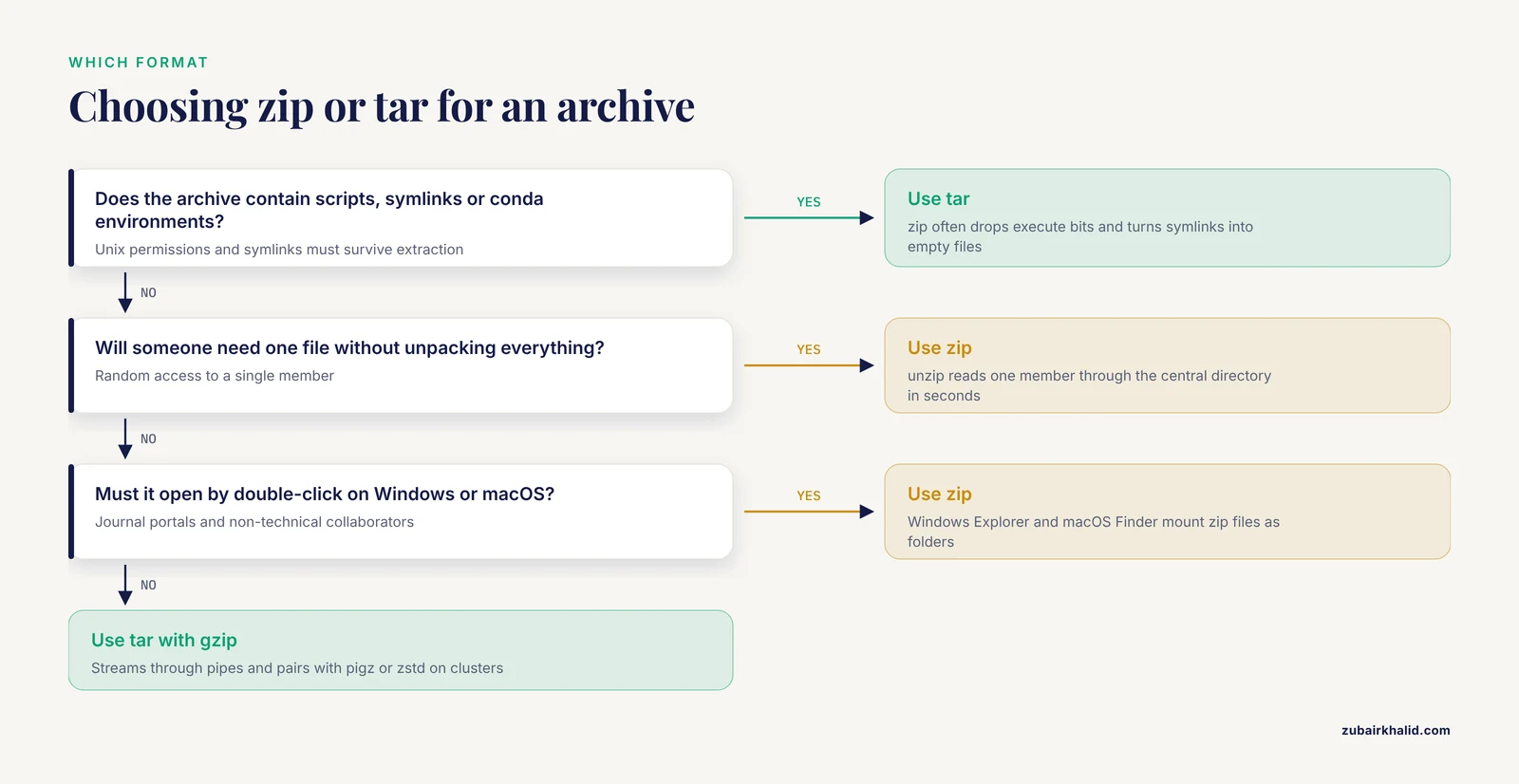
With the mechanics covered, the "zip or tar bioinformatics" decision comes down to five criteria. Weight them honestly and the choice usually makes itself.
Random access
If you or your collaborators will ever need one file out of many without unpacking the whole archive, zip wins clearly. unzip big_archive.zip results/table.csv reads one member through the central directory. The closest tar equivalent, tar -xzf big_archive.tar.gz path/to/file, must decompress the gzip stream from the beginning up to that file's position, which on a multi-hundred-gigabyte archive means minutes of decompression and full random reads through the whole prefix. If single-file retrieval is the dominant access pattern, zip is the correct answer even on Linux.
Streaming and pipes
If the archive will be produced or consumed inside a pipeline, streamed over ssh, written straight to tape or cloud storage, or processed as it is downloaded, tar wins clearly. tar -czf - data/ | ssh host "cat > /scratch/data.tar.gz" and its reverse work because the archive is a pure stream with no end-of-file index. This is the property that makes tar the default for HPC data movement, and no workaround with zip is as clean.
Metadata fidelity
If the archive contains executable scripts, symlinks into reference directories, files with specific ownership, or anything whose Unix attributes matter, tar wins. zip's permissions handling is partial and tool-dependent, and a zipped-then-unzipped tree of scripts or links frequently arrives broken. This single criterion decides the question for conda environment captures, installed tool directories, and pipeline code bundles.
Cross-platform portability
If the recipient is a Windows laptop, a journal submission portal, or a shared drive where the double-click experience matters, zip wins. Windows handles tar archives from the command line in recent versions, but the double-click-and-drag-out experience that non-technical collaborators expect belongs to zip. When to use zip, stated plainly: when the receiver's convenience outranks pipeline integration and Unix metadata.
Speed and parallelism
Archive creation time matters on clusters where compressing a run directory takes an hour of wall time. The tar pipeline parallelizes trivially because compression is a separate program: tar -cf - data/ | pigz > data.tar.gz uses pigz, the parallel gzip implementation, across all cores. zstd accepts a -T thread count directly through tar's -I flag. Standard zip implementations compress single-threaded, so on large directories the tar-plus-parallel-compressor route is decisively faster. The exception is xz, whose compression is slow regardless of container.
A compact summary of the resulting defaults:
| Situation | Reach for |
|---|---|
| Archiving a finished sequencing run on a cluster | tar + gzip or zstd, parallel where available |
| Sending supplementary files through a journal portal | zip |
| Sharing analysis code and figures with any collaborator | zip |
| Bundling scripts, conda environments, or symlinked references | tar, never zip |
| Pulling occasional single files from a huge shared archive | zip, or keep the data unpacked and use rsync |
| Streaming data between machines or into a pipeline | tar through a pipe |
| Long-term archival of large reference data | tar + xz or zstd, after checking for a community format |
Linux for Bioinformatics: A Working Command Set
The archive commands above do not operate in isolation. This section collects the surrounding linux commands bioinformatics workflows rely on, with the archive tools at the center.
Measuring before you archive
Know what you are compressing and where the space goes before choosing a format:
du -sh project/            # total size of the directory
du -sh project/* | sort -h # which subdirectories dominate
df -h /scratch             # free space on the target filesystem
If the largest subdirectories are full of .fastq.gz, .bam, .vcf.gz, and .cram files, most of the content is already compressed. That observation should drive your format choice, as the next subsection explains.
The double-compression trap
Gzipped FASTQ, BAM, CRAM, bgzipped VCF, and most binary image formats are already compressed with strong modern algorithms. Running gzip or zip over them yields nearly no further shrinkage while costing significant CPU time. Check the gain before committing:
gzip -k -9 test.fastq.gz   # recompress in place, keep original with -k
ls -lh test.fastq.gz*      # compare sizes honestly
In practice, a tar containing already-compressed files gains almost nothing from -z and gains nothing at all from zip's Deflate. Two reasonable patterns follow. For pure storage with no further access, tar -cf run.tar run/ without compression is honest and fast. For mixed content, compress anyway, since the small text and uncompressed files still shrink and the compressed ones simply pass through roughly unchanged.
This is also the right place to restate the structural-biology lesson, because it generalizes. Where a field has invested in a purpose-built compressed representation, that representation outperforms generic compressors on its own data, as the BinaryCIF results versus gzip demonstrate [1]. Before inventing a tar.gz of hundreds of per-sample files, check whether the community format for that data already handles the compression job.
Verifying archives
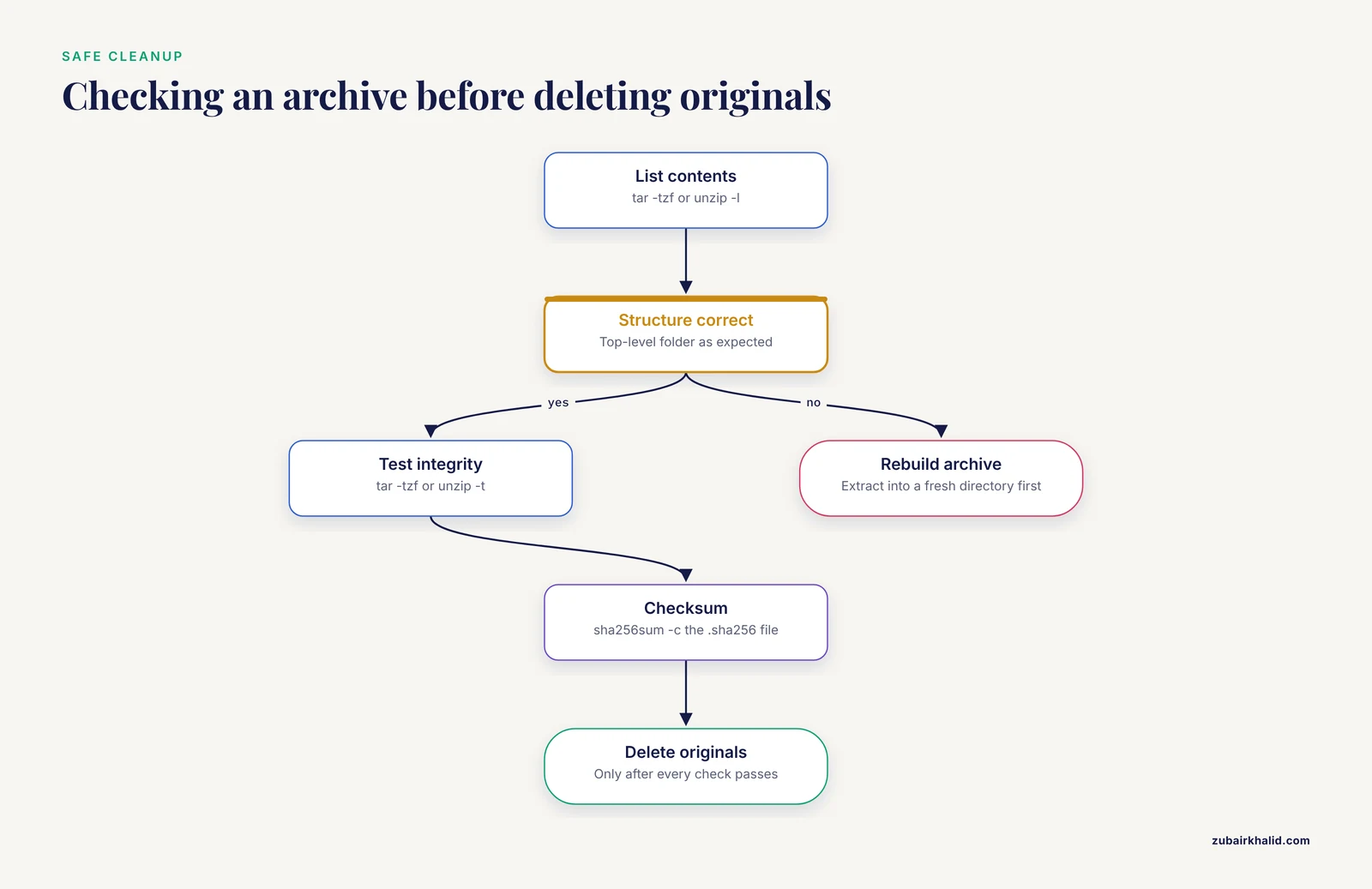
Never delete originals until the archive has passed a real check:
tar -tzf project.tar.gz > /dev/null   # walks gzip layer and tar structure
gzip -t project.tar.gz                # tests the gzip layer alone
unzip -t project.zip                  # verifies every member's CRC-32
Add checksums so that anyone can verify the archive later without access to the originals:
sha256sum project.tar.gz > project.tar.gz.sha256
sha256sum -c project.tar.gz.sha256
Checksum files are standard practice for data sharing and cost seconds to produce.
Moving archives between machines
# Stream a directory to a cluster without a temporary archive
tar -czf - local_data/ | ssh user@cluster "tar -xzf - -C /scratch/user/"

# Stream an archive over ssh while it is being created
tar -czf - project/ | ssh user@backup "cat > /backups/project.tar.gz"
Both forms avoid writing a full archive to a possibly small local disk. For ongoing synchronization rather than one-shot bundling, rsync is usually the better tool, since it transfers only differences.
Selective archiving with find
To archive only the VCFs from a large project tree:
find . -name "*.vcf" -print | tar -czf vcfs.tar.gz -T -tar's -T - option reads the file list from standard input, letting find do the selection. This pattern scales to any filter find supports, including size thresholds and modification dates.
Worked Scenarios
Abstract criteria become concrete in scenarios. The five below cover the situations where the zip vs tar decision actually gets made.
Scenario 1: Supplementary data for a journal submission
You have a manuscript acceptance pending and the journal wants raw tables, plots, and a README as one supplementary file. The reviewer will open it on a Windows or macOS laptop. The files total 80 MB and include a CSV, several PDFs, PNGs, and a text README.
Use zip. zip -r supplement.zip supplement/ produces an archive that the portal accepts without complaint and that opens on any reviewer's machine with a double-click. Random access matters here too, since a reviewer may want one table without unpacking everything. Unix permissions are irrelevant for this content. This is the textbook "when to use zip" case.
Scenario 2: A finished sequencing run on the HPC cluster
An Illumina run directory has completed and passed QC, and lab policy is to archive it and clear scratch space. The directory holds 700 GB, nearly all of it already-compressed BCL-to-FASTQ output, plus small sample sheets and log files.
Use tar, and think carefully about compression. Because the bulk is already compressed, tar -cf run_0417.tar run_0417/ without a compression flag is fast and loses almost nothing in size. If policy requires a compressed archive, gzip is harmless on the compressed bulk and shrinks the text files. Preserve permissions with tar, not zip, since the run directory contains executable helper scripts and possibly symlinks. Verify with tar -tzf (or tar -tf for the uncompressed case) and write a sha256 checksum before deleting anything. Stream the archive directly to its long-term home with the ssh pipe pattern rather than staging it on a full scratch volume.
Scenario 3: Sharing a small analysis project with a Windows-based collaborator
The project is 2 GB: a handful of scripts, a conda environment file (text), processed result tables, and figures. The collaborator uses Windows and has never opened a terminal.
Use zip for the deliverable. Nothing in the bundle depends on Unix permissions or symlinks. Send, additionally, the environment.yml file by itself so the collaborator can rebuild the environment, and note in the README that the scripts expect that environment. If the bundle did contain executables or symlinked references, you would face a genuine conflict between portability and metadata fidelity, and the honest answer would be to split the bundle: tar for the Unix-specific parts, zip for the portable ones.
Scenario 4: Retrieving one file from a 400 GB shared archive
Your group keeps a per-project archive on a read-heavy share, and lab members occasionally need one table from it. This is the access pattern where the formats diverge most sharply.
With zip, unzip -l lists members instantly and unzip archive.zip path/to/table.csv extracts one file in seconds regardless of archive size. With tar.gz, the same operation decompresses the stream from the start, which on 400 GB is a serious wait and a load on the shared filesystem. Either standardize on zip for this share, or better, keep such hot data unpacked on the share and treat archives as the cold-storage tier. Random access is a real requirement, and it is the single strongest argument for zip inside Unix-only environments.
Scenario 5: Reproducing a collaborator's dataset a year later
A paper's methods say the data is in dataset.tar.gz on the lab server. Before you build anything on it, establish that the archive is intact and know what is inside.
sha256sum -c dataset.tar.gz.sha256   # if a checksum file exists
tar -tzf dataset.tar.gz | head -50   # structure preview
tar -tzf dataset.tar.gz | wc -l      # member count
tar -xzf dataset.tar.gz -C ~/restore/projA/
Extraction into a dedicated directory rather than the current one, after inspection rather than before, is the habit that keeps restores boring. If instead you receive dataset.zip, the same sequence is unzip -t, unzip -l, then unzip dataset.zip -d ~/restore/projA/.
Common Mistakes and Limitations
These are the errors that show up repeatedly in real lab and cluster environments, with the specific fix for each.
Recompressing already-compressed files. Putting .fastq.gz and .bam files into a .tar.gz and expecting shrinkage wastes an hour of CPU for a percent or two of size. Test with gzip -k -9 on one file first, and skip the compression flag if the gain is negligible. The same logic explains why domain formats exist at all: purpose-built encodings beat generic gzip by wide margins on their own data types, as the BinaryCIF results show [1].
Zipping things that must keep permissions and symlinks. Conda environment directories, installed software trees, script bundles with execute bits, and any tree containing symlinks belong in tar. Extracting them from zip commonly produces non-executable scripts and symlinks replaced by empty files, and the failure appears later, at runtime, far from the cause.
Extracting an uninspected archive into a working directory. An archive built with absolute paths, or built from the wrong directory level, can scatter files across your working tree or overwrite files in place. Always list first (tar -tzf or unzip -l), confirm the top-level structure, and extract into a fresh target directory with -C or -d.
Mismatched names and missing flags. Running tar -cf data.tar.gz data/ creates an uncompressed tar with a misleading .gz name. Whoever runs tar -xzf on it later gets a baffling error. Match the flag to the extension every time, or rely on automatic detection with plain tar -xf on systems you control.
Deleting originals before verification. An interrupted tar or zip can produce a truncated archive that looks fine until someone needs the tail of it. The verification commands above (tar -tzf, unzip -t, checksums) exist precisely so that deletion is a deliberate, evidenced step. On multi-hundred-gigabyte archives, run the verification before the cleanup cron job, not after it.
Assuming zip encryption protects sensitive data. The classic zip password scheme is weak by modern standards, and strength varies by implementation. For human-subject or otherwise sensitive data, encrypt the archive itself with a modern tool rather than relying on zip's password feature, and follow your institution's data-governance process for anything involving patient or participant information.
Treating ad-hoc archives as long-term data infrastructure. A tar or zip on a personal scratch directory is not a repository deposit. Data intended for reuse belongs in a domain repository with stable identifiers, standard formats, and documentation, which is the access-and-reuse commitment the FAIR principles describe and which the structural-biology community addressed by pairing standard schemas with purpose-built compressed representations [1]. Archives are for transit and cold storage, repositories are for preservation.
Forgetting that zip archives can still be large. zip's per-file Deflate cannot exploit redundancy across files, while a tar plus a strong compressor sees the whole stream. Directories containing thousands of similar small text files often compress dramatically better as tar -cJf than as a zip. If archive size itself is the binding constraint, that difference can decide the format.
Overlooking archive format details on older tools. Classic zip has a per-entry size limit from its original design (handled by the Zip64 extensions that modern tools apply automatically), and very old unzip binaries on shared systems may lack support for newer compression methods inside zip. When an archive must open on a machine you cannot inspect, prefer the plainest form: standard Deflate zip, or gzip-compressed tar, both of which every tool released in the last two decades reads.
Frequently Asked Questions
Is tar better than zip for bioinformatics data?
On Linux servers and HPC clusters, yes for most jobs, because tar preserves Unix permissions and symlinks, streams cleanly through pipes, and pairs with parallel compressors like pigz and zstd. zip is better when the archive must open natively on Windows or macOS, or when people need to extract single files from a large archive without unpacking the rest. Neither format is universally better, and the deciding factors are random access, streaming, metadata fidelity, and who opens the archive.
When should I use zip instead of tar?
Use zip when cross-platform convenience or selective extraction is the priority: journal supplementary files, bundles for Windows-based collaborators, and shared archives that lab members will dip into one file at a time. Use tar for sequencing runs, pipeline outputs, environment and code directories, and anything streamed between machines. If the content includes executables or symlinks, zip can break them, so choose tar there regardless of platform.
Why is my tar.gz barely smaller than the input data?
Because most of the files inside were already compressed. Gzipped FASTQ, BAM, CRAM, and bgzipped VCF files are compressed with strong modern algorithms, and a second pass with gzip or zip recovers almost nothing. Test one file with gzip -k -9 and compare sizes, and if the gain is negligible, archive with plain tar -cf or accept the tiny gain and move on.
How do I extract a zip file on a cluster that has no unzip command?
Use Python, which is present on virtually every cluster. python3 -m zipfile -l archive.zip lists the contents and python3 -m zipfile -e archive.zip target_dir/ extracts them. For tar archives, tar itself is effectively always present on Linux systems, which is one more reason tar is the safer format for cluster-to-cluster transfer.
Does zip compress faster than tar.gz?
Standard zip tools compress single-threaded, while the tar pipeline parallelizes easily with pigz or zstd, so on large directories a parallel tar pipeline is typically much faster in wall-clock time. Per byte, gzip and zip's Deflate are closely related algorithms with similar ratios, so the practical speed difference comes from parallelism, not the underlying compressor. If raw speed on a big directory matters, use tar -cf - data/ | pigz > data.tar.gz.
Can I extract a single file from a tar archive without decompressing everything?
No, not from a compressed tar. The gzip or zstd stream must be decompressed from the beginning up to the file's position, which is slow on large archives. If selective extraction is a frequent need, either keep the data in zip format, keep the hot files unpacked on the share, or split large projects into many smaller tarballs so the relevant one can be decompressed alone.