How to Use UniProt's Advanced Search Builder
By Dr. Zubair Khalid, DVM, MS, PhD ·

By the end of this tutorial you will be able to build a multi-condition query in UniProt's Advanced Search Builder, restrict results to reviewed entries from a specific organism, filter by sequence length, keywords, and Gene Ontology terms, download the results in a format your pipeline can read, and rerun the exact same query from the command line with curl. You need only a modern web browser for the graphical part. For the automation section, you need a terminal with curl installed (preinstalled on macOS and most Linux distributions, available for Windows 10 and later) and, ideally, Python 3 if you want to parse the output.
UniProt is the primary curated knowledgebase for protein sequence and functional information. Like most protein resources, it holds far more data than any single browse page can show, and the questions biologists ask usually involve several conditions at once, such as all reviewed human proteins linked to a disease term and a specific subcellular location. This is a general problem in bioinformatics: high-throughput technologies produce data stored in different formats across many databanks, and scientific questions routinely span multiple biological entities and data sources, which is why structured searching and data integration became central concerns of the field [1]. UniProt's answer to this is a query language plus a graphical builder that writes that language for you. This article is a complete uniprot database tutorial for that builder.
Why a Structured Search Builder Beats Typing Blind
The plain search box on uniprot.org interprets everything you type as free text. Type kinase human into it and you get a relevance-ranked pile of results that mention those words somewhere, in any field, in any organism, reviewed or not. That is fine for a quick lookup of one protein. It is useless when you need an exhaustive, reproducible list, for example every reviewed human protein annotated to a Gene Ontology term with a length between 500 and 1,500 amino acids.
The Advanced Search Builder solves this by converting form fields into a precise query string. You pick a field, pick a condition, type a value, and the builder assembles the underlying query for you. This design pattern is well studied in interface research. Work on builder-style web tools shows that systems aimed at users with limited technical knowledge work best when they hide syntax behind forms and templates while still producing valid structured output. The Advanced Search Builder follows exactly that pattern, and it does something extra that pure form tools usually do not: it shows you the query it generated, so you learn the syntax by using it.
There is a deeper principle at work as well. A structured query does not search everything and filter afterward. It defines a constrained search space up front, which is the same idea that powers constraint-driven search frameworks throughout computational science, where a builder defines the building blocks and multiple constraints are enforced within specified tolerances. When you add (reviewed:true) to a query, you are shrinking the search space before the engine ever runs, which is why structured queries are both faster and more reproducible than free-text searches followed by manual filtering.
What the Builder Actually Builds
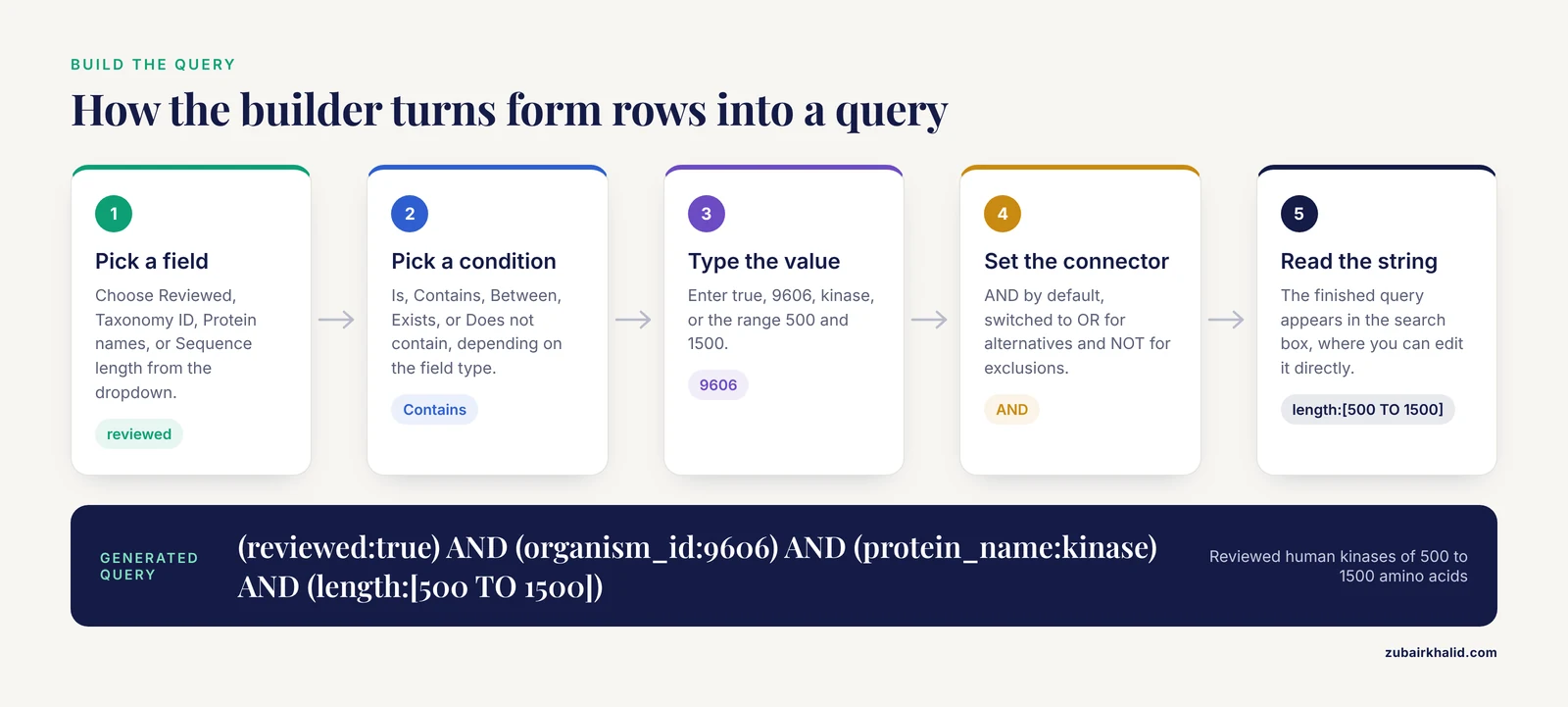
UniProt's search runs on a query syntax with three ingredients:
- Fields, such as
gene,organism_id,length, orgo, each mapped to a specific column of the underlying data. - Operators, mainly
AND(both conditions must be true),OR(at least one must be true), andNOT(exclude entries matching). - Values, which can be single terms, quoted phrases, wildcards, ranges in square brackets, or nested groups in parentheses.
A complete query looks like this:
(reviewed:true) AND (organism_id:9606) AND (protein_name:kinase) AND (length:[500 TO 1500])Read it as: reviewed entries (the curated Swiss-Prot portion of UniProtKB) from taxonomy identifier 9606 (human) whose protein name contains the token "kinase" and whose sequence length falls between 500 and 1,500 amino acids inclusive.
The builder writes this string for you as you fill in form rows, and the finished string appears in the search box at the top of the page, where you can edit it directly. Official documentation for the query builder and the field list lives on the UniProt help pages, and the full machine-readable field catalog is served at https://rest.uniprot.org/config/uniprotkb/search/fields. Opening that URL in a browser or with curl gives you every searchable field name, its description, and its type, which is the definitive answer whenever you wonder whether a field exists.
One scoping note before the walkthrough. UniProt serves several databases: UniProtKB (which contains the reviewed Swiss-Prot section and the unreviewed TrEMBL section), UniRef (clustered sequences), UniParc (an archive of all sequences), and proteome sets. The Advanced Search Builder described here operates on UniProtKB, the database you will use in the overwhelming majority of protein queries.
Before You Start
No account, login, or API key is required for any step in this article. UniProt search is open and anonymous, which distinguishes it from many web applications that wrap user data in authenticated and encrypted sessions, a pattern described in detail in the mobile application security literature for systems that store personal records server-side [2]. You can run every query here, save the URLs, and share them with colleagues without creating anything.
Have on hand:
- A modern browser (Chrome, Firefox, Safari, or Edge).
- The identifier or name of the protein family, gene, organism, or annotation you care about.
- Optionally, a terminal for the
curlexamples in Steps 8 and 9.
Step-by-Step Walkthrough
This walkthrough builds and refines one real query: every reviewed human protein whose name contains "kinase" and whose sequence is between 500 and 1,500 amino acids. Follow it end to end and you will have covered every core feature of the builder.
Step 1. Open UniProtKB and Find the Builder
Navigate to https://www.uniprot.org and click UniProtKB in the main navigation. You land on the search page with a single search box and an Advanced link directly to its right. Click Advanced. A panel expands showing the first query line: a field dropdown, a condition dropdown, a value box, and a plus button to add more lines.
If you prefer to go straight there, the URL pattern for UniProtKB searches is https://www.uniprot.org/uniprotkb, and the advanced panel opens from that page.
Step 2. Add Your First Query Line
Set up the first line:
- In the field dropdown, choose Reviewed.
- In the condition dropdown, choose Is.
- In the value box, type
true.
The builder now shows a query equivalent to (reviewed:true). This single line is the most important habit in this entire tutorial. UniProtKB contains roughly a quarter of a million reviewed entries and well over two hundred million unreviewed entries, many of them redundant fragments predicted from genome annotation. Without reviewed:true, almost any query drowns in TrEMBL noise.
Press the plus button to add a second line. Choose the field Taxonomy ID, condition Is, value 9606. (9606 is the NCBI taxonomy identifier for Homo sapiens. Every species has one, and UniProt exposes it through this field.) The builder now combines the two lines with a Boolean connector, defaulting to AND.
Step 3. Stack Conditions with AND
Add a third line: field Protein names, condition Contains, value kinase. The "Contains" condition on this field performs a tokenized match against the protein name text, so kinase matches "RAC-alpha serine/threonine-protein kinase" and "Mitogen-activated protein kinase 1" alike.
Add a fourth line: field Sequence length, condition Between, values 500 and 1500. Range conditions on numeric fields generate bracket syntax in the final query.
Your panel now represents this query:
(reviewed:true) AND (organism_id:9606) AND (protein_name:kinase) AND (length:[500 TO 1500])Click Search. You should see a result count in the hundreds, along with a table of entries. If you see tens of thousands of results, check that the Reviewed line really reads true and the Taxonomy ID line really reads 9606.
Step 4. Add Alternatives with OR and Exclusions with NOT
Suppose you want receptor guanylate cyclases as well as the kinases, but you want to exclude pseudogenes and anything annotated only at the transcript level. Click Advanced again to reopen the builder with your query intact. Add a line with field Protein names, condition Contains, value guanylate cyclase. Critically, change the connector between this line and the previous group from AND to OR, using the connector dropdown on the line. Then select the OR-connected line and its neighbor by grouping them, or wrap them in parentheses in the search box directly:
(reviewed:true) AND (organism_id:9606) AND ((protein_name:kinase) OR (protein_name:"guanylate cyclase")) AND (length:[500 TO 1500])Operator precedence matters enormously here. A AND B OR C is not the same as A AND (B OR C). The first returns everything matching C regardless of A. Always use explicit parentheses when you mix AND and OR, and when in doubt, read the query string the builder produced before pressing Search.
To exclude, use the NOT connector on a line. A useful exclusion for kinase searches is field Keyword, condition Does not contain, value Pseudo gene (pseudogene entries carry a UniProt keyword of that family). Exclusion lines are where most over-broad or mysteriously empty queries originate, so add them one at a time and re-run the search after each addition.
Step 5. Use Ranges, Dates, and Exists
Three more condition types cover most remaining needs.
Date conditions. Fields such as Sequence modified and Annotation entry modified accept dates. Enter them in ISO format, YYYY-MM-DD, for example 2024-01-01. The condition dropdown offers "on or after", "on or before", and "between". A query line restricting results to entries whose sequence changed since a date lets you incrementally refresh a local dataset between UniProt releases.
Exists conditions. The condition dropdown includes Exists and Does not exist for fields that may be absent. Choosing field Structure (PDB) with condition Exists returns only entries with at least one experimentally determined structure cross-reference. This is the cleanest way to ask "which of my proteins have structures", and it generates the query fragment xref_pdb:* behind the scenes.
Ranges on scores. The Annotation score field is a UniProt-specific number summarizing how much annotation an entry carries. Choosing condition Greater than with a value filters toward better-annotated entries. Use this qualitatively rather than chasing an exact threshold, since the score distribution shifts between releases.
Step 6. Read the Results
The results page gives you four things to check before trusting the data.
- The result count, top left. Note it. If you rerun this query next month for a paper or a pipeline, a wildly different count is your first warning that something changed, either in your query or in the database.
- The query string, visible in the search box. This is the reproducible record of what you asked. Copy it into your lab notebook or methods section.
- Facet panels on the left, which show the distribution of results by organism, keyword, and other fields. If you searched for human kinases and the organism facet shows mouse entries at the top, your taxonomy condition is wrong. Facets are the fastest diagnostic for a mis-scoped query.
- Individual entries. Click two or three results and confirm they actually possess the properties you filtered on. If you filtered on length between 500 and 1,500 and the entry says 240 amino acids, your range condition did not apply to the field you think it did.
Step 7. Choose Columns and Download
Above the results table, click Columns and add the fields you actually need, for example Protein names, Gene Names, Organism, Length, and Cross-reference (PDB). The table updates live. Then click Download. You will get a choice of formats:
- TSV, tab-separated text, the right choice for R, pandas, or any scripting pipeline.
- XLS, for handoff to collaborators who live in spreadsheets.
- FASTA, sequences only, the input format for alignment and BLAST tools.
For the worked example, a TSV download produces a header row followed by one row per protein, with tab-separated columns in the order shown on screen. The first columns look like this:
Entry	Entry Name	Protein names	Gene Names	Organism	Length
P15056	BRAF_HUMAN	Serine/threonine-protein kinase B-raf	BRAF	Homo sapiens	766
P17252	PRKCA_HUMAN	Protein kinase C alpha type	PRKCA	Homo sapiens	672
Step 8. Copy the Query and Rerun It with curl
The query string that the builder wrote is not just display text. It is the exact same query the REST API accepts. This is the bridge that turns an interactive search into a reproducible pipeline step.
curl -G "https://rest.uniprot.org/uniprotkb/search" \
  --data-urlencode 'query=(reviewed:true) AND (organism_id:9606) AND (protein_name:kinase) AND (length:[500 TO 1500])' \
  --data-urlencode 'format=tsv' \
  --data-urlencode 'fields=accession,id,protein_name,gene_primary,organism_name,length' \
  --data-urlencode 'size=5'
Expected output:
Entry	Entry Name	Protein names	Gene Names	Organism	Length
P15056	BRAF_HUMAN	Serine/threonine-protein kinase B-raf	BRAF	Homo sapiens	766
P17252	PRKCA_HUMAN	Protein kinase C alpha type	PRKCA	Homo sapiens	672
Notes on the command. The -G flag makes curl send the data as URL parameters appended to the endpoint, and -data-urlencode handles the percent-encoding of spaces, brackets, and colons so you never have to hand-encode them. The fields parameter selects output columns using the same underlying field names you saw in the builder. The size parameter caps rows per response page.
Step 9. Verify the Count and Download the Full Set
Before scripting anything downstream, confirm the API returns the same count the website showed. The response headers carry the total:
curl -s -D - -o /dev/null -G "https://rest.uniprot.org/uniprotkb/search" \
  --data-urlencode 'query=(reviewed:true) AND (organism_id:9606) AND (protein_name:kinase) AND (length:[500 TO 1500])' \
  --data-urlencode 'size=1' | grep -i x-total-results
Expected output is a header line of the form X-Total-Results: <number>, where the number matches the count displayed on the website for the same query. If the two disagree, you have a typo in one of the two queries, most commonly a lost parenthesis.
For the complete result set rather than the first page, use the streaming endpoint:
curl -sG "https://rest.uniprot.org/uniprotkb/stream" \
  --data-urlencode 'query=(reviewed:true) AND (organism_id:9606) AND (protein_name:kinase) AND (length:[500 TO 1500])' \
  --data-urlencode 'format=tsv' \
  --data-urlencode 'fields=accession,id,protein_name,gene_primary,organism_name,length' \
  --data-urlencode 'compressed=true' -o kinases.tsv.gz
This writes a gzipped TSV file that opens directly in R with read.table on a gzfile connection, or in pandas with pd.read_csv("kinases.tsv.gz", sep="\t").
Field Reference
These are the fields you will use most often when you learn how to use UniProt's advanced search builder. Field names in the right-hand column are the machine names accepted both by the builder's generated queries and by the REST API.
| What you want to filter on | Builder field label | Query field name | Example value | Notes |
|---|---|---|---|---|
| Curated entries only | Reviewed | reviewed | true | The single highest-value filter. Omit it and TrEMBL noise dominates. |
| Organism | Taxonomy ID | organism_id | 9606 | Use the NCBI taxonomy identifier, not the species name, for exactness. |
| Protein name | Protein names | protein_name | kinase or "protein kinase" | Tokenized match. Use quotes for exact phrases. |
| Gene name | Gene Names | gene | BRAF | Matches any gene-name synonym. See the gene-name caution below. |
| Sequence length | Sequence length | length | [500 TO 1500] | Inclusive integer range. |
| Keywords | Keywords | keyword | Kinase | Controlled vocabulary maintained by UniProt, more precise than free text. |
| GO terms | Gene Ontology (GO) | go | GO:0004674 | GO identifiers or term text. go_id: targets the identifier exactly. |
| Subcellular location | Subcellular location | cc_subcellular_location | Nucleus | Text drawn from the curated location vocabulary. |
| Disease annotation | Disease | disease | Diabetes | Pulls entries with curated disease associations. |
| Structure availability | Structure (PDB) | xref_pdb | condition Exists | Use Exists rather than a value. |
| Domain features | Domain [FT] | ft_domain | Protein kinase | Matches annotated domain feature lines. |
| InterPro families | InterPro | ipr | IPR000719 | Protein kinase catalytic domain among many others. |
| Proteome set | Proteome ID | proteome | UP000005640 | Restricts to a specific reference or complete proteome. |
| Annotation depth | Annotation score | annotation_score | 5 | Higher values mean denser curation. |
| Sequence change date | Sequence modified | date_modified (date condition) | 2024-01-01 | ISO date format for incremental updates. |
When a field you need is not in this table, fetch the authoritative catalog and grep it:
curl -s "https://rest.uniprot.org/config/uniprotkb/search/fields" | python3 -m json.tool | grep -i "phospho"That returns every field whose name or description mentions phosphorylation, complete with the machine name to paste into your query.
Uniprot Advanced Search Builder Tips
These are the habits that separate a casual user from someone whose queries survive review by a collaborator.
Quote your phrases. On tokenized text fields, protein_name:protein kinase is parsed as two separate term matches. Write protein_name:"protein kinase" to require the phrase. The builder inserts the quotes for you when you pick Contains and type a multi-word value, but if you edit the query string by hand, keep them.
Use facets as a scope check, not just a filter. Before you trust a result set, glance at the organism facet. If it lists a single organism, your taxonomy condition worked. If it lists dozens, you probably searched a name field that matched the species word in a protein description somewhere else.
Bookmark the query URL. The query string lives in the page URL, so a search is shareable by link. Paste the full URL into your protocol document. Six months later, clicking it reruns the search against the current release, and the result count doubles as a change detector.
Combine a broad field with a narrow field instead of guessing one perfect field. If gene:BRAF returns entries you do not want, add (organism_id:9606) AND (reviewed:true) rather than hunting for an exotic condition on the gene field. Two cheap filters beat one fragile one.
Restrict to a proteome for comparative work. When you need the canonical complete set of a species' proteins, for example for a mass spectrometry database, add the Proteome ID condition. Reference proteome identifiers begin with UP followed by digits, such as UP000005640 for the human reference proteome.
Sort deliberately. The results table sorts by whatever column header you click. Sorting by Length quickly exposes fragment entries that slipped past your length range because of a typo in the range bounds.
Learn one Boolean block at a time. Build the AND-only version of your query first, confirm the count is sane, then add OR groups and NOT lines incrementally. Debugging a ten-line query written in one pass is far slower than growing it in four passes of two lines.
Check the evidence, not just the field. UniProt annotates with evidence tags. Two entries may both say "Nucleus" in the subcellular location field while one rests on experimental data and the other on electronic prediction. Open the entry and check the evidence icons when annotation quality matters for your conclusion.
Verifying That Your Results Are Right
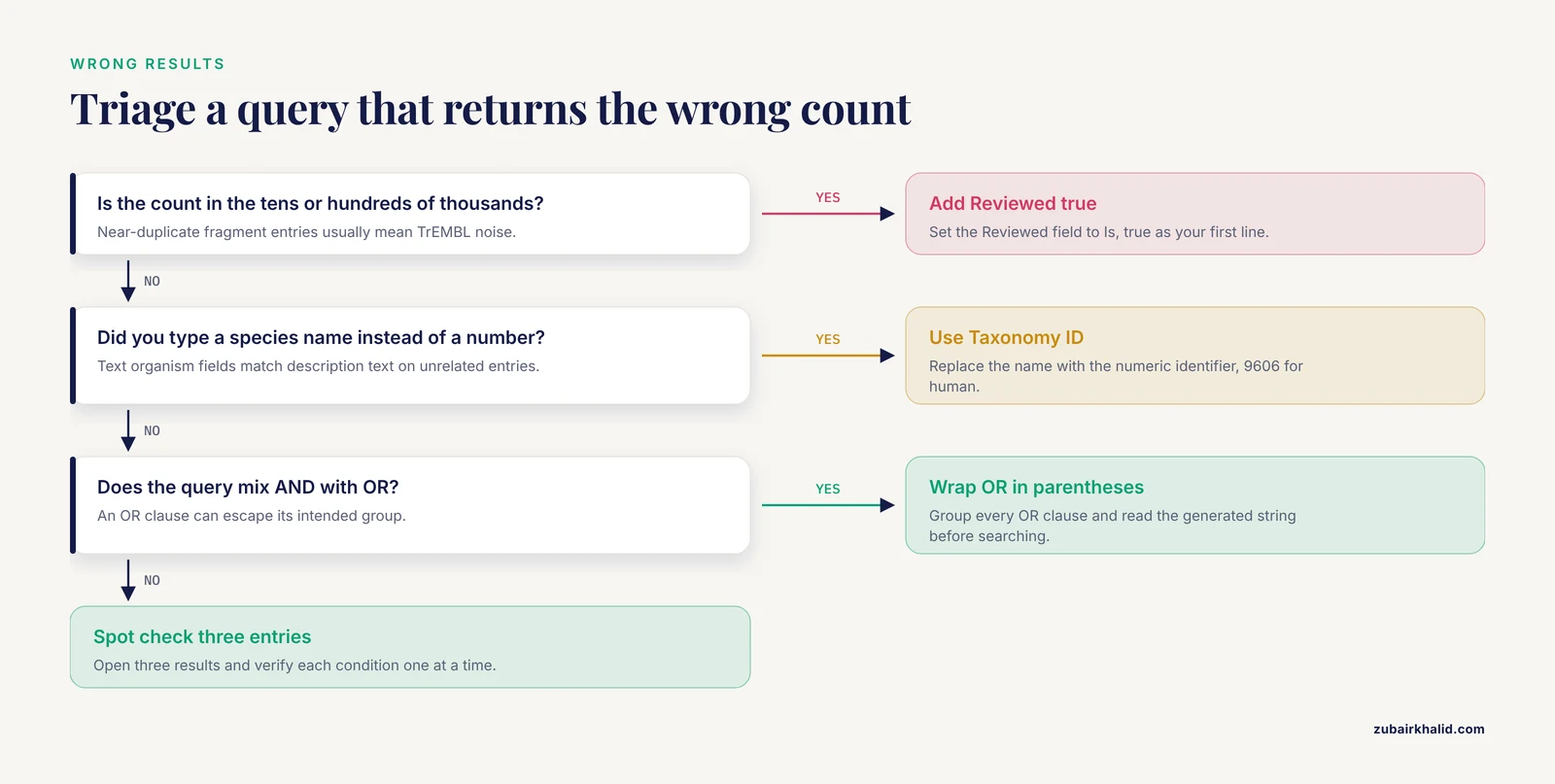
Three independent checks catch nearly every query error.
First, the count sanity check. Compare your result count against a known baseline. Reviewed human entries number on the order of twenty thousand. If a query on human proteins returns fewer than a hundred results when you expected thousands, or tens of thousands when you expected hundreds, one of your conditions is almost certainly wrong or too loosely phrased.
Second, the spot check. Open three random entries from the results and verify each against the conditions you set, one condition at a time. Do this before any downstream analysis, not after.
Third, the API cross-check. Run the identical query through curl with the X-Total-Results header as shown in Step 9. Matching counts between the website and the API confirm that the query string you copied is the query string you think it is. This matters because manual edits to the search box are the most common way a carefully built query silently changes.
How to Use UniProt's Advanced Search Builder in a Larger Workflow
The builder is the front door to UniProt, but it connects to everything else. A UniProt query that starts with a protein name or a cross-reference field naturally produces lists of accession numbers, and UniProt's own ID mapping tool converts those accessions between databases. In quantitative proteomics, UniProt is the reference against which identifications are made. In a published study of matched primary and metastatic serous ovarian carcinoma specimens, tandem mass spectra from laser capture microdissected formalin-fixed, paraffin-embedded tissue were searched against the UniProt human protein database, and the resulting protein abundance profiles were then compared across matched samples [3]. The lesson for search-builder users is direct: the quality of your database restriction, including whether you searched reviewed entries and the correct proteome, propagates directly into the quality of downstream identification and quantification.
Common Mistakes and Limitations
These are the mistakes that account for most bad UniProt result sets, with the symptom you will see and the fix.
- Omitting
reviewed:true. Symptom: result counts in the tens or hundreds of thousands, dominated by near-duplicate fragment entries. Fix: add the Reviewed condition as your first line, every time, unless you specifically need predicted sequences.
- Confusing the free-text search with field searches. Symptom: results that mention your term in a literature line or a comment rather than in the field you meant. Fix: always pick the field explicitly in the builder.
gene:TP53and the free-text queryTP53return different result sets.
- Mixing AND and OR without parentheses. Symptom: a result count far larger than expected, because an OR clause escaped its intended group. Fix: wrap every OR group in parentheses and read the generated query before searching.
- Wrong gene-name conventions between species. Symptom:
gene:Trp53misses the human entry. Human gene symbols are uppercase (TP53), mouse and rat symbols capitalize only the first letter (Trp53). Thegenefield matches synonyms, but conventions still matter when you paste symbols from a manuscript. Fix: search the gene name without strict assumptions, then filter byorganism_id, or use the exact uppercase human symbol with a human taxonomy filter.
- Assuming the species name is a reliable filter. Symptom: typing
humaninto an organism field matches description text on unrelated entries. Fix: use the Taxonomy ID field with the numeric identifier. 9606 is human, 10090 is house mouse, 4932 is budding yeast.
- Expecting sequence similarity search. Symptom: a query for "proteins similar to my sequence" returns nothing useful. The search builder matches annotations and identifiers, not sequences. Fix: use UniProt's BLAST tool for similarity, then feed the resulting accessions back into a query with
accession:terms joined by OR.
- Pasting curly quotes or smart punctuation. Symptom: a query that looks correct returns zero results or a parse error. Quotes copied from a word processor are typographic quotation marks that the parser does not recognize. Fix: delete and retype the quotes in the browser, or paste through a plain-text editor first.
- Unbalanced or nested parentheses from hand edits. Symptom: the site returns a 400-class error response whose message points to malformed query syntax, or the builder refuses to apply the edited string. Fix: rebuild the query line by line in the builder and let it generate the punctuation.
- Forgetting that the database moves. UniProt releases updates on a regular schedule. A result count recorded today will drift at the next release, and entries can merge, split, or gain and lose annotation. Fix: record the query string, the date, and the count together, and treat any later mismatch as a data-version event rather than a mistake in your method.
- Pulling hundreds of thousands of rows through the browser. Symptom: the download button stalls or the browser tab becomes unresponsive on very large unreviewed queries. Fix: use the streaming REST endpoint with
compressed=trueas shown in Step 9.
Two limitations deserve honest statement. The builder reflects the fields UniProt chooses to index, so a handful of highly specific questions are better served by the SPARQL endpoint, which exposes the full RDF graph of each entry. And search results are a snapshot of annotation, not a statement of biological truth. Curated annotations carry evidence levels, and your interpretation should respect them.
As with any reference resource, individual research cases call for judgment about which evidence tiers and database sections are appropriate for the question at hand, and no automated search replaces that judgment.
Frequently Asked Questions
Is the Advanced Search Builder the same thing as the UniProt query language?
No. The builder is a graphical form that generates a query string in UniProt's query language. Everything it produces can be typed directly into the search box or sent to the REST API, and learning the generated syntax is the fastest way to graduate to writing queries by hand.
How do I restrict my search to reviewed Swiss-Prot entries only?
Add a query line with the Reviewed field set to Is, true. This excludes the much larger unreviewed TrEMBL section and is the single most impactful filter for most searches.
Can I search by sequence similarity in the Advanced Search Builder?
No. The builder matches text fields, identifiers, ranges, and annotation, not sequence similarity. Use UniProt's BLAST service for similarity searching, then combine the resulting accessions into a query with OR terms if you need annotated fields filtered as well.
How do I download a result set that is too large for the browser?
Use the REST streaming endpoint with curl, the same query string the builder generated, the format=tsv parameter, and compressed=true. The stream endpoint returns the complete set in one gzipped response rather than paginating.
Why does my gene name search return nothing?
The most common causes are a species mismatch in gene symbol capitalization, a typo, or a gene name that exists under a different synonym. Search the gene field without a species filter first, inspect what comes back, then add the taxonomy condition.
What is the difference between the Taxonomy ID field and the organism name field?
The Taxonomy ID field matches the numeric NCBI taxonomy identifier exactly, while the organism name field matches text and can produce partial matches. Use the numeric identifier whenever you want an exact species restriction.
Can I save a query and rerun it later?
Yes, in effect. The complete query is embedded in the results page URL, so bookmarking or sharing that URL preserves the search. For automated reruns, put the same query string into a REST API call on a schedule of your choosing.
Does the Advanced Search Builder work for UniRef, UniParc, and proteome searches?
No. The full builder applies to UniProtKB. The other UniProt sections have simpler search interfaces, and programmatic access to all of them is available through their corresponding REST endpoints.