How to Undo Changes in Git Without Losing Your Work
By Dr. Zubair Khalid, DVM, MS, PhD ·
By the end of this article you will be able to undo almost any mistake in a Git repository while keeping your analysis code intact. You will know how to discard a bad edit, unstage a file, back out of a commit you already pushed to GitHub, recover a "deleted" branch or commit through the reflog, and rescue work sitting in a stash. Every command comes with expected output so you can check your own result against a known good state.
You need three things on hand before starting:
- Git version 2.23 or newer installed. The modern
git restoreandgit switchcommands were introduced in the Git 2.23 release notes, and the walkthrough below uses them alongside the older commands they replace. - A repository to practice in. If you are nervous about trying these commands on your real project, create a scratch repository first. The practice commands are in the walkthrough.
- Ten minutes of patience. Undoing changes in Git without losing work is mostly about slowing down, reading
git status, and taking a two second backup before any command with the word "hard" in it.
The Mental Model That Makes Undoing Safe
Git tracks your project in three separate layers, and nearly every undo command works on exactly one of them.
- Working tree. The files you can see and edit on disk. Your unsaved pipeline tweaks live here.
- Index (staging area). The set of changes you have marked with
git addto go into the next commit. - HEAD. A pointer to the commit you have checked out, usually the tip of your current branch.
Two facts make Git forgiving. First, every commit is a permanent snapshot with a unique identifier, and deleting a branch does not delete its commits, it only removes the label pointing at them. Second, Git keeps a private journal of every movement of the HEAD pointer called the reflog, which the official Git documentation for git-reflog describes as a record of where your HEAD has been. That journal is your recovery path for almost every "I deleted three hours of work" scenario, as long as the work was committed or stashed at some point.
The one category Git does not protect is uncommitted edits to tracked files and untracked files that were never added. If you never committed a change and never stashed it, no Git command can bring it back after you discard it. This is why every safe undo workflow starts by committing or stashing.
Which Undo Command Do You Need
| Situation | Command | Keeps your edits? | Works on pushed commits? |
|---|---|---|---|
| Discard uncommitted edits to one file | git restore <file> | No | Not applicable |
| Unstage a file, keep the edits | git restore, staged <file> | Yes | Not applicable |
| Fix the last commit message or add a forgotten file | git commit, amend | Yes | Only if you are the only one with the branch |
| Undo the last commit, keep edits staged | git reset, soft HEAD~1 | Yes | Only for private branches |
| Undo the last commit, keep edits unstaged | git reset HEAD~1 | Yes | Only for private branches |
| Delete the last commit and its edits | git reset, hard HEAD~1 | No | Private branches only, recovery via reflog |
| Undo a commit others already have | git revert <SHA> | Yes (creates a new commit) | Yes, safe on shared branches |
| Recover a "lost" commit or branch | git reflog, then git reset, hard HEAD@{n} | Yes | Local recovery only |
| Set current edits aside temporarily | git stash push -m "message" | Yes | Not applicable |
| Abort a conflicted merge or rebase | git merge, abort or git rebase, abort | Yes | Not applicable |
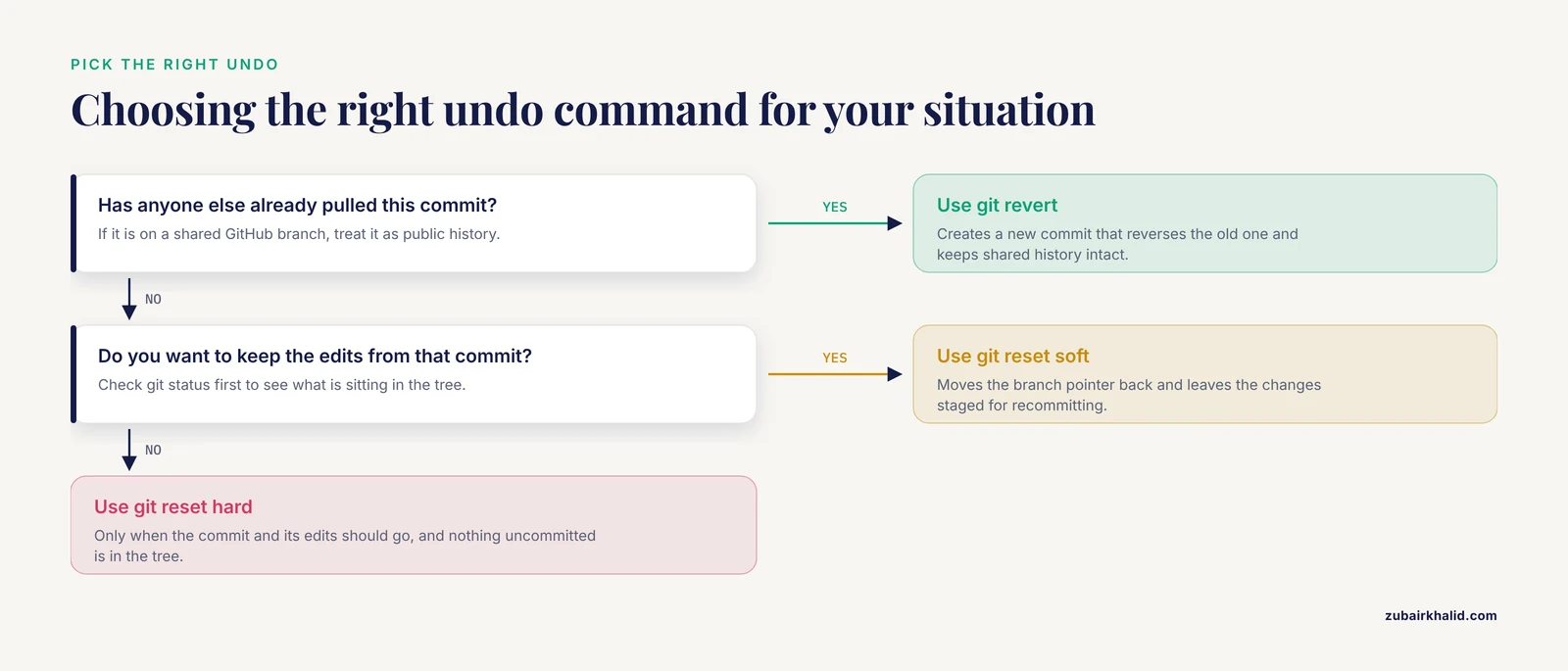
The single most common source of lost work is reaching for the wrong row in this table, usually git reset, hard when git reset, soft would have done the job. Read the row, run git status, then commit.
Step by Step. Undoing Changes Without Losing Work
The walkthrough below uses a small example repository for a RNA-seq differential expression project. Substitute your own file names. If you want a disposable practice ground, run these commands in a new folder.
mkdir undo-practice && cd undo-practice
git init
echo "# Analysis pipeline" > README.md
git add README.md
git commit -m "Initial commit"
Step 1. Survey the Damage Before You Undo Anything
Run three commands and read the output. This habit prevents nearly every irreversible mistake.
git statusExpected output with uncommitted edits:
On branch main
Changes not staged for commit:
  (use "git add <file>..." to update what will be committed)
  (use "git restore <file>..." to discard changes in working directory)
        modified:   qc_report.py

no changes added to commit (use "git add" and/or "git commit -a")
git log --oneline -5Expected output:
a1b2c3d Add DESeq2 results table
e4f5g6h Add QC report script
i7j8k9l Initial commit
git diffThis prints the exact line by line changes sitting in your working tree. Skim it. If the diff contains work you want to keep, do not run any destructive command yet. Use git diff, staged to review what is staged instead.
Step 2. Build a Two Second Safety Net
Before any undo beyond a simple unstage, capture the current state. Two options.
Option A, a backup branch. This costs nothing and never interferes with anything:
git branch backup-before-undoOption B, a stash with a message, which also captures untracked files:
git stash push --include-untracked -m "safety snapshot before reset"Expected output:
Saved working directory and index state On main: safety snapshot before resetIf you later realize the undo went wrong, your pre-undo state is reachable as stash@{0} or as the branch backup-before-undo. Delete the backup branch once you are satisfied with git branch -D backup-before-undo.
Step 3. Discard Uncommitted Edits in a File
Situation. You edited qc_report.py, the plots look wrong, and you want the file back to its last committed state.
git restore qc_report.pySuccessful restore prints nothing. Verify:
git status --short
git diff
Expected output of git status, short afterward:
nothing to commit, working tree cleanOr an empty git status, short if nothing else changed. The edits you discarded are gone. They were never committed, so the reflog cannot recover them, and the official Git documentation for git-restore is explicit that the command overwrites working tree content. This is why the safety net in Step 2 matters. If you have any doubt, stash first with git stash push -m "before discard", run the restore, and check your result. If you regret it, git stash pop brings the edits back.
To discard edits in every tracked file at once, which is effectively a hard reset of the working tree:
git restore .Think twice before the bare dot form. It discards every uncommitted edit in every tracked file simultaneously.
Step 4. Unstage a File Without Losing the Edits
Situation. You ran git add pipeline.smk but decided it belongs in a later commit.
git restore --staged pipeline.smkExpected output in git status, short afterward:
M pipeline.smkThe leading M in the second column means the file is modified but unstaged. Your edits are intact in the working tree. This is the exact opposite mistake pair people mix up. git restore throws edits away. git restore, staged only moves files out of the staging area and never touches file contents.
Older habit. Before Git 2.23 the equivalent command was git reset HEAD pipeline.smk or git rm, cached for newly added files. Both still work on every Git installation you will encounter on shared compute clusters.
Step 5. Fix the Last Commit With amend
Situation. You committed and immediately noticed a typo in the message or a forgotten file.
git add results_summary.csv
git commit --amend --no-edit
Expected output:
[main 9f8e7d6] Add DESeq2 results table
 Date: Tue Nov 11 09:14:22 2026 -0500
 1 file changed, 12 insertions(+)
-amend replaces the last commit with a new commit that includes whatever is staged. -no-edit keeps the original message. To change the message, drop the flag:
git commit --amend -m "Add DESeq2 results table with adjusted p-values"The caution that belongs next to this command. Amend rewrites history. The old commit is replaced by a new commit with a different SHA, the unique identifier Git computes from the commit contents. This is completely safe as long as you have not pushed the commit anywhere anyone else can see. Once a commit is on a shared GitHub branch, amending it forces every collaborator to reconcile their copy against yours, which is the most reliable way to poison a lab codebase. The rule used throughout Git documentation is simple. Rewrite private history freely, never rewrite shared history.
Step 6. Undo the Last Commit and Keep the Changes
Situation. You committed too early and want the commit gone but the edits back, so you can add more work and recommit.
git reset --soft HEAD~1Expected output in git status:
On branch main
Changes to be committed:
  (use "git restore --staged <file>..." to unstage)
        modified:   qc_report.py
        modified:   pipeline.smk
-soft moves the branch pointer back one commit and leaves every change from the undone commit sitting in the staging area, ready for you to git commit again. HEAD~1 means the commit before the current one. Use HEAD~2 to go back two commits.
If you want the edits back but unstaged, use the default mode:
git reset HEAD~1This is mixed reset, the default. Your edits survive in the working tree as unstaged modifications. Both soft and mixed reset are safe, reversible through the reflog, and appropriate for everyday use.
Step 7. Delete the Last Commit and Its Edits
Situation. The last commit was a mistake and you want it and its changes gone.
git reset --hard HEAD~1Expected output:
HEAD is now at e4f5g6h Add QC report scriptThis is the one command in the regular rotation that discards data. It moves the branch pointer back and forcibly resets both the index and the working tree to match. Any uncommitted edits in the working tree at the moment you run it are destroyed permanently, and this is the single most common way bioinformaticians lose a morning of work, running git reset, hard with uncommitted changes sitting in the working tree.
Two protections. First, the safety net from Step 2. Second, the commit itself is still recoverable through the reflog until Git garbage collects it, which the next step covers. The uncommitted edits, however, are not recoverable through any Git mechanism, so do not run this command while git status shows unstaged work you care about.
Step 8. Undo a Commit You Already Pushed to GitHub
Situation. You pushed a commit to the shared main branch and it broke the pipeline or leaked a credentials file. Colleagues have pulled it.
Use git revert, which the official Git documentation for git-revert describes as creating a new commit that undoes the changes of an earlier one. Nothing is rewritten.
git revert a1b2c3dExpected output, which opens your editor for the revert commit message and then commits it:
[main 4c5d6e7] Revert "Add DESeq2 results table"
 1 file changed, 12 deletions(-)
Revert is the correct tool for shared history for three reasons. It adds an explicit record that a change was backed out, which matters for provenance in research code. It produces a normal commit that collaborators pull like any other, so nobody has to fix their local clone. And it works on GitHub through pull requests, where the GitHub interface offers a Revert button on any merged pull request that builds the same revert commit for you.
To revert several recent commits in one go without committing each individually:
git revert --no-commit HEAD~2..HEAD
git commit -m "Revert buggy indexing changes"
Step 9. Recover Anything With the Reflog
Situation. You ran git reset, hard, deleted a branch, or rebased, and work you needed has vanished from git log.
The reflog records every position HEAD has held in your local repository. Run it:
git reflogExpected output:
4c5d6e7 HEAD@{0}: reset: moving to HEAD~1
a1b2c3d HEAD@{1}: commit: Add DESeq2 results table
e4f5g6h HEAD@{2}: commit: Add QC report script
i7j8k9l HEAD@{3}: commit (initial): Initial commit
Every line is a state your repository passed through. To restore the state two moves ago:
git reset --hard HEAD@{2}Or, safer because it creates a branch pointing at the recovered state instead of moving your current branch:
git branch recover-lost-work HEAD@{2}Then inspect git log recover-lost-work and merge or cherry-pick what you need.
Understand the scope and lifetime of this safety net. The reflog is local. It exists on your machine only and is never pushed to GitHub, so a colleague cannot recover your commits from their clone. Entries expire. The default settings in the official Git documentation for git-gc keep reflog entries for 90 days and entries for unreachable commits for 30 days, both configurable, after which garbage collection may permanently delete them. In practice this means act within weeks, not months. If you suspect the commit is already out of the reflog, git fsck, lost-found can still find dangling commits by scanning the object database directly.
A subtlety worth internalizing. The reflog protects commits and stashes. It does not protect working tree edits that were never committed. If you have spent three hours editing plots.R, never committed, and run git reset, hard, those edits are gone. Commit early and commit often, because a commit is what makes work recoverable.
Step 10. Restore a Deleted or Old Version of a Single File
Situation. A colleague deleted differential_expression.csv in a commit three commits ago, or you want the version of a file from before a change.
Find the commit that deleted it:
git log --diff-filter=D --oneline -- results/differential_expression.csvExpected output:
b3c4d5e Remove stale results fileRestore the file as it existed two commits before that deletion:
git restore --source b3c4d5e~1 -- results/differential_expression.csvThe -source flag takes any commit, branch, or tag, and stages that version of the file into your working tree and index. The older equivalent, still valid everywhere, is git checkout b3c4d5e~1, results/differential_expression.csv. Verify with git status, short, where the file should appear as staged, then commit the restoration.
Step 11. Set Work Aside With stash
Situation. You are mid-edit on variants.py when a collaborator reports an urgent bug in main. You are not ready to commit, but you cannot carry half-finished edits across a branch switch.
git stash push --include-untracked -m "wip: variant annotation"Expected output:
Saved working directory and index state On main: wip: variant annotationNow your working tree is clean and you can switch branches, pull, or fix the bug. List what you have set aside:
git stash listExpected output:
stash@{0}: On main: wip: variant annotation
stash@{1}: On feature-de: wip: QC plots
Bring the edits back:
git stash apply stash@{0}Use apply rather than pop while you are learning. apply restores the edits and keeps the stash entry, so a failed merge still leaves your work in the stash. pop deletes the entry after applying, and if the apply hits conflicts, the stash content is caught in a half state. Once the apply succeeds cleanly and you have verified your files, remove the entry with git stash drop stash@{0}.
One shell quirk that trips people up. In zsh, stash@{0} triggers brace expansion errors in some configurations. Wrap it in quotes:
git stash apply "stash@{0}"Step 12. Abort a Merge or Rebase That Went Wrong
Situation. A merge or rebase is mid-conflict and you want out without deciding anything.
git merge --abortor
git rebase --abortBoth commands return the repository to the exact state before the operation started, which is why they are safe to reach for the moment a conflict looks confusing. The Git documentation for git-merge and git-rebase documents both abort modes as restoring the pre-operation state. Conflicted merges that are already committed are handled with the revert workflow from Step 8 instead.
Step 13. Remove Untracked Files, Carefully
Situation. A crashed pipeline run littered the directory with tmp_* files and Rplots.pdf that git status shows as untracked.
Preview first:
git clean -ndExpected output:
Would remove tmp_align_0001.bam
Would remove tmp_align_0002.bam
Would remove Rplots.pdf
Then delete:
git clean -fdRead the preview line by line before the second command. Untracked files have no Git safety net of any kind. There is no reflog entry, no stash, no dangling commit. git clean is the only command in this article with genuinely no recovery, so the preview flag -n is not optional etiquette, it is the whole procedure. To keep a file while cleaning the rest, use git clean -fd -e Rplots.pdf to exclude it, or git clean -fdX to remove only ignored files such as build artifacts listed in .gitignore.
Step 14. Verify You Ended Up Where You Intended
After any undo, run a short battery of checks:
git status --short
git log --oneline --graph -8
git diff HEAD
git stash list
Expected clean output for a finished undo:
* 4c5d6e7 (HEAD -> main) Revert "Add DESeq2 results table"
* a1b2c3d Add DESeq2 results table
* e4f5g6h Add QC report script
* i7j8k9l Initial commit
Empty git status, short means the working tree matches HEAD. Then run the smallest meaningful test of your project, such as executing the first rule of your Snakemake pipeline or knitting the first chunk of an R Markdown notebook. An undo that leaves the repository in a state where the pipeline runs is a successful undo. An undo that leaves the tree clean but the pipeline broken is not.
Common Mistakes and Limitations
Running git reset, hard with uncommitted work in the tree. This is the classic data loss event in Git. git reset, hard HEAD~1 discards both the commit and every uncommitted edit sitting in the working tree. Uncommitted edits are invisible to the reflog. Before every hard reset, git status should show nothing you care about, or you should stash first.
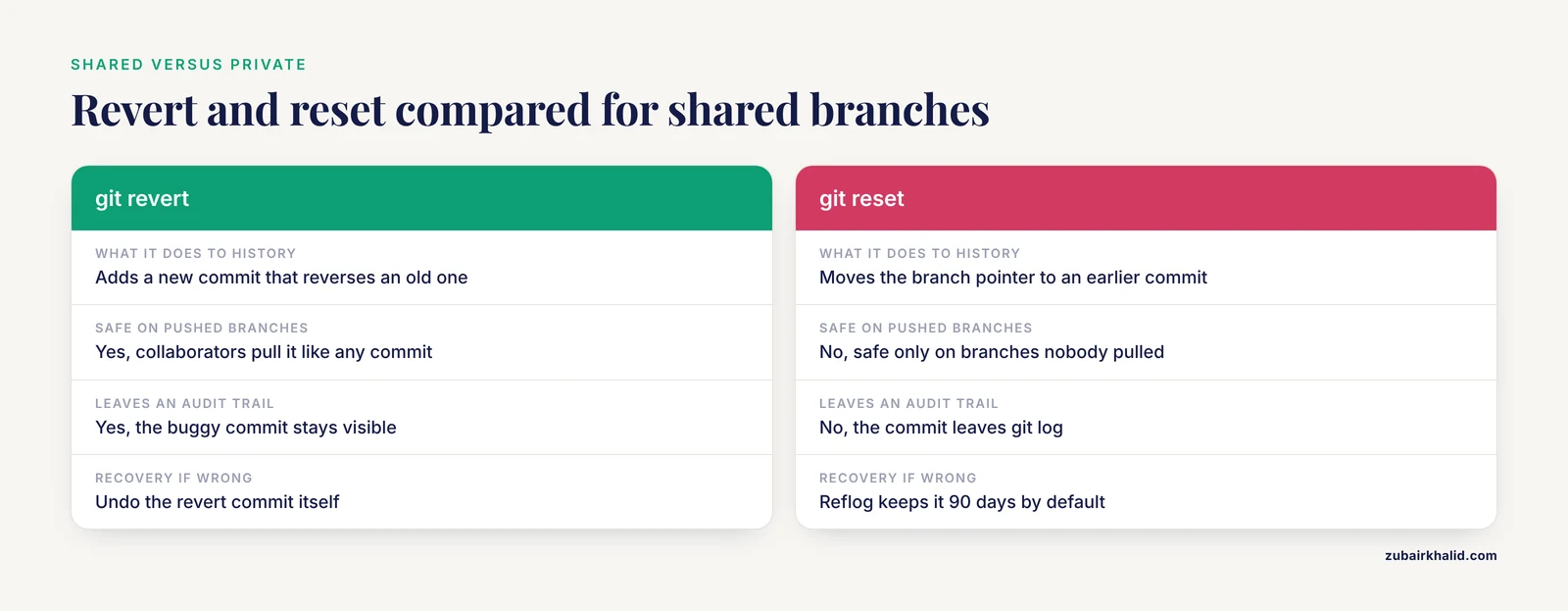
Confusing revert and reset. Revert adds a new commit that reverses an old one and is safe on shared branches. Reset moves a branch pointer and rewrites history, which is safe only on branches nobody else has. On GitHub, revert is the default correct answer for anything pushed.
Rewriting shared history. Amending, rebasing, or hard-resetting commits that are already pushed to a branch colleagues pull from forces everyone to fight their own clones. This is precisely the scenario GitHub branch protection rules exist to block. Restrict history rewriting to your own local feature branches, and when a force push is genuinely needed on your own branch, use git push, force-with-lease rather than bare -force, because -force-with-lease refuses the push if the remote has commits you have not seen.
Forgetting untracked files. git stash push without -include-untracked leaves untracked files sitting in the working tree, where a later git restore . or git reset, hard does not touch them but a careless git clean -fd deletes them permanently. Know which category every file in your tree falls into, which is exactly what git status tells you.
Expecting the reflog to last forever or to sync. The reflog is local, expires on the default schedule of 90 days for reachable entries and 30 days for unreachable ones per the git-gc documentation, and is never shared with GitHub. Recover lost commits promptly, and push a backup branch to GitHub if the work matters.
Not reading output. Nearly every destructive command either prints what it did or asks for confirmation somewhere. git clean without -n is the notable exception. The habit of running git status before and after every undo converts most disasters into non-events.
Assuming defaults. Undo behavior can differ if you or your cluster administrator have configured aliases, hooks, or nonstandard gc settings. The commands above assume stock Git behavior as documented on git-scm.com.
One general limitation. Real repositories combine rebases, cherry-picks, submodules, and several collaborators, and the right undo in those situations is often a judgment call rather than a single command. When in doubt, make the backup branch from Step 2, then decide. Individual repository situations vary enough that a two second backup is cheaper than any recovery.
Undo Discipline for Research Code and GitHub
Research code has requirements that ordinary software does not, and they change which undo strategy is correct.
Prefer revert for anything tied to a result. When a bug in a committed script produced numbers that ended up in a manuscript, the audit trail matters. Reverting leaves a visible record that the buggy commit existed and was backed out, which supports reproducibility. Resetting it out of existence makes the record look cleaner and is worse for science. Git for scientists works best when the history reads like a lab notebook, including the crossed out lines.
Tag every analysis version that supports a result. Before submitting or sharing, mark the exact state:
git tag manuscript-v1.0
git push origin manuscript-v1.0
Tags give you a permanent, named, recoverable snapshot, so undoing later changes never risks the version a figure came from.
Use GitHub for researchers workflows deliberately. On shared repositories, protect main in the repository settings so force pushes and unreviewed commits are rejected, open pull requests for changes, and use the Revert button on merged pull requests when something breaks. If a feature branch of your own becomes a tangled mess, note the clean state with git reflog or a backup branch, then reset. That combination, branch protection for shared branches and fearless rewriting for private ones, is the whole policy in one sentence.
Keep large data out of the undo path. Git is built for text, and undoing or recovering history that contains large binary files such as BAMs, FASTQs, or controller outputs is slow and painful for everyone who clones the repository. Keep raw data in a data store and reference it, or use Git LFS for the files that must live alongside code, following the guidance in the official Git LFS documentation. A repository that never swallowed a 4 GB file is a repository where undo operations stay fast and safe.
Frequently Asked Questions
Does git reset, hard delete my commits forever?
Usually no, as long as the changes were committed. The commits leave git log immediately but remain reachable through git reflog for a limited window, by default 90 days for reachable entries and 30 days for unreachable ones, so recover them with git reset, hard HEAD@{n} or a new branch soon. Truly uncommitted edits are gone immediately.
What is the difference between git revert and git reset?
Revert creates a new commit that reverses an earlier commit, leaving shared history intact, so it is safe on pushed branches. Reset moves the branch pointer to an earlier commit and can discard commits, so it is safe only on branches nobody else has pulled.
How do I undo a commit I already pushed to GitHub?
Run git revert <SHA> locally, resolve any conflicts, and push the resulting revert commit. On GitHub you can also click the Revert button on a merged pull request. Avoid resetting or force pushing shared branches.
Can I recover a file I deleted with git restore?
Yes, if the file was committed at some point. Find it in history with git log, diff-filter=D, <path> and bring it back with git restore, source <commit>~1, <path>. A file that was never committed or stashed cannot be recovered by Git.
What is the reflog and how long does it keep entries?
The reflog is a local journal of every position HEAD has held, including commits, resets, and checkouts. Git keeps entries for 90 days by default and entries pointing at unreachable commits for 30 days, per the git-gc documentation, after which garbage collection may remove them permanently.
How do I undo a git pull that broke my branch?
Check git reflog for the entry just before the pull, then run git reset, hard HEAD@{n} for that entry, or safer, git branch pre-pull-backup HEAD@{n} to inspect first. If the pull only created a messy merge, git merge, abort handles an unfinished one.
How do I unstage files without losing the changes?
Run git restore, staged <file> or git restore, staged . to unstage everything. This moves files out of the staging area and leaves all edits intact in the working tree. Only git restore <file> without the flag discards edits.
When should I use git stash instead of committing?
Use stash when you need a clean working tree immediately but the work is not ready for a commit, such as switching branches for an urgent fix. For anything you want to be recoverable long term or shared with collaborators, commit instead, because stashes are local, easy to forget, and not designed as permanent storage.