How to Track Notes in LaTeX Manuscripts with Git
By Dr. Zubair Khalid, DVM, MS, PhD ·
By the end of this guide you will be able to initialize a Git repository in a LaTeX manuscript folder, save a snapshot of every revision with a message that explains why you changed it, compare any two versions of a paragraph line by line or word by word, isolate each round of peer review on its own branch, publish a private offsite backup on GitHub, and generate a tracked-changes PDF that a coauthor or journal editor can read the same way they would read markup in Word.
To follow along you need a computer with Git installed (version 2.23 or newer), a LaTeX distribution such as TeX Live or MiKTeX, the latexdiff utility (included with TeX Live and available on CTAN), a plain text editor with syntax highlighting, and a manuscript folder containing at least one .tex file and one .bib file. A free GitHub account is optional but recommended for backup and collaboration.
Why Git Beats manuscript_v7_FINAL.tex
Word processors record changes as visible markup inside the document. Git records something different and, for a manuscript, more useful. A commit is a named snapshot of every file in your project at one moment. The chain of commits forms a history you can inspect, compare, and partially undo at any granularity. A diff is the computed difference between two snapshots, shown as lines removed and lines added. A branch is a parallel line of history, and a tag is a permanent label pinned to one snapshot.
This model solves the specific problems of a LaTeX manuscript. First, the text lives in plain .tex files, so Git stores and compares it natively. Second, the whole manuscript is usually split across main.tex, sections/*.tex, and references.bib, and one commit captures all of them together, so the text, the bibliography, and the figure captions can never drift out of sync. Third, the history answers the question Word markup cannot answer after the fact: not just what changed between version 3 and version 4, but why, and who changed it, and when.
For scientists this also connects to reproducibility habits you probably already practice for code and data. The same commands, the same mental model, and the same GitHub workflows apply to your manuscript, your analysis scripts, and your pipeline configuration. Git for scientists is one toolset, not four.
One honest comparison up front. Git does not produce a redlined document by itself. It produces an auditable history. The visible tracked-changes markup that journals and coauthors expect comes from latexdiff, a Perl script that compares two LaTeX source files and emits a new .tex file with additions underlined and deletions struck through. You will use both, Git for the history and latexdiff for the display layer, in Step 10.
What You Need Before You Start
Open a terminal and confirm Git is installed:
$ git --version
git version 2.43.0
If the command is not found, install Git from the package manager on Linux, from the macOS installer linked in the official Git documentation, or from Git for Windows, which also provides Git Bash. Any version from 2.23 onward supports the git switch command used below. Confirm your LaTeX toolchain:
$ pdflatex --version
pdfTeX 3.141592653-2.6-1.40.26 (TeX Live 2024)
Confirm latexdiff is present:
$ latexdiff --version
This is LATEXDIFF 1.6.1
If latexdiff is missing, install it with the TeX Live package manager (tlmgr install latexdiff) or grab it from CTAN. Finally, work in a folder you control, such as ~/manuscripts/immune-signaling-paper/, containing something like:
main.tex
sections/intro.tex
sections/methods.tex
sections/results.tex
sections/discussion.tex
references.bib
figures/fig1.pdf
How to Track Changes in LaTeX Manuscripts with Git, Step by Step
This walkthrough takes a manuscript folder from plain files to a versioned, backed-up, diffable project. Every command shows its expected output so you can check each step before moving on.
Step 1. Install Git and record your identity
Every commit is stamped with an author name and email. Set them once, globally:
$ git config --global user.name "Alice Nguyen"
$ git config --global user.email "[email protected]"
$ git config --global init.defaultBranch main
The -global flag writes these settings to your user-level configuration file, so they apply to every repository on this machine. user.name and user.email appear on every commit you make, which matters when a coauthor runs git blame on a paragraph. init.defaultBranch main names the first branch main instead of the older default. Verify:
$ git config --global user.name
Alice Nguyen
If you work on Windows, also normalize line endings now so the whole team shares one convention:
$ git config --global core.autocrlf true    # on Windows
$ git config --global core.autocrlf input   # on macOS or Linux
Windows historically ends text lines with a carriage return plus a newline (CRLF) while macOS and Linux use a newline alone (LF). true converts on checkout and commit, input converts only on commit. Mismatched line endings are a top source of whole-file fake diffs, so decide once for the group.
Step 2. Initialize a repository in your manuscript folder
Move into the folder and initialize:
$ cd ~/manuscripts/immune-signaling-paper
$ git init
Initialized empty Git repository in /home/alice/manuscripts/immune-signaling-paper/.git/
Git creates a hidden .git directory holding the entire history and configuration. Nothing about your files changes yet. Two cautions. First, never run git init in your home directory, because Git will then track every file you own. Second, you only initialize once per project. Running it again inside a folder that already has a .git directory is harmless but pointless. Verify with:
$ git status
On branch main

No commits yet

nothing to commit (create/copy files and use "git add" to track)
Step 3. Ignore LaTeX build artifacts
Compiling main.tex produces a cloud of derived files: main.aux, main.log, main.out, main.synctex.gz, and, with BibTeX, main.bbl and main.blg. None of these belong in history. They can be regenerated from the sources at any time, they change on every compile, and committing them fills your diffs with noise. Create a file named exactly .gitignore in the project root:
# LaTeX build artifacts
*.aux
*.log
*.out
*.toc
*.lof
*.lot
*.synctex.gz
*.fls
*.fdb_latexmk
*.bbl
*.blg
*.nav
*.snm
*.vrb
*.idx
*.ilg
*.ind
*.spl
auto/
Each line is a pattern. *.aux matches any file ending in .aux in any subdirectory. auto/ ignores an entire directory. The lines starting with # are comments. Now git status shows only your real sources. If you already committed artifacts before writing this file, untrack them without deleting them from disk:
$ git rm -r --cached .
$ git add .
$ git commit -m "Stop tracking LaTeX build artifacts"
The -cached flag removes files from the index, the staging area, while leaving them on disk. Verify that git status no longer lists main.aux or main.log.
Step 4. Make your first commit
Stage your source files and record the initial snapshot:
$ git add main.tex sections/ references.bib .gitignore
$ git status
On branch main

No commits yet

Changes to be committed:
  (use "git rm --cached <file>..." to unstage)
	new file:   .gitignore
	new file:   main.tex
	new file:   references.bib
	new file:   sections/discussion.tex
	new file:   sections/intro.tex
	new file:   sections/methods.tex
	new file:   sections/results.tex

$ git commit -m "Initial commit: first full draft for internal review"
[main (root-commit) 3f9c1e2] Initial commit: first full draft for internal review
 7 files changed, 412 insertions(+)
git add copies file contents into the staging area, the set of changes the next commit will contain. git commit writes that staged set into history as an immutable snapshot with a message. The -m flag supplies the message inline. The output line [main (root-commit) 3f9c1e2] gives the branch name and the short commit hash, the seven-character identifier you use to refer to this snapshot in later commands. Inspect the result:
$ git log --oneline
3f9c1e2 (HEAD -> main) Initial commit: first full draft for internal review
HEAD is a pointer to your current position in history, here the tip of main.
Step 5. Build the daily habit: status, diff, add, commit
This four-command loop is ninety percent of daily use. Suppose you spend the morning rewriting a paragraph in sections/methods.tex and adding a sentence about batch correction.
$ git status
On branch main
Changes not staged for commit:
  (use "git add <file>..." to update what will be committed)
  (use "git restore <file>..." to discard changes in working directory)
	modified:   sections/methods.tex

$ git diff
diff --git a/sections/methods.tex b/sections/methods.tex
index 4a1b2c3..8d9e0f1 100644
--- a/sections/methods.tex
+++ b/sections/methods.tex
@@ -42,7 +42,9 @@ section{Batch correction}
 We normalized counts with DESeq2 size factors.
-Raw counts were used for all downstream analysis.
+Counts were log2 transformed with a pseudo-count of one
+before differential testing.
 We fit a negative binomial model per gene.
Lines beginning with - existed in the previous snapshot and do not exist now. Lines beginning with + are new. The @@ -42,7 +42,9 @@ header is a hunk header, meaning the change starts at line 42 of the old file and affects 7 lines, and at line 42 of the new file and affects 9 lines.
When you changed several unrelated things, stage them as separate commits using the patch mode of git add:
$ git add -p sections/methods.tex
@@ -42,7 +42,9 @@ section{Batch correction}
 We normalized counts with DESeq2 size factors.
-Raw counts were used for all downstream analysis.
+Counts were log2 transformed with a pseudo-count of one
+before differential testing.
Stage this hunk [y,n,q,a,d,j,J,g,/,e,p]?
Answer y to stage this hunk, n to skip it, s to split it into smaller pieces, q to quit, and e to hand-edit it. Then commit the staged work:
$ git commit -m "Methods: replace raw-count sentence with log2 transform detail"
[main 7b8d4f0] Methods: replace raw-count sentence with log2 transform detail
 1 file changed, 2 insertions(+), 1 deletion(-)
$ git status
On branch main
nothing to commit, working tree clean
"nothing to commit, working tree clean" is the healthy resting state. It means every saved change is recorded in history.
Step 6. Read LaTeX diffs without losing your mind
Line diffs become unreadable when a whole paragraph lives on one long source line, which is common in LaTeX. Change one word and Git reports the entire paragraph as replaced. Word-level diffs fix this:
$ git diff --word-diff=colorIn a terminal this renders inline, with added words highlighted in green and removed words in red. In plain form the same output looks like:
@@ -42,6 +42,7 @@
We normalized counts with {+DESeq2 size factors before+} [-library scaling-]
log2 transformation.
The {+text+} markers wrap inserted words and the [-text-] markers wrap deleted words. Two habits make LaTeX diffs pleasant. First, either set your editor to hard-wrap .tex files at around 80 characters, or always rely on -word-diff when reading paragraph edits. Second, remember that pure math edits can still bloat a hunk, because a single inline formula is one token.
To view the full content of any historical version of one file, use git show with a commit reference and a colon:
$ git show HEAD~2:sections/methods.texHEAD~2 means two commits before the current one. This prints the file as it existed then, which is exactly what you need when a reviewer asks what the sentence said last round.
Step 7. Use branches for each revision round
A branch is an independent line of history. Keep main in the state of your most recent submission, and do each revision round on its own branch so it never contaminates the submission-ready version:
$ git switch -c revision1
Switched to a new branch 'revision1'
git switch -c creates the branch and moves you onto it in one step. Every commit you make now lands on revision1, and main.tex on main stays untouched. Edit, commit, repeat, exactly as in Step 5. When the revision is accepted and you want the final text to become the new canonical version, merge:
$ git switch main
Switched to branch 'main'
$ git merge revision1
Updating 3f9c1e2..c4e5a6b
Fast-forward
 sections/methods.tex | 12 ++++++-----
 sections/results.tex |  8 +++++---
 2 files changed, 13 insertions(+), 6 deletions(-)
"Fast-forward" means main simply moved forward to include every revision1 commit, with no conflicts. Start a fresh branch for the next journal. List all branches with git branch, and delete a finished one with git branch -d revision1.
Step 8. Tag the version you actually submitted
A tag is a permanent label on a commit, ideal for marking the exact snapshot sent to a journal. Use an annotated tag, which carries a message, a date, and an author:
$ git tag -a v1-submission -m "Version submitted to PLOS, 14 March"
$ git tag
v1-submission
Later, any command that accepts a commit can accept this tag. git diff v1-submission HEAD shows everything that changed since submission. git switch v1-submission moves your working files to that snapshot for inspection, and git switch main brings you back. When switching to a tag rather than a branch, Git prints a notice that you are in "detached HEAD" state, meaning you are looking at history rather than at the tip of a branch. This is expected and harmless as long as you switch back to a branch before making new commits.
Tags only travel to GitHub if you push them explicitly, which is covered next.
Step 9. Put the repository on GitHub as a private backup
GitHub for researchers earns its keep through three functions: an offsite backup that survives a stolen laptop, a shared remote through which coauthors exchange commits, and a review layer built on pull requests. Create a repository on github.com, choose Private, and, this part matters, do not ask GitHub to initialize it with a README. You want an empty remote that will accept your existing local history without complaint. Then connect and push:
$ git remote add origin [email protected]:alice-lab/immune-signaling-paper.git
$ git push -u origin main
Enumerating objects: 25, done.
Counting objects: 100% (25/25), done.
Writing objects: 100% (25/25), 48.12 KiB | 2.10 MiB/s, done.
Total 25 (delta 8), reused 0 (delta 0)
To github.com:alice-lab/immune-signaling-paper.git
 * [new branch]      main -> main
branch 'main' set up to track 'origin/main'.
A remote is another copy of the repository with a nickname, here origin. The URL uses SSH, which requires a key configured in your GitHub account as described in GitHub's own setup documentation. The -u flag records origin/main as the default upstream for this branch, so future pushes and pulls need no arguments. Push your tags too:
$ git push origin v1-submissionFrom now on the rhythm is: git pull when you sit down, work and commit locally, git push when you stand up. Anyone with access can clone the same repository with git clone [email protected]:alice-lab/immune-signaling-paper.git and inherit the complete history.
Step 10. Generate a tracked-changes PDF with latexdiff
This is the step that produces the redlined document reviewers actually want. latexdiff takes the old and new .tex sources and writes a third .tex file in which added text appears underlined and deleted text appears marked, using macros such as \DIFadd{...} and \DIFdel{...} that it defines in the preamble. For the simple case of a single file:
$ latexdiff v1/main.tex main.tex > diff.tex
$ pdflatex diff.tex
For a real project split across included files, use -flatten so latexdiff first expands every \input and \include into one virtual document:
$ latexdiff --flatten --type=CFONT v1/main.tex main.tex > diff.tex
$ pdflatex diff.tex
Two flags do most of the useful work. -flatten handles multi-file manuscripts. -type chooses the markup style: UNDERLINE (the default) underlines additions and marks deletions in a contrasting style, while CFONT renders deleted text in a smaller colored font, which stays readable when a revision deletes large blocks. Compile the diff.tex file like any other document, then open the PDF and read it as if it were a colleague's marked-up printout. Always compile and read it, because latexdiff is a heuristic text processor and complex custom macros or unusual math can confuse it.
Because retyping file paths invites errors, use the companion script latexdiff-vc, which talks to Git for you. From inside your repository:
$ latexdiff-vc -r HEAD~1 --pdf main.texThis compares main.tex against its state one commit earlier and compiles the result. Use -r v1-submission to compare against your tagged submission instead. The script writes a file named like main-diff.tex and the compiled PDF next to it. The exact revision syntaxes and options are documented in the latexdiff manual on CTAN, which is worth a careful read the first time you run it on your own project.
Step 11. Resolve a merge conflict with a coauthor
Two people edited the same paragraph and both pushed. The second git push is rejected:
$ git push
To github.com:alice-lab/immune-signaling-paper.git
 ! [rejected]        main -> main (fetch first)
error: failed to push some refs to 'github.com:alice-lab/immune-signaling-paper.git'
hint: Updates were rejected because the remote contains work that you do not have locally.
Pull to fetch your coauthor's work:
$ git pull
Auto-merging sections/results.tex
CONFLICT (content): Merge conflict in sections/results.tex
Automatic merge failed; fix conflicts and then commit the result.
Open the conflicted file. Git has written its own markers into the text:
<<<<<<< HEAD
We treated cells with 10 nM dexamethasone for 2 hours.
=======
We treated cells with 10 nM dexamethasone for 24 hours.
>>>>>>> origin/main
Everything between <<<<<<< HEAD and ======= is your version. Everything between ======= and >>>>>>> origin/main is your coauthor's version. Delete the marker lines, keep whichever text is correct, and check with your coauthor if the biology is in doubt. Then finish the merge:
$ git add sections/results.tex
$ git commit -m "Merge coauthor edits to treatment-duration sentence"
$ git push
Verify with git log, oneline that the merge commit sits at the top, and recompile the manuscript to confirm it still builds.
Reference Table of the Commands That Matter
| Command | What it does | When to use it |
|---|---|---|
git init | Creates a repository in the current folder | Once, at the start of a manuscript |
git status | Shows staged, unstaged, and untracked changes | Before every commit, after every pull |
git diff | Shows unstaged edits, line by line | Before staging, to review your own work |
git diff, word-diff=color | Same, at word level | Reading paragraph-level prose edits |
git add -p file | Stages selected hunks interactively | Splitting one editing session into logical commits |
git commit -m "message" | Records the staged snapshot with a message | After each unit of finished work |
git log, oneline | Prints compact history | Orienting yourself, writing release notes |
git show commit:file | Prints an old version of one file | Recovering a deleted sentence |
git switch -c name | Creates and enters a branch | Starting each revision round |
git merge branch | Integrates a branch into the current one | Closing out a revision round |
git tag -a name -m "msg" | Labels a commit permanently | Marking each submitted version |
git stash | Temporarily shelves uncommitted edits | Switching tasks with half-finished work |
git revert commit | Adds a new commit that undoes an old one | Undoing published, shared history safely |
git push / git pull | Exchanges commits with the remote | Start and end of every work session |
latexdiff, flatten old new | Emits a marked-up diff .tex | Producing tracked changes for reviewers |
latexdiff-vc -r REV, pdf file | Diff against a Git revision and compile | One-command tracked-changes PDF |
Common Errors and Their Exact Fixes
fatal: not a git repository (or any of the parent directories): .git
The command was run outside any repository. Either you are in the wrong directory or you never ran git init. Run pwd to see where you are, cd into the manuscript folder, and if no .git directory exists there, initialize it.
fatal: pathspec 'main.tex' did not match any file(s) known to git
You passed a filename Git has never seen, usually because of a typo, because you are in the wrong directory, or because the file sits in an ignored pattern. Check spelling, run ls to confirm the file, and check .gitignore before assuming Git is broken.
warning: in the working copy of 'main.tex', LF will be replaced by CRLF the next time Git touches it
This is the line-ending mismatch from Step 1. It is a warning, not a failure, but left alone it produces whole-file diffs that hide real changes. Fix the policy once with the core.autocrlf setting from Step 1, or pin it per repository in a .gitattributes file containing the line *.tex text eol=lf, and commit that file so every collaborator inherits it.
error: Your local changes to the following files would be overwritten by merge/checkout
You asked Git to move history forward or switch context while you have uncommitted edits that would be clobbered. Git refused and changed nothing. Commit the work (git add, git commit) or shelve it (git stash, later git stash pop), then retry.
fatal: refusing to merge unrelated histories
This appears when you connect a local repository that has commits to a GitHub repository created with an initial README or license, so the two histories share no common ancestor. The clean fix is prevention: create the GitHub repository empty. If you are already stuck, either delete the stray remote README commit, or, if you accept the history graft, retry the merge with -allow-unrelated-histories and resolve the conflict as in Step 11.
fatal: remote origin already exists.
You ran git remote add origin twice, perhaps after pasting the URL from a note twice. Replace rather than add:
$ git remote set-url origin [email protected]:alice-lab/immune-signaling-paper.git
$ git remote -v
origin	[email protected]:alice-lab/immune-signaling-paper.git (fetch)
origin	[email protected]:alice-lab/immune-signaling-paper.git (fetch/push)
error: failed to push some refs (fetch first)
Someone pushed before you did. Run git pull, resolve any conflict, then push. Make pull before push a reflex and this error disappears from your life.
You are in 'detached HEAD' state
You checked out a tag or an old commit directly. This is fine for reading and compiling. Before making new commits, either switch back to a branch (git switch main) or create one from where you stand (git switch -c from-v1).
Practical Tips for LaTeX Repositories
Commit in atomic units. One commit should mean one describable change: "Respond to reviewer 2 point 3 by adding the power calculation." Three weeks later, git log becomes your revision letter's first draft.
Commit before every risky operation. Before a global find-and-replace, before reflowing the bibliography, before deleting a section your supervisor might want back, run git add -A && git commit -m "Checkpoint before X". Reverting a snapshot is always cheaper than reconstructing deleted text from memory.
Use git blame to settle attribution. git blame sections/methods.tex annotates each line with the commit hash, author, and date that last touched it. When a collaborator asks who shortened the abstract, this answers in seconds.
Search history with git grep. git grep -n "dexamethasone" HEAD~3 searches the text as it existed three commits ago, useful when a deleted concentration needs recovering.
Keep the repository honest about figures. Figure files are binary, so Git stores them faithfully but cannot show a meaningful diff. Commit them, but note in commit messages when a figure changed and why. If figures are large and change often, check repository size with git count-objects -vH and, before the repository grows unwieldy for cloning, consider Git Large File Storage as documented by GitHub.
Do not run two sync systems on one folder. Placing a Git repository inside a Dropbox or OneDrive synced folder invites both tools to fight over the same files mid-edit. Keep them separate, or use the cloud service solely as an additional backup of the whole repository folder.
Bridge to Overleaf deliberately. Overleaf supports Git integration on eligible plans. If your plan includes it, the project settings expose a Git URL you can clone like any remote. Pull before you start editing, push when you finish, and never edit simultaneously in both places without an intervening pull and push.
Keep main compilable. Every commit on main should compile. If an idea is half-broken, that is precisely what branches are for.
Common Mistakes and Limitations
Committing build artifacts. The single most common mistake. Once .aux, .log, and .synctex.gz files enter history, every diff fills with meaningless churn and the repository balloons. Fix it early with .gitignore and git rm -r, cached as shown in Step 3.
Giant commits with useless messages. "updates" and "final fixes" commit messages destroy the value of the history. If a commit is hard to describe, it is probably several commits.
Rewriting shared history. Commands like git reset, hard combined with a force push discard and replace commits other people already have. On shared branches, undo with git revert, which adds a new inverse commit and leaves everyone's clone consistent. Reserve history-rewriting tools for branches that exist only on your machine.
Treating Git as the only backup. A repository that exists solely on a laptop is a single point of failure. The GitHub push in Step 9 is not optional decoration, it is the backup.
Assuming Git output is what reviewers want. Git gives you history, journals want marked-up pages. The tracked-changes PDF must come from latexdiff, compiled and visually checked. Also confirm each journal's preference, because some want a clean manuscript plus a separate marked copy while others want changes highlighted inline in the manuscript itself.
Blindly trusting latexdiff. latexdiff is excellent but heuristic. Complex custom macros, heavily nested math, and some table environments can break the diff document or silently swallow text. Always compile the diff and read it end to end before sending it to anyone, and verify that the diff PDF contains the expected changed passages.
Fighting line-based diffs on unreflowed paragraphs. If your paragraphs are single long lines, ordinary git diff will show entire paragraphs as changed even when one word changed. Either hard-wrap your sources or lean on -word-diff. Relatedly, an accidental editor setting that reformats every line at once can produce a diff of the entire file, which is why the line-ending discipline in Step 1 matters.
Storing secrets in the repository. API tokens, reviewer information, unpublished collaborator contact files, and anything covered by a data-use agreement do not belong in history. Git history is hard to fully erase once pushed.
The central limitation to keep in mind: Git tracks the state of your text, not the intent behind it. The commit history tells you what changed, when, and by whom, and latexdiff turns that history into reviewer-readable markup. The judgment about whether a change is right still lives with you and your coauthors.
Frequently Asked Questions
Can Git replace Word-style track changes for LaTeX?
Yes, as a pair of tools. Git records every snapshot with author, date, and message, and latexdiff renders any two snapshots as a redlined PDF with additions underlined and deletions marked. Together they give you both the auditable history and the visible markup Word users expect.
How do I show my coauthor exactly what changed since the last submission?
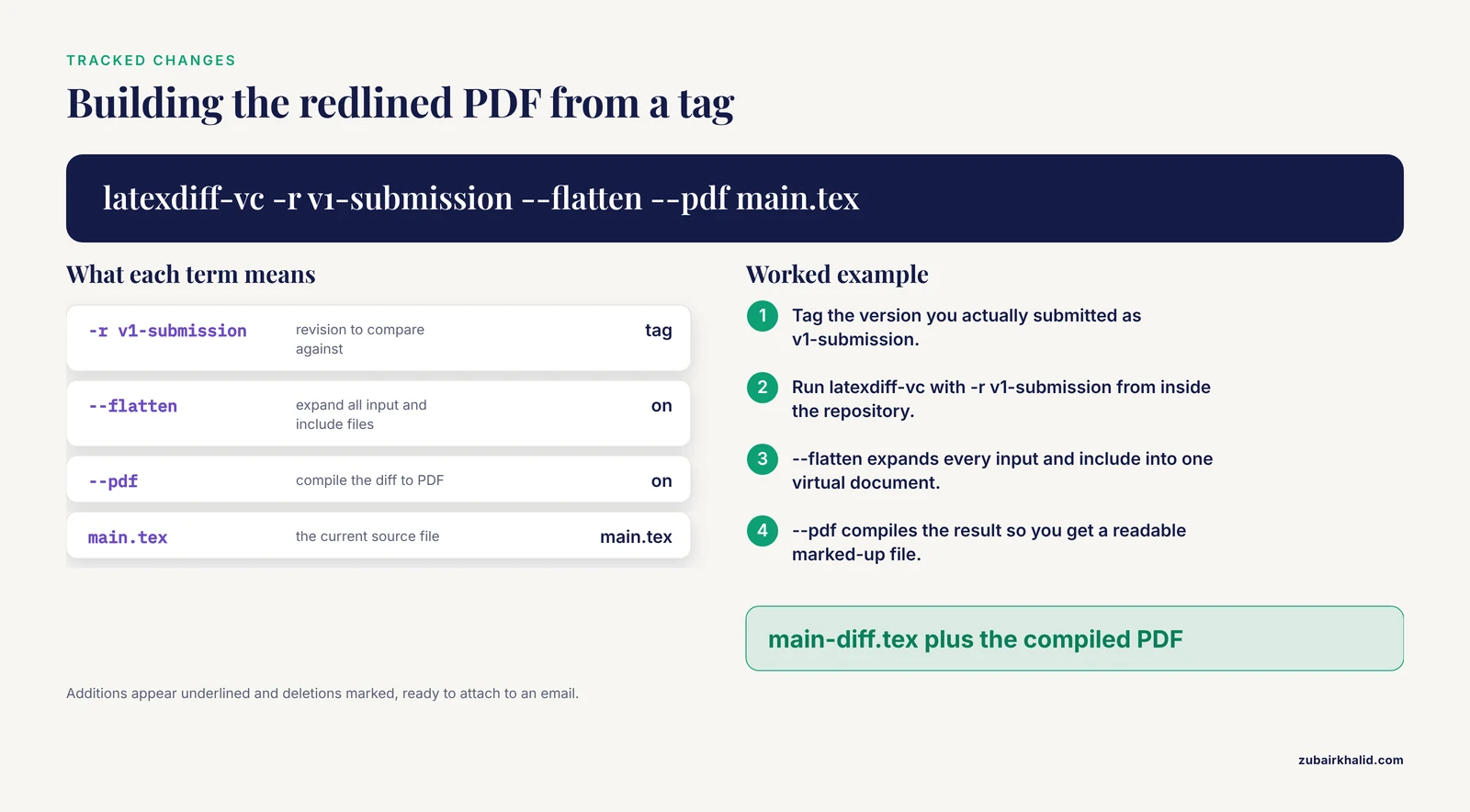
Tag the submitted version, then run latexdiff-vc -r v1-submission, flatten, pdf main.tex inside the repository. This compiles a PDF where added text is underlined and deleted text is marked, ready to attach to an email.
What files should I keep out of my LaTeX Git repository?
Keep all build artifacts out: .aux, .log, .out, .synctex.gz, .bbl, .blg, .fls, .fdb_latexmk, and similar files listed in the .gitignore in Step 3. They are regenerable from the sources and would otherwise flood every diff with noise.
I committed something I should not have. How do I undo it?
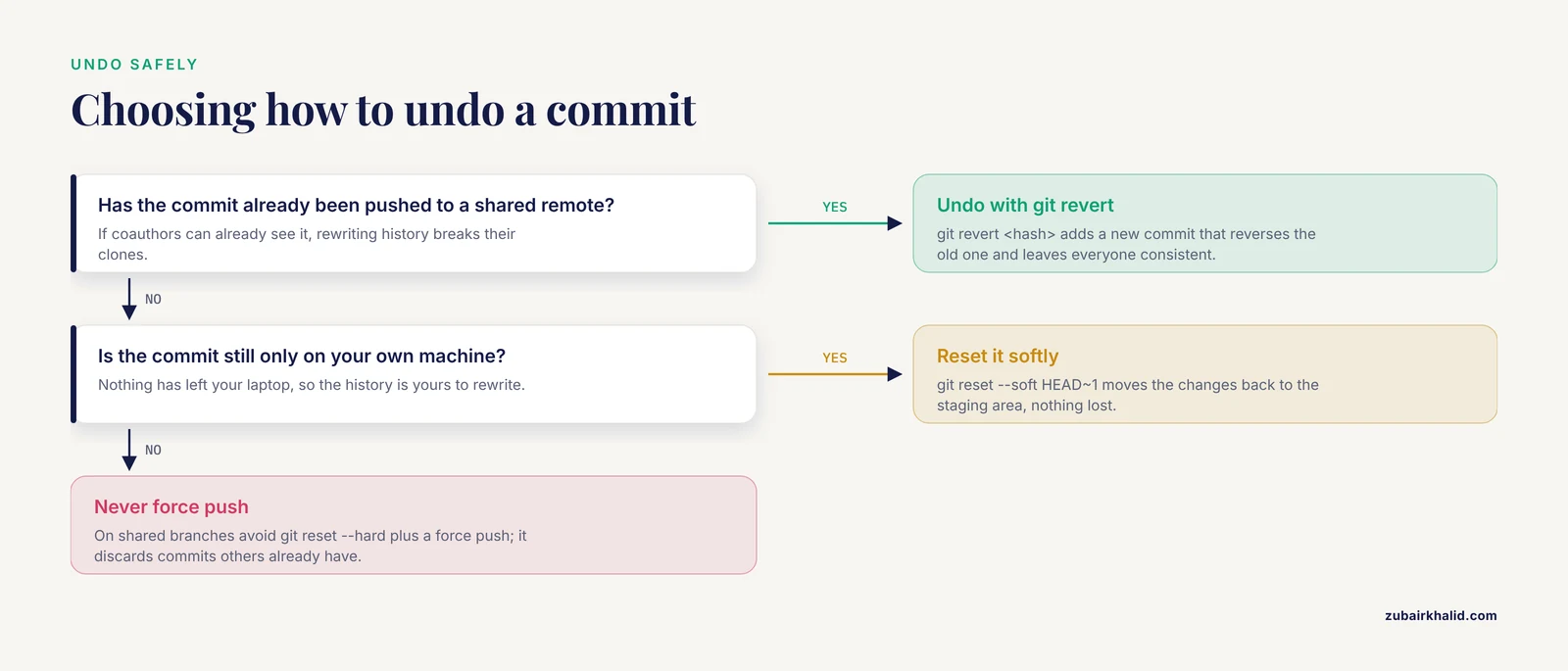
If the commit is unpushed, git reset, soft HEAD~1 moves the changes back to the staging area. If the commit is already shared, git revert <hash> creates a new commit that undoes it without rewriting history for your collaborators.
Do I need GitHub to use Git?
No. Git runs entirely on your own machine and the full workflow in this article works with no remote at all. GitHub adds an offsite backup, a shared remote for collaborators, and pull-request review, which is why most labs add it.
How do I keep my manuscript private on GitHub?
Choose Private when creating the repository, which is the default option. You can change visibility later in the repository settings, and free accounts include private repositories.
How do I connect Git with Overleaf?
If your Overleaf plan includes Git integration, open the project settings and copy the Git URL, then clone it like any remote with git clone and push and pull between Overleaf and your local repository. Pull before editing and push after finishing so the two copies never diverge silently.
How do I handle a merge conflict in a .tex file?
Pull to surface the conflict, open the file, and find the <<<<<<<, =======, and >>>>>>> markers. Keep the correct text, delete the marker lines, run git add on the file, commit the merge, and recompile to confirm the document still builds.