How to Run Long Bioinformatics Jobs with Tmux
By Dr. Zubair Khalid, DVM, MS, PhD ·

By the end of this guide you will be able to start a long-running analysis such as a BLAST search, a genome assembly, or an RNA-seq quantification inside a tmux session, disconnect from your computer, come back the next morning, reattach to the same session, and find your job still running with a complete log of its output. You will also know how to monitor the job while it runs, how to capture its output so you can verify results later, and which mistakes most often destroy hours of compute time.
What you need before starting:
- A Linux server you can reach over SSH, or a local Linux machine. Windows users can use Windows Subsystem for Linux.
- tmux installed. Most distributions ship it, and the installation command is in the walkthrough below.
- A shell account with enough disk space for your data and outputs.
- Basic comfort with the Linux command line. If you are still building those skills, structured training helps. A long-running survey of bioinformatics continuing education found that workshop participation had a positive impact on collaborations, research output, and career progression for participants [1].
Everything in this guide uses standard Linux commands that work the same way on a laptop, a lab server, or the login node of a computing cluster.
Why Tmux Matters for Long Bioinformatics Jobs
Bioinformatics analyses are slow by nature. BLAST, the Basic Local Alignment Search Tool, compares query sequences against databases that routinely contain millions of sequences, and researchers parallelize these searches across hundreds or thousands of processor nodes on high-performance computing clusters to make them tractable [2]. Even a single well-scoped BLASTN run against a large nucleotide database can take hours. Genome assemblies, variant calling pipelines, and multiple sequence alignment jobs behave the same way.
If you launch one of these jobs directly in an SSH terminal and your laptop sleeps, your Wi-Fi drops, or your office loses power, the SSH connection dies. When the connection dies, the shell that was running your job receives a hangup signal, and your job dies with it. Everything after hour six of a twelve-hour run is gone.
tmux, short for terminal multiplexer, solves this problem. It runs your shell inside a persistent server process on the remote machine. Your SSH connection talks to that server, but it is not the thing keeping your job alive. Close the laptop, lose the network, restart your terminal. The tmux server on the remote machine keeps running your job exactly where you left it, and you reconnect to it later as if you never left.
This matters beyond simple convenience. Typical bioinformatics analyses are long-running computational workflows, and robust execution of those workflows, including the ability to resume after interruptions, is considered an important part of reproducible research [3]. A job that dies every time a connection hiccups is a job you will run three times and trust once.
tmux is not a scheduler, a checkpointing system, or a workflow engine. It does one narrow job, which is keeping your interactive shell session alive across disconnections, and it does that job extremely well. Where it fits in a larger toolkit is covered later in this article.
Tmux Vocabulary: Sessions, Windows, and Panes
Three terms describe everything in tmux.
A session is a named, persistent workspace. You might have one session called blastrun for a BLAST job, one called qc for quality control work, and one called admin for file transfers. Sessions survive disconnections and can be listed, reattached, and killed by name.
A window is a full-screen shell inside a session, like a browser tab. One session can hold many windows, numbered from 0.
A pane is a rectangular region inside a window. Splitting a window into panes lets you watch a log file in one pane while your job runs in another.
The prefix is the key combination that tells tmux the next keystroke is a command rather than text to type into your shell. The default prefix is Ctrl+b. You press Ctrl+b, release both keys, then press the command key. Almost every tmux interaction follows this two-step pattern, and it is the single concept that trips up new users most often.
Running a Long Job with Tmux, Step by Step
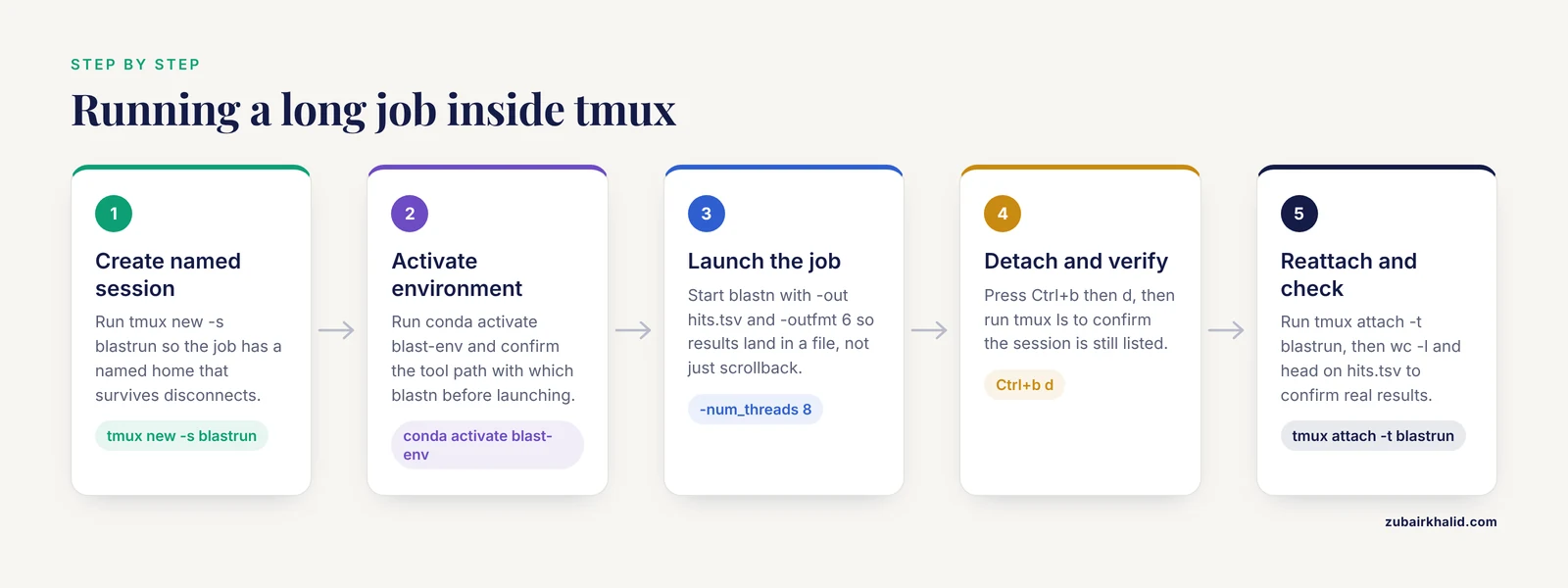
This walkthrough uses a BLASTN search as the example job because it is familiar, universally available, and realistically slow. Every command works identically for an assembler, an aligner, or any other tool.
Step 1. Confirm tmux is installed
Log in to your server and check the version.
tmux -VExpected output:
tmux 3.3aAny version from the last several years is fine. If the command is not found, install it.
On Ubuntu or Debian:
sudo apt update
sudo apt install tmux
On CentOS, Rocky, or AlmaLinux:
sudo yum install tmuxOn macOS with Homebrew:
brew install tmuxStep 2. Create a named session
tmux new -s blastrunThe -s flag assigns a name. Naming sessions is not cosmetic. When you have three jobs running, tmux ls listing blastrun, assembly, and qc is far easier to navigate than three anonymous sessions numbered 0, 1, and 2. Your prompt now sits inside a green status bar at the bottom of the screen. That bar is the visual proof you are inside tmux.
Step 3. Activate your software environment
Load the tools the job needs. With conda, a common environment manager in bioinformatics:
conda activate blast-env
which blastn
Expected output from which:
/home/yourname/miniconda3/envs/blast-env/bin/blastnThis step matters more than most beginners realize. When you reattach tomorrow, you land back in this same shell with the environment already active, because tmux preserved the entire shell state. But if you ever start a new session, you must activate the environment again.
Step 4. Launch the job
Run the command exactly as you would in a plain terminal. This example runs a nucleotide BLAST search and writes results to a tabular file:
blastn -query contaminants.fa -db nt -out hits.tsv -outfmt 6 -num_threads 8The key flags:
-querynames the input FASTA file with your sequences.-db ntselects the BLAST database. Herentrefers to a nucleotide database you have already downloaded and formatted locally, which is standard practice for repeat analyses.-outwrites results to a file instead of standard output, so results survive even if your terminal scrollback does not.-outfmt 6produces tabular output, one hit per line, which is easy to filter and parse.-num_threads 8requests eight CPU cores. Check how many cores your machine or your cluster allocation actually provides before raising this number.
If you want a rough measure of wall-clock time for the run, wrap the call with the Unix time command, one of the standard shell-level profiling approaches used to characterize BLAST runtime behavior in performance studies [2]:
time blastn -query contaminants.fa -db nt -out hits.tsv -outfmt 6 -num_threads 8When the job finishes, time prints three numbers: real (wall-clock elapsed time), user (CPU time spent in your program), and sys (CPU time spent in the kernel). The gap between real and user tells you whether the job was CPU-bound or spent much of its wall-clock time waiting on input and output.
Step 5. Detach from the session
Press the prefix, then d:
Ctrl+b dYou land back in the plain shell you started from, and the tmux status bar disappears. Your BLAST job is still running inside the session. Detaching is the whole point of tmux. You can now close the terminal, shut the laptop, and go home.
Step 6. Verify the session is alive
From any shell on the same machine, even after logging back in the next day:
tmux lsExpected output:
blastrun: 1 windows (created Sat Nov 7 09:14:32 2026)If the list is empty, tmux prints no server running on /tmp/tmux-1000/default, which means every session has ended and you should check the log files discussed below to see how far the job got.
Step 7. Reattach and check progress
tmux attach -t blastrunThe -t flag targets the session by name. You are looking at the exact screen you left, with BLAST still running or already finished. Nothing about the shell state was lost.
Step 8. Check the results
When the job completes, inspect the output before building anything on top of it.
wc -l hits.tsv
head hits.tsv
wc -l counts the result lines so you know how many hits were reported. head shows the first lines so you can eyeball the columns. For a tabular BLAST run, columns follow the standard outfmt 6 order: query ID, subject ID, percent identity, alignment length, mismatches, gap openings, query start, query end, subject start, subject end, e-value, and bit score. Verifying that the file has content, has plausible values, and is not truncated is a habit worth building on every job, not just the ones that fail loudly.
How Tmux Keeps Your Job Alive: The Server Model
Understanding the mechanism prevents a whole class of confusion. When you run your first tmux command, tmux starts a server process on the remote machine. The server owns the sessions, and each session holds one or more pseudo-terminals, which are virtual terminals that behave like real ones to the programs running inside them. Your BLAST process is a child of a shell running inside a pseudo-terminal owned by the tmux server, not by your SSH login shell.
When your SSH connection drops, the login shell dies and sends a hangup signal to its children. The tmux server is not one of its children in that chain, so it survives, and so does everything running inside its pseudo-terminals. When you reattach, tmux simply redraws the terminal contents over the new connection.
This is also why tmux cannot protect you from a server reboot or a crash of the tmux server itself. The server lives in memory on the remote machine. If that machine restarts, the sessions and the processes inside them are gone. Anything you genuinely cannot afford to lose should be written to disk as it runs, which is the subject of the next section.
Capturing Output: Logging a Long Job
Terminal scrollback is a convenience, not an archive. Two approaches cover most needs.
Redirect output to files at launch
The most reliable method is to have the job write its own files. For tools that print progress to standard output and standard error:
hisat2 -x grch38_index -q reads_1.fq -2 reads_2.fq -S aligned.sam 2> align.logThe 2> redirect sends the error and progress stream to align.log. You can then tail that log from a second terminal, or from a second tmux pane, without touching the running job:
tail -f align.logPress Ctrl+c to stop watching. That Ctrl+c kills only tail, not your analysis, because it is running in a separate process.
Record the whole session with pipe-pane
tmux can mirror everything printed in a pane to a file. Inside a tmux session, press the prefix, then :, and type:
:pipe-pane -o "cat >> ~/blastrun-session.log"The -o flag turns the pipe on only if it is not already on, preventing duplicate logging if you run the command twice. From that moment, every line that appears in the pane, both your typing and the program's output, is appended to blastrun-session.log in your home directory. This is invaluable for reconstructing exactly which commands you ran and what warnings they printed, which is precisely the kind of execution record that reproducible workflow systems are designed to manage systematically [3].
Windows and Panes: Watching and Working at the Same Time
A single full-screen shell is enough for many jobs. The real efficiency gain comes from splitting the screen so you can monitor and work simultaneously.
Create a new window inside the current session:
Ctrl+b cThe status bar now shows 0:bash 1:bash, and you are on window 1. Switch windows with:
Ctrl+b  0    (jump to window 0)
Ctrl+b  n    (next window)
Ctrl+b  p    (previous window)
Split the current window into panes:
Ctrl+b  %    (split side by side, vertical divider)
Ctrl+b  "    (split top and bottom, horizontal divider)
Move between panes:
Ctrl+b  o            (cycle to the next pane)
Ctrl+b  arrow key    (move in that direction)
Close the current pane:
Ctrl+b x (asks for confirmation, then kills the pane)A practical arrangement for a long BLAST run: window 0 holds the job itself, and window 1 is split into a pane running htop to watch CPU use and a pane running tail -f on the log. You can detach, reattach hours later, and find all of it exactly as you arranged it.
Monitoring Resource Use While the Job Runs
Long jobs fail in different ways, and the failure mode tells you what to fix. Watching resource use in a second pane makes problems visible early.
htopshows CPU load per core, memory use, and which processes are running. If you requested 8 threads but only 1 core is busy, a flag like-num_threadsis not being honored, and you can fix it on the next run rather than waiting for a job that finishes three times slower than it should.free -hshows memory in human-readable units. A job creeping toward total physical memory is a job about to be killed by the out-of-memory manager.df -h /homeshows free disk space. Many long jobs, especially aligners writing large intermediate files, fail at hour nine because the disk filled at hour eight.du -sh results_dir/*shows how much space each output file occupies, which helps you decide what to compress or delete mid-run.
These are ordinary Linux commands for bioinformatics work, and they belong in every long job's monitoring pane. Runtime and resource behavior also scales with data size and hardware, which is why careful studies profile tools like BLASTN across multiple database files, query files, and node types rather than assuming one machine's timing transfers to another [2].
tmux on a Cluster: Where It Fits and Where It Does Not
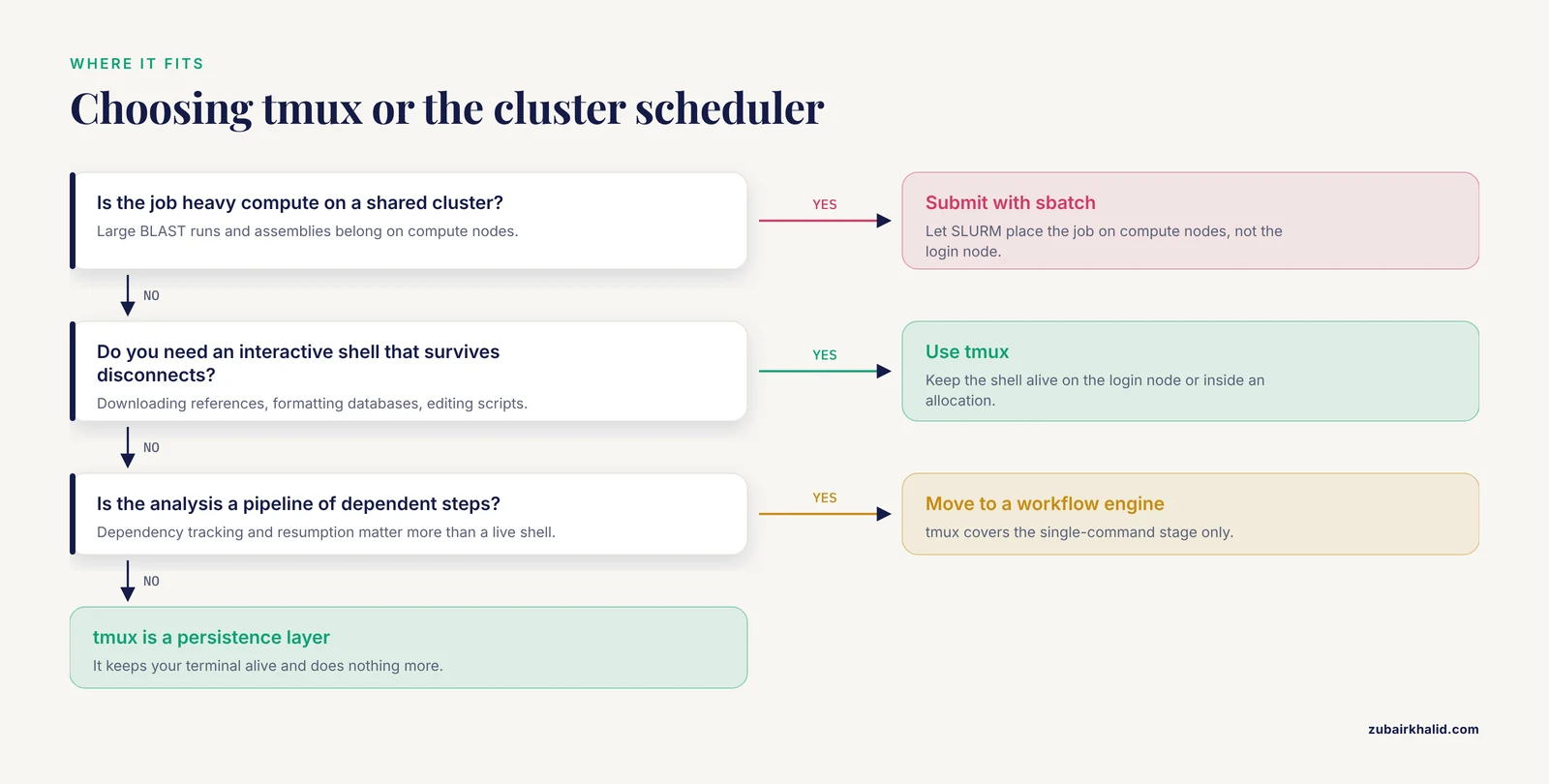
High-performance computing (HPC) clusters, the shared machines with hundreds or thousands of nodes used for jobs like the large-scale BLAST parallelization described in the profiling literature [2], normally run a batch scheduler such as SLURM or PBS. You submit a job script with sbatch, the scheduler finds free nodes, and the job runs independently of any terminal. On that kind of system, tmux is not the mechanism that runs your main compute job, and pretending otherwise causes problems covered in the common mistakes section.
tmux still earns its place on a cluster in three ways:
- Interactive work on login nodes. Downloading reference genomes, formatting databases, editing scripts, and inspecting small files all happen in a shell, and tmux keeps that shell alive across disconnects.
- Interactive jobs on compute nodes. Many schedulers offer an interactive allocation command, for example
sallocorsrun, pty bashon SLURM systems. Starting tmux inside such an allocation keeps your interactive session alive if your connection drops, though the tmux server then lives on the compute node and disappears when the allocation ends. - Stepping stone to workflow engines. As analyses grow into multi-step pipelines, most labs move from interactive shells to workflow systems that handle dependency tracking, parallel execution, and resumption automatically. Tools in this space were built specifically because long-running computational workflows need robust execution management to minimize errors [3]. tmux gets you through the single-command stage. A workflow engine takes over when your analysis becomes a pipeline of a dozen dependent steps.
A tmux Configuration Worth Copying
The default tmux configuration is conservative. Two defaults matter for bioinformatics work. The scrollback history buffer holds only 2,000 lines by default, which a verbose installer or a chatty pipeline can blow through in minutes. And mouse support is off, which makes scrolling feel foreign to anyone raised on a trackpad.
Create or edit ~/.tmux.conf:
set -g history-limit 100000
set -g mouse on
set -g base-index 1
setw -g pane-base-index 1
set -g renumber-windows on
set -g status-interval 5
What each line does:
history-limit 100000raises the scrollback buffer to 100,000 lines per pane. This costs a modest amount of memory per pane and saves you from losing the beginning of a long log.mouse onlets you scroll with the trackpad, click to select panes, and drag pane borders.base-index 1andpane-base-index 1number windows and panes starting at 1 instead of 0, which matches the number row on your keyboard, soCtrl+b 1jumps to the first window.renumber-windows oncloses gaps in window numbering when you close windows.status-interval 5refreshes the status bar every 5 seconds.
Apply the configuration to your running sessions without restarting them:
Ctrl+b  :
source-file ~/.tmux.conf
Quick Reference: Essential tmux Commands
| Task | Command or keystroke | Notes |
|---|---|---|
| Create a named session | tmux new -s jobname | Always name sessions |
| List sessions | tmux ls | Shows all live sessions |
| Reattach by name | tmux attach -t jobname | -t targets a session |
| Detach | Ctrl+b then d | Job keeps running |
| Kill a named session | tmux kill-session -t jobname | Terminates everything inside |
| New window | Ctrl+b then c | One shell per window |
| Switch windows | Ctrl+b then 0 through 9 | Or n for next, p for previous |
| Split side by side | Ctrl+b then % | Vertical divider |
| Split top and bottom | Ctrl+b then " | Horizontal divider |
| Move between panes | Ctrl+b then arrow key | Directional movement |
| Kill current pane | Ctrl+b then x | Asks for confirmation |
| Enter scroll mode | Ctrl+b then [ | Exit with q |
| Reload configuration | Ctrl+b then :source-file ~/.tmux.conf | Applies without restarting |
| Rename session | Ctrl+b then $ | Useful when repurposing one |
Common Mistakes and Limitations
These are the errors that cost people real compute time, with the exact symptoms and fixes.
Killing the session instead of detaching. New users habitually type exit at the end of a work session. Every exit closes one shell, and when the last shell in a session closes, the session ends and every process inside it is killed. If your BLAST job was in that session, it is gone. Detach with Ctrl+b d instead of exiting. The symptom that tells you this happened is tmux ls reporting no server running when you were certain a job was running.
Treating tmux as protection against reboots. The tmux server lives in memory. A server reboot, a maintenance window, or an administrator restarting the node erases all sessions and all running jobs. tmux protects you from network disconnections, not from machine restarts. For work that must survive reboots, write outputs to disk continuously and, for multi-step pipelines, use a workflow system with resumption capability so a failure costs you one step rather than the whole run [3].
Running heavy jobs on a login node because tmux made it possible. tmux will happily keep a 32-thread BLAST job alive on the login node of a shared cluster, and cluster administrators will just as happily kill it and possibly suspend your account, because login nodes exist for light interactive work. On a scheduled cluster, submit large jobs through the scheduler. Reserve tmux for interactive sessions and small tasks.
Losing output to the default scrollback limit. The default history buffer of 2,000 lines means the first hours of a verbose job's output can scroll out of existence. Raise history-limit as shown above, and redirect important output to files rather than relying on the terminal buffer.
Forgetting to re-activate the environment in a new session. tmux preserves the shell state of the session you detached from. It does nothing for brand-new sessions, which start a fresh shell with no conda environment loaded. The classic symptom is a reattached session that works fine alongside a brand-new session where blastn: command not found appears. Activate environments at the top of every new session, or better, put the activation line in the script that launches the job.
Assuming the job is running because the session exists. A session can be alive while the job inside it crashed an hour ago. After reattaching, check the process (ps aux | grep blastn or htop) and check the output file's modification time (ls -lh hits.tsv). Confirmation takes ten seconds and prevents the worst outcome in computational work, which is building an analysis on an empty or half-written file.
Not checking disk space before a long run. A job that writes 400 GB of intermediate files onto a volume with 300 GB free fails partway through, and the failure often appears as a mysterious tool error rather than a clear out-of-space message. Run df -h on the target filesystem before launching anything long.
Confusing tmux with reproducibility. Keeping a shell alive is not the same as recording what you did. Session logs from pipe-pane help, but a reproducible analysis ultimately needs its steps, parameters, and dependencies written down in scripts or workflow definitions, which is the problem workflow frameworks were designed to solve for long-running bioinformatics analyses [3].
One honest limitation belongs in plain terms: tmux has no idea what your job is doing. It cannot checkpoint progress, restart a failed step, schedule GPU resources, or notify you by email when a run finishes. It is a persistence layer for your terminal, and every capability beyond that comes from other tools.
Getting Comfortable with Linux Alongside Tmux
tmux is one tool in a small set of Linux skills that pay off constantly in bioinformatics work. The commands that pair most naturally with long jobs are worth drilling until they are reflexive: ssh for connecting, scp or rsync for moving files, less and tail -f for reading logs, wc, head, grep, and sort for quick checks on output files, df -h and du -sh for disk awareness, and ps plus kill for process management. None of these are bioinformatics tools, and that is the point. They are the general-purpose Linux commands bioinformatics runs on, and fluency with them is what separates a smooth long job from a stressful one. Formal training reinforces this foundation. The bioinformatics.ca continuing education program, running since 1999 and training more than 2,000 participants, adapted its introductory and advanced courses over the years as both the science and the available learning formats changed [1], which reflects how central command-line skill has remained even as analysis tools evolved.
Frequently Asked Questions
What is tmux and why do bioinformaticians use it for long jobs?
tmux is a terminal multiplexer, a program that keeps shell sessions running on a server independent of your SSH connection. Bioinformaticians use it because analyses like BLAST searches and genome assemblies run for hours, and tmux lets them disconnect and reconnect without killing the job.
Will my job keep running if my SSH connection drops while using tmux?
Yes. The job runs inside a tmux server process on the remote machine, not inside your SSH connection, so a dropped connection does not affect it. Reattach with tmux attach -t sessionname and pick up where you left off.
How is tmux different from nohup?
nohup keeps a single command running after logout and writes its output to a file, but gives you no interactive session to return to. tmux preserves a full working environment with windows, panes, and scrollback that you can reattach to. For long jobs you interact with, tmux is the better fit.
How do I scroll back through output in tmux?
Press Ctrl+b then [ to enter copy mode, scroll with the arrow keys, PgUp, or the mouse if mouse mode is on, and press q to exit. Raise the buffer size with history-limit in ~/.tmux.conf if 2,000 default lines is not enough.
How many tmux sessions, windows, and panes should I use?
Use one named session per independent project or job, one or two windows per task, and two or three panes where you need to monitor something while working. More than that becomes hard to navigate, and named sessions do most of the organizational work anyway.
Can I run my main compute jobs in tmux on an HPC cluster?
No. On clusters with a scheduler such as SLURM, submit large jobs with sbatch and let the scheduler place them on compute nodes. Use tmux for interactive work on login nodes or inside an interactive allocation, since running heavy jobs on login nodes gets processes killed and annoys administrators.
How do I save the output of a long-running job?
Redirect program output to files when you launch the job, for example 2> job.log, and use tail -f job.log to watch progress. For a complete record of everything in a pane, run :pipe-pane -o "cat >> ~/session.log" inside tmux.
How do I tell whether my long job finished successfully?
Reattach to the session and check whether the process still appears in htop or ps, look at the exit state and final messages in the log, and verify the output file exists with a plausible size using ls -lh and a row count with wc -l. A finished session with no process and a populated output file is the pattern you want.