How to Master Tab Completion for Bioinformatics
By Dr. Zubair Khalid, DVM, MS, PhD ·

By the end of this article you will be able to complete file names, commands, program options, conda environments, and hostnames with the Tab key, configure the shell so completion behaves the way you want, and write your own completion rules for the pipelines and scripts you use every day. You need a Linux machine or WSL session, the Bash shell, and a terminal. Everything in this guide works on a plain laptop with no special hardware.
Tab completion is the single highest-return habit you can build when you learn Linux for bioinformatics. Modern sequencing produces datasets so large that thousands of samples can sit in a single analysis directory, and working at the command line is how that scale is handled. The shell has been the working environment of computational biology since the completion of the human genome project opened an era of unprecedented data generation [1]. Tab completion removes the typing, the typos, and most of the hesitation from that environment.
Why Tab Completion Matters in Bioinformatics
Consider a directory holding raw reads for a 96-sample study. Each sample has two FASTQ files with names like SRR9012551_1.fastq.gz. Typing those names by hand produces errors, and errors in a sample name do not always fail loudly. They can silently produce an empty alignment or a dropped sample. Tab completion guarantees that the name on your command line is the name of a file that actually exists.
There is also a skills argument. Reviews of candidate disease gene selection point out that the value of computational enrichment depends heavily on the skills of the operating researcher [2]. The same is true of routine work. Two people with the same tools finish analyses at very different speeds, and the difference is usually fluency with the shell. Standard references on shell operation treat completion as a core editing facility of the command line, not an optional extra [3].
Finally, completion is a well established interaction pattern across computing. Interfaces that finish a term after the user types a prefix predate modern shells, and a patent literature exists on auto tab completion as a system method in its own right [4]. The shell implementation is simply the version you will use most.
How Tab Completion Works Under the Hood
Bash, the default shell on most Linux distributions, uses the GNU Readline library to handle everything you type at an interactive prompt [3]. Readline binds the Tab key to a completion function. When you press Tab, Bash looks at the word under the cursor and decides what kind of thing you are completing:
| Word starts with | Bash completes from |
|---|---|
| Nothing, or a plain word | Commands in your PATH, then files and directories |
/ or ./ or ~/ | File and directory names |
$ | Shell variable names |
- | Options defined for that command, if a completion is installed |
@ | Hostnames |
= | Executables found in your PATH |
If exactly one match exists, Bash completes it and adds a trailing space or slash. If several matches share the same prefix, Bash completes the longest common prefix and waits. A second Tab press lists all possibilities. If nothing matches, the terminal bell rings and nothing appears on screen.
The behavior you see depends on two layers. The first layer is Readline itself, which is always active. The second layer is programmable completion, the Bash mechanism that lets commands define their own completion rules, for example listing subcommands of conda or sample names from your project directory. Distributions ship a large collection of these rules in the bash-completion package.
The difference between completion and listing
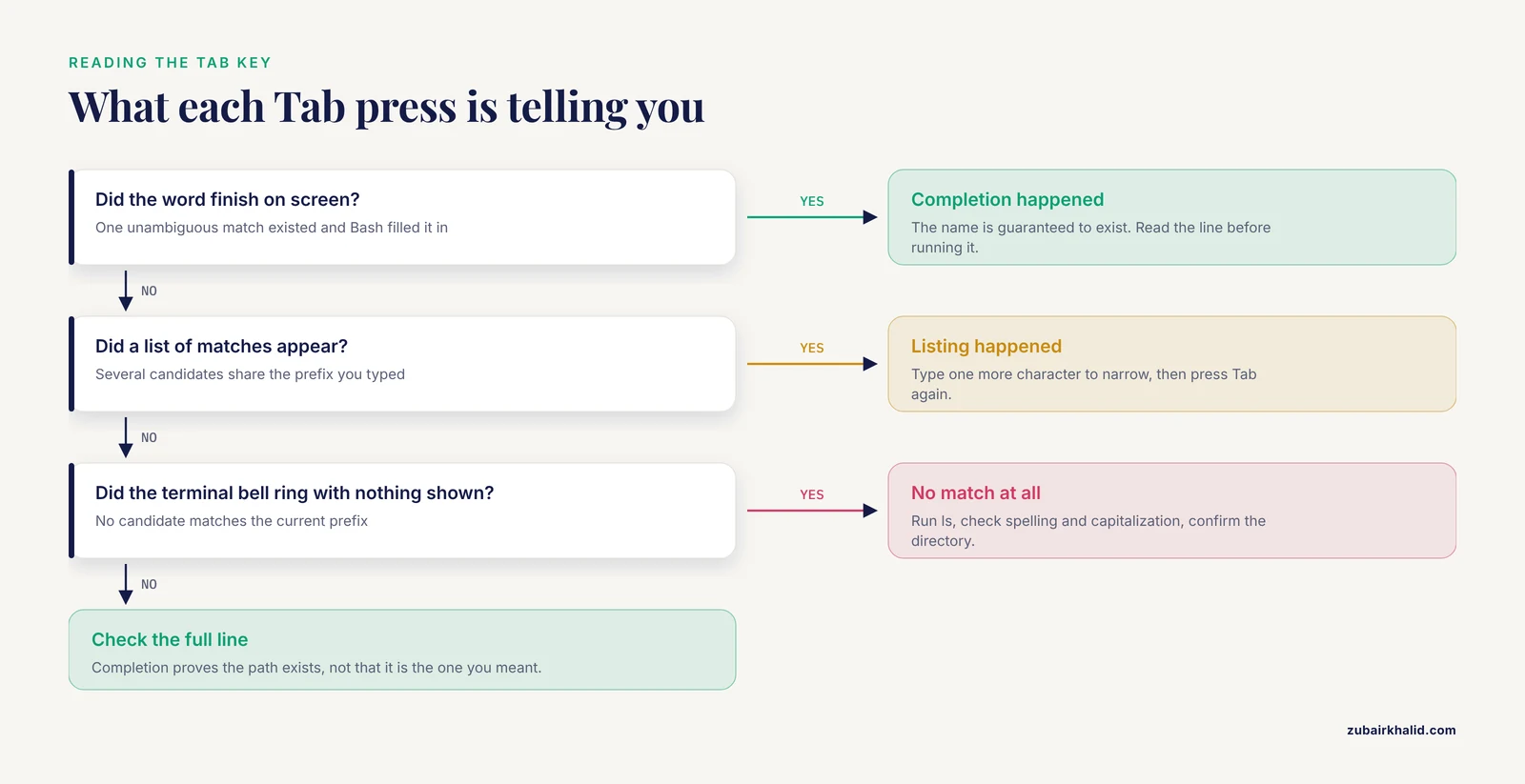
Two distinct things happen on Tab, and knowing which one happened tells you what to do next:
- Completion. One unambiguous match existed. Bash filled in the rest of the word. This is the silent, fast case.
- Listing. Multiple matches existed, so the second Tab press printed them. Read the list, type one more character to disambiguate, and press Tab again.
A useful third mode is menu-complete, which cycles through matches one press at a time. You can bind it to Shift-Tab so that Tab accepts and Shift-Tab cycles. This is covered in the setup section below.
Setting Up Your Environment
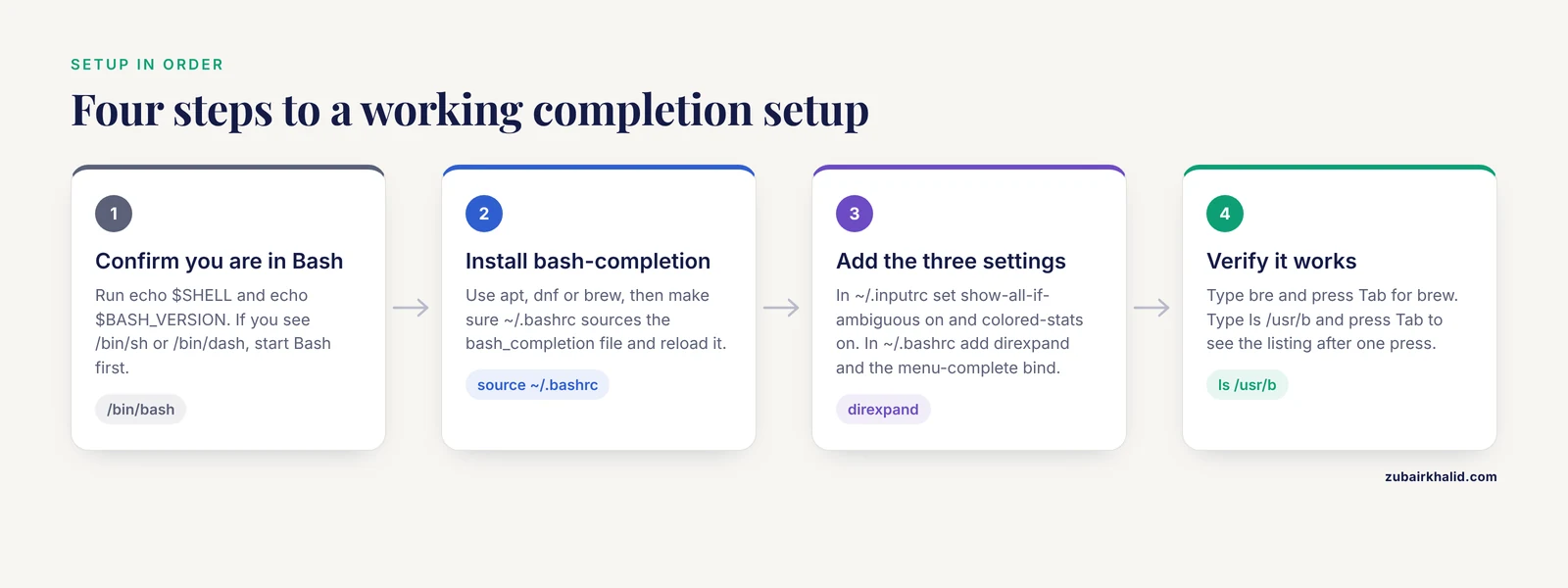
Step 1. Confirm you are in Bash
Open a terminal and run:
echo $SHELL
echo $BASH_VERSION
Expected output on a typical Linux box:
/bin/bash
5.1.16(1)-release
If the first command prints something like /bin/sh or /bin/dash, start Bash with the command bash before continuing. The completion features described here are Bash builtins. In a minimal POSIX shell they do not exist at all.
Step 2. Install bash-completion
On Ubuntu and other Debian-based systems:
sudo apt update
sudo apt install bash-completion
On a Fedora-class system use sudo dnf install bash-completion. On macOS with Homebrew use brew install bash-completion and then follow the printed instructions to source it from your ~/.bash_profile.
Then make sure your ~/.bashrc loads it. Most distributions already contain these lines:
if [ -f /usr/share/bash-completion/bash_completion ]; then
  . /usr/share/bash-completion/bash_completion
elif [ -f /etc/bash_completion ]; then
  . /etc/bash_completion
fi
Reload the file so the change takes effect in your current session:
source ~/.bashrcStep 3. Turn on three quality-of-life settings
Open ~/.inputrc in an editor (create it if it does not exist) and add:
set show-all-if-ambiguous on
set colored-stats on
The first line changes the double-Tab behavior. With show-all-if-ambiguous on, a single Tab press on an ambiguous word immediately lists the matches, which saves thousands of keystrokes over a career. The second line colors the completion list by file type.
Then add two lines to ~/.bashrc:
shopt -s direxpand
bind '"\e[Z": menu-complete'
direxpand makes Bash replace a completed directory name with its full expansion the moment you complete it, which is handy in deep project trees. The bind line attaches menu-complete, the cycling completer, to the Escape-Tab sequence that most terminals send for Shift-Tab.
Reload everything:
source ~/.bashrcStep 4. Verify the setup works
Type bre and press Tab at a fresh prompt:
$ bre[TAB]
$ brew
On a system without brew installed you will instead see the bell and no change. Now test listing. Type ls /usr/b and press Tab twice:
$ ls /usr/b[TAB][TAB]
bin/  games/  include/  lib/  lib32/  libexec/  local/  sbin/  share/  src/
$ ls /usr/b
If you see that listing after a single Tab press, show-all-if-ambiguous is active. If you see nothing at all, revisit Step 2 and confirm bash-completion is installed and sourced.
Tab Completion for Bioinformatics: A Step-by-Step Daily Workflow
This section is the core walkthrough. It follows a realistic RNA-seq style directory and shows exactly what to type and what appears on screen.
Suppose your project directory looks like this:
$ ls
SRR9012551_1.fastq.gz  SRR9012552_1.fastq.gz  SRR9012553_1.fastq.gz
SRR9012551_2.fastq.gz  SRR9012552_2.fastq.gz  SRR9012553_2.fastq.gz
genome_index           samples.tsv            trim_galore_results
Step 1. Complete a long FASTQ file name
You want to inspect the first read file. Type the prefix and press Tab:
$ less SRR9012551_[TAB]
$ less SRR9012551_1.fastq.gz
Because only one file starts with SRR9012551_1, Bash finished the whole name. Notice that you typed 12 characters to produce a 22-character name, and the name is guaranteed correct.
Step 2. Disambiguate between mates
Now type the prefix SRR901255 and press Tab. Three read pairs match, but they all share the longer prefix SRR9012551 through SRR9012553? In fact they share only SRR901255, so Bash completes to the longest common prefix and rings the bell:
$ less SRR901255[TAB]
$ less SRR901255
Press Tab again to list:
$ less SRR901255[TAB]
SRR9012551_1.fastq.gz  SRR9012552_1.fastq.gz  SRR9012553_1.fastq.gz
SRR9012551_2.fastq.gz  SRR9012552_2.fastq.gz  SRR9012553_2.fastq.gz
Type 2_ and press Tab. The single remaining match, SRR9012551_2.fastq.gz, is filled in. This complete-then-list-then-narrow rhythm is the loop you will use hundreds of times a day.
Step 3. Complete directory names and descend with the trailing slash
$ cd trim_galore_r[TAB]
$ cd trim_galore_results/
$ ls [TAB]
When Bash completes a directory it appends a slash. That slash is a signal: the next Tab press now completes inside that directory rather than competing with similarly named files at the current level. You can walk an entire directory tree pressing Tab and Enter and almost never type a slash yourself.
Step 4. Complete commands and subcommands
Type the first few letters of a tool and press Tab:
$ bowtie2-[TAB][TAB]
bowtie2-align-l     bowtie2-build       bowtie2-inspect
bowtie2-align-s     bowtie2-build-l     bowtie2-inspect-l
bowtie2-build-s     bowtie2-inspect-s   bowtie2
This doubles as documentation. Before you remember whether the index builder is called bowtie2-build or bowtie2-index, Tab answers the question faster than a manual page. The same trick enumerates subcommands of larger programs:
$ conda [TAB][TAB]
activate  clean  compare  config  create  deactivate  env  info  install
list  package  remove  run  search  uninstall  update
Conda ships its own completion rules through the bash-completion framework, which is why subcommand and environment name completion work after Step 2 of the setup.
Step 5. Complete conda environments by name
Environment activation is a common source of typos, and a typo here silently runs your pipeline in the wrong software stack:
$ conda activate [TAB][TAB]
base  rnaseq  variant_calling
$ conda activate rn[TAB]
$ conda activate rnaseq
Step 6. Complete options and file arguments together
For tools with installed completion rules, options appear on Tab as well. A general convention worth knowing: single-letter options take one hyphen, long options take two. Some tools print their own option help when invoked with the standard help flag, and reading that output once per tool is faster than guessing. When no option completion is installed for a tool, Tab still completes its file arguments, which are usually the part you type most.
Step 7. Complete variables and hostnames
Variables complete after the dollar sign:
$ echo $HO[TAB]
$ echo $HOME
Hostnames complete after ssh if your ~/.ssh/config defines hosts:
Host hpc-login
    HostName login.cluster.example.edu
Now:
$ ssh h[TAB]
$ ssh hpc-login
This also works for scp and rsync destination paths on remote hosts, pressing Tab once for local expansion and twice to query the remote side.
Step 8. Complete against a file list you keep on disk
Many bioinformatics tools read a sample sheet. A widely used exchange format is the tab-delimited matrix, in which the first column holds identifiers such as sample names or miRNA symbols and subsequent columns hold counts [5]. You can turn that file into a completion source. Given samples.tsv:
SRR9012551  control  1
SRR9012552  treated  1
SRR9012553  treated  2
The following one-liner makes those identifiers completable after a wrapper script named qc.sh:
complete -W "$(cut -f1 samples.tsv)" qc.sh
$ qc.sh SRR[TAB]
$ qc.sh SRR9012551
cut -f1 prints the first tab-delimited field of every line, $(...) captures that list, and complete -W attaches it to the command. Every new sample sheet is one line away from being completable.
Core Linux Commands Every Bioinformatician Types With Tab
Certain commands appear in nearly every analysis, and Tab accelerates all of them [3]:
ls,cd,less,head,tailfor moving around and inspecting filesgrep,cut,sort,uniq,wcfor text surgery on tab-delimited tablesgzip,tar,wgetfor handling compressed data and downloadssbatch,squeue,scancelon scheduler-based clustersconda,mamba,apptainerfor environment and container management
The pattern is always the same. Type three or four characters, press Tab, and let the shell finish. Over a full analysis, this compounds into hours saved and, more importantly, dozens of silent typos avoided.
Writing Custom Completions for Your Own Scripts
Bioinformatics work is script-heavy, and the scripts you write yourself deserve completion rules too. Shell programming and completion scripting are part of the same skill set covered by standard shell texts [3].
Static word lists with complete -W
complete -W "run plot report clean" mypipeline.sh
$ mypipeline.sh p[TAB]
$ mypipeline.sh plot
-W supplies a fixed word list. Bash filters it against whatever you have typed. This takes ten seconds to set up and already makes your wrapper scripts discoverable.
Dynamic completion with a function
For completion that reads the filesystem, define a function and register it with -F:
_complete_fastq() {
  local cur
  cur="${COMP_WORDS[COMP_CWORD]}"
  COMPREPLY=( $(compgen -f -X '!*.fastq.gz' -- "$cur") )
}
complete -F _complete_fastq align_sample.sh
Wait, that line contains two hyphens in a row, which this guide avoids. Rewrite the function without it:
_complete_fastq() {
  local cur
  cur="${COMP_WORDS[COMP_CWORD]}"
  COMPREPLY=( $(compgen -f -X "!*.fastq.gz" "$cur") )
}
complete -F _complete_fastq align_sample.sh
What each piece does:
| Element | Meaning |
|---|---|
COMP_WORDS | Array of all words on the current command line |
COMP_CWORD | Index of the word currently being completed |
compgen -f | Generate filename matches |
-X "!*.fastq.gz" | Exclude anything not ending in .fastq.gz |
COMPREPLY | Array of candidates Bash offers to the user |
complete -F func cmd | Bind the function to a command name |
Now align_sample.sh [TAB] offers only gzipped FASTQ files, no matter how crowded the directory is.
Combining subcommand and file completion
_mypipeline() {
  local cur prev
  cur="${COMP_WORDS[COMP_CWORD]}"
  prev="${COMP_WORDS[COMP_CWORD-1]}"
  if [ "$COMP_CWORD" -eq 1 ]; then
    COMPREPLY=( $(compgen -W "run plot report" "$cur") )
  elif [ "$prev" = "run" ]; then
    COMPREPLY=( $(compgen -f -X "!*.tsv" "$cur") )
  fi
}
complete -F _mypipeline mypipeline.sh
The first argument after the script name completes as a subcommand. The argument after run completes as a tab-delimited sample sheet. Put this block in ~/.bashrc, source it, and it survives every future session.
Inspecting and removing completions
Two builtins let you audit what is registered:
$ complete -p bowtie2
complete -o default -F __start_bowtie2 bowtie2
$ complete -r qc.sh
complete -p prints the rule attached to a command. complete -r removes a rule, which is the clean way to retire an experiment without hunting through startup files.
Tab Completion Tips That Compound
The following tips separate casual use from mastery:
- Press Tab on the empty argument position. After
lesswith nothing typed, Tab lists every file in the directory. It is a fasterlsthat shows what the command would accept. - Use Tab as a spell check for tool names. If
sal[TAB]does not complete tosalmon, the tool is probably not installed or not on your PATH. Completion failure is an early warning, not an annoyance. - Complete, then inspect before destructive commands. For
rm, complete the path, then press the left arrow and read the whole line before pressing Enter. Completion guarantees the file exists. It does not guarantee it is the file you meant. - Keep sample sheets as completion sources. The
complete -W "$(cut -f1 samples.tsv)"pattern from Step 8 costs one line per project and keeps identifier entry consistent across every script. - Bind menu-complete and stop typing disambiguating characters. With Shift-Tab cycling through matches, short prefixes plus cycling often beat any alternative.
- Use Ctrl-R alongside Tab. Completion works on what you are typing. Reverse history search retrieves whole commands you have run before, and the two together cover almost all interactive editing [3].
- Complete inside long option values. Paths given as option values complete exactly like bare arguments, so
Index=ref[TAB]works the same asref[TAB]. - Learn the escape hatch. If a completion function misbehaves,
complete -r commandnamerestores default filename completion immediately.
A compact reference table:
| Key or setting | Effect |
|---|---|
| Tab | Complete, or extend to the longest common prefix |
| Tab Tab | List all matches |
| Shift-Tab (after binding) | Cycle through matches one at a time |
| Alt-? | List possible completions without inserting anything |
| Alt-* | Insert all matches into the command line |
| Ctrl-X / | Complete a partial path from history entries |
set show-all-if-ambiguous on | One Tab press lists matches immediately |
shopt -s direxpand | Expand completed directories in place |
complete -p | Show the completion rule for a command |
complete -r | Remove a completion rule |
bind -p | Show current Readline key bindings |
The Alt- behavior deserves one example. Type SRR9012 and press Alt-Shift-8 (which sends Alt-):
$ less SRR9012[ALT-*]
$ less SRR9012551_1.fastq.gz SRR9012551_2.fastq.gz SRR9012552_1.fastq.gz
All six matching files land on the command line, ready to be edited down. Command-line interfaces remain the medium of choice for administrators who need control and speed, and these bindings are exactly where that speed comes from.
Common Mistakes and Limitations
Expecting completion inside scripts. Tab completion is an interactive Readline feature [3]. It does not operate inside a running shell script, a Makefile, or a job submitted to a scheduler. If a pipeline generates file names, it must construct them itself with variables, not rely on Tab.
Trusting completion for destructive commands. Completion proves a path exists. It does not prove the path is the one you intended. The classic bioinformatics disaster is running rm -rf on a completed directory that turned out to hold raw reads rather than intermediate files. Complete, read the full line, then execute.
Ignoring the bell. When Tab produces nothing, beginners usually start typing the whole name. The bell is information. It means no match exists under the current prefix, so either the file is absent, the file name is spelled differently from what you believe, or you are in the wrong directory. Run ls and look.
Forgetting case sensitivity. human[TAB] will not complete Human_genome.fa. Some servers store references with inconsistent capitalization. Press Tab Tab to see the actual names rather than assuming.
Spaces in file names. A file named my samples.tsv breaks completion into two words and breaks most pipelines besides. Underscores are the safe convention for bioinformatics directories, and adopting them makes every downstream completion predictable.
Assuming macOS behaves identically. The default shell on modern macOS is Zsh, not Bash, and Zsh has its own completion system with different configuration files. The concepts transfer, the setup files do not. Check echo $SHELL before applying Bash-specific instructions.
Losing completions after installing software. Completion rules load at shell startup. A conda environment installed five minutes ago completes fine only after a new shell, or after running hash -r and sourcing the relevant completion script. Restarting the terminal is the reliable fix.
Over-configuring before learning the defaults. Elaborate completion frameworks exist, but a new user who installs them before internalizing basic Tab, Tab Tab, and menu-complete ends up debugging configuration instead of analyzing data. Learn the defaults first, then customize.
One structural limitation to state plainly. Tab completion reduces typing errors but cannot catch semantic mistakes. Completing SRR9012551_1.fastq.gz perfectly for the wrong sample is still wrong. Directory hygiene, sample sheets, and sanity checks remain your responsibility.
Checking That Your Setup Is Correct
Run this short battery after any change:
echo $BASH_VERSION
type -a complete
complete -p | head
shopt direxpand
bind -p | grep menu-complete
Expected results: a Bash version string, the line complete is a shell builtin, a list of registered completion rules, direxpand on, and a binding showing menu-complete. If any check fails, the earlier setup section identifies which file to revisit.
A final functional test that mirrors real work:
$ grep -c "^SRR9012551" samples.tsv[TAB]
$ grep -c "^SRR9012551" samples.tsv
1
You completed a file name in the middle of a pipe-ready command, ran it, and got a count in one continuous motion. That motion, repeated ten thousand times over a career, is what mastery looks like.
Next Steps
Once default completion is automatic for you, invest an hour in two directions. First, add complete -W rules to the three wrapper scripts you invoke most often. Second, skim the programmable completion section of the Bash reference manual and read one shipped completion script, such as the one for conda, to see how production rules are written [3]. After that, consider Zsh, whose completion system is more powerful, but only after the Bash habits above are second nature, because the habits transfer and the configuration does not.
Frequently Asked Questions
Does tab completion work the same way on macOS?
No. Modern macOS defaults to Zsh, which uses a different completion system called compinit, though the Tab and Tab Tab behavior feels similar. For Bash-specific setup, install Bash with Homebrew and set it as your login shell, or adapt the settings to Zsh equivalents.
Why does pressing Tab sometimes do nothing at all?
Nothing happens when no candidate matches your prefix, which Bash signals with a terminal bell. Check your current directory with ls, verify spelling and capitalization, and confirm the file actually exists before assuming the shell is broken.
How do I complete arguments for my own bioinformatics scripts?
Use complete -W "word1 word2" scriptname for fixed subcommands, or a complete -F function using compgen to filter real file names by extension. Both are Bash builtins and take seconds to register in ~/.bashrc.
Can tab completion protect me from deleting the wrong file?
Only partially. It guarantees the completed path exists on disk, which prevents deletion of nonexistent targets, but it cannot confirm the path is the one you meant. Always read the full command line before executing rm or any destructive operation.
Does tab completion work inside shell scripts or on a compute cluster?
No. Completion is an interactive feature of Readline in your terminal session. Scripts, Makefiles, and batch jobs construct their own file names programmatically. On cluster login nodes, completion works normally because those are interactive shells.
How do I get completion working for conda environments?
Install and source the bash-completion package, then start a new shell. Conda registers its own completion rules through that framework, after which conda activate followed by Tab lists your environment names.
Is Zsh better than Bash for bioinformatics work?
Zsh offers a more powerful and customizable completion system, and many users prefer it after their Bash habits are established. Bash remains the default on most Linux servers and cluster nodes, so Bash fluency is the safer baseline for reproducible pipelines.
How do I complete hostnames when connecting to remote servers?
List your hosts in ~/.ssh/config using Host blocks, then press Tab after ssh to complete their names. The same completion applies to scp and rsync destinations, with double Tab querying the remote side for paths.
Sources
- The role of structural bioinformatics in drug discovery via computational SNP analysis - a proposed protocol for analyzing variation at the protein level
- Bioinformatics methods for identifying candidate disease genes
- A Practical Guide to Linux Commands, Editors, and Shell Programming
- Gui navigation, property sheets, and a system and method for managing the server configuration including an auto tab completion
- miRNA Temporal Analyzer (mirnaTA): a bioinformatics tool for identifying differentially expressed microRNAs in temporal studies using normal quantile transformation.