How to Use Symlinks for Bioinformatics Data
By Dr. Zubair Khalid, DVM, MS, PhD ·

By the end of this guide you will be able to create symbolic links (symlinks) that point to large reference genomes, FASTQ files, and database directories without duplicating them, audit a project for broken links, choose between absolute and relative paths, and transfer or archive a project without silently losing your data. You will need a Linux or macOS terminal (Windows users can use WSL2), a text editor, and at least one file large enough that you would hate to copy it twice, such as a FASTQ file or a reference genome.
Symlinks solve a problem that every bioinformatician hits within the first month of real work. Public datasets get reused across many projects. A methodological review of public omics data reuse in gastric cancer describes how cohorts from resources like TCGA and GEO feed dozens of secondary analyses, often with similar pipelines run repeatedly on the same underlying data [1]. Curated databases show the same pattern at larger scale. The Immune Epitope Database now records roughly 235,000 distinct T cell receptors and about 6,400 distinct B cell receptors and antibodies, data that many groups download and analyze locally [2]. When the same reference genome, annotation file, or public dataset is needed by five projects, copying it five times wastes terabytes and invites version drift. Symlinks let every project reference one canonical copy.
They also fit modern workflow practice. Protocols that document every step, as the untargeted metabolomics implementation study for inherited metabolic diseases did when it shared its detailed protocol and workflow [3], are easier to write and reproduce when a project directory shows exactly which data files a pipeline consumed, even if those files physically live somewhere else. That is precisely what a well-organized set of symlinks gives you.
What a Symlink Actually Is
A symlink, short for symbolic link, is a small file that contains a path to another file or directory. When you read, stream, or pipe a symlinked file, the operating system resolves the link and gives you the contents of the target. The link itself is just a pointer, typically a few hundred bytes on disk. The target is the real data.
Contrast this with a hard link, which is a second directory entry pointing to the same underlying data blocks (the same inode). Hard links cannot span filesystems and cannot point to directories. For bioinformatics data organization, soft links (symlinks) are almost always what you want, because your raw data usually lives on a different disk or mount point than your project code.
One consequence matters more than any other. Deleting a symlink deletes only the pointer, never the target. Deleting the target, however, leaves every symlink pointing at it dangling. That asymmetry is the source of most symlink disasters, and it returns in the common mistakes section below.
Why Bioinformatics Workflows Need Symlinks
Three concrete situations come up constantly.
Shared reference data. A reference genome like GRCh38, its indices for a specific aligner, and a gene annotation file can total tens of gigabytes once you build aligner indices. Every analysis project needs them. The standard pattern is one central directory such as /data/ref/ that holds the real files, with each project holding symlinks into it.
Scratch storage on clusters. High-performance computing systems typically offer a home directory with a modest quota and a scratch filesystem with far more space but automatic purge policies. Raw reads belong on scratch. Project directories in home hold symlinks into scratch so pipelines can reference the data without a copy.
Public dataset reuse. When a downloaded dataset feeds several analyses, and such reuse is now a dominant mode of secondary analysis in fields like cancer genomics [1], symlinks let each project directory present a clean view of the same files. This also supports the reproducibility goal that drives much of modern bioinformatics, because a reviewer or collaborator can see which paths a pipeline actually used.
One caution applies here. The physical arrangement of files says nothing about their quality. A study of deep learning prediction of spatial transcriptomics from histology images found that molecular data sparsity, noise, and image resolution degraded predictive performance regardless of model architecture [4]. Symlinks organize your data. They do not improve it. Keep provenance records so you know which download or release each target file came from.
Symlink Bioinformatics Data Step by Step
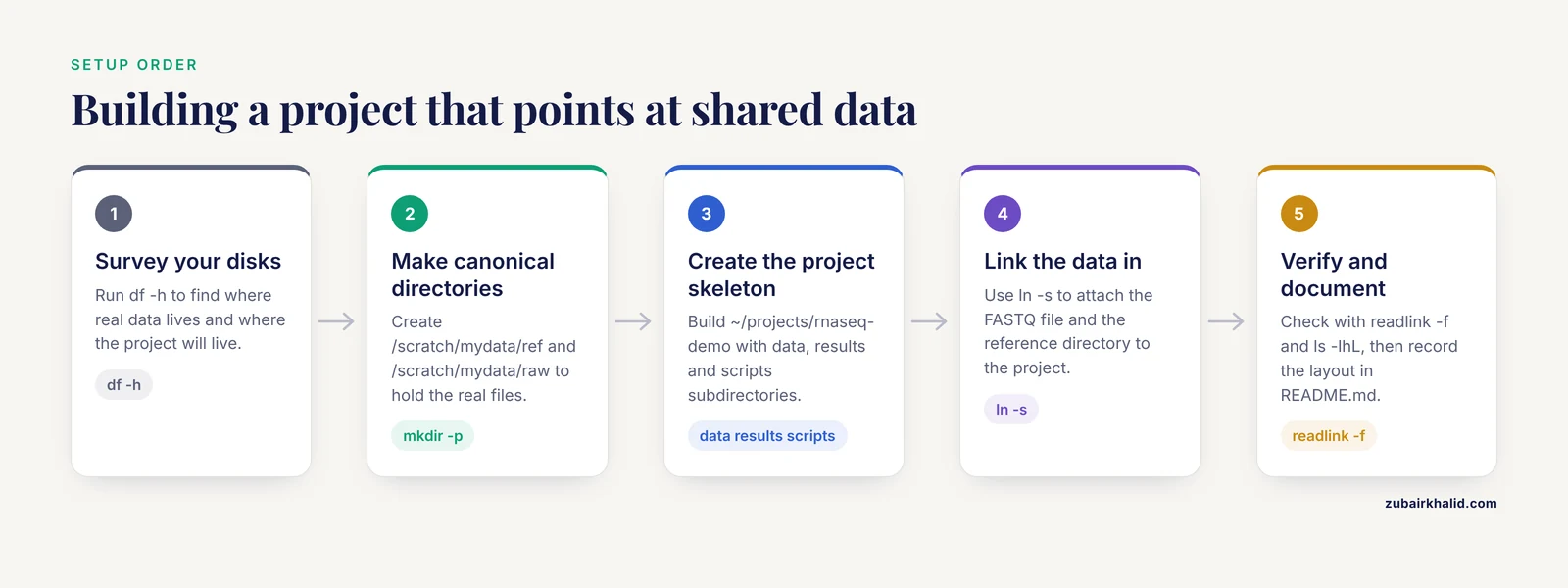
This walkthrough builds a small but realistic project layout. Every command is one you can run as written on Linux. On macOS the same commands work, with minor differences noted where they matter.
Step 1. Survey your disks
Know where your real data lives and where your project will live.
df -hExpected output resembles:
Filesystem      Size  Used Avail Use% Mounted on
/dev/nvme0n1p2  916G  402G  468G  45% /
tmpfs            32G  1.2M   32G   1% /dev/shm
/dev/sdb1        20T   12T  7.4T  62% /scratch
Here /scratch is a large separate filesystem. Symlinks will let project directories on the root filesystem reference data on /scratch without duplication.
Step 2. Create the canonical data directory
mkdir -p /scratch/mydata/ref
mkdir -p /scratch/mydata/raw
If you already have reference files, move or leave them here. If you are practicing, create a stand-in file:
head -c 10000000 /dev/urandom > /scratch/mydata/raw/practice_sample.fastq.gz
ls -lh /scratch/mydata/raw/
Expected output:
-rw-r--r-- 1 zubair zubair 9.6M Nov 11 09:15 practice_sample.fastq.gzThe -lh flags on ls produce a long listing with human-readable sizes. This is one of the everyday linux commands bioinformatics work depends on, and you will use it constantly to verify links.
Step 3. Create the project skeleton
mkdir -p ~/projects/rnaseq-demo/{data,results,scripts}Step 4. Create your first symlink
ln -s /scratch/mydata/raw/practice_sample.fastq.gz ~/projects/rnaseq-demo/data/
ls -l ~/projects/rnaseq-demo/data/
Expected output:
lrwxrwxrwx 1 zubair zubair 42 Nov 11 09:18 practice_sample.fastq.gz -> /scratch/mydata/raw/practice_sample.fastq.gzRead the output left to right. The first character l marks a symlink rather than a regular file (-) or directory (d). The arrow shows the target. The size field, here 42, is the length of the target path string in bytes, not the size of the target file. That distinction confuses many newcomers and matters when you estimate disk usage.
The ln command syntax is ln -s TARGET LINKNAME. With -s, ln creates a symbolic link. When you omit the second argument inside an existing directory, as above, ln names the link after the target basename, which is usually what you want.
Step 5. Verify the link resolves
readlink ~/projects/rnaseq-demo/data/practice_sample.fastq.gzOutput:
/scratch/mydata/raw/practice_sample.fastq.gzreadlink prints the link target verbatim. Add -f to resolve the link all the way to a fully qualified physical path, following every link in the chain:
readlink -f ~/projects/rnaseq-demo/data/practice_sample.fastq.gzFor a single-level link the output is the same. For nested links, link pointing to link, -f gives you the final real location, which is invaluable when you inherit someone else's messy project.
Step 6. Confirm the data flows through the link
ls -lhL ~/projects/rnaseq-demo/data/practice_sample.fastq.gz
zcat ~/projects/rnaseq-demo/data/practice_sample.fastq.gz | head -c 200
The -L flag tells ls to follow the link and report on the target, so you see the real 9.6M size instead of 42 bytes. The zcat command streams the gzip file through the link exactly as it would a regular file. Any tool that reads files through normal operating system calls, which is nearly every bioinformatics tool, reads through symlinks transparently.
Step 7. Symlink a whole directory
ln -s /scratch/mydata/ref ~/projects/rnaseq-demo/data/ref
ls -l ~/projects/rnaseq-demo/data/
Expected output:
lrwxrwxrwx 1 zubair zubair 42 Nov 11 09:18 practice_sample.fastq.gz -> /scratch/mydata/raw/practice_sample.fastq.gz
lrwxrwxrwx 1 zubair zubair 18 Nov 11 09:22 ref -> /scratch/mydata/ref
Directory symlinks are the cleanest way to attach a shared aligner index to a project. Your pipeline configuration then points at data/ref/genome.fa and never needs to know where the index physically lives.
Step 8. Prefer relative targets where projects may move
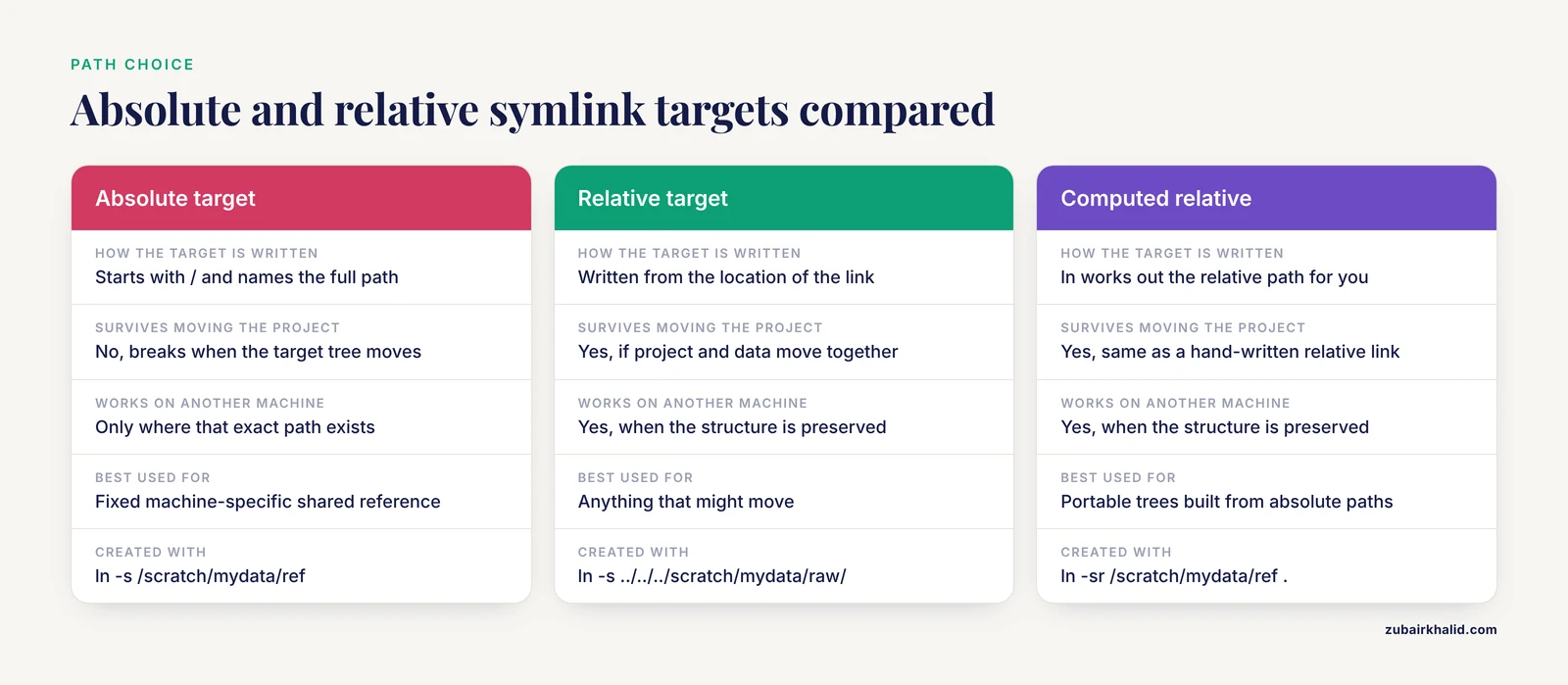
Absolute targets, starting with /, break whenever the target tree moves or when the project is used on a machine with a different mount layout. Relative targets, expressed from the location of the link itself, survive moves that preserve the structure relative to the data. To create one, cd to the link location and write the target as a relative path:
cd ~/projects/rnaseq-demo/data
ln -s ../../../scratch/mydata/raw/practice_sample2.fastq.gz .
ls -l
Expected output:
lrwxrwxrwx 1 zubair zubair 46 Nov 11 09:25 practice_sample2.fastq.gz -> ../../../scratch/mydata/raw/practice_sample2.fastq.gzA relative path is stored as written. If the whole tree, project plus data, moves together under a new root, the link still resolves. A related convenience is ln -r, which creates a relative link to a target you may specify by absolute path, letting ln compute the relative path for you:
cd ~/projects/rnaseq-demo/data
ln -sr /scratch/mydata/ref .
Step 9. Audit the project for broken links
Broken links are silent until something reads them. Audit routinely:
find ~/projects/rnaseq-demo -xtype lfind with -xtype l reports symlinks whose target does not resolve. Expected output for a healthy project is nothing at all. If you deleted the target file in Step 6 experiments, you would see:
/home/zubair/projects/rnaseq-demo/data/practice_sample.fastq.gzTo list every symlink, broken or not, use find ~/projects/rnaseq-demo -type l. To inspect what each one points at, combine with a loop:
for f in $(find ~/projects/rnaseq-demo -type l)
do
  printf '%s -> %s\n' "$f" "$(readlink "$f")"
done
Expected output:
/home/zubair/projects/rnaseq-demo/data/practice_sample.fastq.gz -> /scratch/mydata/raw/practice_sample.fastq.gz
/home/zubair/projects/rnaseq-demo/data/ref -> /scratch/mydata/ref
Step 10. Record the layout in your project documentation
Add a short README.md in the project root stating which entries under data/ are symlinks, where the targets live, and which release or download each target came from. Training data provenance matters even for internal analyses. A cross-training study of deep learning RNA 3D structure quality assessment predictors found that the composition of the training data dominated predictor performance in a model-dependent way, sometimes outweighing the native training set each model was built on [5]. Whatever your downstream method, documenting exactly which files fed it, and keeping those files stable behind canonical paths, is part of doing the analysis responsibly.
Key Options Reference
| Command and option | What it does | Typical use |
|---|---|---|
| , - | , - | , - |
ln -s TARGET [LINK] | Create a symbolic link | Attach reference data to a project |
ln -sf | Force, replacing an existing link | Update a link to a new release |
ln -sfn | Force plus treat existing symlink to a directory as a file | Safely retarget a directory link |
ln -sr | Create a relative link from an absolute target | Portable project trees |
ln -i | Prompt before overwriting | Interactive cleanup |
readlink PATH | Print the literal link target | Inspect one link |
readlink -f PATH | Print the fully resolved physical path | Trace nested links |
ls -l | Long listing, l in first column marks a link | Verify a link exists |
ls -lhL | Follow the link, human-readable target size | Confirm data is reachable |
find DIR -type l | List all symlinks under a tree | Inventory links |
find DIR -xtype l | List only broken symlinks | Audit before a run |
cp -L SRC DST | Copy, dereferencing links, so you get real data | Freeze a project snapshot |
cp -P SRC DST | Copy, preserving links as links | Move a project intact |
tar -chzf OUT.tgz DIR | Archive, dereferencing links into real file contents | Share data, not pointers |
rsync -a SRC DST | Sync preserving links as links (add L to dereference) | Replicate project layout |
du -sh DIR | Disk usage, links count as tiny files | Confirm no hidden duplication |
du -shL DIR | Disk usage, following links to real sizes | Estimate a full-copy size |
Symlink Bioinformatics Data Tips
Tip 1. Keep one canonical copy, many views. Treat /data/ref or /scratch/mydata as the single source of truth. Projects never write into the canonical tree. Pipelines write results into the project directory only. This separation keeps shared data safe from a misbehaving script.
Tip 2. Name links identically to their targets. When the link name matches the target basename, pipeline configurations and log files read naturally, and collaborators are never confused about what a file is. If a target must be renamed inside a project, record the mapping in the README.
Tip 3. Use ln -sfn when retargeting a directory link. Suppose data/ref points at an old genome build and you want it to point at a new one:
ln -sfn /scratch/mydata/ref/grch38_2024 ~/projects/rnaseq-demo/data/refWithout the -n flag, ln interprets the existing directory link as a directory and places the new link inside it, giving you data/ref/grch38_2024 alongside the stale link rather than replacing it. This single flag prevents one of the most common and baffling symlink errors.
Tip 4. Check disk usage both ways. du -sh ~/projects/rnaseq-demo shows the cost of the project itself, counting each link at a few hundred bytes. du -shL ~/projects/rnaseq-demo follows links and approximates what a full copy would cost. Comparing the two tells you exactly how much space the symlink strategy is saving.
Tip 5. Mind the filesystem. Symlink support depends on the filesystem. Native Linux filesystems such as ext4 and XFS support them fully. FAT32 and exFAT, common on shared USB drives, do not support Unix symlinks properly, so links created on such media may fail or become plain text files containing the target path. If your data staging involves external drives, format them with a filesystem that supports symlinks, or re-create links after copying.
Tip 6. Consider hardened or automated environments carefully. Some automated systems, including daemons that watch filesystem events and encrypt or process files as they appear, as described for a post-quantum cryptography Linux distribution built with the Yocto Project [6], may interact with symlinks in ways an interactive user would not. If your data passes through such a layer, verify how it treats links before assuming resolution behaves transparently.
Tip 7. Make the link audit part of pipeline startup. A one-line check at the top of a Snakefile, shell driver script, or Nextflow process stops a run before it produces results from missing data:
broken=$(find data -xtype l | wc -l)
if [ "$broken" -gt 0 ]
then
  echo "Found $broken broken symlinks under data/. Aborting."
  find data -xtype l
  exit 1
fi
Tip 8. Version your targets, not your links. When a reference release changes, create /scratch/mydata/ref/grch38_2024/ and /scratch/mydata/ref/grch38_2026/ as separate directories. Retarget links with ln -sfn only in new project branches, never under an already-published analysis. Published analyses should keep their original targets intact, because rerunning an analysis against silently updated data is a reproducibility failure.
Common Mistakes and Limitations
Mistake 1. Creating the link inside the wrong directory. With an existing directory link, ln -s /scratch/mydata/ref data/ref places a new link at data/ref/ref rather than replacing data/ref. The telltale is a directory tree with one nested link and a stale target. Fix it with ln -sfn as shown in Tip 3, and remove the nested stray with plain rm.
Mistake 2. Deleting the target and keeping the links. Symlinks are not backups. If scratch storage is purged, every project link dangles at once. Run find -xtype l regularly, and keep canonical data on storage with a retention policy you control. Note that rm on a symlink removes the link itself. To delete a real file behind a link you would have to deliberately target it, which is why accidental canonical-data deletion via project directories is rare, but accidental purging of the canonical directory is not.
Mistake 3. Absolute links that break across machines. A link to /scratch/zubair/... is meaningless on a collaborator's cluster or on your own laptop. Prefer relative targets for anything that might move, and resolve all links with readlink -f before declaring a project portable.
Mistake 4. Archiving links instead of data, or the reverse. By default, tar stores symlinks as links, and rsync -a copies them as links. That is correct for moving a project layout but wrong for sending someone the actual data. Conversely, tar -h dereferences every link and bundles gigabytes you may not intend to send. Decide per transfer which behavior you need and state it in your handoff notes.
Mistake 5. Confusing link size with data size. As shown in Step 4, ls -l on a symlink reports the byte length of the target path. Tools and scripts that estimate input sizes from ls output will report absurdly small numbers. Use ls -lhL, stat, or du -shL when you need real sizes.
Mistake 6. Symlink loops. A link pointing to its own parent directory, or two links pointing at each other, creates a loop. Most tools detect this and stop with an error such as "Too many levels of symbolic links", but a loop inside a directory tree can still hang recursive operations like find -L or naive backup scripts. When you see that exact error message, trace the chain with repeated readlink calls until the cycle is obvious, then remove one link with rm.
Mistake 7. Overwriting real files with a mistyped ln. Running ln -s new_target existing_real_file without -i or -f fails with "File exists", which is safe. But ln -sf against a path you believed was a link, when it is actually a real file, replaces the real file with a link and the original contents are gone. Pause before any -f operation in directories that mix real files and links.
Mistake 8. Expecting symlinks to solve provenance. A symlink records where data was, not what it is. It carries no checksum, version, or metadata. Data quality issues propagate through links exactly as they would through copies, and a spatial transcriptomics study demonstrated that increased sparsity and noise in molecular data degraded downstream predictive performance in ways that imputation could not fully rescue [4]. Pair symlink organization with checksums, such as sha256sum, recorded at download time, and with release-versioned target directories.
Limitation. Symlinks are a local filesystem convention. They do not work across network protocols that lack support for them, they do not survive naïve transfers to FAT-formatted media, and they add a layer of indirection that every collaborator must understand. Individual project setups vary, and for environment-specific storage, cluster, or data governance questions, consult your institution's research computing staff.
Frequently Asked Questions
Does deleting a symlink delete the original data?
No. Removing a symlink with rm linkname deletes only the pointer, which is typically a few hundred bytes, and the target file remains untouched. The danger runs the other way. Deleting or purging the target leaves the link in place but broken, which is why you should audit projects with find -xtype l before important runs.
What is the difference between a symlink and a hard link?
A symlink is a separate small file containing a path to a target, and it can point across filesystems and to directories. A hard link is a second directory entry for the same inode, meaning the same physical data blocks, and it cannot span filesystems or point to directories. For organizing bioinformatics data across disks, use symlinks.
Why does my symlink break after I move or copy it to another machine?
The link stores a path, and if that path is absolute, it only resolves where that exact path exists. On another machine or after a directory reorganization, the target is missing. Fix this by creating relative targets with ln -sr or by recreating links on the destination, then verify with readlink -f and find -xtype l.
How do I find and fix broken symlinks in a project?
List them with find /path/to/project -xtype l, which prints only the links whose targets do not resolve. Then either restore the target file at the recorded path or retarget the link with ln -sfn NEW_TARGET LINK. Re-run the find command afterward and confirm it prints nothing.
Should I use absolute or relative symlinks for my data?
Use relative links for anything that might move between directories, users, or machines, because relative links survive structural moves. Use absolute links when a target genuinely lives in one fixed, machine-specific location, such as a cluster's shared reference directory, and document that fact in your project README.
How do I archive or transfer a directory that contains symlinks?
Decide whether you want pointers or contents. tar -czf out.tgz dir preserves links as links, while tar -chzf out.tgz dir follows links and packs the real data. rsync -a preserves links and rsync -aL dereferences them. Choose deliberately, because the default can silently send pointers instead of data.
Do command-line tools and pipelines follow symlinks?
Yes, essentially all of them. Symlink resolution happens in the operating system when a file is opened, so tools like aligners, QC programs, and workflow engines read symlinked files as if they were ordinary files. The exceptions are tools that copy or archive directory trees, where link handling varies, so check those cases individually.
How much disk space does a symlink use?
Almost none. A symlink occupies one inode and stores only the target path string, so a typical link is on the order of tens to hundreds of bytes. You can confirm this with ls -l, which shows the path length in the size column, and with du -sh on a directory of links versus du -shL on the same directory following links.
Sources
- Public omics data reuse in gastric cancer: from discovery abundance to translational evidence.
- The Immune Epitope Database (IEDB) in 2026: updates of immune receptor data.
- Bringing Untargeted Metabolomics to the Clinic: Real-World Data and Implementation for Screening of Inherited Metabolic Diseases.
- Impact of data quality on deep learning prediction of spatial transcriptomics from histology images.
- Impact of training data on deep learning-based RNA 3D structure quality assessment.
- Post-Quantum Cryptography Linux Distribution