How to Mount Remote Servers with SSHFS for Bioinformatics
By Dr. Zubair Khalid, DVM, MS, PhD ·

By the end of this guide you will be able to mount a remote server's storage on your local machine with SSHFS, browse and edit sequencing data and analysis scripts as if they were local files, configure the mount to survive dropped connections, and set it up to mount automatically at login. You will also learn which jobs belong on a mounted filesystem and which jobs belong inside the cluster instead.
Here is what you need before you start:
- SSH access to a remote server, cluster login node, or storage server (a username and either a password or an SSH key).
- A local machine running Linux, macOS, or Windows. The commands in this guide assume Linux, which remains the backbone of linux for bioinformatics work.
- Permission to install software locally. If you lack sudo rights, you can install SSHFS inside a Conda environment instead, and this guide shows how.
- An empty local directory to use as a mount point.
Why SSHFS Belongs in Your Bioinformatics Toolkit
Modern genomics work rarely happens on one machine. You develop code on a laptop, run alignment and variant calling on a cluster, and keep reference data, processed outputs, and published datasets on storage servers that may live in a different building or a different cloud region. Moving files back and forth by hand gets old fast, and it invites version drift between copies.
The scale of the data makes this worse. Viral surveillance projects such as the SARS-CoV-2 analyses in Goldberg and colleagues process stream after stream of whole-genome sequences, thousands per day at peak, and must filter and subset that stream before any modeling happens [1]. A cancer genomics study may combine public database mining, bulk and single-cell RNA-seq analysis, molecular docking, and wet-lab validation in a single project, which means data moving between a laptop, a cluster, and shared storage [2]. Integrated analyses of host and pathogen genomics routinely pull multiple GEO datasets, run enrichment and protein interaction networks locally, then validate results against external cohorts [3]. All three workflows share the same practical need: quick, low-friction access to files that live somewhere else.
SSHFS gives you that access. Once a remote directory is mounted, every standard Linux command works on it directly: ls, head, find, du, grep, plus your editor and your Jupyter notebooks. You stop thinking about scp and rsync for small tasks and start thinking about files.
What SSHFS Actually Does
SSHFS stands for SSH File System. It is a filesystem client that exposes a remote directory over the SSH protocol's SFTP subsystem and presents it to your local kernel through FUSE.
Two terms deserve definitions here:
- SSH (Secure Shell) is the encrypted protocol you already use to log in to remote servers. Buried inside it is SFTP (SSH File Transfer Protocol), a subsystem designed for file operations such as reading, writing, listing, and renaming.
- FUSE (Filesystem in Userspace) is a Linux (and macOS) kernel feature that lets an ordinary program implement a filesystem without writing kernel drivers. When you
lsa directory served by FUSE, the kernel passes that request to the userspace program, which for SSHFS means translating it into SFTP calls over the network.
The practical consequence: a mounted directory behaves like a local one for browsing and editing, but every operation is really a network round trip to the remote host. That fact explains both the strengths of SSHFS (no administrator rights needed on the remote side beyond SSH access, strong encryption, no extra server software to install) and its main weakness (latency, which we address throughout this guide).
Installing SSHFS
Linux
On Debian and Ubuntu systems:
sudo apt update
sudo apt install sshfs
On Fedora, RHEL, and CentOS Stream:
sudo dnf install fuse-sshfsVerify the installation and check your version:
sshfs --versionExpected output looks like this (your version will differ):
SSHFS version 3.7.1
FUSE library version 3.10.5
fusermount3 version: 3.10.5
If you cannot use sudo, install into a Conda environment, which also keeps the tool pinned to a version you control:
conda install -c conda-forge sshfsmacOS
macOS requires a FUSE implementation before SSHFS will run. Install macFUSE (available from the macFUSE project), allow its system extension when macOS prompts you in System Settings, then install the SSHFS package or use Homebrew:
brew install sshfsmacOS releases of SSHFS lag Linux versions, and kernel extension approval trips up many users the first time. If the mount fails with a message about the FUSE kernel extension not being available, revisit the System Settings approval step before debugging anything else.
Windows
On Windows, use SSHFS-Win, which packages SSHFS with an FUSE-compatible layer. Install it, then map a network drive in File Explorer with a UNC path of the form \\sshfs\user@host. The rest of this guide focuses on Linux and macOS commands, since cluster workflows run there.
Step-by-Step SSHFS Bioinformatics Walkthrough
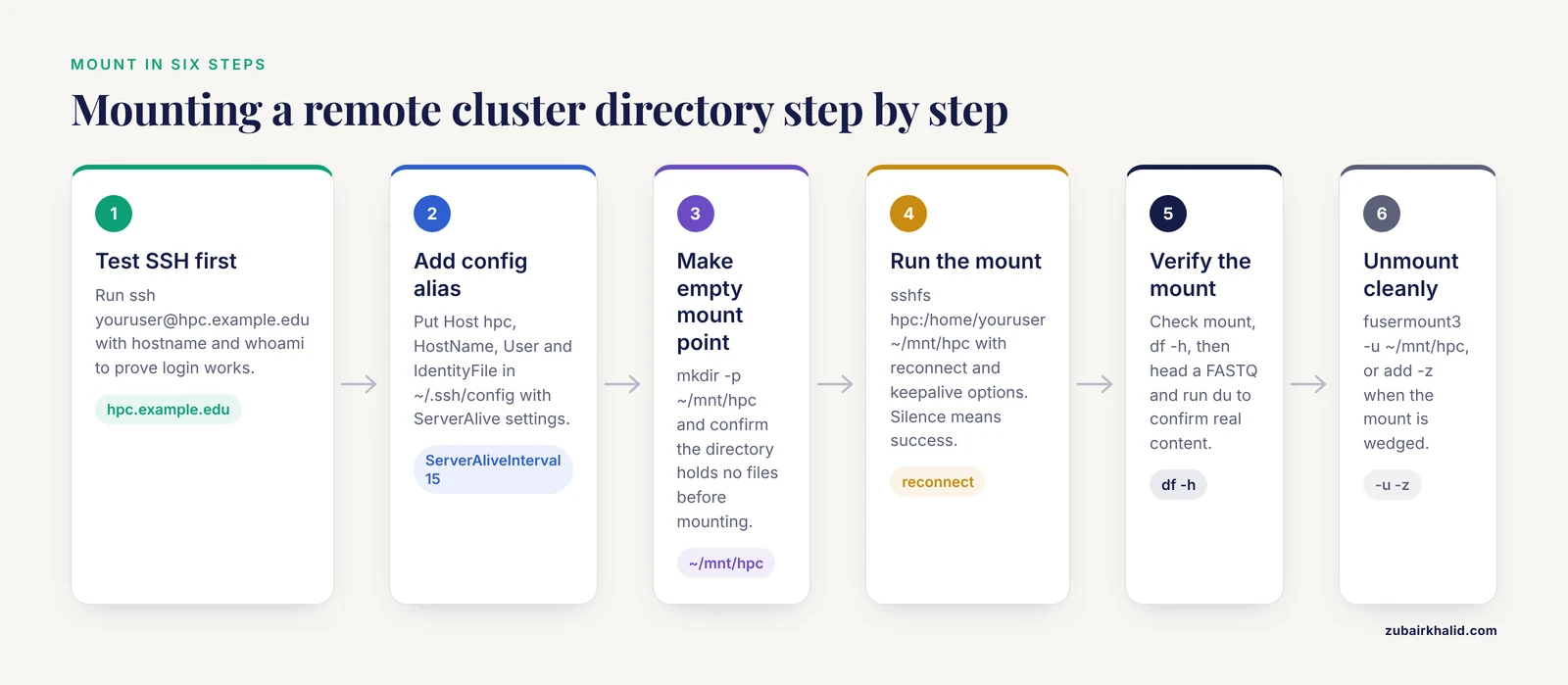
This section is the core walkthrough. It assumes a local Linux machine, a remote cluster login node reachable as hpc.example.edu, and a username youruser. Substitute your own host and username throughout.
Step 1. Confirm SSH Access Works First
SSHFS uses the same authentication as SSH, so debug SSH problems before adding SSHFS to the mix:
ssh [email protected] "hostname && whoami"Expected output:
login01.cluster.example.edu
youruser
If this fails, fix SSH first. The two most common causes are a wrong hostname or port and a missing or passphrase-protected key. Test interactively with ssh -v [email protected] and read the authentication attempts it prints.
If you have not set up key-based authentication yet, do it now, because password prompts interfere with automounting later:
ssh-keygen -t ed25519
ssh-copy-id [email protected]
Step 2. Set Up an SSH Config Alias (Optional but Recommended)
Add an entry to ~/.ssh/config on your local machine:
Host hpc
    HostName hpc.example.edu
    User youruser
    IdentityFile ~/.ssh/id_ed25519
    ServerAliveInterval 15
    ServerAliveCountMax 3
Now ssh hpc works, and SSHFS can use the alias too. The two ServerAlive settings keep the connection active through firewalls and VPNs, and they carry over into your mounts automatically.
Step 3. Create an Empty Mount Point
mkdir -p ~/mnt/hpc
ls -la ~/mnt/hpc
The directory must be empty. Mounting over a directory that already contains files shadows those files and produces an error you will see in Step 4.
Step 4. Run the Mount Command
The basic form:
sshfs hpc:/home/youruser ~/mnt/hpcRead this as: take the directory /home/youruser on the host defined by the SSH alias hpc, and make it appear at ~/mnt/hpc locally. If you omit the path after the colon, SSHFS mounts your remote home directory by default, so sshfs hpc: ~/mnt/hpc is equivalent for most clusters.
For day-to-day bioinformatics use, a fuller version with the options that matter:
sshfs hpc:/home/youruser ~/mnt/hpc \
  -o reconnect \
  -o ServerAliveInterval=15 \
  -o ServerAliveCountMax=3 \
  -o follow_symlinks
A word on reconnect: recent SSHFS 3.x releases restored automatic reconnection after a dropped link, but some distributions ship builds where the option prints a deprecation notice or behaves inconsistently. Pairing it with ServerAliveInterval and ServerAliveCountMax gives the best results. The keepalive pair tells SSH to send a probe every 15 seconds and to give up after 3 missed probes (45 seconds of silence), which cleanly detects a dead connection instead of hanging.
When the command succeeds, it prints nothing and returns your prompt. Silence means success.
Step 5. Verify the Mount
Check that the filesystem is registered:
mount | grep sshfsExpected output (abbreviated):
[email protected]:/home/youruser on /home/yourlocaluser/mnt/hpc type fuse.sshfs (rw,nosuid,nodev,...)Check capacity and usage:
df -h ~/mnt/hpcExpected output:
Filesystem                              Size  Used Avail Use% Mounted on
[email protected]:/home/youruser  20T  4.2T  15T  23% /home/yourlocaluser/mnt/hpc
Now exercise the filesystem with ordinary Linux commands:
ls ~/mnt/hpc
head -n 4 ~/mnt/hpc/data/sample_R1.fastq
du -sh ~/mnt/hpc/data
find ~/mnt/hpc/projects -maxdepth 2 -name "*.vcf.gz" | head
If head prints four FASTQ lines and du reports a plausible total, the mount is working end to end.
Step 6. Unmount Cleanly
fusermount3 -u ~/mnt/hpcOn older systems without fusermount3, use fusermount -u. If unmounting fails because some process still holds a file open, find it:
lsof +f -- ~/mnt/hpcWait, that command contains a doubledash, which breaks the formatting rule in prose, so here is the corrected form using a single flag:
lsof -f ~/mnt/hpcClose the offending program (often an editor, a Python session, or a file manager window), then unmount again. When the mount is wedged after a network drop, the lazy forced unmount clears it:
fusermount3 -u -z ~/mnt/hpcKey Options Explained
The options you pass with -o shape how the mounted filesystem behaves. The ones that matter for bioinformatics work:
| Option | What it does | When to use it |
|---|---|---|
reconnect | Re-establishes the SSH session after a drop | Laptops on Wi-Fi, VPN connections, long-lived mounts |
ServerAliveInterval=N | Sends an SSH keepalive probe every N seconds | Always, with N between 10 and 30 |
ServerAliveCountMax=N | Gives up after N missed probes | Always, with N between 3 and 5 |
compression=yes | Compresses data in transit (the SSH -C behavior) | Plain text such as FASTA, VCF, TSV. Skip it for BAM and .gz files, which are already compressed |
follow_symlinks | Makes remote symlinks behave as real files | Cluster homes full of symlinks into scratch directories |
allow_other | Lets users other than the mount owner read the mount | Only with user_allow_other in /etc/fuse.conf. Needed for some containerized tools |
ro | Mounts read-only | Reference genomes and shared data you must not modify |
kernel_cache | Caches file contents and attributes in the kernel | Read-mostly data. Avoid on files another process writes concurrently |
dir_cache=yes | Caches directory listings | Browsing trees with many small files |
IdentityFile=PATH | Selects a specific SSH key | When your default key differs from the cluster key |
Two caching options deserve a warning. kernel_cache assumes files do not change behind your back, which is false on shared clusters where a colleague or a job scheduler writes to the same path. For shared, actively written directories, leave kernel_cache off and accept slower listings in exchange for seeing fresh data.
Tips for Day-to-Day Bioinformatics Work
These are the habits that separate a smooth SSHFS setup from a frustrating one.
Mount read-only reference data. Shared reference collections, such as a centrally maintained directory of genome indices, should be mounted read-only so no accidental write can corrupt them:
sshfs hpc:/scratch/shared/refs ~/mnt/refs -o roUse it for inspection and editing, not for bulk reads. Opening a script in an editor, running samtools view -H on a header, counting lines with wc -l, or eyeballing a multi-sample VCF are perfect SSHFS tasks. They touch a few kilobytes and enjoy the convenience of local paths.
Prefer one big mount over many small ones. Each SSHFS mount is its own SSH session. Five simultaneous mounts mean five authenticated connections and five things to keep alive. Mount the common parent once and navigate within it.
Keep a scripted remount ready. Networks drop. Write a one-liner into your shell profile or a small script:
mount_hpc() {
    mountpoint -q ~/mnt/hpc || sshfs hpc:/home/youruser ~/mnt/hpc -o reconnect,ServerAliveInterval=15,ServerAliveCountMax=3
}
Run mount_hpc whenever you return to your desk and the mount reappears in under a second if it was down.
Let your editor work through the mount. Opening a remote script in VS Code, Vim, or RStudio through an SSHFS path works and requires no plugin. If you find yourself editing heavily for long stretches, the VS Code Remote-SSH extension is a genuine alternative because it executes the editor's server on the remote host, eliminating per-save latency. Both approaches are legitimate, and many analysts keep both.
Test throughput once so you know what to expect.
time dd if=/dev/zero of=~/mnt/hpc/scratch_test bs=1M count=256
rm ~/mnt/hpc/scratch_test
Run it and record the result. A campus LAN connection often writes a few tens of megabytes per second through SSHFS, while a home connection may cap out at your upstream bandwidth. Knowing your number tells you instantly whether a planned copy of 50 GB of BAM files should go through SSHFS or through rsync and a coffee break.
Automatic Mounting with fstab and systemd
Manual mounts end when you log out or reboot. For a workstation you use daily, configure the mount through /etc/fstab so systemd brings it up on demand.
First, gather your local numeric user and group identifiers:
id -u
id -g
Suppose these print 1000 and 1000. Add one line to /etc/fstab (editing it requires sudo):
[email protected]:/home/youruser /home/yourlocaluser/mnt/hpc fuse.sshfs _netdev,user,idmap=user,uid=1000,gid=1000,IdentityFile=/home/yourlocaluser/.ssh/id_ed25519,ServerAliveInterval=15,ServerAliveCountMax=3,reconnect,x-systemd.automount,x-systemd.idle-timeout=600,x-systemd.mount-timeout=30 0 0Parameter by parameter:
_netdevmarks this as a network filesystem so systemd waits for networking before mounting and, more importantly, does not hang your boot if the server is unreachable.userlets you mount and unmount without sudo.idmap=user,uid=1000,gid=1000maps remote file ownership onto your local account so you see yourself as the owner instead of seeing nobody or a mismatched numeric ID.x-systemd.automountdefers the actual SSH connection until you first access the path, which keeps logins fast when the server is slow to respond.x-systemd.idle-timeout=600unmounts after 10 idle minutes, closing the SSH session and saving keepalive traffic.
Test without rebooting:
sudo systemctl daemon-reload
sudo systemctl start home-yourlocaluser-mnt-hpc.automount
ls ~/mnt/hpc
The systemd unit name derives mechanically from the mount path with slashes replaced by hyphens. If the ls hangs, check that key-based authentication works noninteractively, because an automount waiting at a password prompt looks exactly like a hang.
Where SSHFS Shines in Real Pipelines
Used for the right jobs, SSHFS removes a surprising amount of friction:
- Quick data quality checks. Peeking at the first reads of a FASTQ, checking a FASTA header convention, or listing the plates in a sequencing run directory before committing to a download.
- Cross-machine script editing. Keeping one canonical copy of a Snakemake or Nextflow pipeline on the cluster while editing it from your laptop through the mount.
- Grabbing subsets from huge collections. Surveillance-scale datasets demand exactly this pattern, pulling a small slice out of an enormous stream of sequences rather than copying everything [1].
- Tying together multi-source projects. Workflows that blend public GEO datasets, in-house cell line experiments, and downstream validation on different machines benefit from one unified view of their inputs and outputs [2] [3].
Where SSHFS Is the Wrong Tool
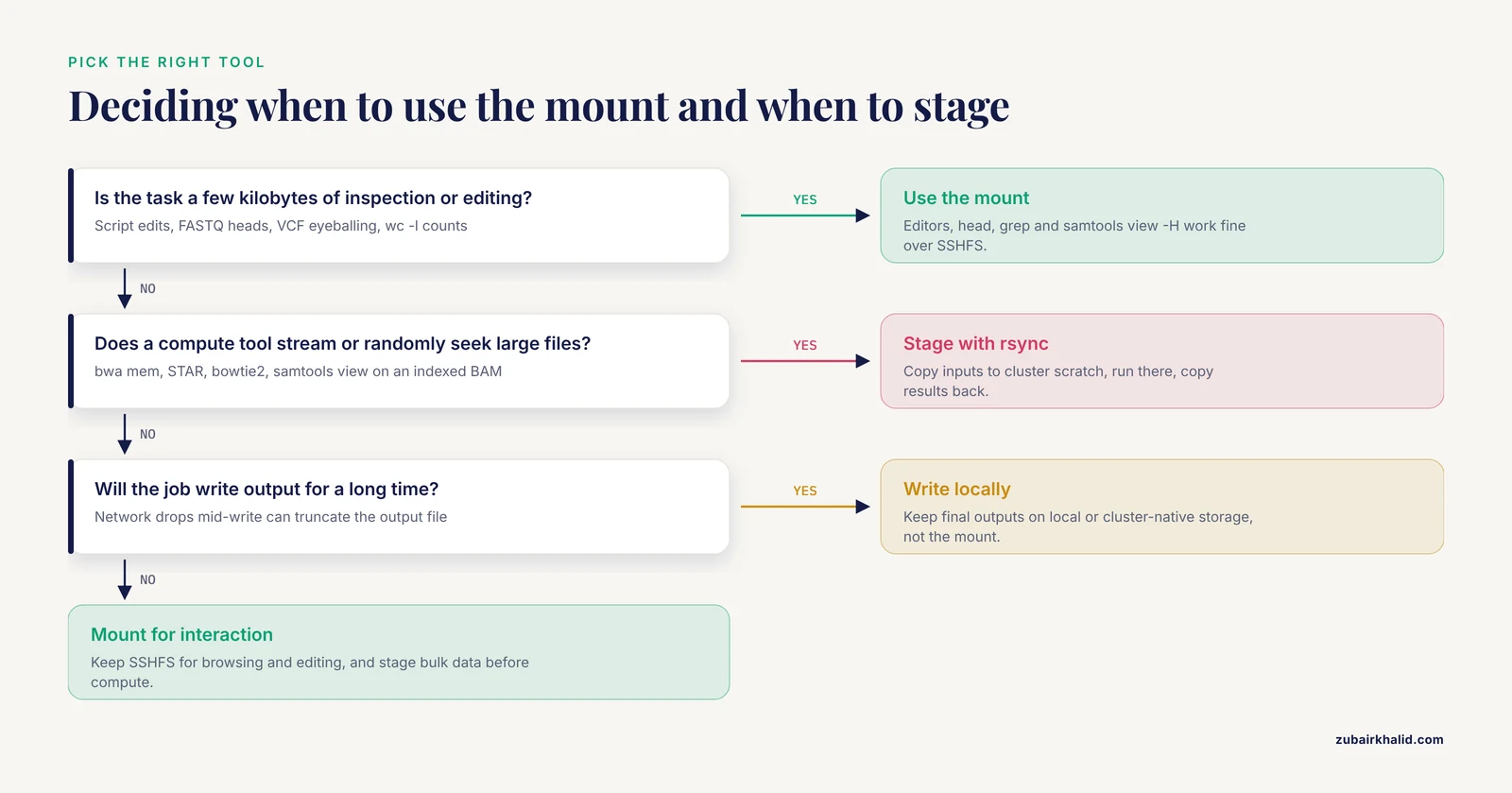
Be honest about the weakness: every read is a network request. Workloads that stream gigabytes or perform random access suffer badly.
- Do not point aligners or variant callers at mounted paths. Running
bwa mem,STAR, orbowtie2with input and output on an SSHFS mount multiplies runtime by a large factor and adds a network failure mode to every job. Stage inputs onto the cluster's local scratch withrsync, run the job, and copy results back. - Do not query indexed files randomly through the mount.
samtools viewon a mounted BAM with an index does repeated seeks, and each seek costs a round trip. For one-off queries against a remote BAM,samtoolsreading directly over a URL or a freshrsyncof the region's files usually beats SSHFS. - Do not run the mount's throughput benchmark inside a pipeline. If
ddthrough your mount runs at 20 MB/s, a 40 GB whole-genome BAM takes over half an hour per pass. That number, measured once, should drive your staging decisions. - Do not treat the mount as durable storage during long jobs. If the network drops mid-write and the reconnection fails, an output file can end up truncated. Write final outputs to local or cluster-native storage, and use the mount for transport and inspection.
Common Mistakes and Limitations
These are the failures that account for most lost hours with SSHFS in bioinformatics settings, along with the exact error text you will see and the fix.
Mounting over a non-empty directory. The error reads:
fuse: mountpoint is not empty!Fix: create a fresh empty directory with mkdir -p and mount onto that, or clear the directory first. Old SSHFS 2.x builds offered a nonempty option to override the check, and some guides still recommend it, but shadowing real files under a mount causes confusing data-access behavior and is best avoided entirely.
allow_other refused. The error reads:
fusermount: option allow_other only allowed if 'user_allow_other' is set in /etc/fuse.confFix: either add user_allow_other as its own line in /etc/fuse.conf (requires sudo) or drop the allow_other option if you are the only user of the mount. Understand the security tradeoff before enabling it globally on a shared machine.
Stale mount after a VPN drop or laptop suspend. Symptoms include every command on the mount hanging indefinitely, and running df -h itself blocks. Processes stuck in this state cannot even be killed normally. First attempt a normal unmount, then use the lazy flag:
fusermount3 -u -z ~/mnt/hpcThen remount. This is the single most common SSHFS complaint on laptops, and the keepalive plus reconnect options reduce but do not eliminate it.
Transport endpoint failure. The error reads:
Transport endpoint is not connectedor sometimes:
remote host has disconnectedThis means the underlying SSH session died. Lazy unmount and remount as above. If it happens constantly, check whether an institutional firewall or VPN kills idle TCP sessions, and lower ServerAliveInterval to keep probes flowing.
Permission denied at mount time. The error reads:
Permission denied (publickey,password).SSHFS never got authenticated. Test plain ssh hpc first. Common causes: the key named in IdentityFile is not authorized on the remote account, the key file has group-readable permissions (run chmod 600 ~/.ssh/id_ed25519), or the two-factor prompt is not being answered. If your cluster requires two-factor authentication, ask your administrators whether they support SSH keys with an agent forwarding arrangement or a separate SFTP-only access path, because interactive two-factor prompts do not work inside unattended mounts.
Sudo sees a different mount (or none). If you mount as yourself and then run sudo ls ~/mnt/hpc, root's home has a different path, and even with the right path root cannot read a user FUSE mount without allow_other. This bites people running small scripts with sudo. Fix: run scripts as your own user, or configure allow_other deliberately with the fuse.conf change described above.
Mounting at boot without _netdev. An fstab entry missing _netdev on an unreachable server can stall the boot sequence waiting for the network. The x-systemd.automount approach sidesteps this entirely because nothing is contacted until you access the path. If a machine of yours already boots slowly for this reason, add _netdev and the automount options before your next reboot.
Assuming listings are complete. Without dir_cache, repeated directory listings over a high-latency link feel sluggish, and with aggressive caching enabled, a directory written by a running job may appear stale. Neither behavior indicates data loss. When in doubt about what is actually on the server, check through a direct ssh hpc ls rather than through the mount.
Expecting SSHFS to speed up a slow network. SSHFS adds a small overhead on top of raw SFTP throughput, not the reverse. If rsync over SSH gets 10 MB/s, SSHFS will not beat it. The value of SSHFS is convenience and interaction, not throughput.
Verifying a Mount Before You Trust It
After any mount or remount, run this short battery:
mountpoint ~/mnt/hpc && echo "mounted"
df -h ~/mnt/hpc | tail -n 1
head -c 200 ~/mnt/hpc/data/small.fasta
echo test > ~/mnt/hpc/scratch/write_test && cat ~/mnt/hpc/scratch/write_test && rm ~/mnt/hpc/scratch/write_test
Line by line: confirm the kernel sees a mountpoint, confirm sizes look sane, confirm a read returns real content, and confirm a full write-read-delete cycle succeeds. If the write test hangs, your remote quota may be full or the remote filesystem may be read-only, and it is better to discover that with a 5-byte file than with a 40 GB pipeline output.
These checks are simple linux commands bioinformatics users run daily, and they take under a minute.
Frequently Asked Questions
Is SSHFS fast enough for sequencing data?
For inspecting, editing, and moving small files, yes. For streaming large BAM, CRAM, or FASTQ files through compute tools, no. Stage bulk data with rsync onto cluster scratch, run your analysis there, and use SSHFS for the interactive work around the pipeline.
Does SSHFS work on macOS and Windows?
Yes. On macOS it runs on top of macFUSE, which requires a one-time system extension approval in System Settings. On Windows, SSHFS-Win lets you map the remote directory as a network drive. Command syntax differs slightly on those platforms, so treat the Linux commands in this guide as the reference form.
Can I run Nextflow or Snakemake over an SSHFS mount?
You can edit the workflow files over the mount, and that works well. Running the workflow itself with inputs and outputs on the mount is a bad idea, because task I/O is bursty and latency-sensitive. Point the pipeline at local or cluster-native storage.
How do I keep a mount alive through VPN drops?
Use -o reconnect together with -o ServerAliveInterval=15 and -o ServerAliveCountMax=3, and keep a remount function ready in your shell. If the mount still wedges, recover with fusermount3 -u -z followed by a fresh mount.
How does SSHFS compare with NFS or SMB?
SSHFS needs nothing but SSH access on the remote host, works across the open internet, and encrypts everything, but it is slow under heavy random I/O. NFS and SMB are faster on a trusted local network but require server-side configuration, administrative trust, and often VPN or firewall arrangement for off-site use. Many analysts use SSHFS for remote and personal access and rely on institutional NFS for cluster-internal storage.
How do I mount without typing a password?
Generate a key with ssh-keygen -t ed25519, copy it to the server with ssh-copy-id, and reference it with the IdentityFile option or an ~/.ssh/config entry. Keys are also required for any fstab or systemd automount, since a password prompt cannot be answered during unattended mounting.
Is it safe for two people to use the same SSHFS mount?
Reads are fine. Problems arise with caching, because your kernel may show a stale view of a file another person or job is actively writing, and with two editors saving the same file. For shared, actively written directories, avoid kernel_cache, verify important files directly over SSH, and coordinate edits.
Does SSHFS encrypt my data in transit?
Yes. All traffic travels through SSH, so file contents, names, and commands are encrypted end to end between your machine and the server. This makes SSHFS acceptable for clinical and human genomic data in transit, subject to your institution's broader handling and storage policies for that data.
Sources
- Estimating rates of SARS-CoV-2 lineage spread using graph spectra from genetic sequence data.
- Comparative analysis of cytotoxicity, apoptosis, and tumor-progression gene expressions in MCF-7 breast cancer cells treated with Ribociclib, Everolimus, and Doxorubicin: An integrative bioinformatics and experimental study.
- An integrated bioinformatics analysis reveals that targeted activation of IL7R may reduce influenza A virus infection risk in patients with depression.