How to Fix SSH Connection Refused and Timed Out Errors
By Dr. Zubair Khalid, DVM, MS, PhD ·

Every bioinformatics workflow depends on one fragile first step. You have a sequencer run finished, a FASTQ file waiting on the cluster, and a pipeline staged to launch. Then the terminal prints two words that stop everything: connection refused, or connection timed out. The single most common cause is simple. Either the SSH daemon is not listening on the address and port you are dialing, or something between your laptop and the server is dropping the packets before they arrive.
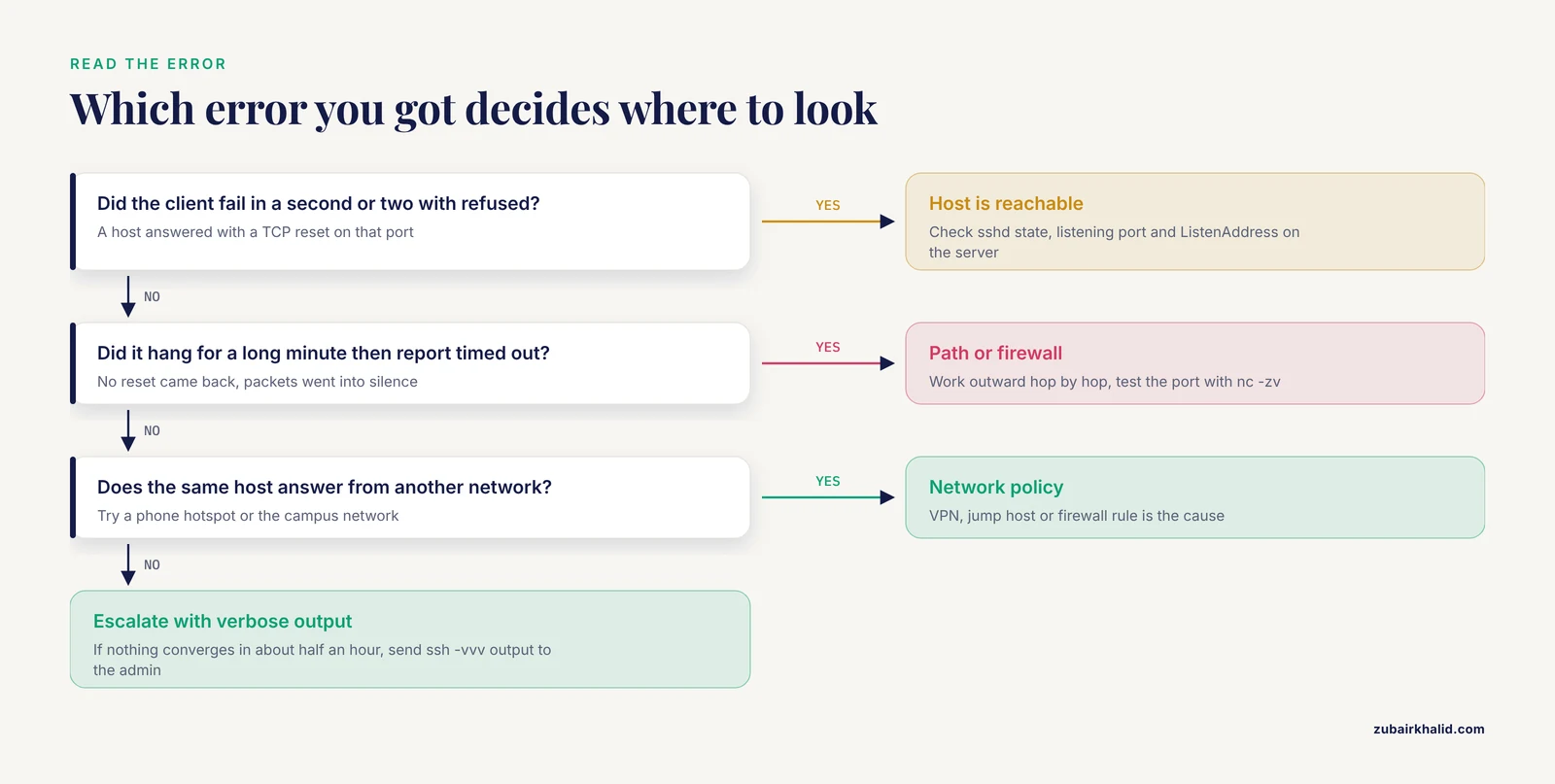
The first thing to check is which of the two errors you are seeing, because they point in opposite directions. Connection refused means your packets reached a host and that host actively said no on that port. Timed out means your packets went into silence. You never got an answer at all. That one distinction cuts the troubleshooting space roughly in half, and it is where every diagnosis should start.
This guide walks through the causes of ssh connection refused and timed out errors in the specific context of bioinformatics work. That means lab servers behind university firewalls, HPC login nodes, cloud instances running Galaxy or Nextflow, and the small Raspberry Pi controlling the thermocycler in the corner. Each cause gets a mechanism, a diagnostic command, and a fix, ordered from most common to rarest.
Why SSH Fails Differently in Bioinformatics Environments
General SSH troubleshooting advice assumes a simple setup. One server, one network, one administrator. Bioinformatics environments break those assumptions in three predictable ways.
First, most computational biology happens on shared infrastructure. University HPC clusters, departmental servers, and institutional cloud tenancy all sit behind gatekeepers you do not control. The cluster may require a VPN, a jump host, Duo two-factor push, or a connection only permitted from the campus network. The error messages for those gatekeepers are often identical to the error messages for a dead server, which is why the diagnostic sequence below asks where you are connecting from before it asks what is wrong with the server.
Second, bioinformatics servers change. A storage migration moves the data directory. An administrator moves SSH to port 2222 after automated scanners hammer port 22. A node is decommissioned and its IP is reassigned to a printer. When a connection that worked yesterday refuses today, the server itself is a suspect, not just your laptop.
Third, sessions are long. A whole-genome alignment can run for days. Connection drops during long transfers are a different problem from connection failures at login, and they need different fixes. This article covers both, but keeps them separate.
Connection Refused versus Connection Timed Out
The two error messages come from different failure points, and understanding the mechanism tells you where to look.
Connection refused is an active rejection. Your client sent a TCP packet with the SYN flag set to the target IP on the target port. Something on that host answered with a TCP RST, short for reset, which is the network equivalent of a person answering the phone and immediately hanging up. The crucial implication is that the host is reachable. It has an IP, it is powered on, and routing to it works. What failed is the specific service on the specific port. The usual causes are an SSH daemon that is not running, a daemon listening on a different port, a daemon bound only to the loopback interface, or a firewall on the host itself configured to reject rather than drop.
Connection timed out is silence. Your client sent its SYN packet, possibly several times, and received nothing. No reset, no response, nothing until the client gave up. This means packets are being lost somewhere. The host may be down, the IP may not exist, a firewall may be silently dropping your packets, a router between you and the host may be blackholing traffic, or the host may simply be reachable but overloaded to the point of not answering. Timed out errors require you to work outward from your own machine, hop by hop.
A useful shorthand for the field: refused usually means the host is alive and the service is wrong. Timed out usually means the path is broken or something is swallowing packets. There are exceptions, covered later, but this starting point is right more often than not.
The Diagnostic Sequence
Run these steps in order. Each one eliminates a whole class of causes and takes under a minute. The commands are standard Linux commands for bioinformatics server work and are available on nearly every distribution without extra installation.
Step 1. Confirm what you are typing. Open your command history and look at the exact command that failed. Check for a transposed digit in the IP address, a stale hostname, or a port flag left over from an old server. A surprising share of connection refused errors are typos.
ssh [email protected]
ssh -p 2222 [email protected]
Step 2. Identify the error type precisely. Refused and timed out mean different things, so write down which one you got. If the connection hangs for a long minute and then fails with timed out, your packets are being dropped. If it fails within a second or two with refused, a host answered you and said no.
Step 3. Test basic reachability. Use ping to confirm the host exists on the network at all.
ping -c 4 192.168.1.50If ping succeeds, the host is up and routing works, which pushes suspicion toward the SSH service or a port-specific firewall rule. If ping fails, the host is down, the address is wrong, or ping itself is blocked, which some networks do deliberately. An ambiguous ping failure is worth one retry from a different network, such as a phone hotspot.
Step 4. Test the specific port. Use nc, short for netcat, to probe the exact TCP port your SSH client is trying to reach. Port 22 is the standard SSH port, but many administrators move it.
nc -zv 192.168.1.50 22
nc -zv 192.168.1.50 2222
A closed port that returns a refusal tells you the host is up but nothing is listening on that port. A hang that times out tells you a firewall is dropping packets for that port. An open port that connects cleanly means SSH itself is fine and the problem is in your client configuration.
Step 5. Run SSH with verbose output. The -v flag makes the client print every step of the handshake, and three v flags print everything.
ssh -vvv [email protected]Read the last few lines before the failure. If the output stops after "Connecting to" and then reports a timeout, the TCP connection never formed. If it reports "Connection refused" immediately, TCP failed fast. If TCP connects and the output continues into key exchange and then fails, your problem is authentication or algorithm negotiation, not connectivity, and most of this article does not apply to you.
Step 6. Try a different network. Connect from your phone's hotspot or from a different building. If the server answers from one network and refuses or times out from another, the problem is network path or policy, almost certainly a firewall or VPN requirement. This single test resolves more institutional SSH mysteries than any other step in this list.
Core Troubleshooting Table
The table below is the core reference for this article. Find your symptom, confirm the cause with the listed check, then apply the fix.
| Symptom | Likely cause | How to confirm | Fix |
|---|---|---|---|
| Refused immediately, ping works | sshd is not running on the server | On the server, run systemctl status sshd | Start and enable the service |
| Refused immediately, ping works | SSH listens on a nonstandard port | Ask the admin, or check sshd_config on the server | Add -p PORT to your command or a Port line in your client config |
| Refused immediately, ping works | sshd bound to 127.0.0.1 only | On the server, run ss -tlnp and look at the sshd line | Set ListenAddress in sshd_config to the real interface and restart sshd |
| Timed out from off campus, works on campus | Institutional firewall or VPN requirement | Repeat the connection from the campus network | Connect to the VPN, or use the approved jump host |
| Timed out, ping also fails | Host is down or address is wrong | Check with the administrator, verify the IP | Correct the address or wait for the host to come back |
| Timed out, ping works | Firewall silently dropping port 22 | nc -zv on the port hangs instead of refusing | Open the port in the host firewall, security group, or router |
| Refused only under heavy load | MaxStartups connection limit or exhausted resources | Try again after load drops, check server logs | Raise MaxStartups, or investigate what is exhausting connections |
| Refused after several failed logins | fail2ban or similar banned your IP | Your attempts fail from one IP but work from another | Wait out the ban, then fix the authentication cause |
| Timed out mid-session during long jobs | NAT or firewall idle timeout | Drops happen consistently after a quiet period | Enable SSH keepalives on the client |
| Refused from one machine, works from another | Local client misconfiguration | Compare ~/.ssh/config on both machines | Fix the Host block or remove the stale entry |
| Timed out on IPv6 hostname, works on IPv4 | Broken IPv6 route to the host | Add -4 to force IPv4 and retry | Fix IPv6 routing, or pin the host to IPv4 in your config |
The Most Common Causes, in Order
Work down this list in sequence. Each section explains the mechanism so you can recognize variations of the same failure, not just the exact case.
Cause 1. The SSH daemon is not running
The SSH daemon, sshd, is the server-side program that listens for incoming connections. If it is not running, the operating system has nothing listening on port 22, and every connection attempt gets an active refusal. This is the single most common cause of a refused error on a server that was previously reachable.
On Linux systems that use systemd, which includes Ubuntu, Debian, Rocky, Rocky Linux derivatives, and most modern HPC node images, check the daemon state by logging into the server through its console. Cloud providers offer a browser console for exactly this situation. Physical lab servers need a monitor and keyboard, or whatever out-of-band management the hardware provides.
sudo systemctl status sshdOn Debian and Ubuntu the service is named ssh rather than sshd, so use systemctl status ssh on those systems if the first command reports no such service.
If the daemon is stopped, start it and enable it so it starts at boot.
sudo systemctl start sshd
sudo systemctl enable sshd
If the daemon crashes repeatedly, look at why before moving on.
sudo journalctl -u sshd -n 50Common reasons include a syntax error introduced into sshd_config by a recent edit, a failed host key generation, and disk-full conditions on the var partition. A server whose log partition is full will refuse new SSH sessions in confusing ways, and cleaning the disk is the actual fix.
An important special case is the newly created cloud instance. A virtual machine that just launched from a snapshot may come up with sshd disabled or with cloud-init still configuring it. Give a fresh instance two or three minutes before concluding that sshd is down.
Cause 2. SSH is listening on a different port or address
If sshd is running but your connection is still refused, the daemon may be listening somewhere other than where you are knocking. The ss command lists every listening socket on the server. Run it on the server itself, via console access.
sudo ss -tlnp | grep sshHealthy output for a standard configuration looks like a line with LISTEN, port 22, and 0.0.0.0, which means listening on all IPv4 interfaces. The problem patterns are easy to spot.
If the line shows 127.0.0.1:22, sshd is bound only to the loopback interface. Loopback is the virtual interface a machine uses to talk to itself. A daemon bound to loopback accepts connections from local users but refuses connections arriving from the network, which produces exactly the refused error you are seeing. This happens when ListenAddress in sshd_config was set to 127.0.0.1 during a debugging session and never reverted. The fix is to edit /etc/ssh/sshd_config so the ListenAddress line points at the server's real IP, or is commented out entirely to listen on all interfaces, then restart the daemon.
sudo systemctl restart sshdIf the line shows a port other than 22, the daemon moved. Port changes are a legitimate and common hardening measure, since automated internet-wide scanners constantly probe port 22, and moving the service reduces log noise. Ask your administrator for the port, then specify it.
ssh -p 2222 [email protected]To avoid typing the port every time, record it once in your client configuration file at ~/.ssh/config.
Host cluster
    HostName cluster.example.edu
    User yourusername
    Port 2222
After that, ssh cluster uses the right port, the right user, and the right hostname. Bioinformatics workflows benefit enormously from this file, because it turns a fragile command line into a stable name you can also use in scripts, SCP calls, and rsync targets.
Cause 3. A firewall is dropping or rejecting packets
Firewalls cause both error types, and the error type tells you the firewall's behavior. A firewall configured to reject packets sends a refusal and produces a connection refused error. A firewall configured to drop packets stays silent and produces a timed out error. Security-focused administrators prefer dropping, because silence reveals nothing to a scanner, which is why timed out errors dominate on hardened systems.
There are three layers where a firewall can sit, and you should check them in this order.
The host firewall. Most Linux distributions ship with one enabled. Ubuntu uses ufw, short for uncomplicated firewall. RHEL, Rocky, and CentOS derivatives use firewalld. Check the rules on the server via console.
sudo ufw status verbose
sudo firewall-cmd --list-all
If port 22 is not listed as allowed, allow it and reload.
sudo ufw allow 22/tcp
sudo firewall-cmd --permanent --add-service=ssh
sudo firewall-cmd --reload
Older or minimal systems may use raw iptables or nftables. Listing those rules requires reading more complex output, and if you did not write the rules yourself, ask the administrator rather than editing them blind.
The cloud security group. On AWS, Google Cloud, and Azure, virtual machines sit behind a virtual firewall called a security group, and the operating system firewall is not the only gate. A security group that does not include an inbound allow rule for TCP port 22 from your current IP address produces a clean timed out error even when the instance is perfectly healthy and sshd is running. This is the most common cause of ssh connection refused or timed out errors on freshly launched cloud instances, and it produces a distinctive pattern. The instance responds to its cloud console, but every SSH attempt from your laptop times out. Open the cloud console, find the instance's security group, and add an inbound rule allowing TCP on your SSH port from your current public IP address. If your office or home IP changes periodically, expect this problem to return after every change, and consider whether a VPN or bastion pattern would remove the dependency on your own address.
The network firewall. University and institute networks usually run perimeter firewalls that block inbound SSH from the internet entirely. If your lab server lives on the campus network and you work from home, this is almost certainly your cause. The signatures are a timed out error from off campus, a working connection on campus, and a working connection through the VPN. There is no client-side fix. Use the VPN, use the institutional jump host if one is offered, or ask IT to open a rule. Do not try to tunnel around an institutional firewall. Systems teams monitor for that, and the consequences range from a politely worded email to losing network access entirely.
Cause 4. Network address translation and home lab port forwarding
Bioinformaticians increasingly run compute at home. A threadripper in the basement running assemblies, a NAS hosting reference genomes, a GPU box for fine-tuning models. Those machines sit behind a home router performing NAT, network address translation, which lets many private devices share one public IP address. An external connection to the public IP does not automatically reach your server. The router needs an explicit port forwarding rule that says traffic arriving on the public IP at port 22 goes to the internal machine at 192.168.1.50.
Without that rule, the router itself typically drops the packets, and you see a timed out error from outside your home network while everything works fine from the couch. The diagnostic is the split test. Connect from a device inside the house using the server's private IP, which should work if sshd is healthy. Then connect from your phone on cellular data using the public IP. If the internal test works and the external test times out, the forwarding rule is missing or wrong.
Fix it in the router's administration interface, usually reached at an address like 192.168.1.1 from inside the network. Forward the external port you choose to the server's internal IP and port 22. Two cautions matter here. First, expose SSH to the internet only with key authentication enabled and password authentication disabled in sshd_config, because open port 22 on a residential IP receives constant automated login attempts. Second, prefer a VPN such as WireGuard over port forwarding when you can. It keeps the SSH port invisible to scanners and encrypts everything, and for a home lab it is the safer architecture.
Cause 5. Institutional access policies, VPNs, and jump hosts
Some connection failures are not failures at all. They are the system working as designed. Many universities require that SSH into internal resources originate from the campus network or arrive through a designated jump host. Others silently drop inbound connections from outside the country as a botnet defense. HPC centers commonly require a VPN plus multi-factor authentication, and some rate-limit or drop connections that fail MFA repeatedly.
The pattern is recognizable. Your connection works from your office and fails from home, or works from home and fails from a conference, or works for a colleague on the same VPN and fails for you. Before debugging anything on the server, confirm whether the access policy changed. Cluster administrators post maintenance notices, MFA migrations, and network policy updates to status pages and mailing lists, and reading the notice usually resolves in seconds what would take an hour to reverse engineer.
When a jump host, also called a bastion, is required, configure it once in your client config using the ProxyJump directive.
Host hpc
    HostName hpc.internal.example.edu
    User yourusername
    ProxyJump bastion.example.edu
With that in place, ssh hpc connects through the bastion automatically, and so do scp and rsync commands using hpc as the target. This is standard practice on well-run HPC systems and is documented in the OpenSSH project's own guidance on jump hosts.
Cause 6. Server-side load and connection limits
An overloaded server can refuse connections it would normally accept. sshd includes a protection called MaxStartups, which caps the number of simultaneous unauthenticated connections. Its purpose is to prevent connection-exhaustion attacks. The default values allow a reasonable burst, but a busy login node, a misbehaving script that opens connections in a loop, or a runaway backup job can hit the ceiling. When MaxStartups is exhausted, sshd refuses additional pre-authentication connections and your client sees a refused error, often intermittently.
The intermittent signature is the clue. The connection works when you retry a minute later, fails again under load, and other users report the same behavior at the same times. Confirm by reading the server logs for messages about exceeded MaxStartups or drop events.
sudo journalctl -u sshd --since "1 hour ago"If legitimate parallel workflows are the cause, and bioinformatics pipelines absolutely do open many parallel connections when copying results or hitting a shared head node, the fix is to raise MaxStartups in sshd_config and to have heavy jobs use connection multiplexing, described in the workflow section below. An occasional refusal under extreme load is not a fault, and the correct client behavior is to retry with a short backoff rather than hammering the server, which makes the exhaustion worse.
Resource exhaustion broader than sshd can also cause silent timeouts. A node with exhausted memory can become unresponsive to the point of not answering TCP handshakes while still passing ping, depending on what is starving. If ping works but nothing answers, and the problem clears after a reboot, investigate memory pressure and storage capacity on the server.
Cause 7. Your IP was banned by fail2ban or similar
Intrusion prevention tools such as fail2ban watch authentication logs and ban IP addresses that produce repeated failures. The mechanism is usually an iptables or nftables rule that drops your packets, which produces a timed out error rather than a refusal. If you fat-fingered your password several times, or if an SSH key agent on your machine cycled through a dozen stale keys and each rejection counted as a failure, you can ban yourself.
The diagnostic is the split test again. If your connection times out from your current IP and works immediately from your phone's hotspot, a ban on your IP is the likely cause. Bans are typically short, on the order of minutes to an hour, so waiting is often the entire fix. The durable fix is to correct the underlying authentication problem so the failures stop, which usually means removing stale keys from your agent with ssh-add -d or fixing the key file permissions.
Administrators should note the mirror image of this problem. Legitimate users on shared networks, such as a university VPN egress IP shared by thousands of people, can be banned because of someone else's failures. Server operators handling shared user populations should whitelist their VPN ranges in fail2ban configuration.
Cause 8. IPv6 problems
Modern hostnames often resolve to both an IPv4 and an IPv6 address. Your client may try IPv6 first. If the server publishes an IPv6 address that is not actually routed, for example after an ISP or campus IPv6 configuration change, the client waits through a long timeout on the IPv6 attempt before falling back or failing. The symptom is a timed out error that appears only for some hostnames and only sometimes.
Force IPv4 and retry.
ssh -4 [email protected]If the IPv4 connection works immediately, you have found the cause. The durable fix is either correcting the IPv6 routing, which belongs to your network team, or pinning the host to IPv4 in your client config with the AddressFamily option set to inet for that specific host block. Do not set it globally, because other hosts on your network may depend on IPv6.
Cause 9. Path problems, MTU, and VPN quirks
The rarest class of timed out errors involves packets that connect fine for small exchanges but stall during key exchange or early in the session. The classic mechanism is MTU, maximum transmission unit, the largest packet size a network path will carry. VPN tunnels and some PPPoE links reduce the effective MTU, and if a large TCP packet cannot fragment along the way, it is silently dropped. The connection handshake, which uses small packets, succeeds. Key exchange, which sends larger packets, hangs.
The signature is a connection that starts printing SSH banner output and then freezes indefinitely, rather than failing cleanly. A workaround worth trying is forcing a smaller cipher exchange or, on some systems, clamping MSS, maximum segment size. Because the exact fix varies by VPN client and operating system, and incorrect network tuning can cause subtle problems, treat this class of failure as one to escalate to your network team after confirming the signature. Naming the symptom precisely, connects then hangs at kex, saves everyone time.
Fixing Timed Out Errors During Long Sessions and Transfers
Everything above concerns connections that fail to establish. A separate and equally common failure in bioinformatics work is the established connection that dies hours into a session, usually while you watch a BLAST query, an rsync of a 200 GB sequencing directory, or a long log tail.
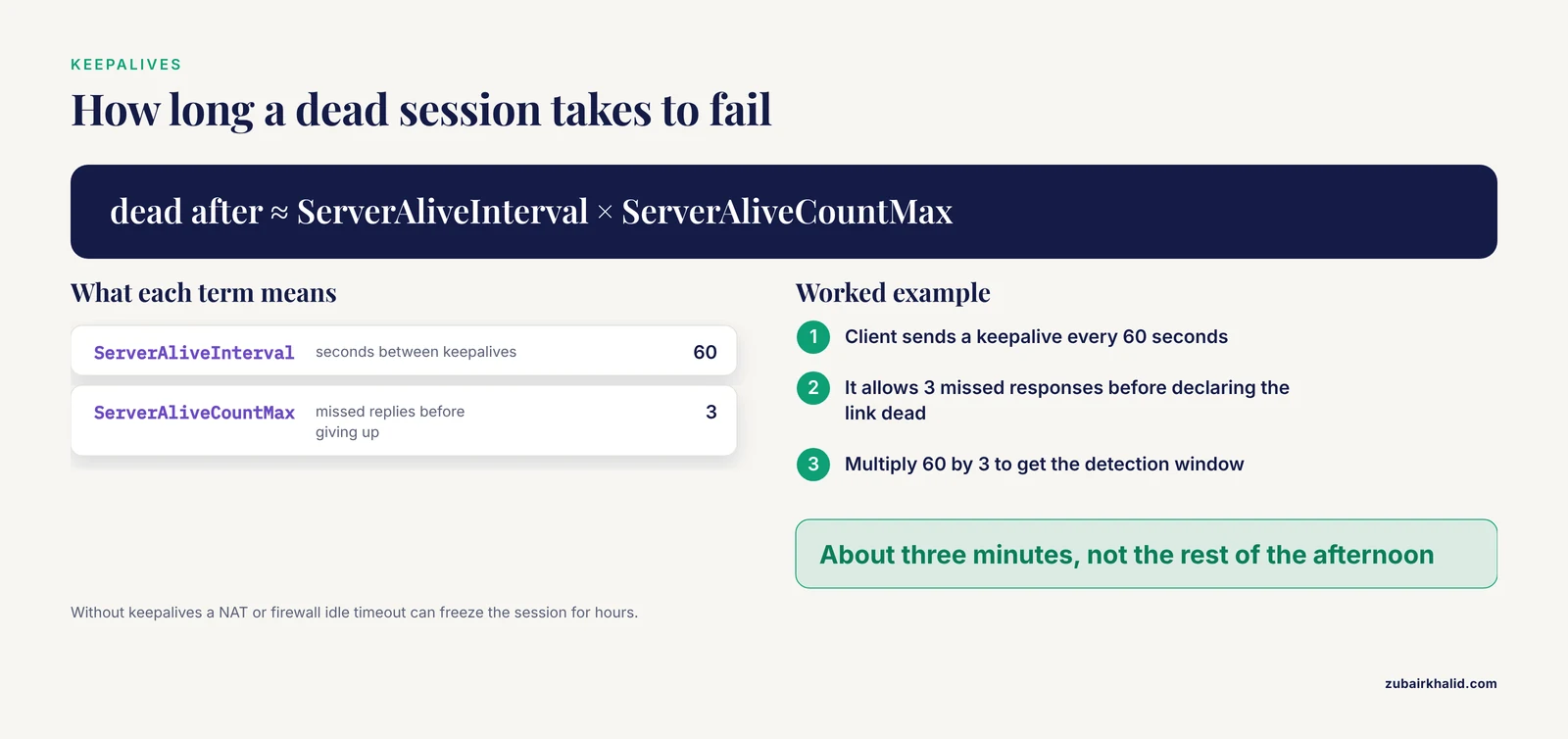
The mechanism is usually an idle timeout somewhere along the path. Consumer NAT routers, campus firewalls, and VPN gateways keep state tables of active connections, and entries for quiet connections get reaped, often after roughly five to thirty minutes of silence. When the state is dropped, your next packet goes nowhere and the session freezes. A session running an interactive command is usually not idle at the network level, but a session where you are reading output slowly, or one sitting at a prompt while a job runs on the cluster, is exactly that.
The fix is SSH keepalives, which make the client send small periodic packets that keep the connection state alive. Set them per host in ~/.ssh/config.
Host hpc
    HostName hpc.example.edu
    ServerAliveInterval 60
    ServerAliveCountMax 3
With this configuration, the client sends a keepalive every 60 seconds and declares the connection dead after 3 missed responses, so a truly broken connection fails within about three minutes rather than hanging for the rest of the afternoon.
The deeper fix for long bioinformatics work is to decouple the work from the connection entirely. A connection drop should never kill a pipeline. Run long jobs under tmux or GNU screen, the terminal multiplexer tools that keep a session alive on the server independent of your SSH connection. The standard pattern is to start your work inside tmux, disconnect with the tmux detach key sequence, log out freely, and reattach later with tmux attach after reconnecting. For file transfers, run rsync rather than scp for anything large, because rsync verifies and resumes partial transfers after a drop, and combine it with the keepalive settings above.
rsync -avh --partial --progress results/ hpc:/scratch/yourusername/results/This single change in habit, long jobs inside tmux and bulk data over resumable rsync, prevents more lost hours in bioinformatics than every other item in this article combined.
Building a Resilient SSH Configuration
A well-built ~/.ssh/config file prevents a large fraction of these failures from recurring. A practical block for a bioinformatics setup looks like this.
Host hpc
    HostName hpc.example.edu
    User yourusername
    Port 2222
    ServerAliveInterval 60
    ServerAliveCountMax 3

Host labpi
    HostName 192.168.1.77
    User pi
    AddressFamily inet

Host cloudgpu
    HostName 203.0.113.42
    User ubuntu
    IdentityFile ~/.ssh/id_ed25519
    ProxyJump bastion.example.edu
Three additions are worth adopting broadly. First, key authentication with ed25519 keys, generated with ssh-keygen -t ed25519, is both more secure and more reliable than passwords, and it removes the fail2ban self-ban scenario entirely. Second, ControlMaster multiplexing reuses one authenticated connection for many sessions, which speeds up pipelines that make many SSH calls and reduces load on constrained login nodes.
Host *
    ControlMaster auto
    ControlPath ~/.ssh/cm-%r@%h:%p
    ControlPersist 10m
Third, keep a short note, in your own notes or your lab wiki, recording for each server the address, port, jump host, MFA requirements, and the correct network to connect from. When a server refuses six months from now, that note is the fastest diagnostic instrument you own.
Prevention Practices
The causes in this article cluster into two families, configuration drift and environmental gatekeeping, and prevention addresses both.
On the server side, wherever you control it, make the SSH service boring. Keep sshd in version control or a configuration management system so changes are tracked. Enable the service at boot. Monitor it with a scheduled check that connects to the port and alerts on failure, because a dead sshd discovered by a user with data to move is the worst possible monitoring system. Keep the host firewall configured deliberately rather than by accumulation. Disable password authentication in favor of keys once your key deployment is complete.
On the client side, invest an hour in the configuration file, keepalives, tmux habits, and key management described above. Those four things eliminate the majority of repeat failures.
On the organizational side, learn your environment's gatekeepers before they surprise you. Know whether your cluster requires a VPN, which network it must be reached from, where maintenance notices are posted, and who to contact when the login node stops answering. In institutional bioinformatics, the fastest fix for an ssh connection refused or timed out error is frequently a message to the right person, sent ten minutes after the problem starts, and the only way to send it ten minutes after the problem starts is to already know who that person is.
Common Mistakes and Limitations
Several specific mistakes account for most of the wasted time in SSH troubleshooting.
Restarting the wrong thing first. When a connection fails, people reflexively restart the service they can see, often rebooting their own laptop or, worse, restarting sshd on a shared login node where colleagues are working. Follow the diagnostic sequence instead. The sequence takes ten minutes and identifies the actual layer before you change anything.
Editing sshd_config on a remote server over an active SSH session and then restarting the daemon. If you made a mistake, you have just locked yourself out. For any risky sshd change, keep your current session open, open a second session to test the new one, and only close the original after the new one connects. Better yet, validate the configuration file with sshd -t before restarting.
Assuming the server is the problem. Cloud security groups, VPN requirements, home router NAT, and institutional firewalls cause a large share of these errors, and none of them are visible from the server. The different-network test in step 6 is how you catch them, and skipping it is the most common sequencing error in this whole process.
Confusing authentication failures with connection failures. Permission denied, public key is a successful network connection followed by a failed login. Connection refused and timed out mean the login attempt never happened. Applying connectivity fixes to an authentication problem wastes an afternoon, and vice versa.
Diagnosing with the wrong tools. Ping success does not prove SSH works, because firewalls can pass ICMP and drop TCP. Ping failure does not prove the server is down, because some networks block ping. Each tool proves one narrow thing, which is why the sequence uses several.
A final limitation belongs on the record. Server environments differ enough that no guide covers every case. Oddball appliances, exotic network middleboxes, and site-specific security tooling produce failures with the same two error messages and entirely different causes. When the sequence above does not converge on an answer within about half an hour, escalate to whoever administers the system, and bring your verbose SSH output with you. It answers most of the questions they will ask.
Frequently Asked Questions
What is the difference between connection refused and connection timed out?
Connection refused means your request reached a host, which actively rejected it on that port, usually because nothing is listening there. Connection timed out means your packets received no response at all, usually because the host is down, the address is wrong, or a firewall silently dropped them.
Why does my SSH connection work on campus but time out at home?
An institutional firewall almost certainly blocks inbound SSH from outside the campus network. Connect through your institution's VPN or its designated jump host, which is the intended path rather than a workaround.
How do I check whether sshd is running on my server?
Access the server through its console, then run systemctl status sshd, or systemctl status ssh on Debian and Ubuntu systems. If it is inactive, start it with sudo systemctl start sshd and enable it at boot with sudo systemctl enable sshd.
What does the nc -zv command tell me that ping does not?
Ping tests whether the host responds at the network level. nc -zv tests whether the specific TCP port you need, such as port 22 for SSH, is open, closed, or filtered, which is the layer where most SSH failures actually occur.
Why do my SSH sessions drop during long file transfers?
A firewall or NAT gateway along the path is reaping connections that look idle, even though data is flowing slowly. Enable SSH keepalives with ServerAliveInterval in your client config, and use rsync with the, partial flag so interrupted transfers resume rather than restart.
My cloud instance refuses SSH even though it just launched. What should I check first?
Check the instance's security group and confirm an inbound allow rule exists for TCP port 22 from your current public IP address. On cloud platforms, the virtual firewall blocks connections even when the instance and sshd are perfectly healthy.
How can I keep a long pipeline running if my SSH connection dies?
Run the work inside tmux or screen on the server, so the session survives independently of your connection. Disconnect freely and reattach later with tmux attach after you reconnect. Never let a multi-day job depend on a single SSH session staying up.
Is it safe to expose SSH on my home lab server to the internet?
Only with key authentication enabled, password authentication disabled, and preferably with a VPN such as WireGuard in front of it rather than a raw forwarded port. Open SSH ports on residential connections receive constant automated attack traffic, and a VPN removes the exposure almost entirely.