How to Set Up Git in RStudio for a Research Project
By Dr. Zubair Khalid, DVM, MS, PhD ·
By the end of this guide you will have a working Git installation connected to RStudio, a research project under version control, and the ability to commit changes, view your project history, and synchronize your work with GitHub. Git is free software that records the full history of changes to a folder of files, which makes it the standard tool for reproducible analysis in science. RStudio has Git support built in, so once the setup is done you can stage, commit, and push changes without ever opening a separate terminal.
You will need three things on hand before you start:
- A computer with R and RStudio Desktop installed. RStudio Desktop is free from Posit, the company that makes the IDE.
- Internet access to download Git if it is not already installed.
- Optionally, a free account on GitHub, GitLab, or an institutional Git server if you want off-site backup and collaboration.
Everything below assumes the free RStudio Desktop edition on Windows, macOS, or Linux. The menus look nearly identical across operating systems, and where they differ I say so explicitly.
Why Scientists Need Git
A typical research project generates dozens of versions of the same analysis script. Researchers end up with files named analysis_final.R, analysis_final2.R, and analysis_FINAL_reviewed.R. Git solves this by storing a permanent, labeled history of every change you make. Each saved state is called a commit, which is a snapshot of your files with a short message describing what changed and when.
For scientists, this history is a lab notebook for code. You can return to the exact version of a script that produced a specific figure, see who changed a line and why, and share the precise state of your analysis with a collaborator or reviewer. Journals and funders increasingly ask for the code behind published results, and a Git repository is the cleanest way to provide it. GitHub is the most widely used hosting service for these repositories, and the combination of RStudio, Git, and GitHub has become the standard toolkit for reproducible research in the R community.
The RStudio interface makes this workflow approachable. Most daily operations are point-and-click: you select the files you changed, type a commit message, and press a button. Under the hood, RStudio is running ordinary Git commands, which means anything you learn about Git in general also applies to what RStudio does for you.
Step 1: Install Git
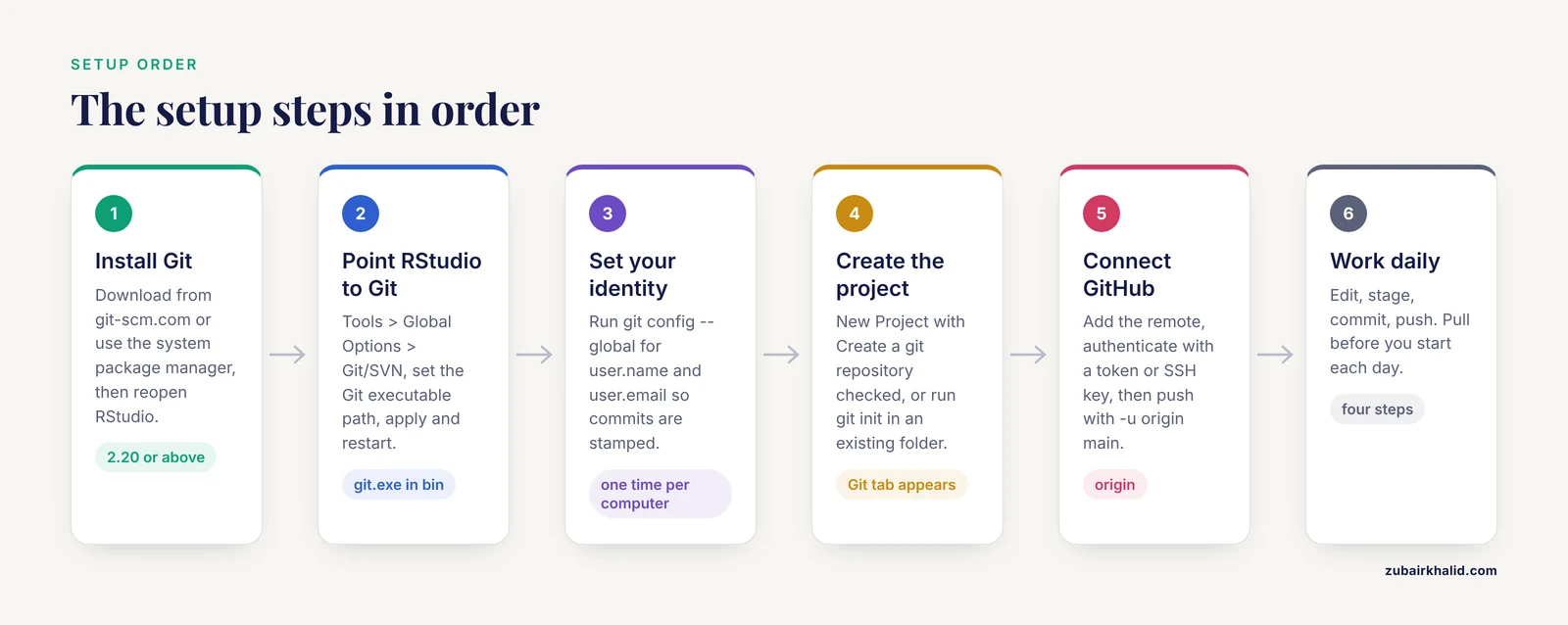
RStudio cannot use Git until Git itself is installed. RStudio does not bundle it.
Check whether Git is already installed by opening RStudio, clicking the Terminal tab (next to the Console tab in the lower-left pane), and typing:
git --versionIf Git is installed you will see output like this:
git version 2.44.0The exact number does not matter. Any version at or above 2.20 is fine for research work.
If the command is not found, install Git for your operating system:
- Windows: Download the installer from the official Git website (git-scm.com) and accept the default options. The defaults are sensible for research use. One default worth knowing about: the installer configures how Git handles line endings, which I address in the Common Mistakes section.
- macOS: The simplest route is to type
git, versionin Terminal. If Git is missing, macOS offers to install the Apple command line developer tools. Accept the prompt. Alternatively, install Git with Homebrew usingbrew install git. - Linux (Ubuntu/Debian): Run
sudo apt install git. On Fedora, usesudo dnf install git.
After installing, close and reopen RStudio so it picks up the new program, then confirm the git, version command now works in the Terminal tab.
Step 2: Tell RStudio Where Git Lives
Usually RStudio finds Git automatically. If the Git features do not appear, you may need to point RStudio to the executable.
Go to Tools > Global Options > Git/SVN. The field labeled Git executable should show a path:
- Windows: something like
C:/Program Files/Git/bin/git.exe - macOS:
/usr/bin/gitor/opt/homebrew/bin/git - Linux:
/usr/bin/git
If the field is empty, click Browse and navigate to that location. On Windows, the path you want is the git.exe inside the bin folder of your Git installation, not the one in cmd or mingw64. Click Apply, restart RStudio, and the Git integration will be active.
Step 3: Configure Your Identity
Every commit is stamped with a name and email address. If you skip this step, Git refuses to commit and prints one of the most common errors in version control:
*** Please tell me who you are.

Run

  git config --global user.email "[email protected]"
  git config --global user.name "Your Name"

to set your account's default identity.
Fix it by running these commands in the RStudio Terminal tab, substituting your own details. The email should match the email of your GitHub account if you plan to push to GitHub, because that is how GitHub attributes commits to you.
git config --global user.name "Jane Doe"
git config --global user.email "[email protected]"
Two more one-time settings prevent later headaches. First, set the default branch name for new repositories. A branch is an independent line of history, and the main branch is the primary one. Older Git versions named it master by default, while GitHub now uses main:
git config --global init.defaultBranch mainSecond, set the text editor Git uses for commit messages if you ever omit the message on the command line:
git config --global core.editor nanoOn Windows, use notepad instead of nano.
To confirm your configuration, run:
git config --global --listExpected output looks like this:
user.name=Jane Doe
[email protected]
init.defaultbranch=main
core.editor=nano
If that matches your details, the identity is set. This is a one-time setup per computer. Git stores it in a plain text file called .gitconfig in your home folder, which you can edit directly if needed.
Step 4: Start a Git-Tracked RStudio Project
An RStudio project is a dedicated working directory with a .Rproj file that keeps your scripts, data, and settings together. Git tracks that directory once a repository is initialized inside it.
New Project With Git From the Start
- In RStudio, choose File > New Project.
- Choose New Directory > New Project.
- Give the project a name, for example
mouse-rnaseq-analysis, and choose where to save it. - Check the box labeled Create a git repository. This checkbox appears only when RStudio has detected your Git installation.
- Click Create Project.
RStudio creates the folder, initializes a Git repository inside it (which simply means it creates a hidden .git folder that stores the history), and opens the project. The upper-right pane now has a Git tab. That tab is your command center for version control, and its presence is the confirmation that setup worked.
Connecting an Existing Project
If you already have a project running, initialize Git inside it from the Terminal tab:
git initExpected output:
Initialized empty Git repository in /home/jdoe/mouse-rnaseq-analysis/.git/Then restart RStudio or reopen the project, and the Git tab will appear. Alternatively, run usethis::use_git() from the popular usethis package, which initializes the repository and adds a sensible starter .gitignore file for you.
Step 5: Connect to GitHub
GitHub for researchers serves two purposes: it is an off-site backup and it is the collaboration layer. A repository hosted on GitHub can be cloned by coauthors, browsed by reviewers, and archived with a digital object identifier through services like Zenodo. This section covers the standard path.
Create the Remote Repository
Log in to GitHub, click the + icon in the top-right corner, choose New repository, give it the same name as your project, leave it private if the work is unpublished, and do not add a README or license yet if you plan to push an existing local project. Click Create repository. GitHub will show you a web address ending in .git, for example:
https://github.com/janedoe/mouse-rnaseq-analysis.gitAuthenticate With a Personal Access Token
GitHub no longer accepts account passwords for Git operations. In August 2021, GitHub removed password authentication for command line Git in favor of personal access tokens and SSH keys, so the first push will fail with an authentication error unless you set up one of these two methods.
Option A: Personal access token (easiest on a personal laptop). On GitHub, go to Settings > Developer settings > Personal access tokens and generate a fine-grained token limited to the repository you need. Copy it. The next time RStudio asks for credentials, enter your GitHub username as the username and paste the token as the password. On Windows and macOS, the operating system credential manager will remember the token after the first successful push, so you only do this once per machine.
Option B: SSH key (better for long-term or multi-repository work). SSH is an encrypted protocol that identifies you with a cryptographic key pair stored on your computer. Generate a key in the RStudio Terminal:
ssh-keygen -t ed25519 -C "[email protected]"Press Enter to accept the default file location. Then display the public half of the key:
cat ~/.ssh/id_ed25519.pubCopy the entire line of output, go to GitHub under Settings > SSH and GPG keys, click New SSH key, paste it, and save. Test the connection:
ssh -T [email protected]Expected output:
Hi janedoe! You've successfully authenticated, but GitHub does not
provide shell access.
When you connect over SSH, use the SSH form of the repository address, which starts with [email protected]: rather than https://.
Push Your Project to GitHub
With authentication configured, connect your local repository to the GitHub repository. In the Terminal tab:
git remote add origin https://github.com/janedoe/mouse-rnaseq-analysis.git
git push -u origin main
The word origin is the standard nickname for your remote repository, and the -u flag tells Git to remember that the local main branch tracks the remote one, so future pushes need only git push. Expected output on success includes a line like:
Branch 'main' set up to track remote branch 'main' from 'origin'.Refresh the GitHub page for your repository and your files will be visible there.
Step 6: The Daily Workflow in RStudio
Once the setup is complete, daily use fits in four steps: edit, stage, commit, push. RStudio's Git pane handles all four without the command line.
Reading the Git Pane
The Git tab in the upper-right pane lists every file in your project and a status symbol next to each:
- Yellow question mark: a new file Git has never seen.
- Blue M: a tracked file with modified, unstaged changes.
- Green M: a modified file whose changes are already staged.
- Green A: a new file that has been added to the next commit.
Clicking a filename opens a diff, a side-by-side view showing exactly which lines were removed and added. Reading your diffs before committing is the single best habit for catching errors early.
Making a Commit
- Save your changed files in RStudio.
- In the Git tab, check the boxes next to the files you want to include. Check the Staged column.
- Type a short, specific commit message in the box at the top, for example
Add filtered DESeq2 results table for liver comparison. - Click Commit.
A good message describes why the change was made, not just that it was made. Future you, and any collaborator, will judge the project by these messages.
Pushing and Pulling
After committing, click Push (the green up arrow) to send your commits to GitHub. Click Pull (the blue down arrow) before you start work each day to fetch any changes collaborators have made. On a solo project this may be trivial, but making pull-then-commit-then-push a reflex prevents most merge conflicts later.
The .gitignore File
Not everything in a project folder belongs in version control. Git can ignore named files through a .gitignore file in the project root. Create one in RStudio via File > New File > Text File, save it as .gitignore, and add lines like these:
.Rhistory
.RData
.Rproj.user
.DS_Store
output/
*.html
Each line is a pattern Git will never track. .Rhistory and .RData are session artifacts RStudio regenerates automatically, and committing them causes endless spurious changes. The output/ line keeps generated figures and tables out of the repository, since those files can be reproduced from the scripts.
Essential Commands Reference
The RStudio buttons run these commands behind the scenes. Knowing them helps you work in the Terminal tab when a collaborator needs help or you are on a server without the GUI.
| Command | What it does | RStudio equivalent |
|---|---|---|
git status | Shows modified files and the state of the branch | Git pane contents |
git add file.R | Stages a file for the next commit | Checking the Staged box |
git commit -m "message" | Saves a snapshot with a message | Commit button |
git push | Uploads commits to the remote repository | Push button |
git pull | Downloads and integrates remote changes | Pull button |
git log, oneline | Lists commit history, one line per commit | History tab in Git pane |
git diff | Shows unstaged line-by-line changes | Clicking a file in the Git pane |
git clone URL | Downloads a full remote repository as a new local copy | File > New Project > Version Control |
How to Check That Everything Works
Verify each layer independently so a failure points to the right place:
- Git itself:
git, versionreturns a version number. - Identity:
git config, global, listshows your name and email. - RStudio integration: A project has a Git tab, and committing a test file works. Create a file named
test.Rwith one line of R code, stage it, commit it with the messagetest commit, and confirm it appears in the History tab. - Remote connection:
git remote -vlists the GitHub URL, andgit pushcompletes without errors. Confirm the file appears on the GitHub website. - Round trip: On GitHub, edit the README file through the web interface. Back in RStudio, run
git pulland confirm the change arrives locally. This proves the connection works in both directions.
Common Mistakes and Limitations
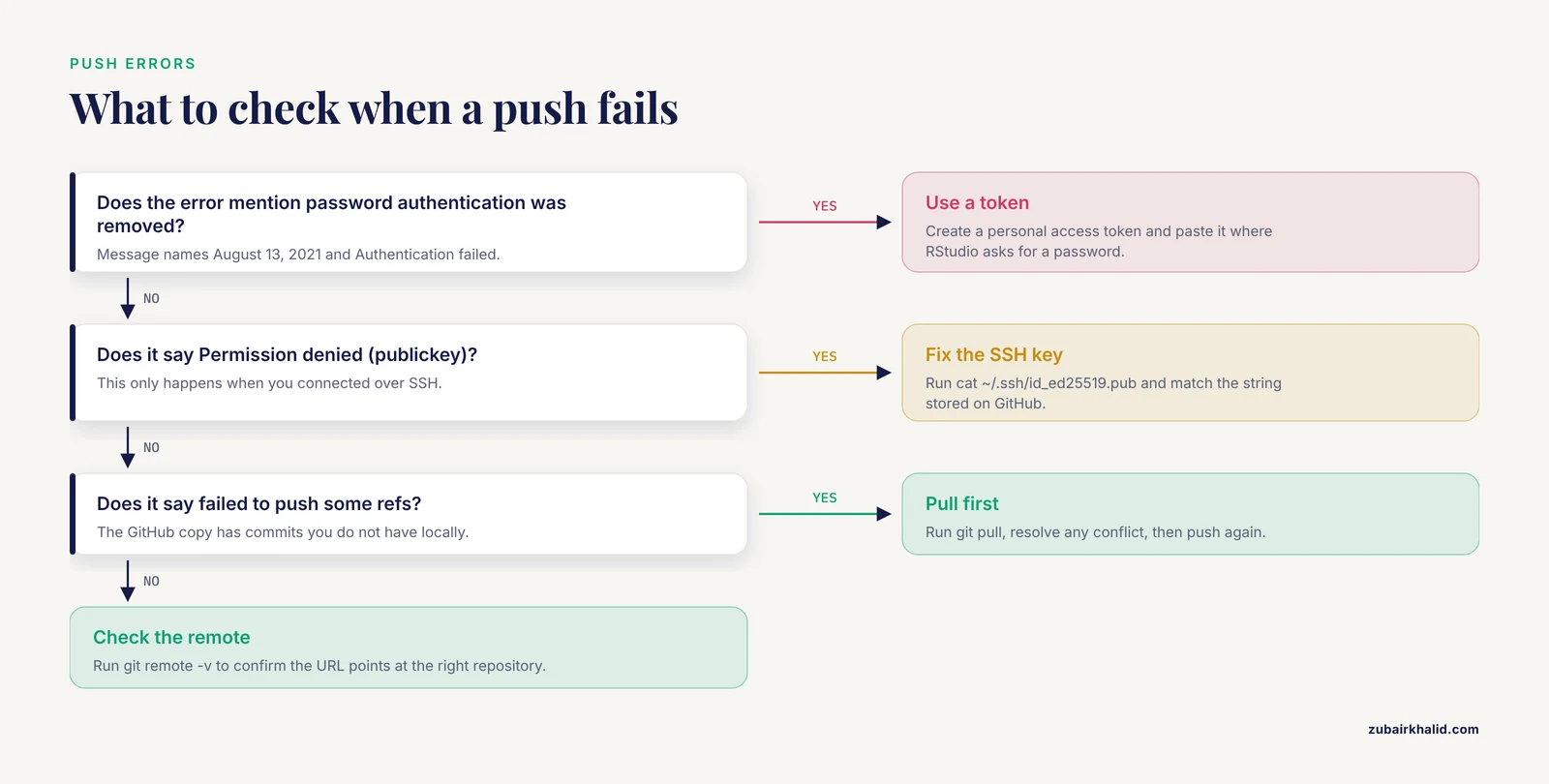
These are the failures that account for most lost hours in research Git setups, with the exact symptoms and fixes.
Forgetting the identity configuration. The error *** Please tell me who you are. on the first commit means user.name and user.email were never set. Run the two git config, global commands from Step 3 and commit again. The rule of thumb is to configure identity on every new computer or server before the first commit.
Authentication failures when pushing. The message remote: Support for password authentication was removed on August 13, 2021 followed by Authentication failed means Git tried to log in to GitHub with a password. GitHub requires a personal access token or SSH key instead, as described in Step 5. A subtler variant is Permission denied (publickey) over SSH, which means the public key on GitHub does not match the private key on your computer. Re-run cat ~/.ssh/id_ed25519.pub and confirm the exact string matches what GitHub has stored.
Pushing to a repository that moved ahead. The error error: failed to push some refs with a hint about fetching first means the GitHub copy has commits you do not have locally. Run git pull, resolve any conflict, then push. This usually happens after editing files through the GitHub website or from two computers without pulling in between.
Committing large data files. GitHub rejects files larger than 100 MB and repos perform poorly with heavy data. Git is designed for text files that change, such as scripts, R Markdown documents, and small tables of metadata. Keep raw sequencing data, large CSVs, and images in institutional storage, an OSF project, or Git LFS (Large File Storage, a Git extension for big files), and reference them by name in your repository. A practical rule from the research software community: if a file cannot be opened in a text editor and reviewed by a reviewer, it probably does not belong in Git.
Committing session state files. .RData and .Rhistory change every session, so tracking them buries real changes in noise and inflates repository size. Add them to .gitignore on day one. RStudio also offers the cleaner habit under Tools > Global Options > General: choose "Never" for saving the workspace on exit.
Line ending warnings. On Windows, commands print warning: LF will be replaced by CRLF. This happens because Unix systems end text lines with a single LF character and Windows uses CRLF. The warning is harmless, but it can be silenced by choosing one setting per machine: git config, global core.autocrlf true on Windows, or git config, global core.autocrlf input on macOS and Linux. Mixed settings across a lab cause noisy diffs where every line appears changed.
Detached HEAD. The message You are in 'detached HEAD' state appears after checking out an old commit directly. Changes made in that state are not on any branch and are easy to lose. If you land there accidentally, run git checkout main to return to your working branch, or git switch -c new-branch-name if you actually want to keep the changes.
Merge conflicts in .Rproj files. Two collaborators editing the same project file at once produce a conflict marked with <<<<<<< and >>>>>>> lines. The reliable fix is to keep project files small, commit and push frequently, and communicate before restructuring the project. When a conflict appears, open the file, keep the correct version of the marked lines, delete the markers, stage the file, and commit.
Git is not the same as backup. A local repository is a single point of failure until it is pushed to a remote. Water on the laptop destroys local Git history just as thoroughly as it destroys scripts. Push to GitHub, GitLab, or an institutional server the same day you commit, every time.
Private data on public hosts. Unpublished genomic data, patient identifiers, and manuscript drafts under embargo should not go on a public repository. GitHub offers free private repositories, and many institutions run private GitLab servers for exactly this reason. Check your institution's data policy before choosing a host, and remember that committing a secret and deleting it later does not remove it from history.
Frequently Asked Questions
Do I need GitHub to use Git in RStudio?
No. Git works entirely on your computer, and you can commit a full project history with no account anywhere. GitHub becomes necessary only when you want off-site backup, collaboration, or publishing the repository. GitLab and institutional Git servers are equally valid remotes.
Where is the Git tab in RStudio and why is it missing?
The Git tab is the fourth tab in the upper-right pane, next to Environment, History, and Connections. If it is missing, either the open folder is not a Git repository or RStudio has not found the Git executable. Run git init in the project folder or check Tools > Global Options > Git/SVN, then restart RStudio.
How do I connect an existing RStudio project to Git?
Open the project, go to the Terminal tab, and run git init. Restart RStudio or reopen the project so the Git tab appears. The usethis::use_git() function does the same thing and adds a starter .gitignore file for R projects.
Why does RStudio ask for a password or token when I push?
GitHub stopped accepting account passwords for Git operations in August 2021 and requires a personal access token or SSH key. Create a token under GitHub Settings > Developer settings, paste it where RStudio asks for a password, and your operating system's credential store will usually remember it.
Should I commit my raw data files to the repository?
Generally no. Git is optimized for text files that change in reviewable ways, while raw data is large and rarely edited. Keep data in institutional or domain-specific storage and track only the scripts, documentation, and small metadata tables needed to reproduce the analysis.
What is the difference between a commit and a push?
A commit saves a snapshot in the history stored on your computer. A push uploads committed snapshots to a remote server such as GitHub. Work is only shared, and only backed up, once it is pushed.
How do I undo my last commit in RStudio?
Run git reset, soft HEAD~1 in the Terminal tab. This removes the last commit but keeps your file changes in place, ready to restage and recommit. Avoid -hard resets unless you are certain the changes are worthless.
Can I use GitLab or an institutional Git server instead of GitHub?
Yes. Git in RStudio is agnostic about the remote host. The setup steps are identical, with the server's repository URL substituted in git remote add origin, and any host that supports Git over HTTPS or SSH will work with RStudio's push and pull buttons.