scp vs. rsync: Which File Transfer Tool Should You Use?
By Dr. Zubair Khalid, DVM, MS, PhD ·

The one-sentence difference is this: scp copies files, while rsync compares a source and a destination and transfers only what needs to change. The rule of thumb that follows from that difference is simple. Use scp for a single, one-shot copy of a file or a small directory where you already know both paths and nothing will be interrupted. Use rsync for anything large, anything you might repeat, anything that could be interrupted, or anything where the destination already contains an older version of the data. In a bioinformatics setting, that second category covers most day-to-day work, because sequencing runs, alignment outputs, and mass spectrometry raw data routinely run into tens or hundreds of gigabytes and get moved between instruments, laptops, and compute clusters many times over the life of a project.
This guide walks through what each tool actually does, compares them on the criteria that decide real choices, and gives worked command examples drawn from common bioinformatics situations, from pushing FASTQ files to an HPC scheduler to mirroring results back to a lab laptop. It assumes a Unix-like environment (Linux or macOS, or Windows with WSL), because that is where both tools live, and basic familiarity with the shell.
Quick comparison table
| Criterion | scp | rsync |
|---|---|---|
| Core behavior | Copies files from source to destination | Synchronizes source and destination, transferring only differences |
| Transfer protocol | Runs over SSH (modern versions use the SFTP protocol) | Runs over SSH by default, or over its own daemon protocol |
| Resume after interruption | No, restart the whole file | Yes, with -partial, and -append-verify can pick up where a transfer left off |
| Delta transfer (sending only changed blocks) | No | Yes, for files that already exist at the destination |
| Preserve permissions, timestamps, symlinks | Partially, with -p | Fully, with -a |
| Mirror and delete extraneous files | No | Yes, with -delete |
| Exclude patterns | No | Yes, with -exclude |
| Dry run | No | Yes, with -n or -dry-run |
| Bandwidth limiting | No built-in option | Yes, with -bwlimit |
| Built-in verification of file integrity after copy | No | Optional, with -c (checksum comparison) |
| Availability | Ships with OpenSSH on essentially every Linux and macOS system, and is built into modern Windows OpenSSH | Separate package, installed on nearly all Linux distributions and macOS, available through WSL or Cygwin on Windows |
| Learning curve | Very low | Moderate, with many options that interact |
| Best use | One-shot copy of a known file to a known path | Repeated syncs, large files, directory trees, mirrors, automated jobs |
What scp actually does
scp (secure copy) is a small program that ships with OpenSSH, the same package that provides the ssh command. It authenticates exactly like ssh, over the same port, using the same keys or passwords, and it copies files from one machine to another. A typical call looks like this:
scp sample_R1.fastq.gz [email protected]:/scratch/zk/rna-seq/That command pushes one compressed FASTQ file into a directory on a remote cluster. The reverse direction is the same command with the arguments swapped:
scp [email protected]:/scratch/zk/rna-seq/alignment.bam ./results/Useful scp options are few and easy to remember. -r copies a directory recursively. -p preserves modification times and permission modes. -C enables compression on the wire, which helps for text-like data such as uncompressed FASTA, VCF, or tabular files, and does nothing useful for data that is already gzipped. -P 2222 connects to an SSH server listening on a nonstandard port. In modern OpenSSH releases, scp uses the SFTP protocol under the hood rather than the older, bespoke scp protocol, which improved compatibility with servers that had disabled the legacy protocol.
The defining property of scp is that it is stateless. It opens a connection, streams the bytes, and closes. It does not look at what is already on the destination, does not compare anything, and does not keep a memory of what it copied. If a 200 GB file transfer drops at the 190 GB mark because your laptop fell asleep on the train, scp starts that file over from byte zero. If you run the same scp command twice, it copies everything a second time. That simplicity is a feature for one file, and a liability for a week of genomics data.
When to use scp
scp is the right tool in a narrow but common set of situations:
- You need one file, right now, and you know exactly where it is going. A single reference genome, a single README, a single supplementary table.
- The file is small enough that an interrupted transfer costs less than the time to learn or configure anything else. For files under a few hundred megabytes on a decent connection, scp just works and finishes.
- The remote system has rsync missing or blocked. Some restricted environments allow SSH but do not install rsync on the login nodes. scp works anywhere SSH works.
- You are writing a minimal example or a quick tutorial command for a colleague, and the fewer moving parts the better.
In short, the answer to "when to use scp" is: for small, one-off, point-to-point copies where the cost of a failed attempt is trivial. Everything else leans rsync.
What rsync actually does
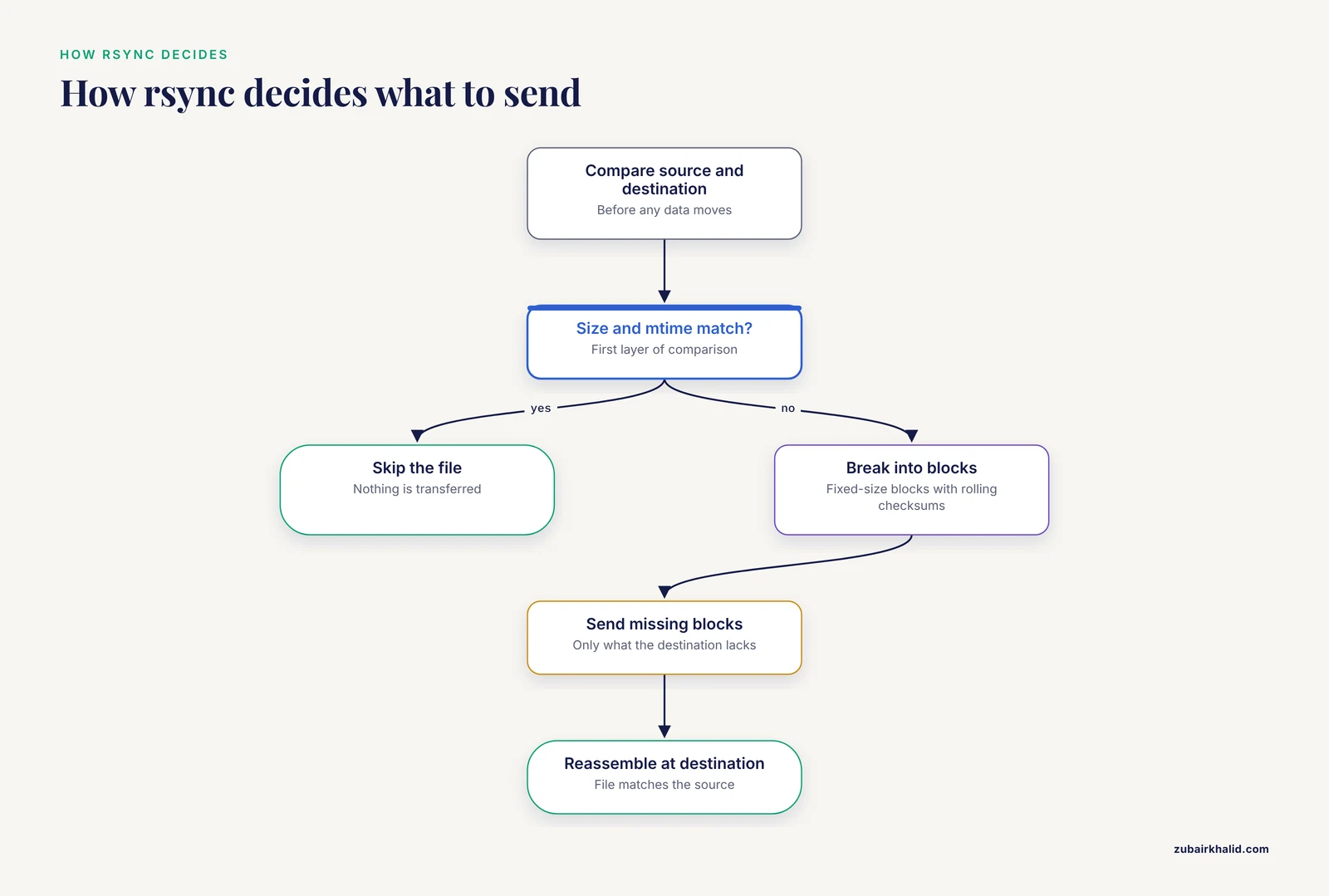
rsync is a synchronization tool. Before sending data, it compares the source against the destination and sends only what differs. That comparison happens in two layers. First, it looks at file metadata, size and modification time, and skips files that match on both. Second, for files that do match by name but have changed, the delta-transfer algorithm breaks the file into fixed-size blocks, computes rolling checksums, and sends only the blocks that the destination is missing. For a large BAM file where you reprocessed one chromosome, that can turn a 50 GB re-transfer into a few hundred megabytes.
A baseline rsync command looks like this:
rsync -avP sample_R1.fastq.gz [email protected]:/scratch/zk/rna-seq/The three flags do the following. -a (archive) preserves permissions, modification times, symbolic links, device files, and, when run as root, ownership. It implies recursive behavior, so it is the standard flag for directory trees. -v prints what is happening. -P is shorthand for -partial plus -progress, meaning that interrupted transfers keep the partial file at the destination and you can see progress. Re-running the exact same command after an interruption picks up the remaining data instead of starting over.
The options that matter most in practice, beyond the baseline, are:
-delete: makes the destination an exact mirror of the source, removing files at the destination that no longer exist at the source. Powerful and dangerous. Always pair it with-nfirst.-exclude=PATTERNand-include=PATTERN: skip intermediate files,tmp/directories,*.bam.baiindexes you regenerate locally, or anything else that does not need to travel.-z: compress during transfer. Helpful for uncompressed text such as FASTA, SAM, VCF, or plain CSV. Useless or counterproductive for.gz,.bam,.zip, or.fastq.gz, which are already compressed.-bwlimit=5000: cap throughput at 5000 KB per second so a sync does not saturate a shared lab link.-c: compare files by full checksum instead of size and timestamp. Slower, but the right choice when you suspect silent corruption or clock skew between systems.-e "ssh -p 2222": pass ssh options such as a nonstandard port.-info=progress2: a single overall progress line for the whole transfer, which is friendlier than per-file output on large trees.-link-dest=DIR: hard-link unchanged files against a previous snapshot, which is the standard trick for cheap incremental backups.
One bit of syntax trips almost everyone at first, and it is covered in detail in the mistakes section: whether the source path ends in a slash changes what gets copied.
rsync also works entirely locally, between two paths on the same machine, where it behaves like a faster, more careful cp -r. That is useful for staging data onto scratch storage before a job starts.
The criteria that decide scp vs. rsync
The difference between scp and rsync in a bioinformatics context comes down to a handful of concrete behaviors. Each one maps directly onto something that happens to real analysis projects.
Interruption and resume
Long transfers fail. Sessions time out, laptops sleep, VPNs drop, maintenance windows hit. With scp, a failed transfer of a 100 GB file means deleting the partial file and starting over. With rsync -P, the partial file remains at the destination, and the next run compares what the destination already has against the source and sends only the remainder. For truly append-only data that is being written while transferred, -append-verify can extend an existing partial file and then verify it, though the default -partial behavior is the safe general choice.
Cost of repeated transfers
Most bioinformatics transfers are not one-time events. You push data to the cluster, realize one sample failed QC, retrim it, and push again. You download results, the collaborator asks for one regenerated figure, and you download the output directory again. With scp, every repeat is a full copy. With rsync, the second run examines the destination and sends only what changed. On a project directory with 500 files where 3 changed, the difference is minutes versus hours.
Metadata and reproducibility
Reproducibility in analysis pipelines depends on more than file contents. Timestamps tell you when a FASTQ landed, which helps you reconstruct what a workflow saw and when. Permissions matter when a directory of results must be readable by the compute nodes under a different account. Symlinks matter because reference genome directories on shared servers are almost always laid out with links, and copying them as if they were files doubles storage and breaks path expectations. rsync -a carries all of this across intact. scp with -p preserves modification times and modes but not symlinks-as-symlinks or ownership, so a directory tree copied with scp to a shared cluster often arrives subtly different from how it left.
Many small files
Two phenomena punish naive copying of small files. The first is per-file protocol overhead. A single-cell imaging or spatial transcriptomics run can produce hundreds of thousands of small tile images, and per-file handshakes dominate the transfer time. The second is raw instrument output that arrives as a directory of files rather than a single blob. Bruker timsTOF raw data, for example, lands as a .d directory containing many constituent files rather than one monolithic file, which is exactly the format produced by the accessible single-cell proteomics workflow described by Chi and colleagues, where a single-cell dispenser, multiwell plates, and a timsTOF instrument generate per-run raw directories [1]. For both situations, the fastest robust approach is usually to bundle first and transfer second, either as a compressed archive or as a stream:
tar czf - run_2026-05-12.d | ssh [email protected] "cat > /scratch/zk/raw/run_2026-05-12.d.tar.gz"or, if you prefer to keep the directory structure as-is at the destination, rsync with -a over SSH handles the tree directly and gives you resumability for free.
Bandwidth and politeness on shared links
Lab networks are shared. A sync of 2 TB over a 1 Gbps uplink can strangle everyone's Zoom calls for an afternoon. rsync's -bwlimit caps the transfer, and combined with -z for compressible data, it gives you control scp simply does not have.
Verification
Neither tool hashes by default in the way you might want for critical data. scp gives you no built-in post-copy verification, so the standard practice is to checksum on both ends yourself:
sha256sum sample_R1.fastq.gz
ssh [email protected] "sha256sum /scratch/zk/rna-seq/sample_R1.fastq.gz"
rsync's -c option performs a checksum-based comparison, which verifies that the destination matches the source before skipping retransfer, and detects corrupted or truncated destination files in the process. It is slow on huge trees, so it is best reserved for final verification passes rather than every sync.
The scp or rsync decision in one line
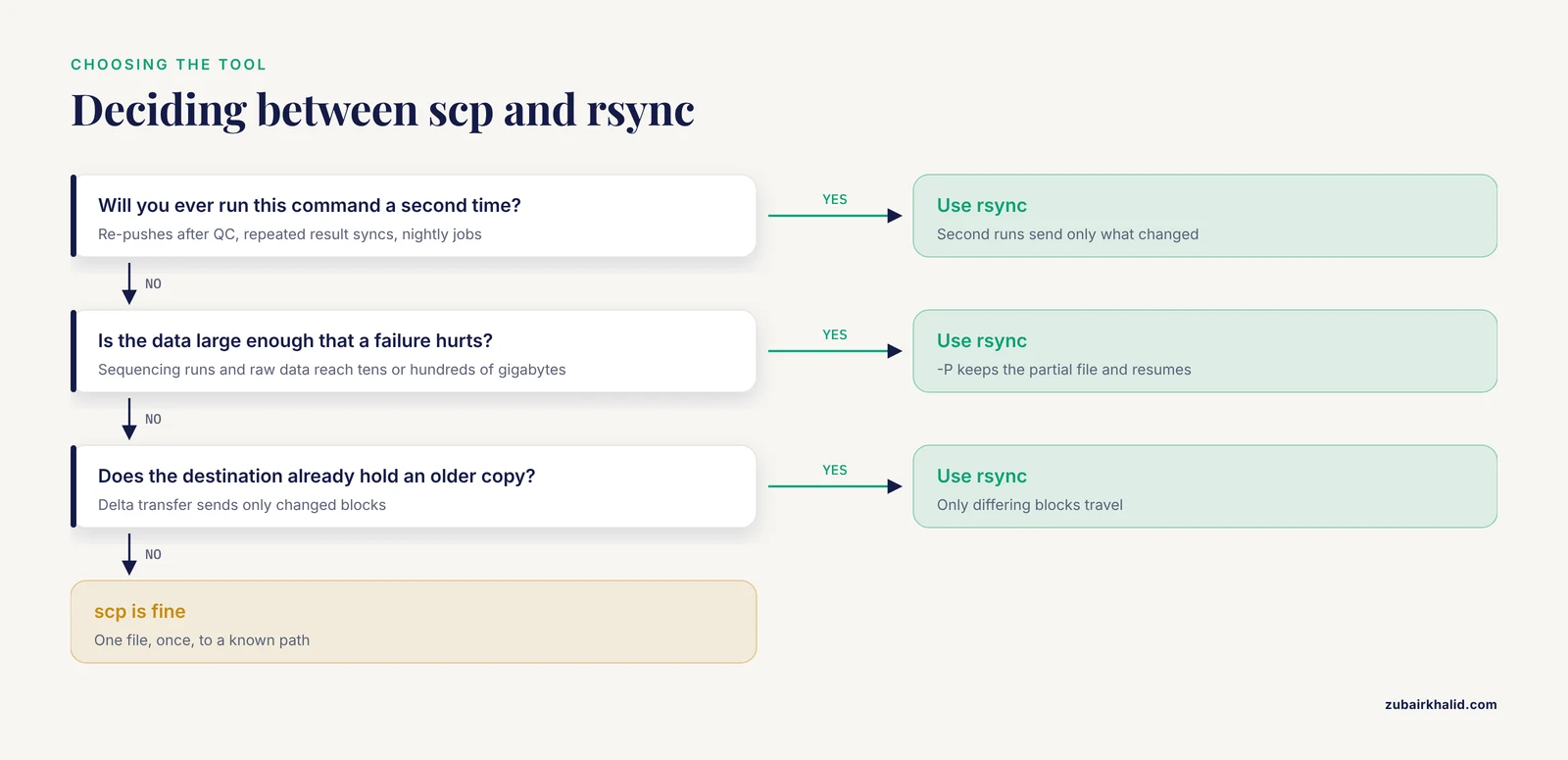
If you will ever run the command a second time, if the data is large enough that a failure hurts, or if the destination might already have an older copy, use rsync. If it is one file, once, use scp and move on with your day.
Worked scenarios from real bioinformatics work
Abstract criteria become clear when attached to concrete workloads. These five scenarios cover most decisions you will face.
Scenario 1: Uploading FASTQ files to an HPC cluster
You have just received a sequencing run, eight samples of paired-end 150 bp reads, roughly 20 GB of .fastq.gz per sample. The analysis runs on a university cluster, and you need the data in your scratch directory.
With scp:
scp SRR*_{1,2}.fastq.gz [email protected]:/scratch/zk/rnaseq/raw/This works. It is a one-shot push of files that do not yet exist at the destination, so rsync's delta machinery has nothing to exploit. scp is perfectly reasonable here, especially if the connection is stable.
With rsync:
rsync -avP SRR*_{1,2}.fastq.gz [email protected]:/scratch/zk/rnaseq/raw/Same result, with two upgrades. If the campus VPN drops at sample six of sixteen, rsync -P resumes. If you then trim and regenerate one sample's FASTQ files, rerunning the rsync command updates only that sample. For this workload, rsync wins not because of the first transfer but because of the second and third.
A note on compression: do not add -z here. The files are already gzip-compressed, and compressing them again burns CPU for essentially no bandwidth savings. Reserve -z for plain text such as uncompressed FASTA, SAM before sorting, VCF, or TSV expression matrices.
Scenario 2: Keeping a local results directory in sync during an analysis
You run a single-cell analysis on the cluster and want the figures, tables, and logs mirrored to your laptop as they accumulate. Each iteration changes a handful of files and adds new ones.
rsync -av --exclude 'tmp/' [email protected]:/scratch/zk/scp-project/results/ ~/projects/scp-project/results/The trailing slash after results/ on the remote side means "copy the contents of that directory into the local results directory," not "create a results directory inside it." The -exclude keeps scratch intermediates from littering your laptop. Run this whenever you want, as often as you want. After the first run, each sync moves only the deltas, so it takes seconds.
This scenario is common in single-cell multiomics work, where proteomic and transcriptomic measurements are integrated and each integration pass produces new plots, tables, and notebooks. Furtwängler and colleagues, for example, integrated a mass-spectrometry-based single-cell proteomics dataset of more than 2500 human CD34+ hematopoietic stem and progenitor cells with scRNA-seq to identify proteins important for stem cell function that their mRNA levels did not reveal [2]. A project of that shape, with per-cell matrices, intermediate objects, and versioned figures, is exactly the kind of directory tree you sync repeatedly rather than copy once.
Scenario 3: Moving raw instrument data off an acquisition workstation
Mass spectrometry acquisition computers are precious, under-provisioned, and should not become long-term storage. Getting raw data off them promptly is standard practice. In the label-free single-cell proteomics workflow described by Chi and colleagues, the raw output comes from a timsTOF instrument, and the surrounding sample preparation was deliberately built from accessible lab equipment, a single-cell dispenser, conventional multiwell plates, and an incubator with water-bath humidity control, which means the data-handling side of the workflow inherits the same practical constraints any core facility faces [1].
Raw directories for such runs contain many constituent files. Two approaches work well:
# Option A, archive first, then transfer with rsync
tar czf run_2026-05-12_raw.tar.gz run_2026-05-12.d/
rsync -avP run_2026-05-12_raw.tar.gz [email protected]:/data/raw-ms/

# Option B, transfer the directory tree directly
rsync -avP run_2026-05-12.d/ [email protected]:/data/raw-ms/run_2026-05-12.d/
Option A produces one verifiable artifact with a single checksum. Option B preserves the native directory structure and lets rsync resume mid-tree if something interrupts the transfer. Both are correct. The key point is that rsync's resumability matters a great deal here, because acquisition machines are often on constrained networks and a 60 GB raw directory pushed by scp that fails at 55 GB is a genuinely painful restart.
Scenario 4: Mirroring a project archive to a second location
Data-management plans increasingly require a second copy of analysis outputs on separate storage. rsync is the natural tool because mirroring, making two locations identical, is its core purpose:
rsync -av --delete /home/zk/projects/scp-project/ [email protected]:/srv/backups/zk/scp-project/The -delete flag removes files from the backup that you have removed locally, so the mirror stays a true mirror. Run it with -n first to preview:
rsync -avn --delete /home/zk/projects/scp-project/ [email protected]:/srv/backups/zk/scp-project/Any file listed as deleted that you did not intend to delete is a warning sign. Never schedule -delete jobs without having done at least one dry run and without a second, independent copy somewhere else.
For long-term versioned backups on the same destination server, -link-dest builds daily snapshots cheaply:
rsync -a --link-dest=/srv/backups/zk/scp-project.2026-11-10 \
  /home/zk/projects/scp-project/ \
  [email protected]:/srv/backups/zk/scp-project.2026-11-11/
Unchanged files become hard links to the previous snapshot, so each new day's snapshot costs only the storage of what changed.
Scenario 5: Automating transfers in a pipeline
A nightly cron job that pulls fresh outputs from the cluster to a shared lab drive is a classic pattern:
# crontab entry, runs at 2:00 AM
0 2 * * * rsync -a --bwlimit=20000 [email protected]:/scratch/zk/pipeline-out/ /srv/labshare/zk/pipeline-out/ >> /home/zk/rsync-pipeline.log 2>&1
The -bwlimit keeps the sync from saturating the lab share during business hours if it runs long. rsync's exit codes make it scriptable, a cron job can retry safely after a network blip, and each run touches only what changed. The same job written with scp would re-copy the entire output tree every night, growing without bound as the project accumulates files.
Fitting transfers into Linux for bioinformatics
File transfer is one of the core linux commands bioinformatics work depends on, alongside ssh, tar, find, grep, and the assorted text-manipulation one-liners that hold pipelines together. A few habits make transfers reliable and auditable rather than ad hoc.
First, put connection details in your SSH config rather than in every command:
# ~/.ssh/config
Host hpc
    HostName hpc.lab.edu
    User zk
    Port 22
    ServerAliveInterval 60
With that in place, both tools shorten to clean forms:
scp figures/figure3.pdf hpc:/scratch/zk/scp-project/
rsync -avP results/ hpc:/scratch/zk/scp-project/results/
ServerAliveInterval keeps long transfers from being dropped by idle-timeout firewalls, which matters for multi-hour moves of large data.
Second, use SSH keys rather than passwords for anything scripted. Password prompts cannot run unattended, and a cron-driven rsync with a password-protected interactive login simply fails at 2 AM. Generate a dedicated key for transfer jobs, restrict what it can do on the server where possible, and keep the passphrase in an agent or omit it for non-interactive service accounts with tightened server-side restrictions.
Third, verify critical data with checksums as a final step, regardless of which tool moved it. A short script that compares sha256sum output on both ends catches the truncated or silently corrupted file that would otherwise poison a downstream analysis and cost days of debugging. For datasets you share with collaborators, shipping a checksum file alongside the data is basic courtesy and standard practice.
Fourth, remember that transfer is a step in the pipeline, not an afterthought. If a workflow's outputs feed a collaborator or a public repository, decide early where data lands, how it is named, how it is verified, and which tool moves it. The single-cell proteomics field has been explicit about this kind of rigor in evaluation, with recent work proposing data-quality frameworks that go beyond identification counts to measures such as quantitative consistency across technical replicates and single-cell-to-bulk correlations [1]. A dataset that cannot arrive intact at the analyst's desk cannot be evaluated by any framework, so the humble transfer step underwrites all of the downstream quality control.
Common Mistakes and Limitations
These are the errors that actually burn people, listed roughly in order of how often they occur.
- The trailing slash.
rsync -av src/ dest/copies the contents ofsrcintodest.rsync -av src dest/copies the directorysrcitself, producingdest/src/. Both are valid. Mixing them up creates nested directory towers likeresults/results/resultsthat quietly diverge from what you meant. Check the slash every time, and use-nto preview.
- Running
-deletewithout a dry run.-deletemakes rsync remove extraneous files at the destination. Point the source at the wrong directory, or get the trailing slash wrong, and rsync will cheerfully delete the destination contents to make it "match." Always preview with-n, and consider-delete-delayor running deletions only after a successful transfer completes.
- Assuming scp can resume. It cannot. If you routinely move large files over flaky links, scp will cost you repeated full restarts. Switch those jobs to
rsync -P.
- Using
-zon already-compressed data. gzip-compressed FASTQ, BAM, and zip archives gain nothing from a second compression layer during transfer and lose CPU cycles instead. Apply-zto plain text only.
-asurprises with ownership.rsync -aattempts to preserve owner and group, but a non-root user cannot set ownership on files it does not own. On a shared cluster, a sync as an ordinary user can produce files with unexpected group ownership, which then breaks permission-dependent steps. Know which account runs the sync and what it can set.
- Spaces and special characters in filenames. Quoting rules differ slightly between scp and rsync, and remote paths with spaces need different escaping with rsync than with scp. The durable fix is to never create such filenames in the first place, using underscores instead of spaces in sample names and paths.
- The unencrypted rsync daemon. rsync can run as its own daemon on port 873 without SSH. That mode does not encrypt data, which is unacceptable on any network you do not fully control. For anything leaving your machine over an untrusted network, always transfer over SSH, either with the default remote-shell mode or by tunneling.
- Assuming a completed transfer means identical data. Both tools can finish cleanly and still leave you with a destination file that differs from the source if something between them misbehaved. For irreplaceable data, verify with checksums on both ends. rsync
-cdoes this comparison for you, scp scenarios need an explicitsha256sumon each side.
- Using rsync for data being actively written. If a program is still writing a file while rsync copies it, the copy can catch a partially written state. For files being produced by a running job, either wait for the job's completion marker or transfer with
-inplaceunderstood as a deliberate, documented choice rather than a default.
- Overlooking what already exists. The most expensive mistake is using scp for everything out of habit, including the fifth re-push of a 200 GB directory, when a single rsync command would have moved only the changes each time. The tool you default to shapes how much time you spend waiting.
One honest limitation of the whole comparison: neither tool verifies biological or scientific correctness, only byte-level fidelity. A perfectly transferred file of the wrong sample is still the wrong sample. Sample-sheet hygiene and barcode-level checks are separate problems with separate tools.
For readers working at the intersection of proteomics and genomics, these habits scale across data types. The same rsync -avP pattern that moves a FASTQ run also moves the raw .d directories and derived matrices of a single-cell proteomics experiment, and the same checksum discipline protects a multiomics integration dataset like the hematopoietic one published by Furtwängler and colleagues just as well as it protects a stack of BAM files [2].
Frequently Asked Questions
Is scp deprecated?
No. scp remains part of OpenSSH and is actively maintained, though modern versions now use the SFTP protocol internally rather than the legacy scp protocol, and a few old command-line flags have changed behavior as a result. It is not going away, it is simply a narrow tool, best for quick one-file copies.
Can rsync resume an interrupted transfer?
Yes. With -P, which stands for -partial plus -progress, a partially transferred file is kept at the destination and the next rsync run sends only the missing remainder. Re-run the same command after the interruption and it continues from where it stopped.
When should I use scp instead of rsync?
Use scp for a single file or small directory, copied once, to a known destination, over a stable connection. It is also the fallback when rsync is not installed on the remote machine. For anything repeated, resumable, or large, rsync is the better choice.
Should I use the rsync -z flag on FASTQ files?
No. FASTQ files delivered as .fastq.gz are already compressed, and a second compression layer wastes CPU without saving meaningful bandwidth. Use -z for uncompressed text data such as FASTA, SAM, VCF, or TSV matrices.
Why did rsync copy my whole directory again when nothing changed?
The most common cause is the trailing slash. src/ and src mean different things, and getting it wrong creates a nested copy whose paths do not match the earlier transfer, so nothing is recognized as already present. Timestamps that changed due to an earlier non-archive copy can also cause re-transfer. Preview with -n and use -a for metadata preservation.
Is rsync safe to use over the internet?
Yes, when it runs over SSH, which is the default when you specify a user@host: style destination. Avoid the standalone rsync daemon on port 873 for anything crossing an untrusted network, because that mode does not encrypt traffic. Limit bandwidth with -bwlimit if the transfer shares a connection with other users.