How to Save and Reuse Your UniProt Search Strategies
By Dr. Zubair Khalid, DVM, MS, PhD ·

By the end of this article you will be able to build a precise query in UniProt, save that search strategy in three durable forms (a browser bookmark, a plain-text query registry, and a script that calls the UniProt REST API), rerun the search months later, and produce a list of exactly which entries appeared or disappeared between runs. You will need a web browser, a plain-text editor, and optionally Python 3 with the requests package or a Unix shell with curl. Nothing else needs to be installed.
Most people use UniProt the way they use any search box: type something, scan the results, and move on. That workflow throws away the most valuable part of the session, which is the query itself. A well-built UniProt query is a reusable, shareable, version-controllable definition of a protein set. This article is a practical UniProt database tutorial focused on that single skill: capturing the strategy behind a search so you can reproduce it, hand it to a collaborator, or run it on a schedule.
What a UniProt search strategy actually is
Before you can save a strategy, you need to know what one consists of. In UniProt, a search strategy has four parts:
- The query string. A structured expression in UniProt's query language, for example
(reviewed:true) AND (organism_id:9606) AND (protein_name:kinase). This is the core of the strategy. - The target section of the database. UniProtKB, the protein knowledgebase, contains two parts. Swiss-Prot holds reviewed entries, manually curated by UniProt biocurators with evidence-based annotations. TrEMBL holds unreviewed entries, annotated by automated methods. On the website you choose a section from the tabs above the search box, and the choice changes what the query matches.
- The output format and columns. On the website this is the set of visible columns and the download format. In the API it is the
fieldsandformatparameters. - The context. The date you ran it, the UniProt release active at that time, and the number of results returned.
The reason saving is even possible is that UniProt compresses parts 1 through 3 into a single URL. Everything you did on the results page lives in that URL. Save the URL correctly and you have saved the strategy.
How to use UniProt's query language in ninety seconds
UniProt's search box accepts field-restricted queries, not just free text. A few examples show the pattern:
gene:BRCA1 AND organism_id:9606
reviewed:true AND keyword:Transmembrane
protein_name:"calcium channel" AND organism_id:10090
accession:P12345 OR accession:O14733
length:[200 TO 400] AND reviewed:true
gene:BRCA* AND reviewed:true
reviewed:true AND organism_id:9606 AND NOT protein_name:pseudogene
The building blocks:
field:valuerestricts a term to one indexed field.gene:BRCA1looks for BRCA1 in gene names, not anywhere in the entry.AND,OR, andAND NOTcombine clauses. UniProt's own documentation examples use uppercase operators and theAND NOTform, and using that form consistently avoids surprises.- Parentheses group clauses and control evaluation order.
- Square brackets with
TOdefine numeric ranges, such as sequence length. - Double quotes force phrase matching on values that contain spaces.
- A trailing asterisk is a wildcard, so
gene:BRCA*matches BRCA1, BRCA2, and related names.
Two fields do most of the work in everyday queries. reviewed:true restricts results to curated Swiss-Prot entries. organism_id:9606 restricts results to human, using the NCBI taxonomy identifier, which is unambiguous in a way that a word like "human" may not be across strains and common names.
Where UniProt keeps your searches, and why you should save your own copy
The UniProt website keeps a short list of your recent searches, which appears when you click into the search bar. That history is convenient for the session but it is not a saved strategy. It lives in your browser, it does not follow you to another computer, you cannot annotate it, and you cannot share it.
The dependable approach treats the query string itself as the saved artifact. You store the query in a file you control, keep a bookmark of the full results-page URL for one-click reuse, and optionally wrap the query in a script so the API can run it unattended. The rest of this article walks through each of those in order.
Save a UniProt search strategy step by step
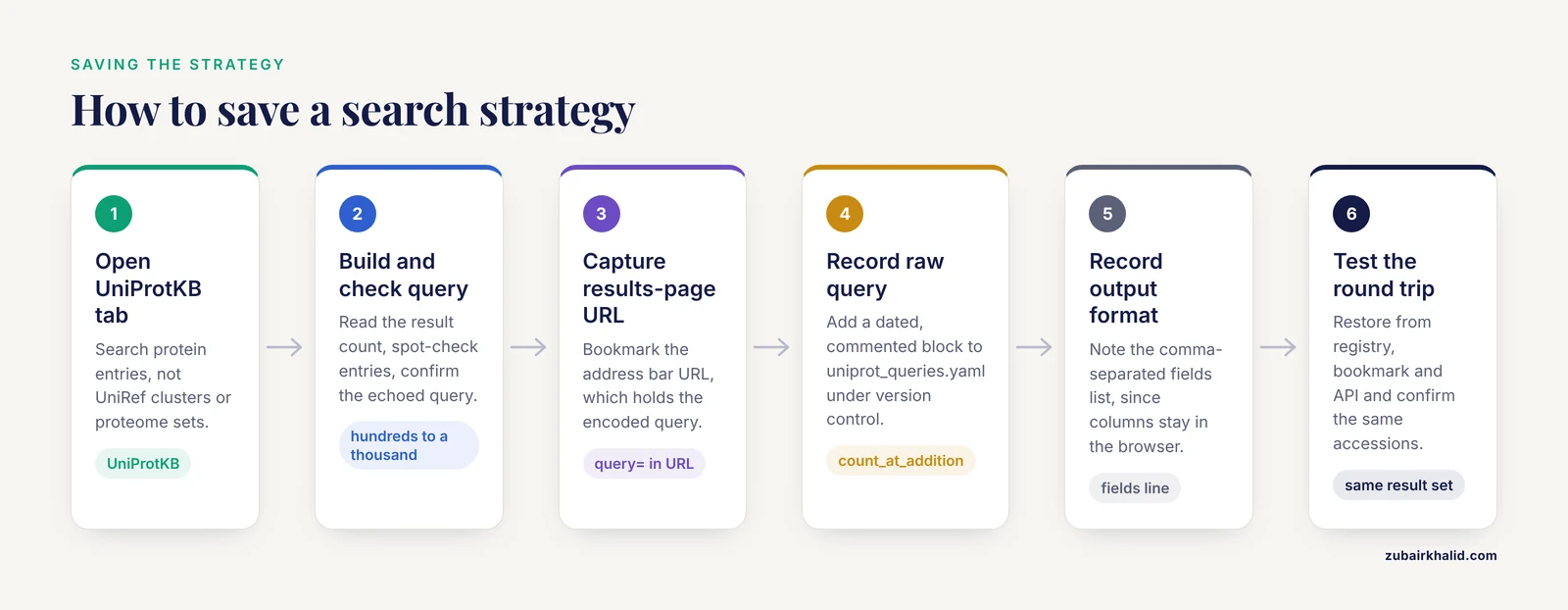
This walkthrough builds one concrete strategy, saves it three ways, and shows what you should see at each step. The example strategy is: all reviewed human proteins whose protein name contains "kinase", listing accession, entry name, protein name, gene names, organism, length, and PDB cross-references.
Step 1: Open the right section and build the query
Go to https://www.uniprot.org and select the UniProtKB tab above the search box, so you are searching protein entries rather than UniRef clusters or proteome sets. Type this into the search box:
(reviewed:true) AND (organism_id:9606) AND (protein_name:kinase)Press Enter. The results page loads and shows the result count near the top, along with the query echoed back in the search bar.
Step 2: Check that the query did what you meant
Read three things before saving anything:
- The result count. A query on reviewed human kinases should return on the order of hundreds to a thousand entries. If you see tens of thousands, a restriction probably failed to apply.
- The first few entries. Open one and confirm it is a reviewed human kinase. Random spot checks catch silently wrong field names faster than anything else.
- The query shown in the search bar. Confirm it matches what you typed and was not altered.
If the count is zero, see the mistakes section below. A zero usually means a typo in a field name, and UniProt will not warn you about it.
Step 3: Capture the results-page URL
Look at the browser address bar. It will look like this (line wrapped for readability, the real URL is one line):
https://www.uniprot.org/uniprotkb?query=%28reviewed%3Atrue%29+AND+%28organism_id%3A9606%29+AND+%28protein_name%3Akinase%29Everything after query= is your query, URL-encoded: %28 is an opening parenthesis, %29 is a closing parenthesis, %3A is a colon, and + stands for a space. Bookmark this page and name the bookmark with your project convention, for example prot: human reviewed kinases. Anyone who opens that URL, on any computer, lands on the same search.
You can also paste an encoded query directly into the search bar, and UniProt will decode it, so a URL you copied from a collaborator can be edited further on the site.
Step 4: Record the raw query in a query registry
A bookmark is for you. A registry file is for you, your collaborators, your future self, and your scripts. Create a file called uniprot_queries.yaml and keep it under version control with the rest of your project:
human_reviewed_kinases:
  description: Reviewed human proteins with kinase in the protein name
  query: "(reviewed:true) AND (organism_id:9606) AND (protein_name:kinase)"
  fields: "accession,id,protein_name,gene_names,organism_name,length,xref_pdb"
  added: "2026-11-11"
  count_at_addition: 812
  notes: >
    Protein-name match, so kinases with no "kinase" token in the name
    are missed. Widen with gene:kinase* if needed.
The count_at_addition value here is an example of the format, not a real result. Record whatever count you actually saw in Step 2. Two habits make this file genuinely useful over months:
- One YAML block per named query, with the date and count. When counts drift, you want to know when you last trusted them.
- A
notesline recording what the query deliberately excludes. Six months later the exclusions are what you will argue about.
Plain text with comments works too if you prefer avoiding YAML. The format matters less than the discipline of one named, dated, commented query per block.
Step 5: Choose and record your output format
On the results page, use the Customize columns control to pick the columns you need, then use Download to choose a format such as TSV (tab-separated values), Excel, or FASTA. Note that column choices are stored in your browser session and are not part of the URL, which is why the fields line in your registry matters. When you rerun the query through the API, that same comma-separated field list reproduces the exact columns, independent of any browser.
Step 6: Test the round trip
Recovery is the real test of a saved strategy. Close the tab, then restore the strategy from each artifact:
- Paste the raw query from your registry file into the UniProtKB search bar. You should land on the same result set.
- Open the bookmark. Same result set.
- Later, after the API section below, rerun the stored query through the API and confirm the accessions match the website output.
If all three reproduce the same set, the strategy is durably saved. If one drifts, fix that artifact now rather than during a deadline.
Reuse a saved strategy through the UniProt REST API
Saving a query in a file is good. Running it programmatically is better, because the API returns the same results the website does, in machine-readable form, with no clicking. UniProt documents its REST (Representational State Transfer) API, a plain HTTP interface where a URL encodes the request, on its programmatic-access help pages.
The single-command version
This one line reruns the saved strategy and writes a table:
curl -s "https://rest.uniprot.org/uniprotkb/search?query=%28reviewed%3Atrue%29+AND+%28organism_id%3A9606%29+AND+%28protein_name%3Akinase%29&format=tsv&fields=accession%2Cid%2Cprotein_name%2Cgene_names%2Corganism_name%2Clength%2Cxref_pdb" > human_kinases.tsvThe expected output is a text file whose first line is a header and whose following lines are entries:
Entry	Entry Name	Protein names	Gene Names	Organism	Length	Cross-reference (PDB)
P31749	AKT1_HUMAN	RAC-alpha serine/threonine-[protein kinase](/knowledge/molecular-biology/protein-kinase)	AKT1	PKD2	Homo sapiens (Human)	480	1UNQ;2H10;...
Three parameters do the work:
query: your saved query string, URL-encoded.format:tsvfor a spreadsheet-friendly table,listfor bare accessions (ideal for comparisons),fastafor sequences,jsonorxmlfor full structured records.fields: the comma-separated column list, matching what you chose on the website.
One caution on size: a single API page returns a limited number of entries, with a maximum page size of 500 for tabular formats. For anything larger, paginate, as shown next. Never assume one call returned everything.
The Python version, with pagination
This function runs any saved query from your registry and yields every matching entry, following the cursor that the API supplies in the HTTP Link header:
import re
import time
import requests

BASE = "https://rest.uniprot.org/uniprotkb/search"

def search_all(query, fields, page_size=500):
    """Yield one list of field values per matching UniProtKB entry."""
    url = (
        f"{BASE}?query={requests.utils.quote(query)}"
        f"&format=tsv&fields={fields}&size={page_size}"
    )
    while url:
        response = requests.get(url, timeout=60)
        response.raise_for_status()
        lines = response.text.strip().split("\n")
        for row in lines[1:]:
            yield row.split("\t")
        url = None
        if "Link" in response.headers:
            match = re.search(r'<([^>]+)>;\s*rel="next"', response.headers["Link"])
            if match:
                url = match.group(1)
        time.sleep(0.3)

QUERY = "(reviewed:true) AND (organism_id:9606) AND (protein_name:kinase)"
FIELDS = "accession,id,protein_name,gene_names,organism_name,length,xref_pdb"

rows = list(search_all(QUERY, FIELDS))
print(f"{len(rows)} entries retrieved")
The Link header on each response contains the URL for the next page when more pages exist. Following it until it disappears is the documented way to page through results, and the small sleep keeps you polite to a shared public service.
The fields and parameters that matter
The table below collects the query fields and API parameters you will use most when saving and reusing strategies. Field coverage is broader than this list, and the UniProt help pages document the full set.
| Item | Meaning | Example |
|---|---|---|
| , - | , - | , - |
reviewed:true | Restrict to curated Swiss-Prot entries | reviewed:true AND organism_id:9606 |
organism_id:9606 | Restrict by NCBI taxonomy ID (9606 is human) | organism_id:9606 |
gene: | Match gene names, supports trailing wildcard | gene:BRCA* |
protein_name: | Match protein names, quote phrases with spaces | protein_name:"calcium channel" |
keyword: | Match controlled UniProt keywords | keyword:Transmembrane |
database: | Require a cross-reference to another database | database:pdb |
length:[a TO b] | Restrict sequence length range | length:[200 TO 400] |
accession: | Match specific UniProt accessions | accession:P12345 |
AND, OR, AND NOT | Boolean operators, used uppercase | reviewed:true AND NOT gene:pseudo* |
API format | Output format: tsv, list, fasta, json, xml, xlsx | format=tsv |
API fields | Column selection for tabular formats | fields=accession,id,protein_name |
API size | Page size, up to 500 | size=500 |
Link header rel="next" | Cursor to the next page of results | Follow until absent |
Two properties of this system shape how you save strategies. First, the query string is the portable unit. Everything else (columns, format, page size) can be re-specified per run. Second, because the query language is deterministic, the only thing that changes between runs of the same query is the database content itself, which is exactly what the monitoring workflow below exploits.
Turn saved queries into a monitoring workflow
The most valuable use of a saved strategy is not running it twice the same way. It is running it repeatedly and diffing the results, so that when UniProt adds, merges, or retires entries, you find out on purpose rather than by accident. UniProt publishes new releases on a regular schedule, and any query's result set can change between releases.
Use the list format, which returns one accession per line, because bare accession lists are trivial to compare:
DATE=$(date +%F)
QUERY_URL="https://rest.uniprot.org/uniprotkb/search?query=%28reviewed%3Atrue%29+AND+%28organism_id%3A9606%29+AND+%28protein_name%3Akinase%29&format=list"

mkdir -p runs
curl -s "$QUERY_URL" > runs/human_kinases_${DATE}.txt

comm -13 <(sort runs/human_kinases_previous.txt) \
         <(sort runs/human_kinases_${DATE}.txt) > new_entries.txt
comm -23 <(sort runs/human_kinases_previous.txt) \
         <(sort runs/human_kinases_${DATE}.txt) > removed_entries.txt

cp runs/human_kinases_${DATE}.txt runs/human_kinases_previous.txt
comm -13 prints lines present only in the new file, which are entries added since the last run. comm -23 prints lines present only in the old file, which are entries removed or merged away. Each output feeds directly into follow-up work: new entries go to your annotation pipeline, removed entries trigger a check for replacements.
Keep a one-line log next to your registry so the trend is visible at a glance:
2026-09-02  human_reviewed_kinases  count=806
2026-11-11  human_reviewed_kinases  count=812
When the count moves and you did not expect it to, the diff files tell you whether the movement is a handful of merges or a broad change in your inclusion criteria's behavior.
Share a saved strategy with collaborators
A saved strategy is also a communication tool. Three practical formats, in increasing order of formality:
- The URL. Paste the results-page URL into an email or ticket. The collaborator clicks it and sees your exact query and its current results. This is the fastest way to answer "what exactly did you search?"
- The registry block. Send the YAML block from your query file. It carries the description, the field list, and your notes about exclusions, which a URL does not.
- The script. Hand over the curl command or the Python function. The collaborator can run it, extend it, and fold it into their own pipeline.
Whichever you choose, include the date and the count you got when you last ran it. That single line prevents most arguments about whose results are stale.
Common Mistakes and Limitations
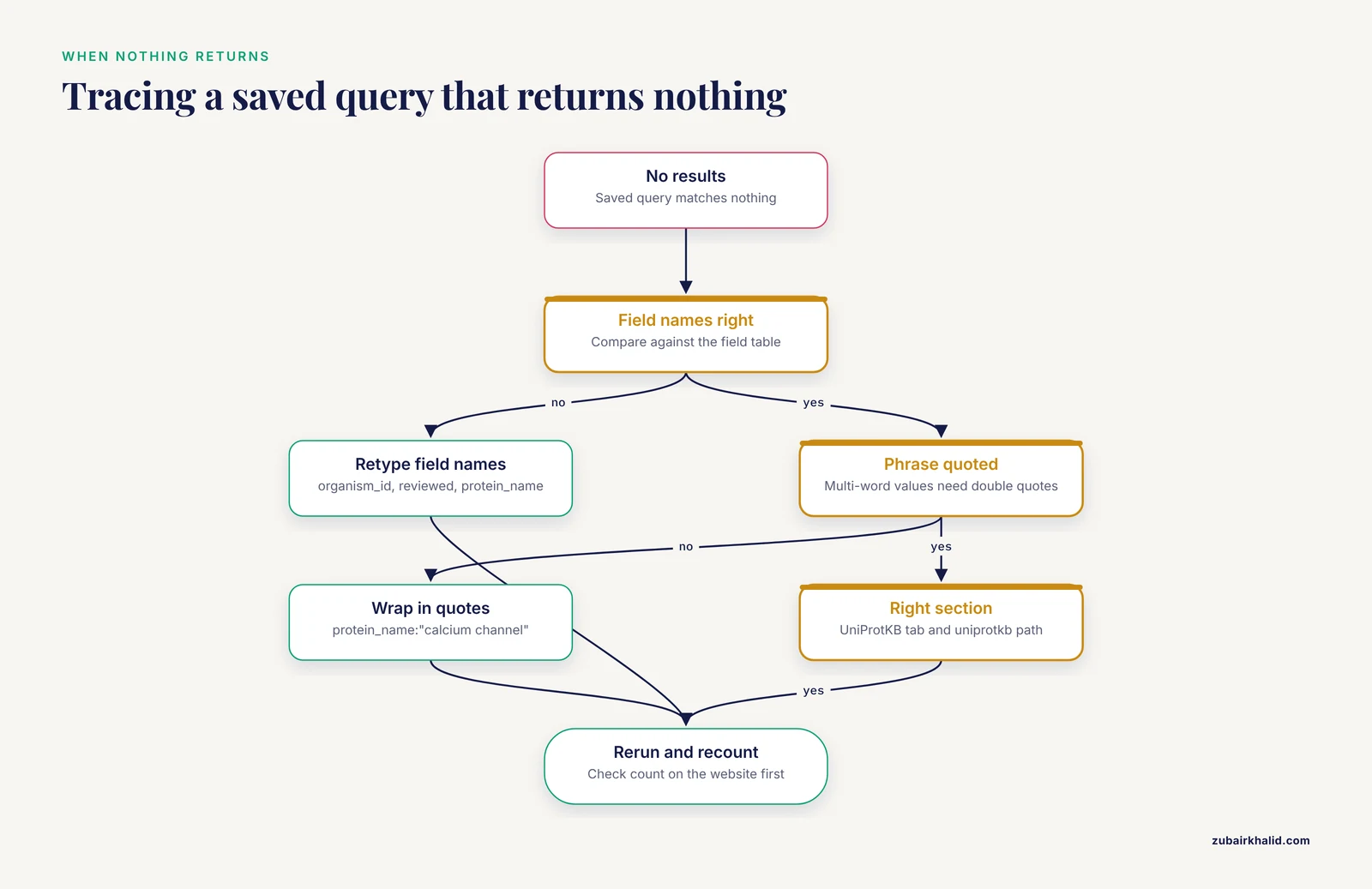
These are the failures that show up again and again when people save UniProt search strategies, with the exact symptom and the fix for each.
- A misspelled field name returns zero results with no warning. Type
organism:_id:9606orreviewd:trueand the search quietly matches nothing. The API behaves the same way. Fix: when a saved query returns zero, retype the field names from the table above and check the count on the website before debugging anything else. - Forgetting
reviewed:trueand drowning in unreviewed entries. Without the restriction, TrEMBL's tens of millions of automatically annotated entries flood the results, and near-duplicate sequences dominate. If your saved strategy was built for curated data, the reviewed flag belongs in the saved query string itself, not in your memory. - Lowercase or ambiguous operators. Stick to uppercase
AND,OR, and theAND NOTform used in UniProt's own documentation. Mixed-case operators combined with free-text words can make a query mean something different than it reads. - Spaces and special characters left unencoded in URLs and scripts. A query pasted raw into a URL or a shell command breaks at the first space or parenthesis. Fix: use the percent-encoded form the browser gives you, or pass the query through a quoting helper. In Python,
requests.utils.quote(query)handles it. - Assuming one API call returned everything. A query matching thousands of entries silently returns only the first page if you do not follow the
Linkheader. A telltale symptom is a count from the website that is much larger than the row count in your downloaded file. Fix: paginate, as in the Python function above. - Relying on browser session history as your only copy. Recent searches vanish when the browser clears site data, and they do not transfer between machines. Session history is a convenience, not a save.
- Expecting column choices to travel with the URL. The website stores column configuration in the browser, not in the query. Fix: save the
fieldslist in your registry and use it in the API call, which reproduces the columns deterministically. - Treating a saved count as permanent. UniProt updates on a rolling schedule, and counts change without any error. A count recorded in your registry is a snapshot, which is precisely why the monitoring workflow diffs rather than trusts.
- Quoting mistakes around values with spaces.
protein_name:calcium channelwithout quotes parses as two unrelated terms and balloons the result set. Fix: wrap multi-word values in double quotes. - Assuming one query covers all of UniProt. The strategies in this article target UniProtKB. UniRef clusters, proteome sets, and the supporting nucleotide and literature data live in separate sections with their own search surfaces. If you need cluster-level or proteome-level results, save and run those queries against the appropriate section, and record which section a saved strategy belongs to.
- Wildcards in the middle of terms. UniProt supports trailing wildcards such as
gene:BRCA*, not arbitrary internal patterns. A saved query relying on an unsupported pattern will fail to reproduce.
One broader limitation applies to every saved strategy: a query defines a set by rules, not by intent. If your real criterion was "kinases with experimental activity evidence," a name-based proxy will not capture it exactly, and no amount of saving fixes that. Decide whether your saved string is the specification or an approximation of it, and write that down in the notes field.
Verify a saved strategy is still correct
Run this checklist whenever you revive a strategy after weeks or months, or whenever a count moves unexpectedly:
- Rerun the raw query on the website and confirm the result count against your registry entry. A small change is normal database churn. A large change means a field or operator broke.
- Spot-check two or three accessions against the saved output files. Confirms the pipeline, not just the query.
- Confirm the section. UniProtKB on the website and
uniprotkbin the REST path must match what the strategy was built for. - Confirm the field list still maps to columns that exist in your downstream tooling. UniProt occasionally revises field offerings, and a stale
fieldslist is a common source of empty columns in TSV output. - Diff against the previous run, using the workflow above, before you overwrite anything.
If all five pass, the strategy is reproducible and you can build on it. If any fail, the diff files and the query echo on the website will localize the problem in minutes.
Frequently Asked Questions
Does UniProt have a built-in saved search feature?
The website keeps a short list of your recent searches in the search bar, but that history is session- and browser-bound and is not a durable, shareable saved search. The reliable way to save a strategy is to store the query string and results-page URL yourself, in a file or bookmark you control.
What is the difference between saving the query text and saving the URL?
The query text, such as (reviewed:true) AND (organism_id:9606), is the minimal, editable definition of the strategy and works in both the website search box and the API. The URL is the query plus the web page context, so it is the best one-click artifact for a browser, while the raw query is the best artifact for a registry file or a script.
How do I rerun a saved query automatically?
Call the UniProt REST API with the saved query in the URL, for example with curl or Python's requests package, and schedule the command with cron or your workflow manager. Use the list format if you only need accessions, and paginate through the Link header for large result sets.
Can I save the columns I chose on the results page?
Column selections are stored in your browser and are not part of the URL, so they do not travel with a shared link. Save the equivalent comma-separated fields list in your query registry instead, and use it as the fields parameter in API calls to reproduce the same columns anywhere.
How do I share a search strategy with a collaborator?
Send the results-page URL for one-click reuse, or send the registry block containing the raw query, field list, date, and notes for a complete definition. For collaborators who will run it themselves, share the curl command or Python function along with the query.
Why did my saved query return a different number of results than when I saved it?
UniProt updates the database on a regular release schedule, so entries are added, merged, and retired over time, and counts legitimately drift. Diff two accession lists from consecutive runs to see exactly which entries changed, and treat the count recorded at save time as a dated snapshot rather than a constant.
Can I combine a saved UniProt query with my own list of identifiers?
Yes. Run the saved query with format=list to get accessions, then intersect or subtract your identifier list with standard tools such as comm, or use the UniProt ID mapping service to convert your identifiers into UniProt accessions before comparing. Keep the combined step in a script so the whole logic stays reproducible.
Does saving or reusing a search require an account?
No. Queries, URLs, and API access all work without logging in, which is why the file-based approach to saving strategies is portable across machines and teams. The only account-dependent features to avoid relying on are the browser-side history and column settings.