How to Use Rsync to Sync Bioinformatics Project Files
By Dr. Zubair Khalid, DVM, MS, PhD ·

By the end of this guide you will be able to move a complete bioinformatics project, including scripts, reference files, results, and logs, between your laptop, a lab server, and an HPC cluster with a single command. You will know which rsync flags matter for genomics-scale data, how to preview a transfer before it happens, how to resume an interrupted upload of a 40 GB FASTQ file, and how to verify that what arrived on the other end is identical to what you sent.
To follow along you need a machine running Linux or macOS with rsync installed (Windows users can run rsync through WSL), SSH access to any remote system you want to sync with, and a project directory with some real files in it. Everything else is built into the command itself.
Modern bioinformatics work happens across machines by necessity. Sequencing cores deliver data on one system, analysis runs on a cluster, and manuscripts get written on a laptop. Project-based structures dominate how this work is organized and taught, from short intensive courses built around a single analysis project to semester-long courses where each student carries an individual project from raw data to a poster presentation [2]. That structure only works when files move reliably between environments. Rsync is the tool most bioinformaticians reach for first, because it transfers only what changed, works over SSH, and can be scripted without installing anything beyond the rsync binary itself.
Why Rsync Fits Bioinformatics Work
Bioinformatics projects have a transfer profile that punishes naive copying tools. A single RNA-seq project can contain dozens of FASTQ files at several gigabytes each, gigabyte-scale BAM files, terabyte-scale intermediate directories, and thousands of tiny text files for logs, feature counts, and QC reports. Studies of large collaborative genome projects describe exactly this pattern, where profiling extreme environments generates high volumes of raw reads, assemblies, and annotation products that must be managed and shared across institutions [3]. Modular pipelines, such as the semi-automated genome improvement pipeline built for the banana reference sequence, chain many tools together and produce many distinct output directories per run [4].
Three properties make rsync the right default for this situation.
Incremental transfer. Rsync compares the source and destination and copies only files that differ, and within large files it copies only the changed blocks. If you rerun a pipeline and only two count matrices change, the next sync moves a few kilobytes instead of the whole project.
Resumability. An interrupted transfer of a large BAM or FASTQ file can be restarted and will pick up near where it stopped, rather than starting the file from scratch. On a university VPN connection that drops every 30 minutes, this is the difference between finishing and giving up.
Deletions that mirror. Rsync can make the destination an exact copy of the source, including removing files you deleted at the source. This matters when a pipeline rerun cleans its own intermediates and you want the remote copy to reflect that.
Rsync is not a backup system, a version control system, or a data archiving standard. It is a file synchronization tool, and the rest of this article treats it as one.
A Project Layout Worth Syncing
Rsync works best when your project directory has a predictable shape. Before syncing anything, spend ten minutes making the structure sane. The project-based learning literature in bioinformatics emphasizes that students and researchers benefit from a defined project structure where data, scripts, and results are separated and the analysis path is explicit [1]. Practical training courses that organize work into modules ending with a concrete deliverable rely on the same discipline, because a well-partitioned project can be handed off, rerun, and evaluated [2].
A layout that syncs well looks like this:
myproject/
├── data/
│   ├── raw/          # read-only originals, FASTQ/FASTA
│   └── ref/          # reference genomes, indices
├── scripts/          # shell, Python, R, Snakemake files
├── results/          # outputs you actually keep
├── logs/             # pipeline and scheduler logs
├── config/           # sample sheets, parameter files
└── meta/             # README, notes, CITATION files
Two decisions here affect rsync behavior directly. First, keep data/raw/ read-only in practice. You never want a sync to overwrite raw sequencing data, and the safest protection is that nothing on the remote side ever writes there. Second, decide deliberately which directories belong in every sync. Many bioinformaticians sync scripts/, config/, results/, and logs/ frequently, and sync data/raw/ exactly once, because raw reads never change and re-verifying hundreds of gigabytes on every run wastes hours.
Projects built in R add one more layer. The Bioconductor project provides a long-standing framework for computational biology workflows in R, where packages, vignettes, and data objects live inside a structured project tree [5]. Similarly, structural biology projects built on the Bio3D package organize trajectories, sequence data, and analysis scripts together [6]. If your project contains an R package or a renv library, treat the library directory itself as a build artifact. Sync the renv.lock file and let the remote machine rebuild its own library, because compiled R packages are platform-specific and copying them between a Mac and a Linux cluster creates subtle breakage.
Installing and Checking Rsync
On most systems rsync is already present. Check with:
rsync --versionExpected output on a typical Linux box:
rsync  version 3.2.3  protocol version 31
Capabilities:
    64-bit files, 64-bit inums, 64-bit timestamps, 64-bit long ints,
    socketpairs, hardlinks, symlinks, IPv6, checksum-during-transfer
Note the version number. Rsync 3.x preserves file modification times and permissions more faithfully during incremental transfers than the older 2.x series, and protocol version matters when both ends must agree. If rsync is missing on a Linux server you control, install it with sudo apt install rsync on Debian or Ubuntu, or sudo dnf install rsync on Fedora and RHEL derivatives. On macOS, rsync ships with the system, and a newer version is available through Homebrew with brew install rsync.
One HPC-specific check matters before your first real transfer. Some clusters do not put rsync in the default environment. If rsync, version fails on the cluster login node, try module avail rsync and load whatever module exists. When the remote rsync binary is not on the default PATH, a local-to-remote push fails with a message like:
bash: rsync: command not found
rsync error: error in rsync protocol data stream (code 12) at io.c(631)
The fix is to tell rsync where the remote binary lives using the -rsync-path option, for example -rsync-path="/opt/apps/rsync/bin/rsync". Ask your cluster administrator for the correct path, or use the module system and add the module load to your shell startup file on the remote side.
Step-by-Step: Your First Bioinformatics Sync
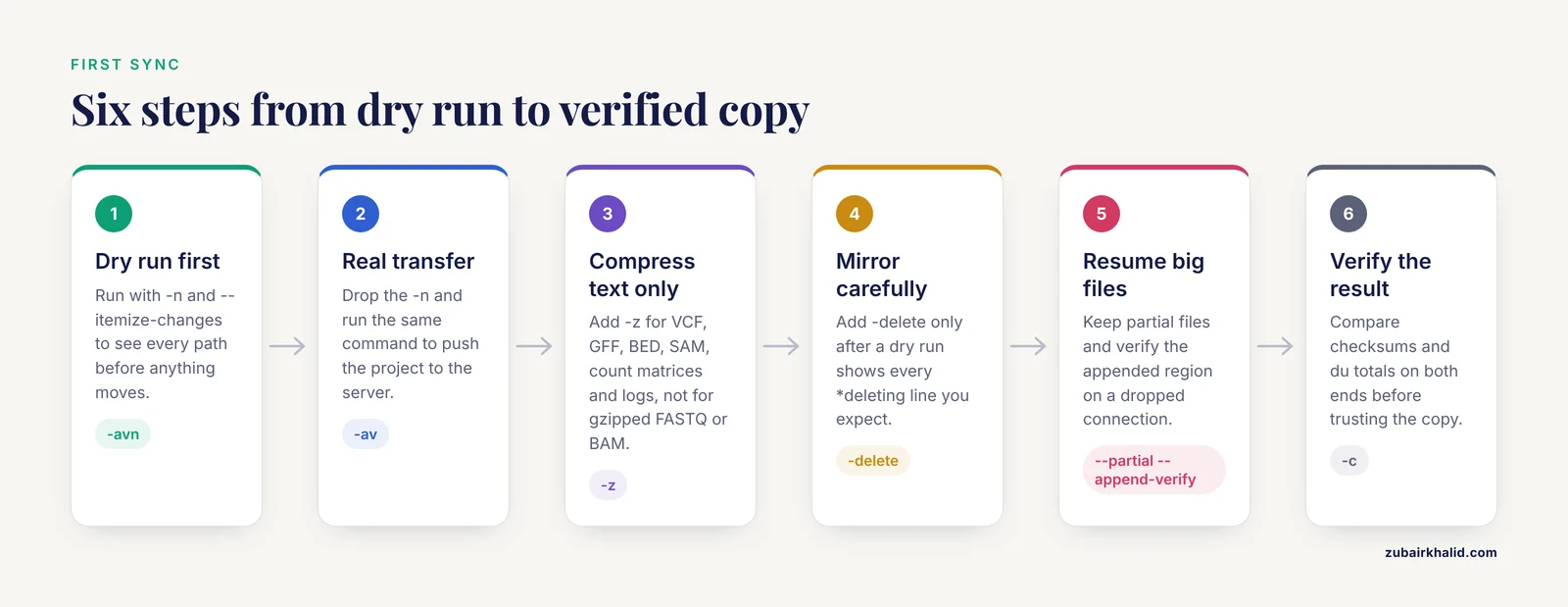
This walkthrough pushes a project from a laptop to a lab server. Substitute your own username, host, and paths throughout.
Step 1: Dry run first, always
Rsync has a preview mode, enabled with -n or -dry-run, that reports exactly what it would do without touching anything. Combined with verbose output and itemized changes, this is the single most useful habit in day-to-day work.
rsync -avn --itemize-changes \
    ~/projects/myproject/ \
    [email protected]:/scratch/jdoe/myproject/
Expected output:
sending incremental file list
.d..t...... ./
>fcT....... scripts/align.sh
>f+++++++++ results/counts/sample03_counts.txt
>f..tp..... logs/star_sample03.log

sent 1,203 bytes  received 47 bytes  500.00 bytes/sec
total size is 48,216,830,351  speedup is 38,542,117.61
Reading this output is a core linux-for-bioinformatics skill. The first field is a file-type and attribute summary. >f+++++++++ means a brand new file being fully transferred. >fcT....... means an existing file whose content and timestamp changed. A line starting with *deleting appears when -delete is active and a file would be removed on the destination. The speedup figure at the bottom shows how much data rsync avoided sending, which on a project with big unchanged BAM files is often several orders of magnitude.
Step 2: The real transfer
If the dry run looks right, drop the -n:
rsync -av --itemize-changes \
    ~/projects/myproject/ \
    [email protected]:/scratch/jdoe/myproject/
Expected progress and summary:
sending incremental file list
scripts/align.sh
results/counts/sample03_counts.txt
logs/star_sample03.log

sent 2,845,112 bytes  received 231 bytes  1,138,137.20 bytes/sec
total size is 48,216,830,351  speedup is 16,950.42
Step 3: Add compression for compressible files
Text formats such as VCF, GFF, BED, SAM, count matrices, and logs compress well in transit:
rsync -avz ~/projects/myproject/results/ jdoe@labserver:~/myproject/results/Use -z selectively. FASTQ files are almost always already gzipped, BAM and CRAM files are binary compressed formats, and using -z on them burns CPU on both ends to achieve nothing. A useful split is to sync text-heavy directories with -z and binary-heavy directories without it.
Step 4: Mirror with deletions, carefully
When the destination should exactly match the source, add -delete:
rsync -av --delete \
    ~/projects/myproject/ \
    [email protected]:/scratch/jdoe/myproject/
Run the dry run first every time you use -delete. The preview shows every *deleting line before anything is removed. Combined with -delete-excluded, rsync will also remove destination files that match your exclude patterns, which is more aggressive than most people expect.
Step 5: Resume a huge transfer
For a directory of large sequencing files where the connection may drop:
rsync -av --partial --append-verify \
    data/raw/ jdoe@labserver:/archive/raw/
-partial keeps the incomplete copy of an interrupted file instead of deleting it. -append-verify resumes by appending to the partial file and then verifying that the appended region matches the source, which protects you against a corrupted resume. On files where corruption risk is unacceptable, plain -partial plus rerunning the whole command is the conservative choice, because a full rerun will detect any mismatched blocks and retransfer them.
Step 6: Verify the result
Rsync's own quick check compares file size and modification time. For files that must be bit-identical, such as a reference genome or a delivered BAM, force a full content comparison:
rsync -avc data/ref/ jdoe@labserver:/archive/ref/The -c flag makes rsync compare checksums rather than timestamps, at the cost of reading every file on both ends. For independent verification, generate checksums on both sides and compare:
# on the source
find data/ref -type f -exec md5sum {} \; > ref.md5
# after transfer, on the destination
md5sum -c ref.md5
Expected output for a passing check:
data/ref/GRCm39.fa: OK
data/ref/GRCm39.fa.fai: OK
data/ref/genes.gtf.gz: OK
Also confirm the totals with du:
du -sh ~/projects/myproject/
ssh jdoe@labserver 'du -sh /scratch/jdoe/myproject/'
The two sizes should match unless you intentionally excluded files, used sparse-file handling, or the filesystems report block sizes differently.
The Options That Matter, in One Table
| Option | Long form | What it does | When a bioinformatician uses it |
|---|---|---|---|
-a | -archive | Recursive, preserves permissions, times, symlinks, owner and group where possible | Nearly always, the backbone of every sync |
-v | -verbose | Prints each transferred file | Any interactive run where you want to see what happened |
-n | -dry-run | Simulates the transfer without changing anything | Every time -delete or a new path is involved |
-P | combination of -partial, progress | Keeps partial files and shows progress | Large FASTQ, BAM, CRAM transfers over unstable links |
-z | -compress | Compresses data in transit | Text files such as VCF, GFF, logs, count matrices |
-c | -checksum | Compares file contents, not timestamps | Verifying critical reference and result files |
-delete | same | Removes destination files absent from the source | Mirroring a results directory after a pipeline rerun |
-exclude | same | Skips files matching a pattern | Skipping intermediates, *.tmp, editor backups |
-bwlimit=KBPS | same | Limits transfer rate in kilobytes per second | Sharing a lab or home connection during the day |
-e "ssh -p 2222" | -rsh | Specifies the remote shell and its options | Non-standard SSH ports on institutional servers |
-rsync-path=PATH | same | Path to the rsync binary on the remote | HPC systems where rsync is only available through modules |
-H | -hard-links | Preserves hard links | Syncing backup trees or deduplicated snapshot directories |
Syncing With an HPC Cluster
Cluster transfers introduce three practical issues beyond plain rsync.
Authentication. Set up SSH key authentication so scripts run unattended. Generate a key once with ssh-keygen -t ed25519, copy the public key to the cluster with ssh-copy-id [email protected], and confirm passwordless login. Then define the host in ~/.ssh/config:
Host hpc
    HostName hpc.university.edu
    User jdoe
    Port 22
    ServerAliveInterval 60
With that in place, every rsync command shortens to rsync -av scripts/ hpc:/scratch/jdoe/myproject/scripts/, which makes scripts far more readable.
Login node etiquette. Most clusters throttle or discourage long-running processes on login nodes. A sync of a few hundred gigabytes can run for hours. If your cluster provides data transfer nodes or a dedicated transfer queue, run rsync there. When no such resource exists, schedule large syncs with -bwlimit so you do not saturate the login node's network link, and run them during off-hours.
Directory placement. Home directories on clusters usually have modest quotas and are backed up, while scratch and work filesystems are large but periodically purged. A pattern that works well is to sync the full project into scratch for active computation, and sync only scripts, small results, and logs back to your home directory or laptop as the durable record. Projects that chain many semi-automated steps, like the multi-tool genome improvement pipeline described for banana, generate intermediates worth hundreds of gigabytes that nobody needs to keep forever, so syncing the pipeline code and final outputs while letting scratch intermediates lapse is a deliberate, defensible strategy [4].
Excluding the Right Files
Sync exclusion is where a bioinformatics project either stays tidy or bloats into a multi-terabyte mirror of every intermediate. Use -exclude with patterns:
rsync -av \
    --exclude='.snakemake/incomplete/' \
    --exclude='*.tmp' \
    --exclude='*.swp' \
    --exclude='.ipynb_checkpoints/' \
    --exclude='logs/cluster/' \
    ~/projects/myproject/ hpc:/scratch/jdoe/myproject/
For recurring exclusion lists, put patterns in a file and reference it:
# file: rsync-exclude.txt
.Rhistory
*.pyc
__pycache__/
*.o
*.Rout
work/intermediate/
rsync -av --exclude-from='rsync-exclude.txt' ~/projects/myproject/ hpc:/scratch/jdoe/myproject/Pattern rules to remember: a pattern with no slash matches at any level, a leading slash anchors the pattern to the transfer root, and a trailing slash on a directory pattern excludes the directory itself. Test the effect with a dry run before trusting any exclude list, because one overly broad pattern such as *.txt can silently skip files you needed.
A special case deserves attention. When your pipeline rerun regenerates outputs and old versions should vanish from the mirror, -delete handles it, but files written by a currently running job are in flux. Sync only after a pipeline completes, or exclude the directories being actively written. Rsync has no transactional guarantees about a file that changes while it is being read, and a BAM file copied mid-write is a corrupt file.
Automating Syncs
A nightly sync keeps a server copy current without anyone remembering to run it. Use cron on the machine that acts as the source:
crontab -eAdd a line that runs at 2:00 in the morning, logs its output, and prevents overlapping runs:
0 2 * * * /usr/bin/flock -n /tmp/myproject-sync.lock /usr/bin/rsync -a --delete --log-file=/home/jdoe/logs/rsync-nightly.log /home/jdoe/projects/myproject/ hpc:/scratch/jdoe/myproject/ >> /home/jdoe/logs/rsync-cron.out 2>&1Three details make this reliable. The -log-file option records per-file transfer decisions in a format you can grep later, which is how you answer "did last night's sync actually copy the new VCF" without rerunning anything. The flock command prevents a second sync from starting if one is still running, which matters for large projects. And because cron jobs run without your SSH agent, key-based authentication with an unencrypted key or a key managed through ssh-agent forwarding must be working beforehand. Test the exact command interactively, then confirm the first cron execution by checking the log file the next morning.
For snapshot-style history on a receiving server, -link-dest creates dated backups that share storage through hard links:
rsync -a --link-dest=/backups/myproject/$(date -d yesterday +%F)/ \
    ~/projects/myproject/ /backups/myproject/$(date +%F)/
Each dated directory looks like a full copy but only changed files consume new space, because unchanged files are hard links to the previous day. Add -H when syncing such trees so the hard links survive.
Checking That Everything Went Right
A sync is not finished when the command returns. The verification habit has three layers.
First, structural comparison. rsync -avn against the same paths after the transfer should report nothing to do. If it lists files, either something changed at the source mid-transfer or a file failed.
Second, content spot checks. For files whose integrity matters most, such as reference FASTA files, indices, and final result tables, compare checksums as shown earlier. Sequencing cores often ship MD5 files alongside delivered FASTQ files, and running md5sum -c on the received data before deleting your local copy is standard practice in genome projects that profile large sample sets across institutions [3].
Third, size and count comparison. du -sh on both ends catches gross omissions, and find . -type f | wc -l on both ends catches missing files that happen to be zero bytes.
If any check fails, rerun rsync itself. Because rsync is incremental, rerunning a full sync after a partial failure costs only the time needed to fix what is missing, which is exactly why verification is cheap and worth doing.
Common Mistakes and Limitations
The trailing slash surprise. rsync -av src dest copies the directory src into dest, giving you dest/src. rsync -av src/ dest copies the contents of src into dest. This one character causes more "why is there a nested duplicate of my project" confusion than any other rsync behavior. Decide the layout you want, run a dry run, and read the itemized paths before pressing enter on the real command.
Running -delete without a dry run. -delete removes destination files that no longer exist at the source. Point it at the wrong directory, or swap source and destination by accident, and rsync will helpfully delete files on your good copy to make it match an emptier one. The dry run is not optional ceremony. It is the safety interlock.
Treating rsync as a backup. Rsync mirrors. If you delete a file at the source and sync with -delete, the file is now gone from both machines. True protection requires either snapshot-based backups such as the -link-dest pattern above, or a separate backup system with retention history. Project-based bioinformatics training stresses reproducibility of the analysis path, but the data behind the analysis still needs its own protection strategy [1].
Transferring through the login node at full speed. A rsync -a with no bandwidth limit on a shared login node can saturate a link that dozens of colleagues depend on. Use -bwlimit, use transfer nodes when offered, and check your institution's policy. This is basic citizenship on shared systems.
Compressing the incompressible. -z on FASTQ.gz, BAM, and CRAM files spends CPU on both ends for no bandwidth savings. Apply compression selectively by directory or file type.
Ignoring modification times and clock skew. Rsync's default quick check compares size and modification time. If the two machines have significantly different clocks, or a tool rewrote files with identical content, rsync may retransfer files unnecessarily or, in rare misconfigured cases, skip files that changed. The -c checksum comparison resolves any doubt at the cost of full reads.
Case sensitivity mismatches. Linux filesystems distinguish Sample1.fastq from sample1.fastq. Syncing between a case-sensitive Linux server and a case-insensitive macOS or Windows filesystem can collide two files into one. Sanitize filenames early in the project with a consistent lowercase, underscore-only convention.
Symlinks pointing outside the project. With -a, rsync transfers symlinks as symlinks. A symlink to a shared reference on your laptop becomes a dangling link on the cluster. Either keep references inside the project tree or re-create the links on the remote side deliberately. -copy-links dereferences symlinks into real files, which is sometimes what you want and sometimes silently copies hundreds of gigabytes you did not.
Permissions and ownership noise. When syncing into a shared group directory, -a tries to preserve owner and group, which a non-root user cannot set, producing persistent warnings. Drop to rsync -rlptD (or use -a and ignore the ownership warnings) and set group permissions through the cluster's group ownership model instead.
Rsync and active writes. Files being written by a running job are copied in whatever state they are in at read time. There is no atomicity. Sync after jobs finish, or exclude directories under active computation.
Resource cost of checksums. -checksum and -c reads every file on both ends. On a 10 TB project this can take hours of disk I/O on shared storage. Reserve it for the files that matter or run it during quiet windows.
Assuming deleted means corrupted. When a rerun legitimately produces fewer files, *deleting lines in the log are correct behavior, not data loss. Read the log rather than reacting to its shape.
Frequently Asked Questions
What does the trailing slash mean in rsync?
A trailing slash on the source path means "copy the contents of this directory into the destination," while no trailing slash means "copy the directory itself into the destination." rsync -a data/ backup/ puts the files of data directly inside backup, and rsync -a data backup/ creates backup/data. When in doubt, run with -n first and read the listed paths.
Is rsync safe to use while a pipeline is still running?
No, not for files the pipeline is actively writing. Rsync has no guarantee that a file it reads is in a complete, consistent state, so a BAM written mid-transfer can arrive corrupt. Either wait for the pipeline to finish or exclude the directories being written to during the run.
How do I resume a partially transferred FASTQ file?
Use -partial so rsync keeps the incomplete file on the destination, and consider -append-verify so a resumed transfer appends and then verifies the appended region against the source. Rerunning the same command after an interruption picks up from the partial file instead of starting over.
Why is rsync usually faster than scp for a second transfer?
Scp copies everything, every time. Rsync compares source and destination, transfers only files that differ, and for large changed files transfers only the changed blocks. On a project with terabytes of unchanged BAM files, the rsync summary line's speedup figure regularly shows it moved kilobytes where scp would have moved terabytes.
How do I exclude large intermediate files from a sync?
Use -exclude with a pattern, or collect patterns in a file and pass it with -exclude-from. A common set for pipeline work excludes .snakemake/incomplete/, *.tmp, pycache/, editor swap files, and known intermediate directories. Always confirm the effect with a dry run, because a broad pattern can silently skip files you needed.
Should I use rsync or git for my bioinformatics project?
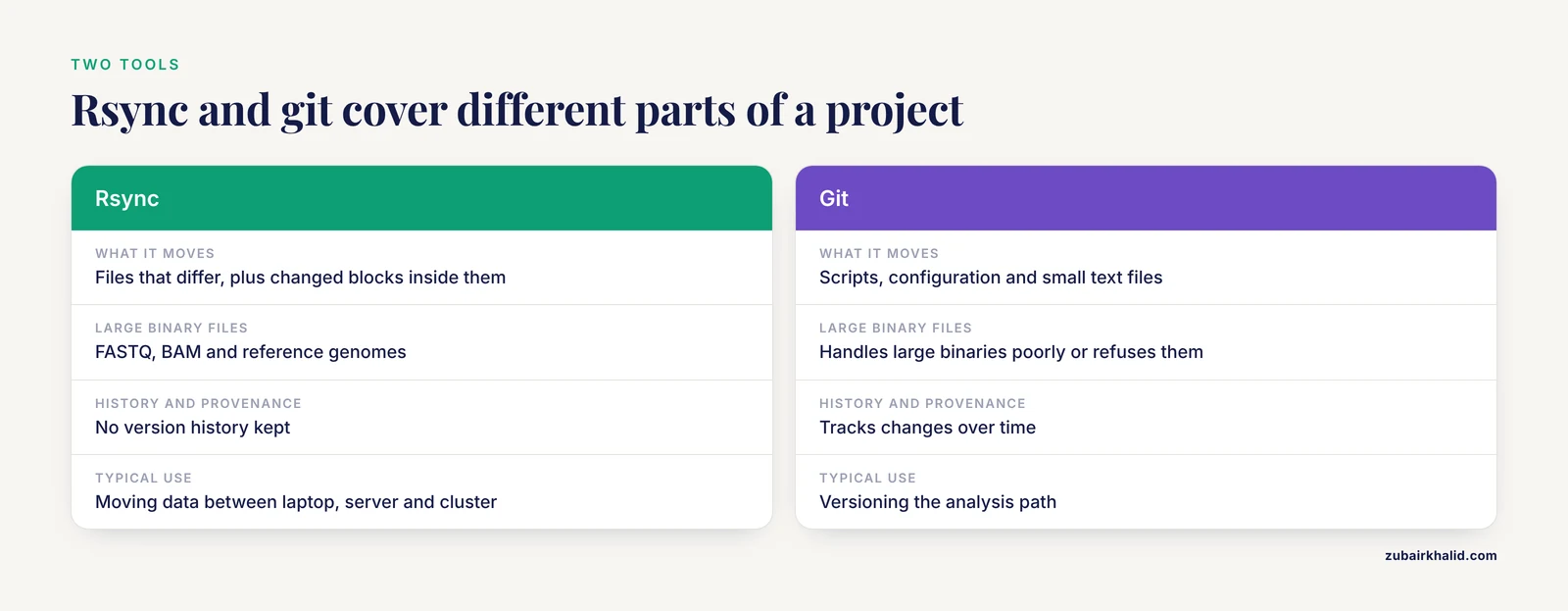
Use both, for different things. Git tracks scripts, configuration, small text files, and history, which rsync does not. Rsync moves the large binary files that git handles poorly or refuses, such as FASTQ, BAM, and reference genomes. A project synced with rsync and versioned with git covers both the data movement and the analysis provenance.
How do I run rsync automatically every night?
Add a cron entry on the source machine that runs your rsync command with -delete, writes a -log-file, and wraps the command in flock to prevent overlapping runs. Set up SSH key authentication first, because cron jobs cannot type passwords, and verify the first automated run by checking the log file the next day.
Does -delete make the destination an exact copy of the source?
It makes the file listing match, but exactness also depends on your exclude patterns and the flags you use. -delete removes destination files absent from the source, -delete-excluded also removes files matching your excludes, and without -a some attributes may not be preserved. Read the dry-run output to see the exact end state before committing to it.
Sources
- The application of project-based learning in bioinformatics training
- Design and implementation of semester long project and problem based bioinformatics course
- Genomic Methods and Microbiological Technologies for Profiling Novel and Extreme Environments for the Extreme Microbiome Project (XMP).
- Improvement of the banana “Musa acuminata” reference sequence using NGS data and semi-automated bioinformatics methods
- Bioinformatics and Computational Biology Solutions Using R and Bioconductor
- The Bio3D Project: Interactive Tools for Structural Bioinformatics